Add and remove meal breaks
When to add meal breaks and how to remove them
When building your call sheet, you can easily add meal breaks to ensure your cast and crew know when they'll be fed. You can add a breakfast, 1st meal, and 2nd meal break.
Adding a meal break
- From the project dashboard, click Call Sheets in the top navigation bar.
- Click Edit on the call sheet you want to update.
- In the Call Sheet Editor, open the Day Details section.
- Click the Times & Weather tab and find the Meals section.
- Enter a time into the Breakfast Start, 1st Meal Start, or 2nd Meal Start field.
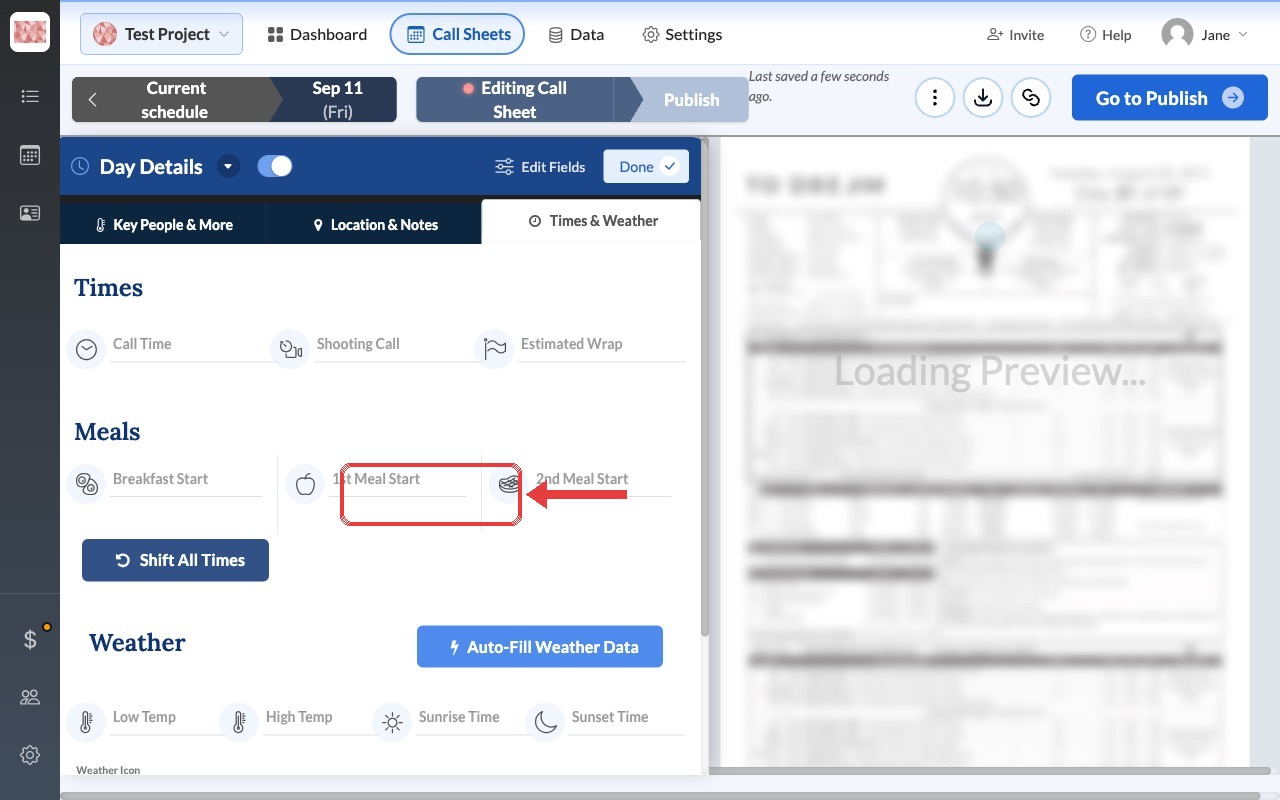
Once you enter a start time, the Duration and Count fields will appear. You can use these fields to specify how long the meal break will last and how many people are expected to eat (useful for catering).
Note: Most shoot days only need a single meal break, so you'll usually just fill in the 1st Meal Start. It's rare to list a 2nd meal break — reserve it for longer days that actually schedule a second meal.
Removing a meal break
If you need to remove a meal break from your call sheet, you can do so with a single click.
- In the Call Sheet Editor, open the Day Details section.
- Click the Times & Weather tab and find the Meals section.
- Locate the meal break you want to remove.
- Click the Remove meal link directly below the start time field.
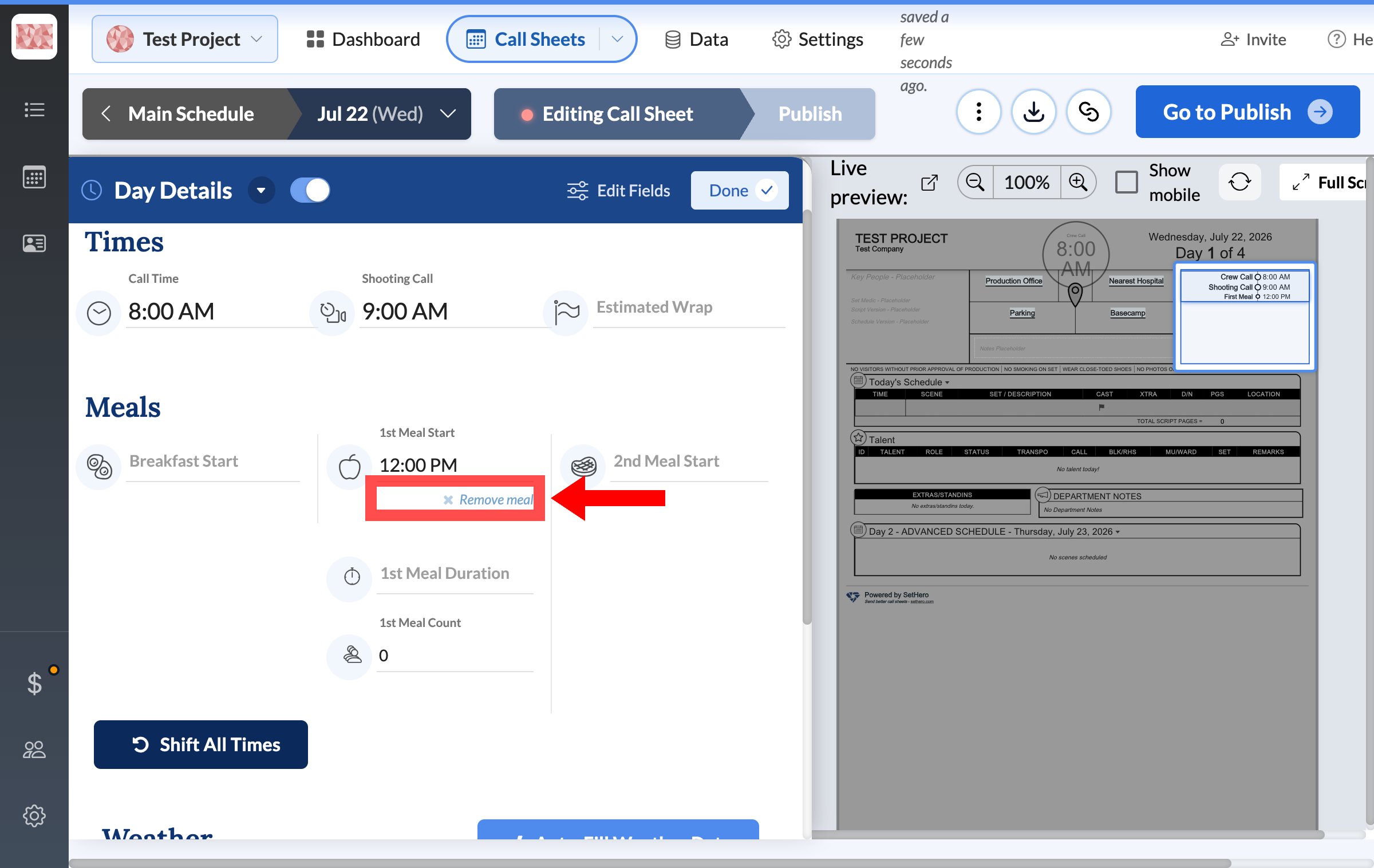
This will clear the start time, duration, and count for that meal break, removing it from your call sheet.