Save and reuse a call sheet template
How to save a call sheet template and reuse it
After customizing your call sheet's layout, you can save it as a template to reuse on future days or other projects. Templates save your section order, visibility, custom notes, and table column settings.
Save a new template
-
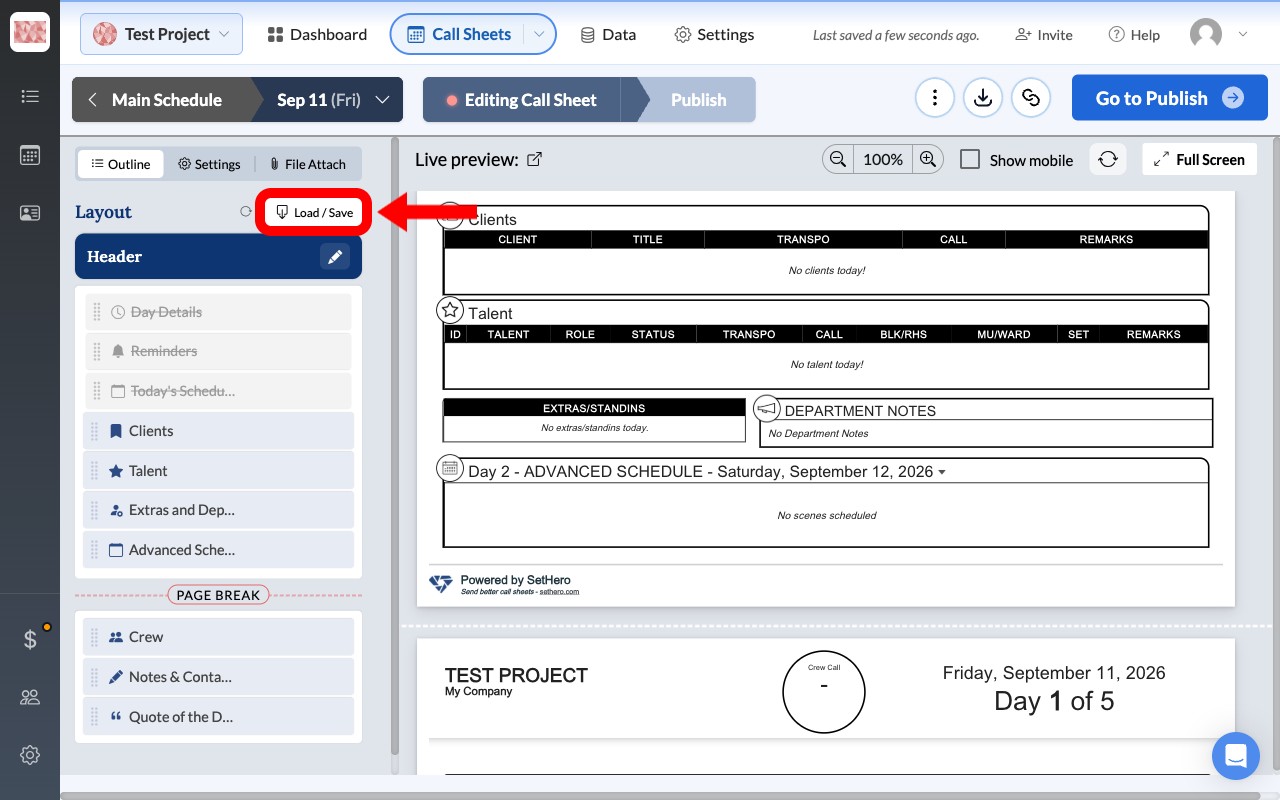
From the Call Sheet Editor, click the Load / Save button under the Layout section.
-
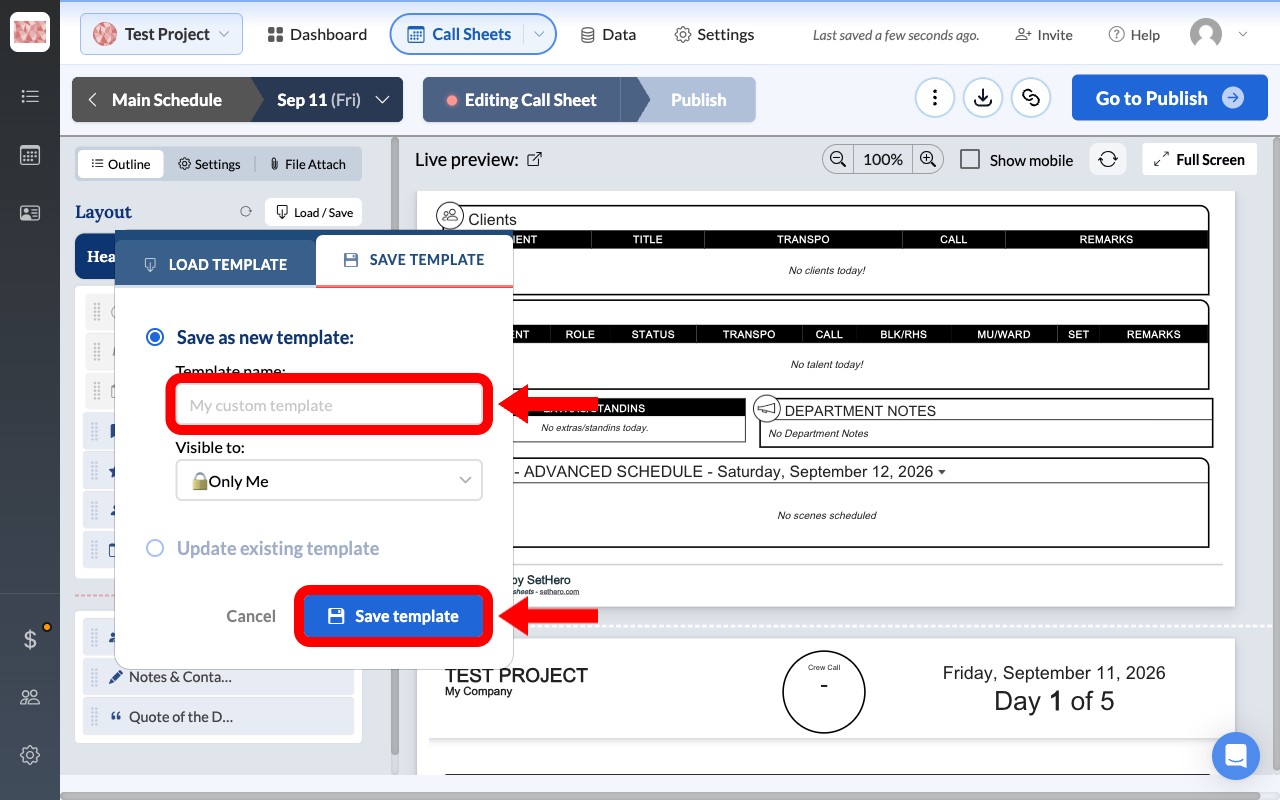
In the popover, click the Save Template tab.
-
Select Save as new template.
-
Enter a Template name (e.g., "Standard Shoot" or "Second Unit").
-
Choose who can see this template under Visible to.
-
Click Save template.
Load an existing template
When you create a new call sheet, you can load a saved template to instantly apply your preferred layout.
Note: Loading a template only updates layout and visibility settings; it will not change your actual call sheet data (like cast, crew, or schedule times).
-
From the Call Sheet Editor, click the Load / Save button under the Layout section.
-
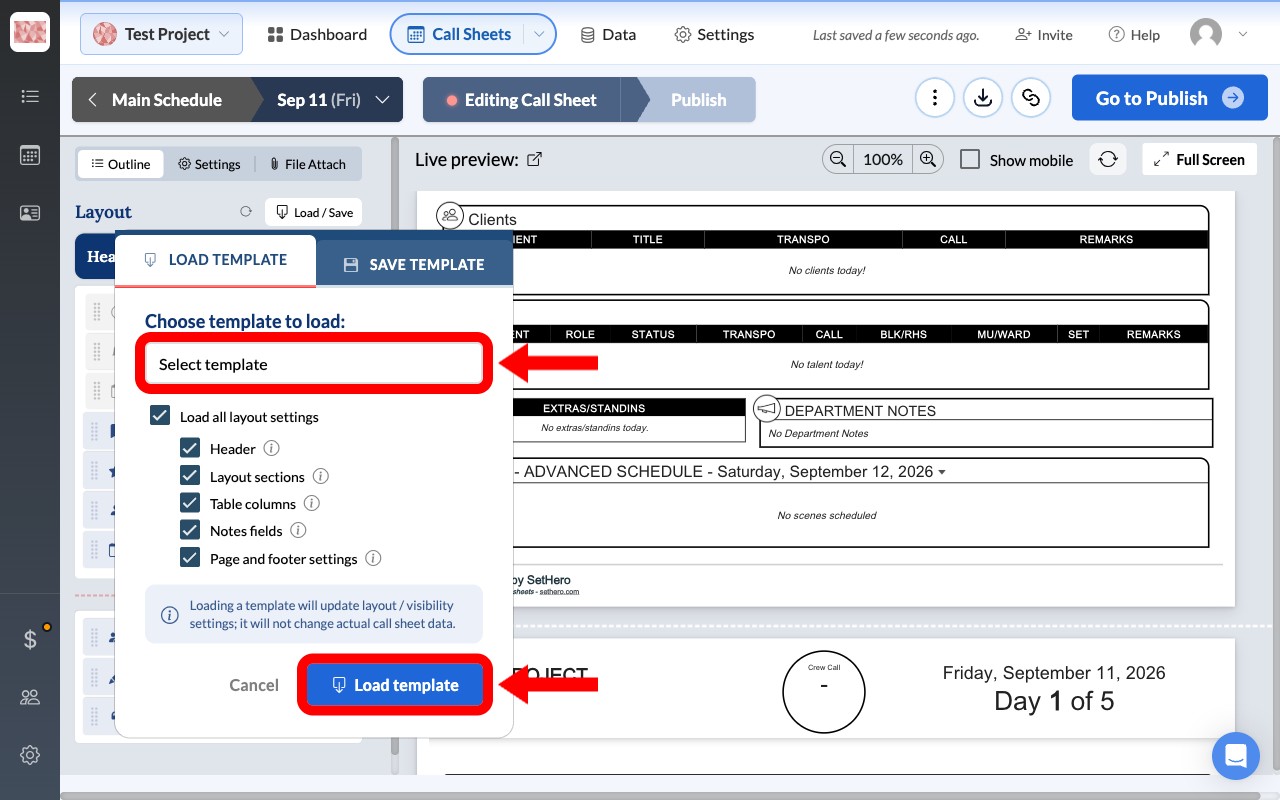
In the popover, click the Load Template tab.
-
Choose your template from the Choose template to load dropdown.
-
(Optional) Uncheck Load all layout settings if you only want to load specific parts of the template, such as the Header or Table columns.
-
Click Load template.