Merge duplicate contacts
How duplicates merge, which details remain, and what happens to assignments
When importing contacts from a spreadsheet or adding them manually, you might occasionally end up with duplicate records for the same person. You can merge the records so only one contact remains.
Important: You choose one primary record, and only its contact details are kept. A merge doesn't fill in an email, phone number, or other blank field from the records being removed. Project assignments, cast and crew roles, and call sheet activity from all selected records move to the merged contact. A merge can't be undone.
How to merge duplicate contacts
You can merge multiple duplicate contacts into one by following these steps:
-
From your company page, select All Contacts in the sidebar.
-
Find the duplicate contacts using the search bar or filters.
-
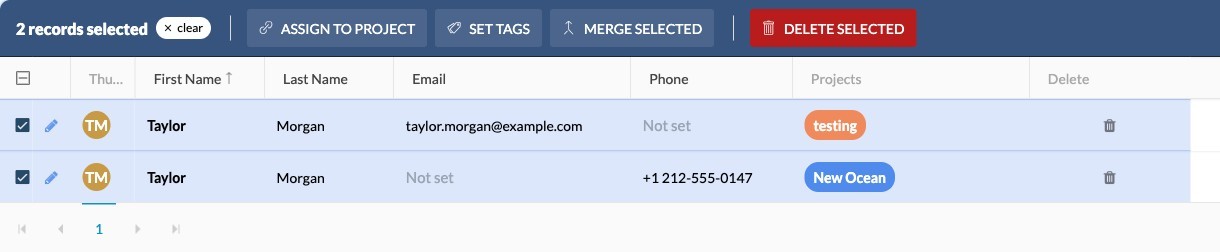
Compare the records and decide which contact information you want to retain. If needed, add missing details to the record you plan to keep before merging.
-
Check the Select box next to each duplicate.
-
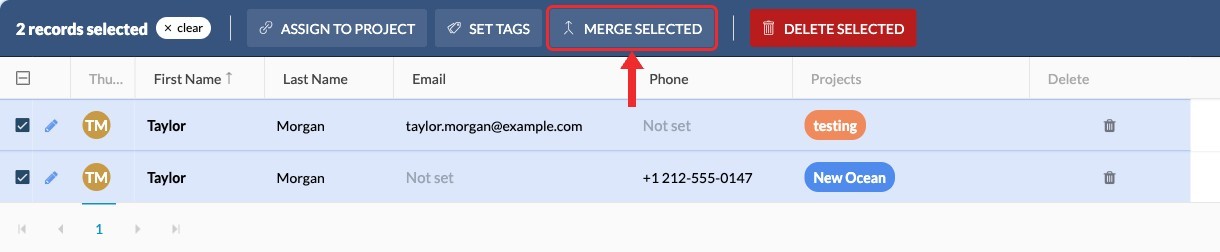
Click Merge Selected in the toolbar.
-
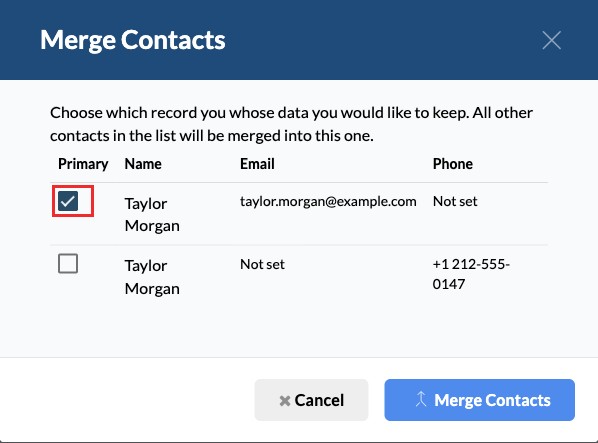
In the Merge Contacts modal, select the primary record you want to keep. SetHero preselects the first contact, so check that it's the right one. The other selected records will be removed.
-
Click Merge Contacts to confirm.
-
Search for the contact again and verify that one record remains. Confirm that its project assignments include the projects from each duplicate and that the primary record's contact details were retained. If a detail is missing, edit the contact and add it.
