Archive, restore, or delete a project
What archiving does, how to restore projects, and when deletion is permanent
When a production wraps or a test project has served its purpose, archive it or delete it to keep your dashboard tidy.
Note: SetHero no longer marks projects as complete. A project is either active or archived, so archive a project to close it out and restore it to reopen it.
Important: Only the Project Owner can archive, restore, or delete a project. If you don't own it, these options show an error when you try them.
Archive a project
Archiving hides a project from your Active Projects list while keeping everything in it: call sheets, contacts, schedules, and settings. You can restore it any time.
-
On your Company Dashboard, click Projects in the left menu and make sure the filter reads Active Projects.
-
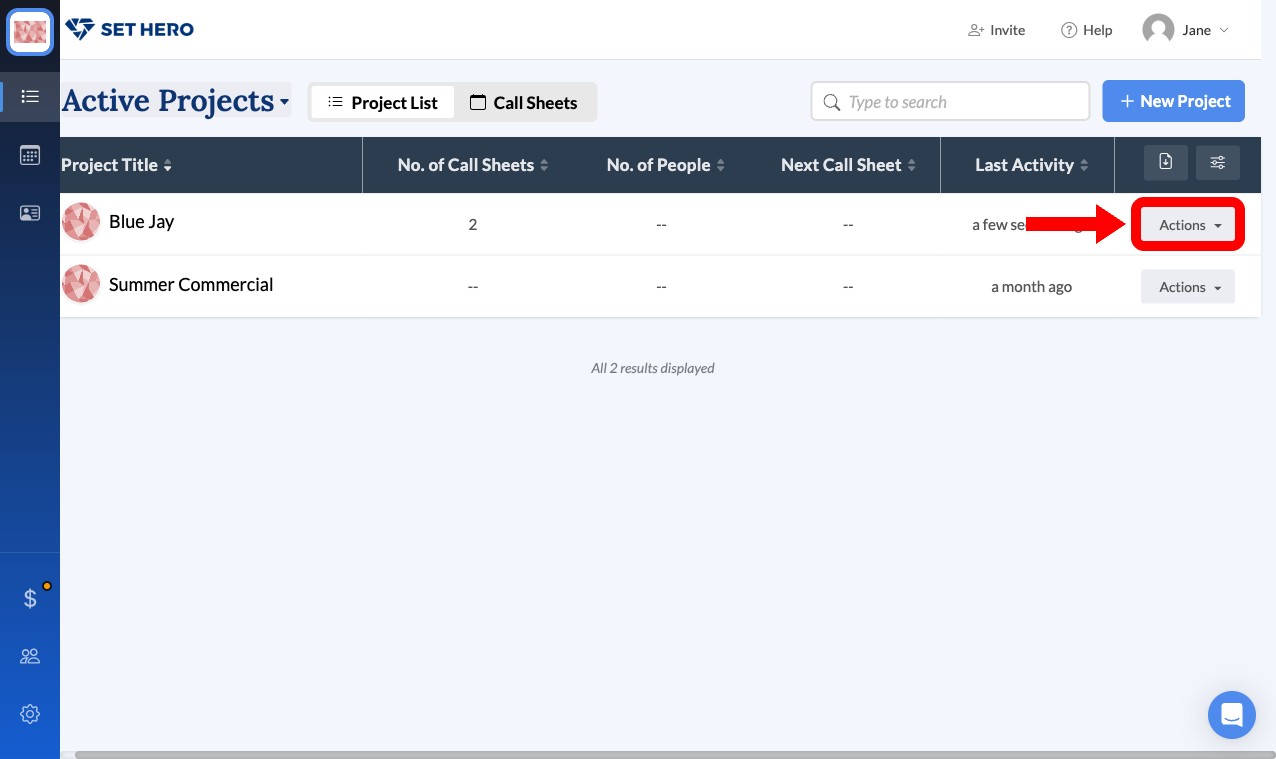
Find the project and click the Actions button at the end of its row.
-
Select Move to Archive.
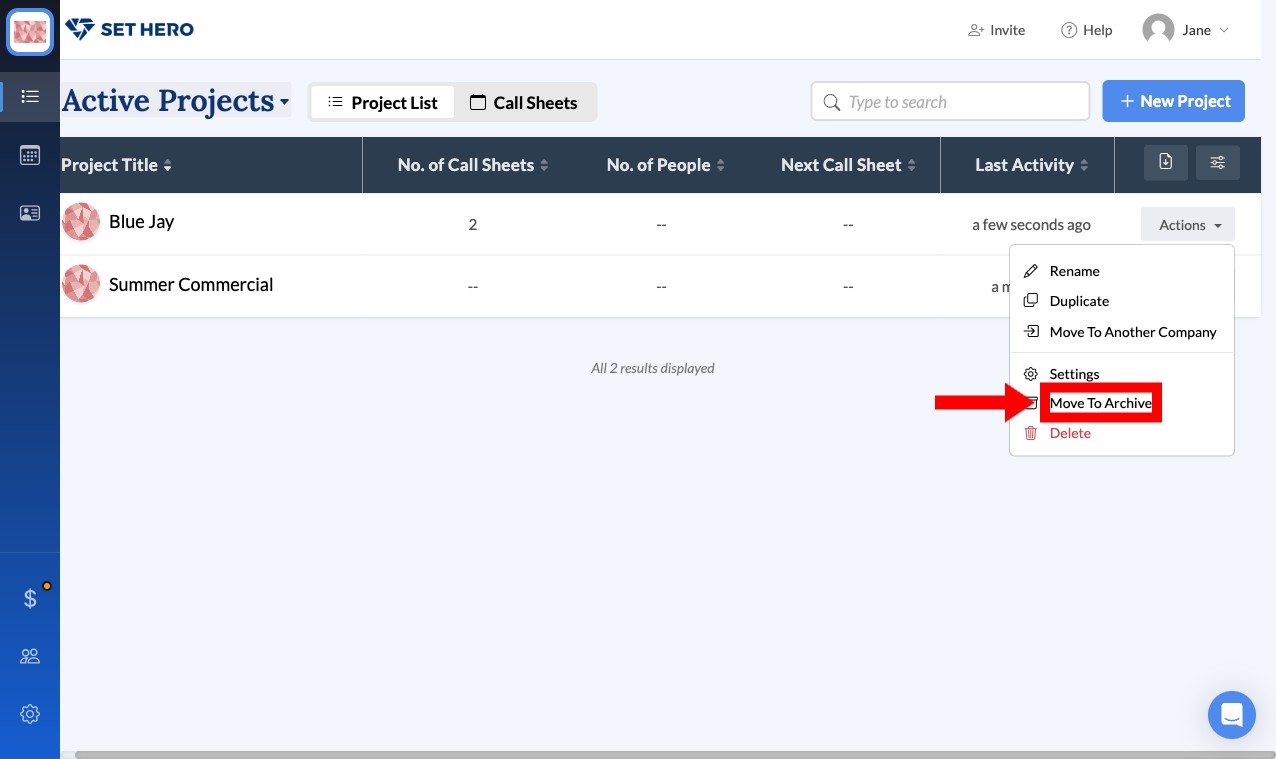
The project disappears from the active list right away.
Restore an archived project
-
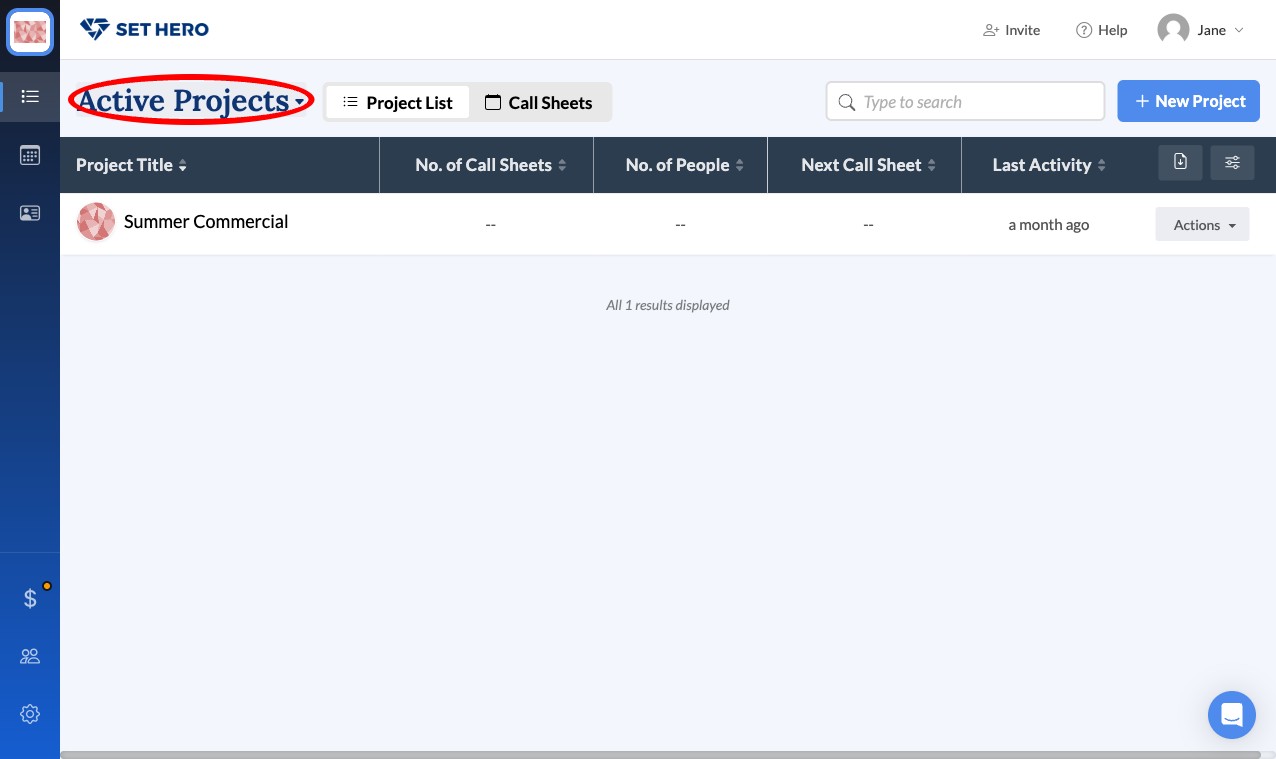
Under Projects, click the Active Projects dropdown near the top left and choose Archived Projects.
-
Find the project, click its Actions button, and select Restore as Active.
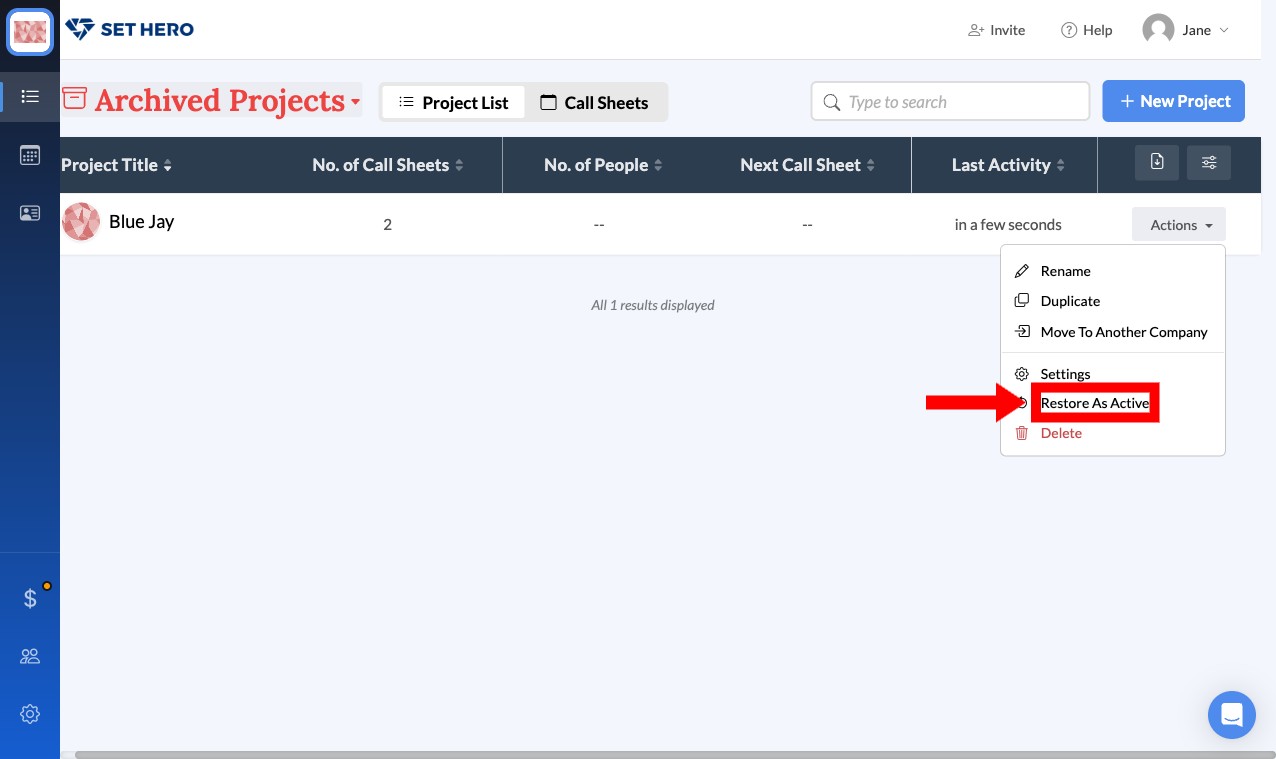
It moves back to your Active Projects list immediately.
Delete a project permanently
Deleting removes the project and all of its data from SetHero.
Warning: Deletion is permanent and can't be undone. Double-check before you confirm.
-
Find the project in either the Active Projects or Archived Projects list.
-
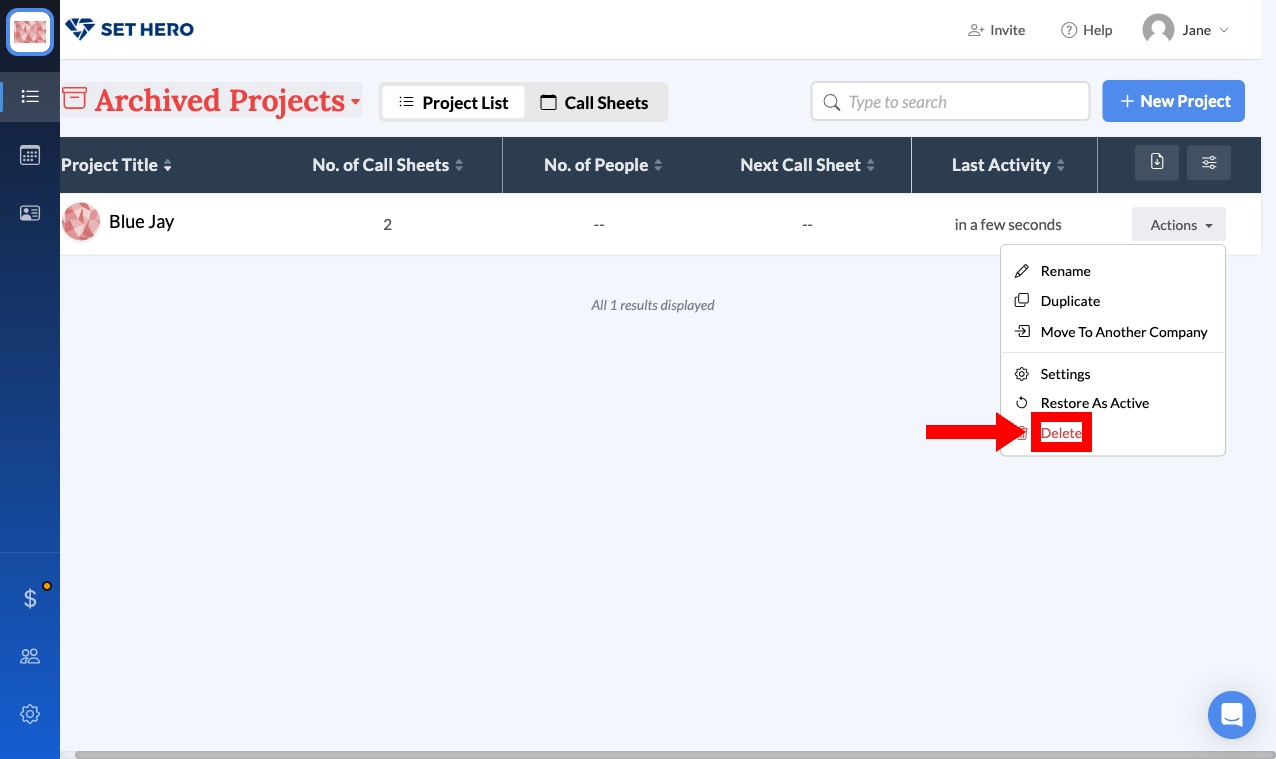
Click its Actions button and select Delete, the red option at the bottom of the menu.
-
Confirm in the window that appears.
Need help?
If you have questions about project status, reach out to support@sethero.com.