Set up departments and positions
How departments and positions are organized, moved, and reused with presets
Departments and positions are the backbone of your call sheets and crew lists. SetHero starts you with standard templates, and you can customize them freely and save your own presets for future projects.
To get there, open your project and go to Settings → Departments.
Add a department
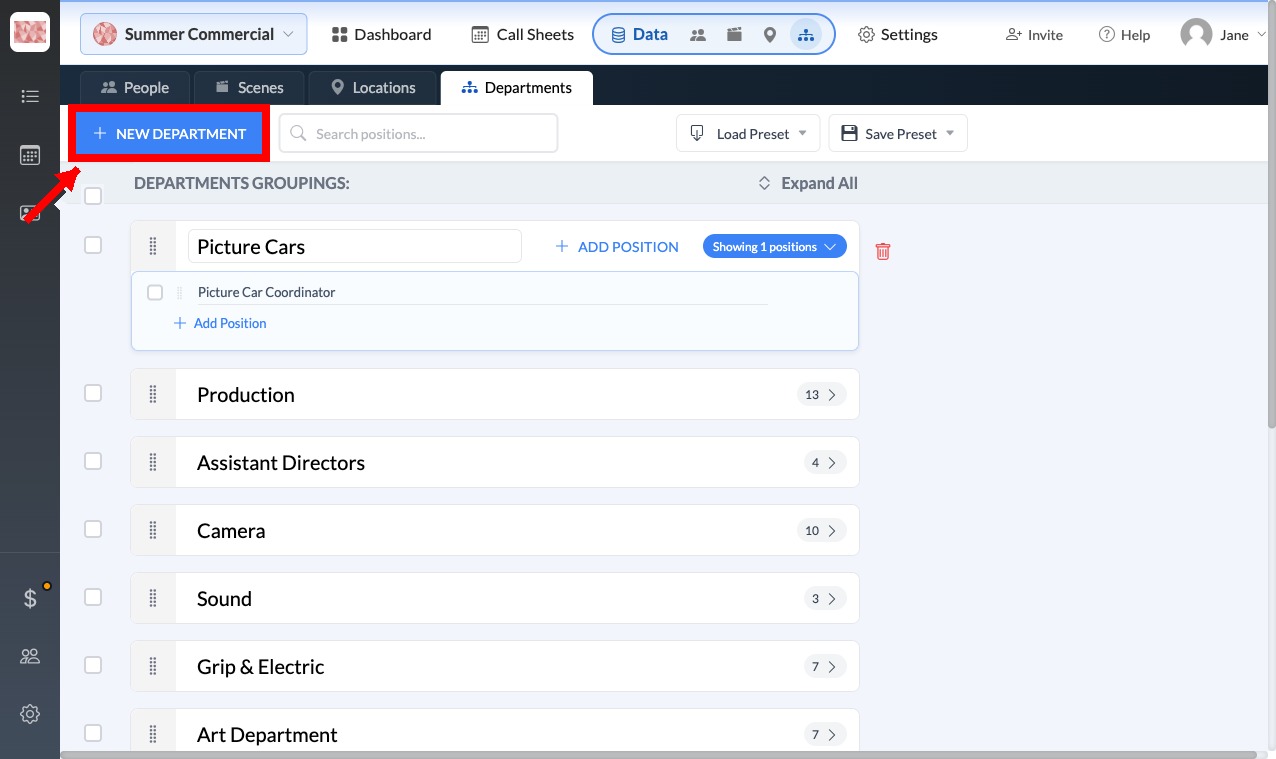
Click New Department in the top action bar. A new block appears at the top of the list. Type the name into Department Name, such as "Picture Cars".
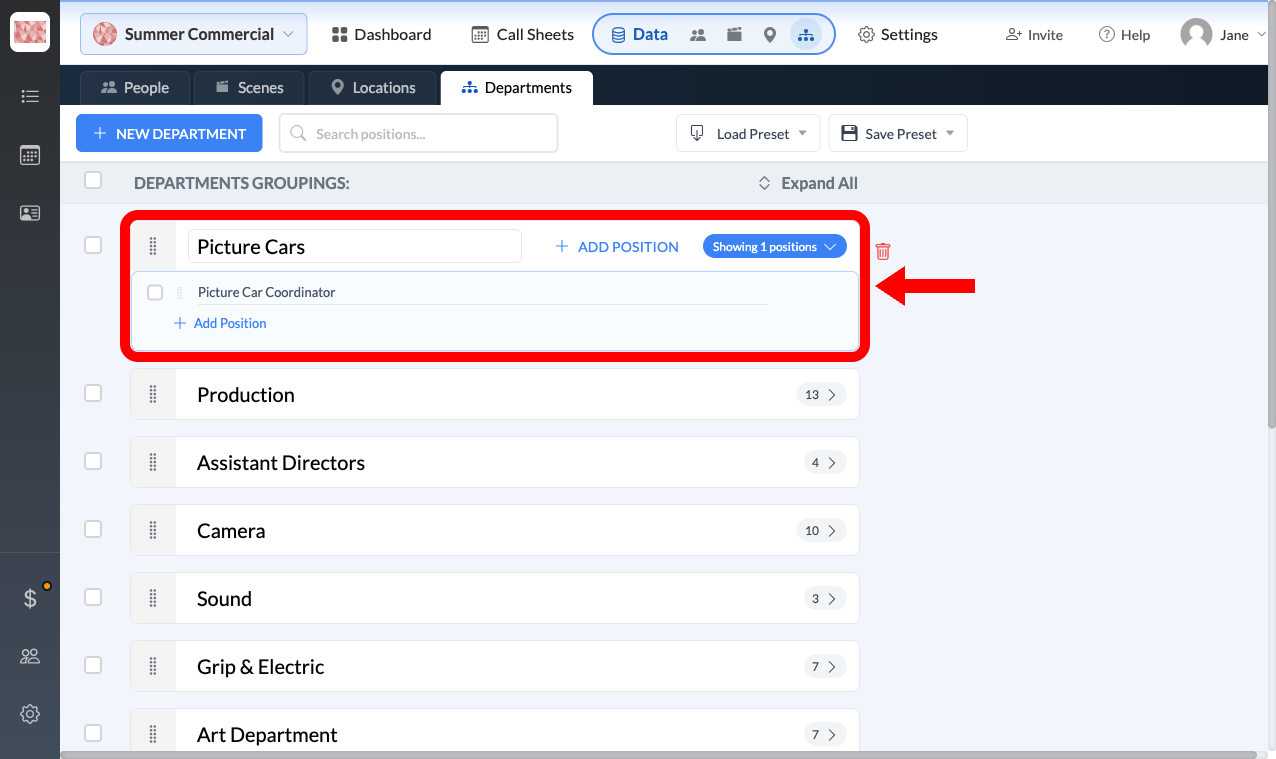
Then click Add Position inside that block and enter the title, such as "Picture Car Coordinator". Repeat for each position you need. You can add positions to any existing department the same way.
Reorder or move positions
The order on this page is the order crew appear on your call sheets, so it's worth getting right. Drag the grip icon on the left of a position row to reorder it within its department. Drag a department's grip icon to reorder departments.
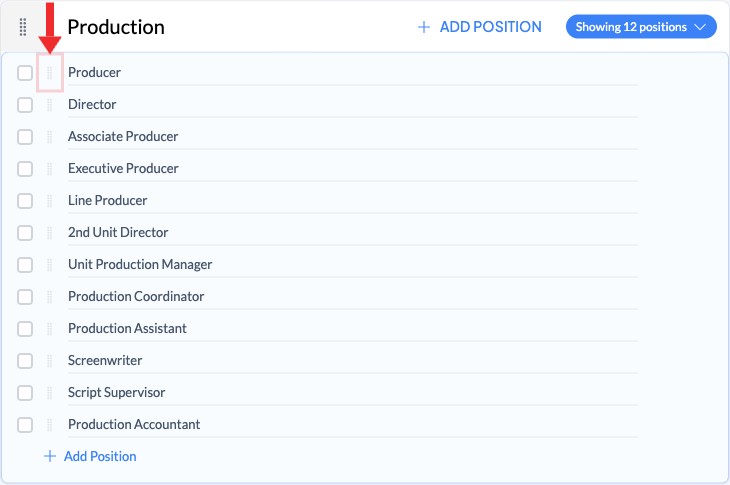
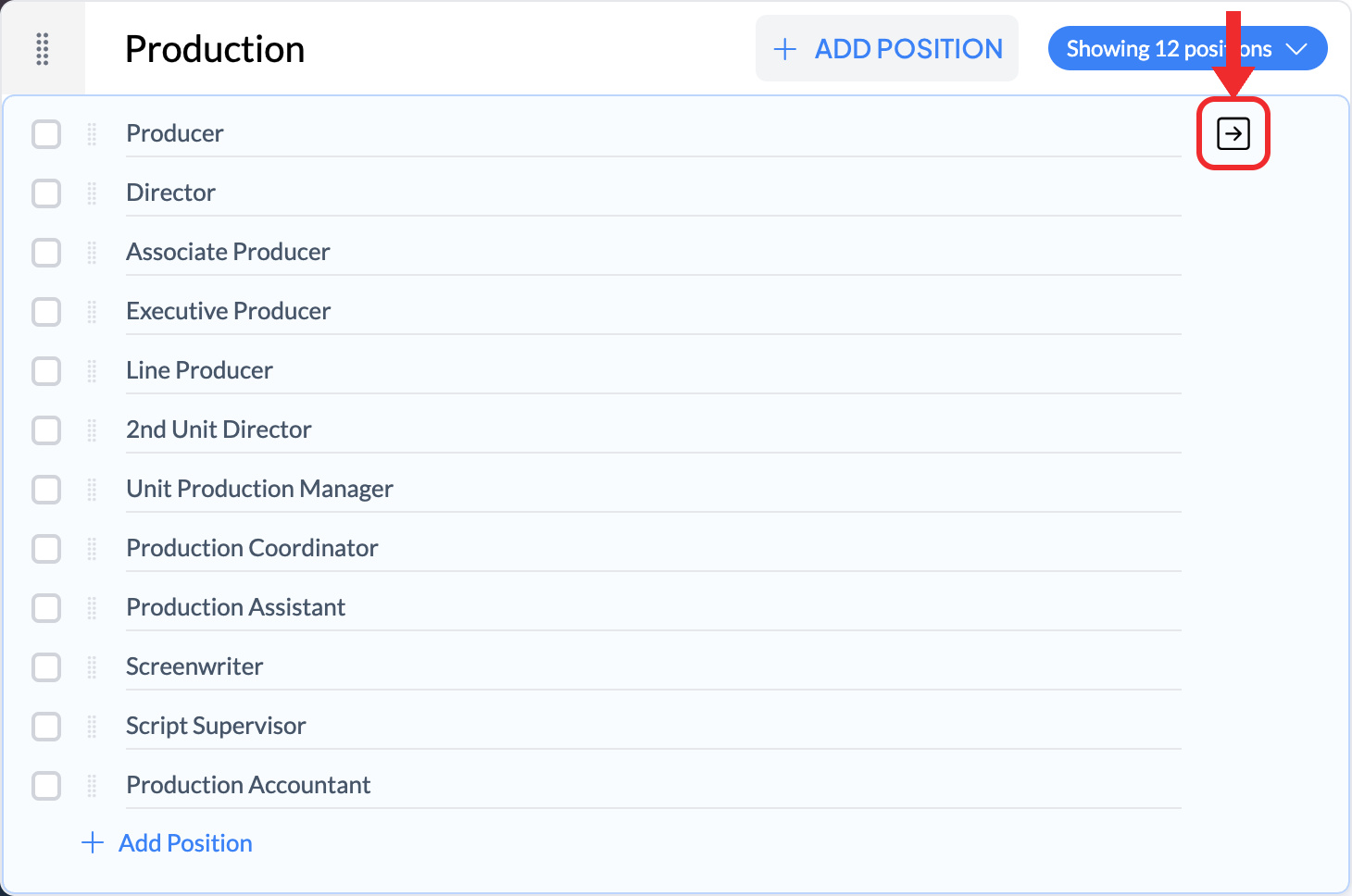
To move a position to a different department, hover it and click the square arrow button on the right, then pick the destination from the Move position to list. It moves immediately. Changes save automatically.
Delete departments or positions
To delete one position, hover it and click Delete Position. To delete whole departments, select them and click Delete Selected in the top action bar. Reset in the same bar deletes all your departments and positions.
Warning: Deleting a department or resetting unlinks any crew assigned to those positions. SetHero asks you to confirm first.
Save your setup as a preset
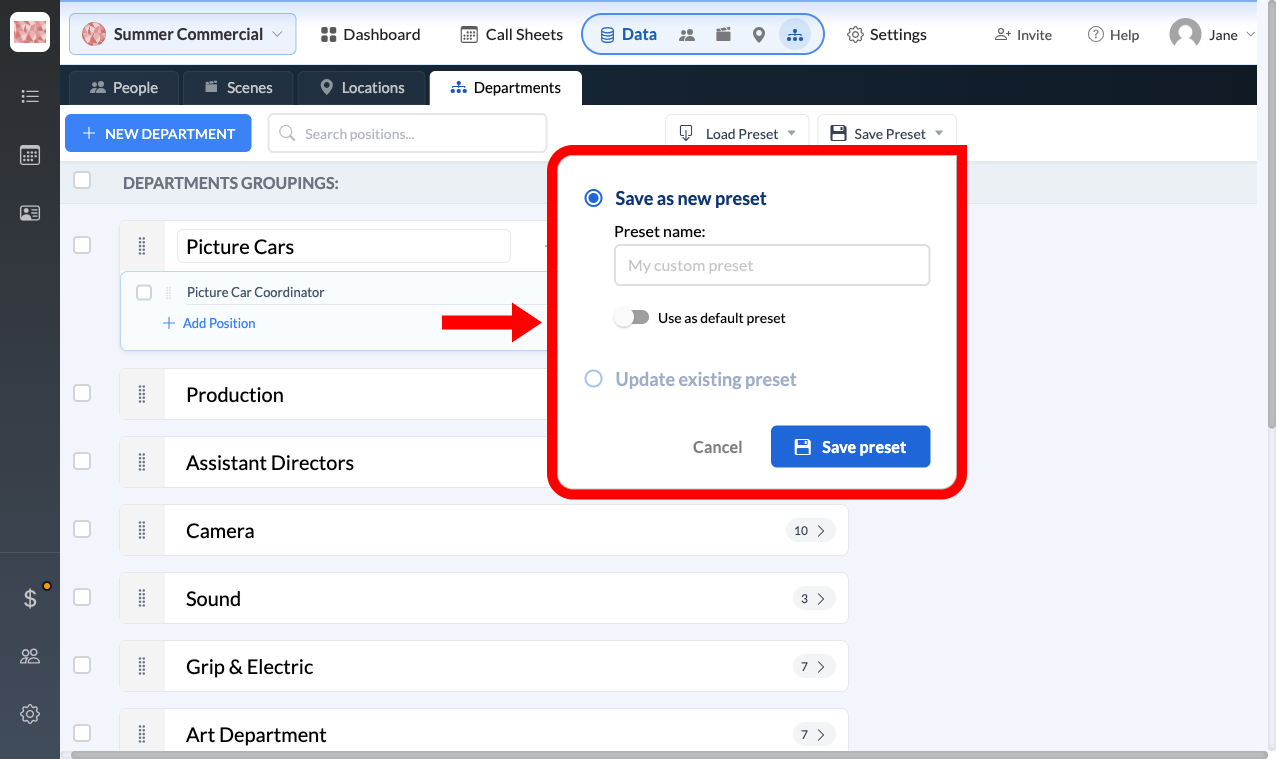
Once your structure is right, click Save Preset in the top action bar and choose Save as new preset. Give it a name like "Commercial shoot standard", optionally check Use as default preset to apply it to every new project, and click Save preset.
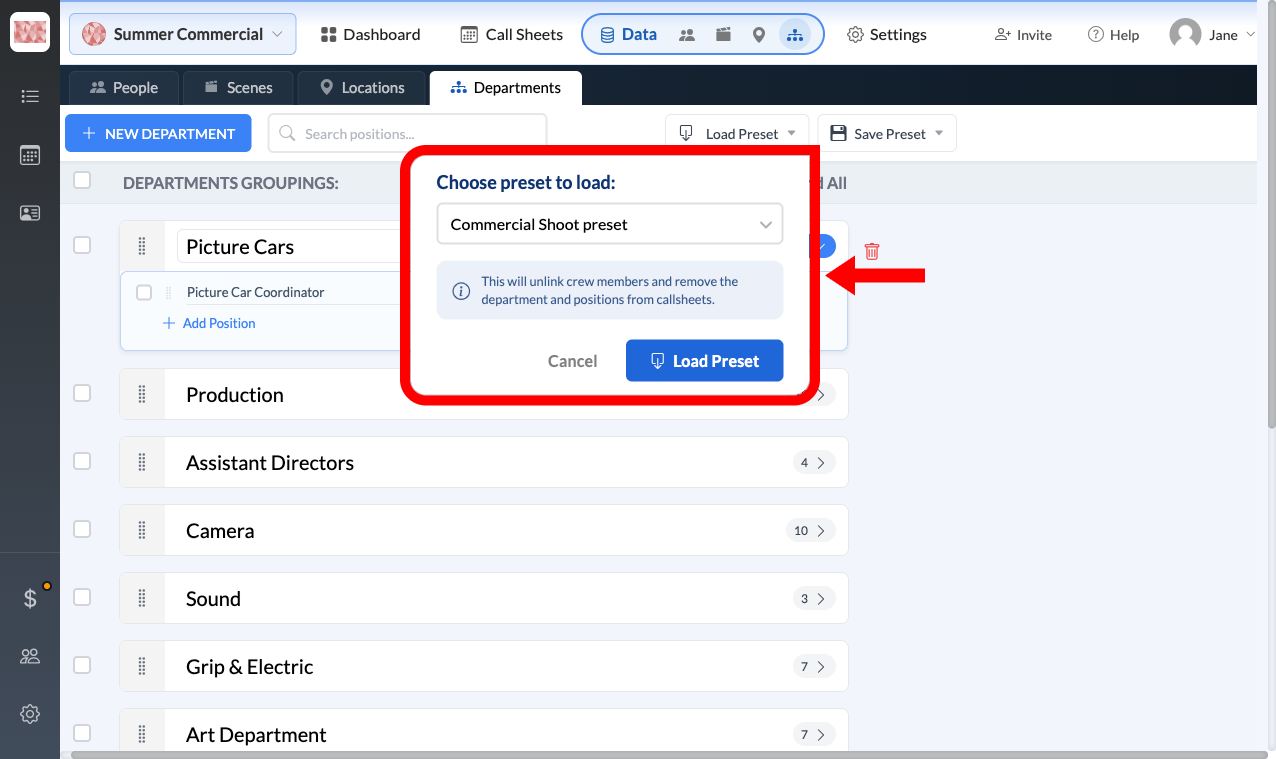
Load a preset
Warning: Loading a preset completely replaces your current departments and positions. Crew assigned to those positions are unlinked, and the positions disappear from your call sheets. If you might want this setup back, save it as a preset before loading another one.
Click Load Preset in the top action bar, open Choose preset to load, and pick one. Your own presets appear first, followed by SetHero's standard templates such as "Commercial Shoot preset" and "Indie Feature". Click Load Preset to apply it.