Project Settings overview
How to update project names, branding, and call sheet colors
Every project has a Project Settings page where you control how it's identified, both on your dashboard and on the call sheets your cast and crew receive. This article covers the identity fields on the Project Settings (General) tab: title, production code, thumbnail, header logo, and call sheet colors.
What we cover here: the project-identity fields. The same page also holds format controls, work-day settings, and project lifecycle actions, which have their own articles.
Open the settings page
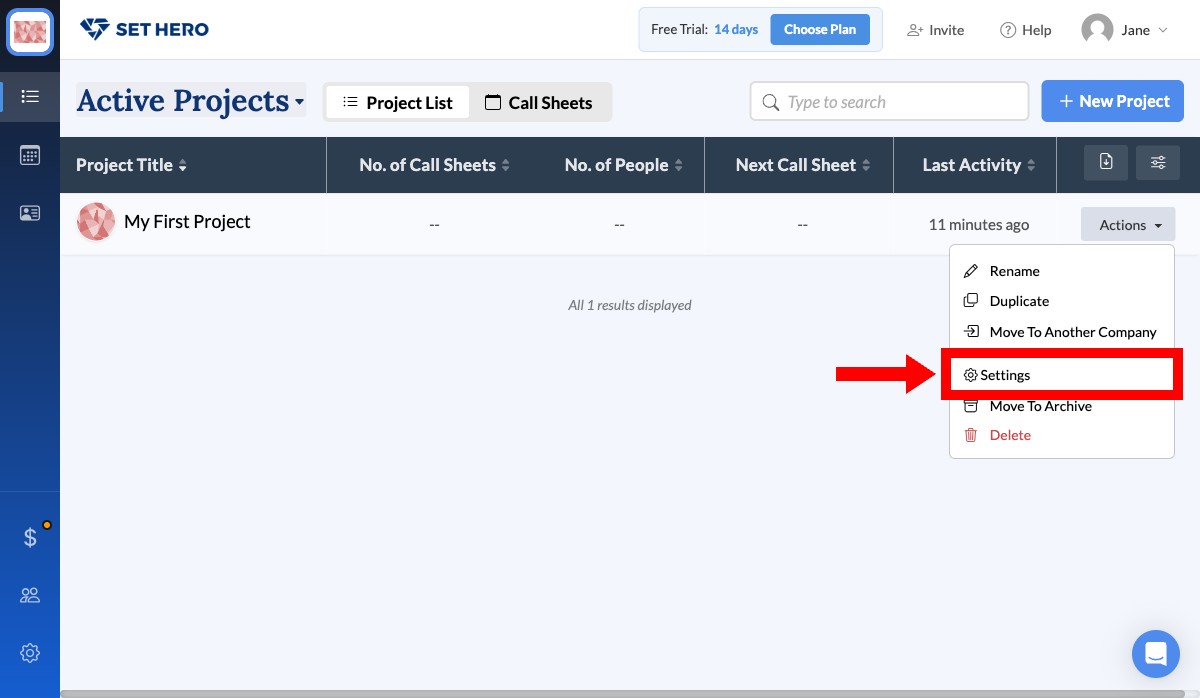
From your company's Active Projects list, click the Actions button at the end of the project's row and choose Settings.
Already inside the project? Click the Settings tab in the top navbar, the gear icon next to Data, to land on the same page.
Tour the page
SetHero opens on the Project Settings (General) tab. A dark sub-tab bar at the top switches between the two sub-pages:
- Project Settings: the General tab with all the identity and format controls.
- Departments: the project's department and position list.
Note: Saving is automatic. There's no Save button. If you switch tabs or navigate away, your edits are already stored.
Set the title and production code
| Field | What it does |
|---|---|
| Project Title (required) | The full name of your production. Shown on your dashboard, in dropdowns, and on every call sheet you send. |
| Production Code (optional) | A short identifier like FN001 or S02E07. Useful when you have many similar projects. When set, it appears in front of the title in most lists. |
Type directly into either field.
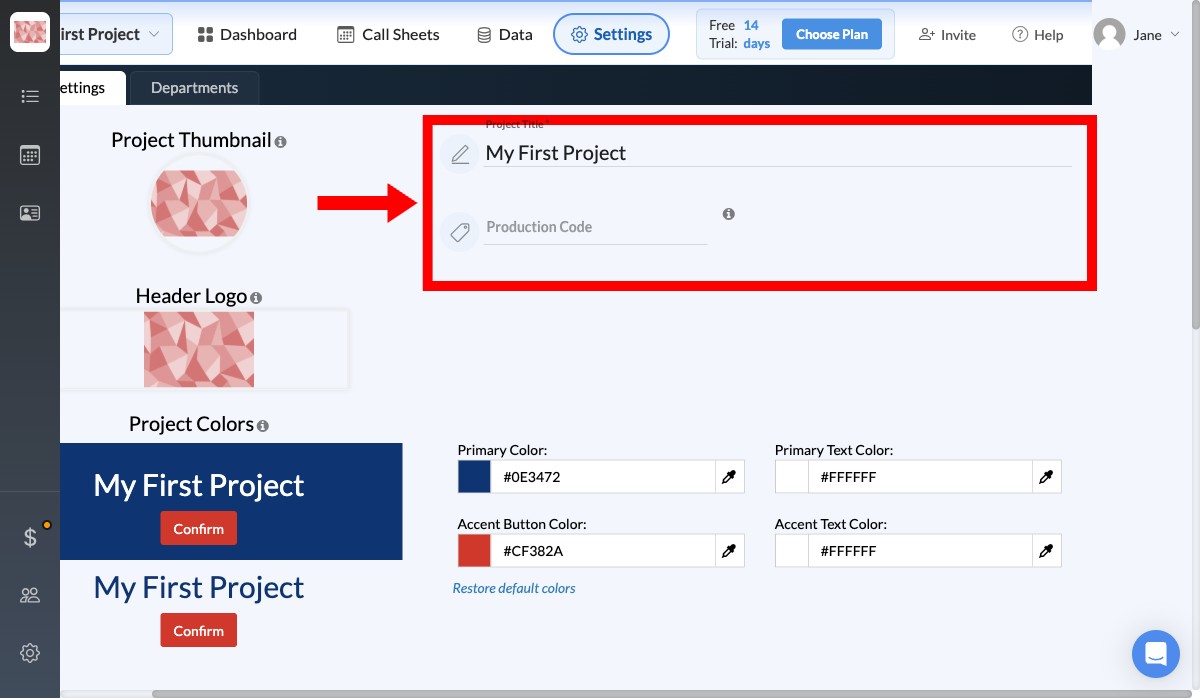
Note: In a demo project, the kind SetHero creates when you choose "Test Project" during onboarding, the Project Title field is locked. Create a real project to change it.
Upload a project thumbnail
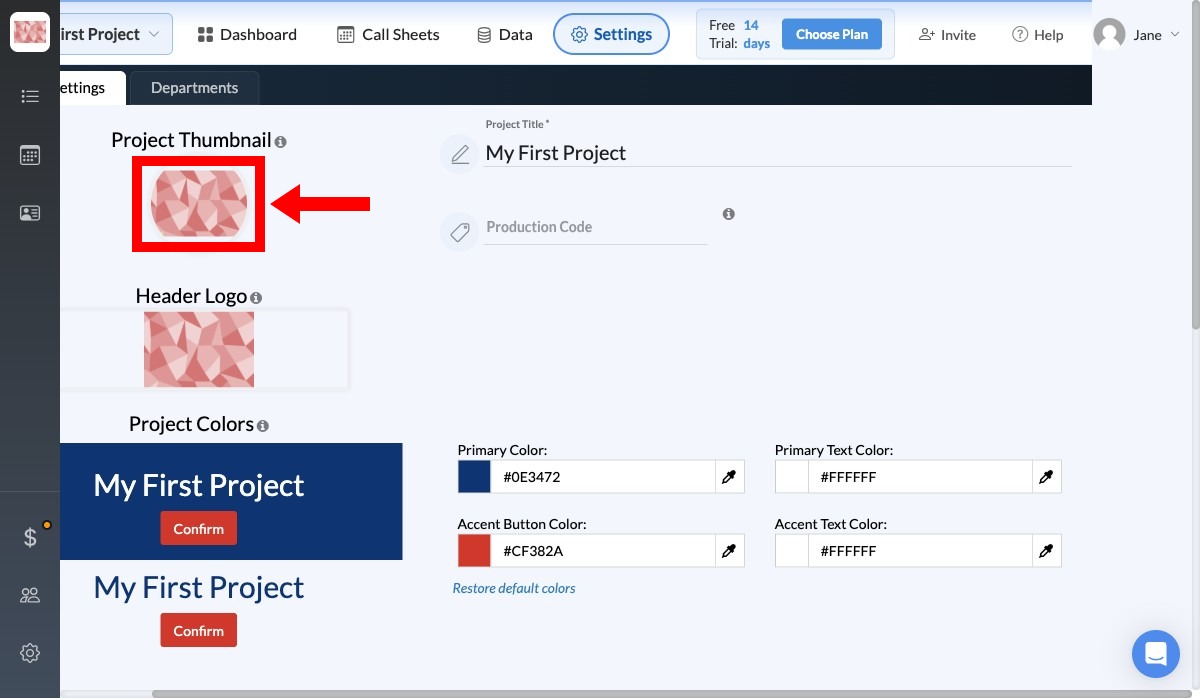
The Project Thumbnail is the round image that represents the project on your dashboard and in project pickers. It's internal only and never shown to cast or crew.
Click the thumbnail, choose a JPG, PNG, or GIF, frame it in the crop window, and confirm. It updates immediately.
Upload your header logo
The Header Logo is the wide brand image at the top of every call sheet and production report you publish from this project. Unlike the thumbnail, everyone you send to sees it, so use your production's or your client's official logo.
Click the Header Logo rectangle, select a JPG, PNG, or GIF, position it in the crop window, and confirm. A transparent-background PNG looks cleanest on the dark call-sheet header.
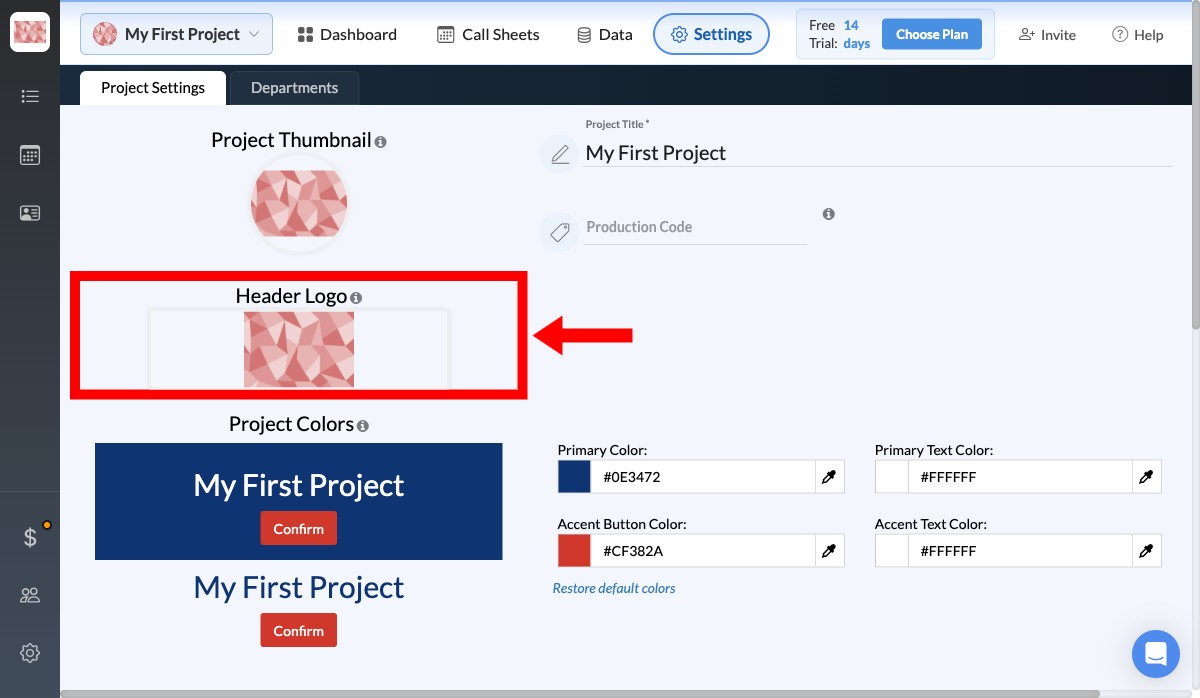
Tip: Logos shorter than the rectangle are letterboxed. Use a wide, horizontal file for the best look.
Customize project colors
Project Colors sets the four colors that theme your call-sheet email and the mobile call sheet. The live preview on the left updates as you change each one.
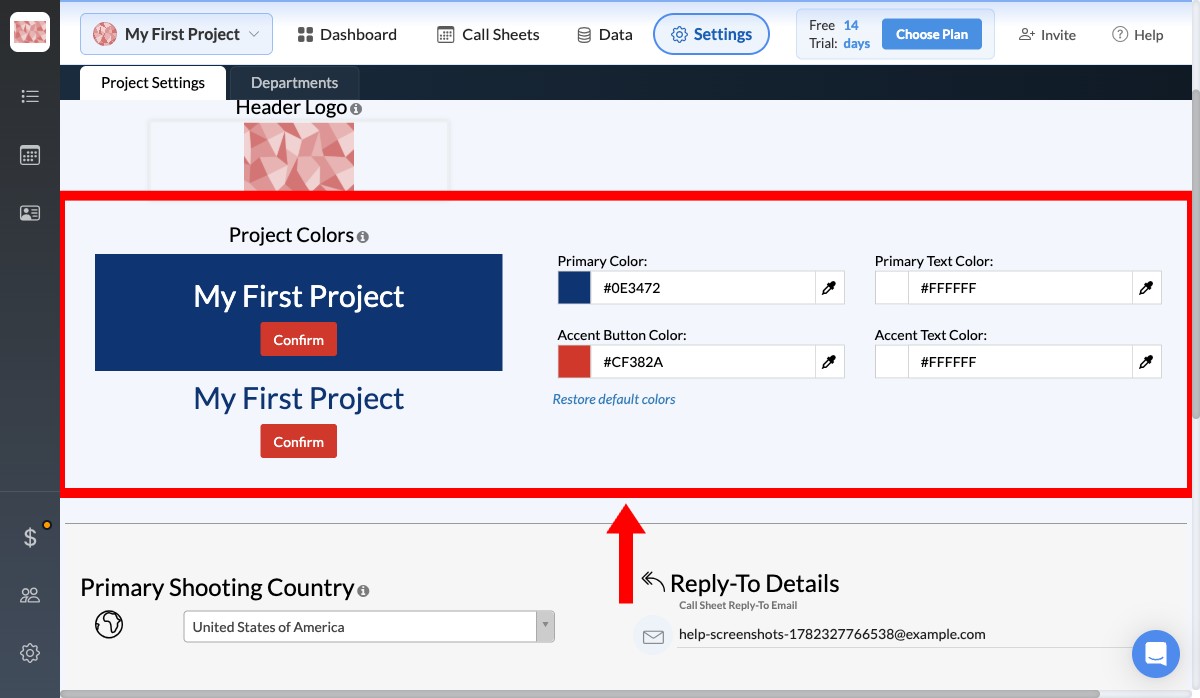
| Color | Where it shows up |
|---|---|
| Primary Color | Header bar of the call sheet email and the mobile call sheet. Default navy #0E3472. |
| Primary Text Color | Text and icons on top of the Primary Color. Default white. |
| Accent Button Color | "Confirm" and other action buttons. Default SetHero red #CF382A. |
| Accent Text Color | Text on top of accent buttons. Default white. |
Pick a color by clicking the swatch to open a picker, typing a hex value such as #FF6A00, or clicking the eyedropper at the right edge of the field to sample anywhere on screen. Restore default colors takes you back to SetHero's defaults.
Tips for a new project
- Pick the thumbnail and logo first. Both are easy to forget once you're building sheets, and the logo appears on every one you send.
- Brand colors take ten seconds. If you have a one-sheet or pitch deck, sample its colors with the eyedropper.
- Don't sweat the production code on a one-off project. It only helps when you have several similar shows to tell apart.
- Check contrast. If you can't read the preview, your crew won't be able to either.
Need help?
Reach out to our support team at support@sethero.com.