Locations, parking, and the nearest hospital
How to fill in the shoot location, parking, basecamp, and nearest hospital
The top of each call sheet has rows for Production Office, Nearest Hospital, Parking, and Basecamp. You choose what goes in each row separately for every shoot day, from your project's saved locations.
Fill in the locations for a day
-
Open the call sheet, select Edit beside Day Details, and go to the Location & Notes tab.
-
Under Locations, click Select Location on the row you want to fill.
-
Choose a saved location. If it isn't on the list yet, click + Add Location at the top of the list to create it.
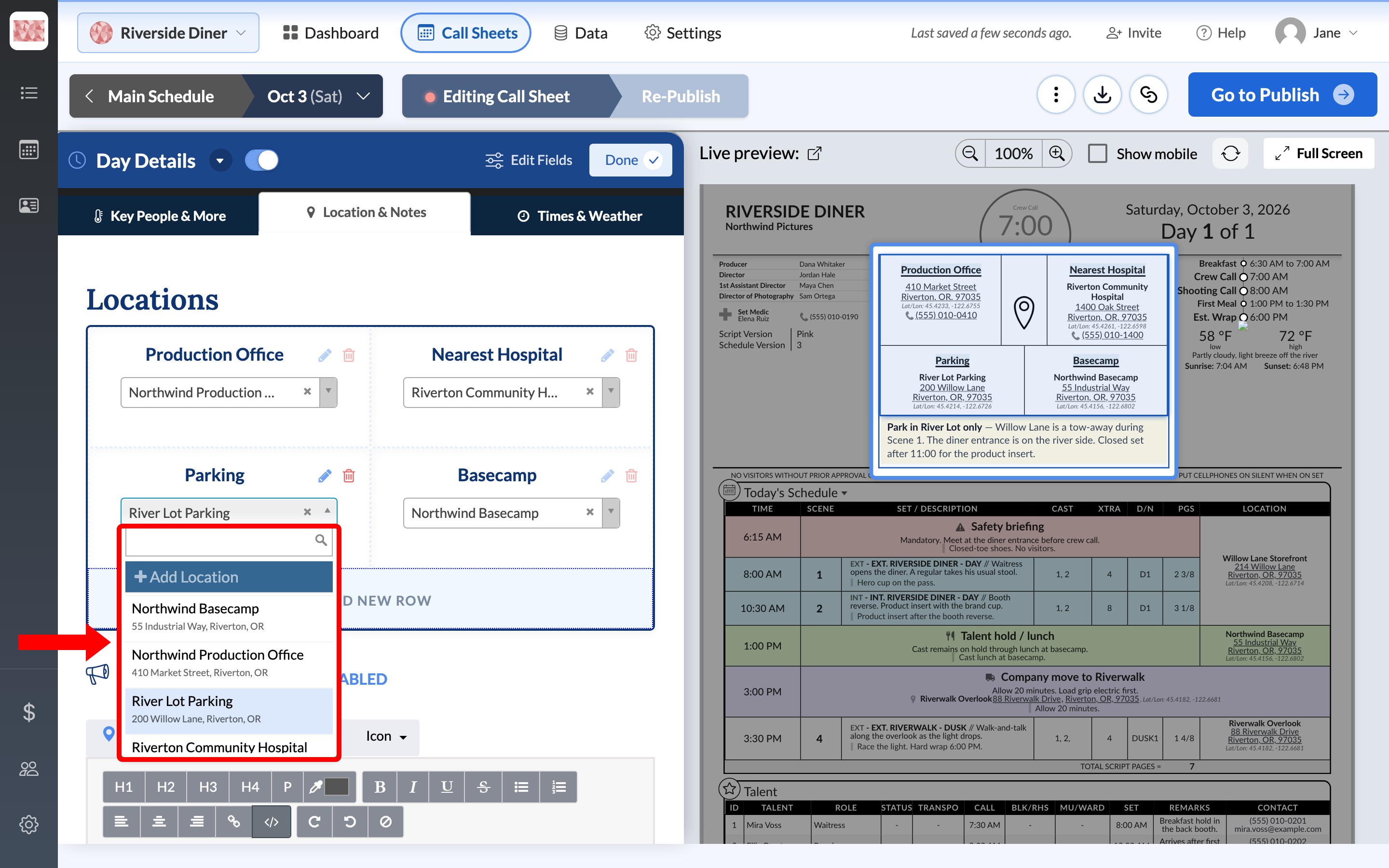
Your selection appears in the live preview right away.
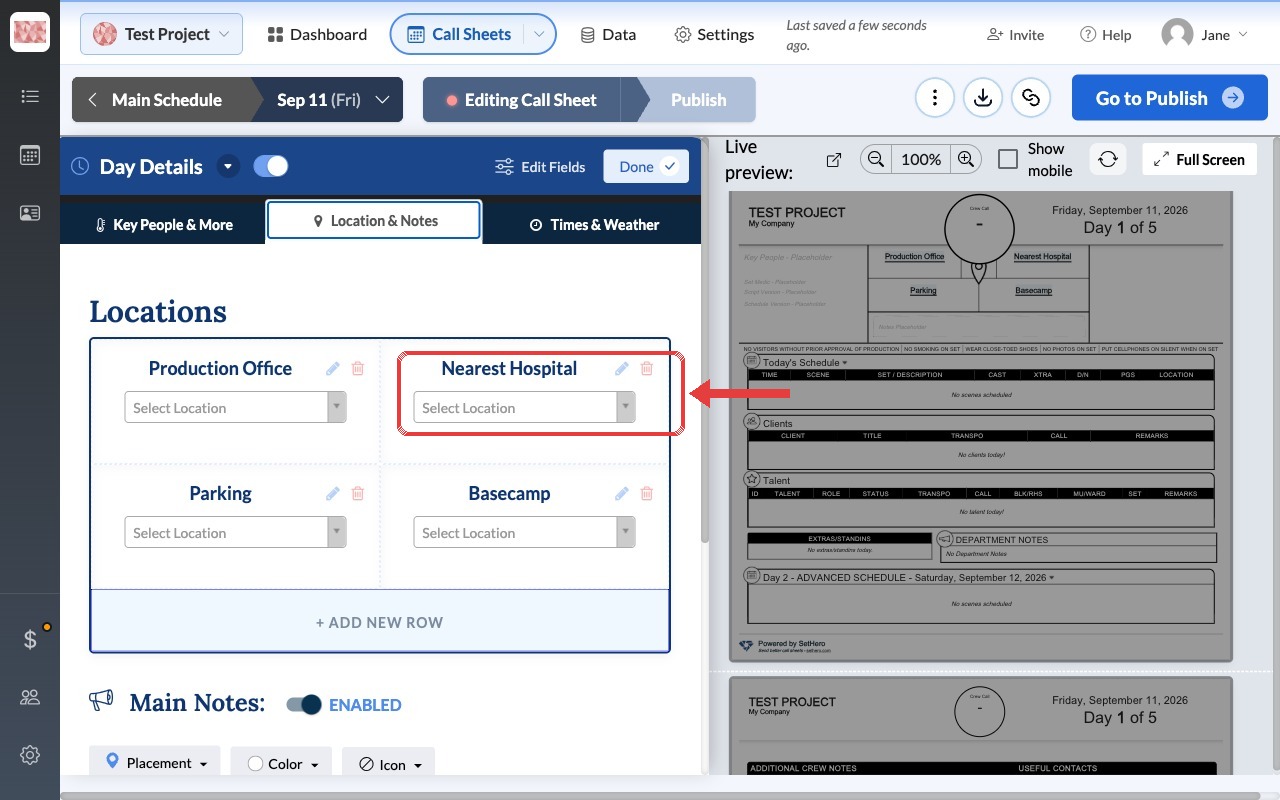
Rename or add rows
The four rows are only starting points:
- Rename a row: click the pencil beside its name. For example, change Production Office to Shoot Location.
- Add a row: click + Add New Row.
- Remove a row: click the trash icon beside its name.
Save locations ahead of time
Data → Locations is your project's address book. Changing an address or map link there updates every call sheet that uses that location.
To add one location, click new location, or Add single location if the list is empty. Maps and pins on your call sheet explains exact map pins and custom map links.
To add many from a spreadsheet:
-
Click Data in the top navigation bar, then Locations.
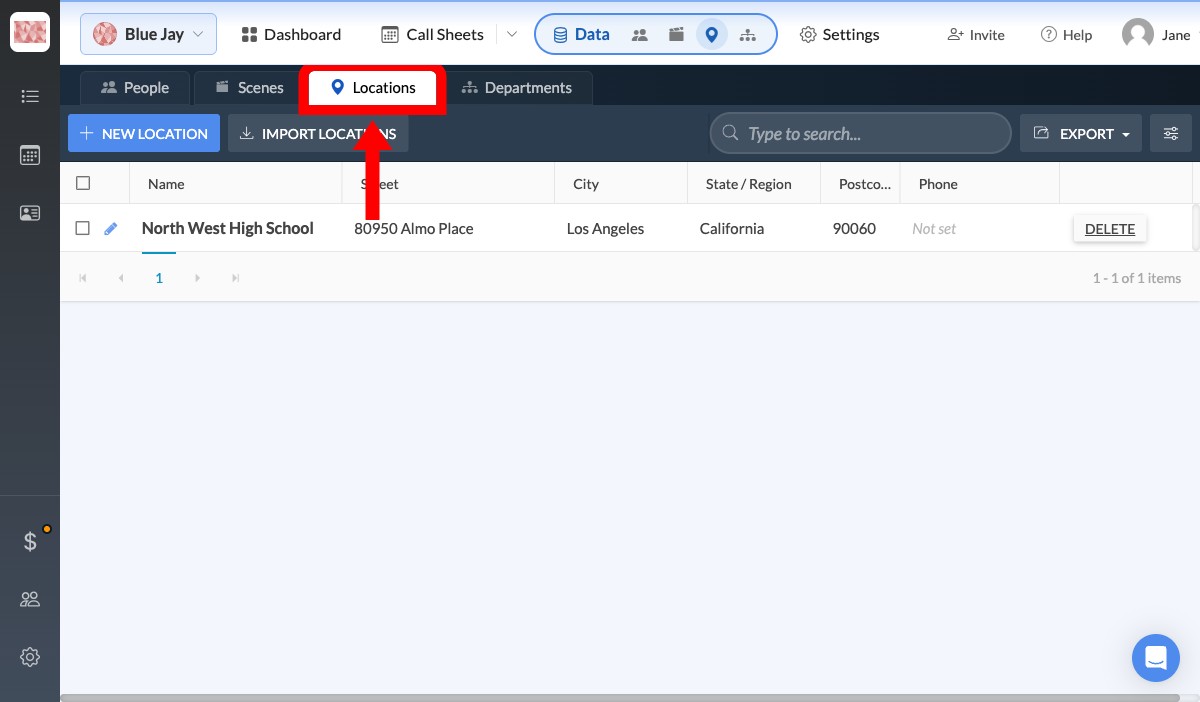
-
Click Import locations, or Import locations from spreadsheet if the list is empty.
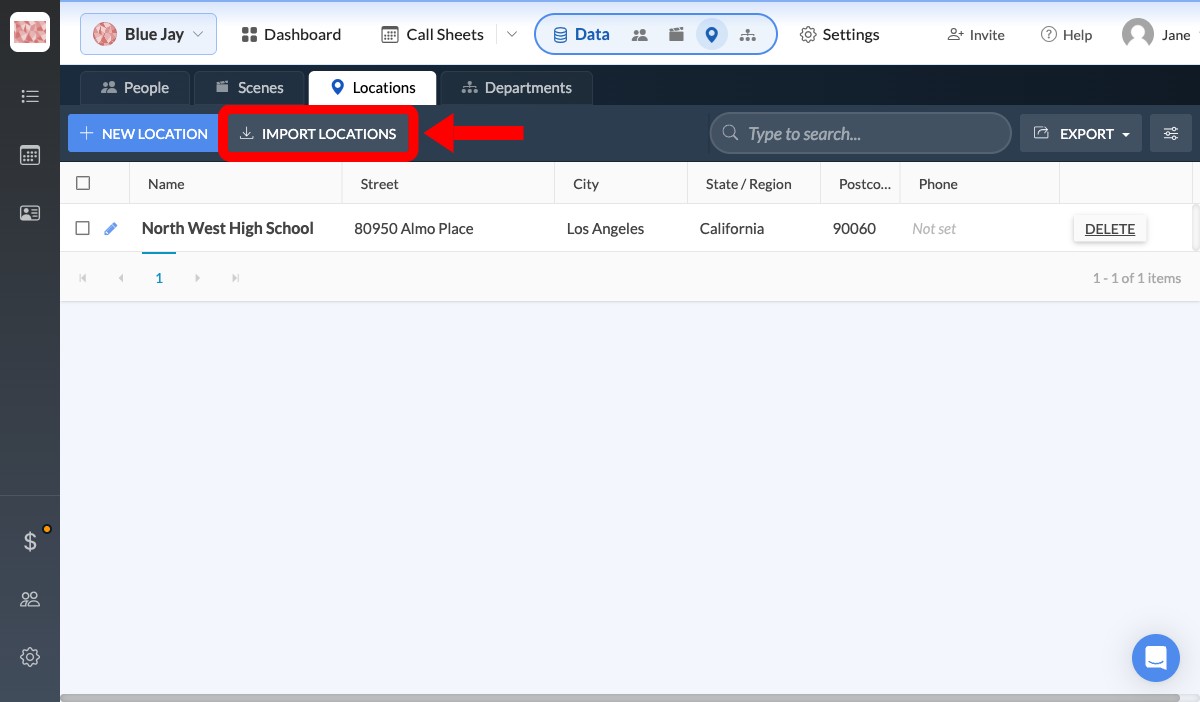
-
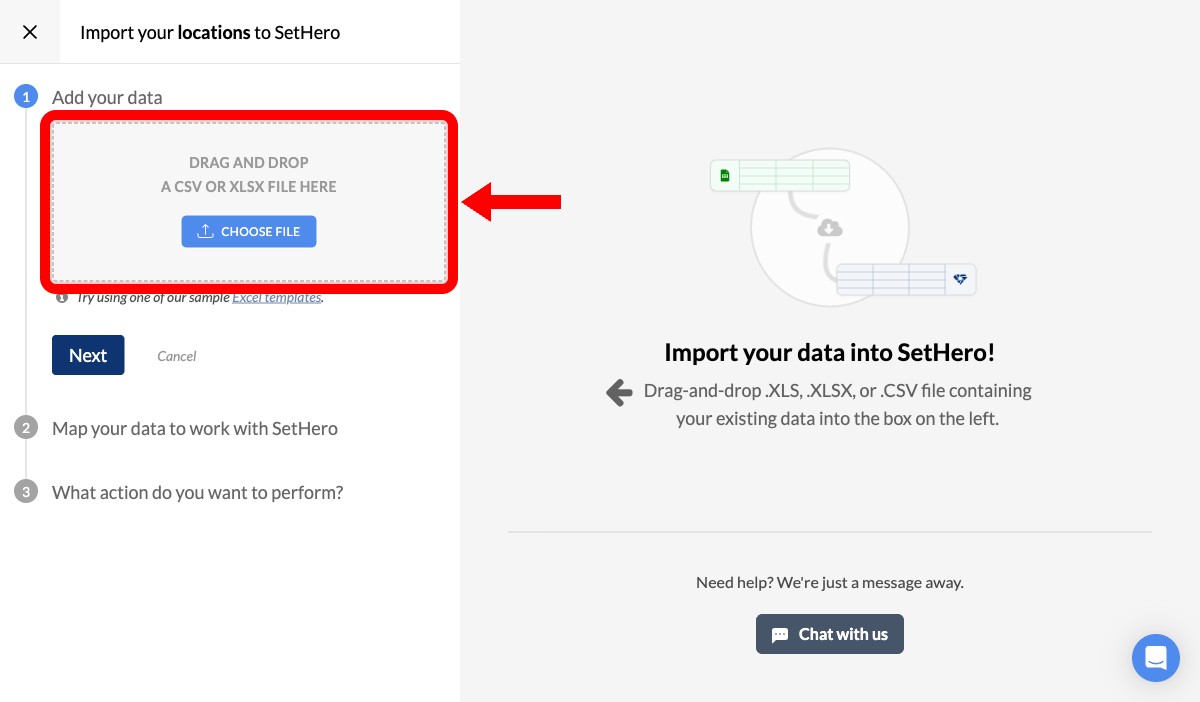
Drag your CSV or Excel file into the upload area, or click choose file, then click Next.
-
Match your spreadsheet columns to SetHero's fields, review the results, and click Approve and Import.