Maps and pins on your call sheet
How to set exact map pins and custom map links, and attach map PDFs
Locations on your call sheet link to Google Maps automatically. If a place is hard to find, such as a specific stage or a remote parking lot, you can set an exact pin or send people to your own map link.
Set a pin or map link
You set these on the location itself, in Add A Location or Edit Location:
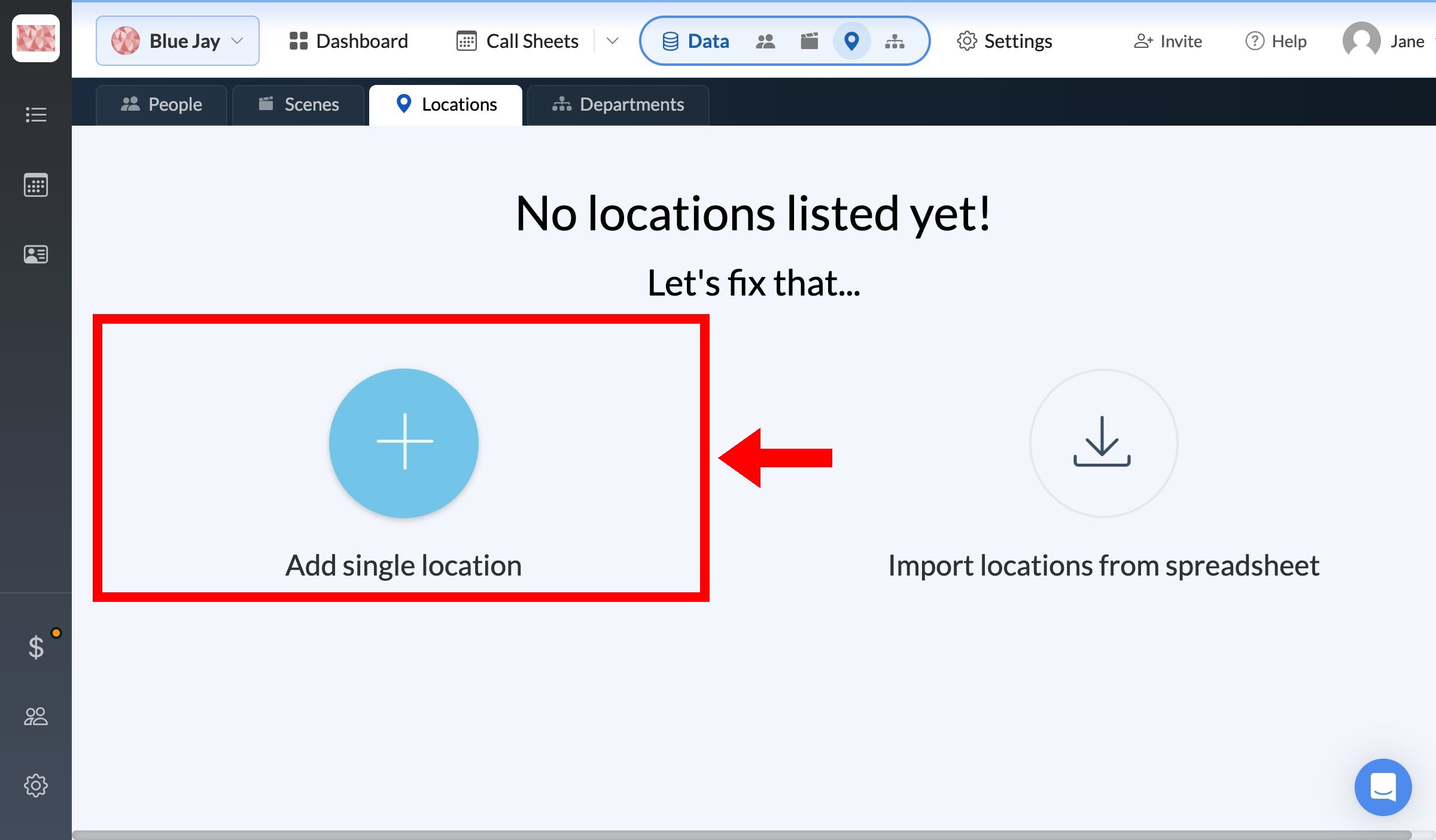
- New location: click Data in the top navigation bar, then Locations, then new location, or Add single location if the list is empty.
- Location already on a call sheet: in the Location & Notes tab of Day Details, click Edit in popup under the location.
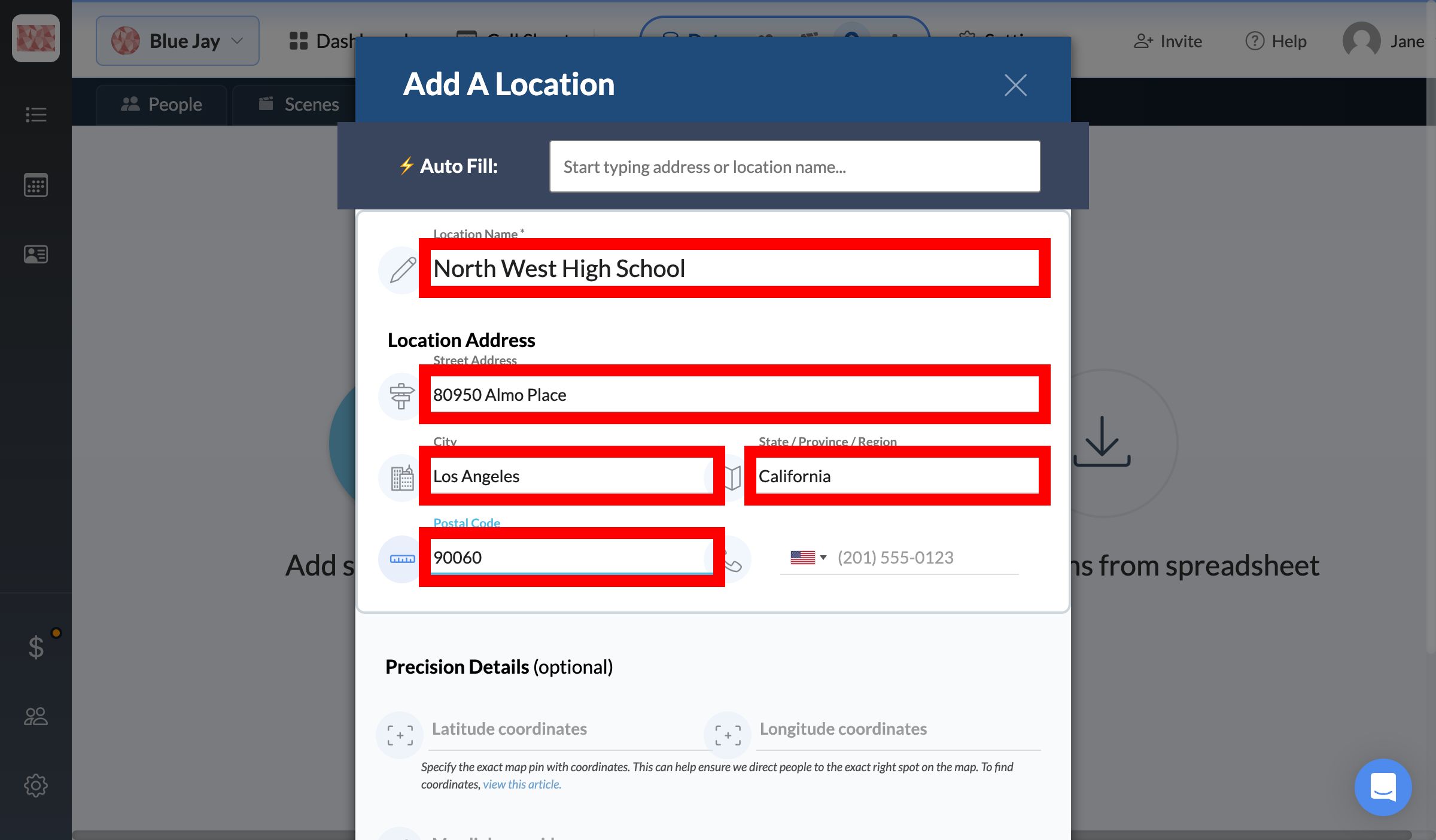
For a new location, enter the Location Name and Street Address, or start typing in Auto Fill to find it through Google Places.
Then go to Precision Details and use either or both of these:
- Latitude coordinates and Longitude coordinates set the exact map pin. Google explains how to find coordinates.
- Map link override replaces the Google Maps link. Paste any URL, such as an Apple Maps link, and people go there when they click the location on your call sheet.
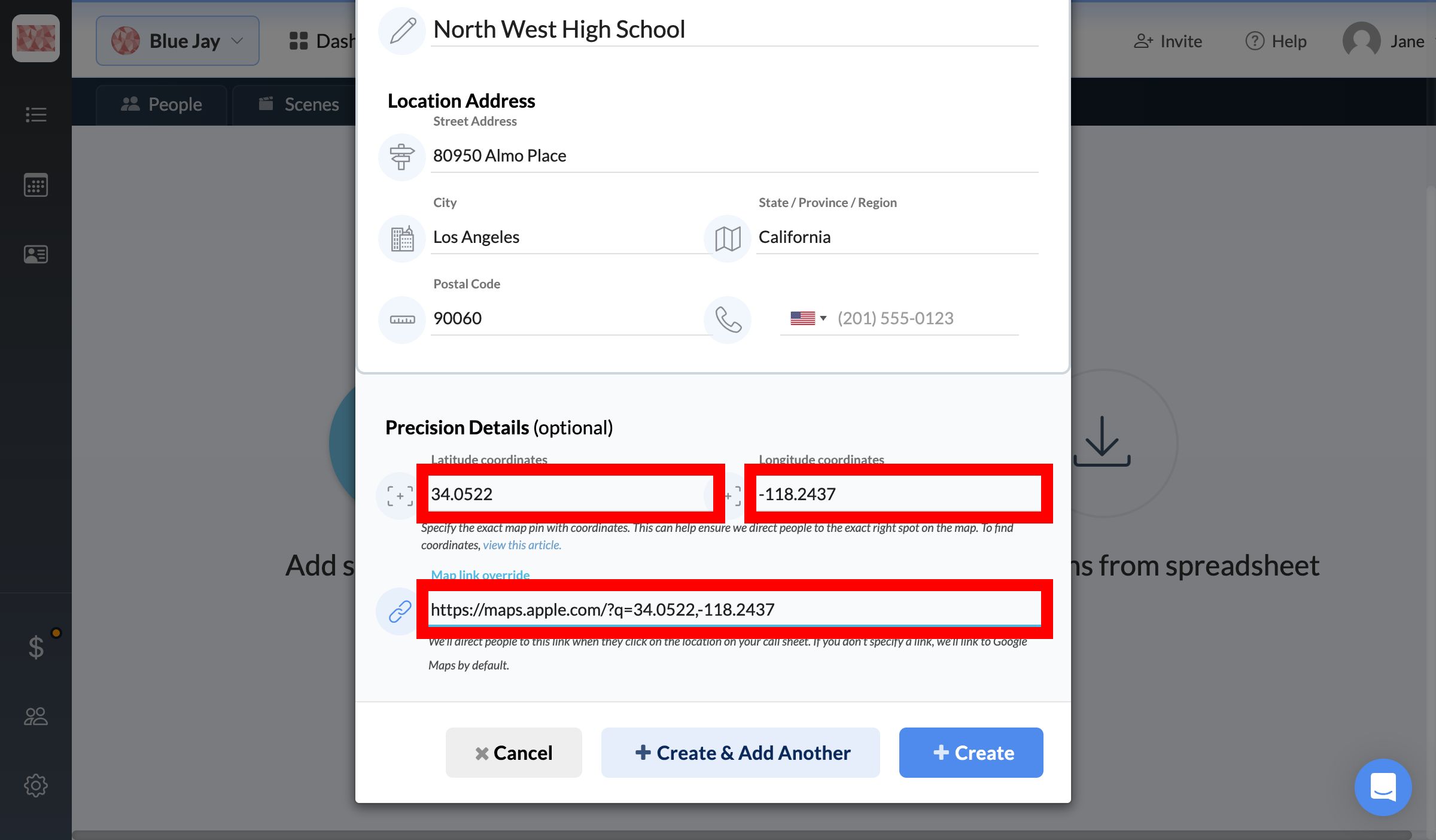
Click Create for a new location, or save your changes for an existing one. The location updates on every call sheet that uses it.
Add a map or parking diagram
To send a map or parking diagram as a file, attach it to the call sheet. See Attach maps, PDFs, and permits.
To choose which location appears on a shoot day, see Locations, parking, and the nearest hospital.