Main notes block
How to show, write, and style the Main Notes block
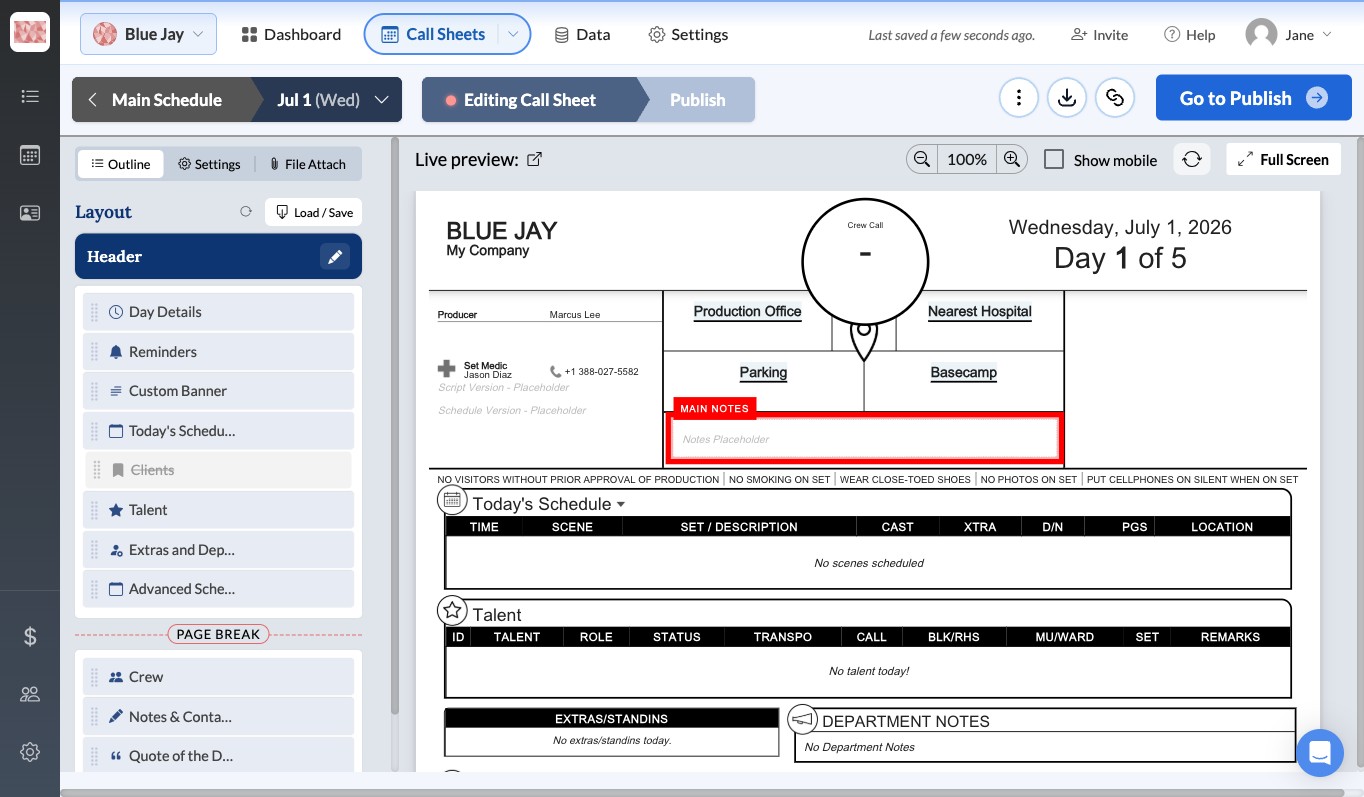
The Main Notes block puts important information where the entire cast and crew can see it right away. This highly visible section appears near the top of the call sheet, directly under the project and location details.
Use it for parking instructions, safety guidelines, catering information, and general production reminders.
Turn main notes on or off
-
Open the Call Sheet Editor for the day you want to edit.
-
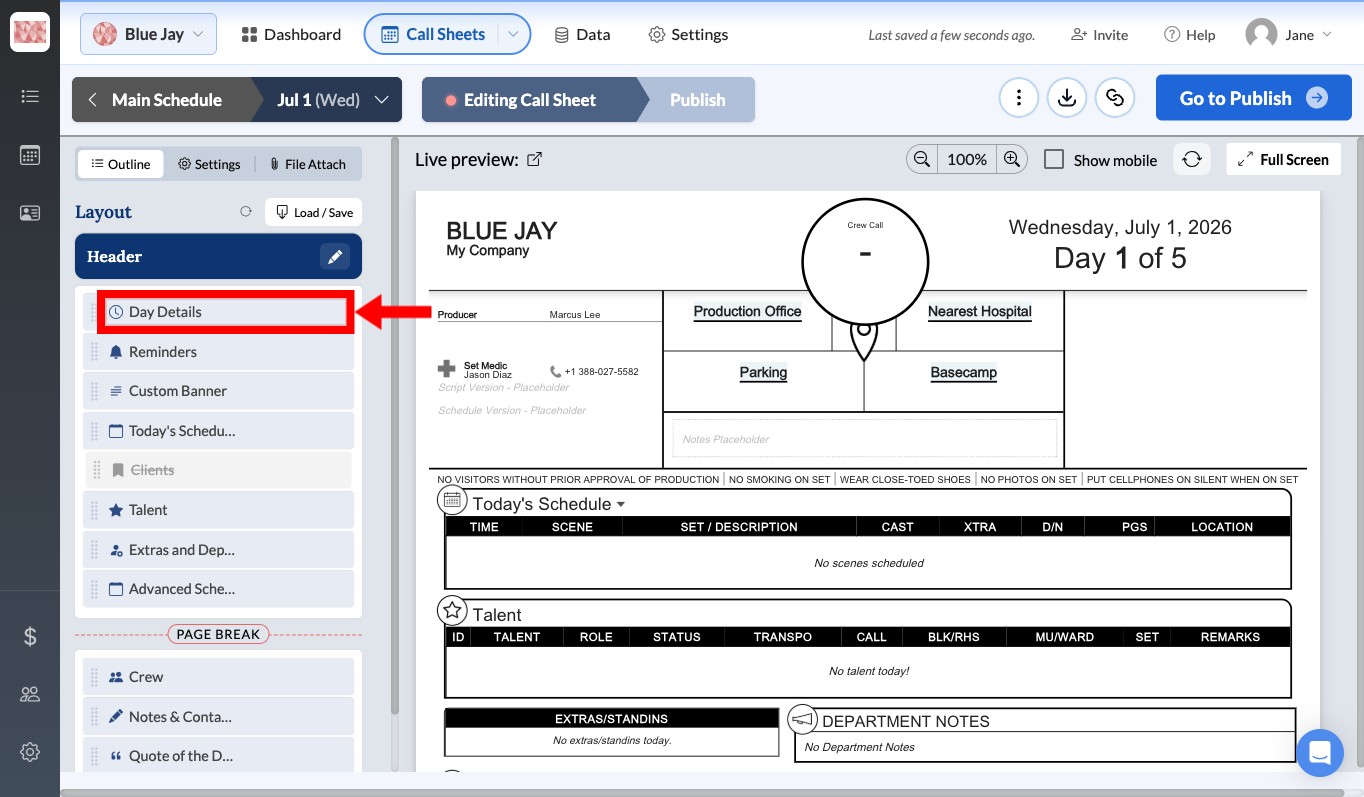
In the left sidebar, click Day Details to open the Day Settings panel.
-
Click the Location & Notes tab at the top of the panel.
-
Scroll down to the Main Notes section.
-
Click the toggle switch to change it to ENABLED or DISABLED.
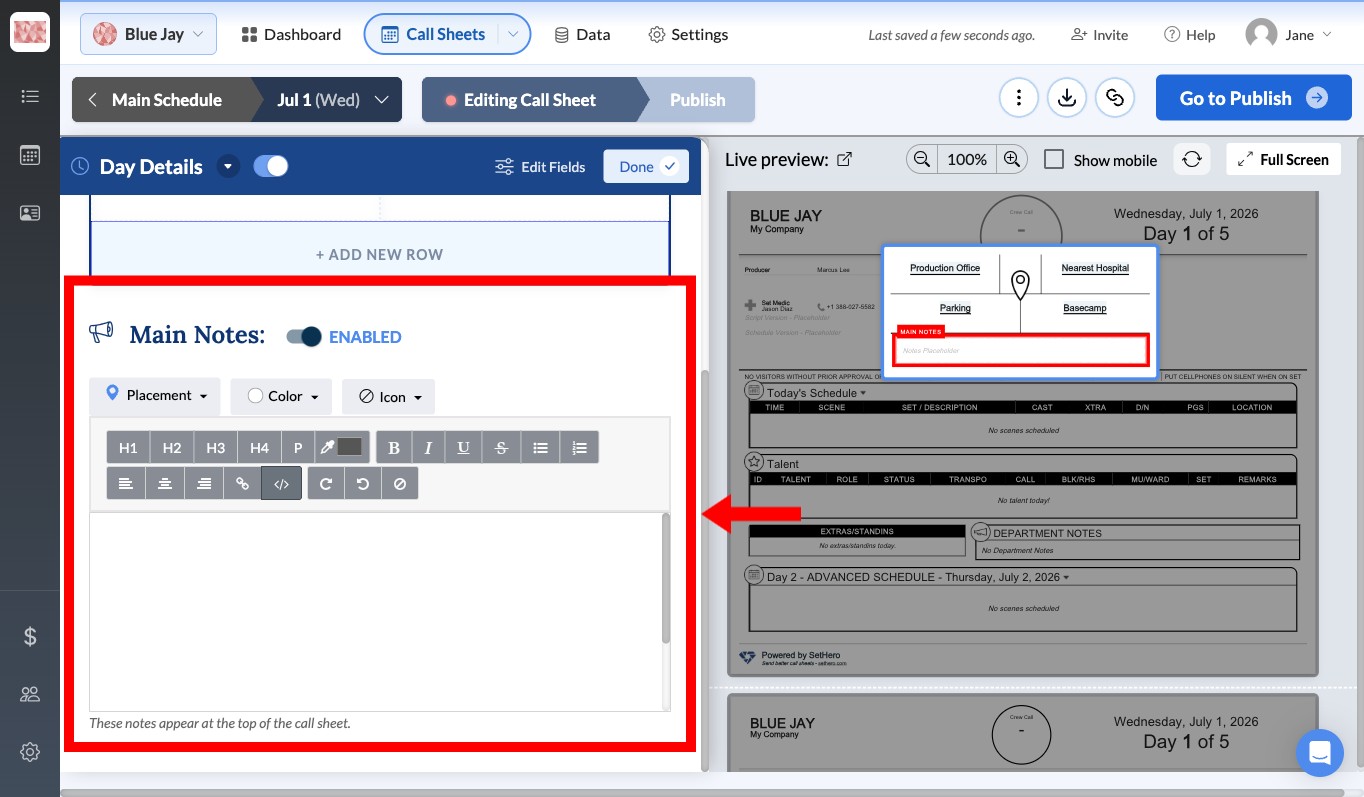
When enabled, a text area and styling options appear. When disabled, the text area is hidden, and the Main Notes block does not appear on the generated call sheet.
If you do not need a general announcement for a specific shoot day, disable the block so it does not take up space.
Write your notes
With the toggle set to ENABLED, enter parking instructions, safety notes, and other reminders directly in the text box.
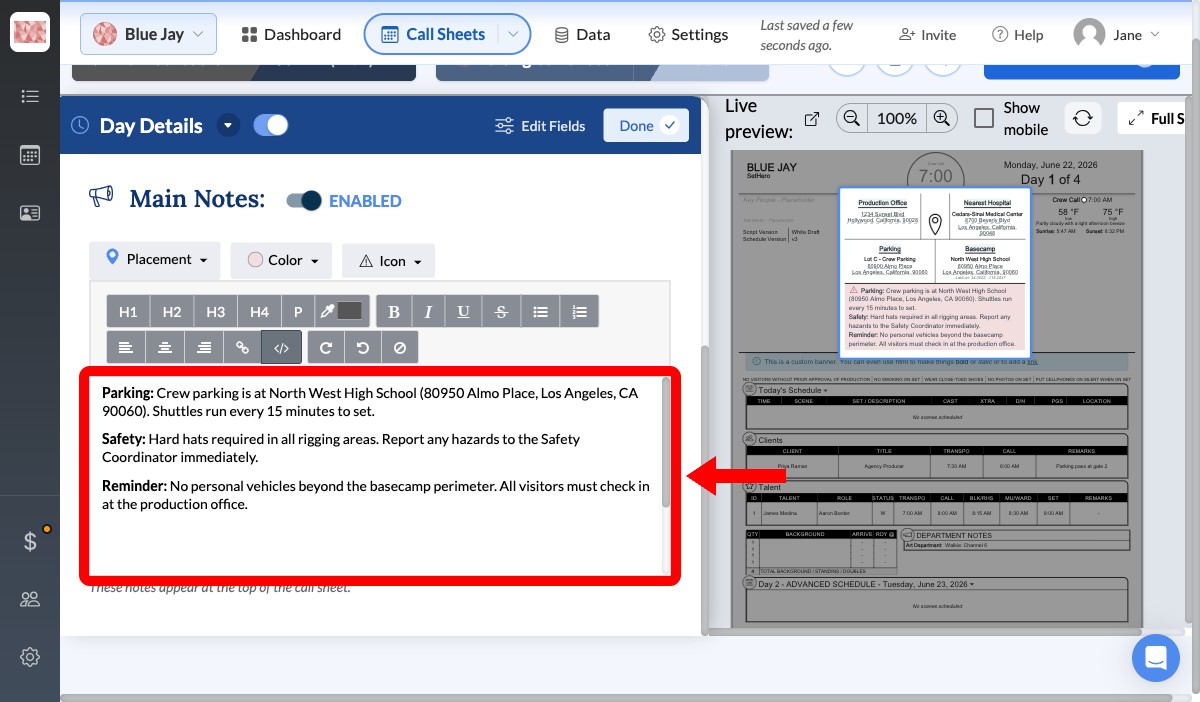
Changes save automatically. Check the live preview on the right side of the screen to see how the notes will appear on the call sheet.
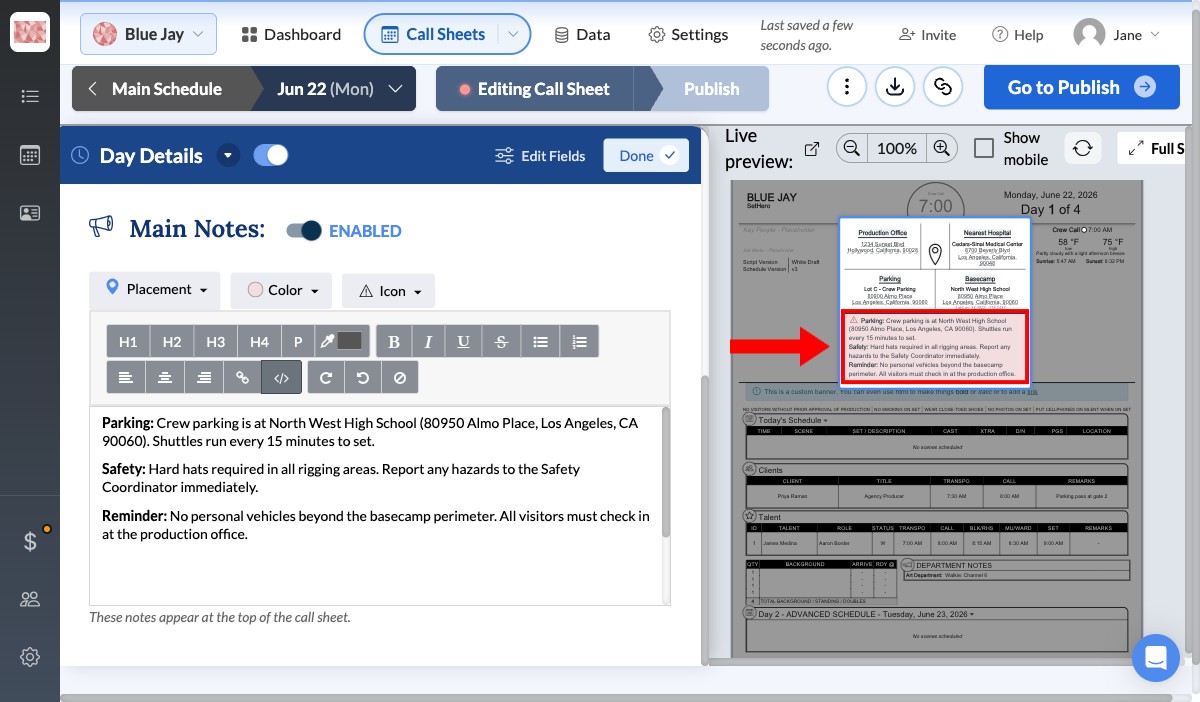
Style the block
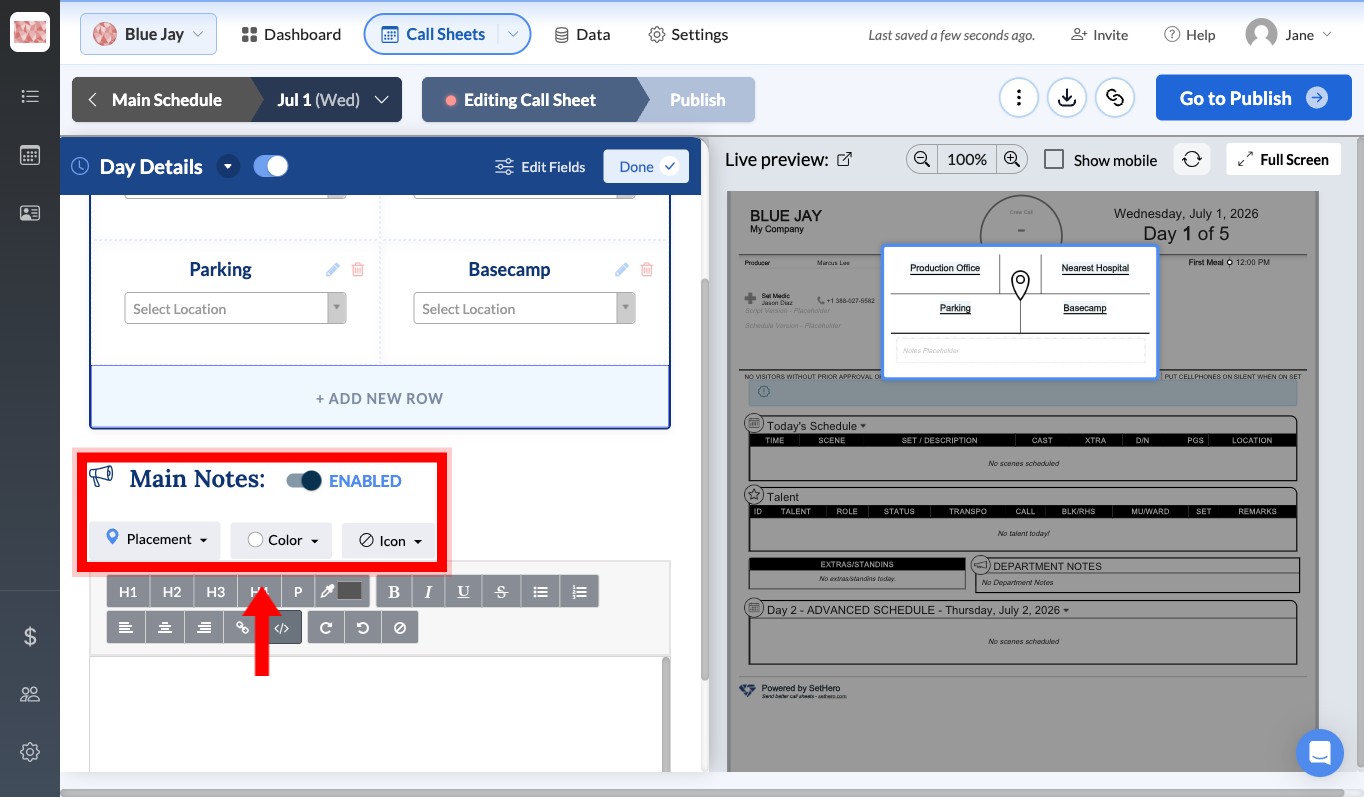
Use the dropdown menus above the text box to control the block's appearance:
- Placement: Choose where the note appears: Center, Left, or Full Width.
- Color: Select a background color to highlight the note.
- Icon: Choose an icon to draw attention, such as a warning sign for safety or a car for parking.
Tip: Use colors consistently across your call sheets. For example, red for critical safety warnings, yellow for parking changes, and blue for general announcements.
When to use a custom banner instead
Main Notes is a single block in a fixed position near the top of the call sheet. If you need an announcement elsewhere in the layout or want to include more than one highlighted notice, add a Custom Banner section instead.
Custom banners can appear anywhere in the call sheet layout and have their own size, color, icon, and alignment. See Custom banner notes.