Custom banner notes
Where custom banners can appear, and how to add and style them
Add a Custom Banner anywhere in your call sheet layout for large, highly visible announcements that need the crew's attention. Use banners for a walkie channel list, safety warning, schedule change, or special announcement.
Unlike the Main Notes block, which has a fixed position near the top, you can add several banners and place each one exactly where it belongs.
Add a custom banner
-
In the Call Sheet Editor, click the Outline tab in the left sidebar.
-
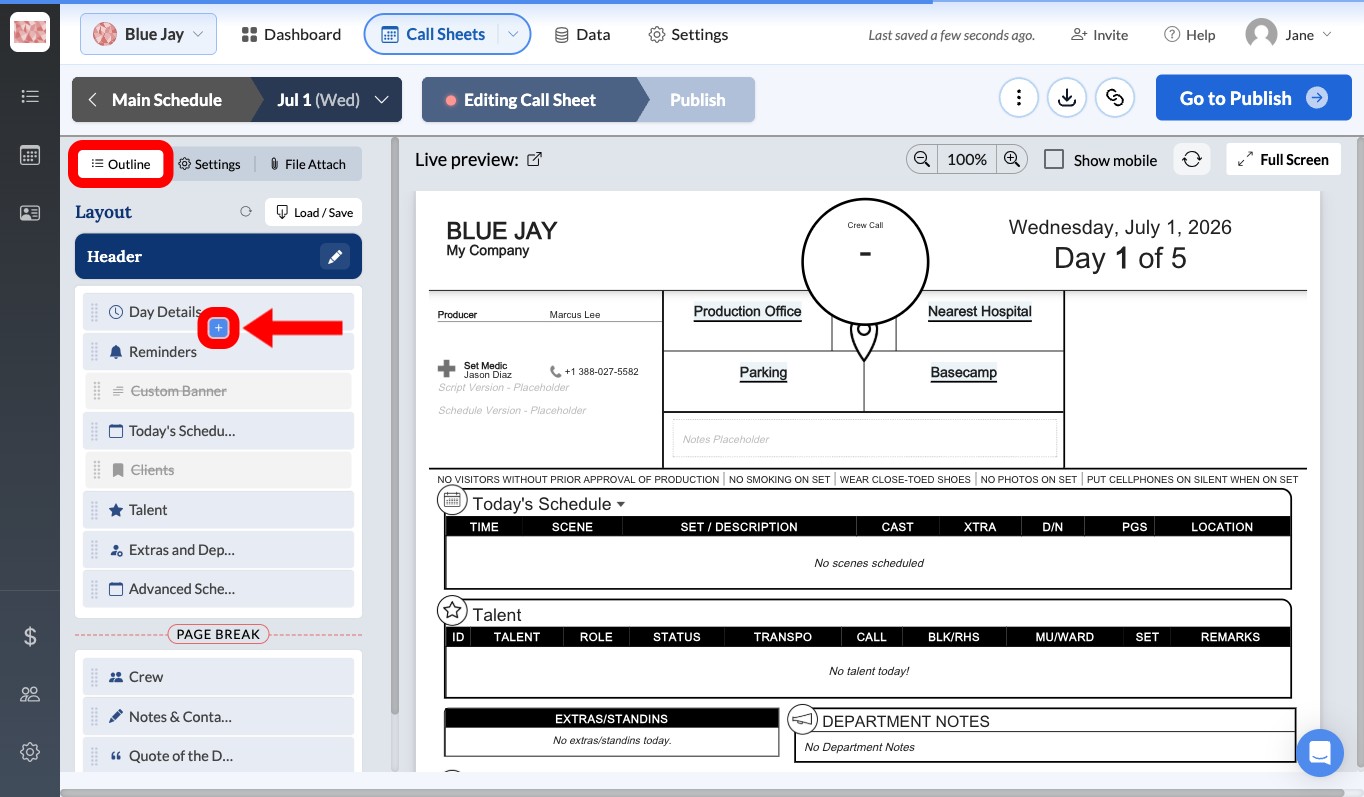
Scroll to where you want the banner in the layout. Click the Add section here control (the + icon between two sections), then select Custom banner. The same menu can also Create a page break.
-
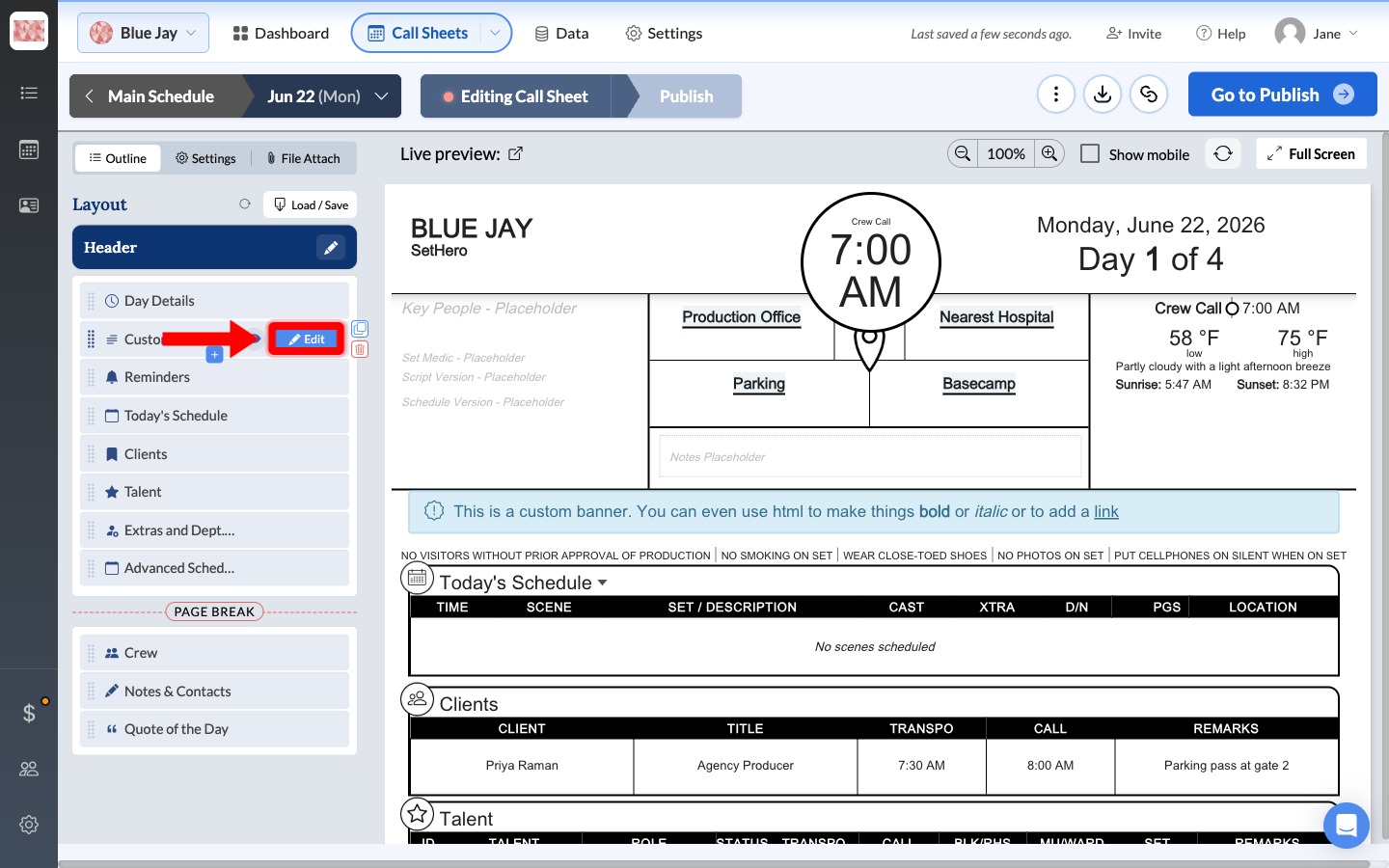
When the new Custom Banner row appears in the outline, click Edit on that row.
-
Enter your note in the text area. You can format the banner text with bold or italics.
-
Click Done when you finish.
Style the banner
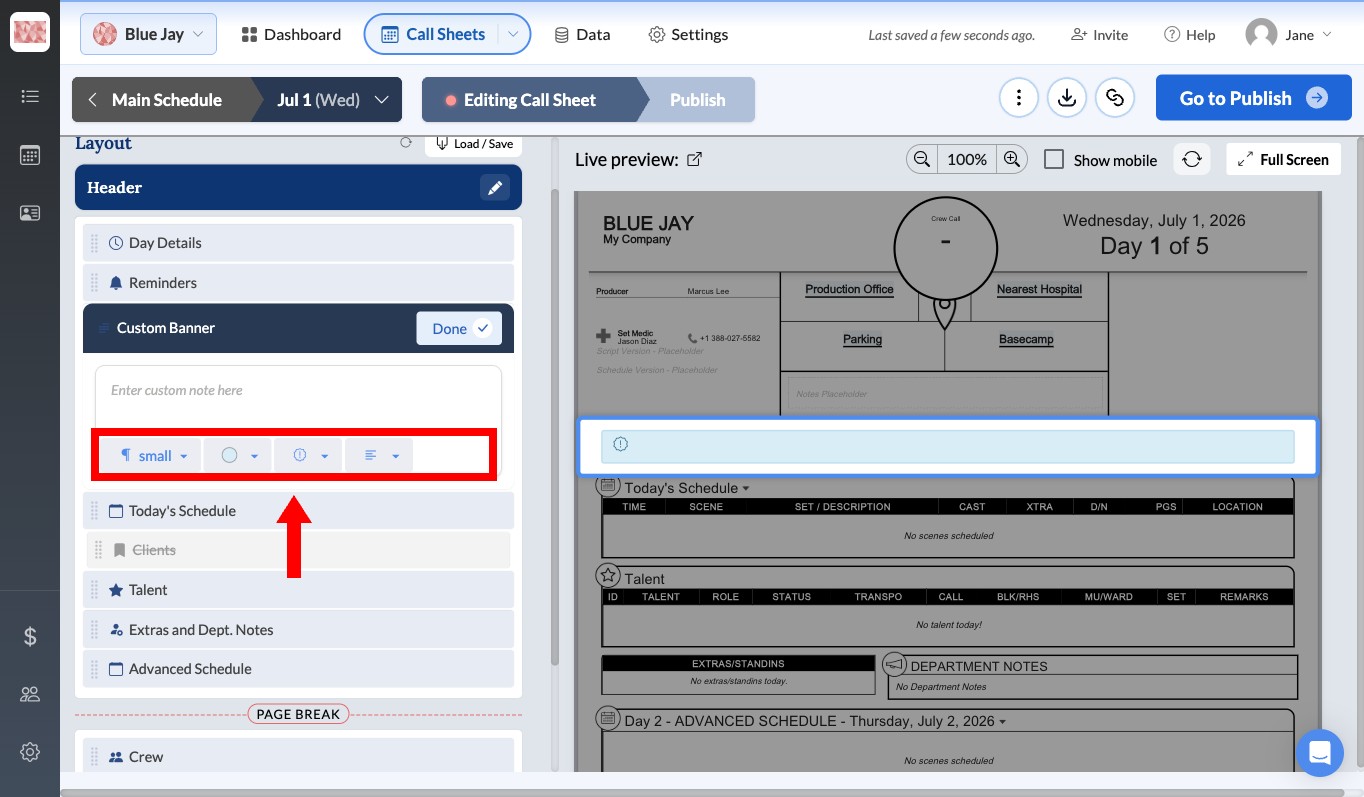
Use the formatting options below the text area:
- Font size: Choose small, medium, or large text.
- Color: Choose a gray, green, blue, yellow, or red background to make the banner stand out.
- Icon: Add a visual cue such as a warning triangle, parking sign, clock, headset, or signal.
- Alignment: Align the text left, center, or right.
Tip: Use colors consistently across your call sheets. For example, red for critical safety warnings, yellow for parking changes, and blue for general announcements.
Move the banner
Drag the Custom Banner row in the Outline list to place it above or below Day Details, Reminders, or any other section. The live preview updates as you move it.
Banners often appear at the top of the call sheet under Header.
Check the live preview
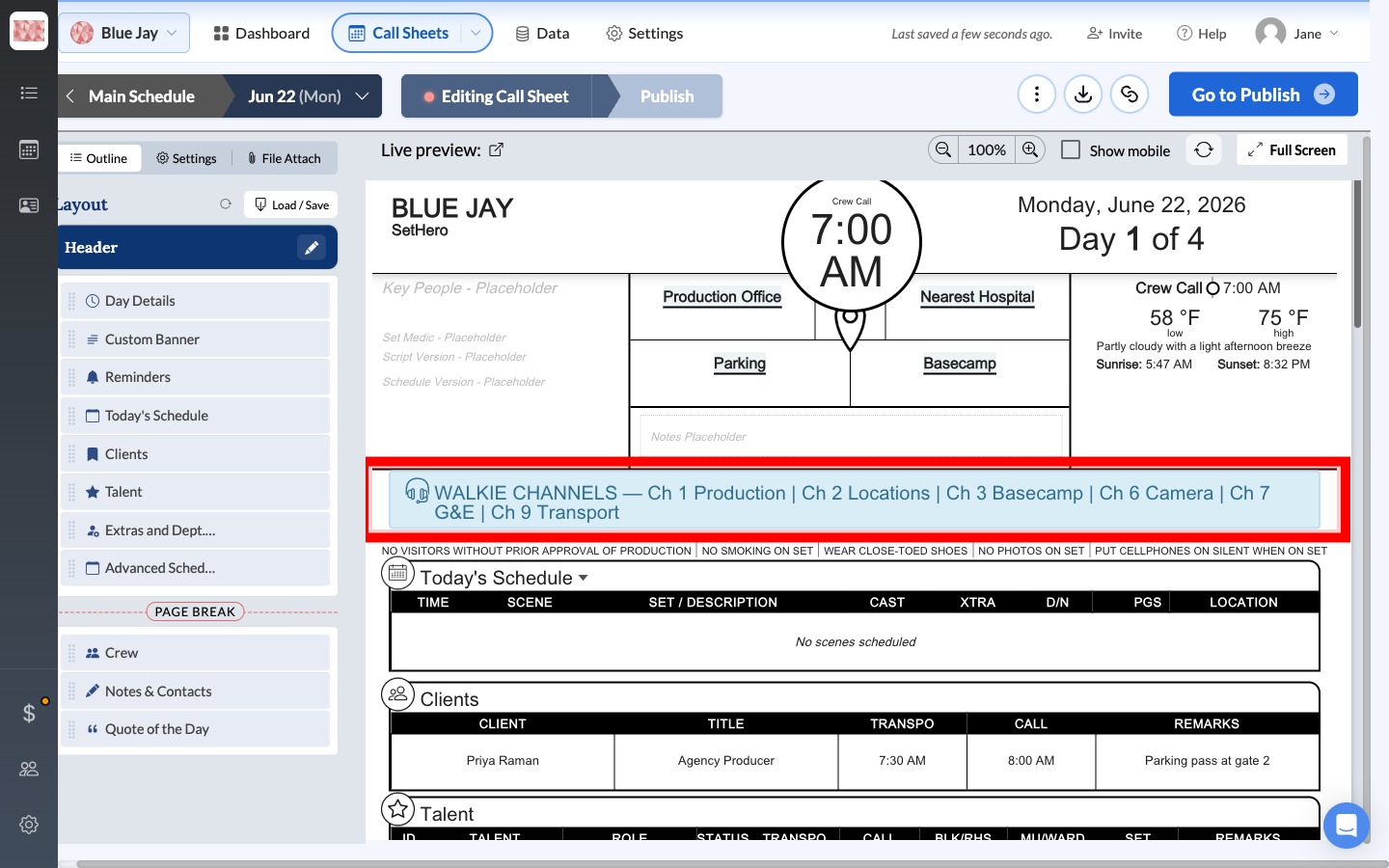
The banner appears in the live preview wherever you placed it in the layout. If you add more than one banner, each one remains a separate section that you can style and position independently.
When to use main notes instead
For a single general announcement near the top under the location details, use the Main Notes block in Day Details. It lets you add the announcement without adding another section to the layout. See The main notes block.