Set medic: adding, removing, or hiding
How Set Medic assignment, phone display, and section visibility work
The Set Medic is a special contact role displayed prominently at the top of the "Useful Contacts" section on published call sheets and the People page. Assigning someone to this field ensures the cast and crew can easily find their medical contact in an emergency.
If no one is assigned to this role, the Set Medic section will be automatically hidden from your published call sheet.
Adding a set medic
To assign someone as the Set Medic for a specific shooting day:
- Navigate to the Call Sheets page from your project dashboard.
- Click Edit on the call sheet you want to update.
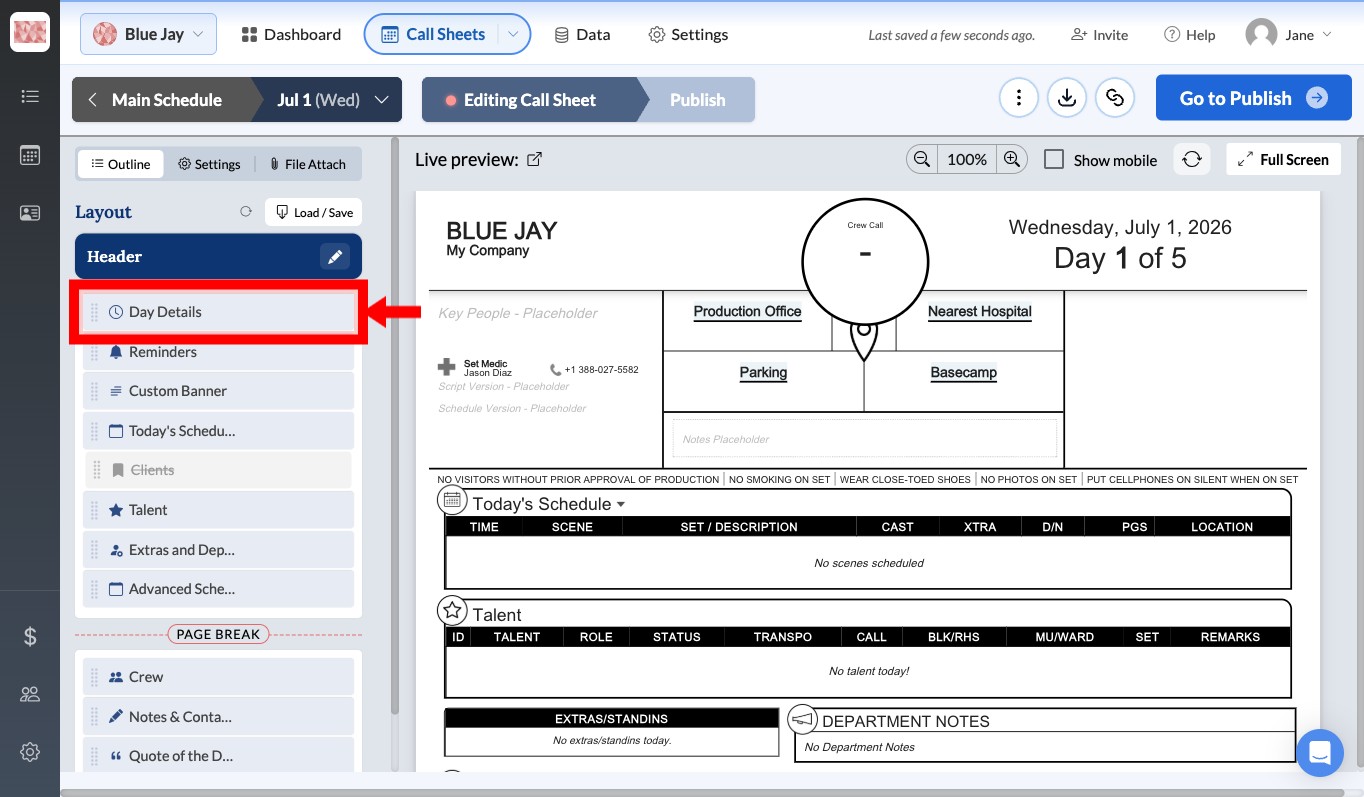
- In the Call Sheet Editor's outline, find Day Details and click Edit.
- Select the Key People & More tab.
- Scroll down to the Set Medic section.
- Click the Set Medic dropdown to search your crew list.
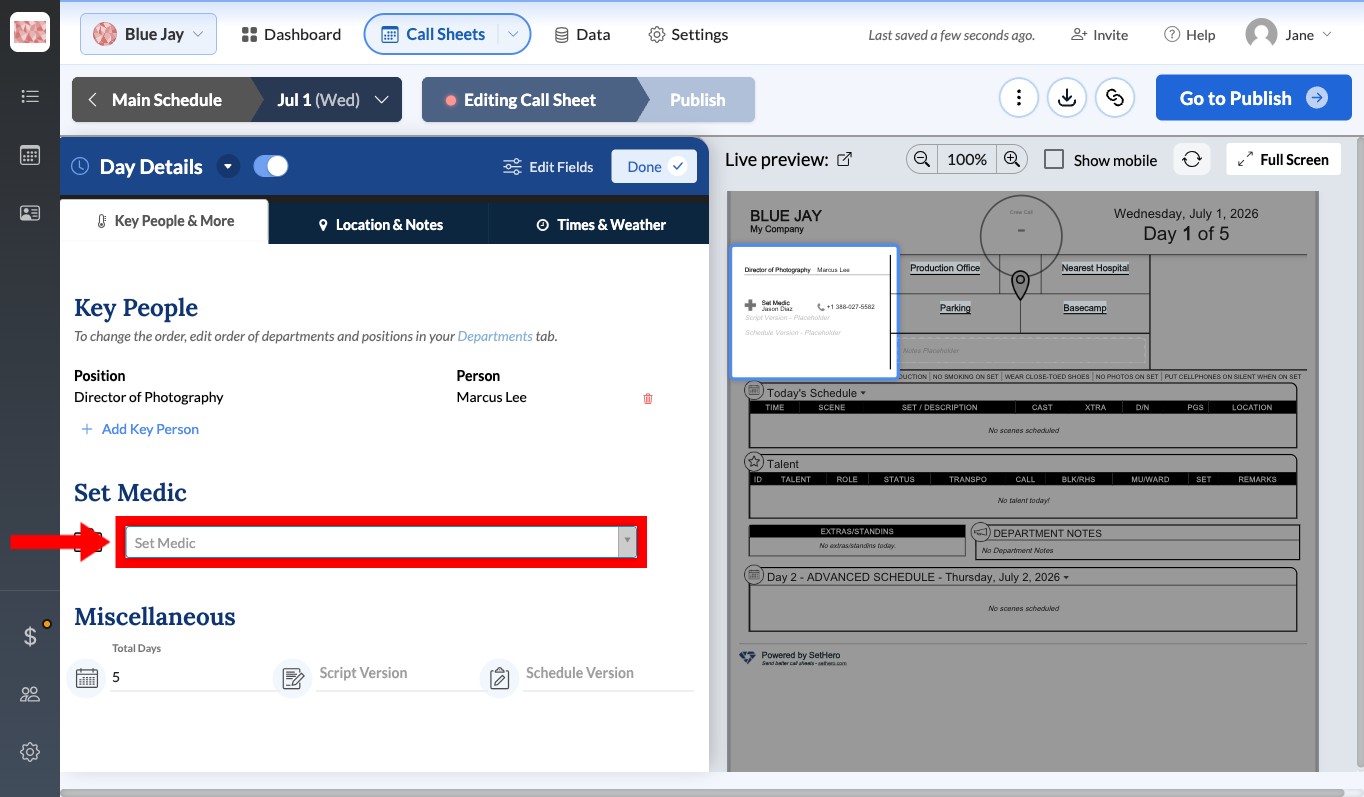
- Select the contact who will act as the Set Medic. If they haven't been added to your project yet, click + Add Crew within the dropdown menu to create a new person.
Note: The person you assign does not need to have "Medic" as their formal position title, though it is common. SetHero will highlight whichever person you assign here with a red first-aid cross avatar in the SetHero app. To add other key personnel to your call sheet, see how to add key people.
Making sure the medic's phone number appears
The assigned Set Medic's phone number appears with their name on the call sheet. Before publishing, make sure the contact has a phone number and has allowed it to be displayed:
- Go to Data → People and click the pencil icon beside the assigned medic.
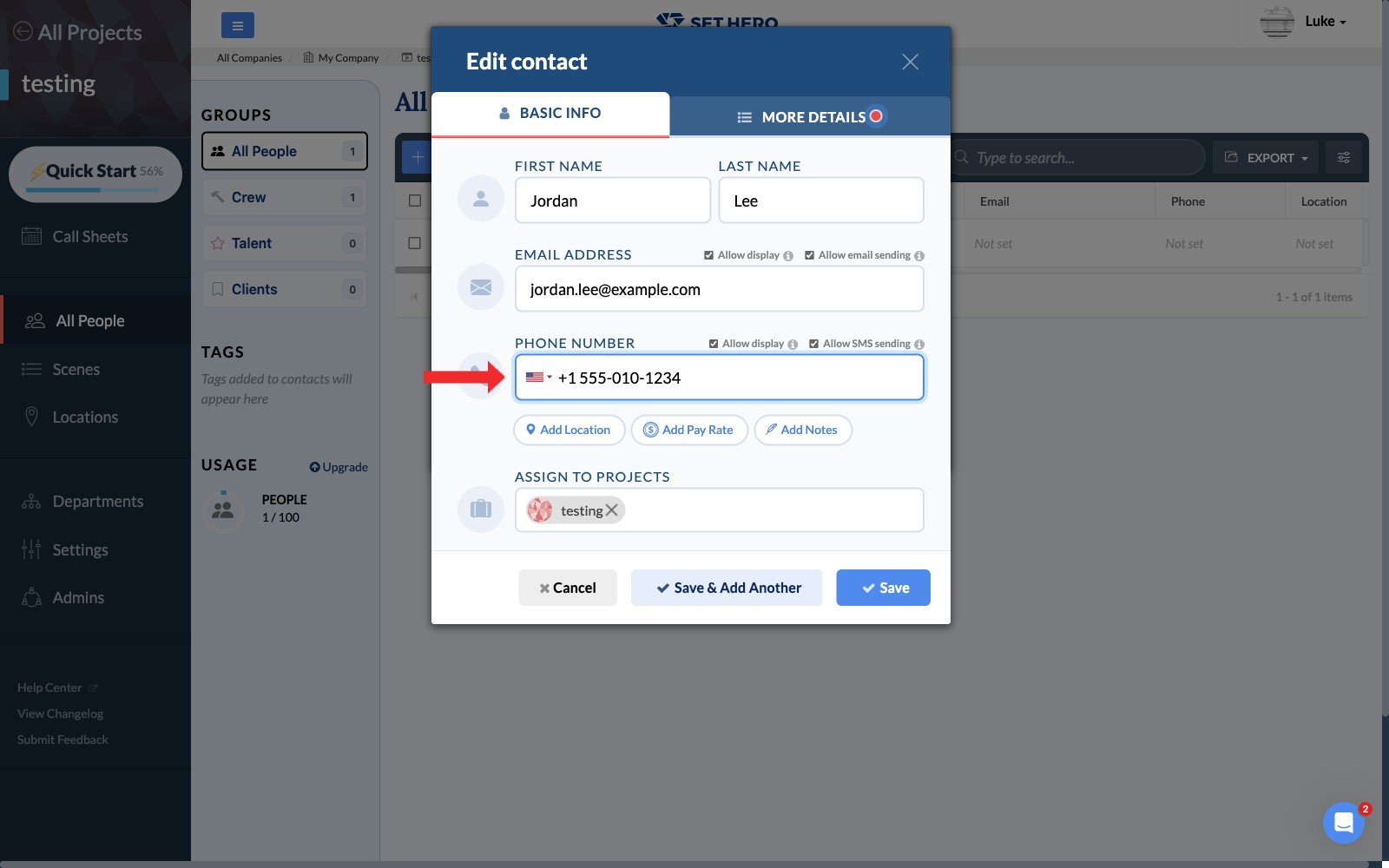
- Under Linked Contact, click Edit in popup.
- Edit the person's Phone Number and make sure Allow display is selected beside it.
- Save the contact and person.
Removing or hiding the set medic
To remove the currently assigned Set Medic (which effectively hides the medic section from the final call sheet):
- Go back to the Key People & More tab in the Call Sheet Editor.
- Locate the Set Medic field.
- Click the small X icon on the right side of the selected contact's name to clear the field.
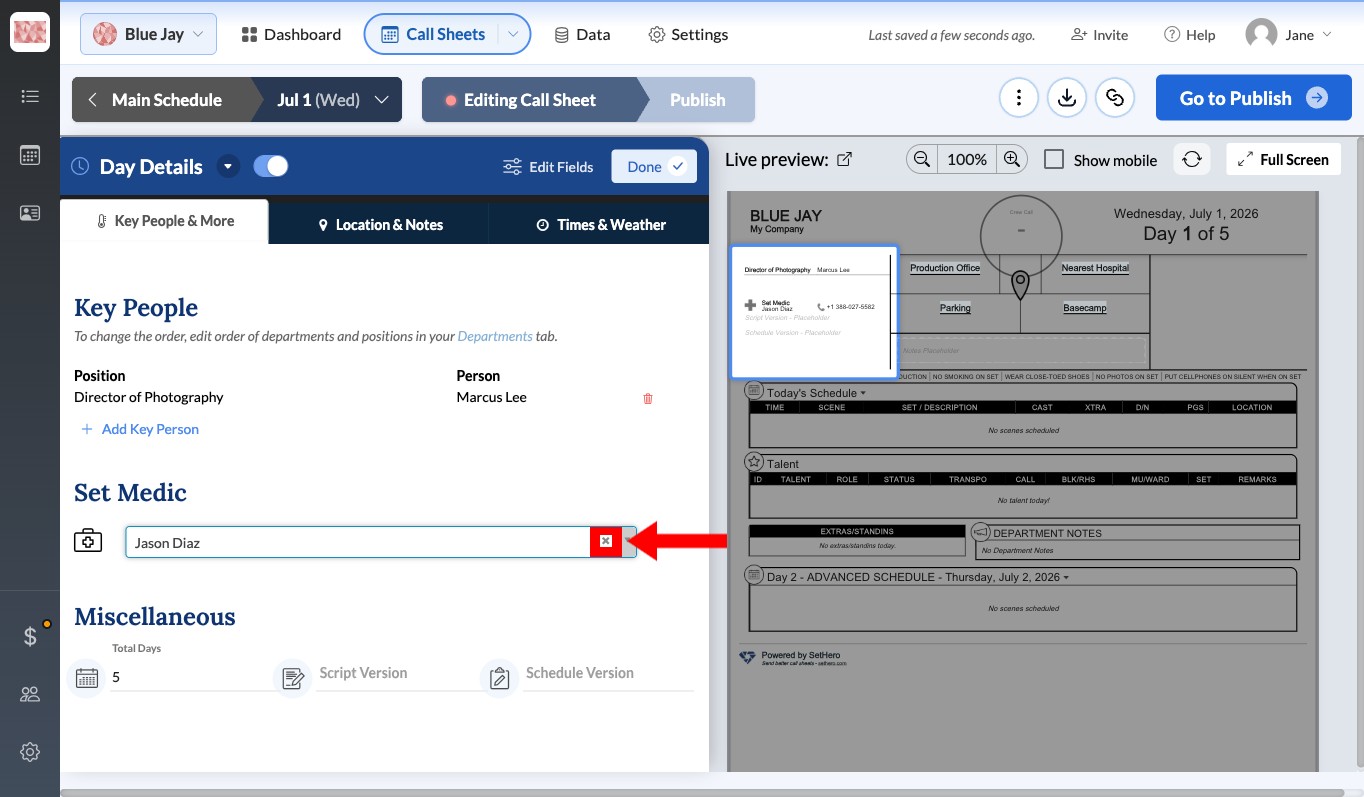
With the field empty, SetHero automatically hides the Set Medic section. It will not appear on your printed call sheets or the mobile view.