Why a person isn't showing up on your sheet
Why people are missing and how visibility settings affect your call sheet
If a cast or crew member is missing from your call sheet, there are a few common reasons why. Follow these steps to troubleshoot and get them to appear.
1. Check how the person was added
How a person appears depends on whether they are crew, talent, or a client:
- Crew automatically appear in the Crew section after they are added to the project. You do not need to add each crew member to an individual call sheet.
- Talent and clients must be added to the specific call sheet where they should appear.
For talent or clients, open the corresponding section in the Call Sheet Editor and use its add button to select the person.
If a crew member is missing from the editor entirely, confirm that they were added to the project. If the person is not available in a picker, you may need to add them to your project first.
2. They are being filtered out
If you've added someone to the call sheet but they still aren't showing up, check your filters. SetHero allows you to filter the crew list by tags or locations, which might be hiding the person.
Click the Filter button at the top of the Crew or Talent section.
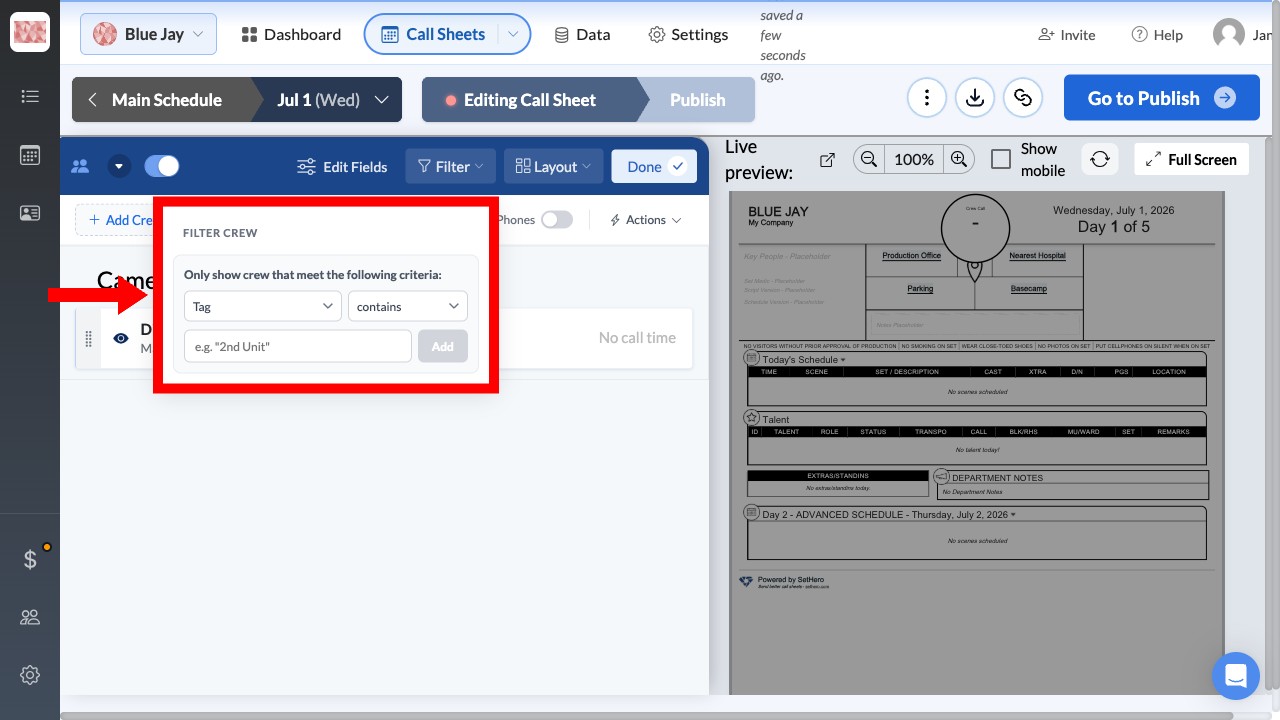
If you see any active filters (e.g., "Tag contains 2nd Unit"), it means only people matching that criteria will be shown. Remove the filter or update the person's tags to make them visible.
3. They (or their whole department) are hidden
Every person and every department in the Crew section has a visibility toggle — an eye icon that controls whether they appear on the published call sheet. When someone is hidden, their name shows with a line through it in the editor and drops off the call sheet entirely.
Hover over a department heading to reveal its eye icon, or look at the eye icon on an individual crew row. A slashed eye means that department or person is hidden.
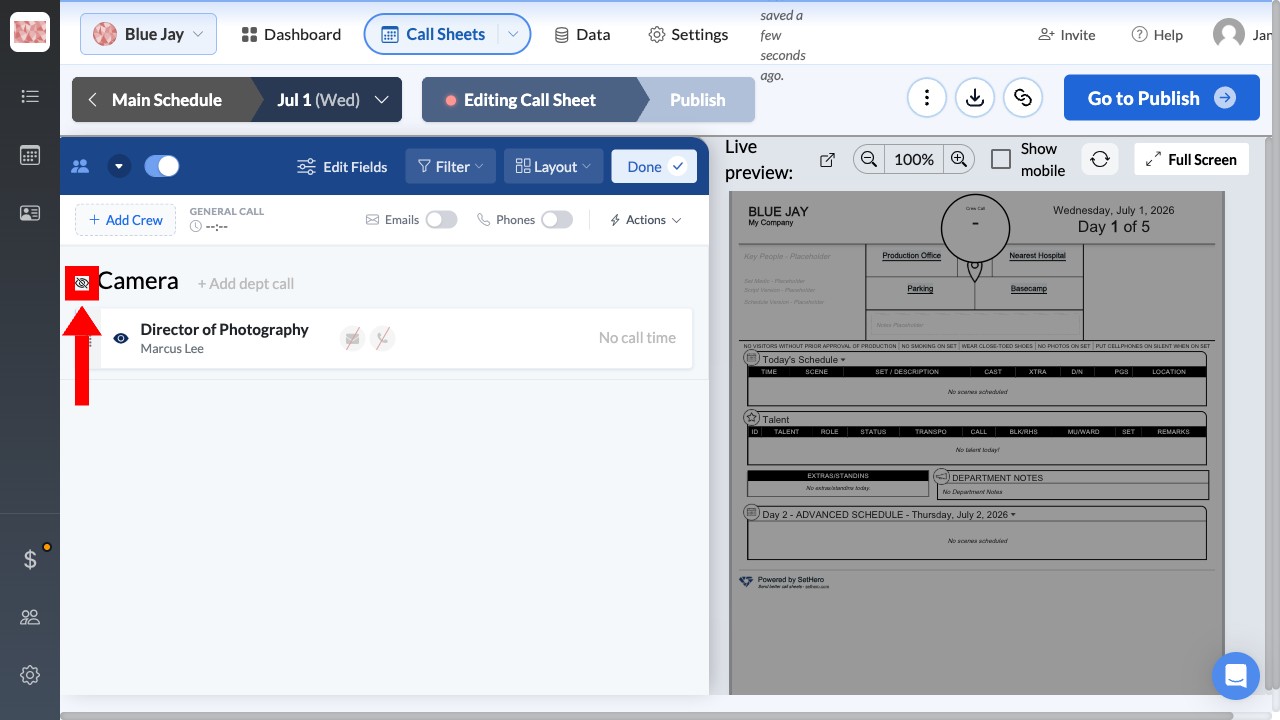
Click the eye icon to toggle visibility back on. Hiding a department removes everyone in it, so if an entire group is missing, check the department's eye icon first, then the icon on the individual row. To fix several at once, use the Actions menu at the top of the Crew section, which has Show all departments and Show all crew options.