Add crew, cast, and other contacts
How to add people one at a time, reuse contacts, or import a spreadsheet
Every project starts with an empty People list. The best way to fill it depends on who you're adding:
| Who you're adding | Best way |
|---|---|
| A few new people | Add them one at a time |
| Someone you've worked with before | Reuse their contact |
| Someone you need while building a call sheet | Add them from the call sheet |
| A whole cast or crew list | Import a spreadsheet |
Add people one at a time
-
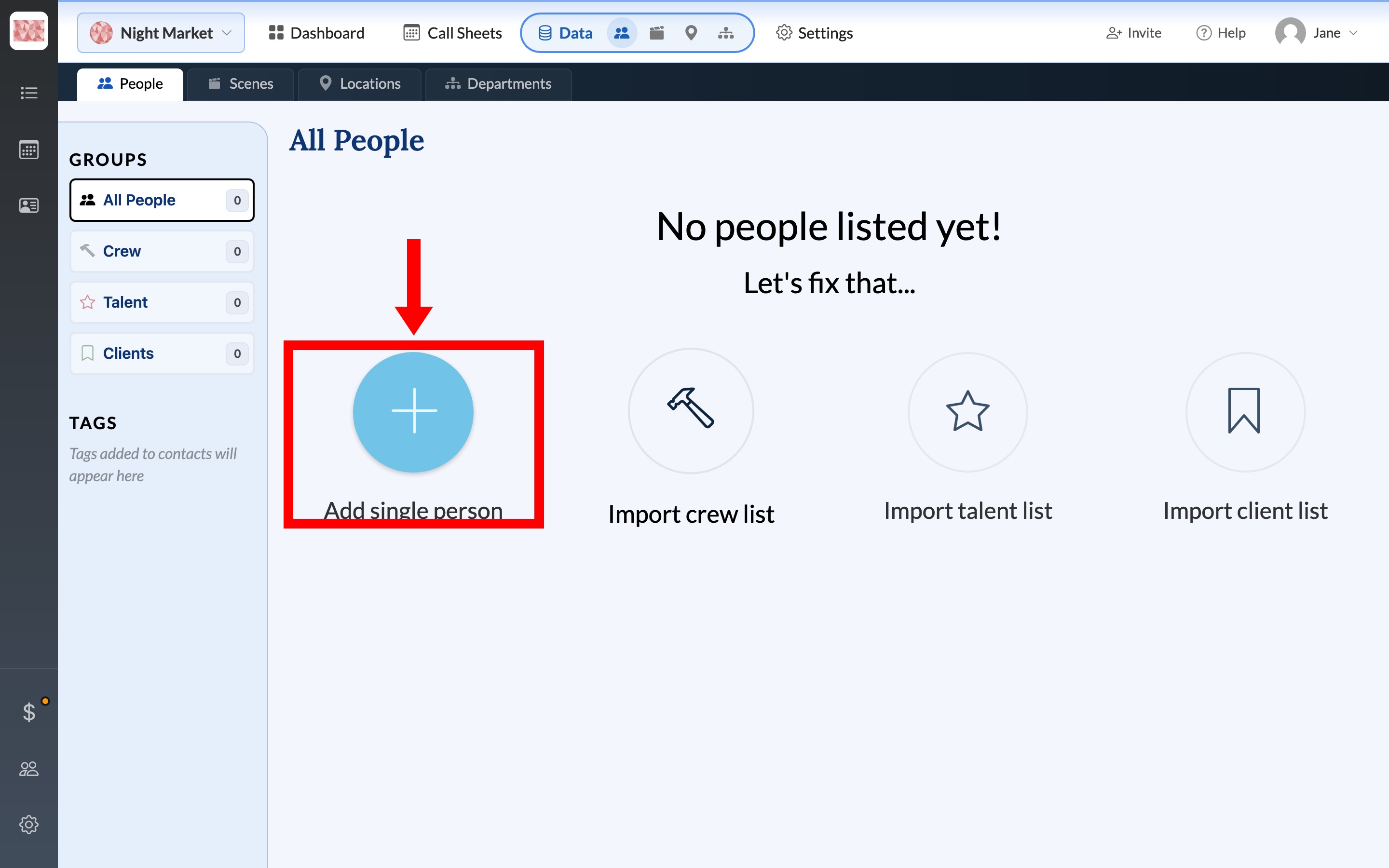
Go to Data → People and click Add single person, or New Person if the list already has people in it.
-
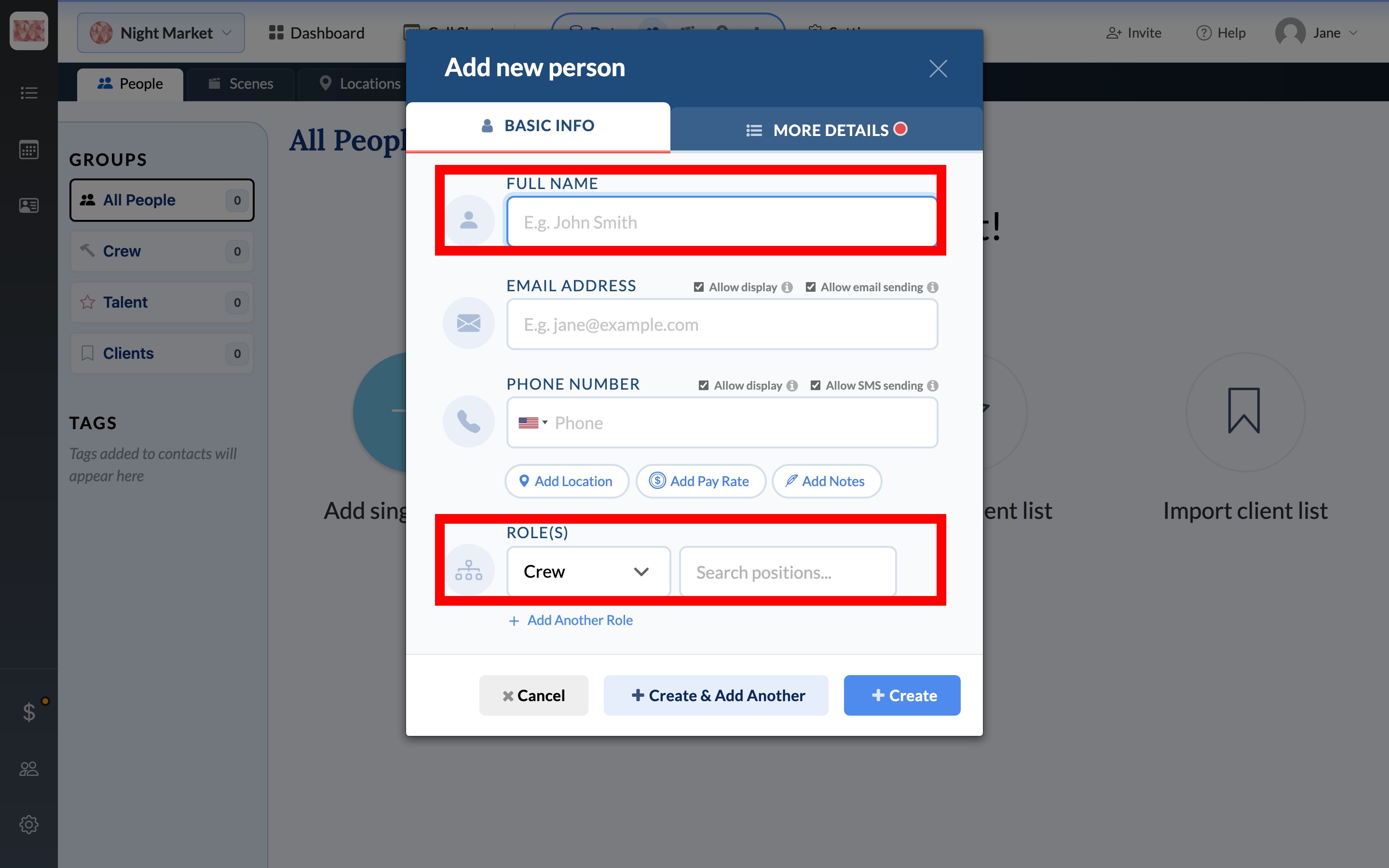
Enter their full name. To send them call sheets, also add an email address or phone number. See Required info for sending email and text.
-
Under Role(s), choose Crew, Talent, or Client. For crew, also choose a position.
-
Click Create, or Create & Add Another to keep going.
Reuse an existing contact
Everyone you add to a project is also saved to Company Contacts, so you don't need to retype them on your next production.
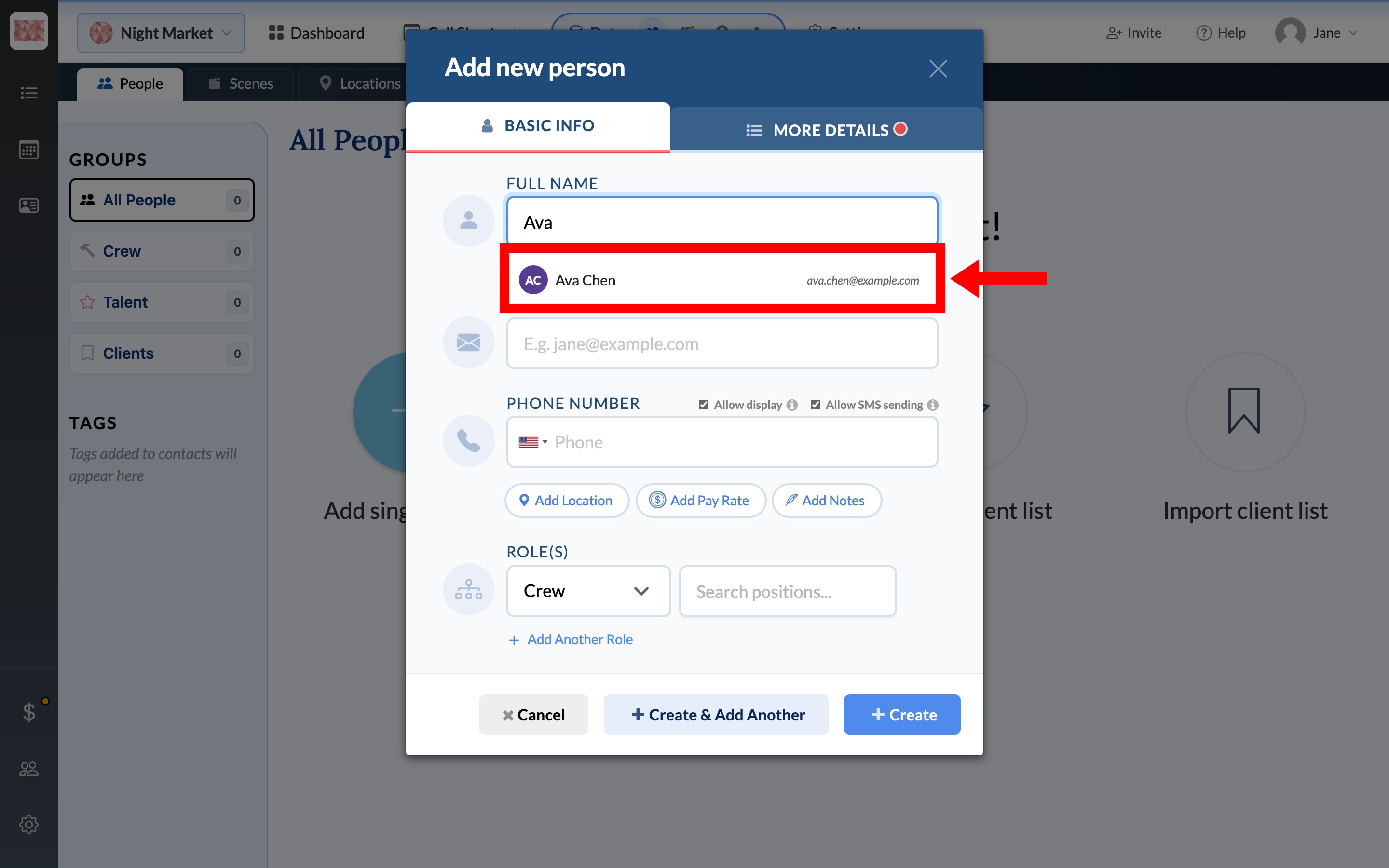
In Add new person, start typing their name, then select them when they appear under the field. Choose their role and click Create. Selecting the match also avoids creating a duplicate.
To bring in several people at once, see Import crew and talent from a previous project. If someone already shows up twice, see Merge duplicate contacts.
Add people from the call sheet
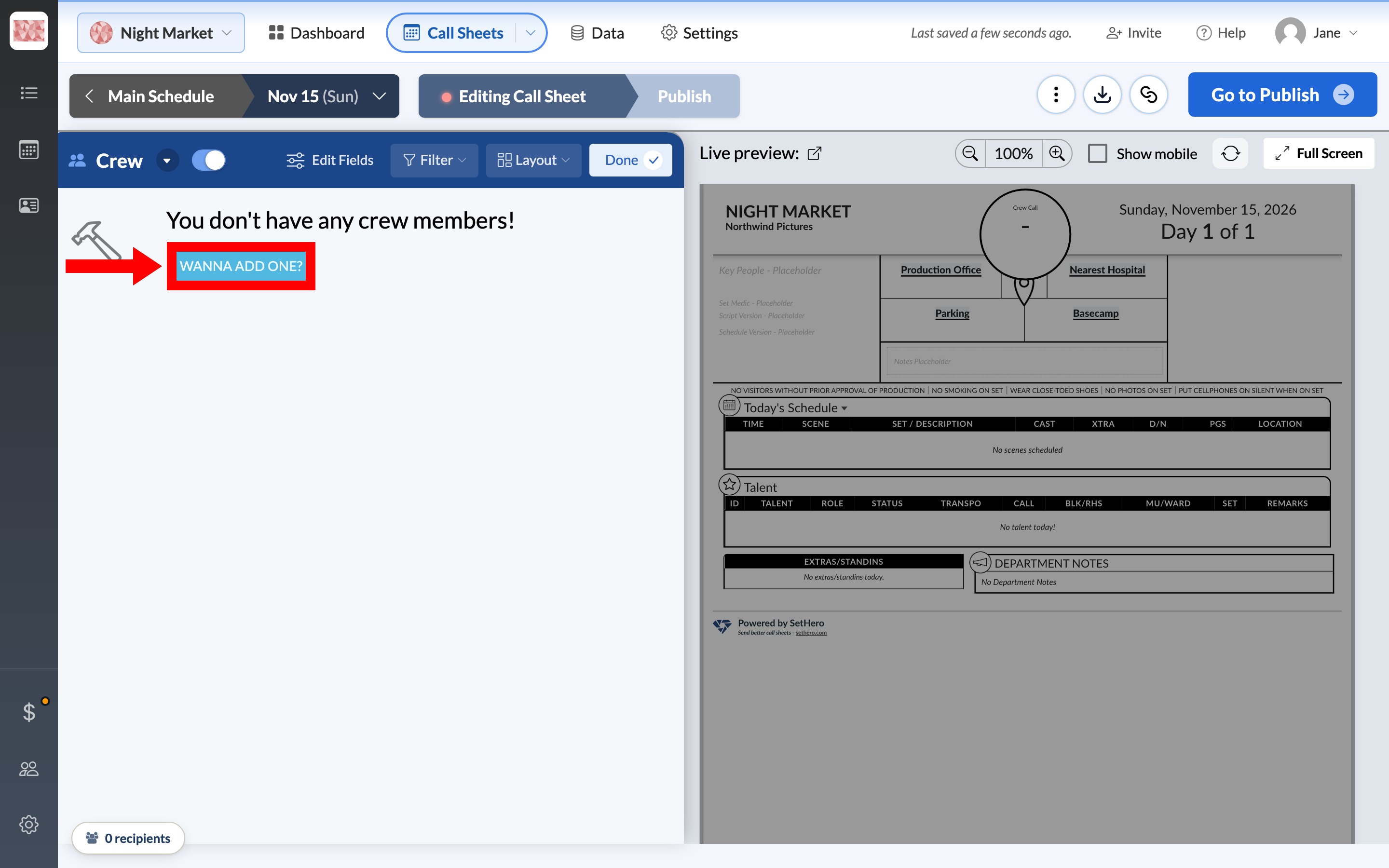
You don't have to leave the Call Sheet Editor to add crew. In the Crew section, click WANNA ADD ONE?, or Add Crew if the section already has people in it. They're added to the project's People list too.
Import a spreadsheet
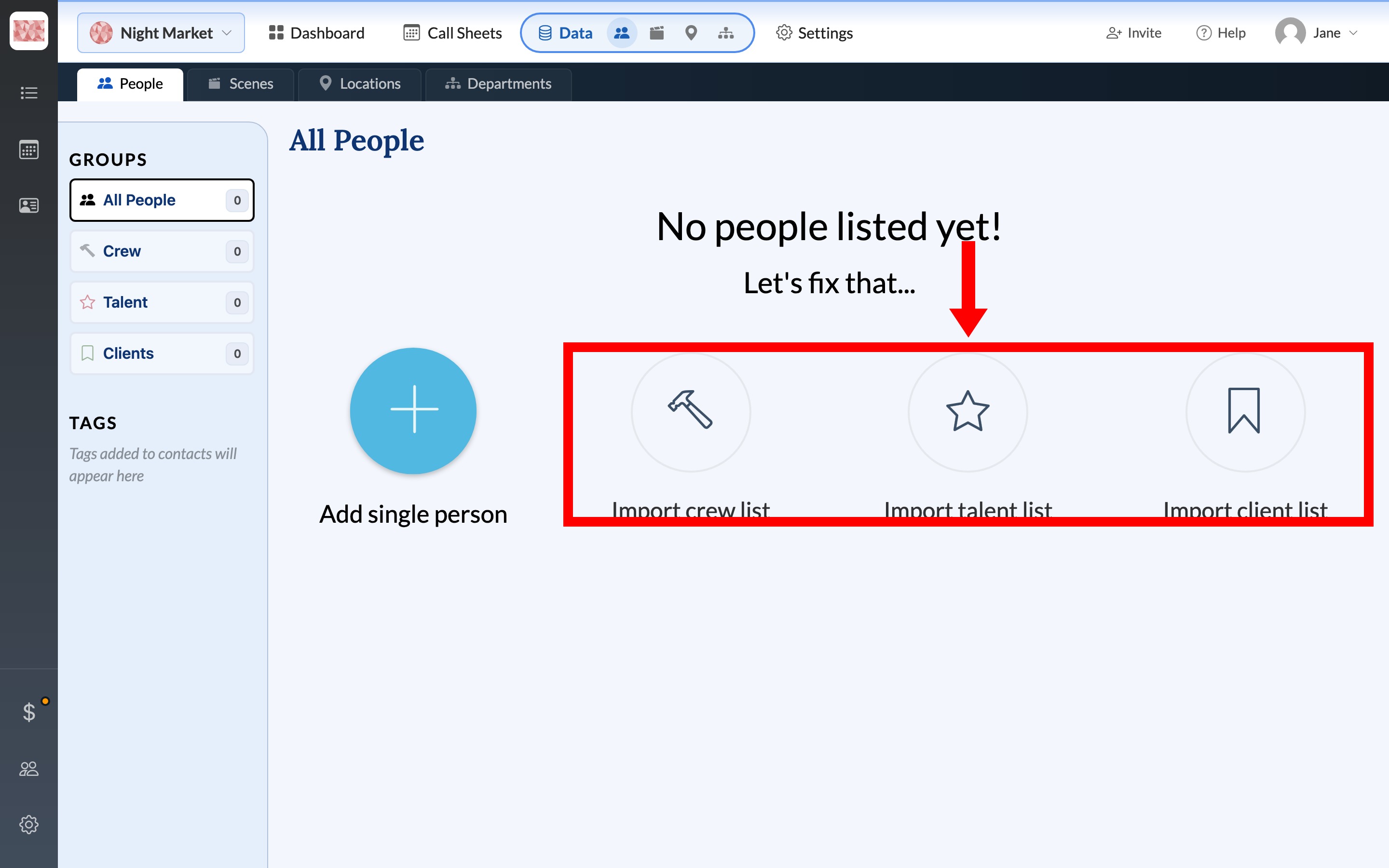
If you already have a list in a CSV or Excel file, go to Data → People and choose Import crew list, Import talent list, or Import client list. Import contacts from a spreadsheet walks you through uploading your file and matching its columns.
What to do next
- Finish your team with Build your crew list.
- Add names to the top of the call sheet with Add key people (directors, producers, ADs).
- Set talent times with The cast block and individual cast times.
- Organize a long list with Tag and filter your contacts.