Clean up your spreadsheet before importing
How to format spreadsheet headers, roles, and contact details for import
When importing contacts into SetHero, a well-formatted spreadsheet ensures all your data transfers correctly without delays. Taking a few minutes to clean up your .csv or .xlsx file before uploading can save you from having to manually resolve errors during the import process.
Use our template
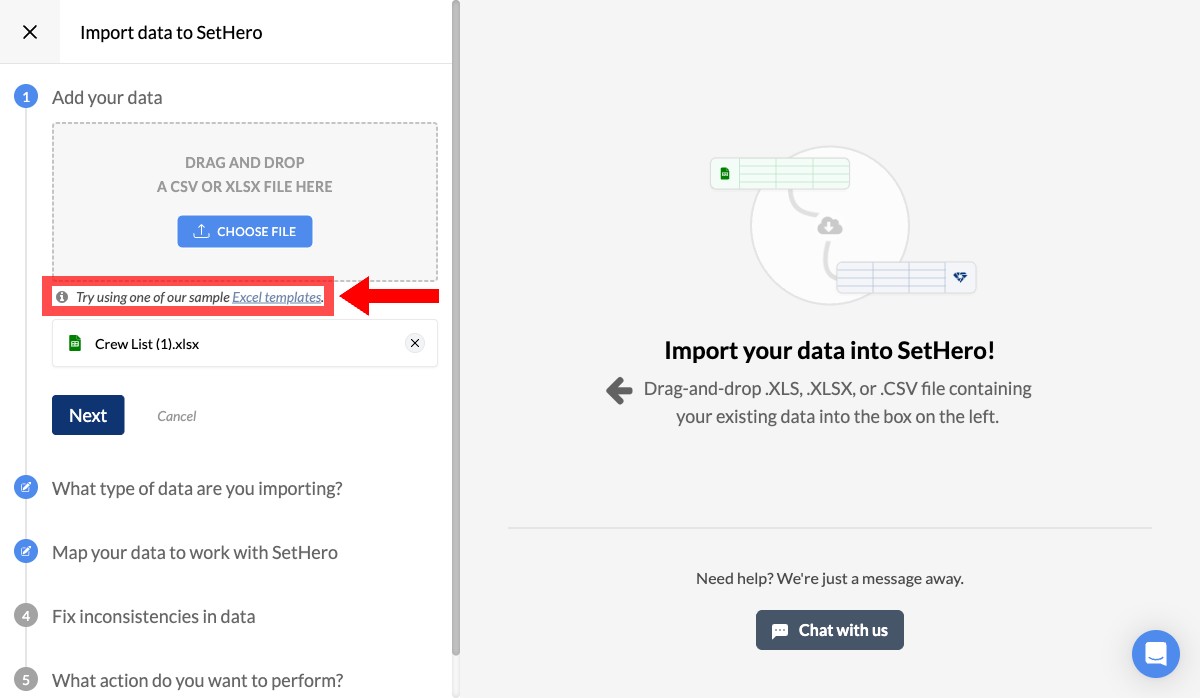
The easiest way to guarantee a smooth import is to start with our standard template. It includes all the columns SetHero expects, named exactly how the importer wants them.
- Open the importer by clicking Import from the dashboard.
- In the "Add your data" step, click the Excel templates link inside the upload box.
Common spreadsheet issues
If you are using your own spreadsheet, you might run into the Fix inconsistencies in data step if SetHero doesn't recognize some of your data.
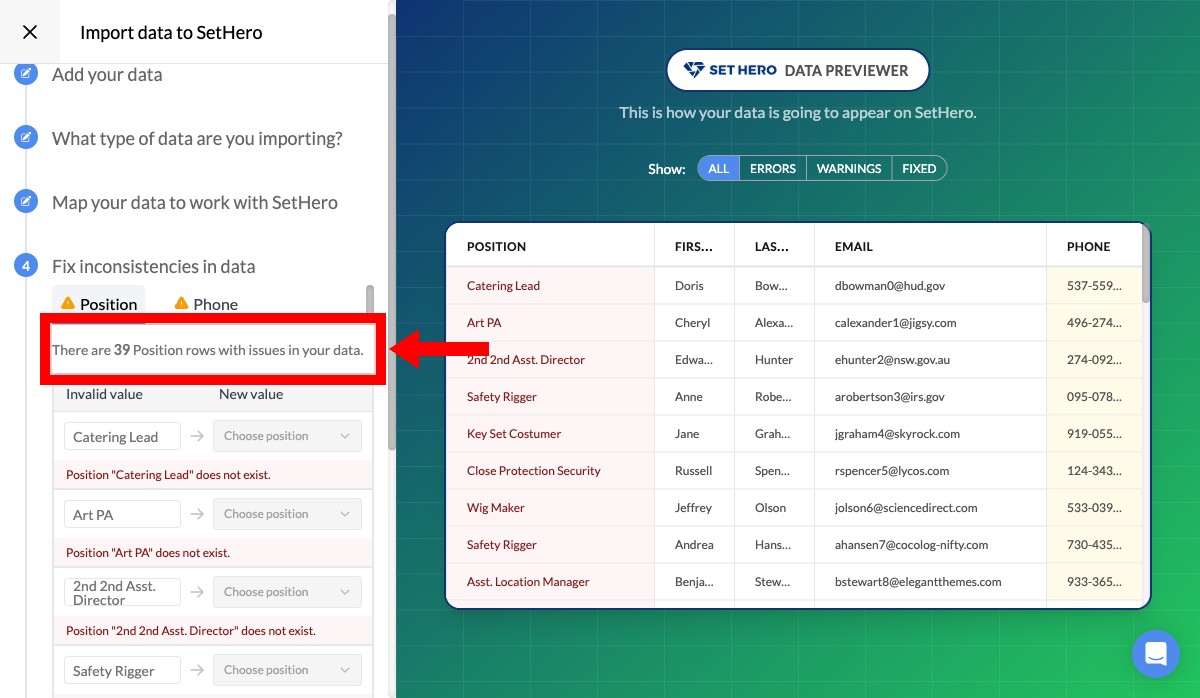
Here are the most common reasons a spreadsheet flags errors during import:
1. Unrecognized positions or roles
SetHero uses a standardized list of department roles (e.g., "Director of Photography" instead of "DP"). If your spreadsheet uses custom abbreviations or roles we don't recognize, the importer will ask you to manually map each one to a SetHero equivalent.
To prevent this, ensure the roles in your spreadsheet match standard industry terms.
2. Multiple contacts in one row
SetHero needs one row per person. If you have "John & Jane Doe" in a single row, or multiple phone numbers crammed into one cell, the importer won't be able to separate them. Split combined contacts into their own dedicated rows.
3. Missing header row
Your spreadsheet should have a single header row at the very top (Row 1) labeling each column (e.g., First Name, Last Name, Email). If you have title rows, merged cells, or blank rows above your headers, delete them so the column names are the very first thing in the file.
4. Invalid phone number or email formatting
Phone numbers and email addresses can be flagged when their formatting is incomplete or inconsistent. Check for email addresses without an @ symbol, extra spaces, or multiple addresses in one cell. Keep one phone number per field, and include a country code when importing international numbers.
Once your spreadsheet is clean, save it as a .csv or .xlsx and try uploading it again! For full instructions on completing your import, check out our guide to importing contacts from a spreadsheet.