Import contacts from a spreadsheet
Which spreadsheet files work, how to map fields, and resolve import warnings
If you have a large list of crew or cast members, you can import them all at once using a CSV or Excel file. This is much faster than adding them one by one.
Tip: To ensure a smooth import, we recommend using our sample templates. You can download the Crew Import Template or the Cast Import Template. If you are using your own spreadsheet, it helps to clean up your spreadsheet before importing to prevent errors.
Step-by-step guide
-
From your project dashboard, click on Data in the top navigation, then select People.
-
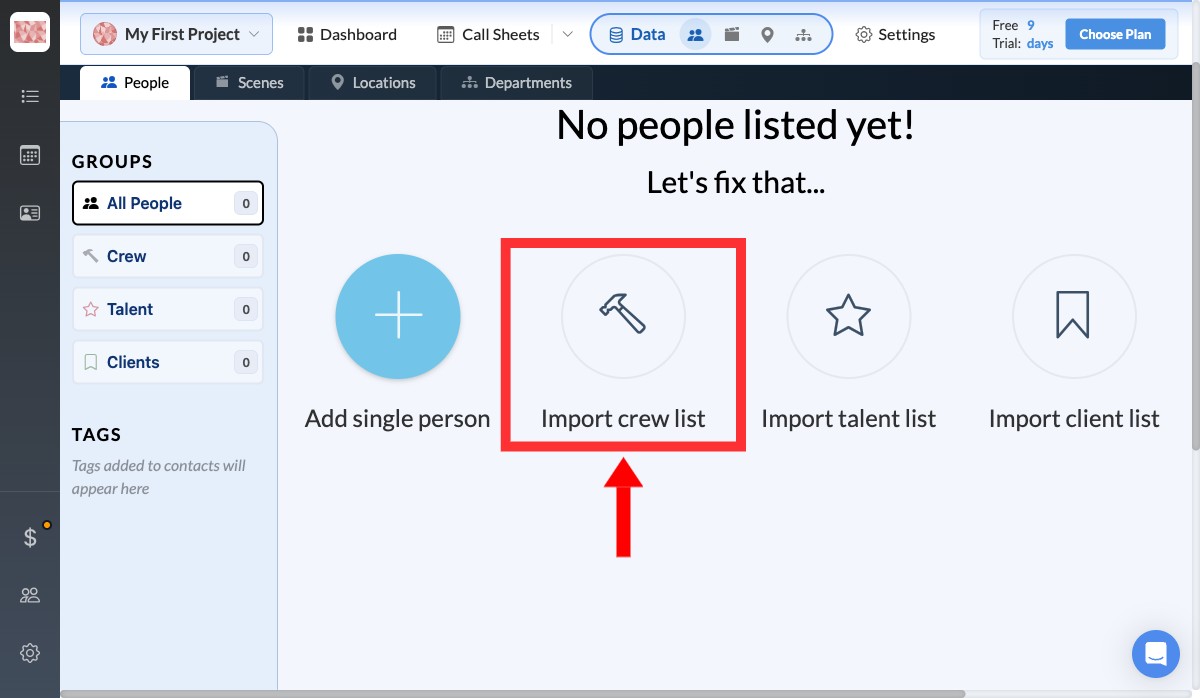
Click on Import crew list, Import talent list, or Import client list depending on who you are adding.
-
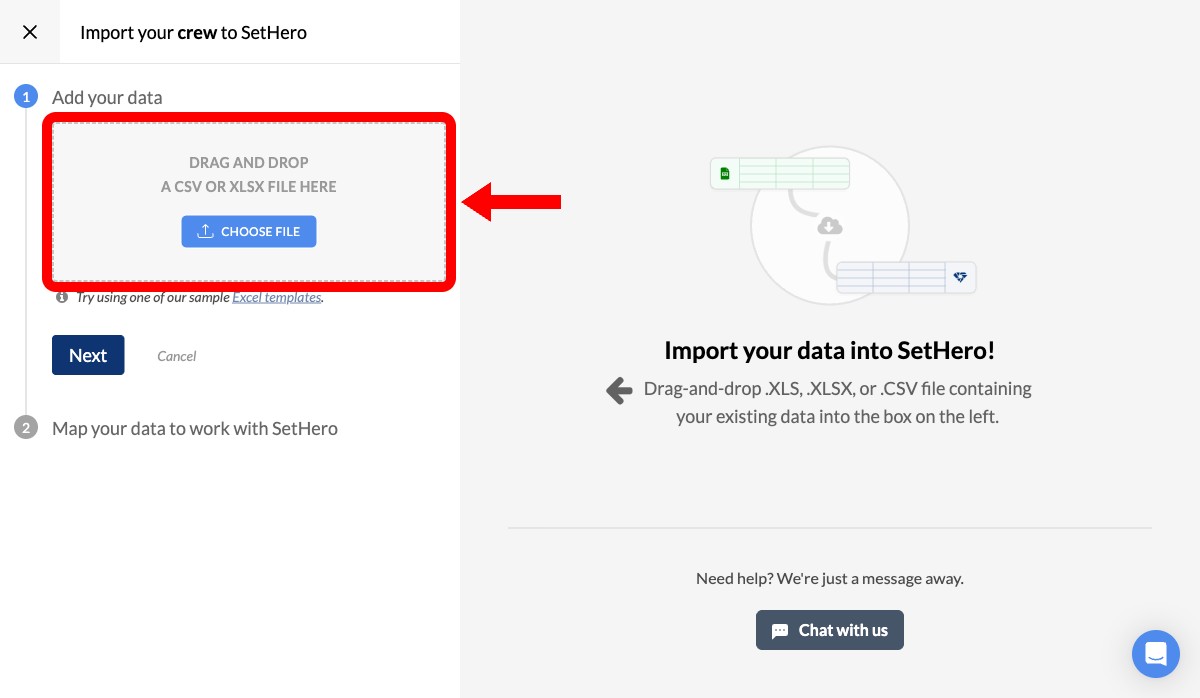
In the import modal, drag and drop your CSV or XLSX file into the upload area, or click choose file to select one from your computer.
-
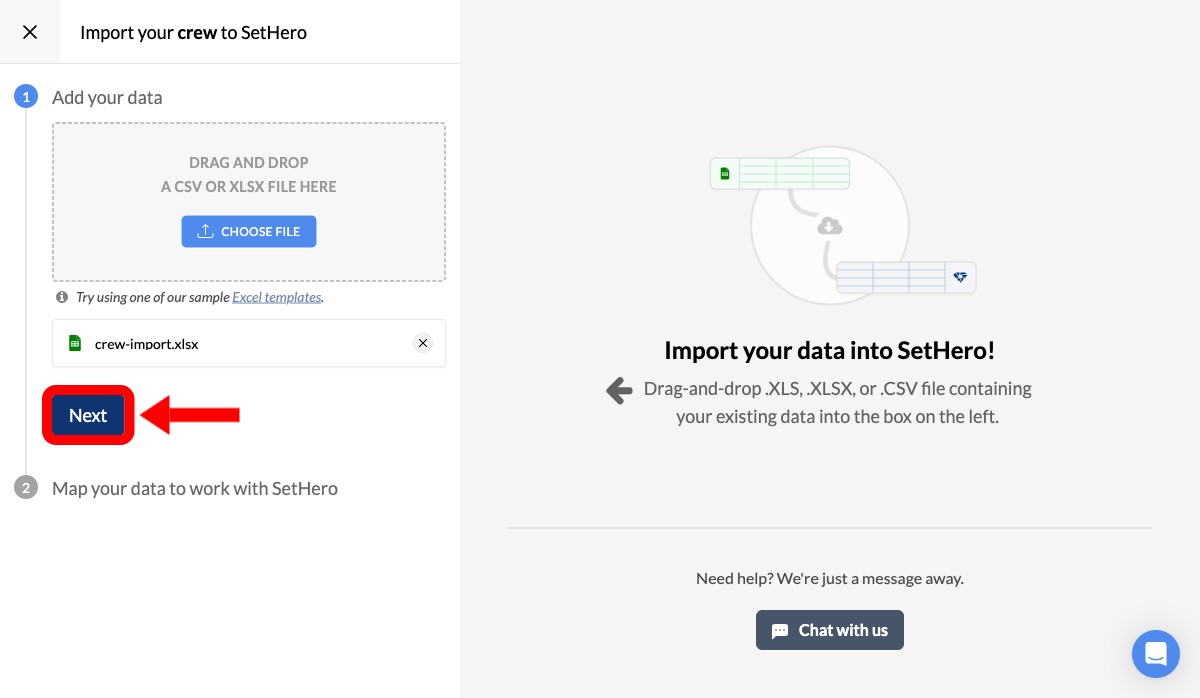
Once the file is uploaded, click Next to proceed to the mapping step.
-
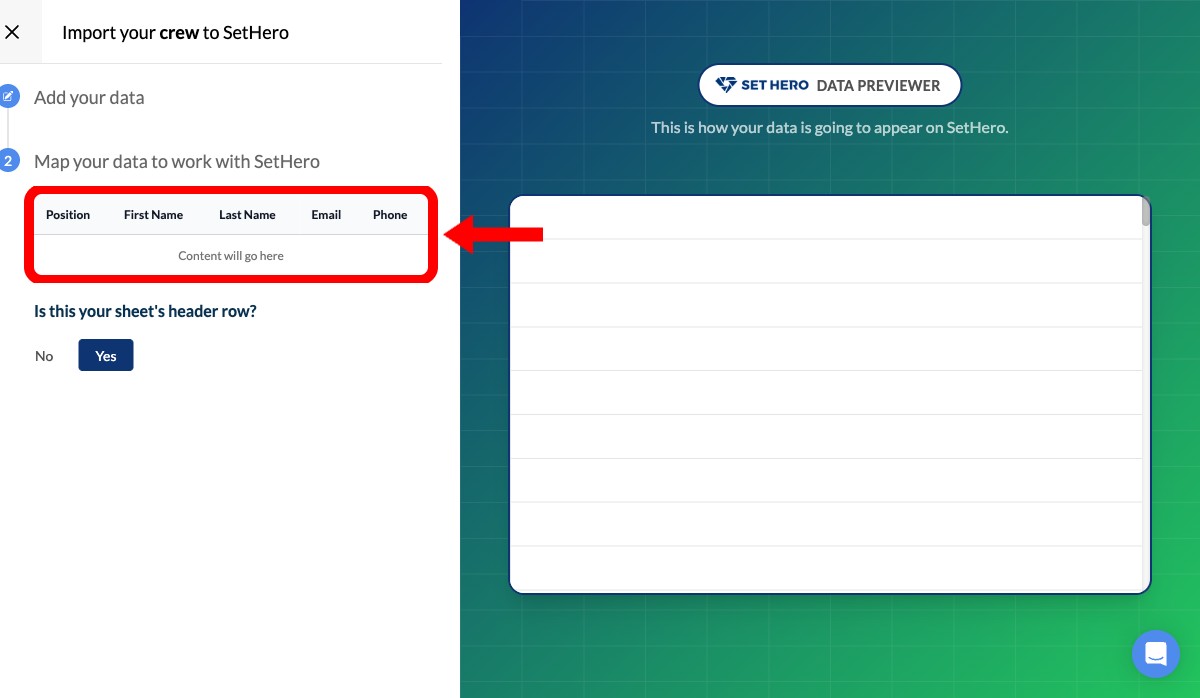
Map the columns from your spreadsheet to the corresponding fields in SetHero. The system auto-detects common column names like First Name, Last Name, Email, Phone, and Position.
-
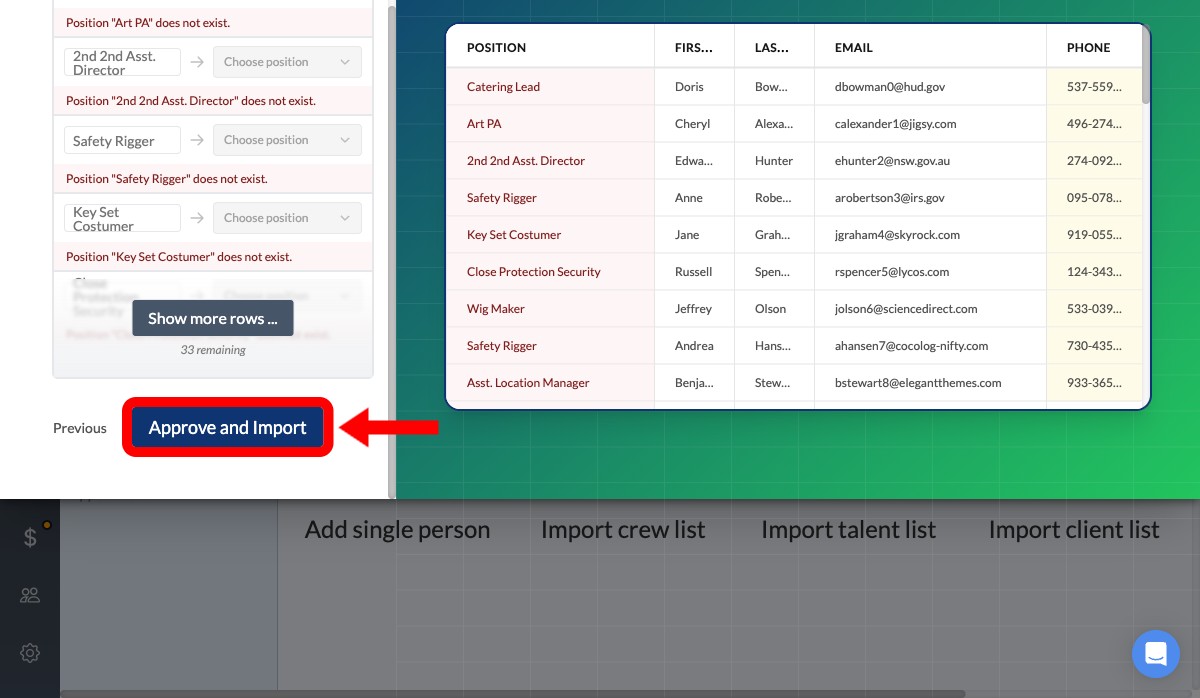
Click Next to review your data. If SetHero detects any inconsistencies (such as positions that don't yet exist in the project), you can fix them individually, choose to ignore warnings, or create new positions on the fly.
-
Finally, click Approve and Import to add all the contacts to your project.
If phone numbers get the wrong country code
SetHero assumes imported phone numbers belong to your project's primary shooting country, so check that setting before you import.
If some numbers are from another country, include the country code in your spreadsheet, such as +44 20 7946 0958.
Numbers you've already imported can't be fixed in bulk. Edit them one at a time, or delete those people and import them again.