Add extras and stand-ins to a call sheet
How to add, time, edit, and remove extras and stand-ins
Use the Extras & Stand-ins section to list groups of extras (background actors) and stand-ins needed for a shoot day.
Open the extras and stand-ins section
- From your project dashboard, click Call Sheets.
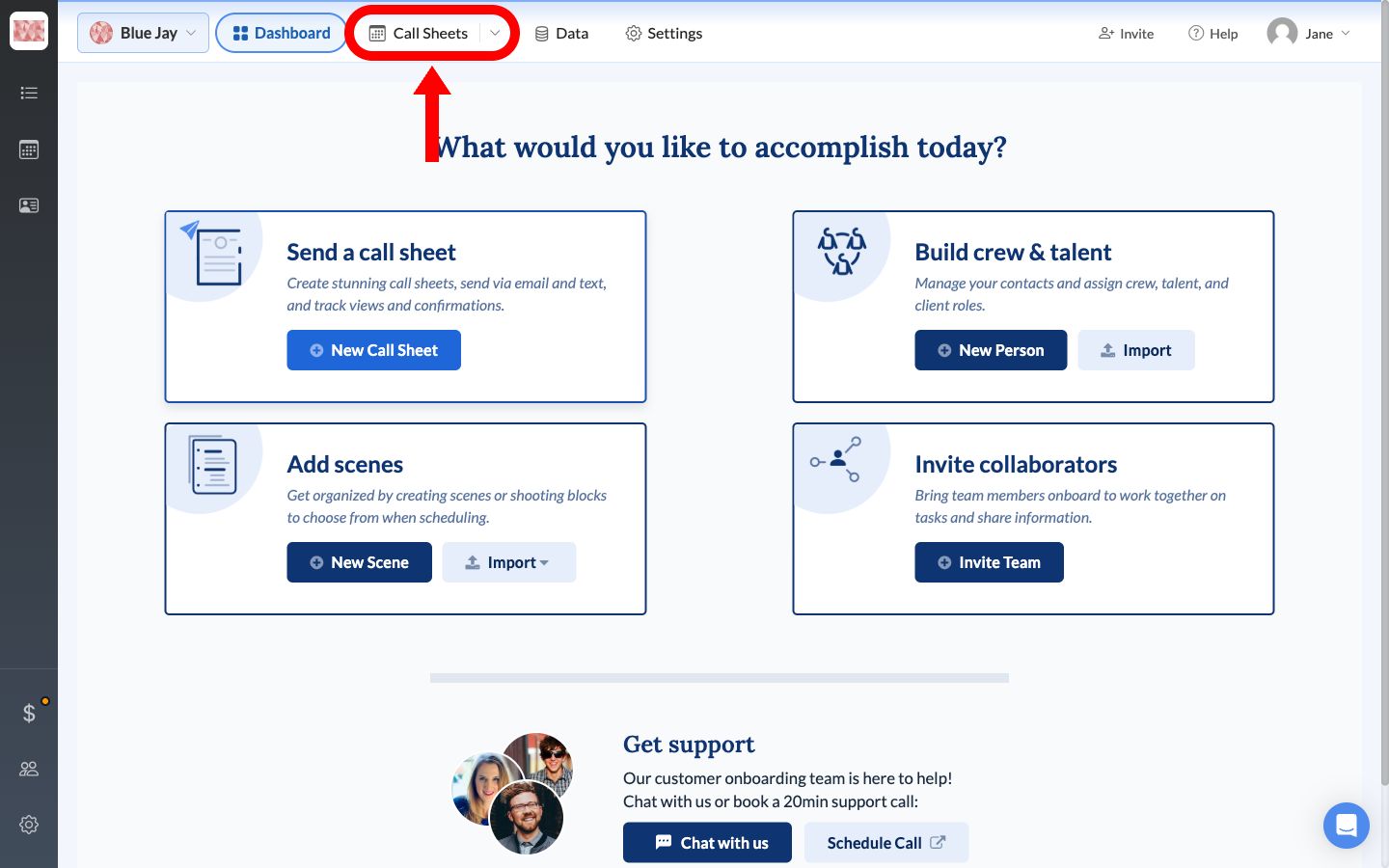
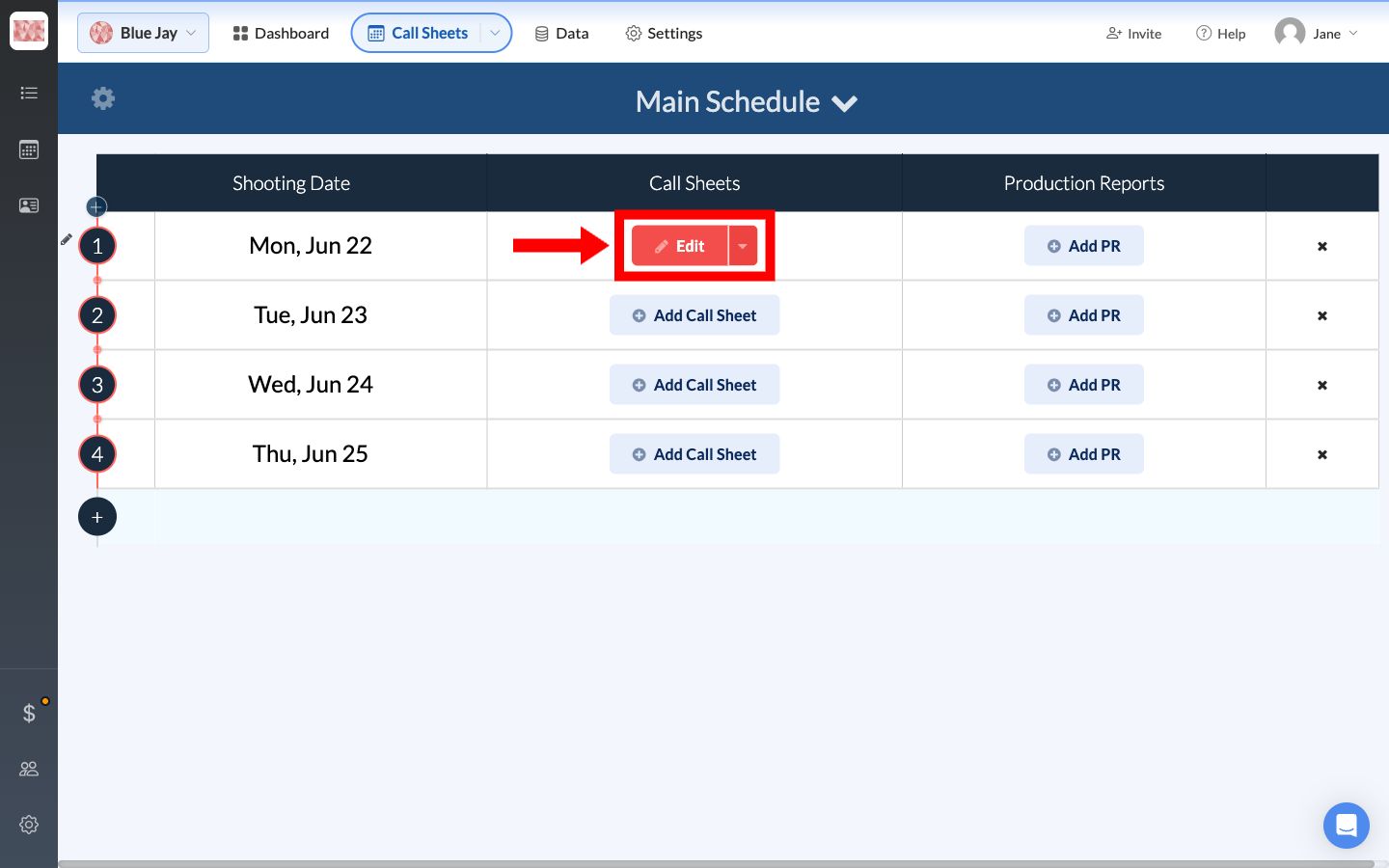
- Find the shoot day you want to update, then click Edit on its call sheet.
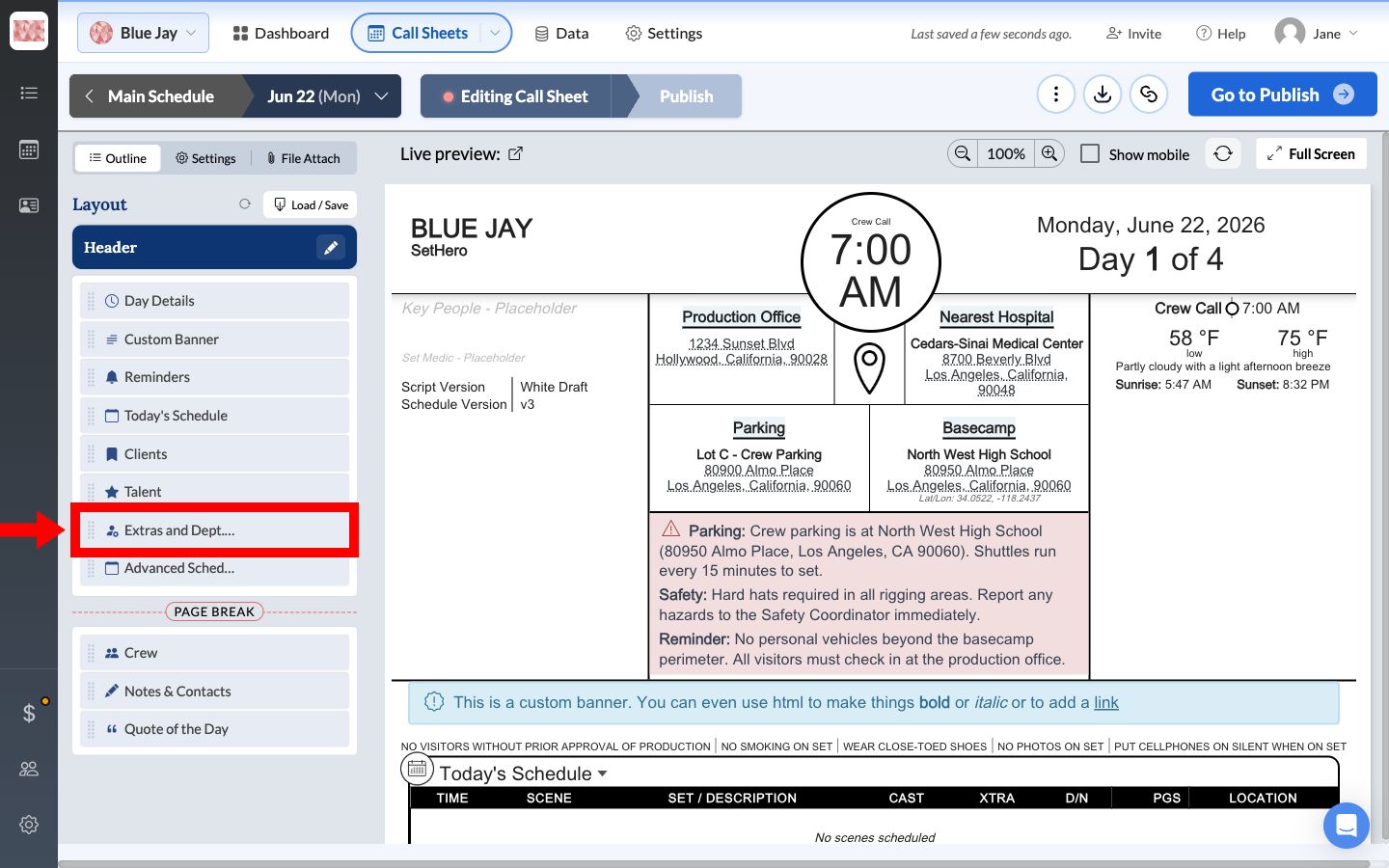
- On the Outline tab, click Extras and Dept. Notes.
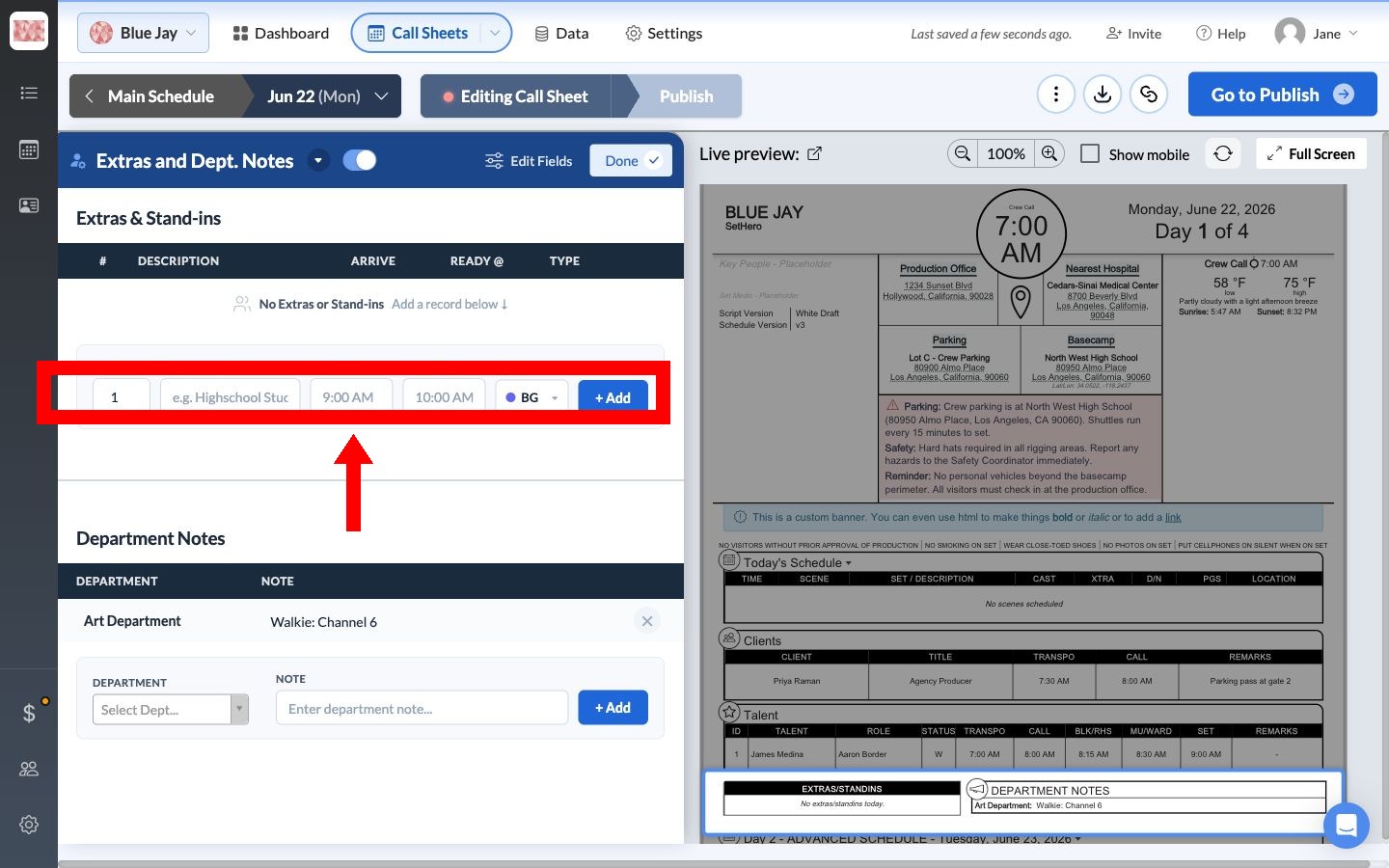
- Find the entry form under Extras & Stand-ins.
Note: If the form says Section disabled, click Enable? to turn the Extras & Stand-ins section back on.
Add extras or stand-ins
Complete the entry form:
- Qty: Enter the number of people in the group.
- Description: Identify the group, such as "Background pedestrians."
- Arrive: Enter the time the group should arrive.
- Ready @: Enter the time the group must be ready on set.
- Type: Open the field and choose the appropriate option. The closed field shows the selected abbreviation, and new entries default to BG.
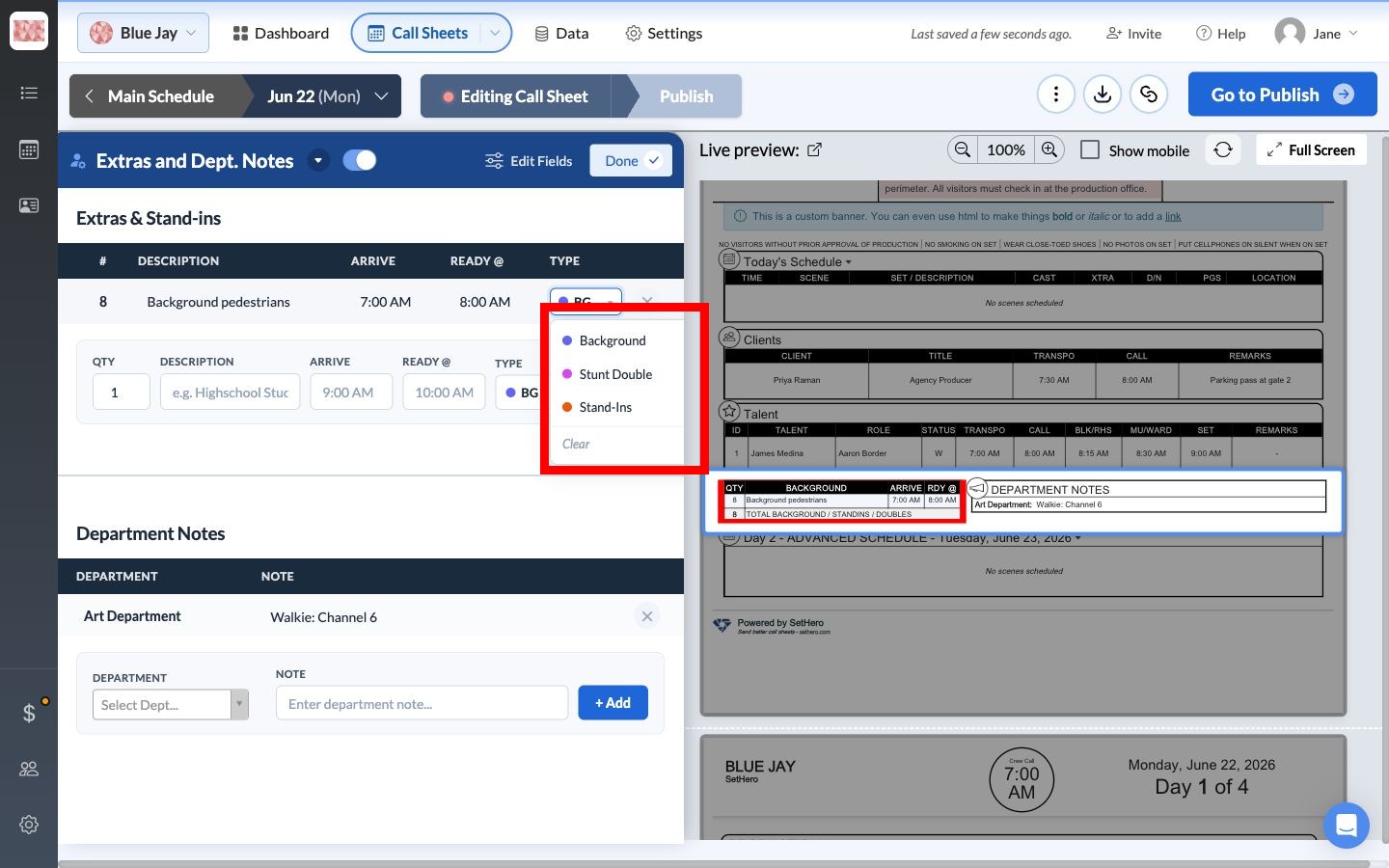
Note: Most productions include stunt doubles in the Talent section, but Stunt Double (SD) is also available here if you want to add them in the Extras section.
After entering the details, click + Add.
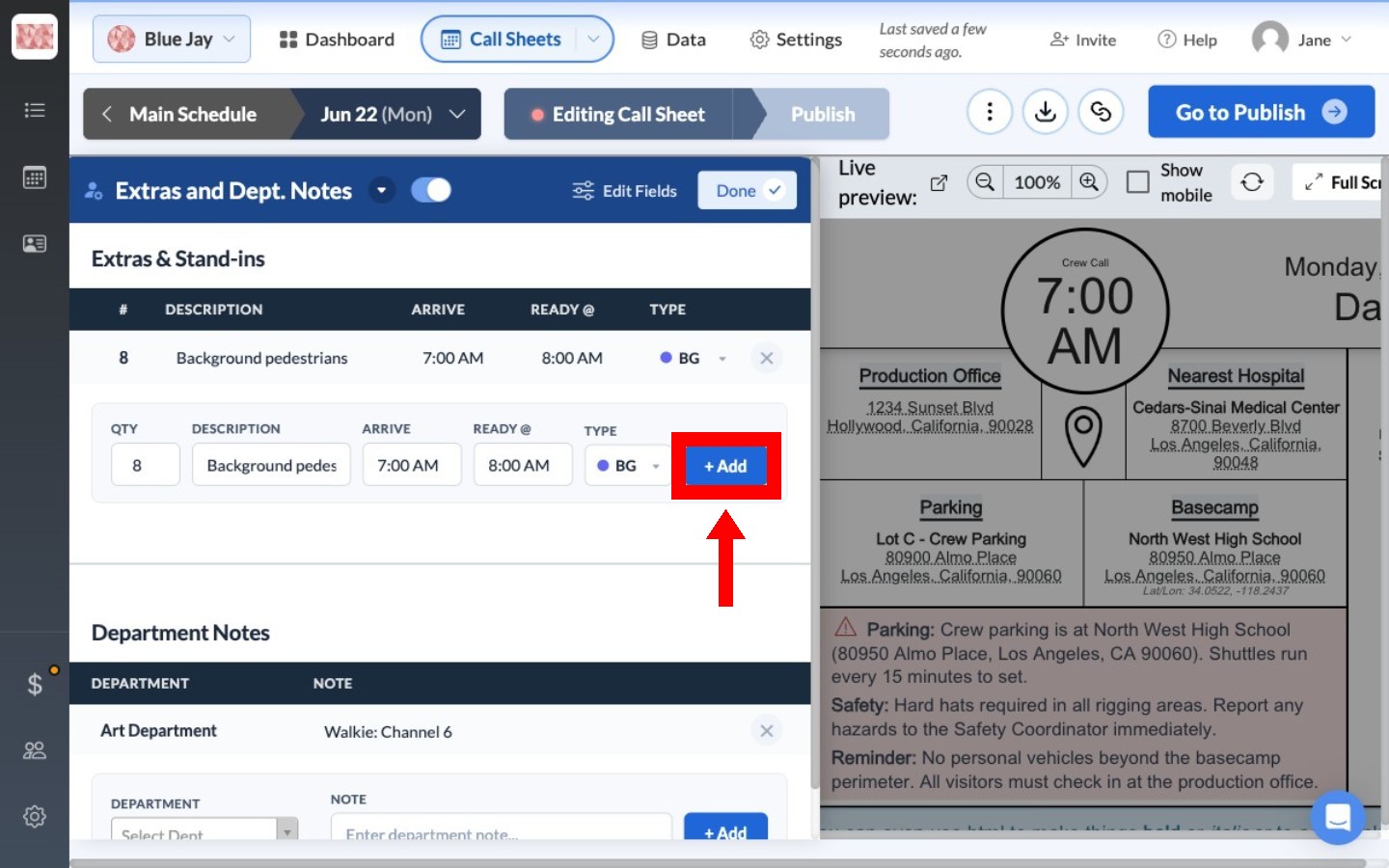
The saved entry appears in the editor.
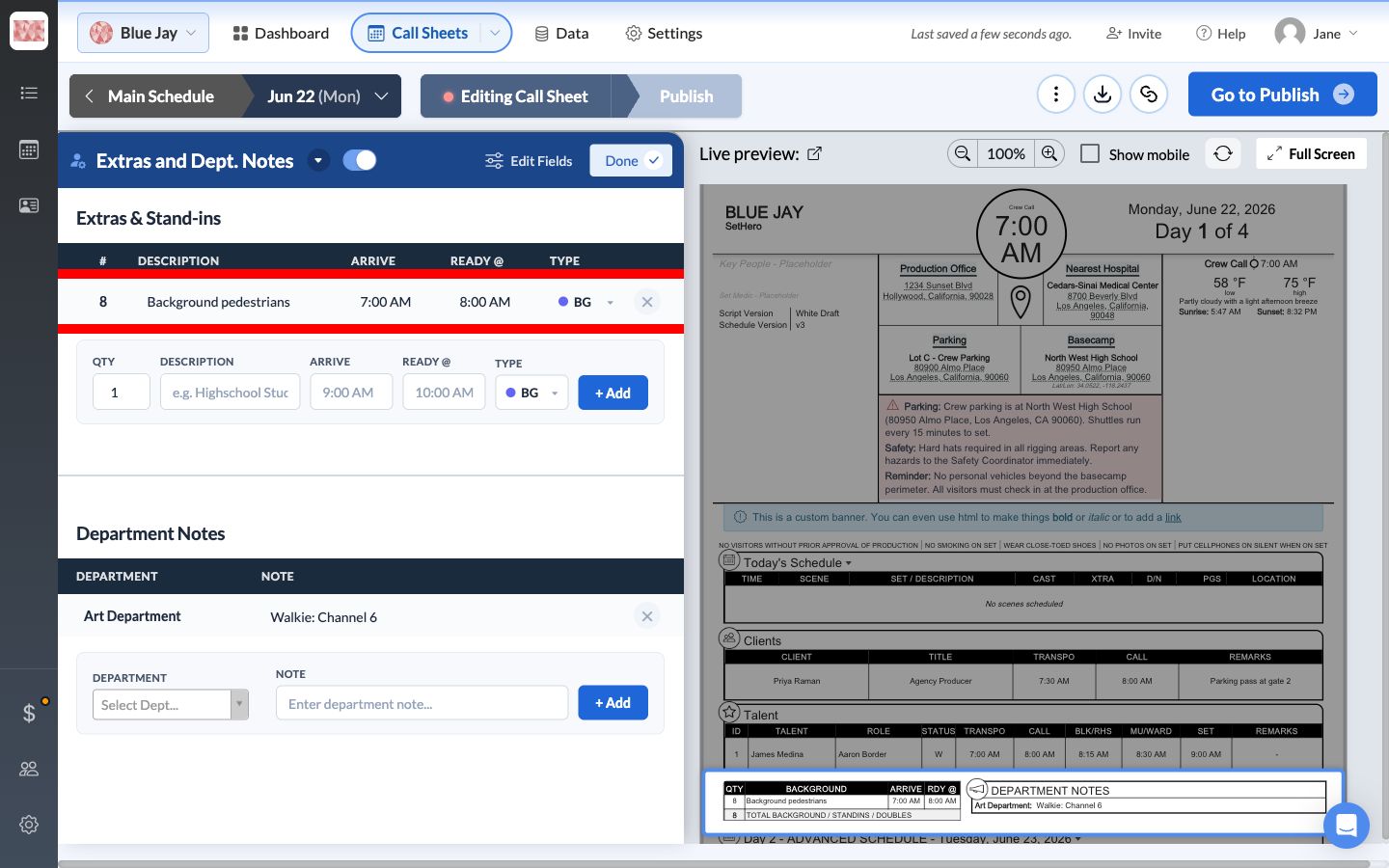
The entry also appears in the EXTRAS/STANDINS block of the live call sheet preview, grouped according to the selected Type.
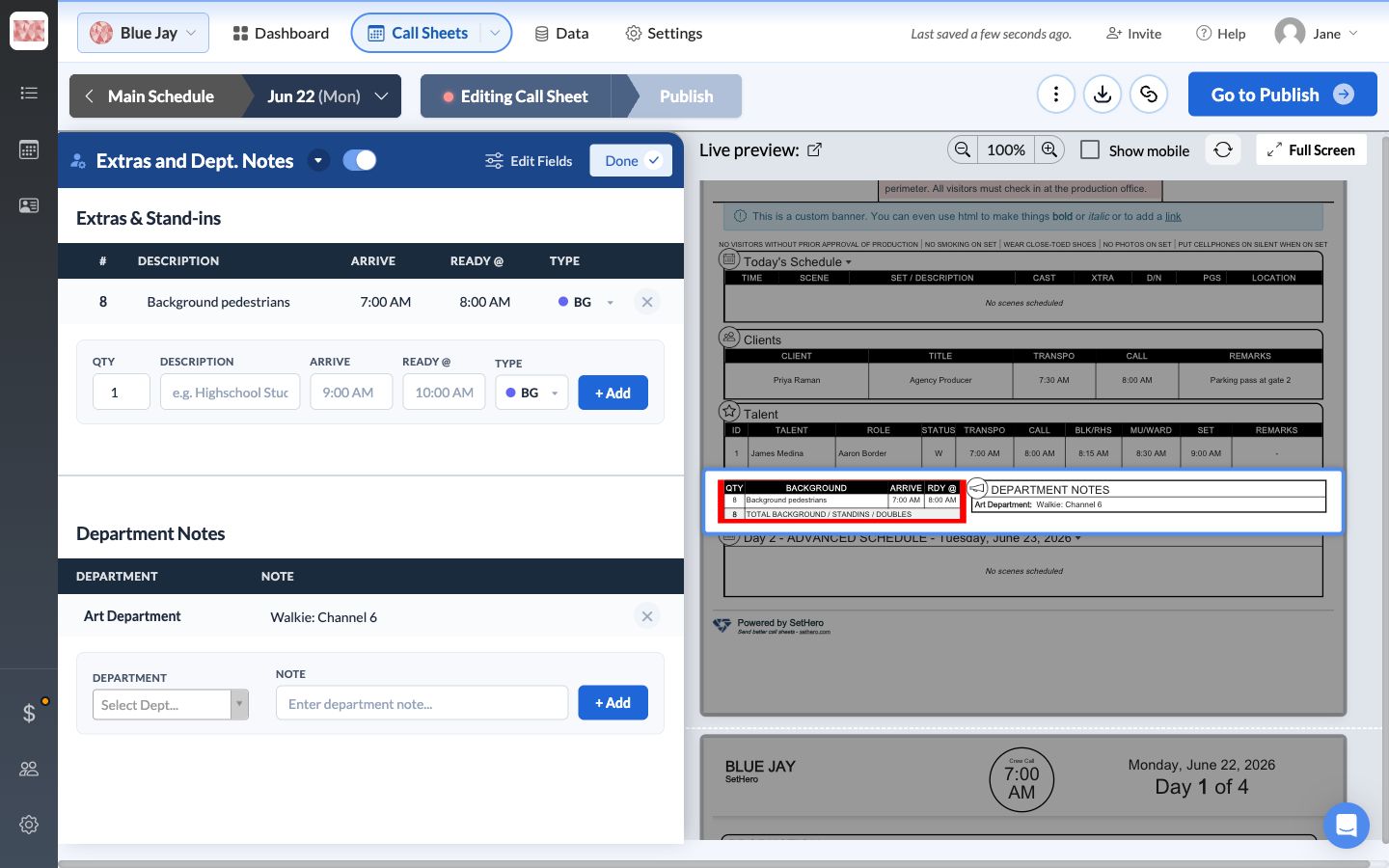
Note: If the saved entry does not appear immediately, reload the call sheet editor. The entry should then appear in both the editor and the live preview.
Note: To make a change, edit the saved row directly. SetHero saves your changes automatically and refreshes the call sheet preview. Click the × at the end of the row to remove the entry.
Note: Extras rows don't hold contact details, so you can't publish to them directly. See how to send a call sheet to extras.