Call sheet and production report FAQs
Send to non-crew, agents, and extras, add sides, remove the PRELIM watermark, and mark O/C on reports
How do I send a call sheet to someone who isn't cast or crew?
To share a call sheet with clients or others not directly on the production, first add them to the project's Clients list — Add clients and studio visitors covers how. When you publish the call sheet, select them on the Clients tab of the Select Recipients drawer. Selecting recipients covers the rest of that step.
You can send a call sheet to someone even if they aren't listed on it — their call time will show as “Not called.”
You can also control whether a client's email address and phone number appear on the sheet itself: open the client's row in the Clients section of the Call Sheet Editor and use the Show Email and Show Phone checkboxes. These options may be unavailable if the person has disabled sharing that information in their contact record.
Note: There is no way to publish a call sheet directly to SAG from SetHero. Email the union a PDF separately — Export a call sheet to PDF or Excel shows how to get the file.
Can I send a call sheet to someone's agent?
Yes, and the agent doesn't have to appear on the call sheet. There are two ways:
- BCC: enter their address in BCC on the Email Preview. They get an unpersonalized copy by email, and SetHero can't track its delivery, opens, or confirmations. See how to add BCC recipients.
- Clients list: add them to the project's Clients list, as described above, then select them on the Clients tab when you publish.
Can I send a call sheet to extras?
Not as a group. Extras are listed on a call sheet as counted groups, such as 12 Bar Patrons, so they don't have email addresses or phone numbers, and they don't appear when you select recipients. To get the call sheet to them:
- A few people: add each person to the project's Clients list with their contact details, then select them on the Clients tab when you publish. They won't appear on the call sheet unless you add them to its Clients section, and their call time shows as "Not called."
- A larger group: add their email addresses under BCC on the Email Preview. They get an unpersonalized copy, and SetHero can't track it.
- Outside SetHero: download the PDF and send it yourself.
Can SetHero create sides?
No, SetHero doesn't create sides. Make them in your script software, save them as a PDF, and attach them to the call sheet. Recipients get the file with the call sheet email, and it's also listed on the Files tab of the mobile call sheet. Each file must be smaller than 6 MB.
Can I copy a call sheet to another project?
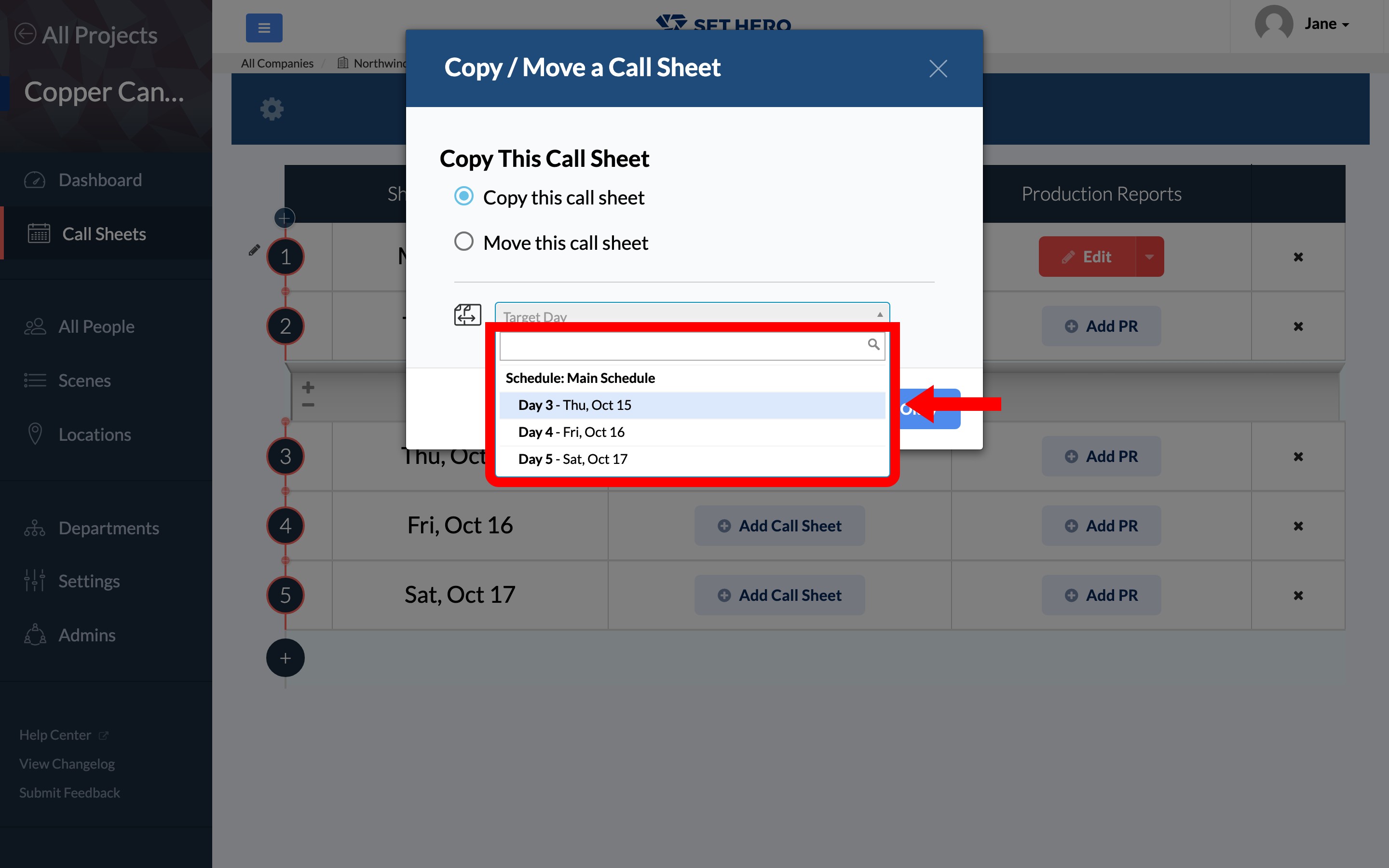
You can't copy a call sheet directly between projects. The Copy / Move a Call Sheet window only offers days from the same project, so call sheets can only be copied or moved within that project; Copy or move a call sheet to another day covers what it does do.
As a workaround, duplicate the entire project, as described in Duplicate an existing project. This copies its cast, crew, scenes, schedule data, call sheets, and production reports. Copied call sheets remain unpublished, so they won't be sent automatically.
Tip: Reload the publish page before you publish a call sheet in a duplicated project. That way the recipient count on screen is the one that was actually saved for the new project.
How do I download a PDF without the PRELIM watermark?
Open Download PDF and clear Include Watermark, then click Regenerate to create a new preview for download. You can also replace “PRELIM” with custom text such as “DRAFT” or “CONFIDENTIAL.”
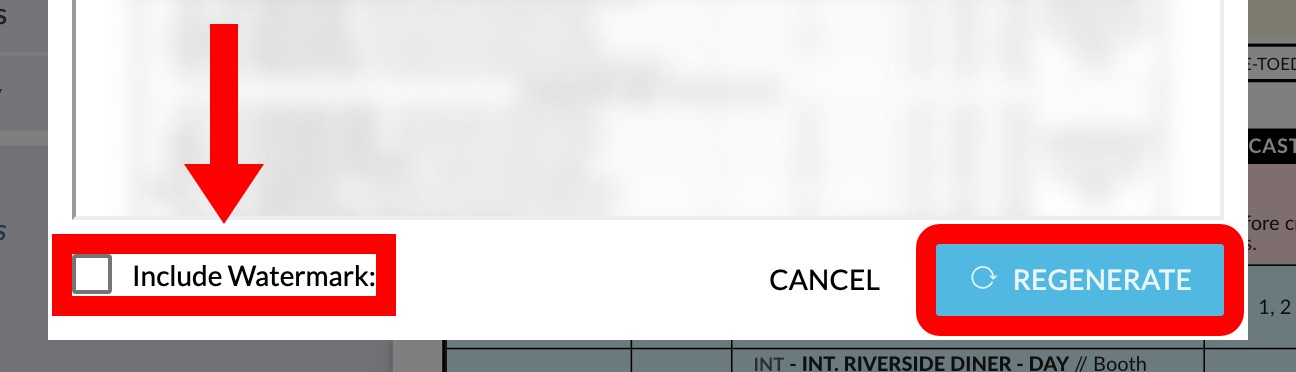
Note: That checkbox is a saved setting on the call sheet, not a one-off download option. Clearing it changes every later preview and prelim download of the same call sheet, and the matching control in the Call Sheet Editor, until someone ticks it again.
Watermarks only appear on previews and prelim downloads. PDFs attached to published call sheets don't include them, so there is nothing to turn off before you publish.
Can I mark someone O/C on a production report?
Yes. Since July 2026 the Clock In and Clock Out fields accept text as well as real times, and each field offers OFF, O/C, N/C, N/A, Self, and Per DH as presets. If someone is marked O/C on the call sheet, that status automatically carries over to the production report and counts them as working in the headcount. Create a production report walks through filling in the rest of the report.
Note: OFF and N/A on the call sheet map to the report's off state instead, which prints "OFF" in the Clock In and Clock Out columns. For someone who simply didn't work that day, click the red crossed-out timer icon on their row (its tooltip reads Mark as "off") rather than typing a time.
Do I have to email a production report to publish it?
No. Publish opens a window titled Publish and Share. To publish without sending an email, leave the recipient fields empty, clear Send a copy to myself., and click Publish and Send — SetHero generates the PDF and shareable link without emailing anyone.
After publishing, Send via Email and Copy Link appear in the same dropdown, so you can send the report later, copy its link, or leave it unshared. Publish and send a production report has the full sequence.
Important: SetHero remembers the send fields per schedule, so Send a copy to myself. may already be ticked from a previous report. Clear it before you publish if you don't want your own copy.
Why does [PRELIM] appear in the email subject line?
The [PRELIM] prefix appears when you use Share Prelim rather than sharing the published report. It identifies the report as an unpublished preliminary version.
This prefix isn't connected to the PDF watermark setting, so disabling the watermark won't remove it. To send an email without [PRELIM], publish the report and share the published version instead. Update a production report after publishing explains how to publish the updated version before you send again.