Add clients and studio visitors
Who belongs in Clients, how to add them, and what details show
Overview
The Clients section gives clients, agency representatives, studio executives, and other set visitors their own block on the call sheet, with a job title, call time, and transportation details. It keeps them separate from the people you list as Add key people (directors, producers, ADs) and from your crew.
Anyone you create here is also saved to your project's contacts, so you only have to enter their details once.
Add a client to a call sheet
-
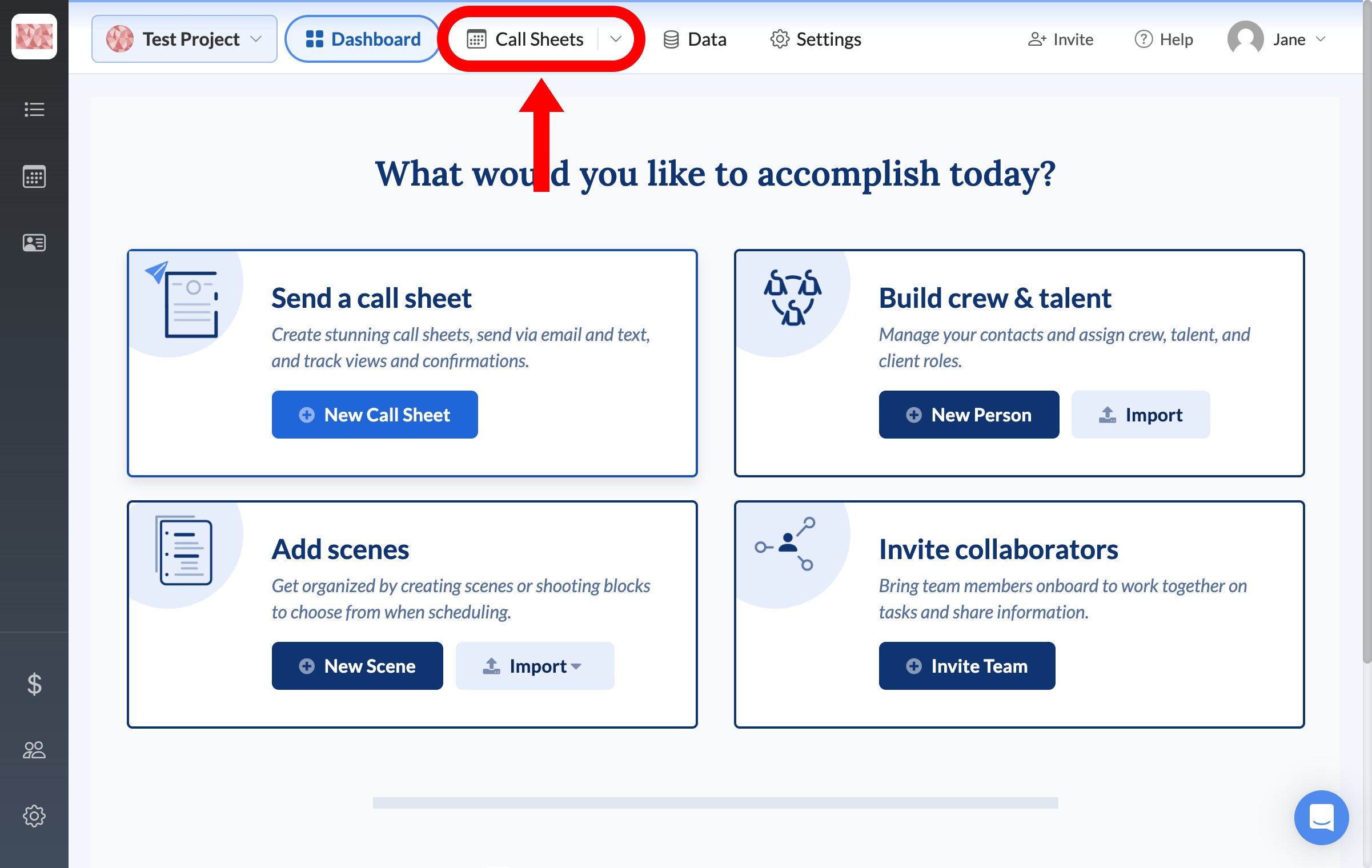
From the project dashboard, click Call Sheets in the top navigation bar.
-
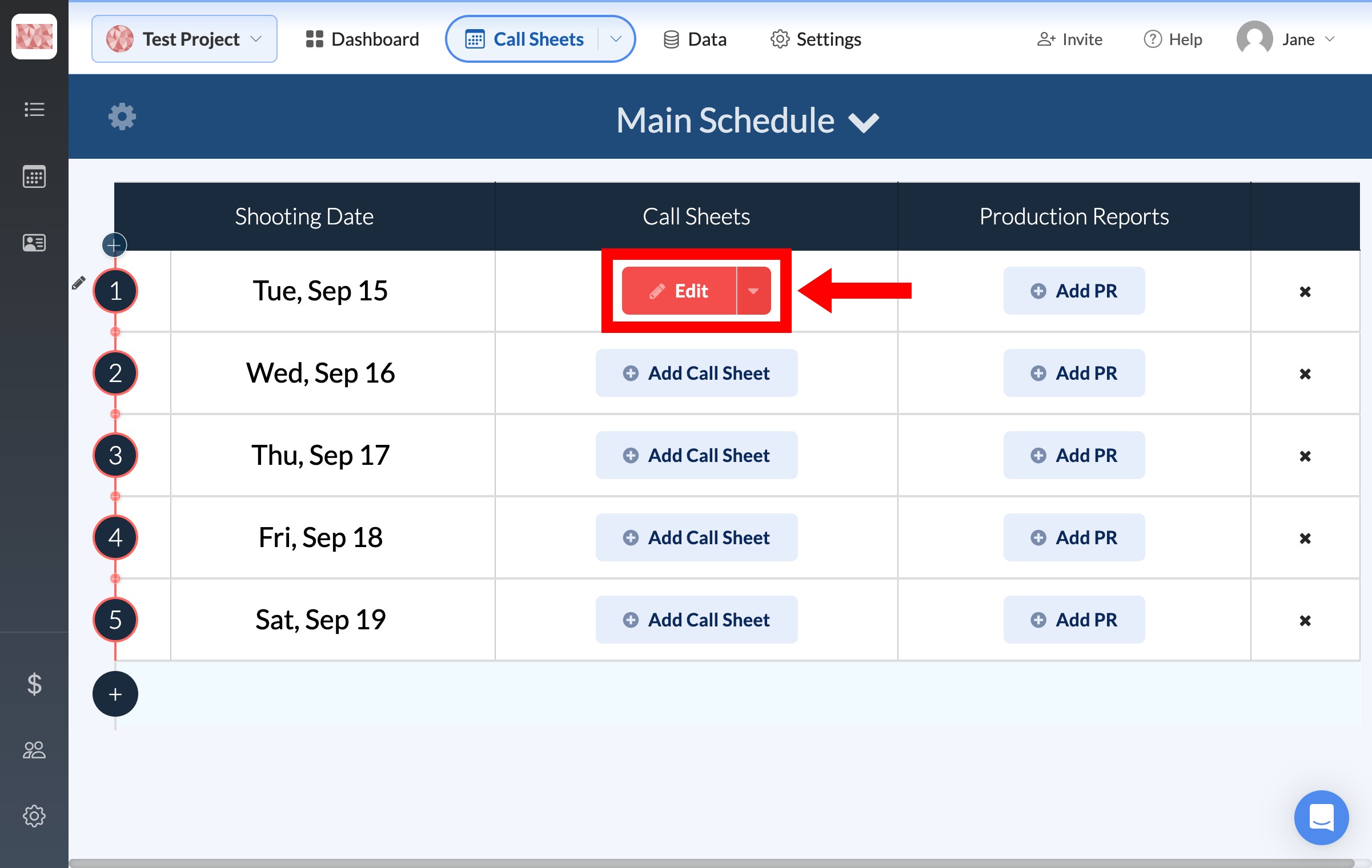
On the Main Schedule, click Edit on the shooting day you want to work on.
-
In the Layout list on the left, hover over Clients and click Edit.
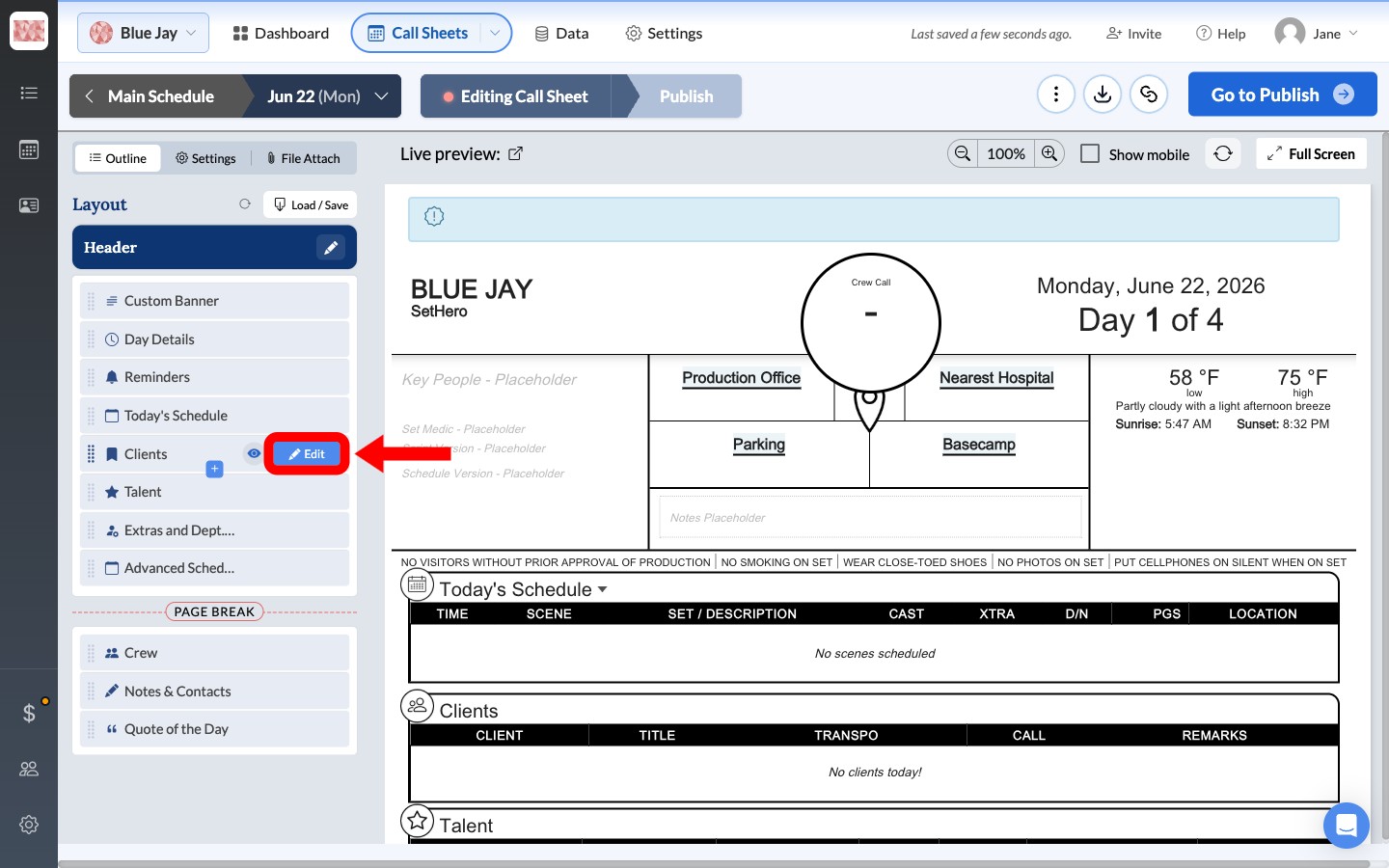
Note: If the Clients section is hidden, click the eye icon on the same row to turn it back on. A hidden section shows a "This section is currently hidden from the call sheet" bar with an Enable button when you open it.
-
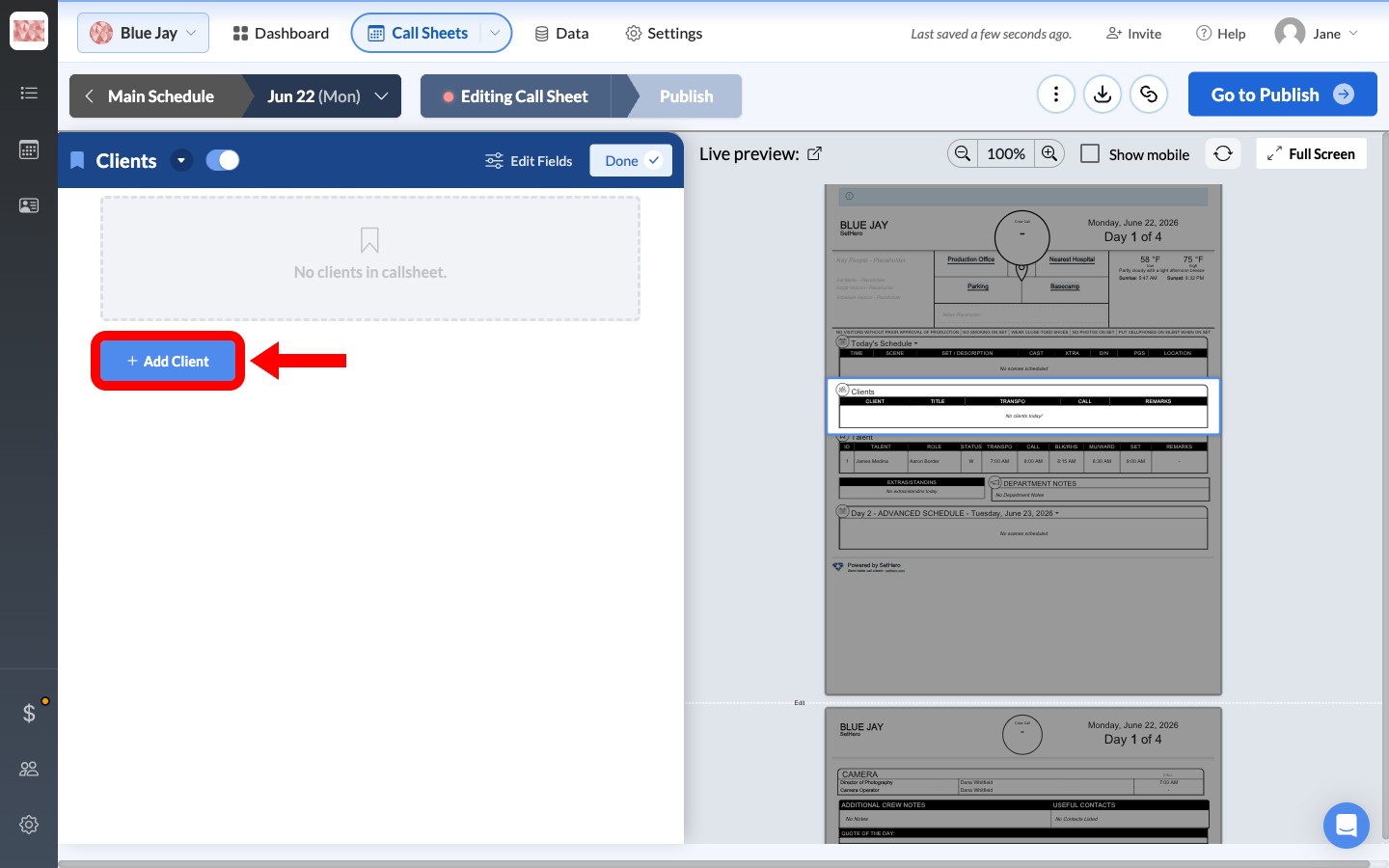
Click + Add Client.
-
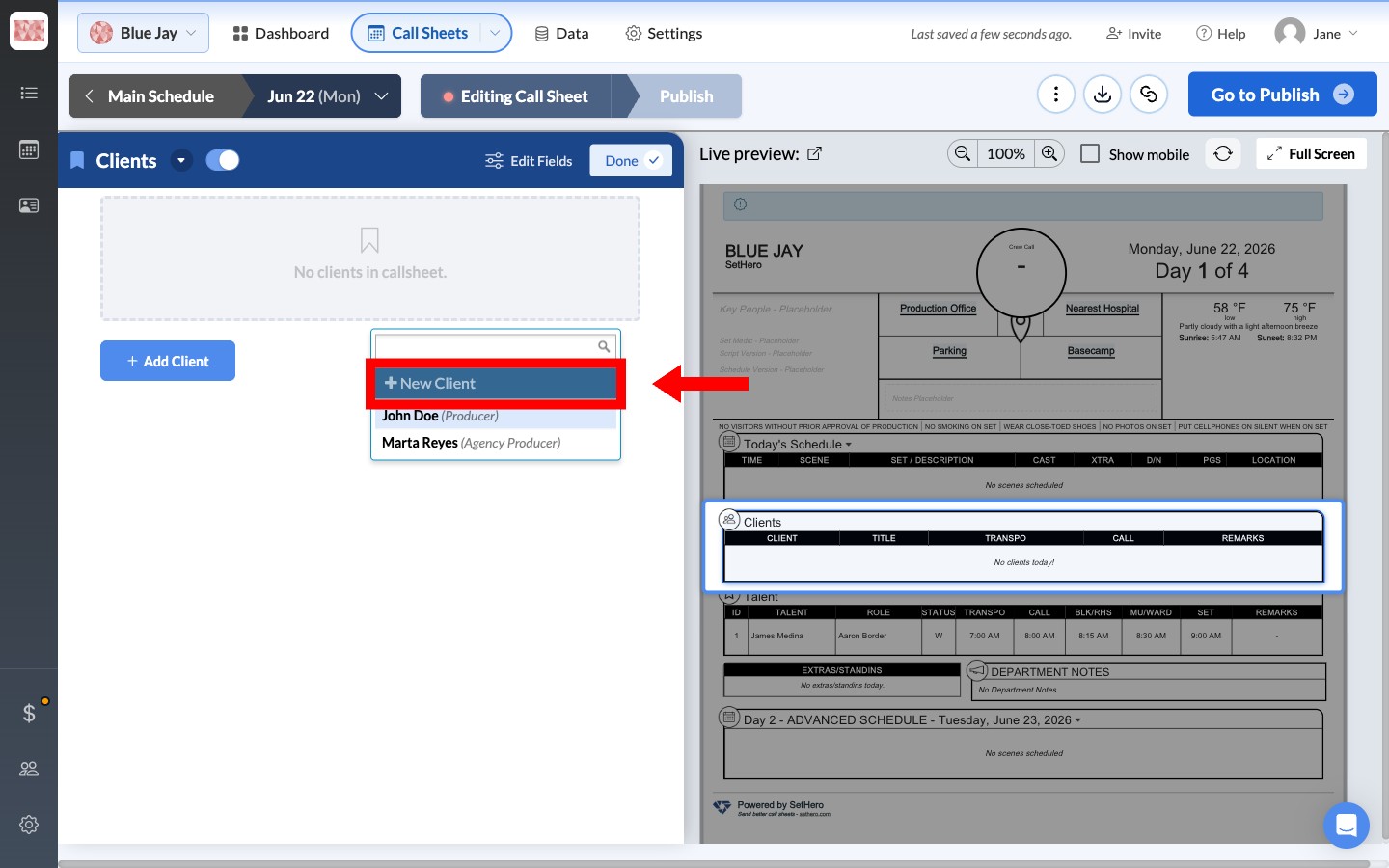
A picker opens. If the person is already in your project, start typing their name and select them. To add someone new, click + New Client.
-
In the Add new person window, enter the client's Full Name. Email address and phone number are optional. Role(s) is already set to Client — use the field beside it to record a Job title such as "Agency Producer" or "Studio Executive". Then click + Create, or + Create & Add Another to keep adding people without reopening the window.
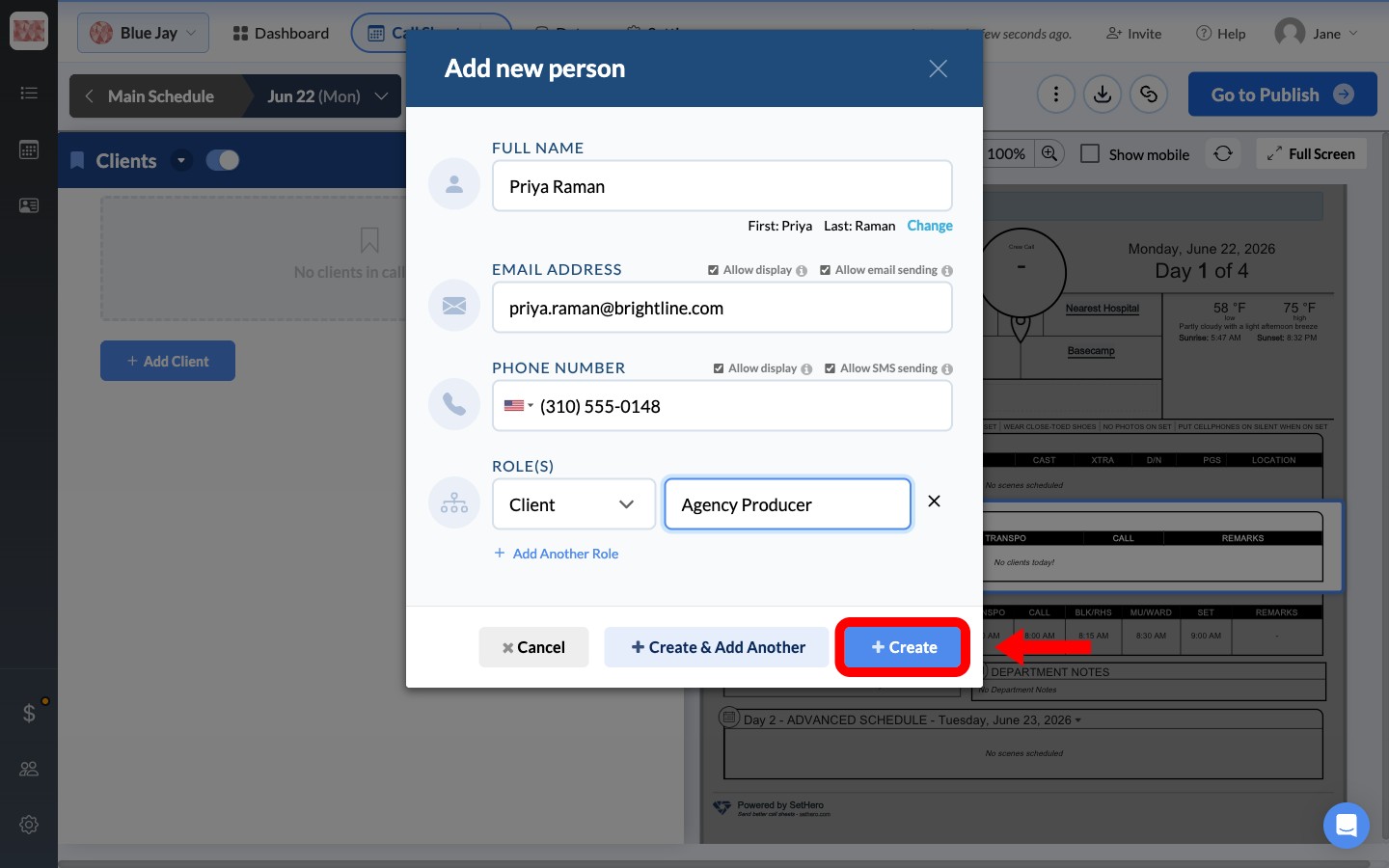
Tip: Add an email address if you plan to send this person the call sheet. See Required info for sending email and text for what each delivery method needs.
-
The client now appears in the Clients section and in the live preview. Click Set time under CALL to give them their own call time, fill in TRANSPO if you're arranging a pickup, and use the remarks field for anything else they need to know.
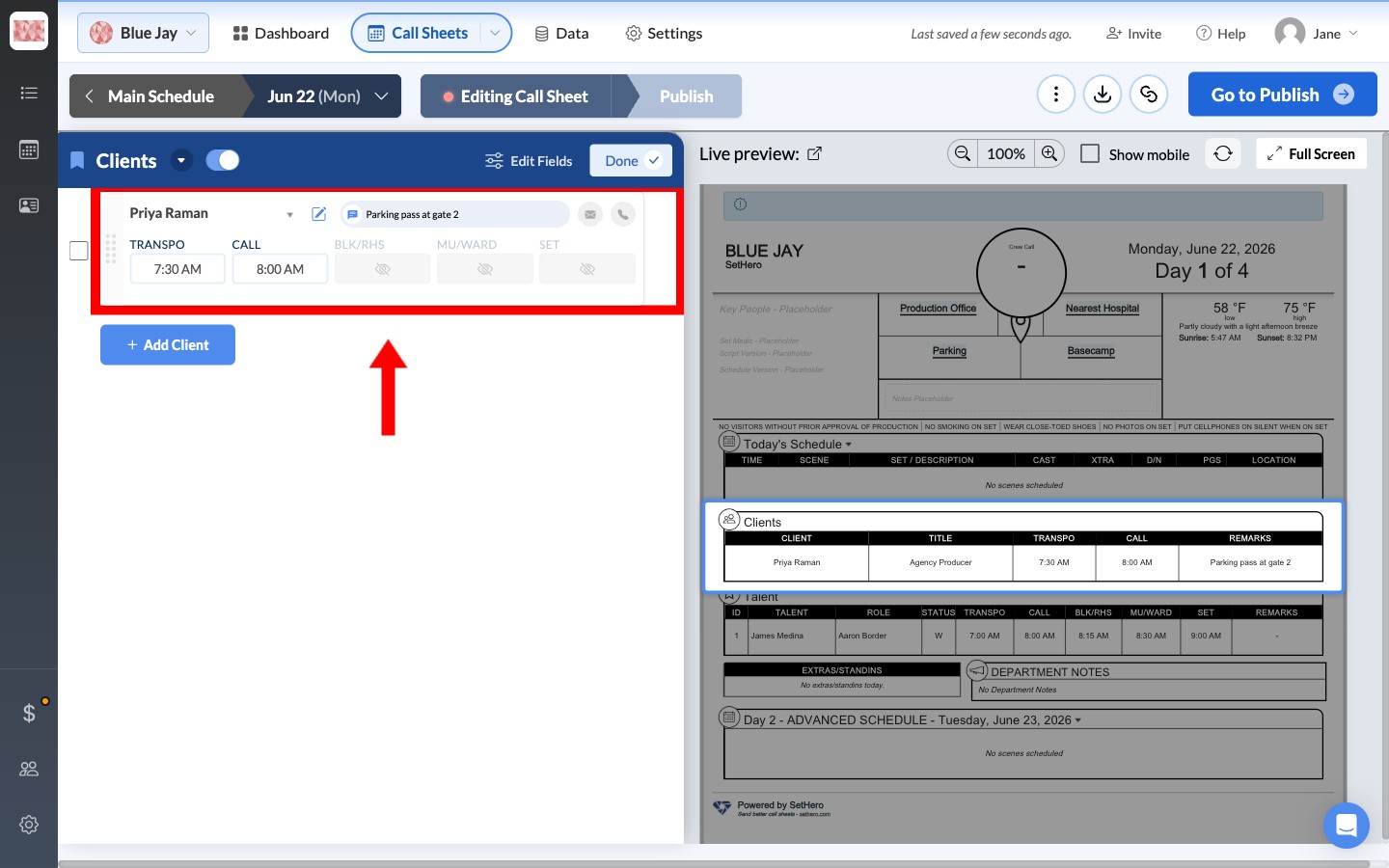
Click Done in the section header when you've finished. Your changes save automatically as you work.
Show or hide a client's email and phone
Each client row has an envelope and a phone icon. Click either one to control whether that detail prints on the call sheet — the tooltip tells you the current state, such as "Email shown. Click to hide."
Two things can stop an icon from working:
- The detail is blank on the contact. The tooltip reads "Email can not be shown because it is blank. Click to add."
- Displaying it was turned off for that person by the Allow display checkbox in the Add new person window.
Who counts as a client
Use this section for people who are visiting set but aren't part of the cast or crew — for example, agency producers, brand representatives, studio executives, network executives, and other guests of the production.