Add walkie channel info to your call sheet
Where to add walkie channel assignments and how they appear
SetHero does not currently include a dedicated walkie channel table on the call sheet. You can still share channel assignments with your crew by adding them as text in a few places that already print on the sheet.
The most visible option is a Custom Banner near the top of the call sheet. You can also use Department Notes for per-department channels, or put a channel list in Main Notes or Additional Crew Notes.
Add a walkie channels banner
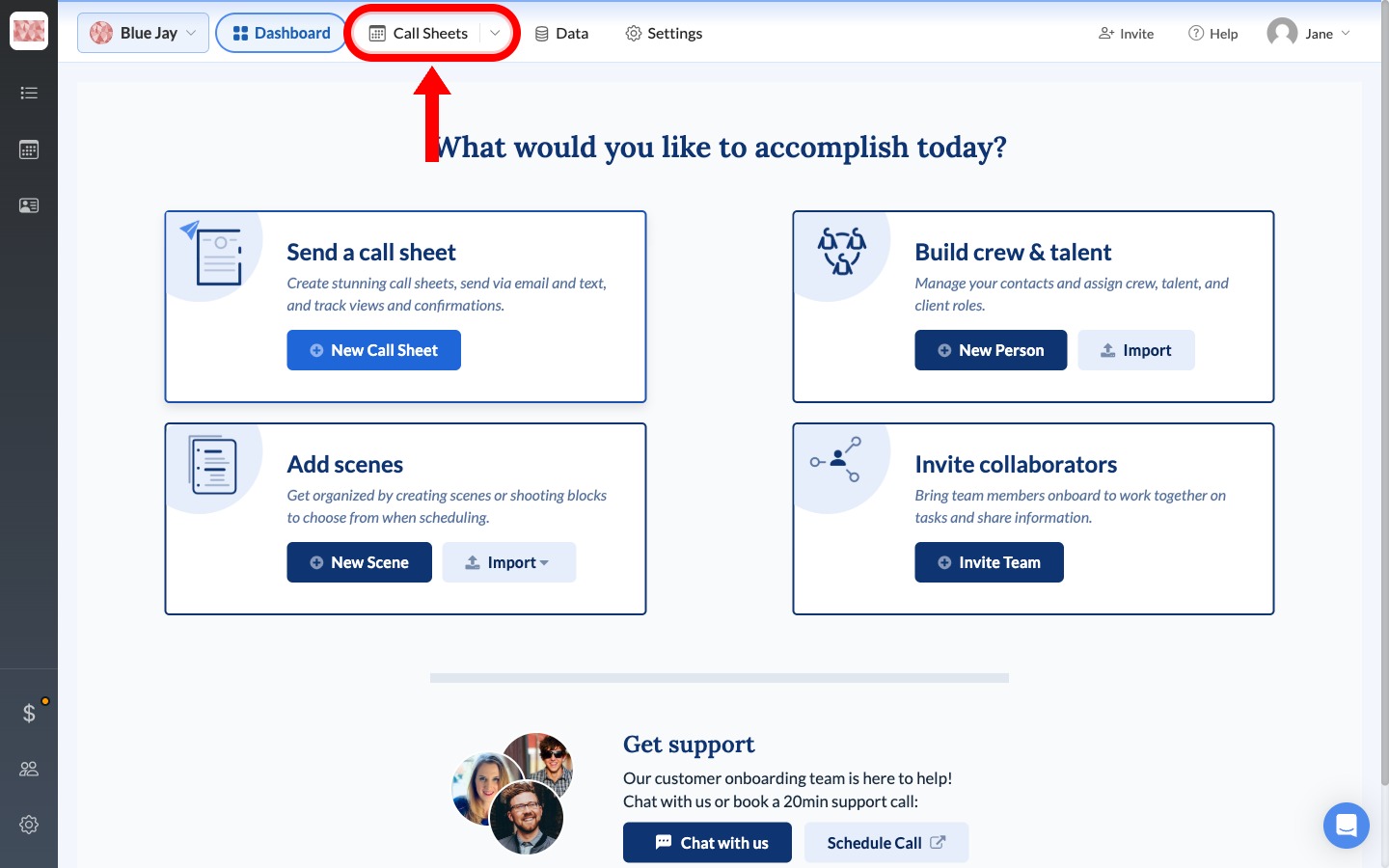
- From the project dashboard, click Call Sheets in the top navigation.
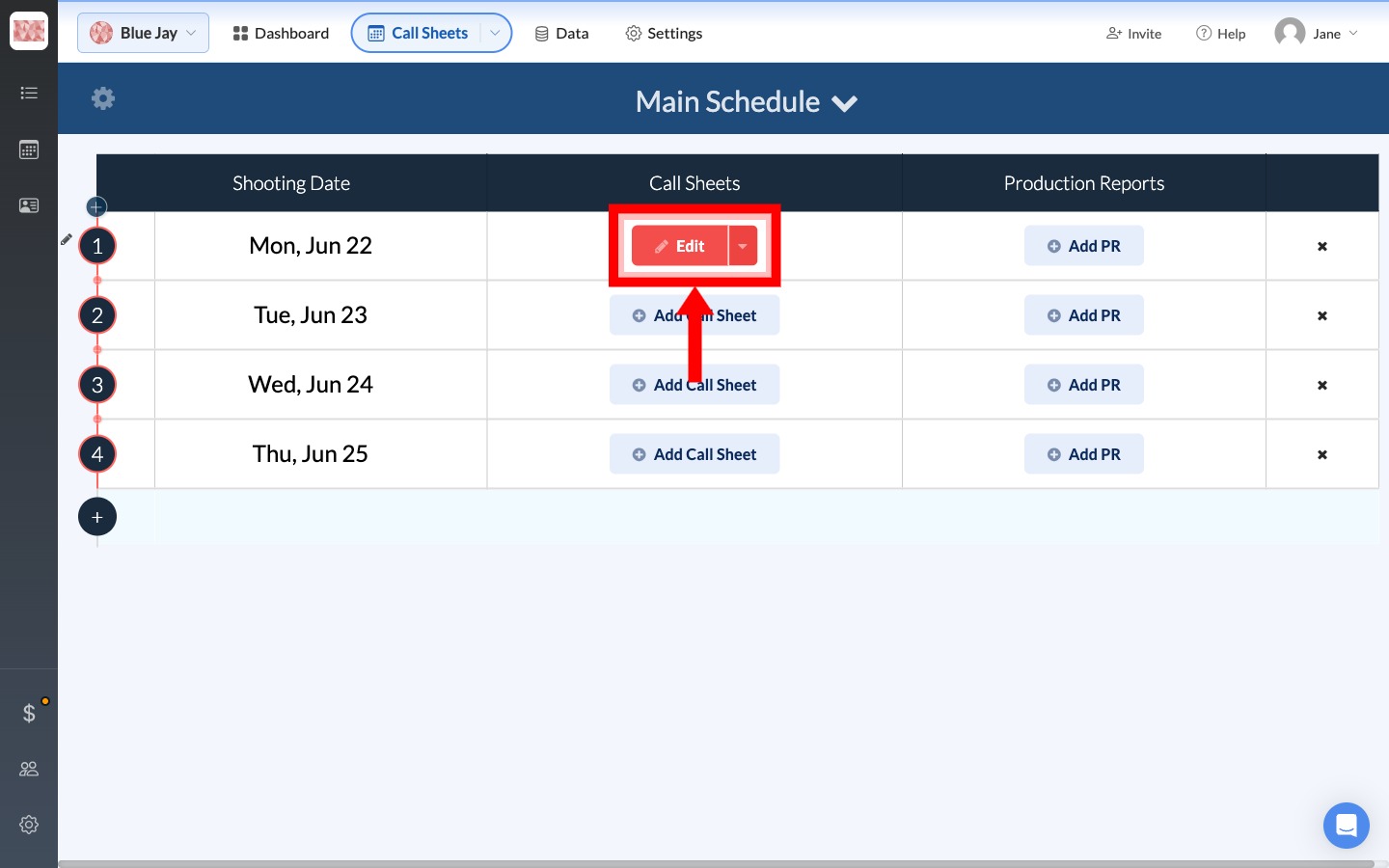
- On the Main Schedule, click Edit on the shooting day you want to update.
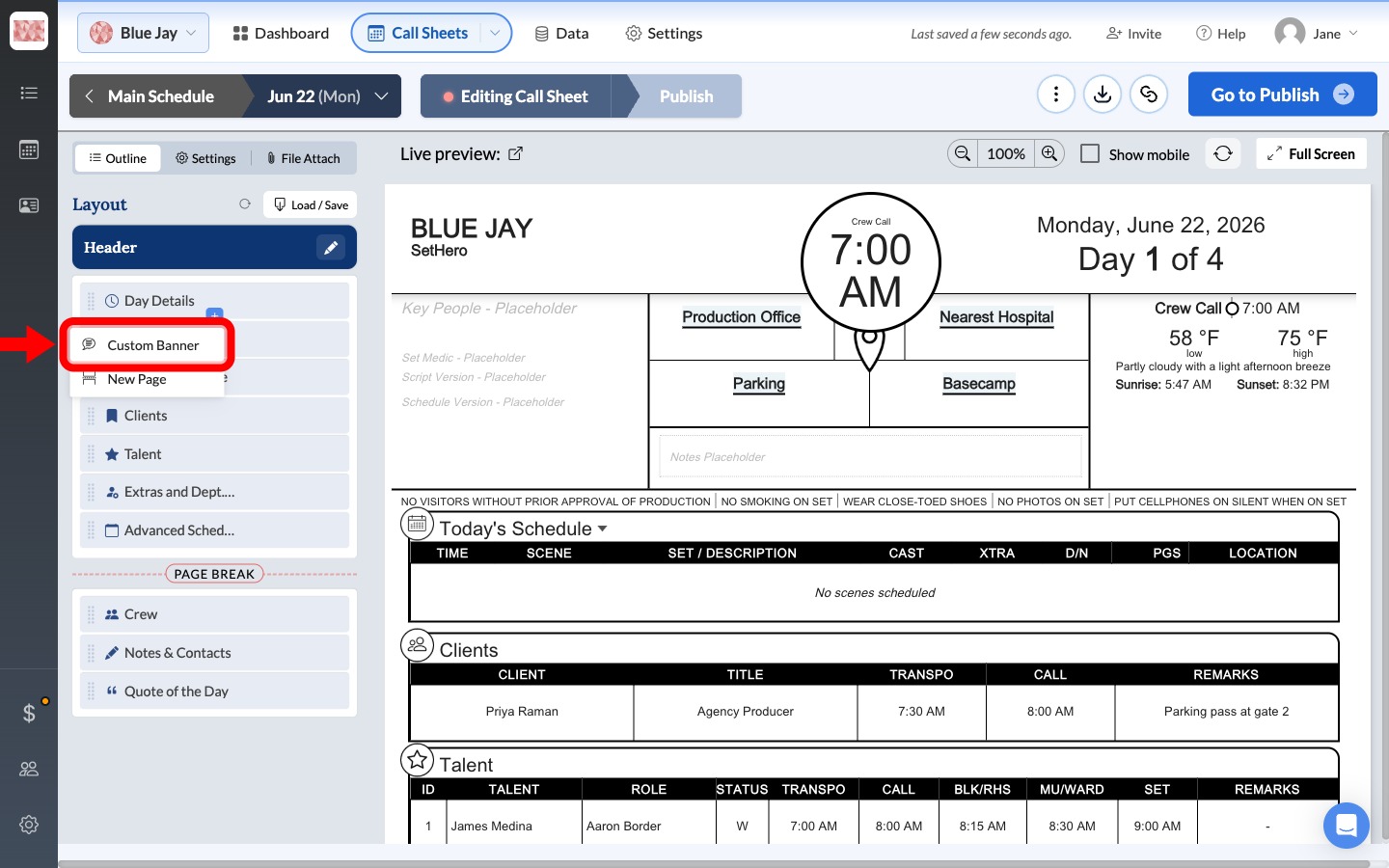
- In the Outline tab, click the + (Add section) control between two sections and choose Custom banner.
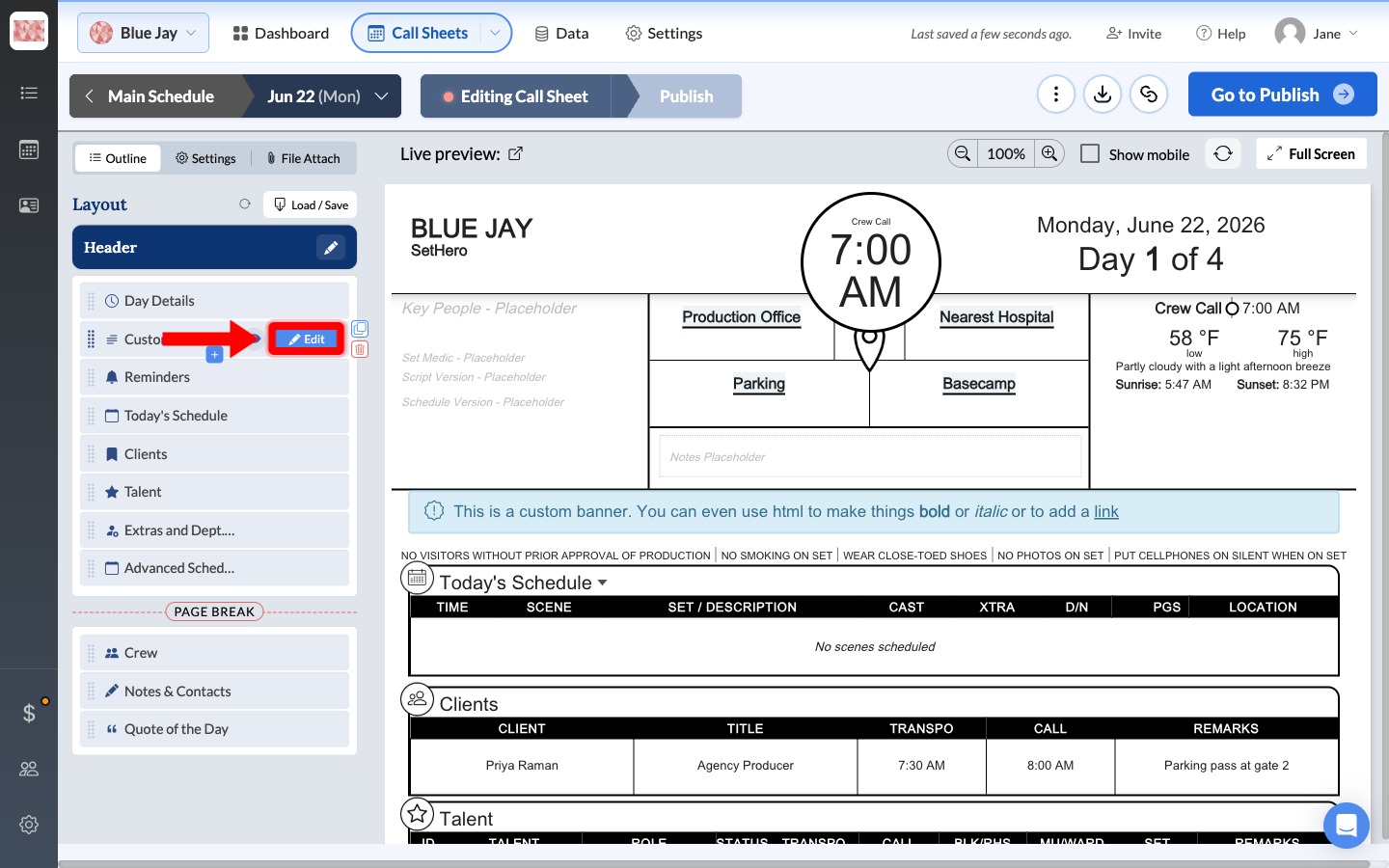
- On the new Custom Banner row, click Edit.
- Type your channel list in the banner text field. Use the formatting controls below the field to set size, color, and an icon — Headset or Signal work well for walkies. Click Done when you finish.
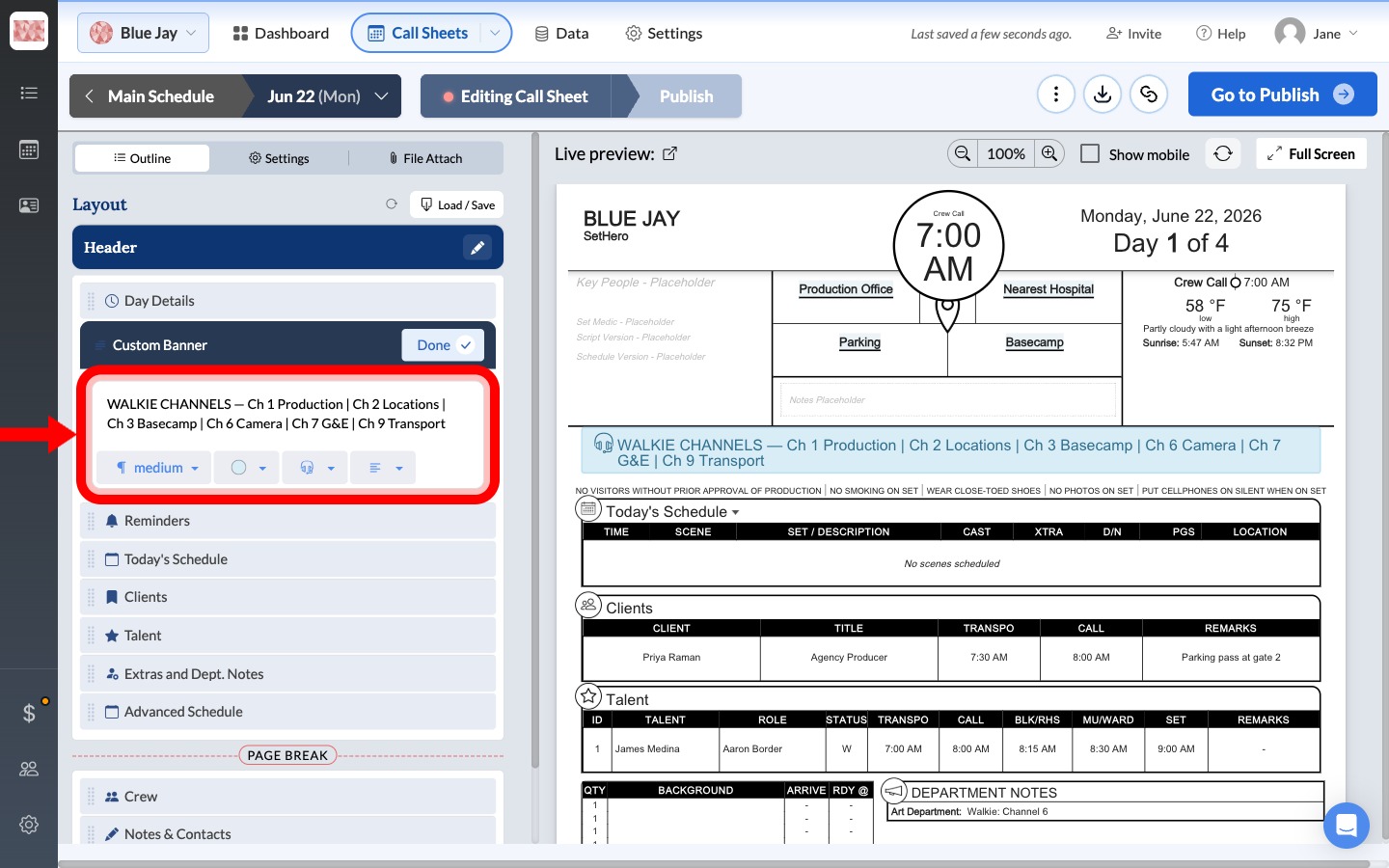
Tip: Keep the list short and consistent, for example:
WALKIE CHANNELS — Ch 1 Production | Ch 6 Camera | Ch 7 G&E. You can also use bold or italic formatting in the banner text.
- Check the live preview. Your walkie banner should appear where you placed it in the layout — often at the top of the call sheet under Header.
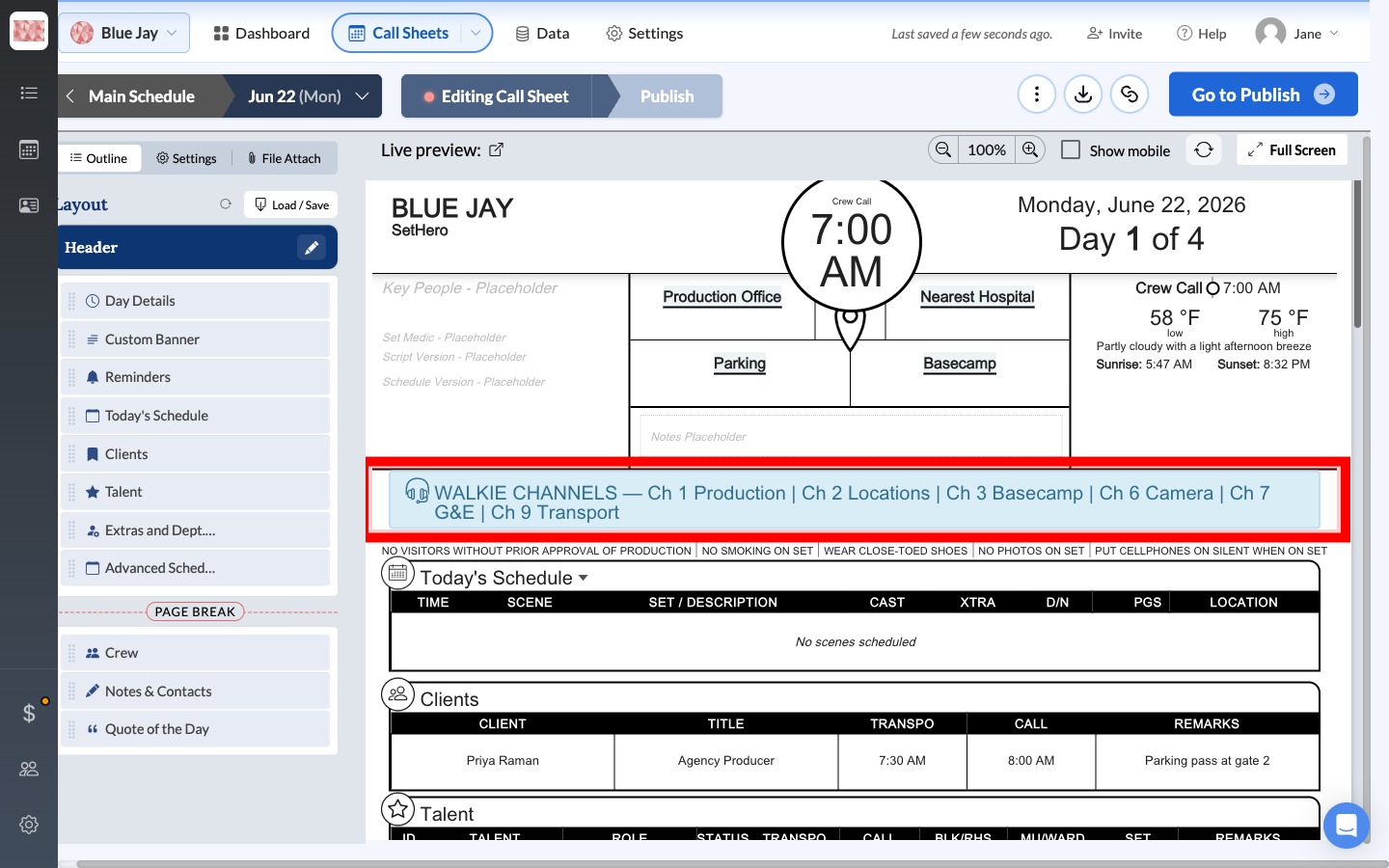
Drag the Custom Banner in the Outline list if you want it above or below Day Details, Reminders, or another section.
Add per-department walkie notes
If you want channel info next to a specific department instead of (or in addition to) a full channel chart:
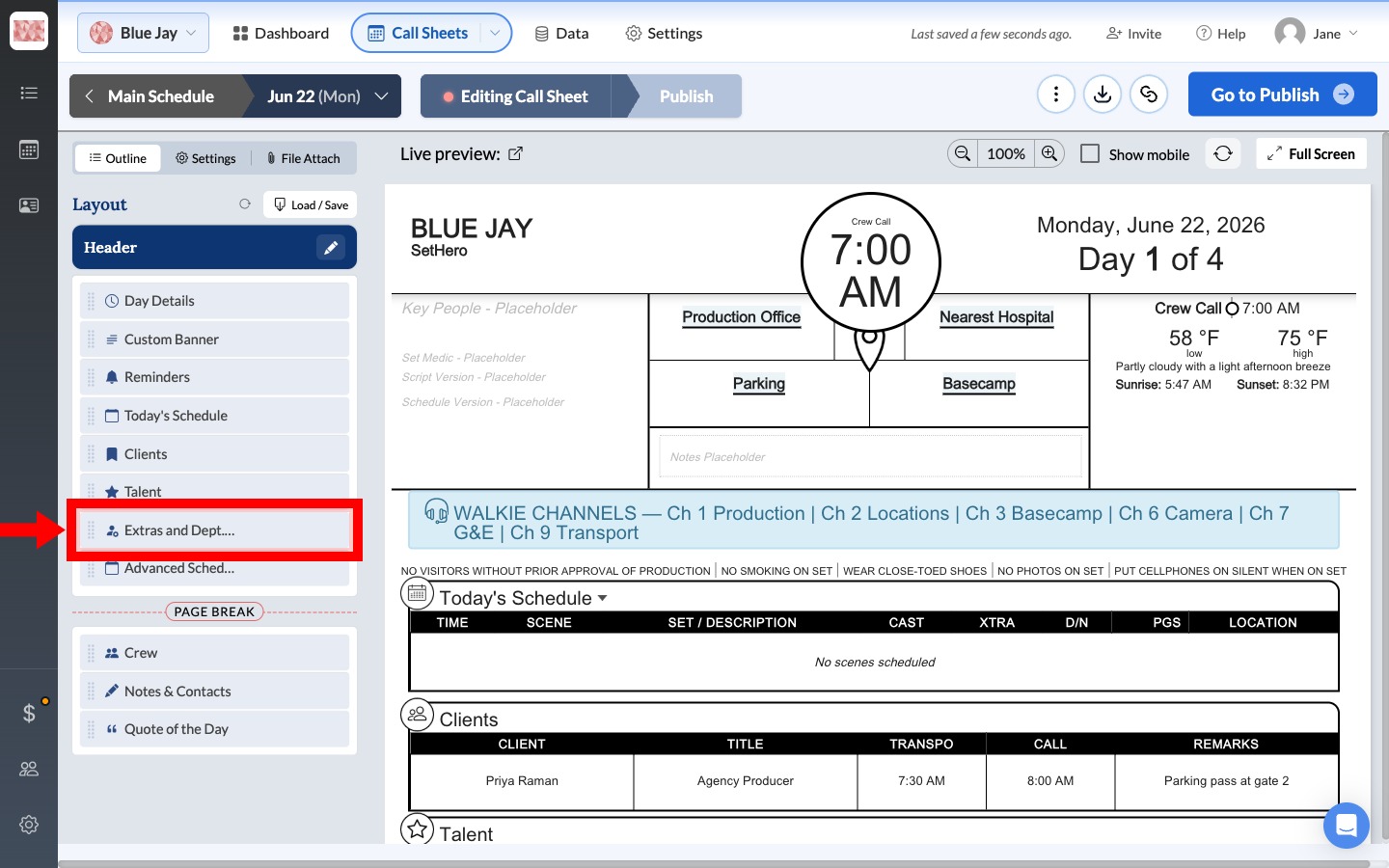
- In the Outline tab, find Extras and Dept. Notes and click Edit.
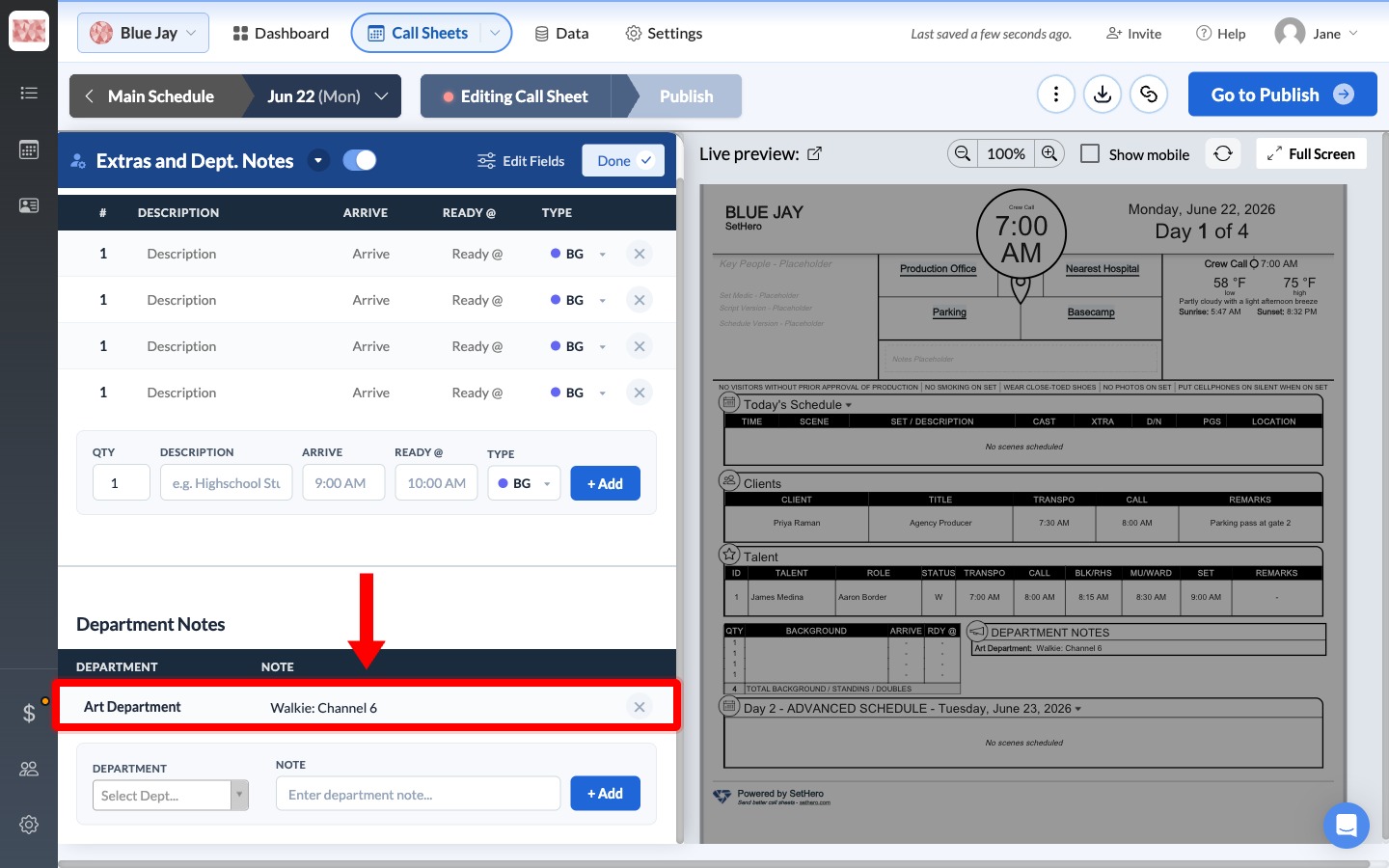
- Scroll to Department Notes. Choose a department, enter a note such as
Walkie: Channel 6, and click + Add. The note appears in the list and in the live preview under Department Notes.
Other places for walkie info
- Main Notes in Day Details — good for a short day-wide channel reminder.
- Notes & Contacts → Additional Crew Notes — useful for a longer channel chart near the bottom of the sheet.
- Schedule row notes — useful when a channel applies to a specific move or location (for example, basecamp on channel 3).
Note: SetHero does not have a built-in walkie channel table. Use a Custom Banner, Department Notes, or the other note fields above to put channel assignments on the call sheet.