Attach maps, PDFs, and permits
Which files you can attach and how recipients access them
You can attach maps, PDFs, permits, and other files to a call sheet. Recipients get them with the call sheet email, and they're also listed on the Files tab of The mobile call sheet.
Note: Each file must be smaller than 6 MB. You can attach images, PDFs, Word and Excel files, and text files.
Add files to a call sheet
-
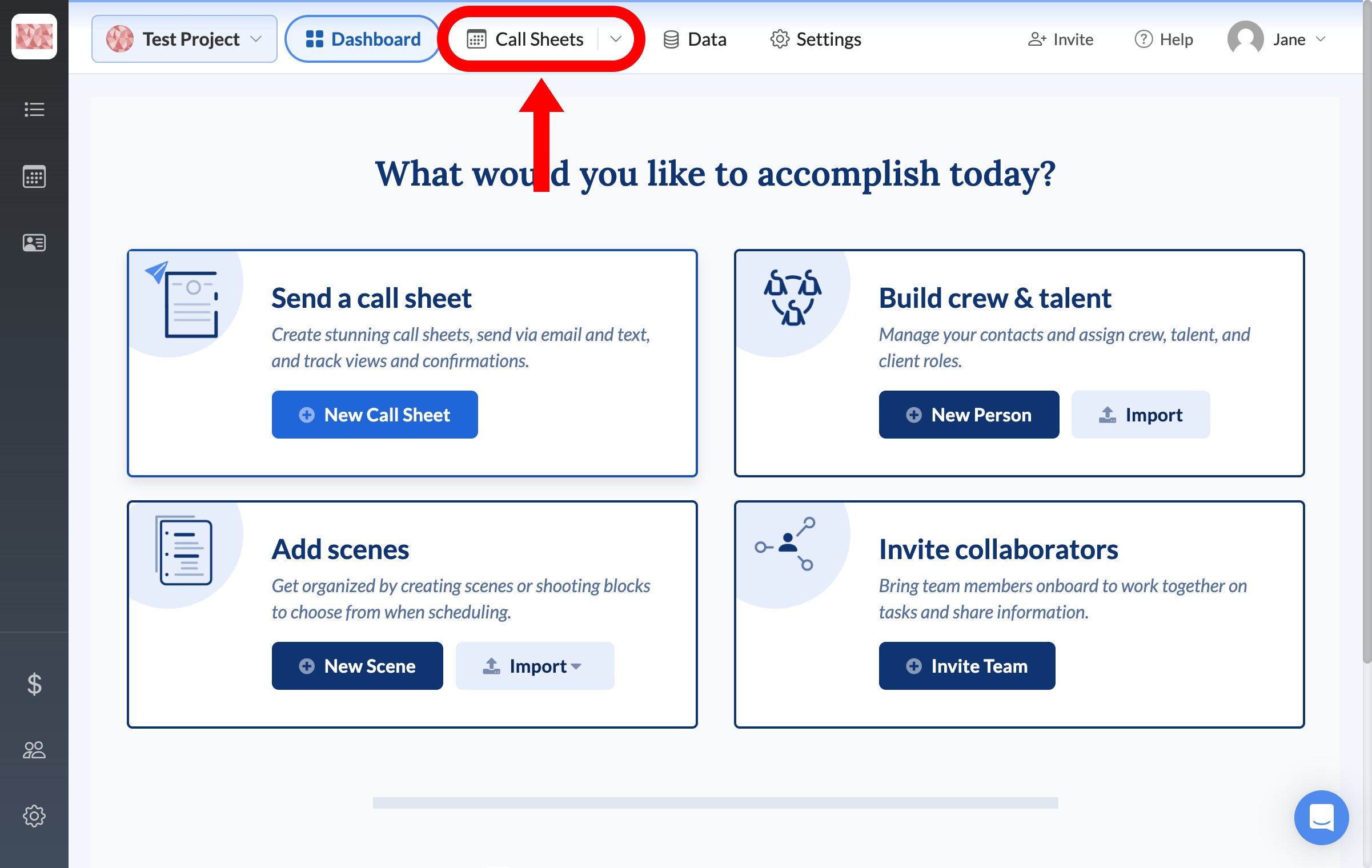
From your project dashboard, click Call Sheets in the top navigation bar.
-
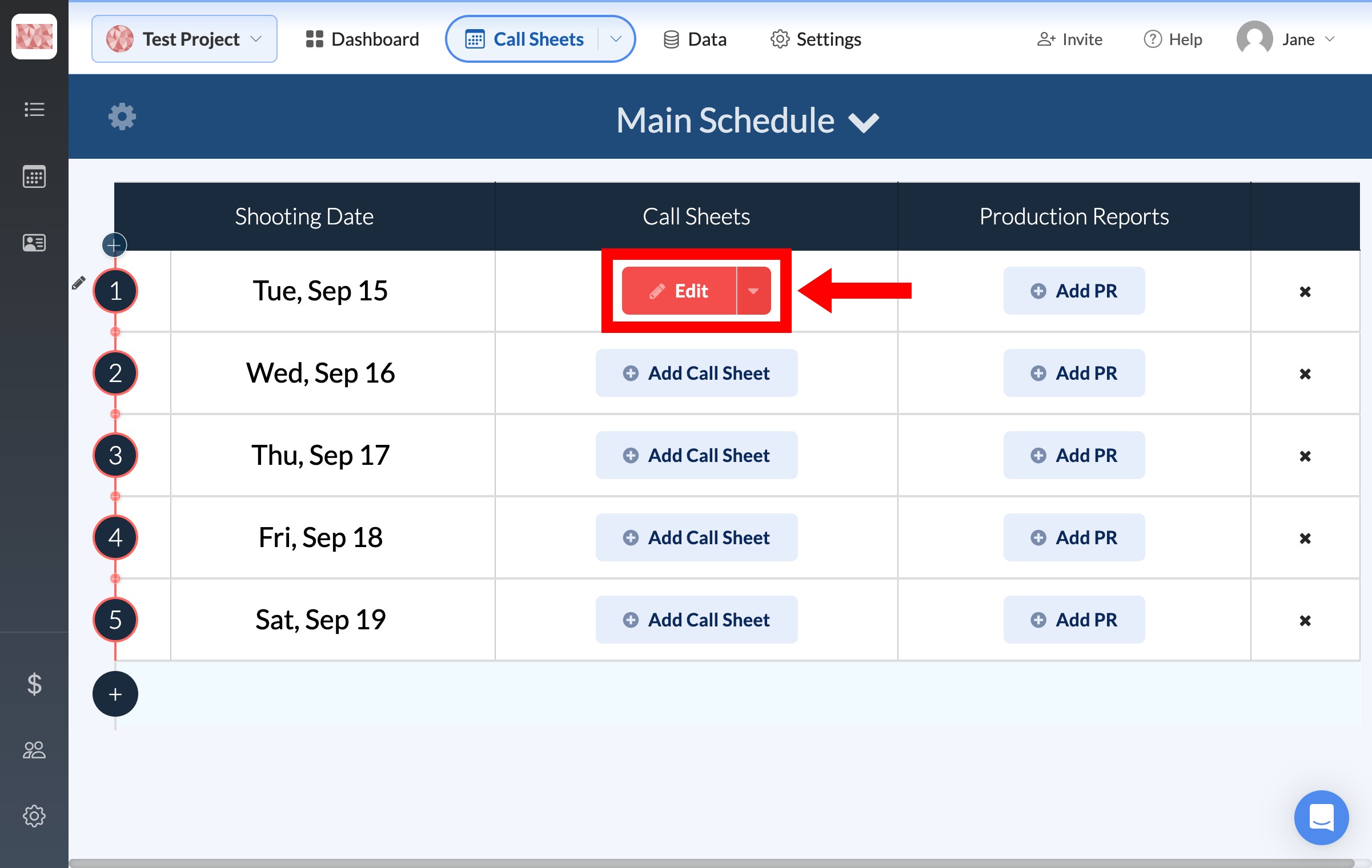
On the Schedule page, find the call sheet you want to add files to and click Edit.
-
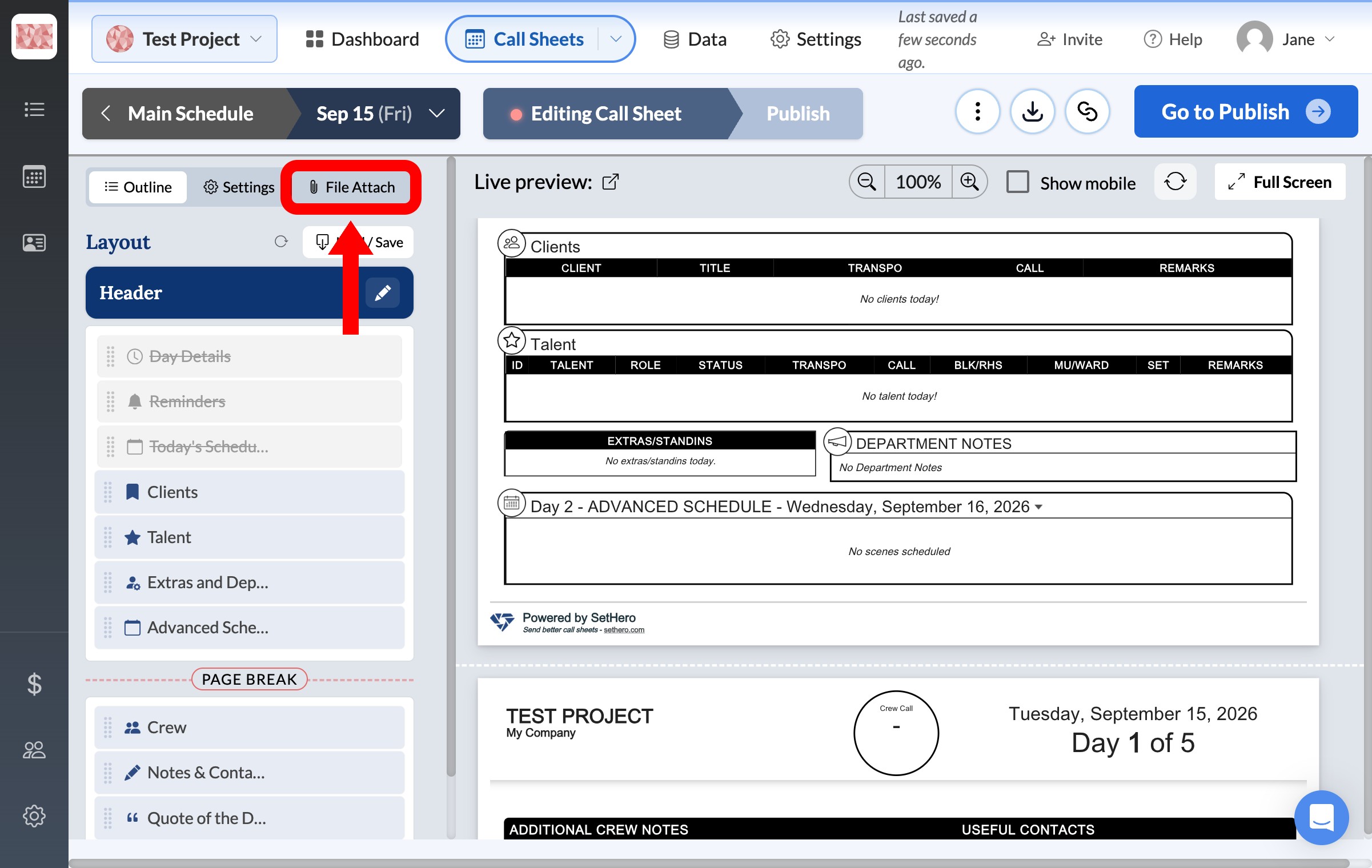
In the Call Sheet Editor, click the File Attach tab at the top of the left panel.
-
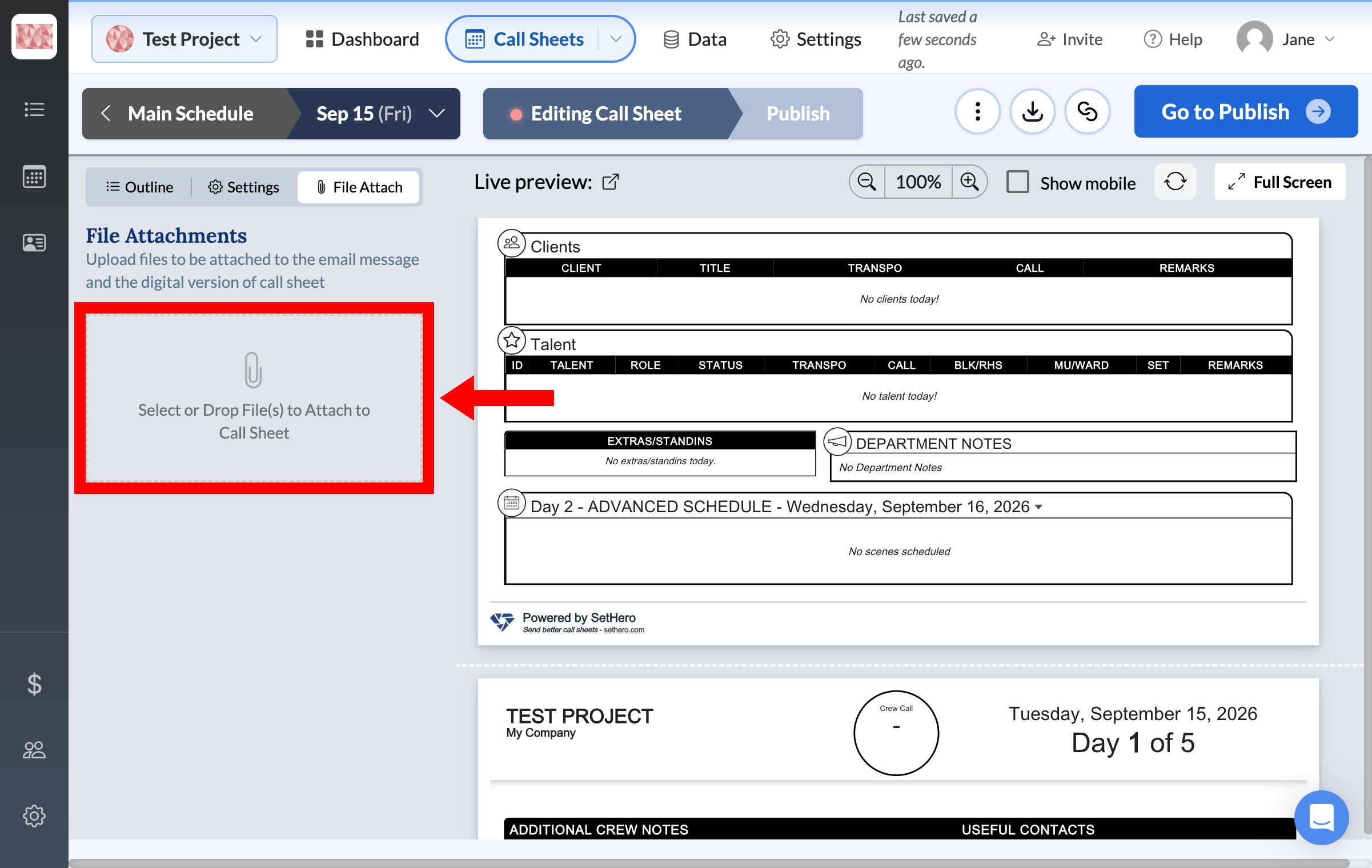
Click Select or Drop File(s) to Attach to Call Sheet, or drag your files into that area.
Check your files before sending
When you go to publish, your files appear in the Attach row of the Email Preview. SetHero checks each file again before sending. If one fails, see how to fix an attachment validation error.
Note: Text messages don't include the files themselves. The link in the text opens the call sheet, where recipients can find them under Files.