Review recipients and fix delivery problems before sending
Why recipients are skipped, sends are blocked, and attachments fail
The final review shows exactly who SetHero can reach through each enabled delivery method. Use it to catch missing contact information or sending permissions, disabled channels, and attachment problems before you send.
Open the publishing workspace
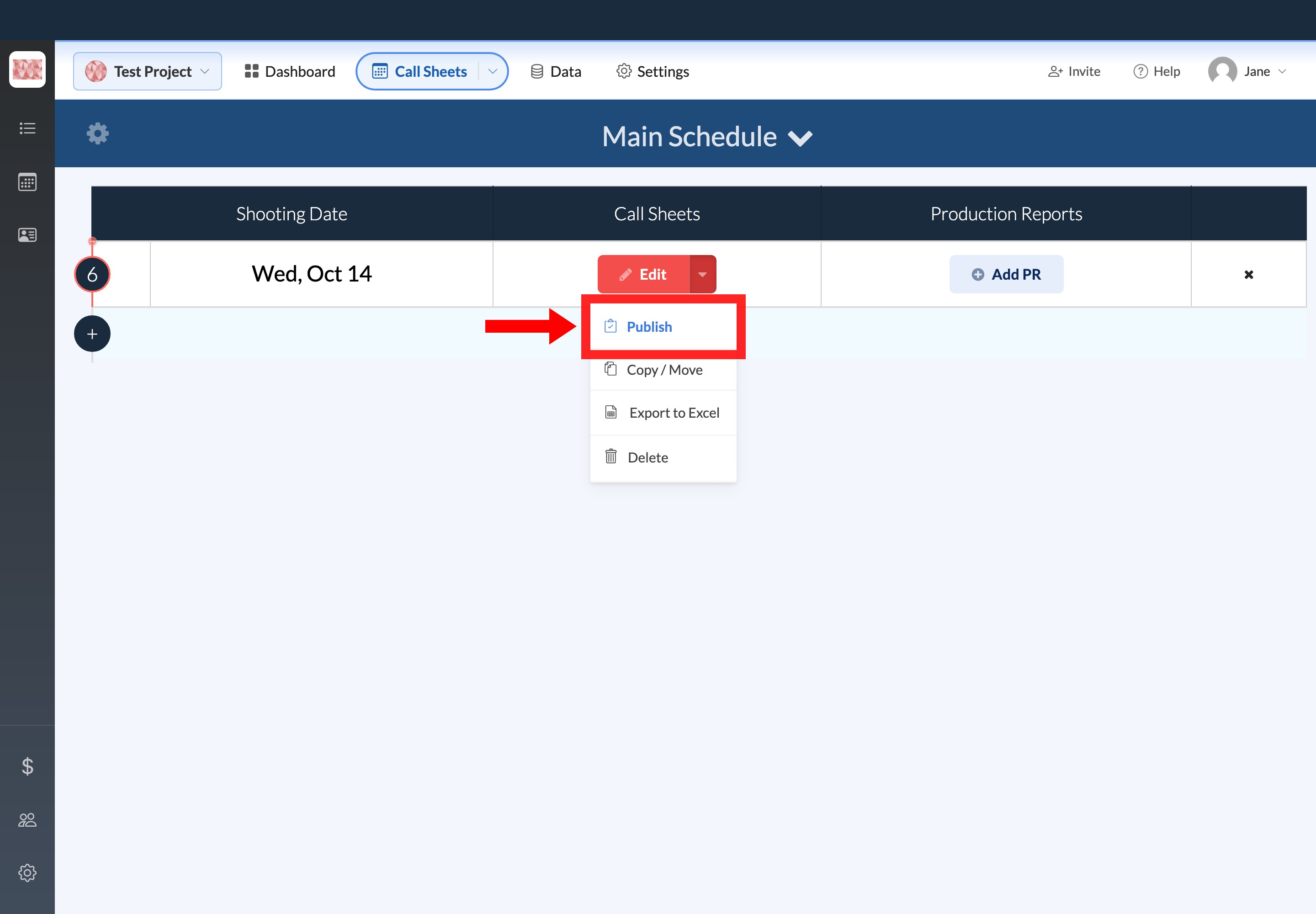
Open your project and select Call Sheets. Find the call sheet you want to send, open the menu beside Edit, and select Publish. This opens the Publish & Send workspace. Nothing is sent yet.
Read the review screen
In the Publish & Send workspace, select Review & Publish. This opens Ready to send? without sending anything.
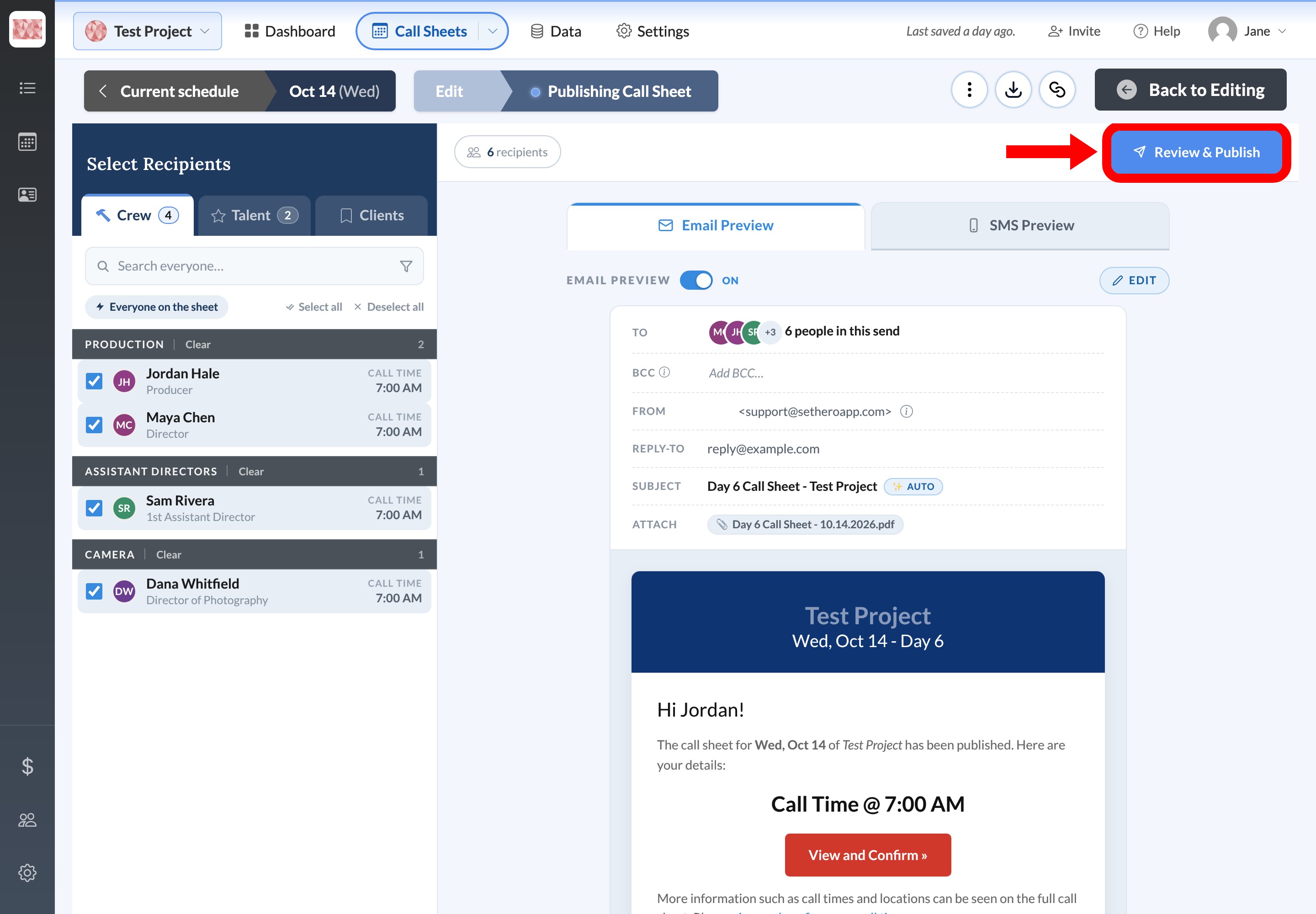
Confirm the project and call sheet date, then compare the selected people with the email and SMS totals.
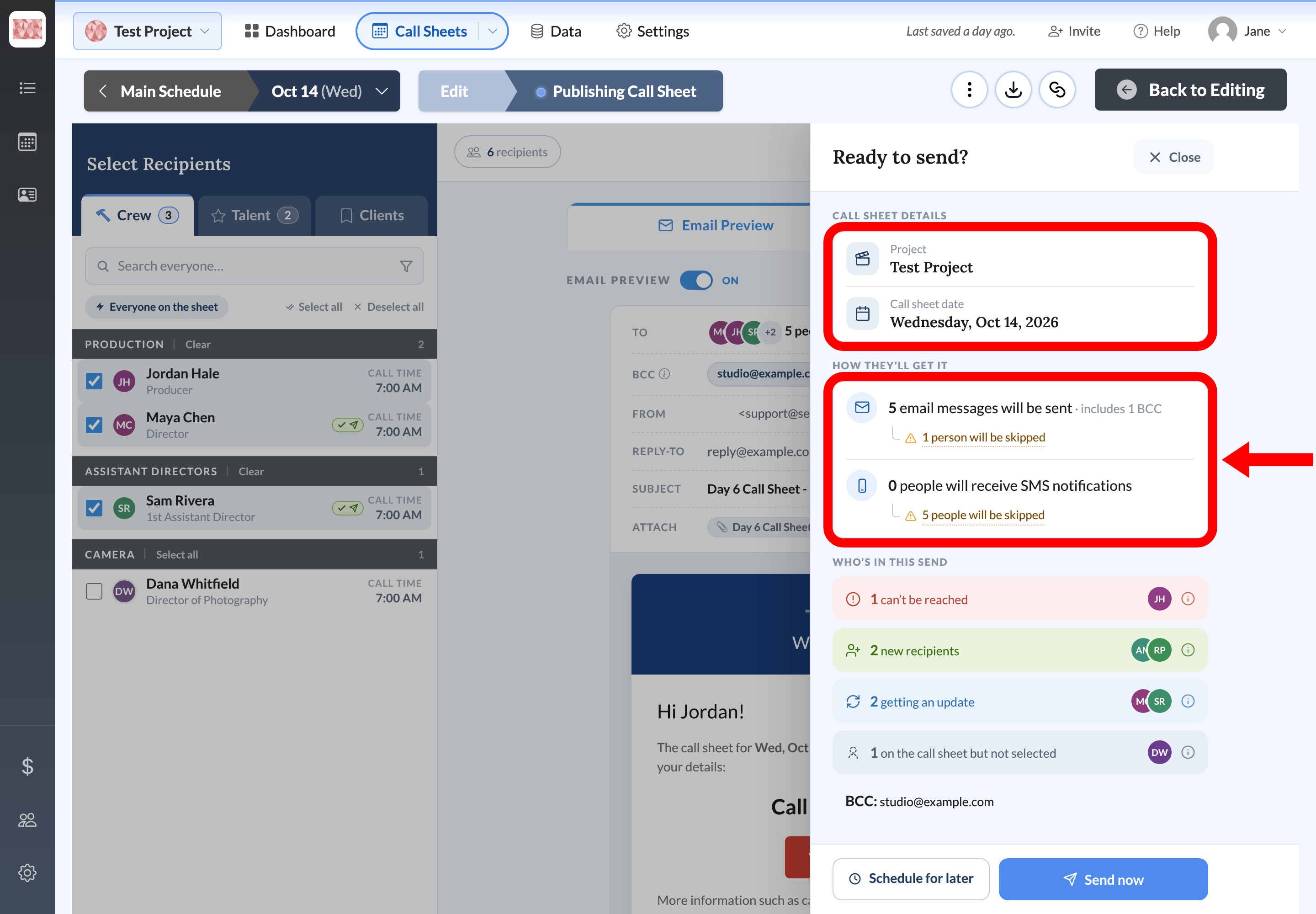
The channel totals count only people who have both the required contact detail and permission for that channel. Someone can be counted for email and skipped for text, or the other way around.
BCC addresses are not chosen from the crew, talent, or client list. On Email Preview, enter an address in BCC and press Enter or type a comma. Select the × on a chip to remove it. BCC recipients get an unpersonalized copy of the email, and SetHero does not track their delivery, opens, or confirmations. Customize call sheet emails before publishing covers the rest of that editor.
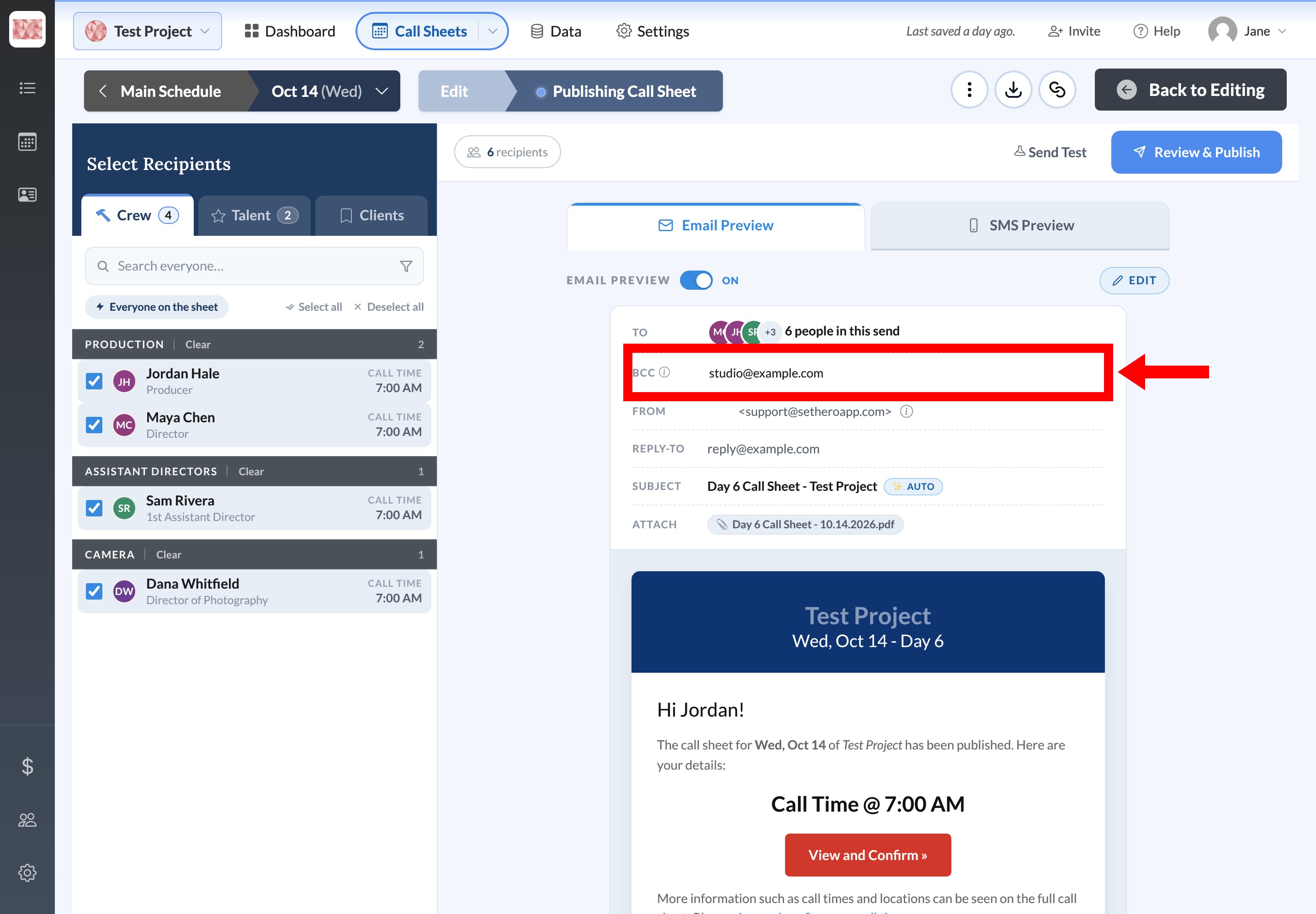
On the review, the email total notes how many BCC addresses are included, and those addresses are listed on their own BCC row. They are separate from the person groups under Who's in this send.
Check skipped recipients
If you see person will be skipped or people will be skipped under the email or SMS total, select it. A popover names each person and the reason:
- No email address on file
- Email is turned off on their contact card
- No phone number on file
- Texting is turned off on their contact card
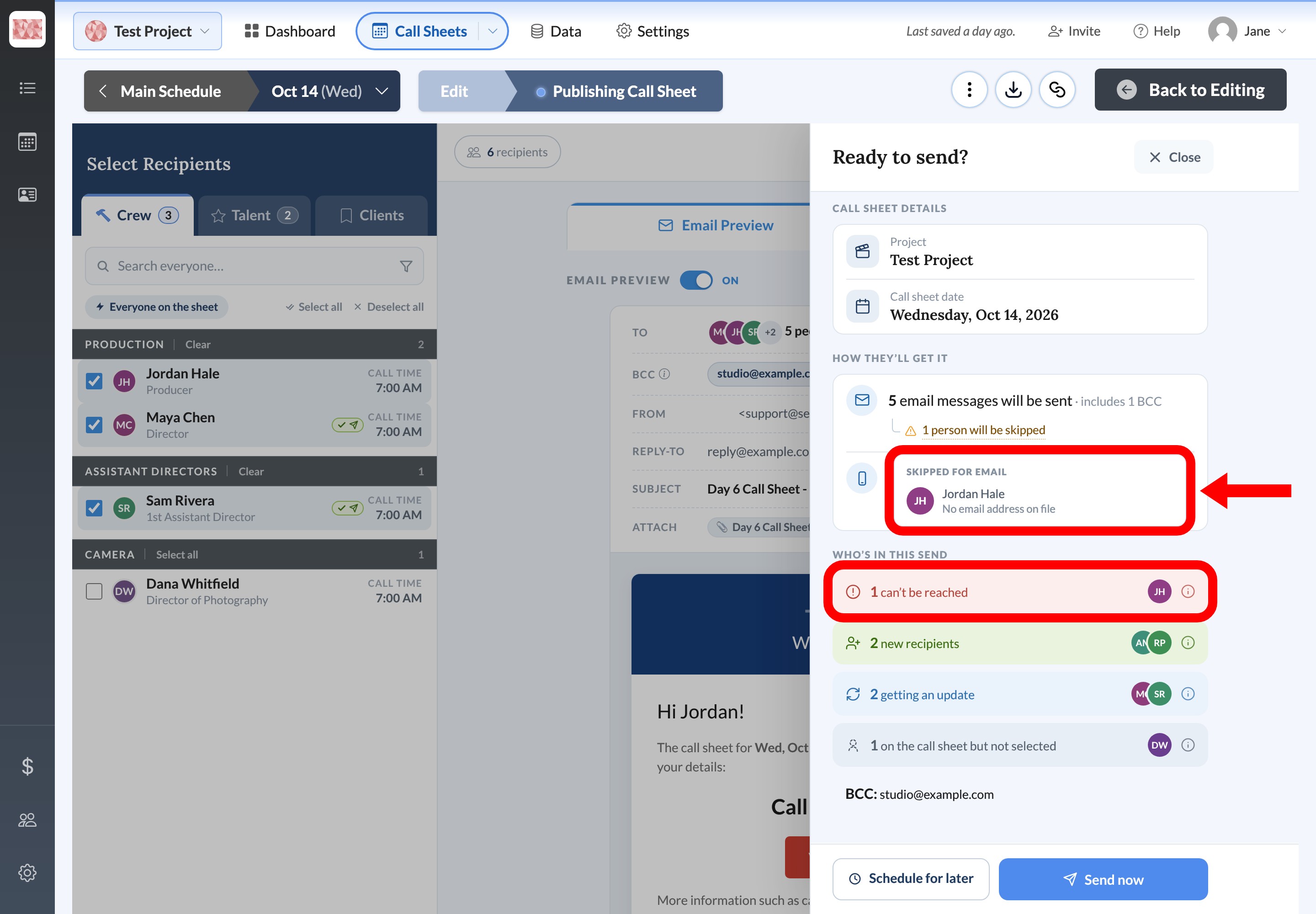
In the example above, one selected person has no email address on file. That same person also has no phone number, so neither enabled method can deliver the call sheet. They are the one person under Can't be reached. The other selected people still receive the email.
Select people will be skipped under the SMS total to open Skipped for SMS. That popover lists who will not get a text, and why.
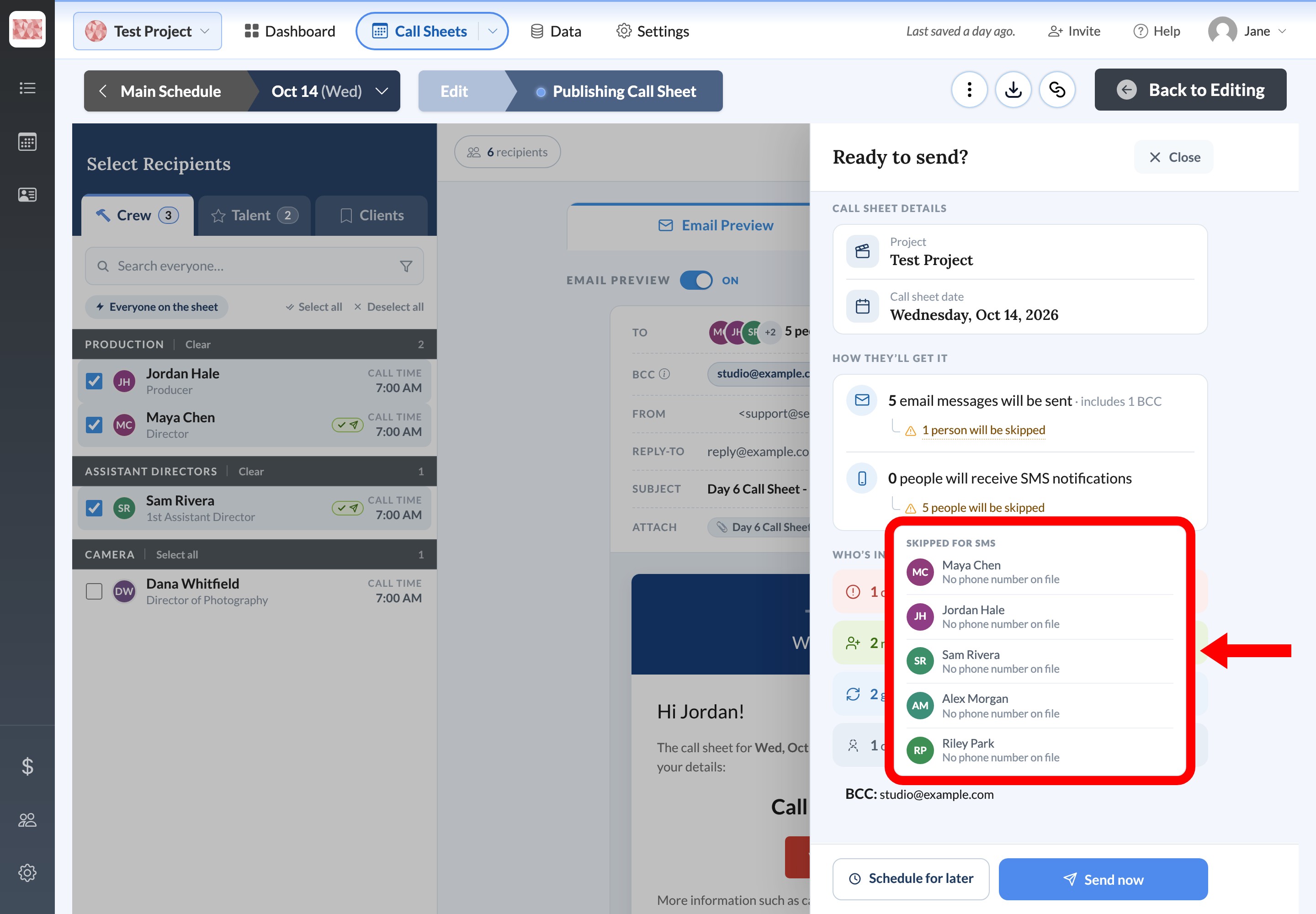
In this send, those people are skipped for text because there is no phone number on file. Being skipped on one channel doesn't mean someone misses the call sheet. Someone skipped for text can still get the email when email is on and their address is allowed.
Understand "Can't be reached"
Can't be reached lists people who can't receive the call sheet through any enabled method. Select the information icon to see the reason for each person.
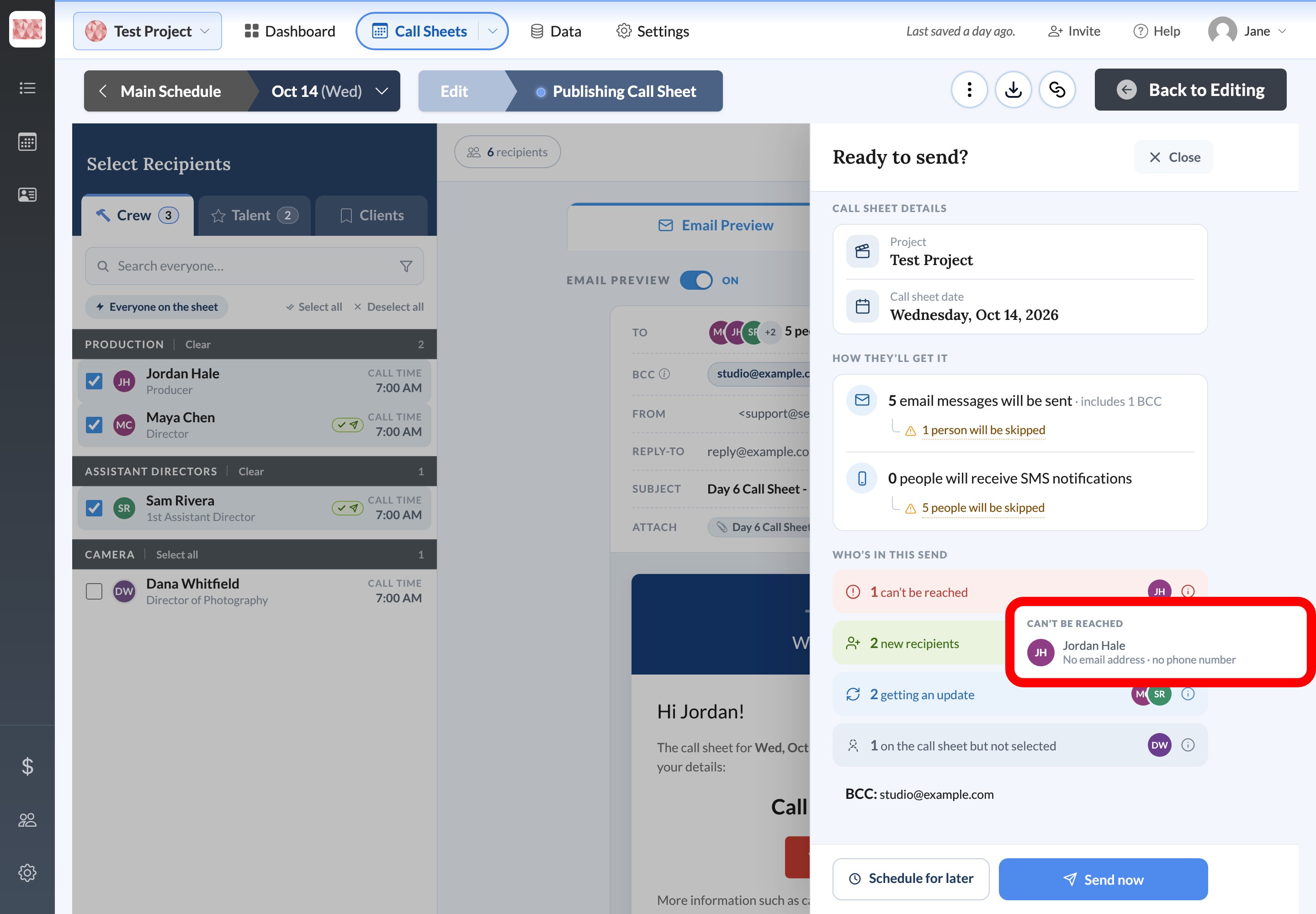
Here, the reason is No email address · no phone number. Email and texting are both on, and this person is missing both, so SetHero has no way to deliver the call sheet.
The other recipient groups explain what happens to everyone else:
- New recipients are getting this call sheet for the first time.
- Getting an update were in an earlier publish and will get the current version.
- On the call sheet but not selected are excluded from this send.
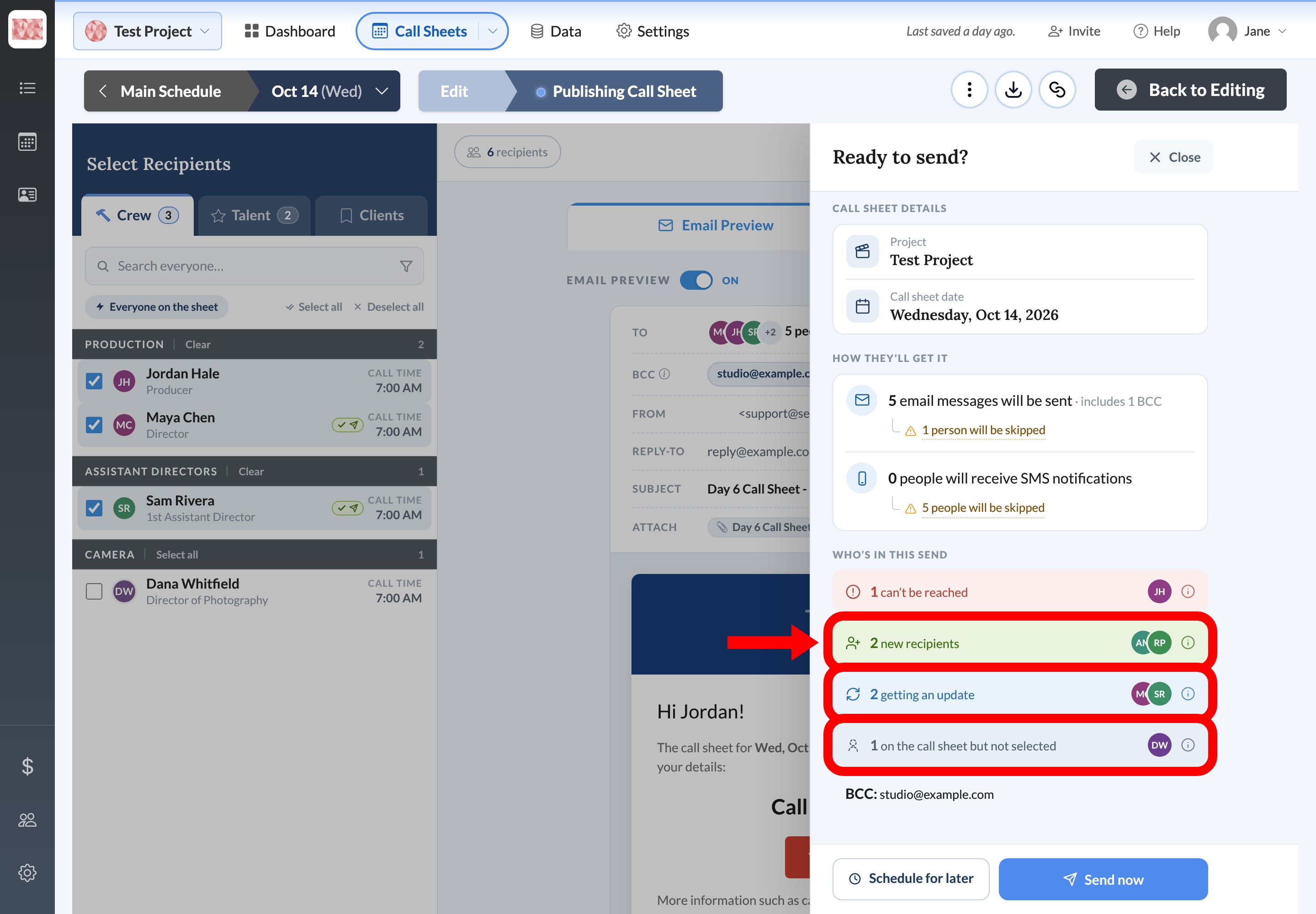
Important: Can't be reached is a warning and doesn't block sending if at least one other selected recipient is reachable. Before you send, fix those people's contact information or permissions, deselect them, or confirm you intend to leave them out.
Fix a disabled send button
If Send now or Confirm & Schedule is disabled, something is blocking the send:
- No enabled channels. If both email and SMS are off, the review says no emails and no text messages will be sent, and everyone selected appears under Can't be reached. Send now stays faded and can't be clicked. Close the review, turn on at least one channel, and open it again.
- No recipients selected. Close the review and select at least one recipient.
- Over the recipient cap. The cap counts distinct people from this send and earlier publishes, plus BCC addresses, so deselecting a few people may not clear it. Use Trim to cap, Boost & send, or Upgrade plan in the review. Read how recipient limits and boosts work before trimming.
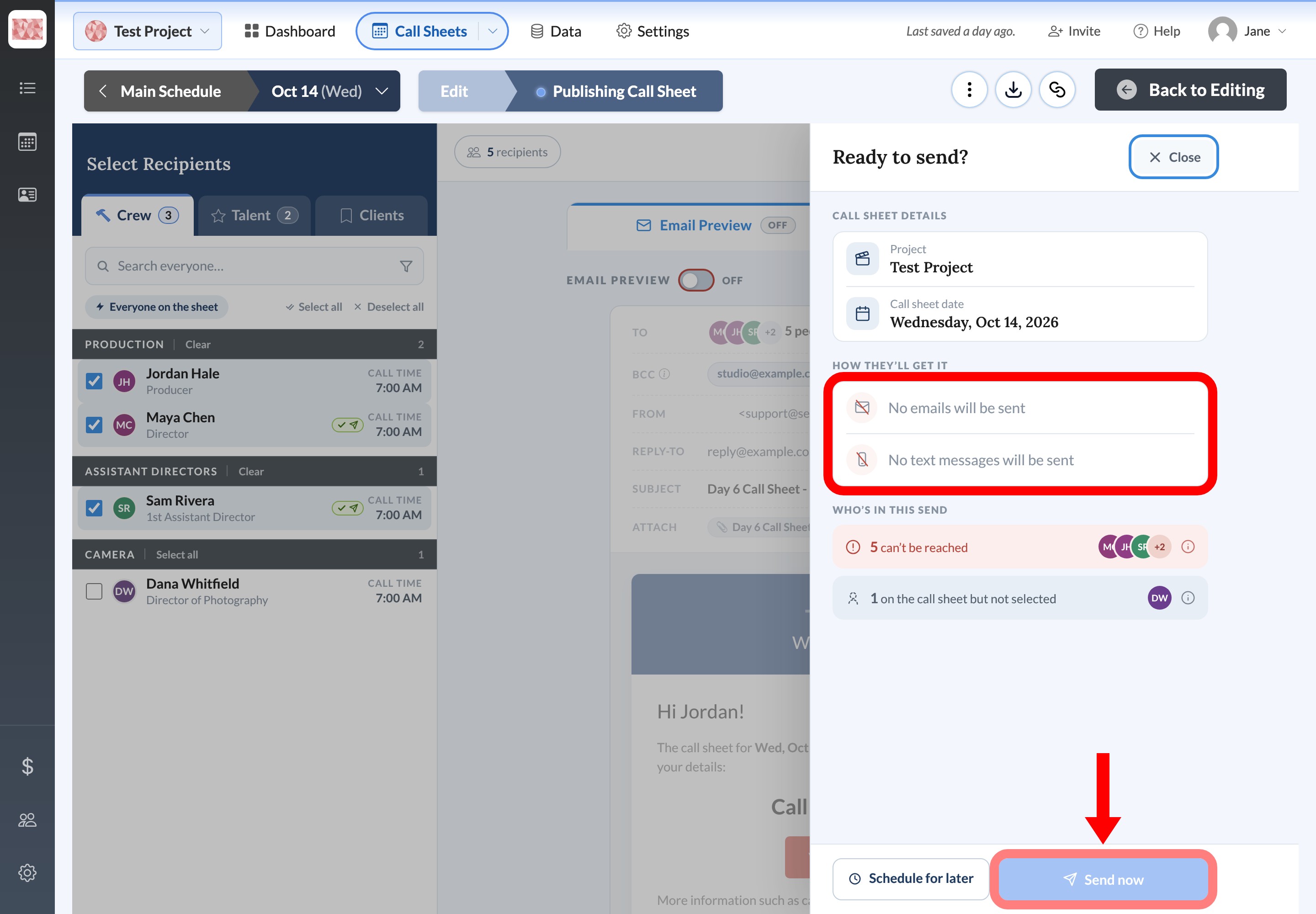
The same requirements apply when you schedule. Schedule for later doesn't bypass a missing recipient or delivery method.
Fix an attachment validation error
SetHero checks attachments when you open the review and again right before sending. If a file fails, a warning such as 1 attachment couldn't be validated appears under the email summary, with a Review button, and Send now stays disabled.
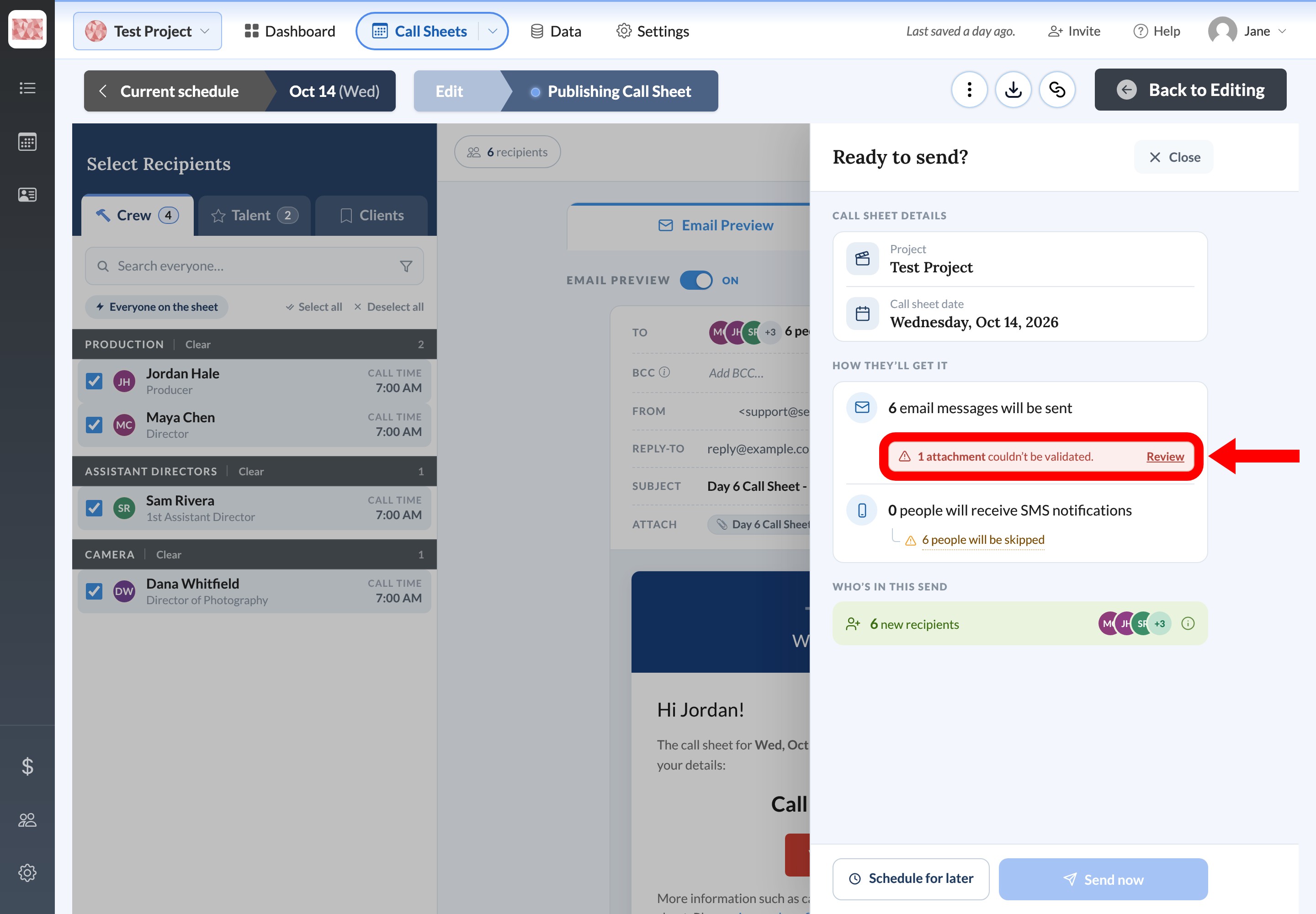
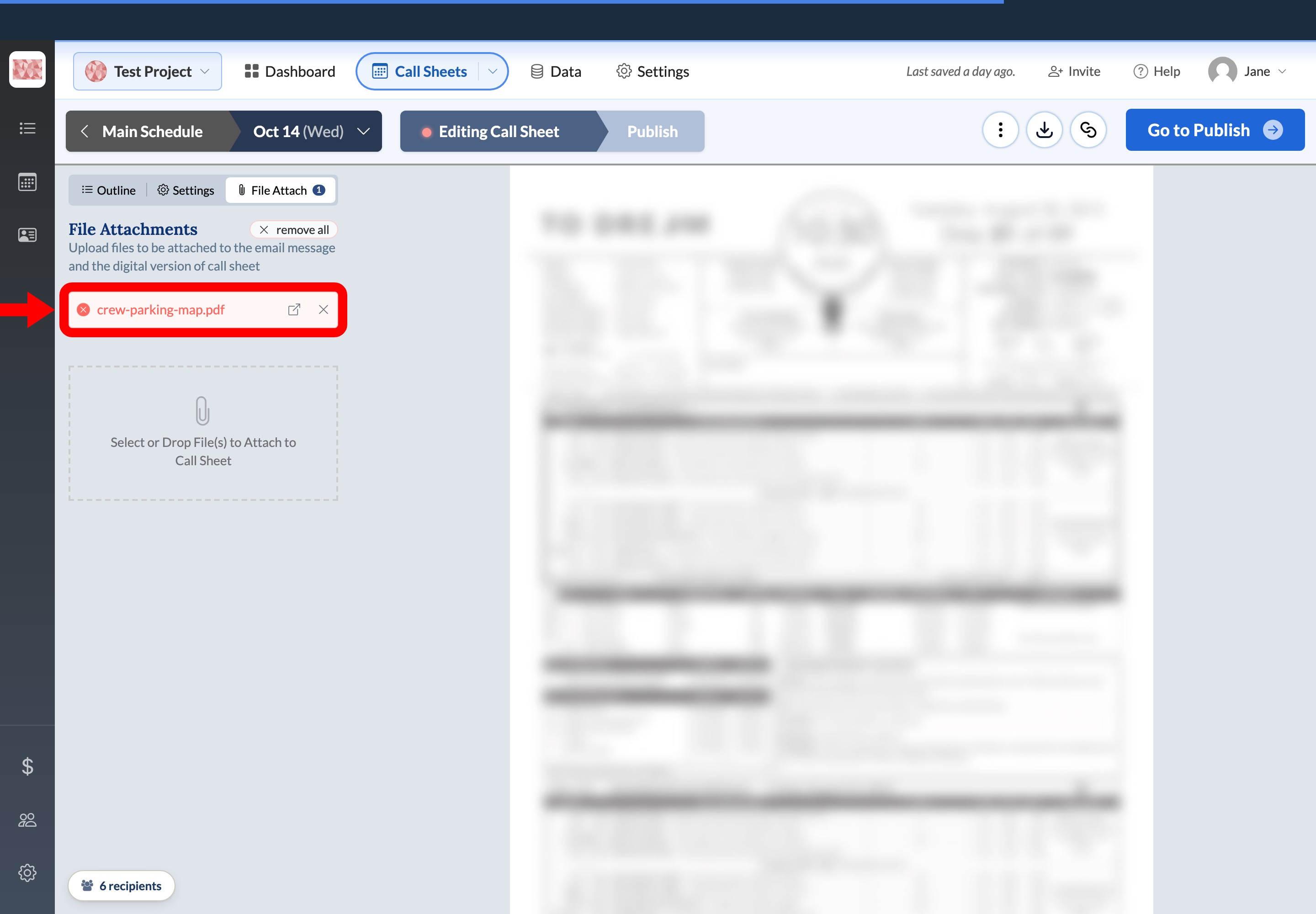
Select Review beside the error to open the call sheet's File Attachments page. A failed file is marked invalid. Remove it, upload a replacement if you need one, then return to Publish & Send and open Review & Publish again.
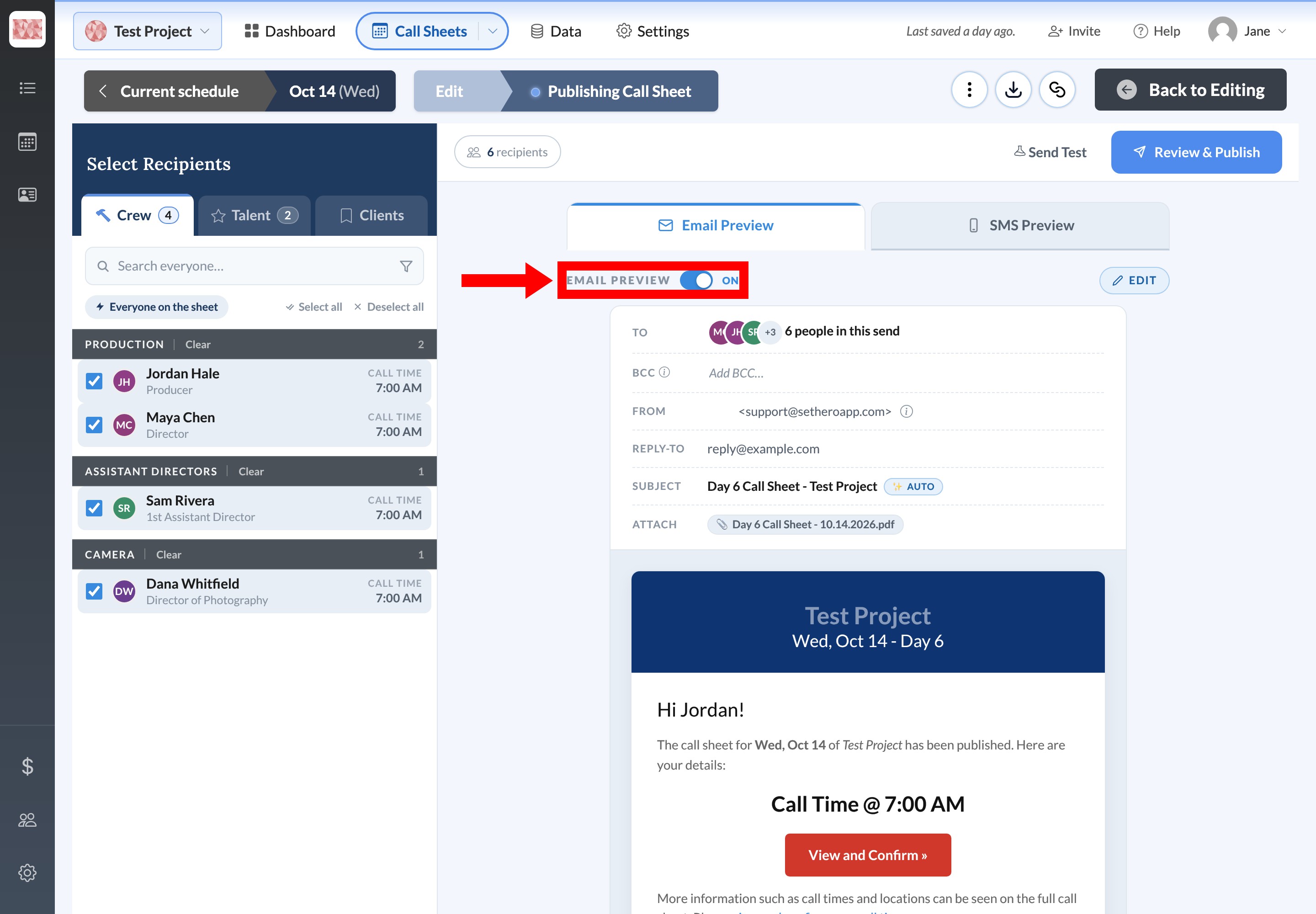
Note: Attachments are sent by email only. An attachment error blocks sending while email is on. To continue with an otherwise valid SMS-only send, select the On switch beside Email Preview to turn email off. SMS stays as it is.
If the validation service can't complete the check at all, SetHero treats every attachment as invalid. Close and reopen the review to retry. If it still fails, contact SetHero support, or turn email off and send SMS-only if that's acceptable.