The mobile call sheet
What each tab of the phone call sheet shows, with no app or login
The link in the call sheet email or text opens a phone-sized web page. There's nothing to install and no SetHero login. One link is one person's sheet for one shoot day.
This article is a tour of what your crew sees when they tap that link. What your crew sees shows the email and text that carry it. Coordinators can check the same layout from the editor with Copy link to live preview and Show mobile without notifying anyone.
Is there a SetHero app?
No. SetHero isn't in the App Store or Google Play, so there's no app to download. Your call sheet opens in your phone's web browser from the link in your email or text.
Getting around
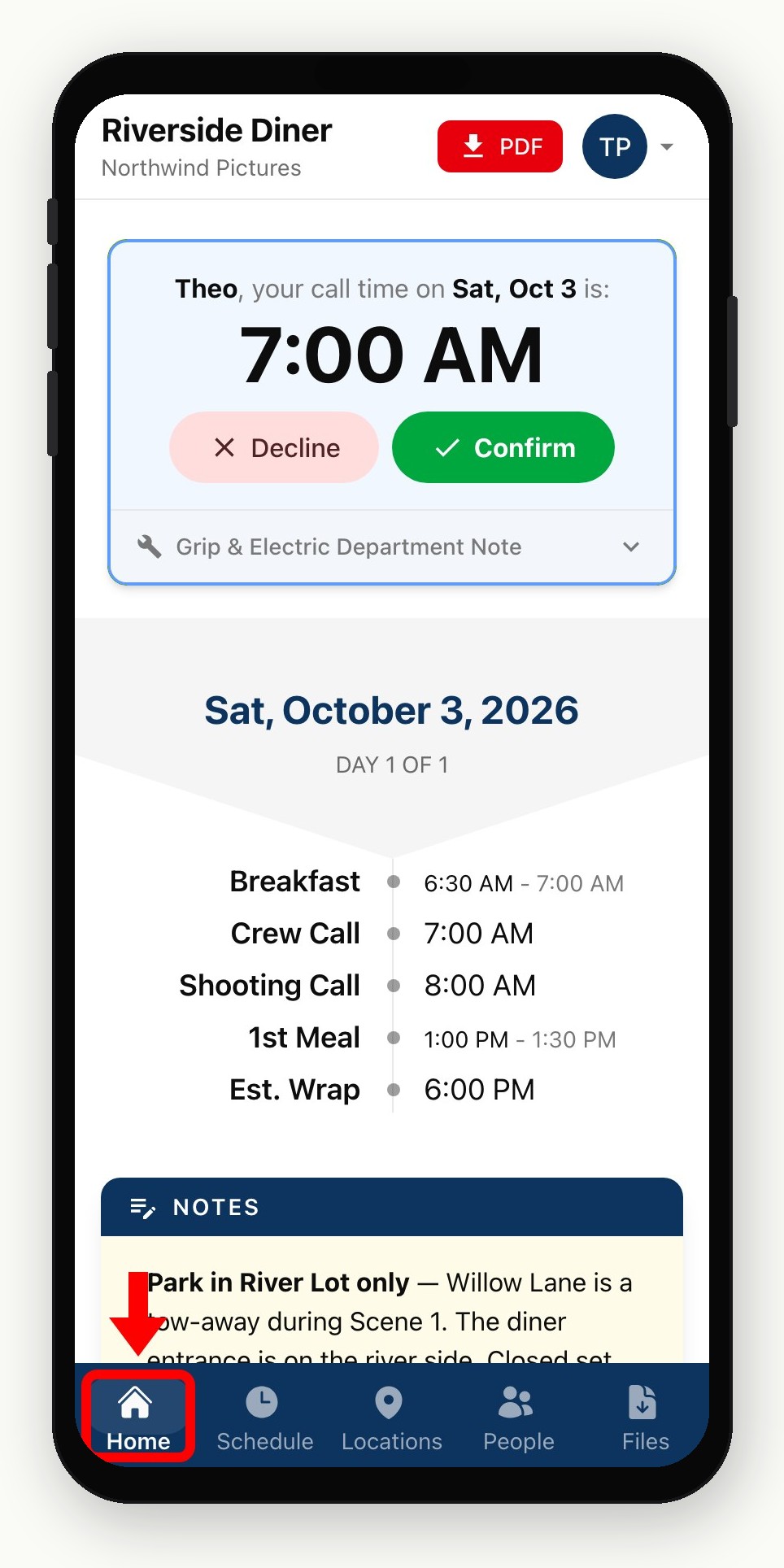
Icons along the bottom switch between five tabs: Home, Schedule, Locations, People, and Files. Each person sees their own times, places, people, and files.
Home
Home greets the person by first name and shows their call time in large type. That time is theirs, not necessarily general crew call. Confirm and Decline sit under it until they respond.
Tapping Confirm changes the card to Confirmed with an Add to Calendar option. Decline appears when the company allows people to reject a call time, and they can give a reason that shows up in Track Confirmations. After responding, they can tap Change Status to choose again.
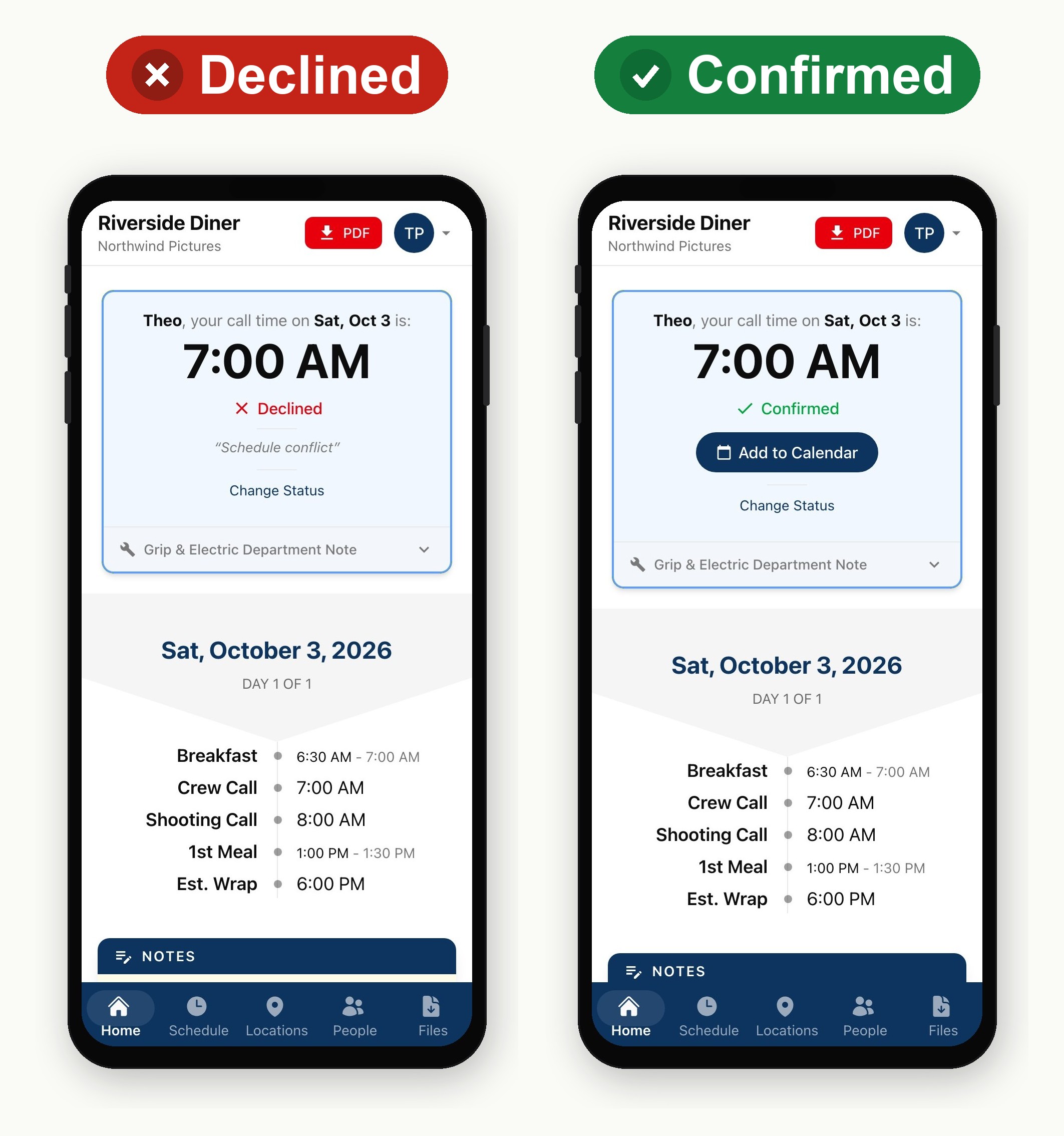
Note: Opening the sheet counts as a view, not a confirmation. Until someone taps Confirm, they can show as Viewed but not Confirmed in Track Confirmations.
Under the date, a short timeline lists the day's key times. Cards further down repeat notes, weather, locations, and cast when those sections are on the sheet. The red PDF control in the header downloads the published snapshot from any tab.
Schedule
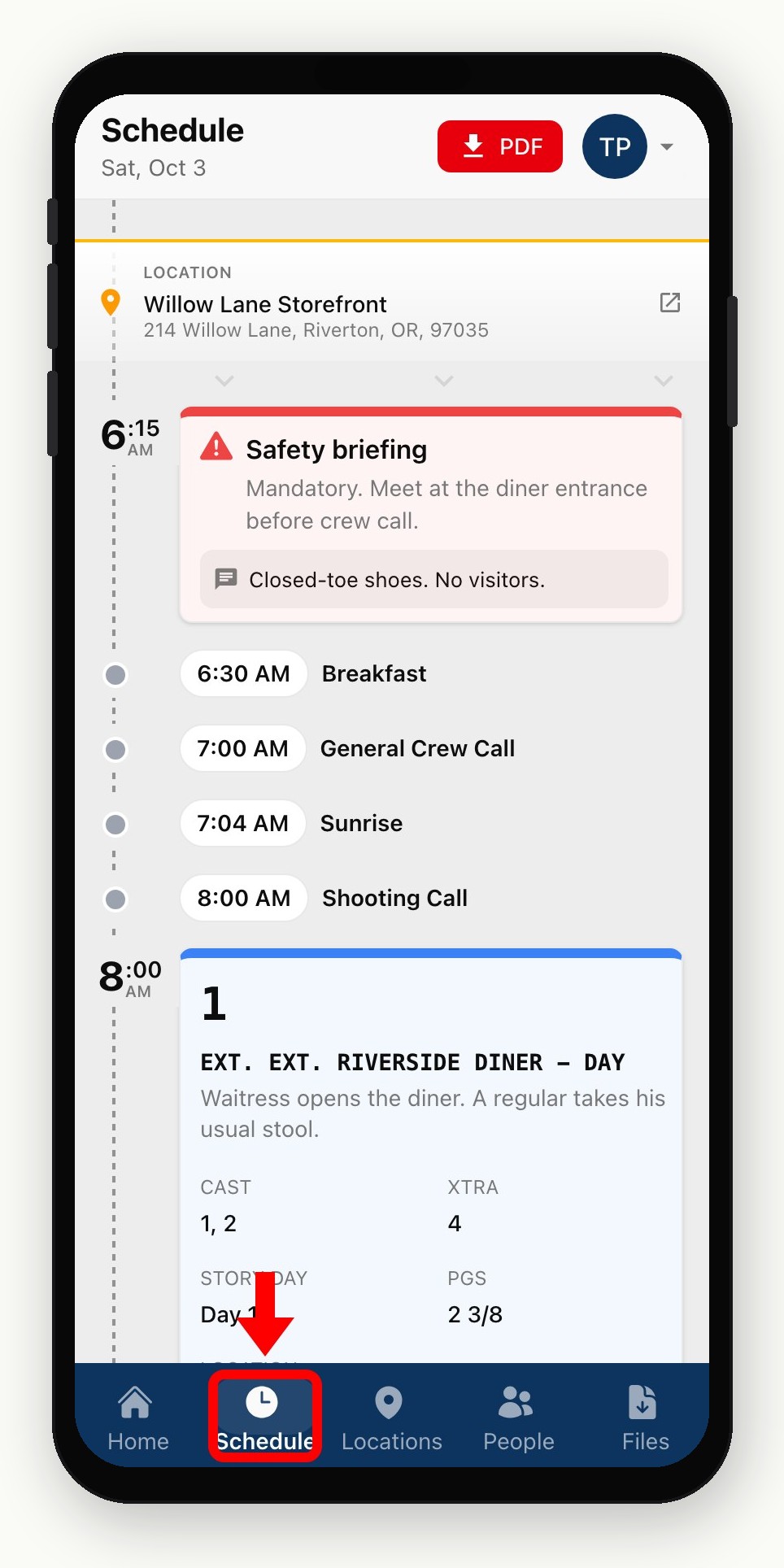
Schedule lists the day's timed items in order: scenes, calls, meals, moves, and notes. A day with nothing timed shows Nothing on the schedule.
Locations
Locations puts a map above the day's places. Key Locations collects parking, hospital, office, and set. Places used on the schedule appear again under Locations on schedule. Tap a row to expand the address.
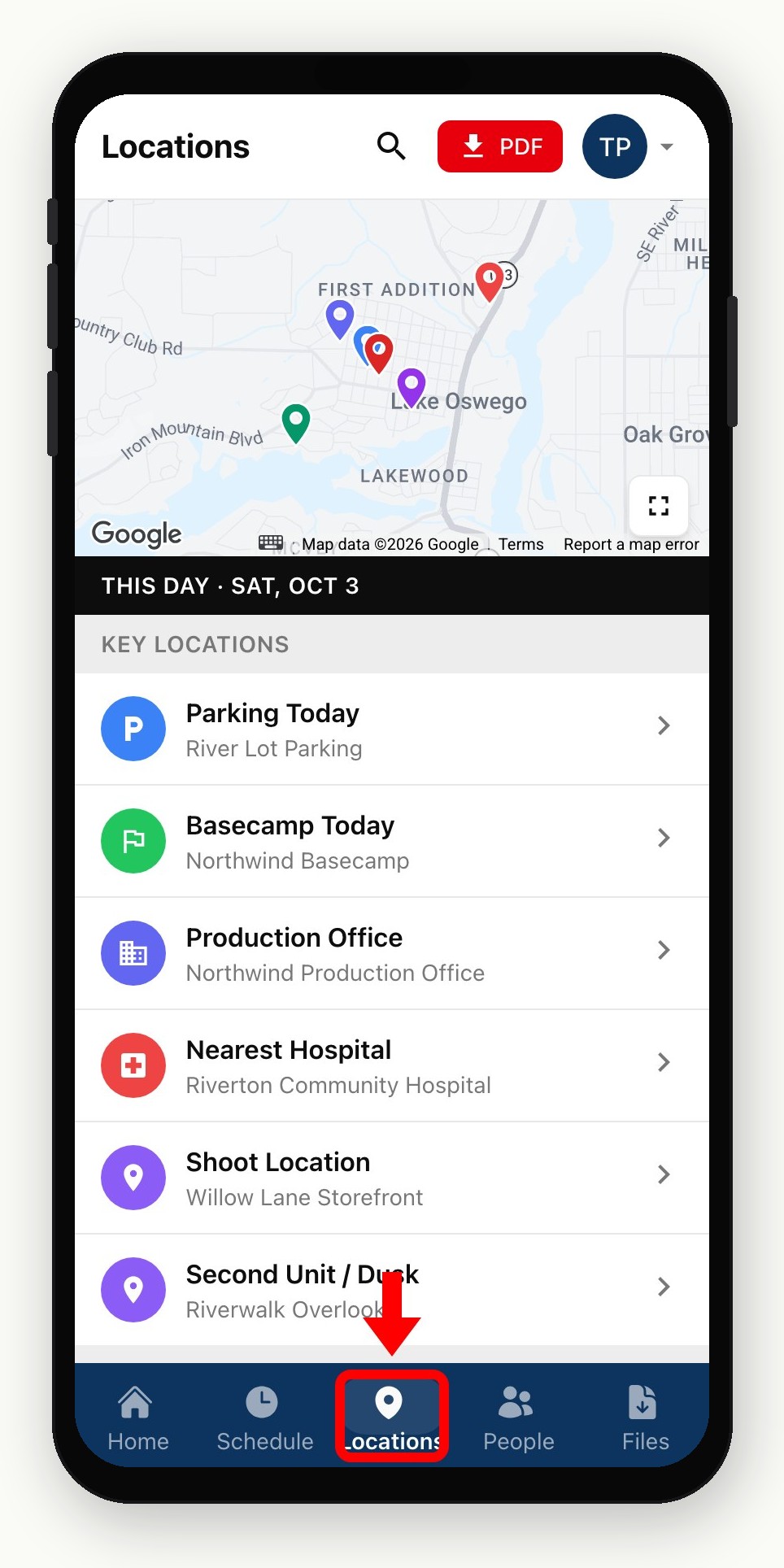
Open launches the phone's maps app and Copy copies the address. If the phone shares its location, drive time and a Directions button can appear. Pins and map links are edited on the call sheet, not here. See Maps and pins on your call sheet.
People
People groups crew by department and adds Talent and Clients when those sections are on the sheet. Key contacts such as the medic sit at the top under Useful Contacts. Each row shows that person's call time. Tap a name to open their contact card.
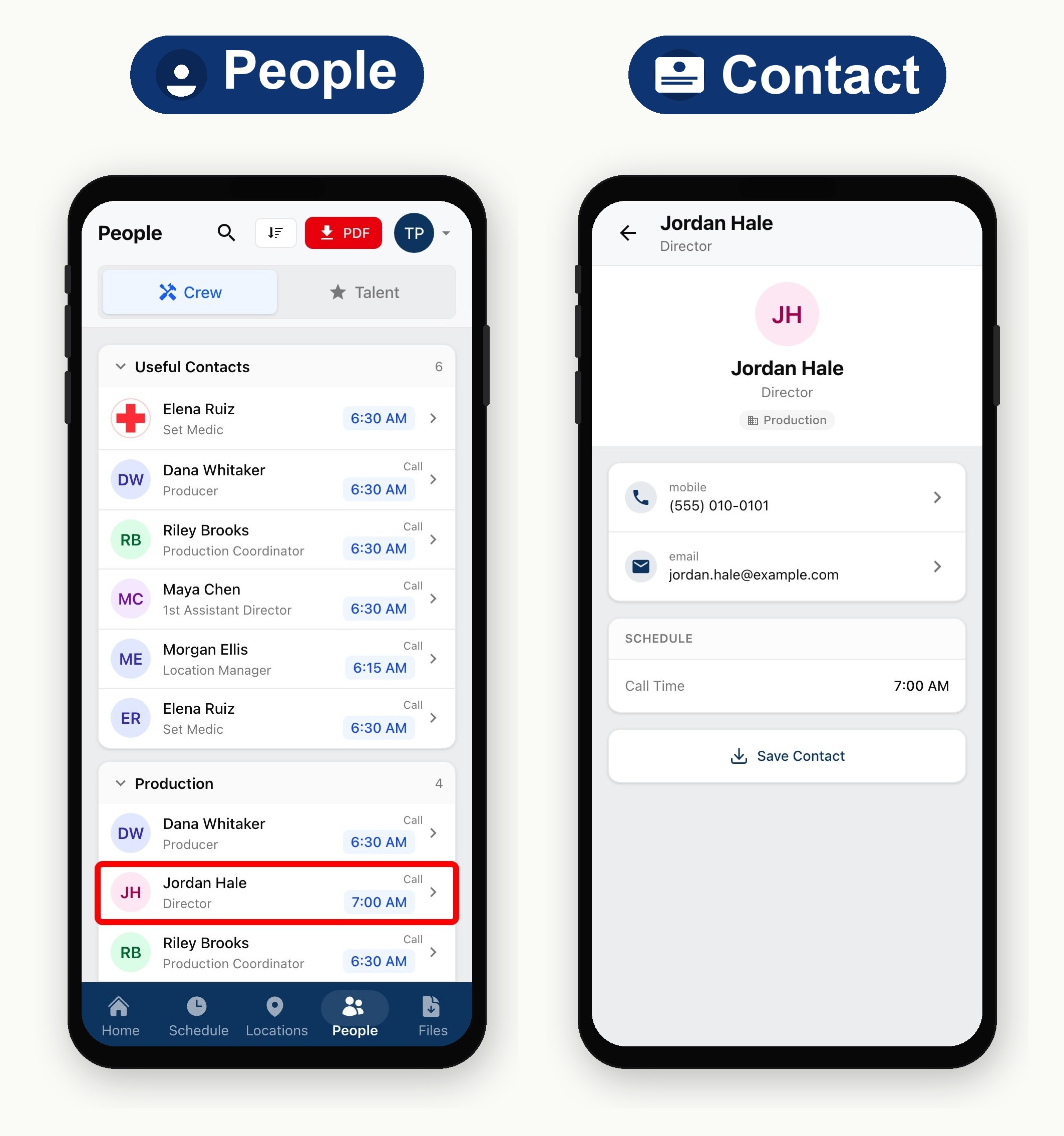
If phone and email are hidden on the sheet, the card reads Not available for those fields. Otherwise, tapping them starts a call, text, or email.
Files
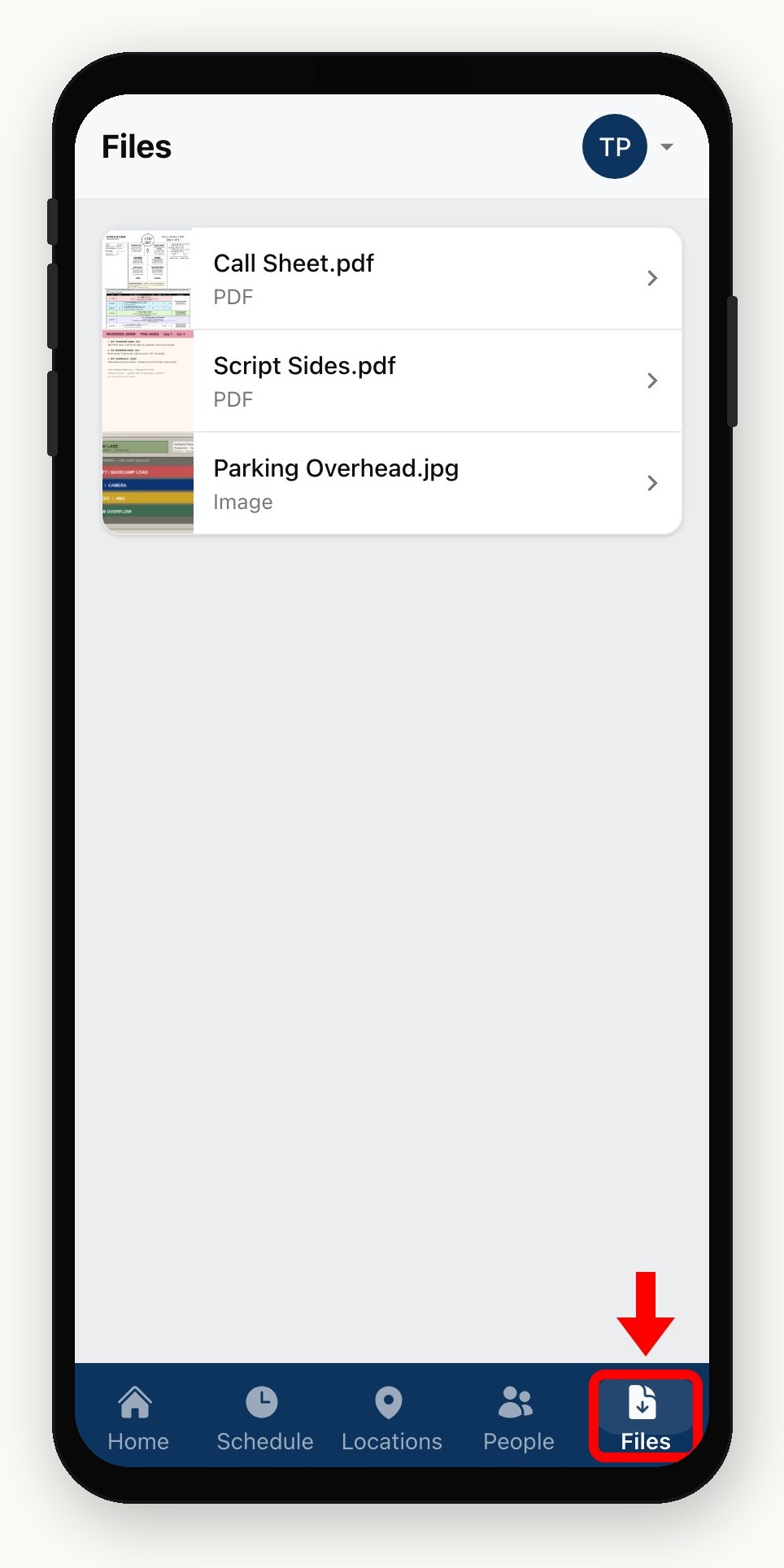
Files lists the published Call Sheet.pdf plus any attachments you added, such as sides, maps, or permits. Tap a file to preview, then Open or Download. That PDF is the same snapshot attached to the email. Attach maps, PDFs, and permits covers attaching files.
After you revise
The same link keeps working. A silent update or a republish refreshes the web page and the PDF behind it. Confirmations stay unless you reset them from Track Confirmations. Update or resend a published call sheet covers both update paths.
Cast and crew never reach your editor or other people's sheets from this link. Recent Call Sheets in the header menu lists only sheets they've already opened on that phone. The link doesn't expire at wrap. Each day has its own link, and Remove Access on Track Confirmations is what stops a person from opening theirs.