Create a page break
Split a call sheet onto another page, and merge pages back together
A page break starts the next section on a new page of the printed call sheet and the PDF. Most sheets already have one before Crew, so the first page stays readable and the crew list starts on page 2.
Note: This is different from Page Size on the Settings tab. Auto grows each page to fit its sections; Custom can also wrap overflow onto another page. See time, temperature, and page size.
Open the call sheet
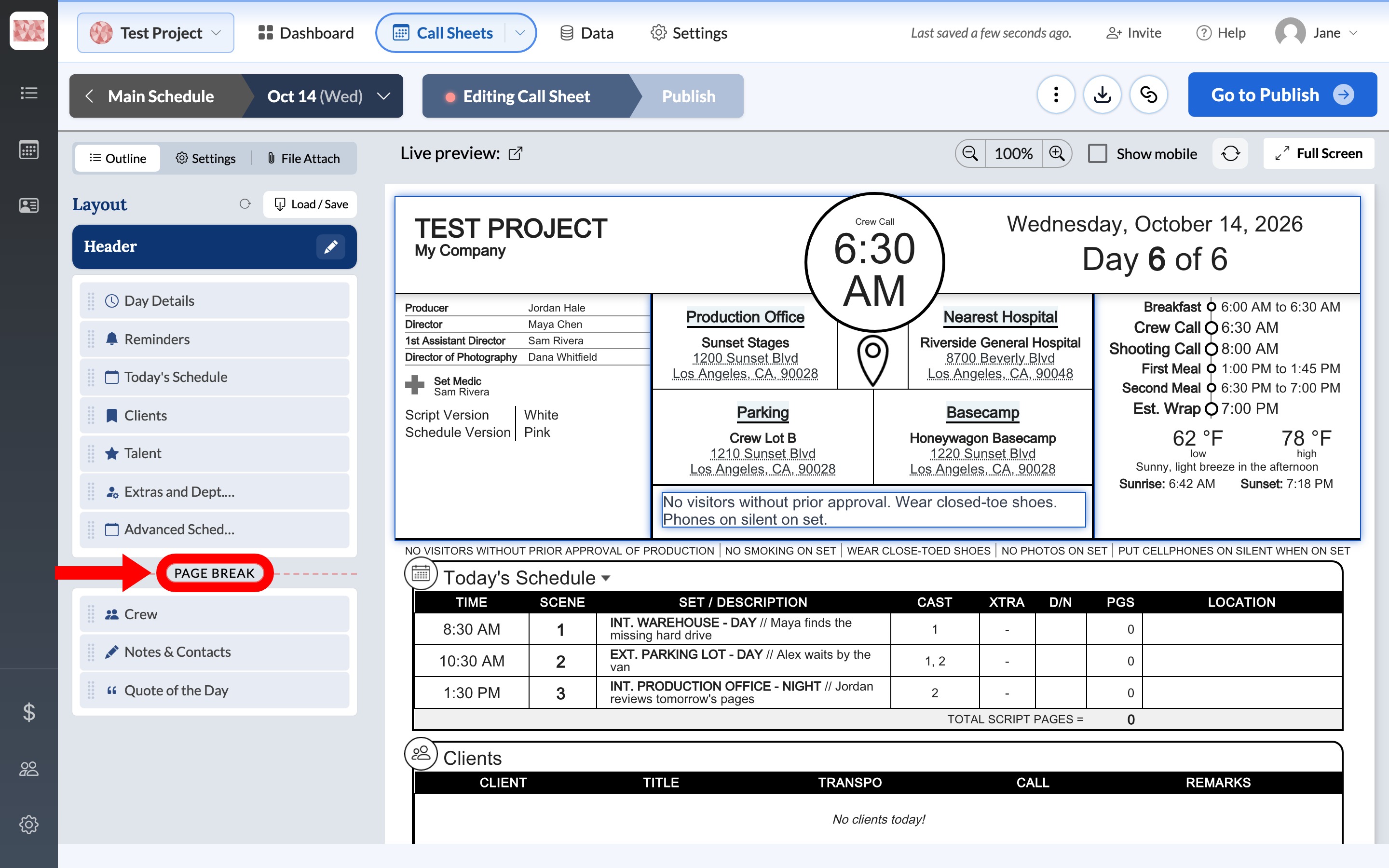
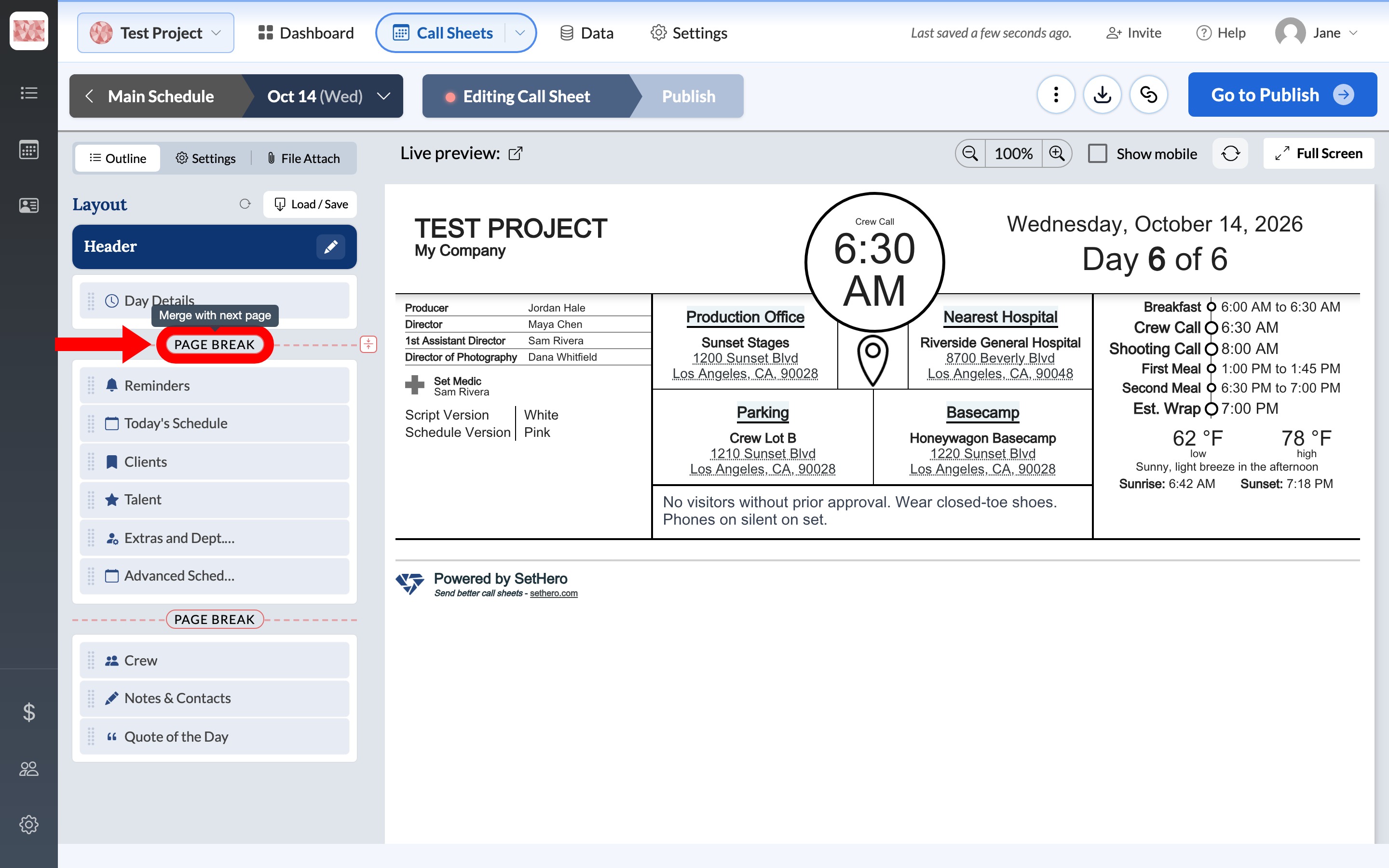
- The Call Sheet Editor opens on the Outline tab. In Layout, look for a Page Break pill between two sections. That's where the printed sheet already splits.
Add a page break
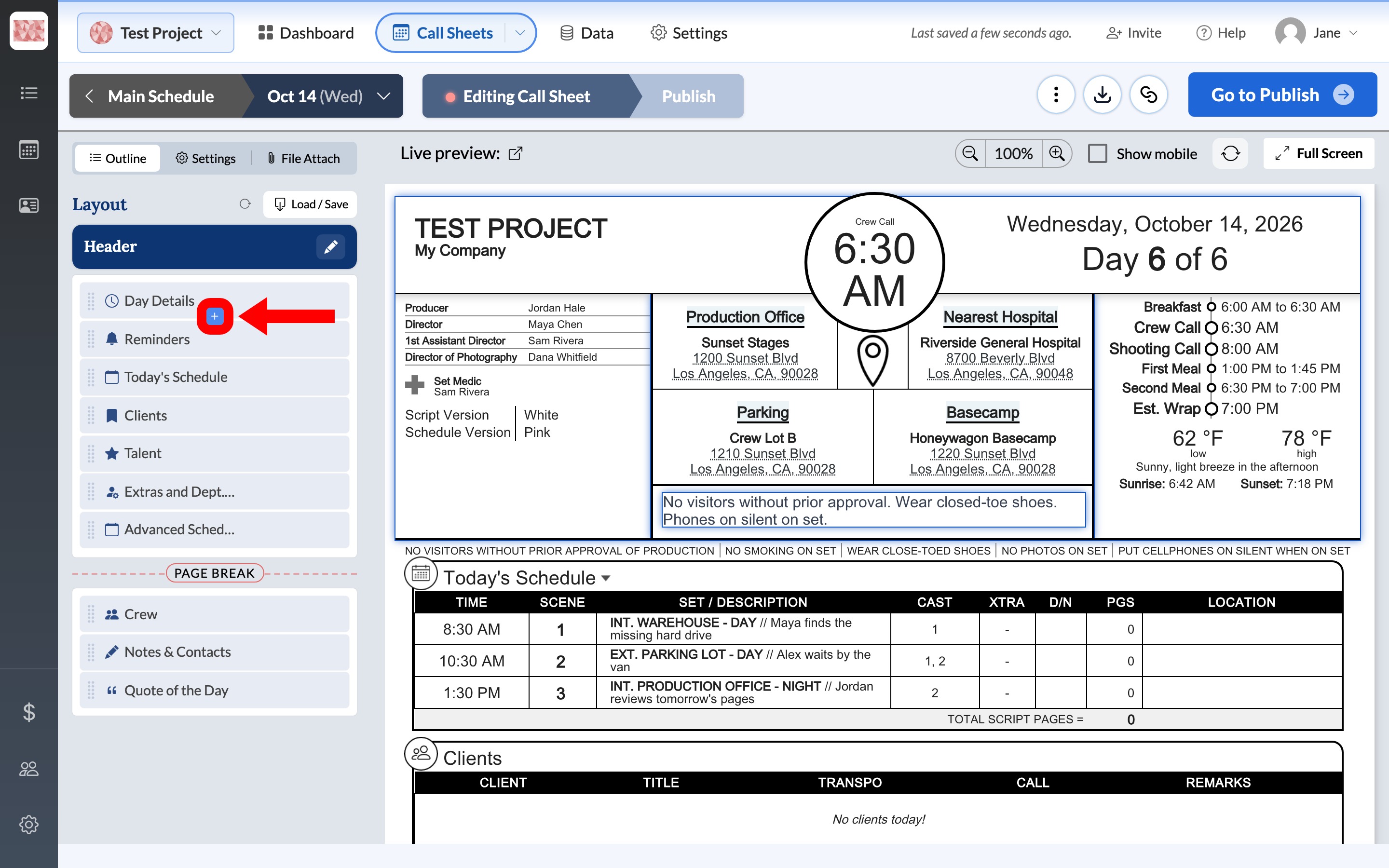
- In the Layout list, click the + between the two sections where the new page should start. The plus appears when you hover over a section.
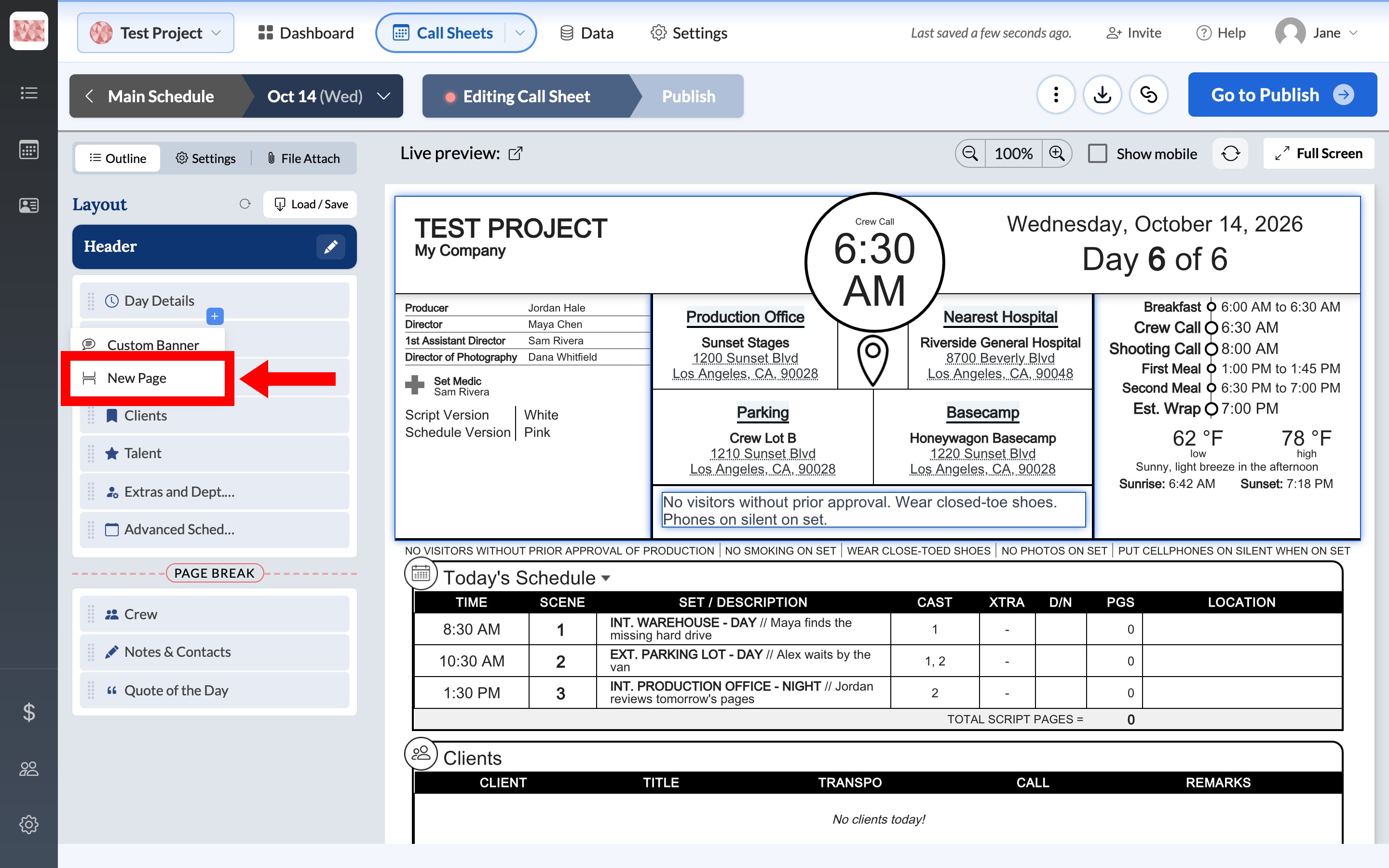
- Choose New Page. The same menu also adds a custom banner.
- A new Page Break appears in that spot. Everything below it moves to the next page.
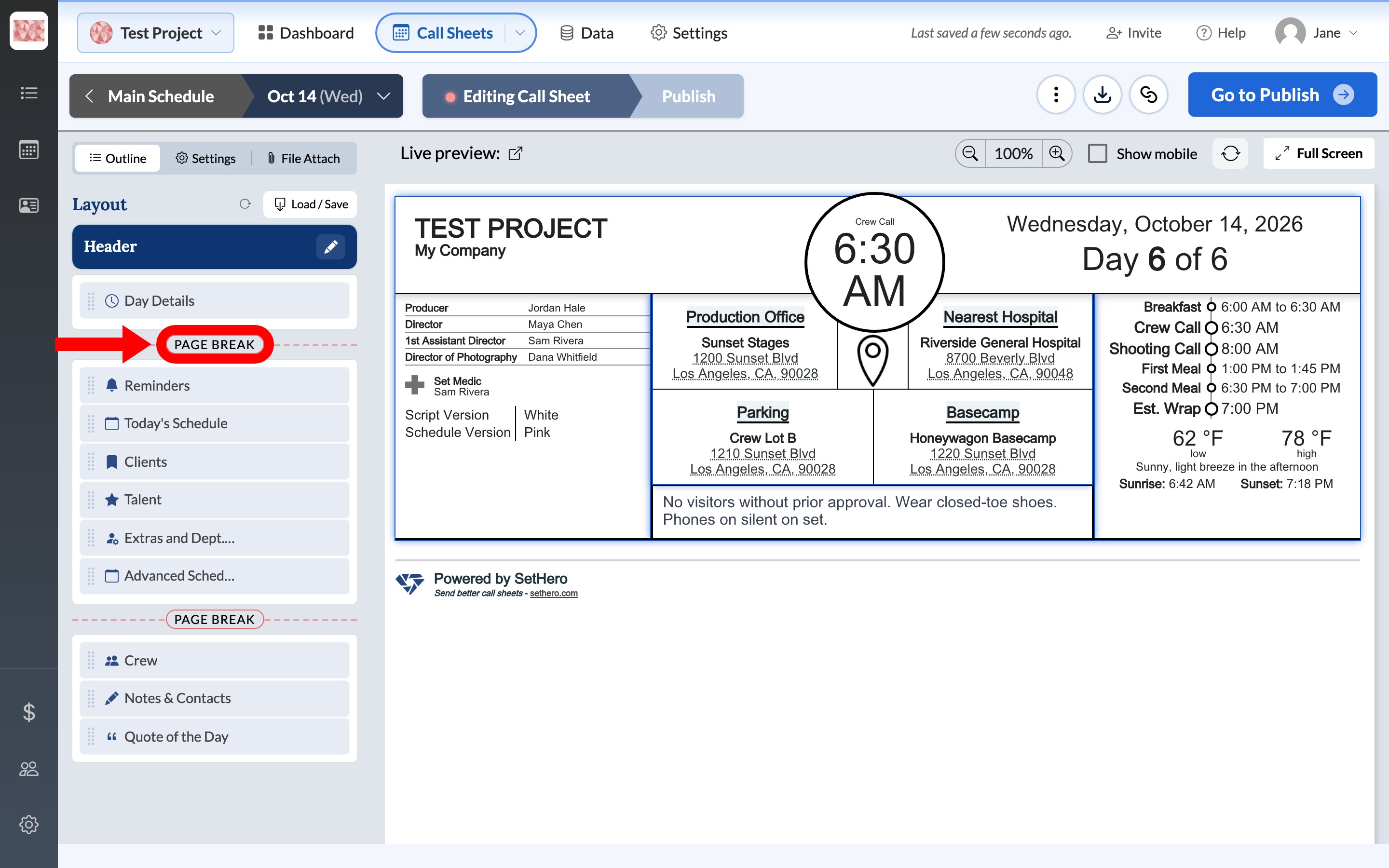
You can add more than one. The last section on a page only offers Custom banner — click + on the section above it if you need a break there.
Tip: Preview the sheet after you move a break so you can see which sections landed on each page. PDF and Excel exports use the same page breaks.
Remove a page break
Hover over the Page Break pill between the pages you want to join. The tooltip says Merge with next page. Click the pill. SetHero removes that break and moves every section from the next page up onto this one. A Pages merged! message confirms it. Any other page breaks on the sheet stay in place.
Note: Resetting the layout deletes custom page breaks and banners. See Save and reuse a call sheet template if you want to keep a layout you use often.