Move all times when the day shifts
How to move call sheet times earlier or later, and which times stay put
When a whole shoot day moves earlier or later, Shift All Times moves the call sheet's times by the same amount, so you don't have to change them one by one.
Important: Despite the name, it doesn't move every time. Individual crew call times, department calls, and client call times stay as they are, so check those after you shift.
Shift the day's times
-
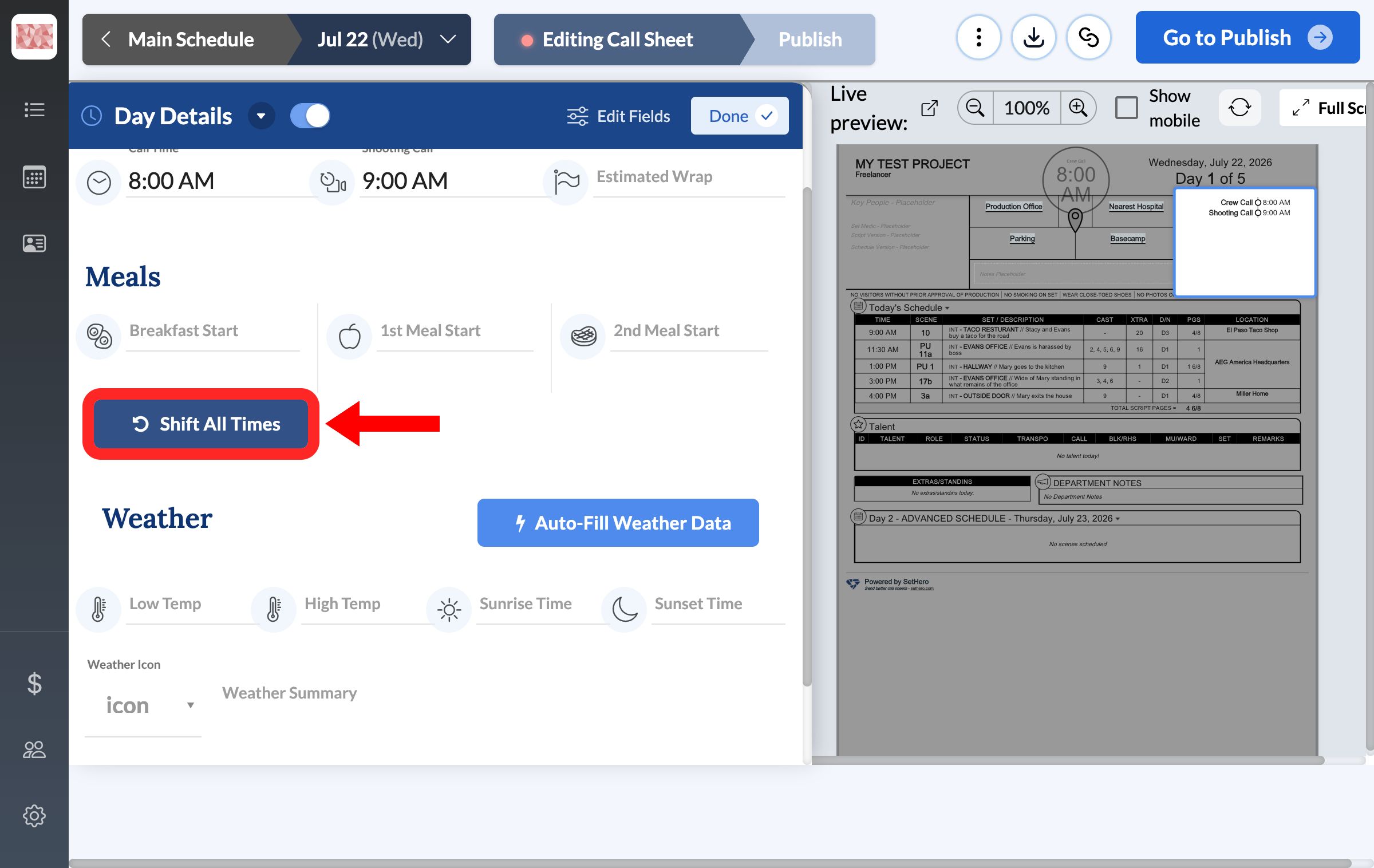
Open the call sheet, select Edit beside Day Details, and go to the Times & Weather tab.
-
Below Meals, click Shift All Times.
-
In Master Time Adjust, choose Push all times later or Pull all times earlier.
-
Enter the amount in HOURS and MINUTES. The form starts at 30 minutes, so change it if you need a different amount. To move the day by one hour, enter
1and0.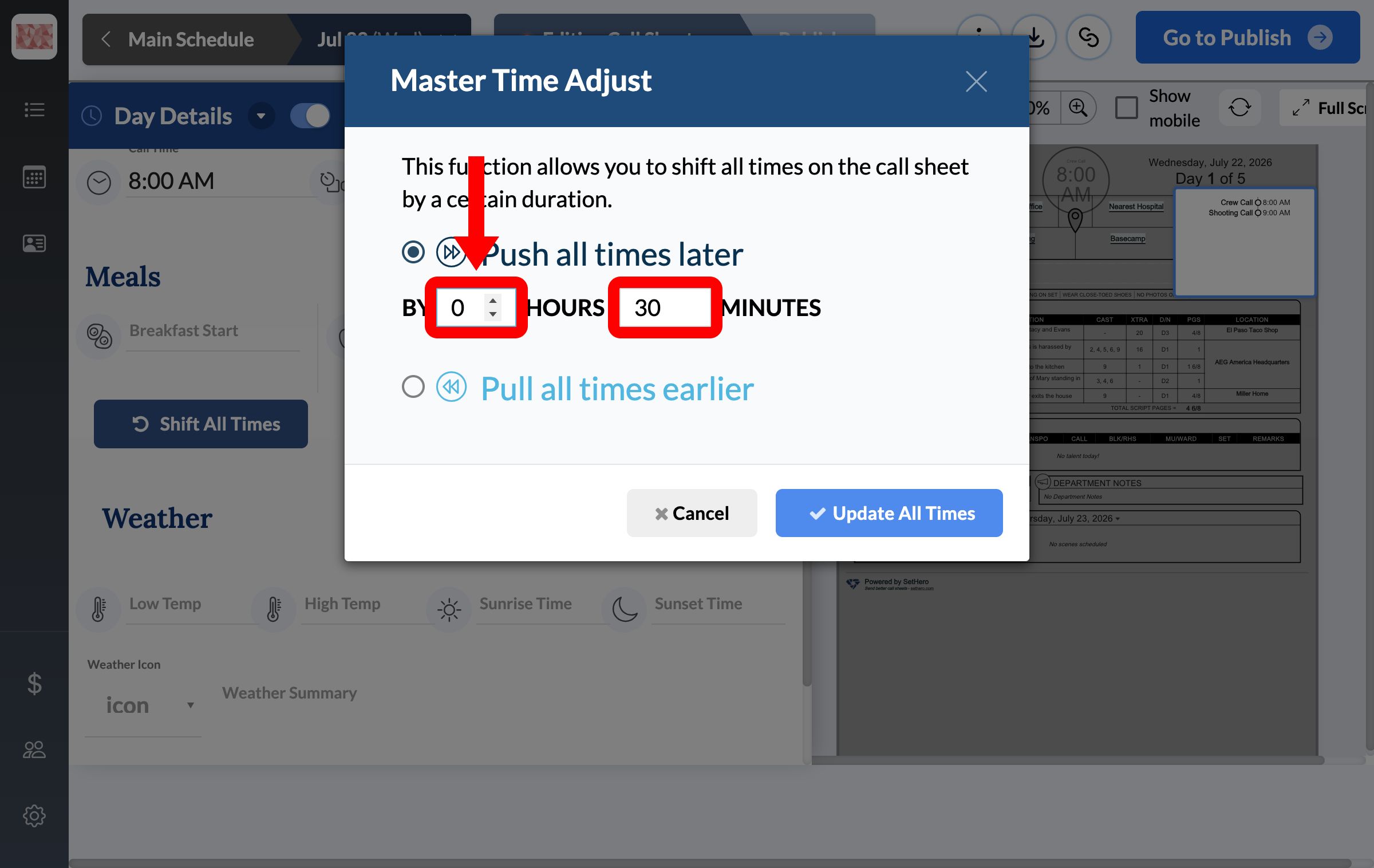
-
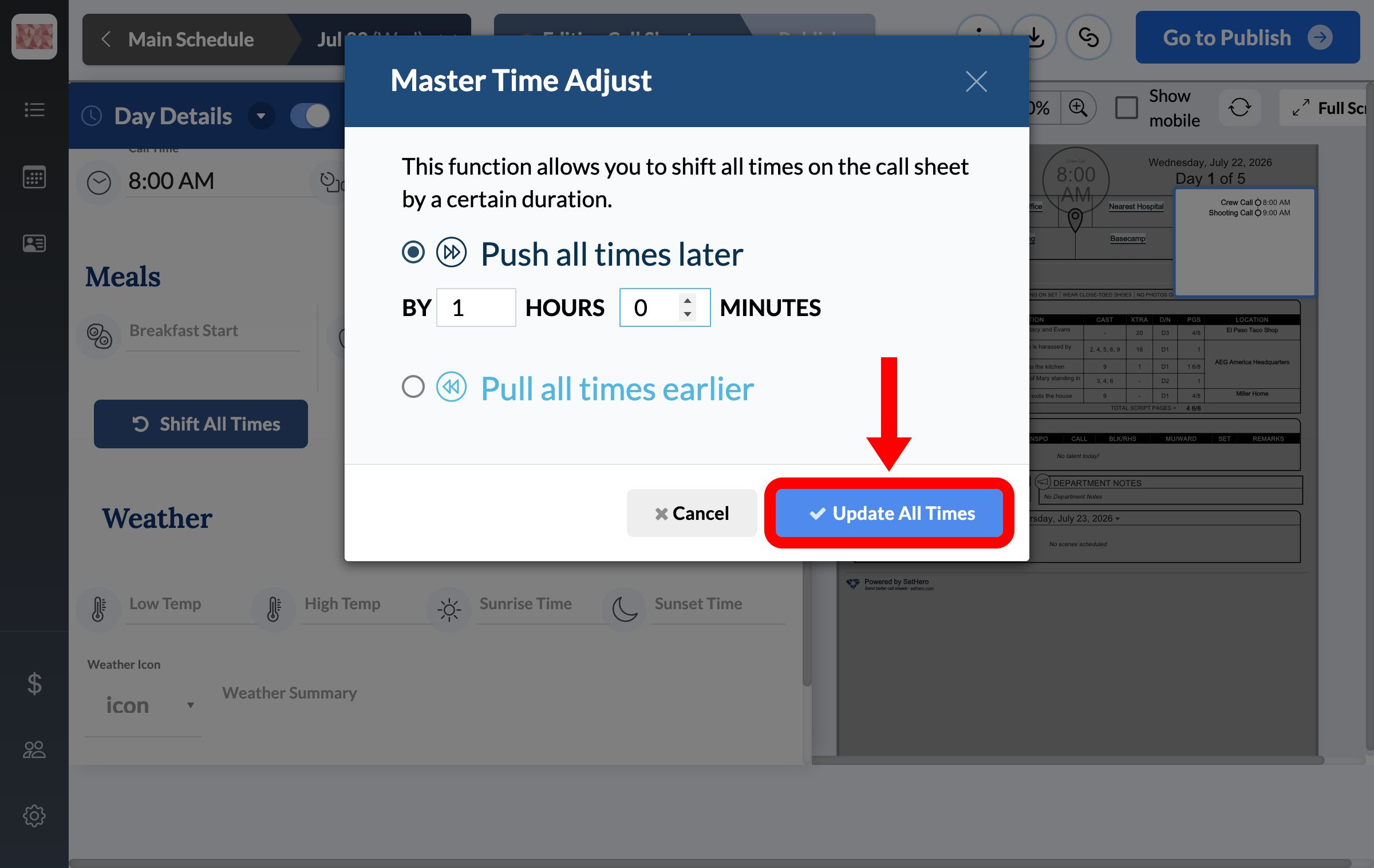
Click Update All Times.
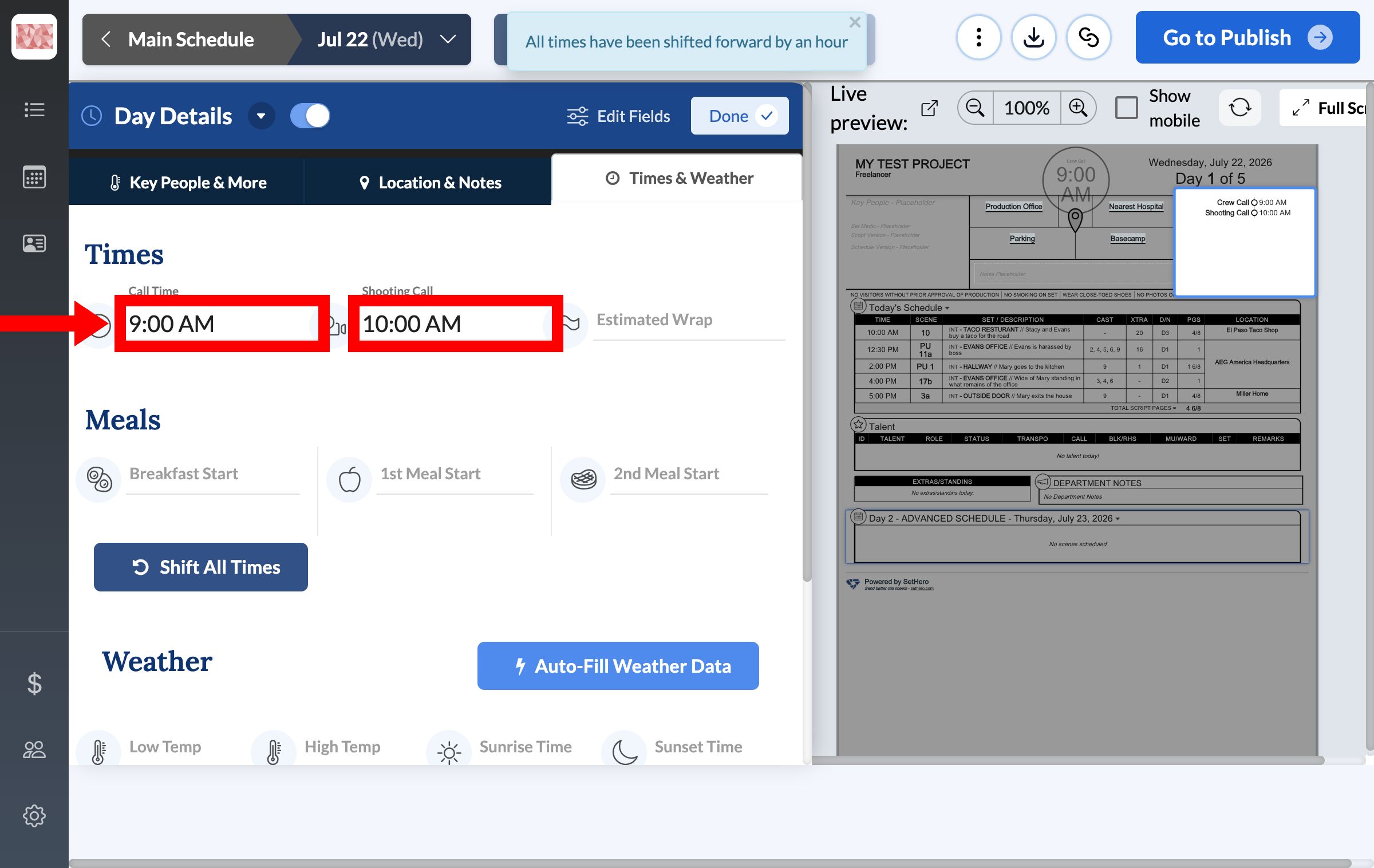
A message confirms the shift, and the times update on the call sheet. In this example, Call Time moved from 8:00 AM to 9:00 AM and Shooting Call moved from 9:00 AM to 10:00 AM.
What moves and what doesn't
These times move:
- Day Details: Call Time, Shooting Call, Estimated Wrap, and meal start times
- Today's Schedule: every scheduled time
- Talent: pickup, call, rehearsal, makeup and wardrobe, and set times
- Extras and stand-ins: arrive and ready times
- Crew who follow the general call: they pick up the new Call Time automatically
These times stay as they are:
- Crew with their own call time
- Department calls, and the crew who follow them
- Client call times
To change crew and department times, see Set crew call times for individuals, departments, and the whole unit. For client times, see Add clients and studio visitors.