Set crew call times for individuals, departments, and the whole unit
How crew call times inherit, which time wins, and how offsets work
Every crew member on a call sheet gets a call time from an individual setting, a department setting, or the general crew call. Knowing which setting takes priority helps you update call times without editing each row individually.
How call times are inherited
SetHero determines each person's call time in this order:
- The person's own call time, if you set one on their row.
- The department call time, if you set one on their department's header.
- The general crew call from Day Details.
If a person doesn't have an individual call time, they inherit the department call. If their department doesn't have a call time, they inherit the general crew call.
Note: When you change the general crew call, everyone inheriting it updates automatically. Times set directly for a person or department stay the same.
If you haven't set a general crew call, crew rows show No call time. First, set the general Call Time by following Setting the call time, shoot time, and wrap time.
Open the crew section
-
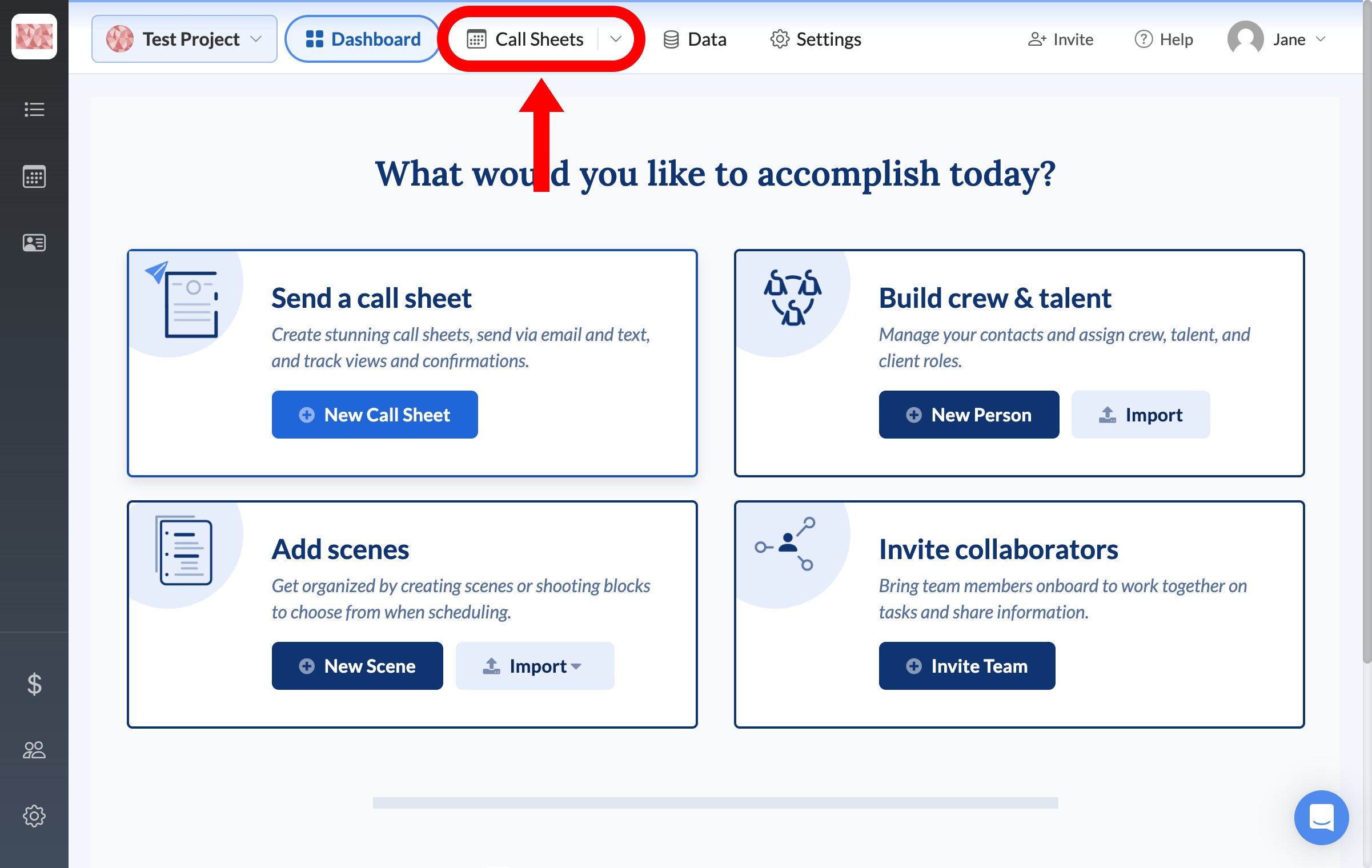
From your project dashboard, click Call Sheets in the top navigation bar.
-
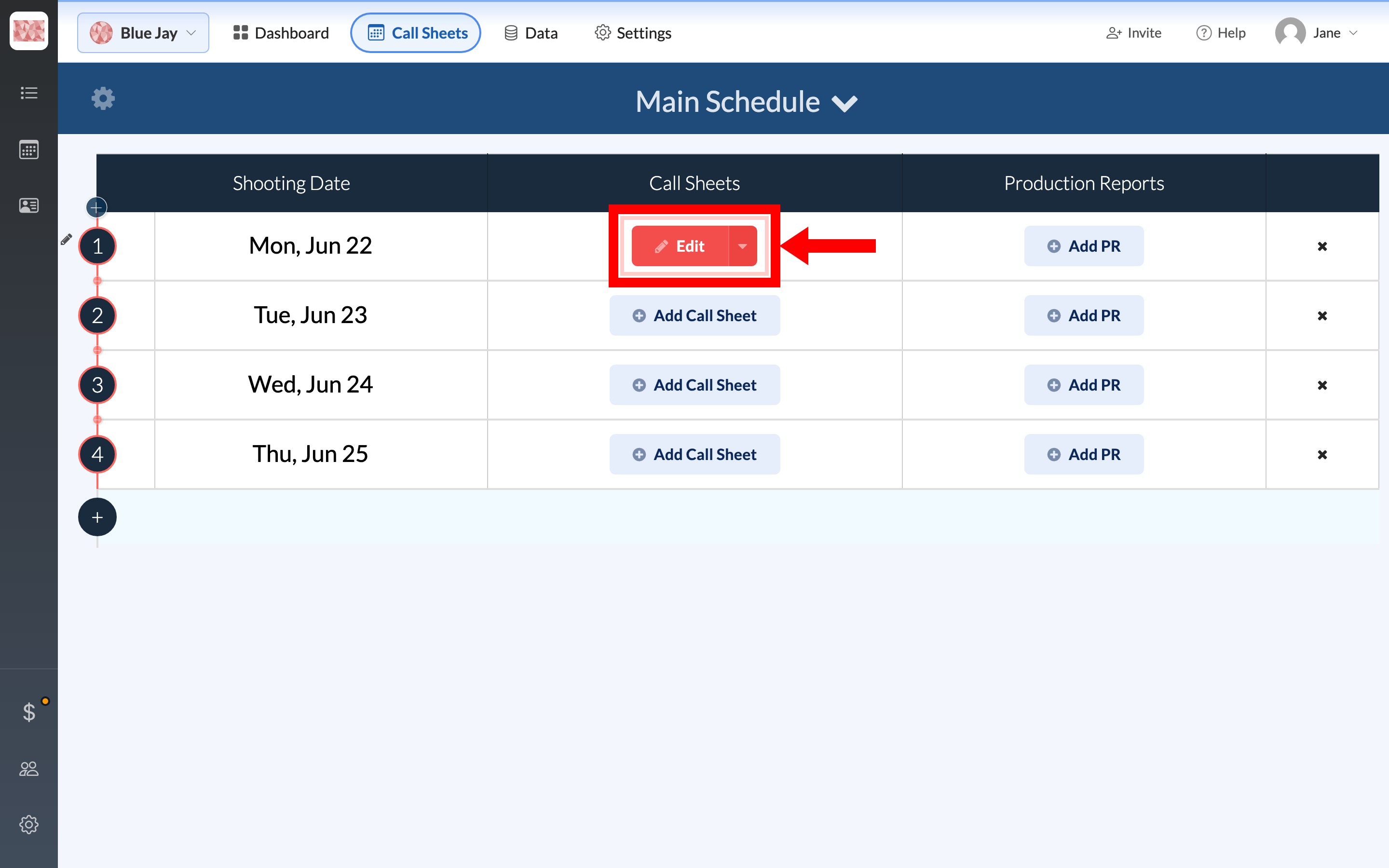
On the Main Schedule, click Edit for the shooting day you want to update.
-
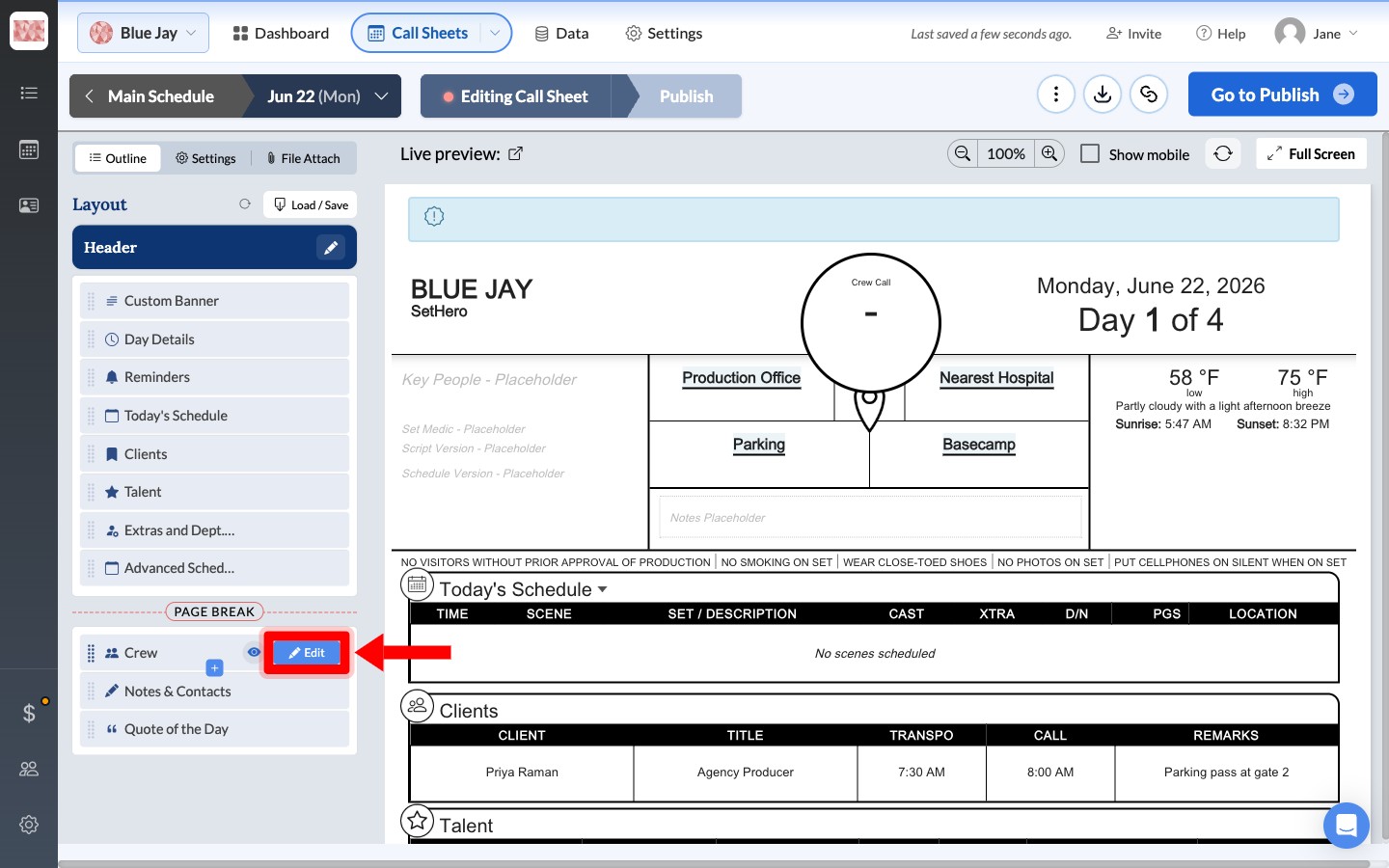
In the Outline list on the left, find Crew and click Edit.
Set a call time for a whole department
Each department header has its own call time control. If the department doesn't have a call time, the control reads + Add dept call.
- Click + Add dept call on the department header.
- Choose a time using the time picker, then close the picker.
Note: Everyone in the department who doesn't have an individual call time now shows the department call. Anyone with an individual time keeps it.
Set a call time for one person
-
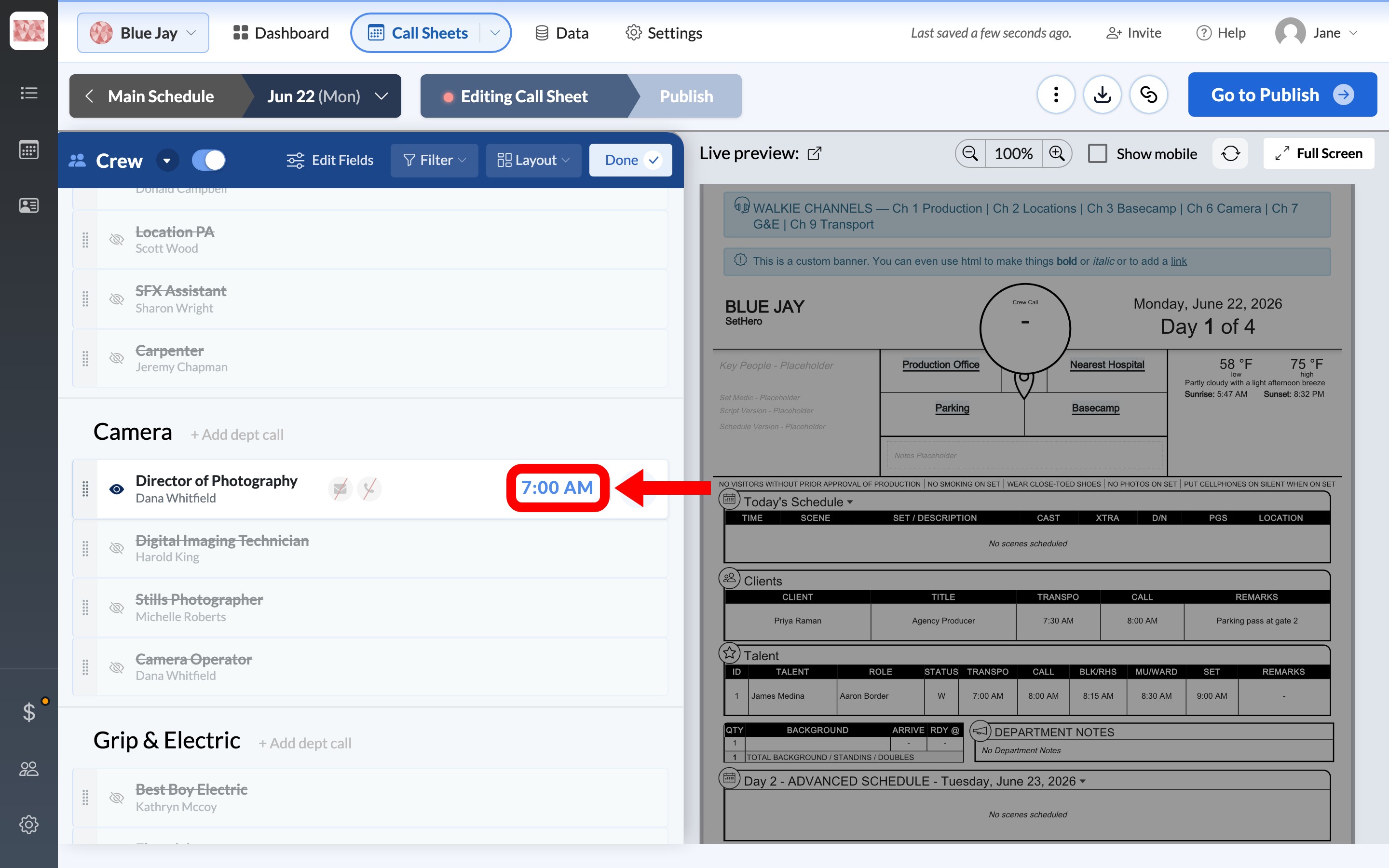
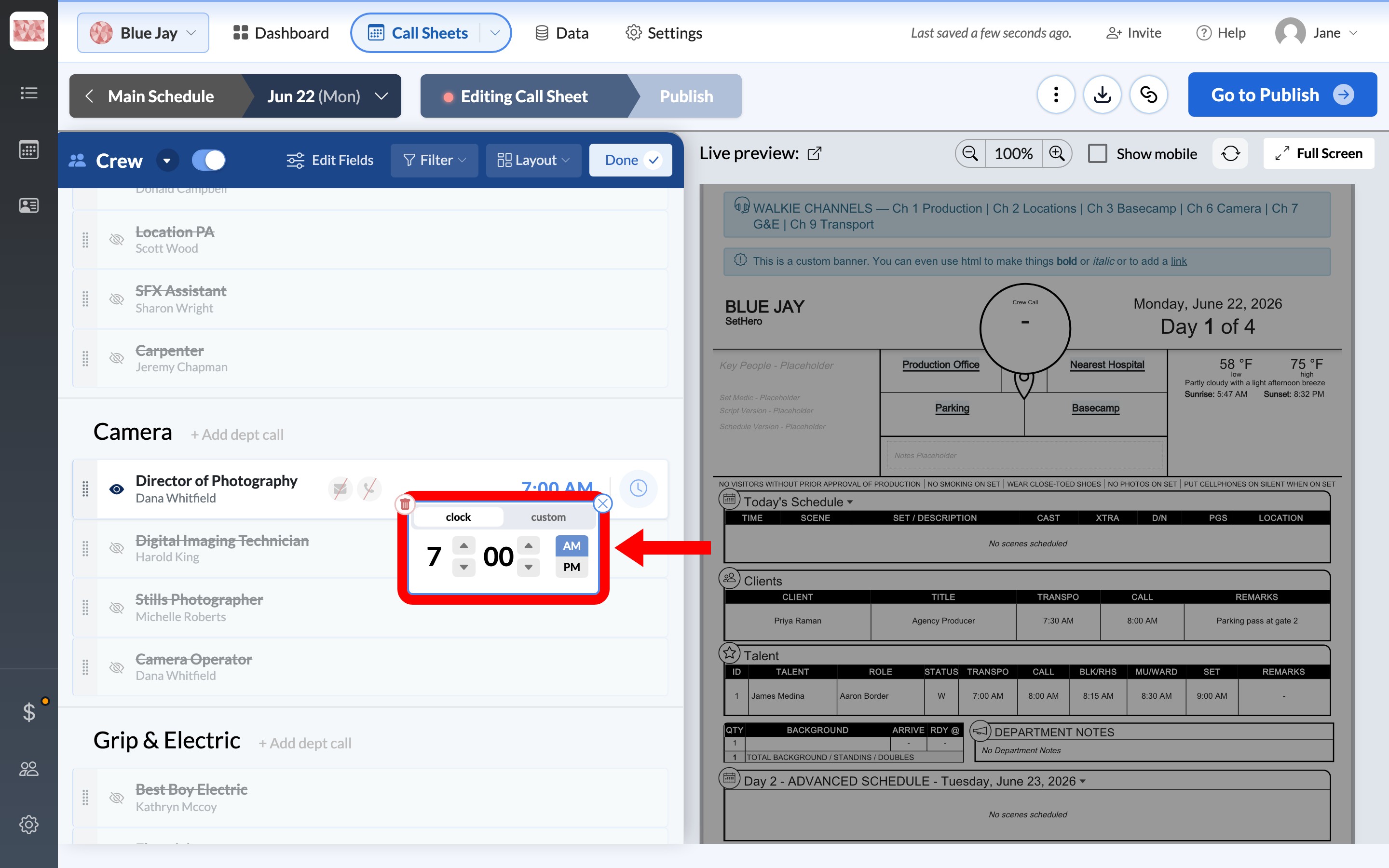
Find the crew member and click their current call time, or No call time if they don't have one.
-
Use the time picker to adjust the hours, minutes, and AM/PM. If your project uses the 24-hour format, adjust the 24-hour values instead.
-
Click the X or click outside the picker to close it. The new time saves automatically and appears next to the crew member's name.
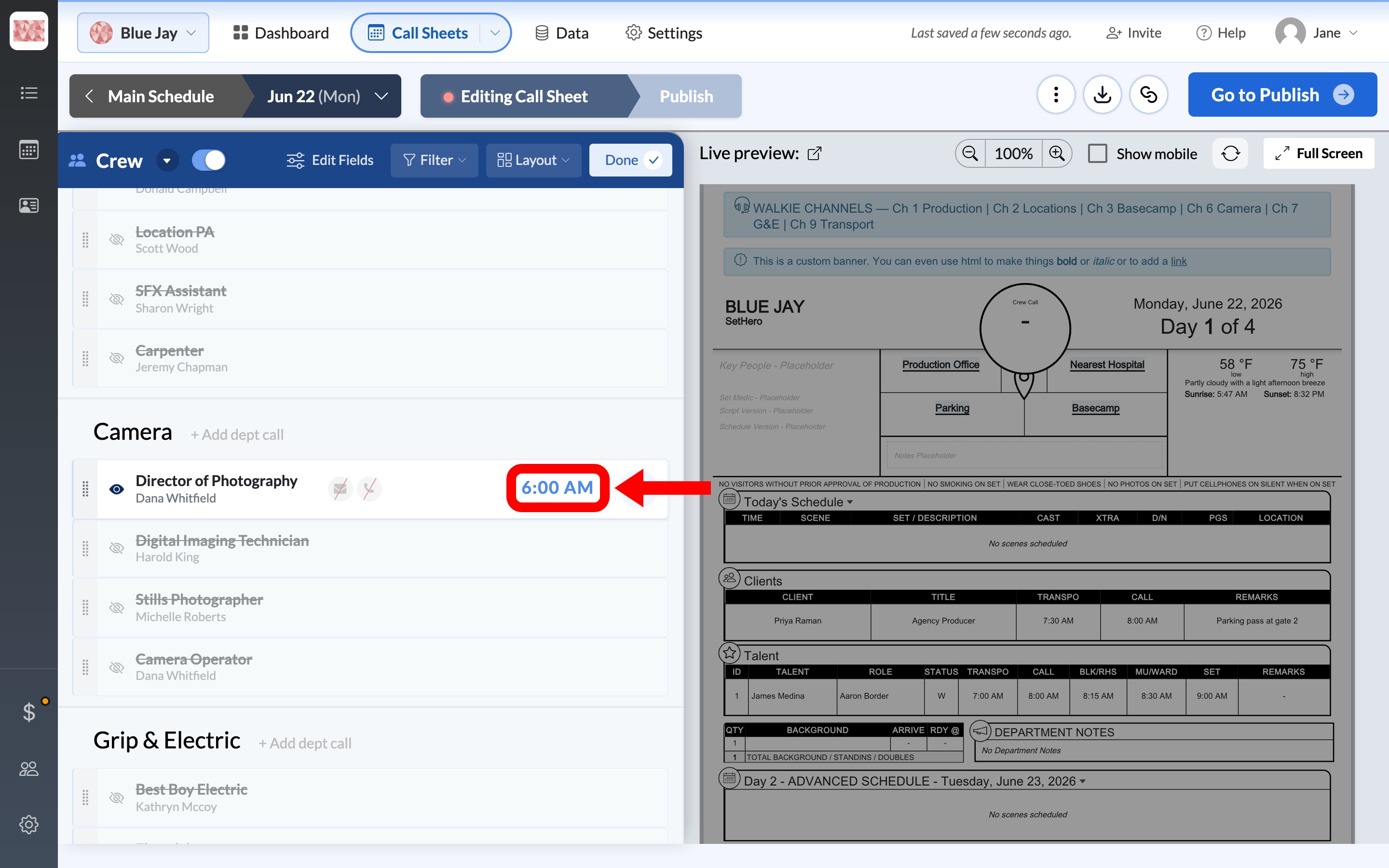
This individual time overrides both the department call and the general crew call for that person.
Set a time relative to the general call
You can use the time picker to set a call time as an offset from the general crew call, such as 30 minutes earlier or one hour later.
The row displays the resulting clock time with a small pill such as -30m or +1h.
Tip: Because SetHero stores the offset instead of the clock time, the row updates if the general crew call changes later.
You can use offsets on both department headers and individual rows. This option is available only after you set a general crew call.
Reset a person or department back to inheriting
A reset control appears beside each call time. Its tooltip reads Reset to general call time.
Clicking the control clears the time set directly on that row:
- A person falls back to the department call, if one is set. Otherwise, they inherit the general crew call.
- A department falls back to the general crew call.
You can also use the trash icon inside the time picker to clear the value.
When a crew member is O/C or another status
To use a status instead of an arrival time, click the call time field, switch to the custom tab, and choose one of these options:
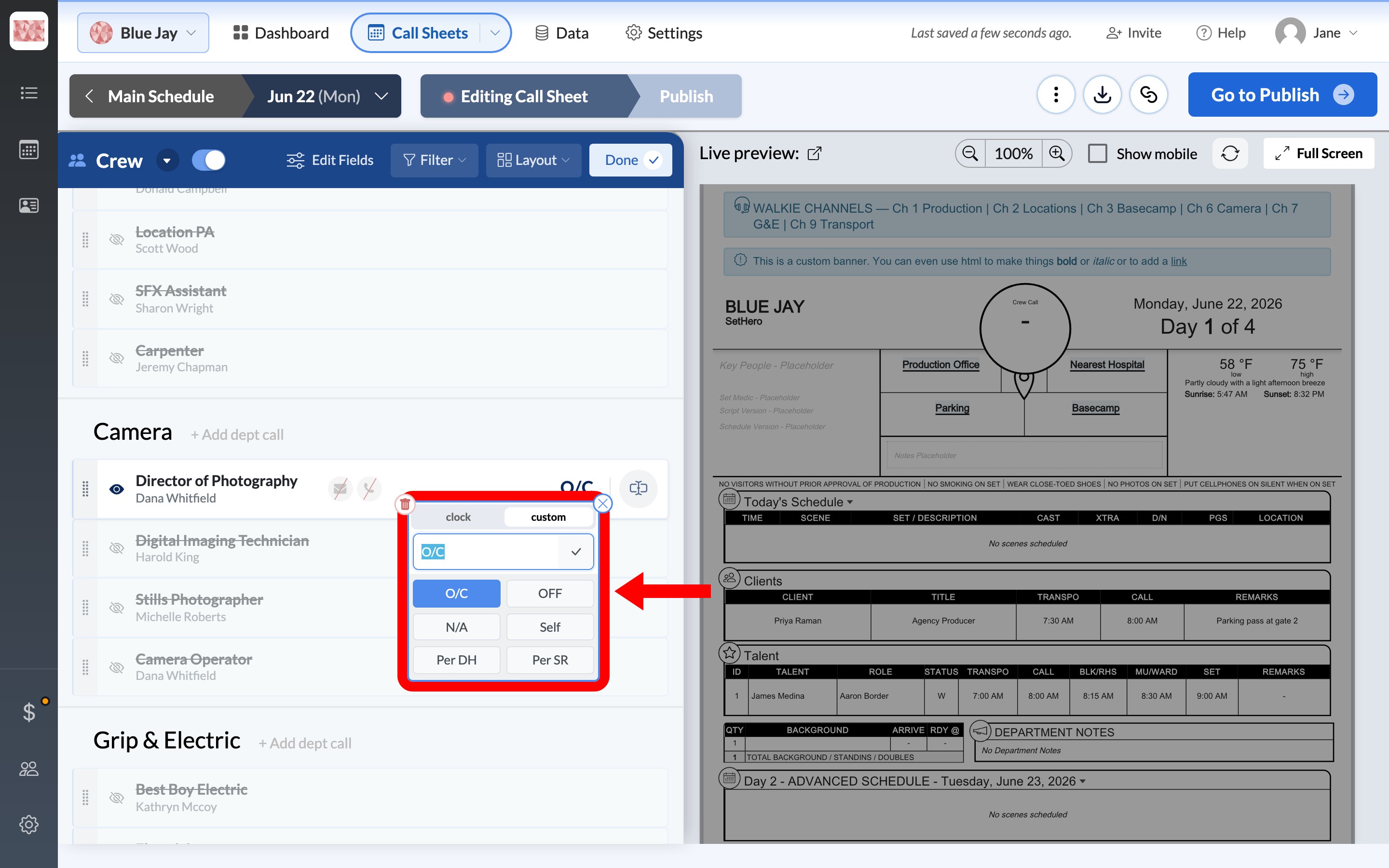
- O/C: on call, available if needed, with no set arrival time.
- OFF: not working that day.
- N/A: not applicable.
- Self: reporting on their own, with no production call time.
- Per DH: follow the department head's call.
You can also set a custom value on a department header. Everyone in that department without an individual value inherits it.
Hidden departments and people
If you hide a department using its eye icon, every row in that department shows Not called regardless of its call times.
The same applies to an individual row that is hidden. If someone you expect isn't showing, see Why a person isn't showing up on your sheet.
Move the whole day
To move the general call, schedule, and talent times together, use Move all times when the day shifts. It doesn't change individual crew call times or department calls, so update those here afterward.