I got a call sheet: now what?
How to confirm your call time, contact production, and find attachments
You received a call sheet from a production through SetHero. You don't need an account or an app — just open the link in the email or text message. There is no login and nothing to install.
If you have questions about your call time, pay, travel, parking, or anything else related to the shoot, contact the production directly. SetHero delivers the call sheet and doesn't have access to those details.
Find the right production contact
To reach someone on the production team, open People (called Contacts on older sheets) and look for the Useful Contacts section. You'll find key crew members like the production coordinator, assistant directors, and set medic. Tap a name to open their card, then tap the number or email address to reach them.
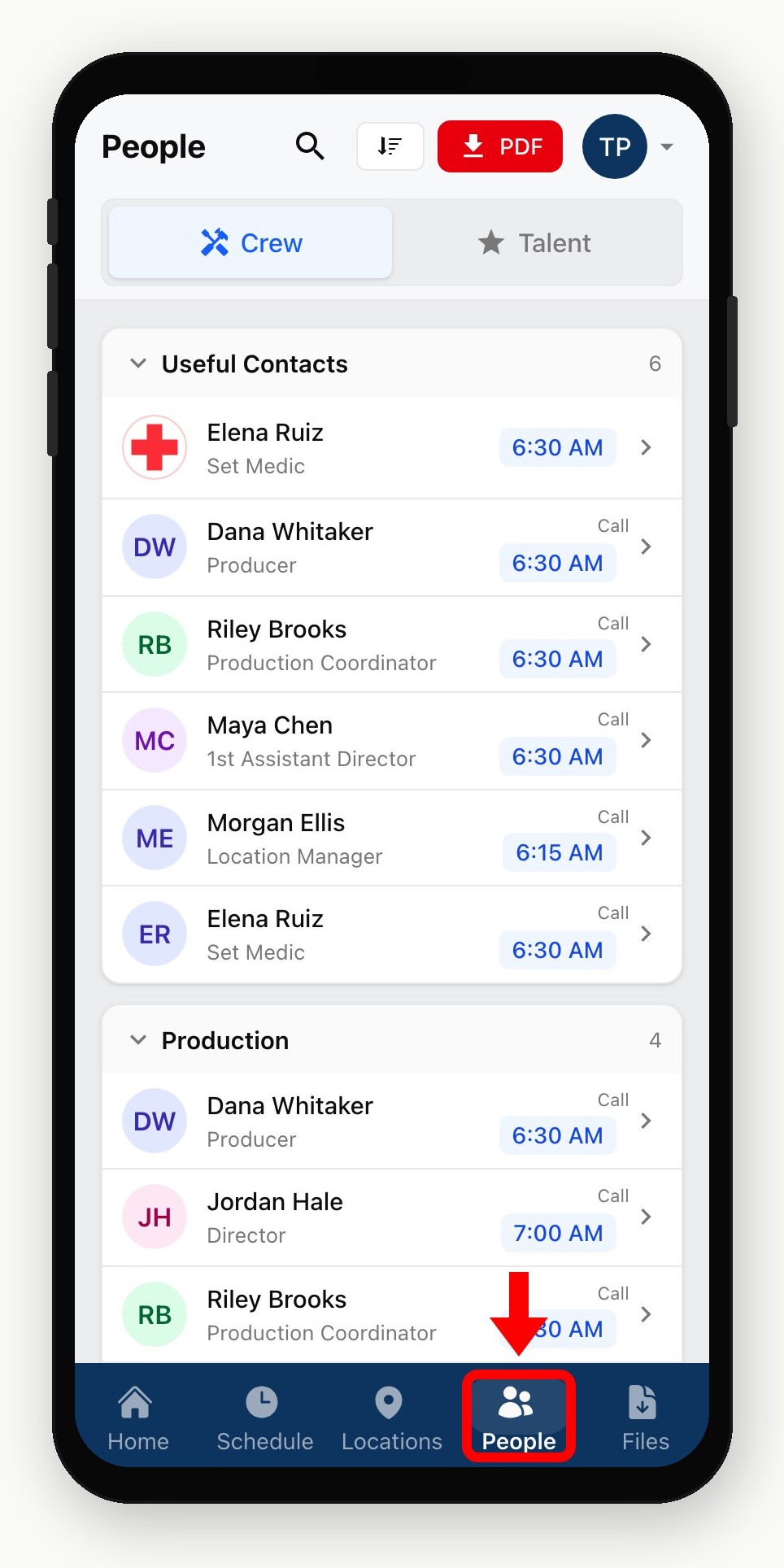
You can also reply to the call sheet email if the production provided a reply address. Replies go to whatever reply-to address the production set when they published. If they did not set one, your reply goes to a SetHero no-reply address that nobody reads. Either way, an email reply never reaches SetHero support. Replies to SetHero text messages do not reach the production. Send call sheets by text message explains how productions set texting up.
If a contact shows as Not available, try another person from the Useful Contacts list, or reply to the original call sheet email.
Important: SetHero support cannot answer questions about your call time, pay, travel, parking, or the schedule. Those all belong to the production company listed on the sheet.
Confirm your call time
Open the link in the email or text message. Your call time appears near the top of the first screen with a Confirm button right below it.
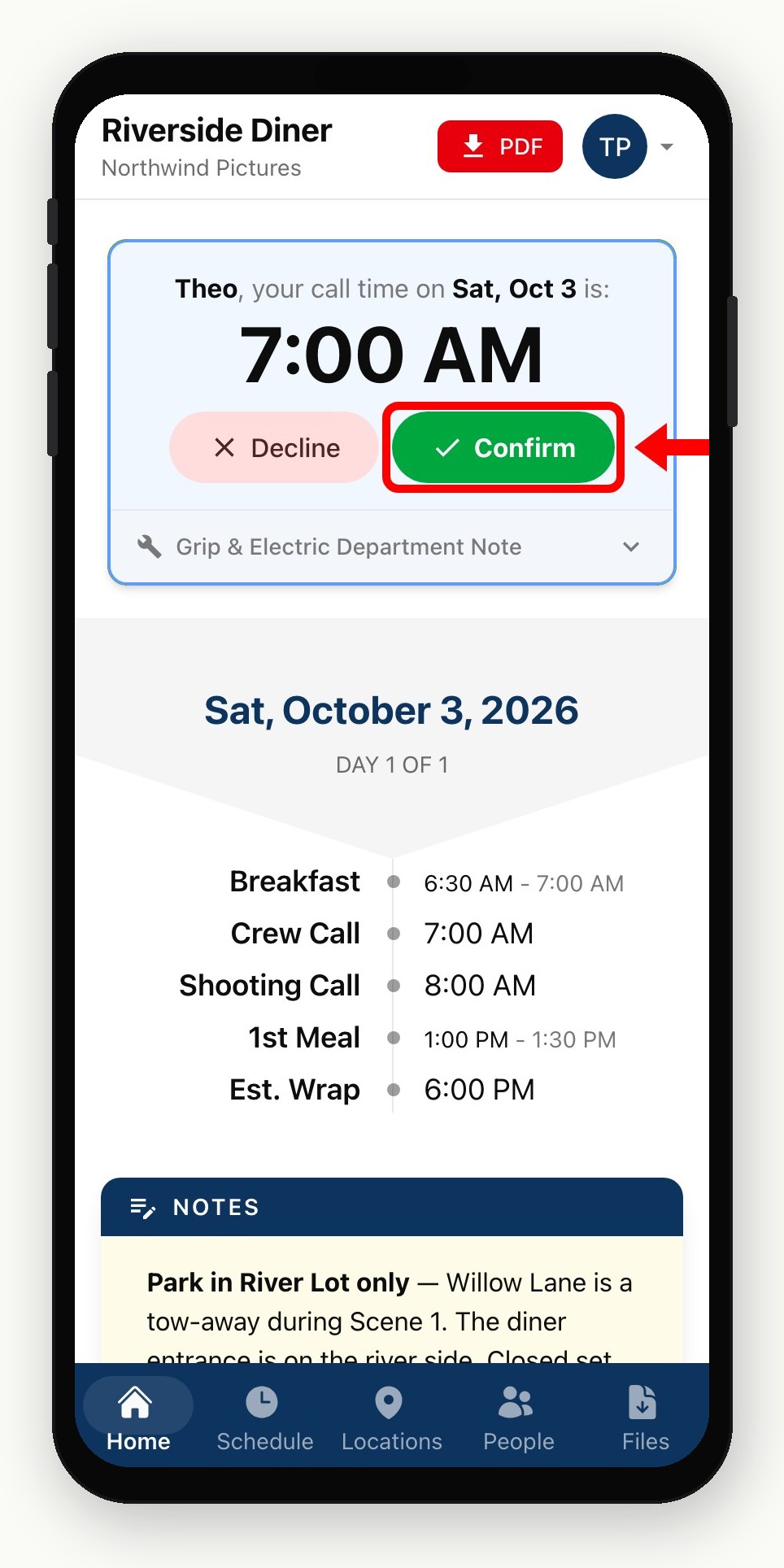
Tap Confirm to let the production know you've seen the call sheet. After confirming, Add to Calendar appears so you can drop the call time into your phone.
Note: Opening the link does not confirm you — you must tap Confirm.
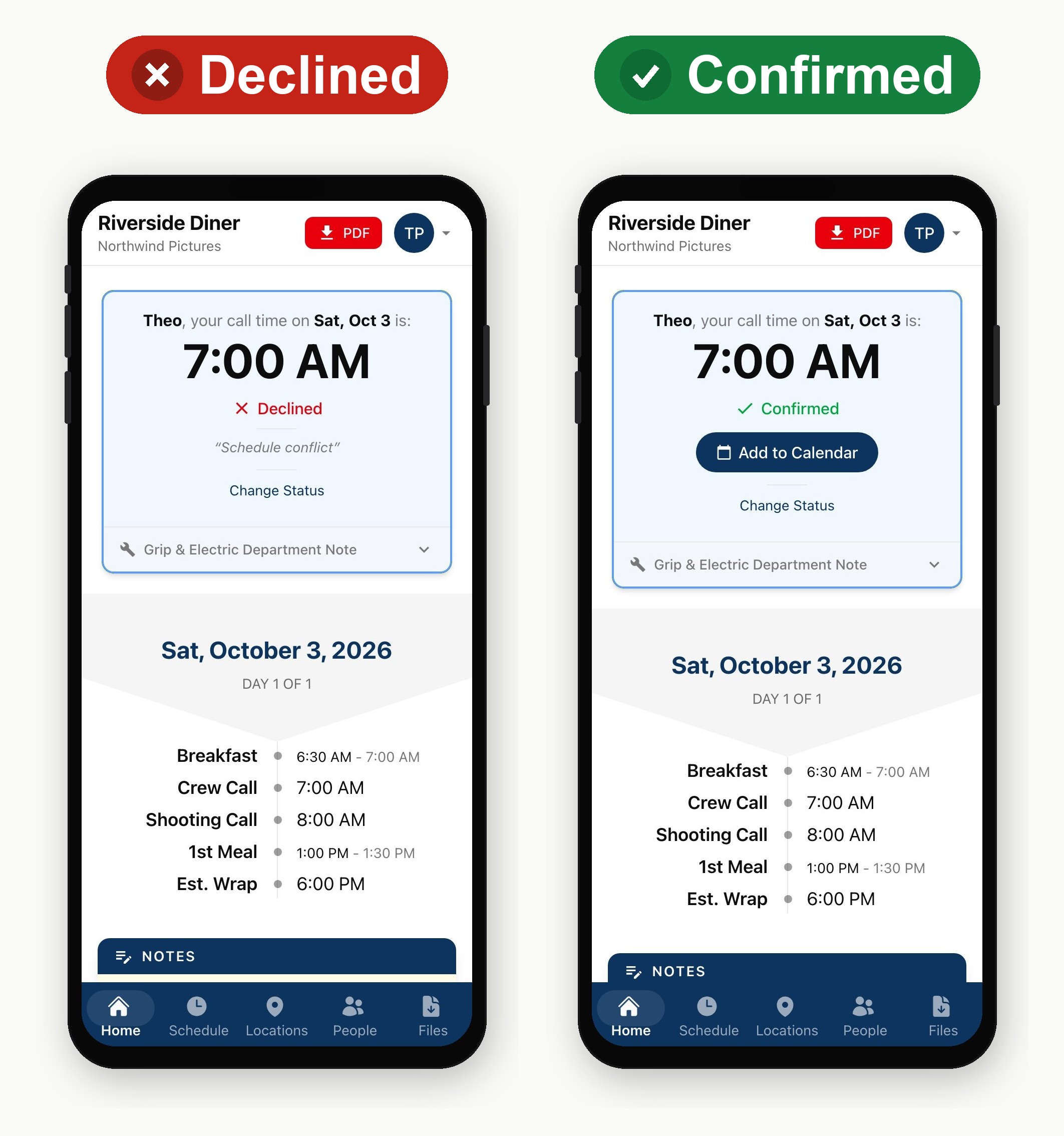
If available, you can select Decline and provide a reason, or use Change Status later to switch your answer. Older call sheets may not offer either option. If you accidentally confirm and can't change your status, reach out to the production office directly.
If you see a message that says "You are not called," you are not needed on set that day. You can still open the sheet to view the schedule and contacts.
Warning: Do not forward your link. It is personal to you and includes your call time and confirmation controls. Anyone with the link may be able to confirm on your behalf.
If your call time looks wrong
Before taking any action, contact the production coordinator or your department head. Find their details under People, as only the production can correct your call time.
If you have a Decline option, select it and choose Incorrect call time so the production can see the issue. If you can't decline, do not confirm a time you can't make — contact the production directly.
View the PDF and attachments
Tap the red PDF button in the header. You can find it on every tab except Files. On the Files tab, tap Call Sheet.pdf instead, along with any sides, maps, permits, and other production documents.
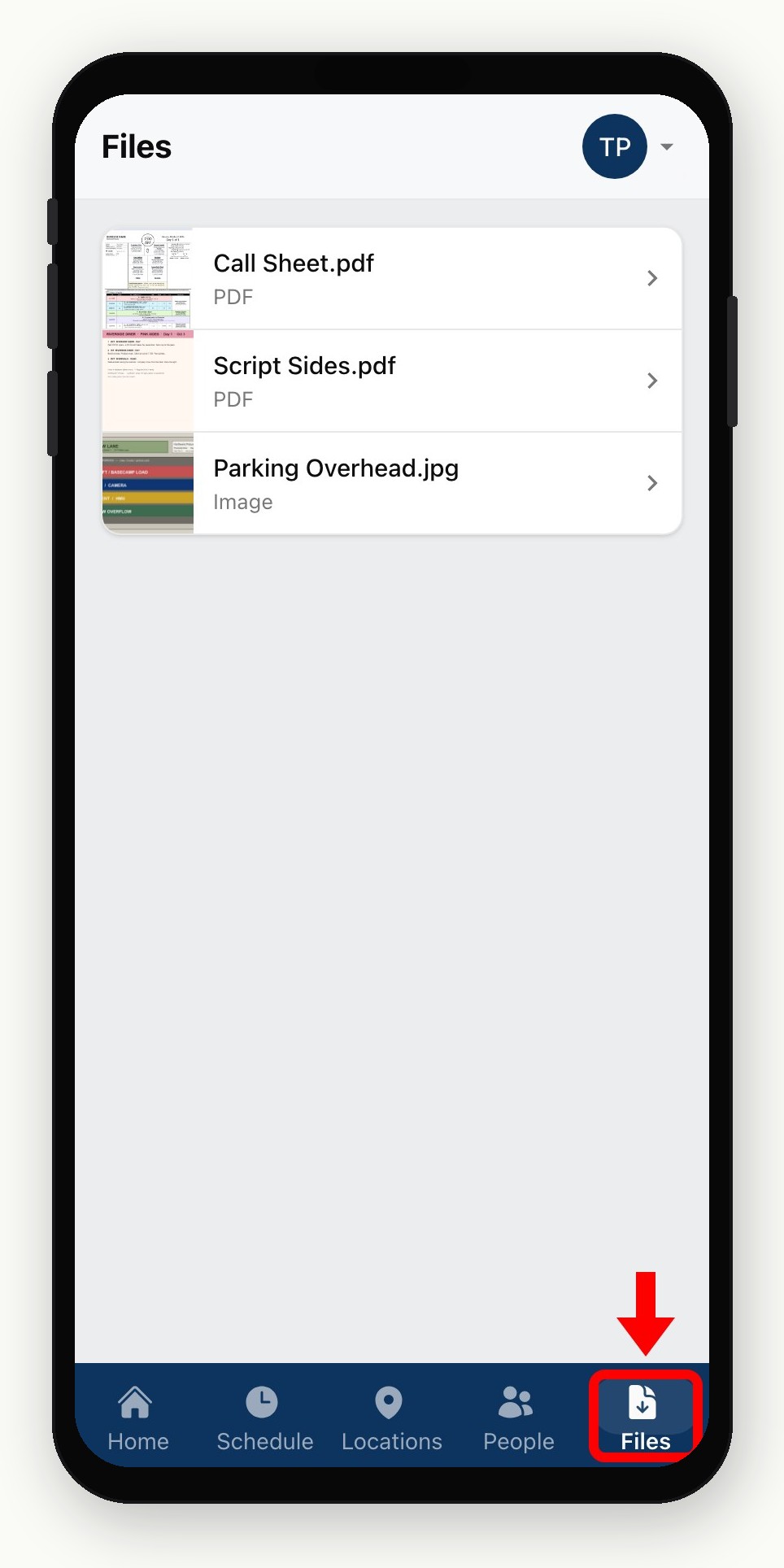
The same PDF is attached to the original call sheet email as well.
What's on the mobile call sheet?
The tabs at the bottom organize everything you need for the day. The mobile call sheet is a full tour, but the short version:
-
Home or Summary: Your call time, general crew times, production notes, and weather
-
Schedule: Scenes and timed events in order
-
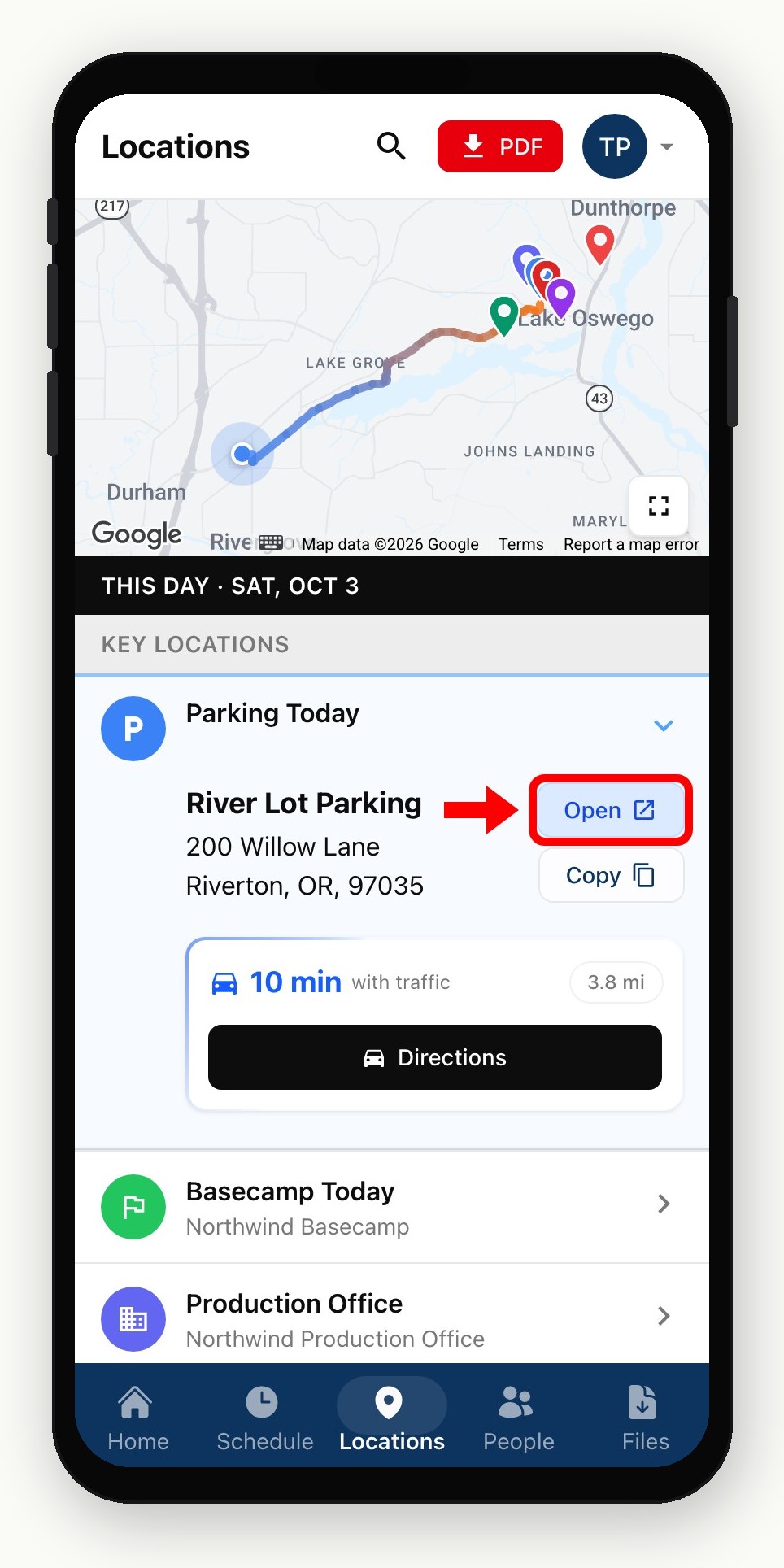
Locations: Addresses and map links for the day's locations
-
People or Contacts: Crew members, departments, call times, and available contact details
-
Files: The call sheet PDF and any additional attachments
Stop receiving call sheet texts or emails
To stop SetHero text messages, reply STOP.
To stop emails for a project, ask the production office to remove you from its recipient list. SetHero support doesn't manage a production's recipient lists.