Send call sheets by text message
How SMS delivery works, who can receive texts, and what recipients see
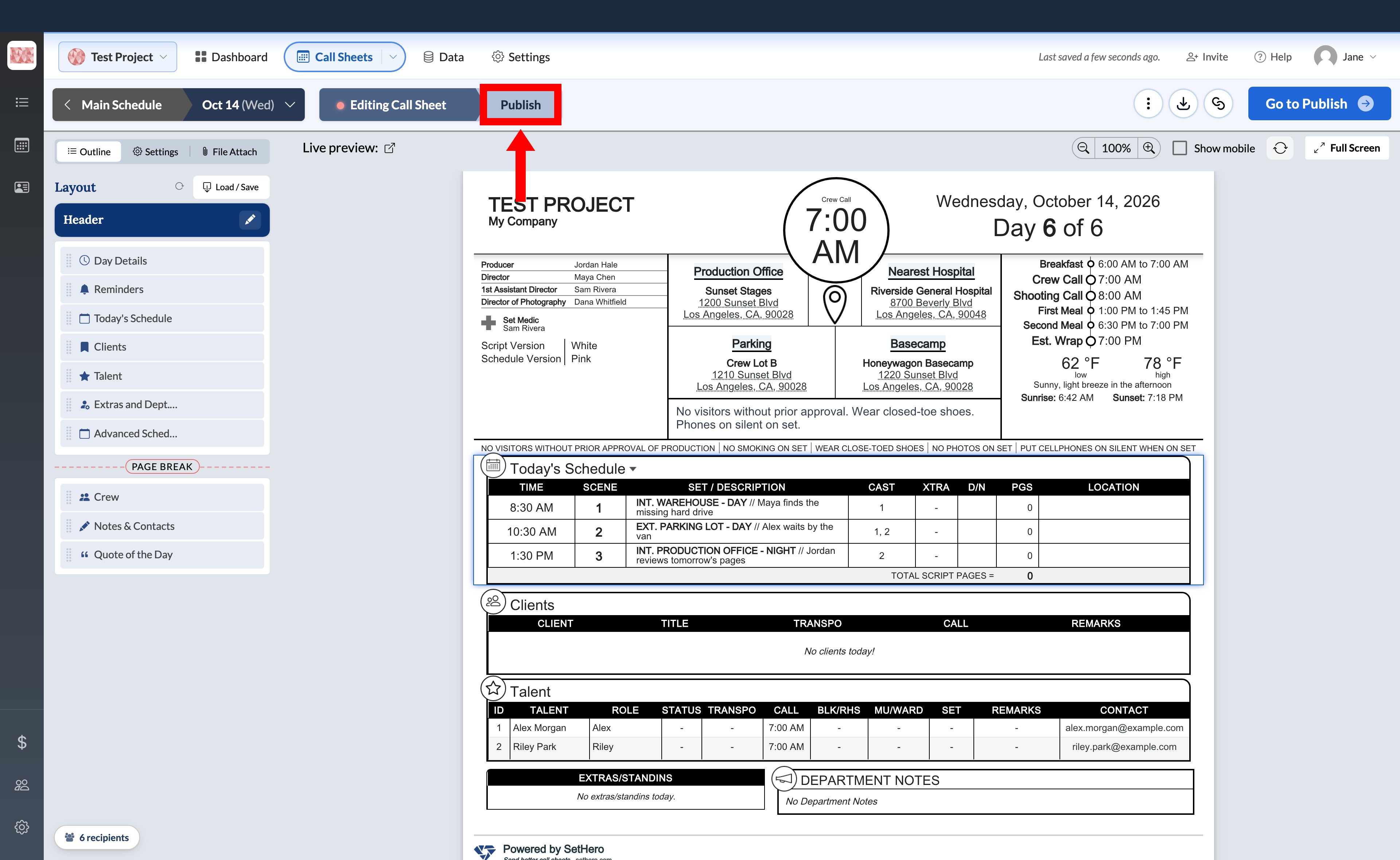
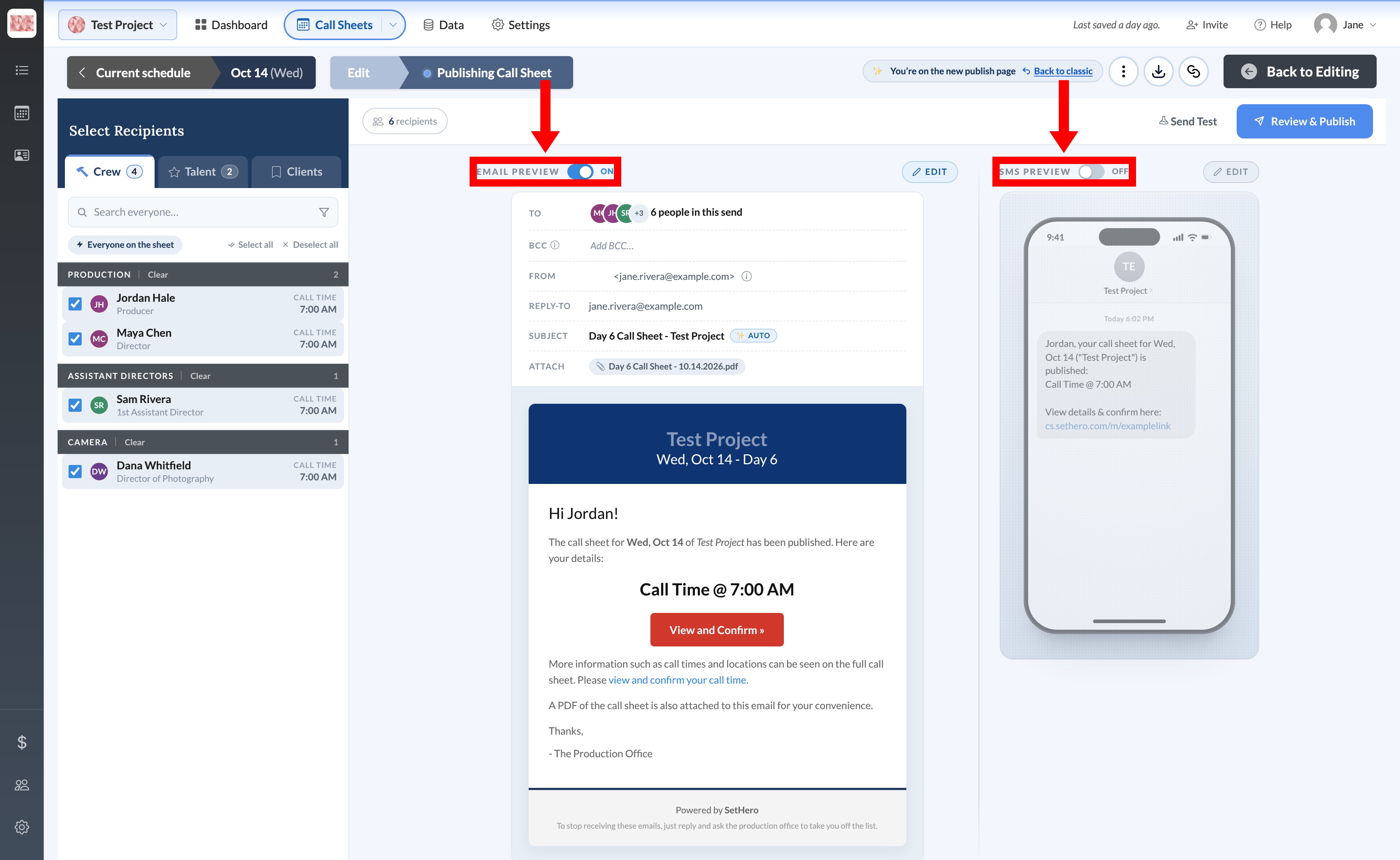
The SMS Preview in the Publish & Send workspace lets you include text delivery and see exactly what recipients will get. First, open the publishing workspace for the call sheet you want to send. From the call sheet editor, select Publish in the header.
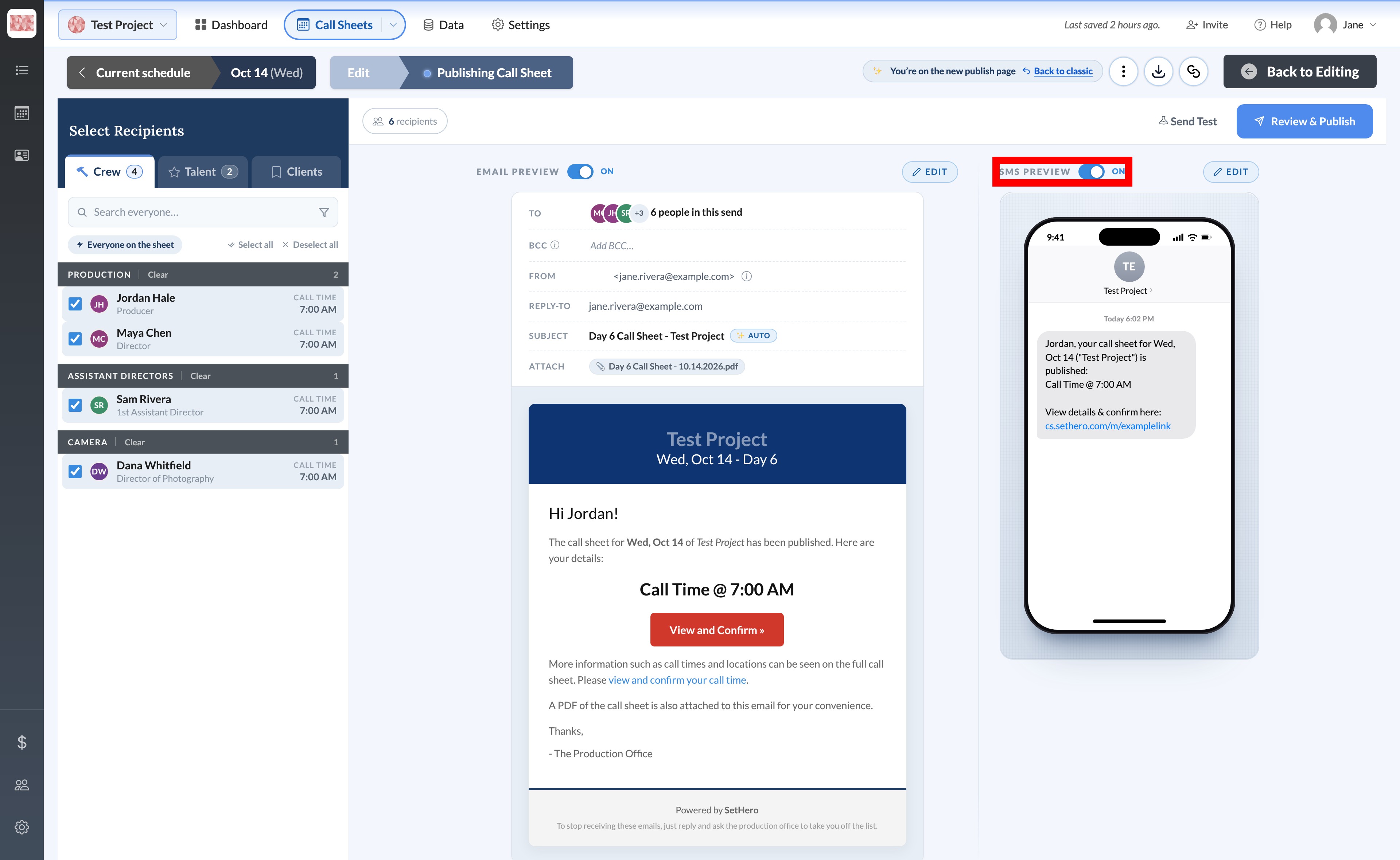
Turn text delivery on or off
Find SMS Preview on the right side of the workspace and set its switch to On. Set it back to Off whenever you don't want this call sheet sent by text.
Email and SMS are independent. You can use one, both, or switch either off, but at least one must be on before you can publish. Each selected person needs a phone number with the correct country code and Allow SMS sending turned on. See Required info for sending email and text.
If texting requires an add-on
If the SMS switch is locked, the project doesn't currently include texting. You'll see Publishing via text message is an add-on that requires an upgrade and a Purchase texting add-on → link. Email still works on its own.
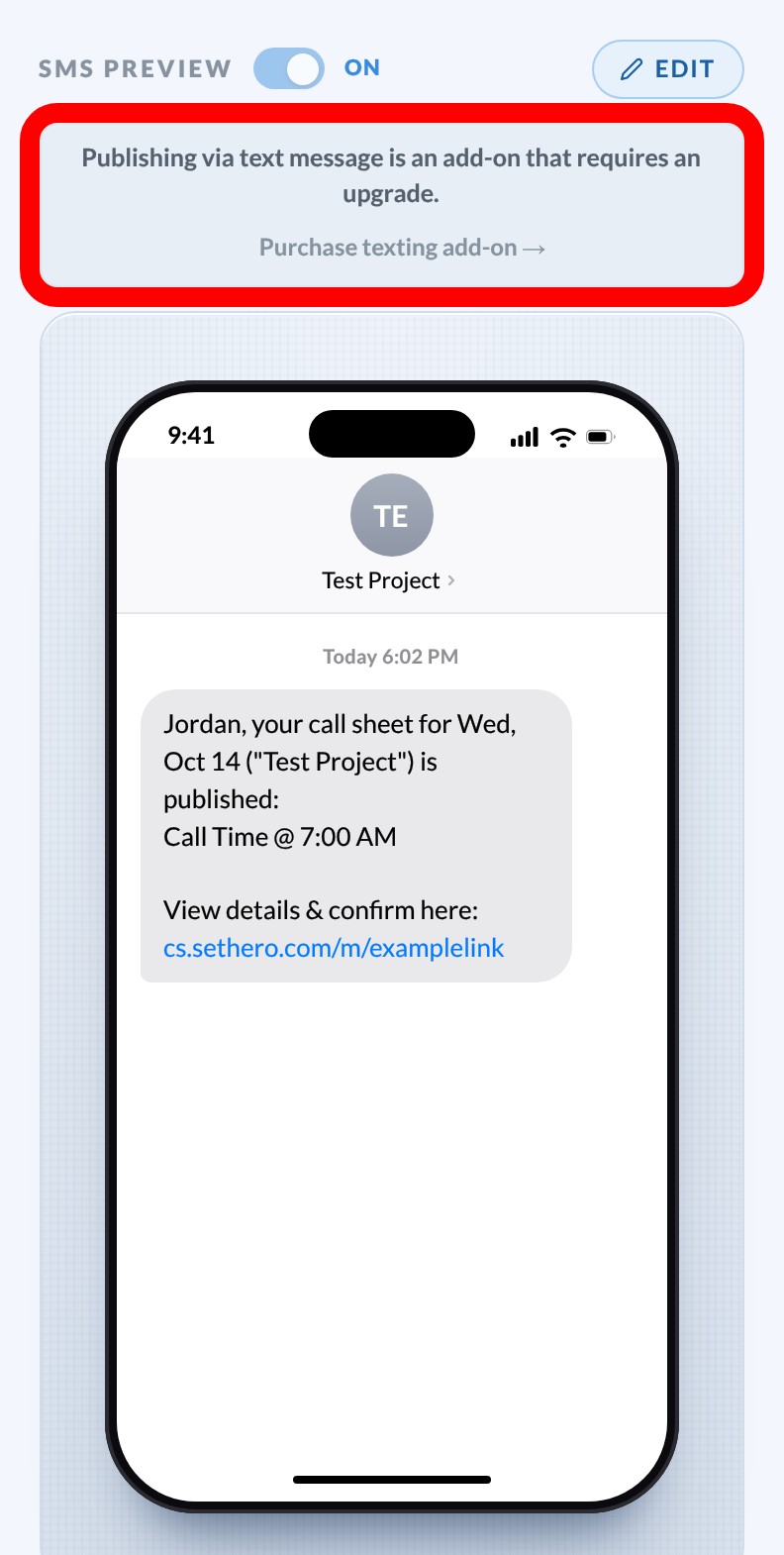
Important: A locked SMS switch may still show On from an earlier saved setting. Before publishing, open Review & Publish and make sure the summary says No text messages will be sent. If it lists any texts, don't continue. Purchase the add-on or contact SetHero support first.
Preview the text message
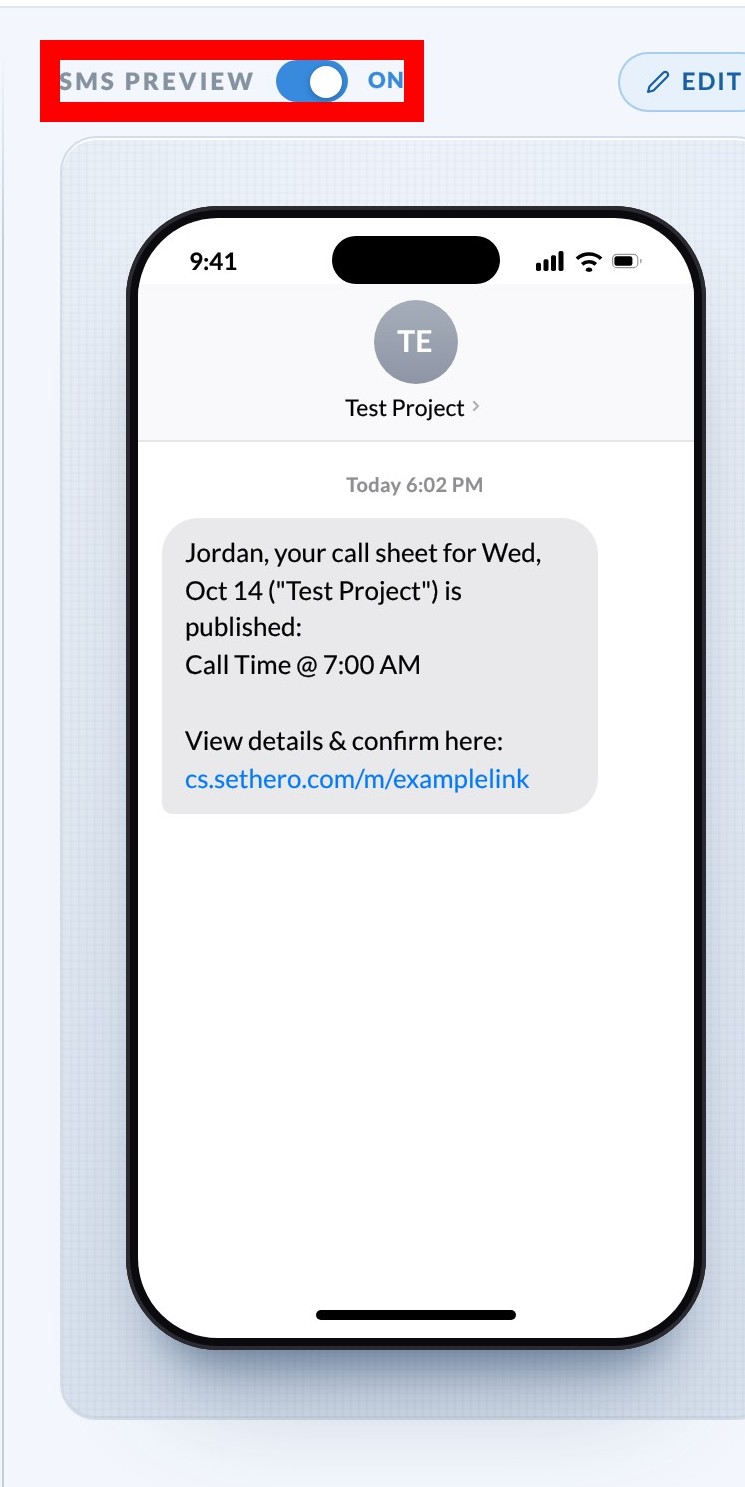
With SMS on, select EDIT beside SMS Preview to see a sample message.
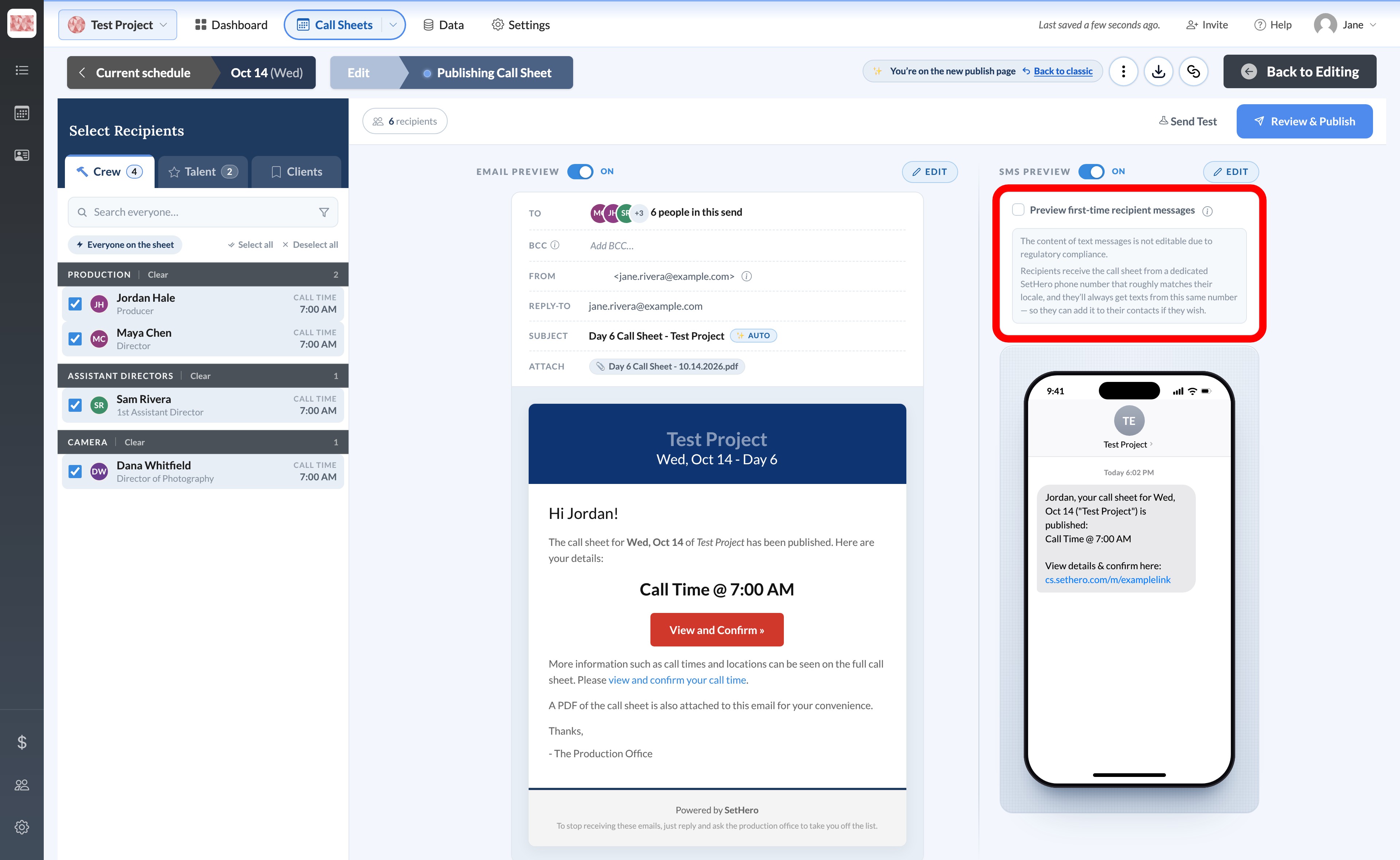
The wording is fixed for regulatory compliance and can't be edited, but SetHero personalizes each message with:
- First name
- Call sheet date and project name
- Call-time label and call time
- A unique link to view the call sheet and confirm
Long project names are shortened in the text. If someone isn't called that day, their text says NOT called instead of a time.
Preview first-time recipient messages
Anyone whose number hasn't received a SetHero text before gets a short welcome sequence. Select Preview first-time recipient messages to see it in the phone mockup:
- A welcome text explaining they were added to the project's call sheet list
- The personalized call sheet text with their call time and link
- A final notice saying not to reply, and that they can reply STOP to opt out
Understand the sending number
Texts come from a dedicated SetHero phone number that roughly matches the recipient's locale. SetHero keeps using the same number for that person, so they can save it in their contacts. The message tells them not to reply to it with production questions and to contact the crew listed on the call sheet instead.
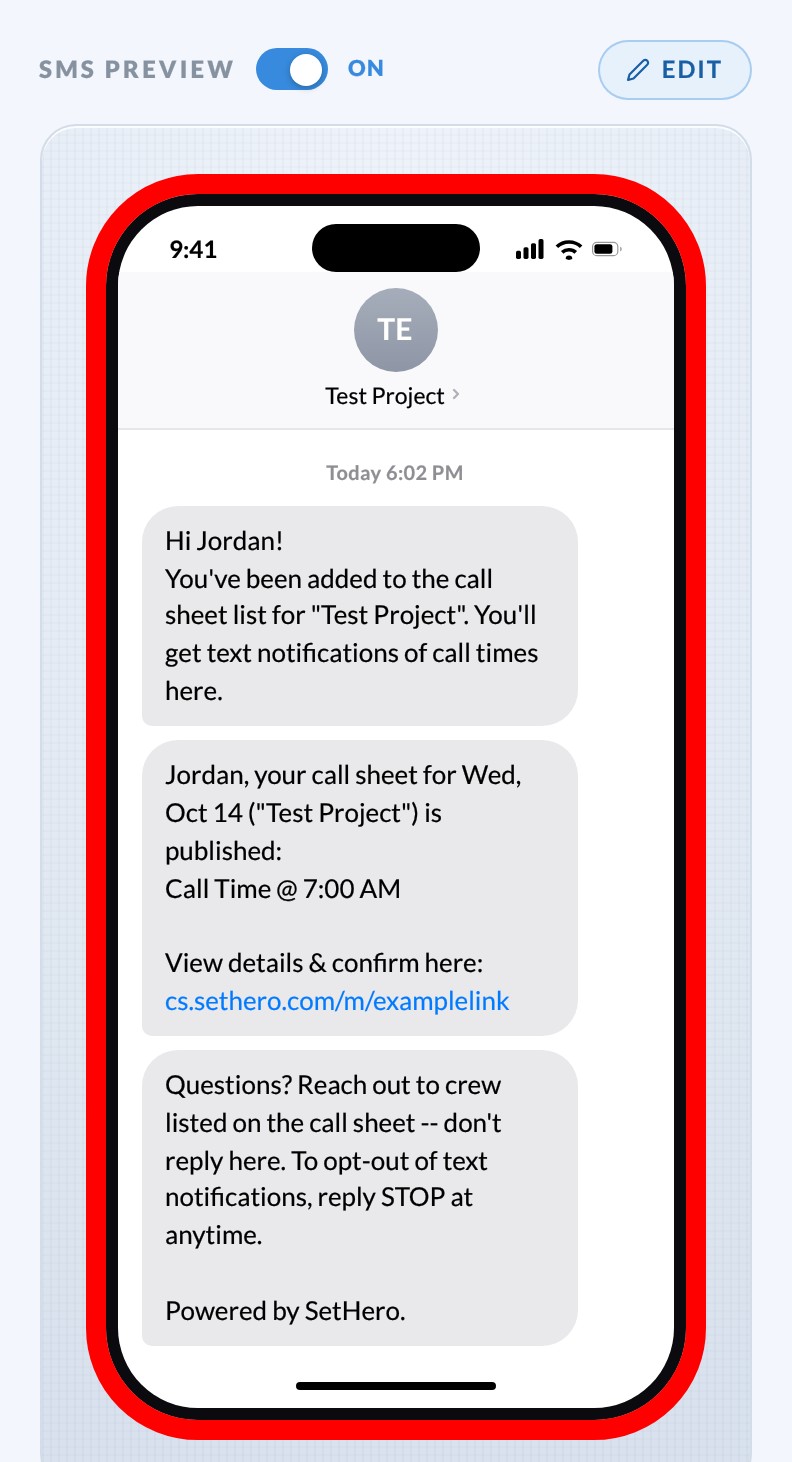
This option changes only the preview. SetHero sends the real sequence automatically whenever a number is new.
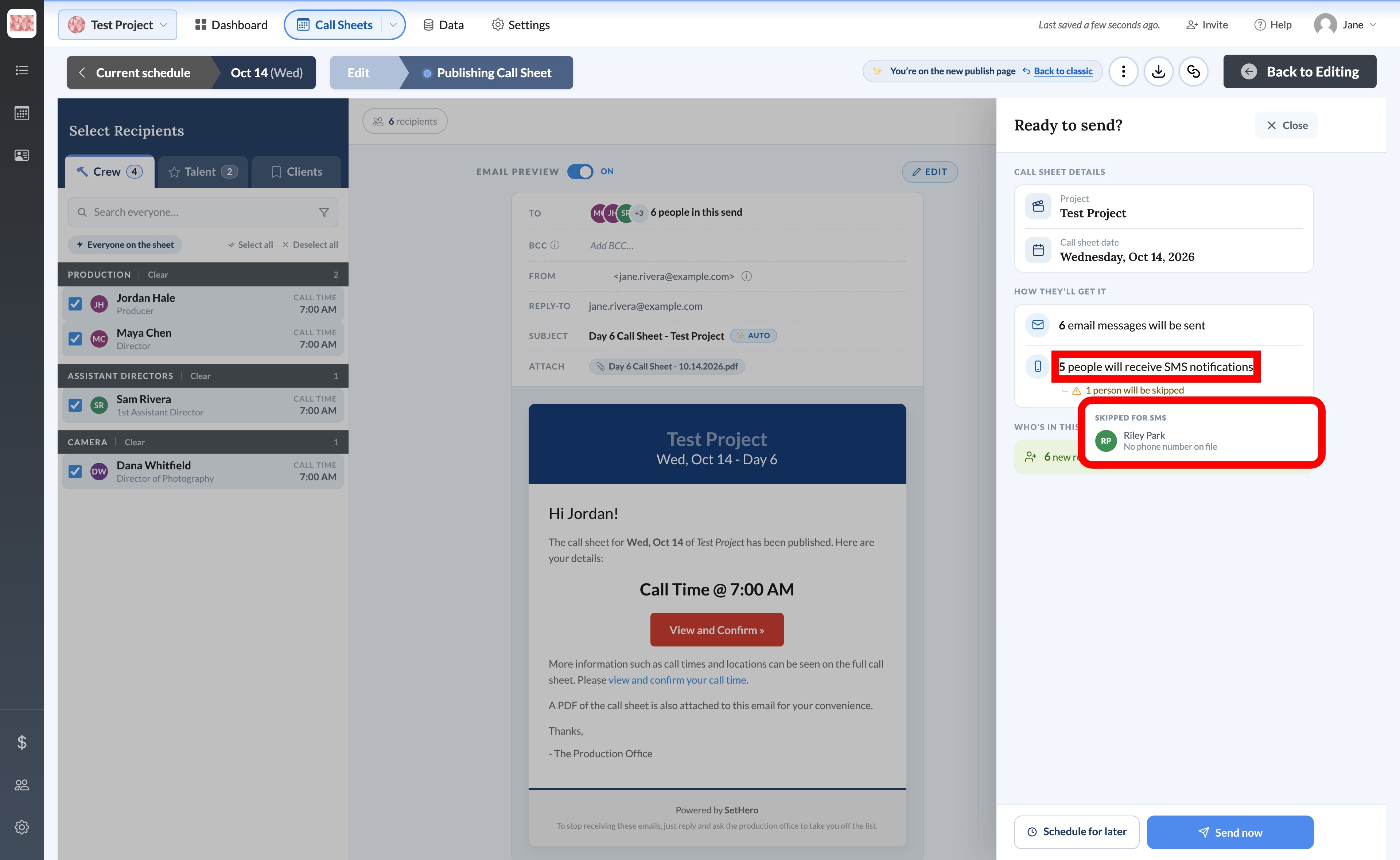
Check who can receive a text
A selected person is skipped for SMS if their contact has no phone number or texting is turned off on their card. They can still get the call sheet by email when email is on and their address is allowed. Before publishing, use the SMS skipped-recipient list to spot anyone who won't get a text.