Invite your team
Who counts as a teammate, how to invite them, and how to change access
Need a producer, coordinator, or AD working with you directly in SetHero? Invite them as a teammate. Teammates build call sheets with you, unlike cast and crew, who simply receive them. Teammates get a SetHero login and access to the projects you choose. If you only need to put someone on a sheet, use Add contacts instead.
Add a teammate
-
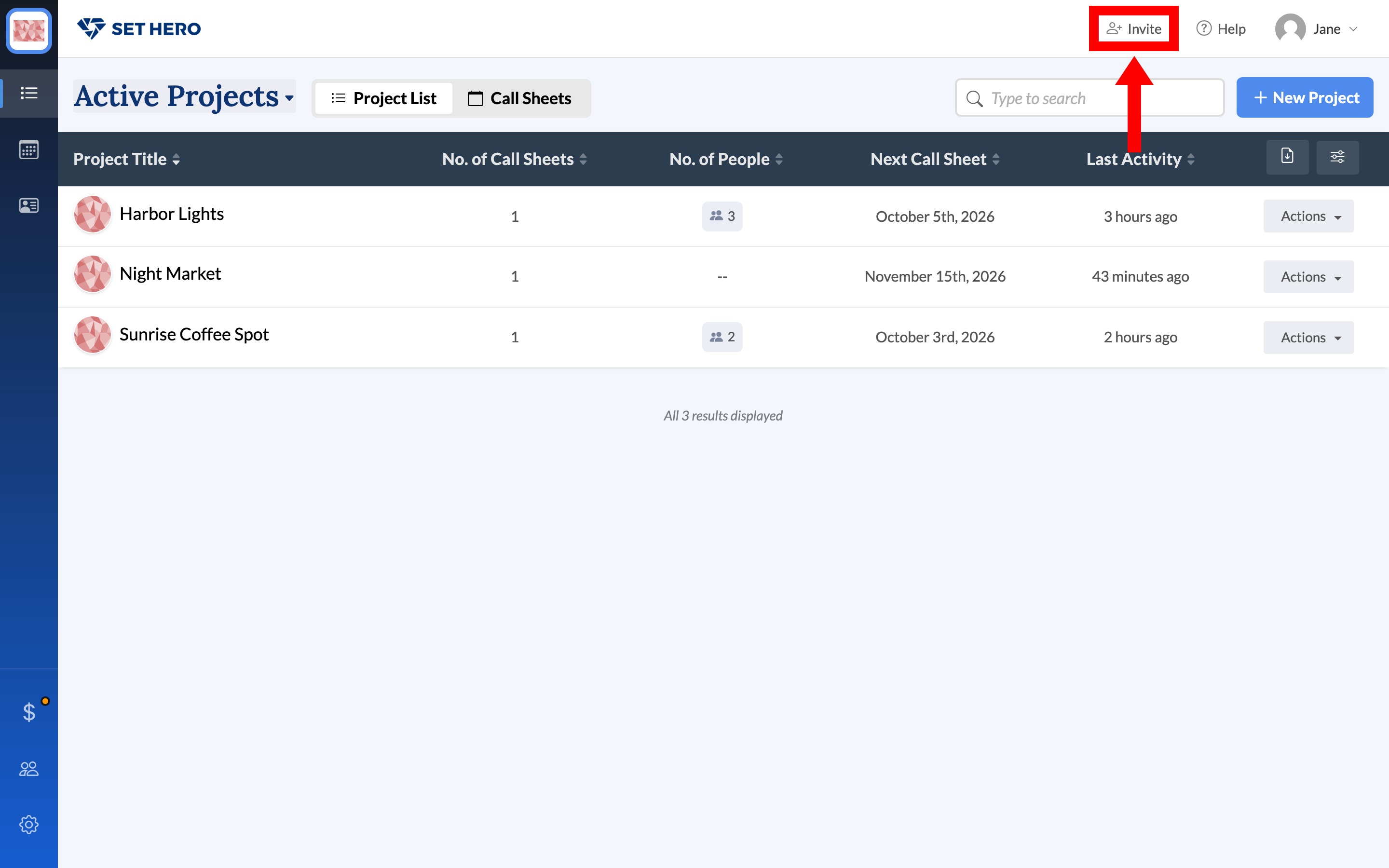
From any company page, click Invite in the top-right corner. This opens the Team members page.
-
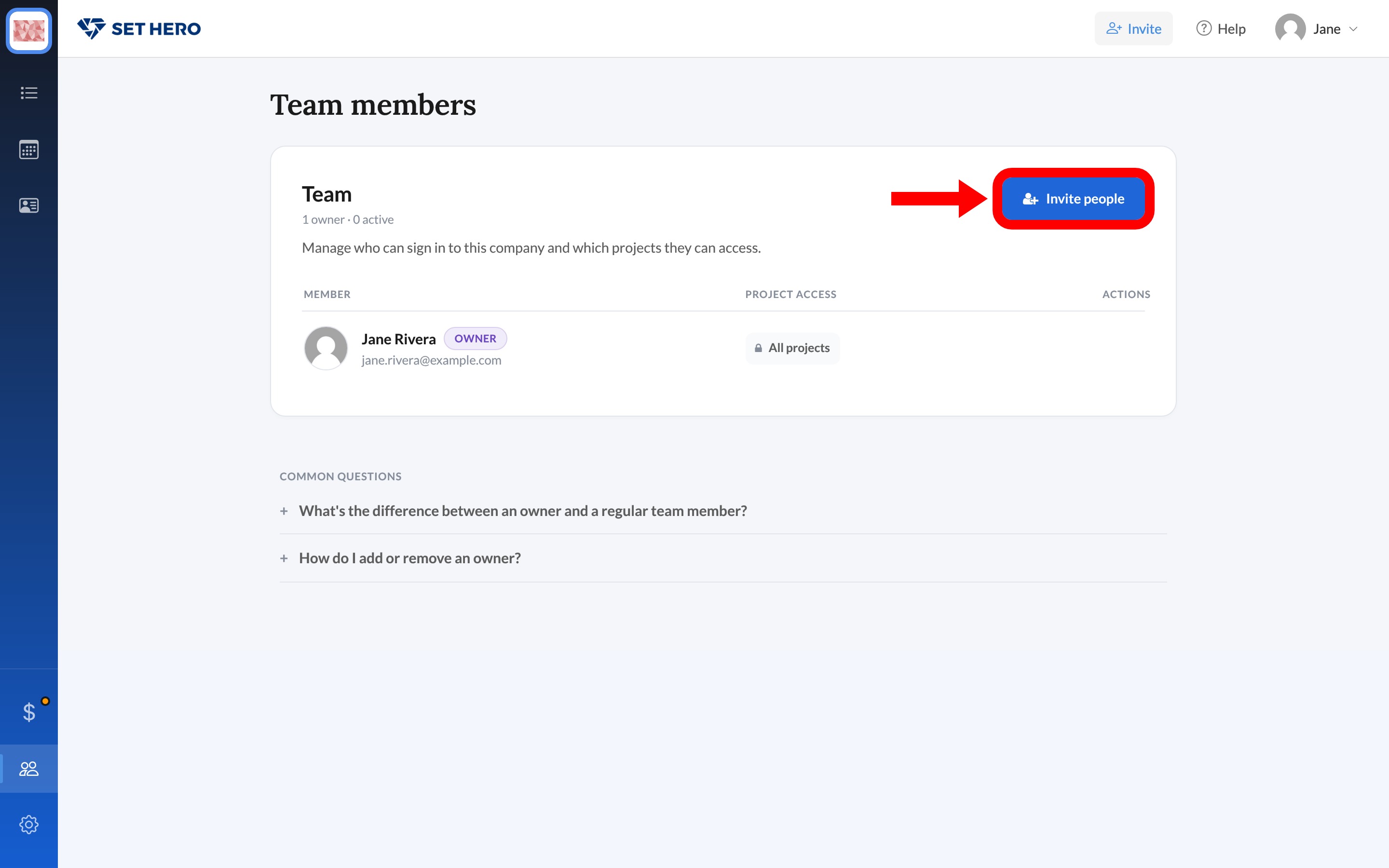
Click Invite people to open the invite panel.
-
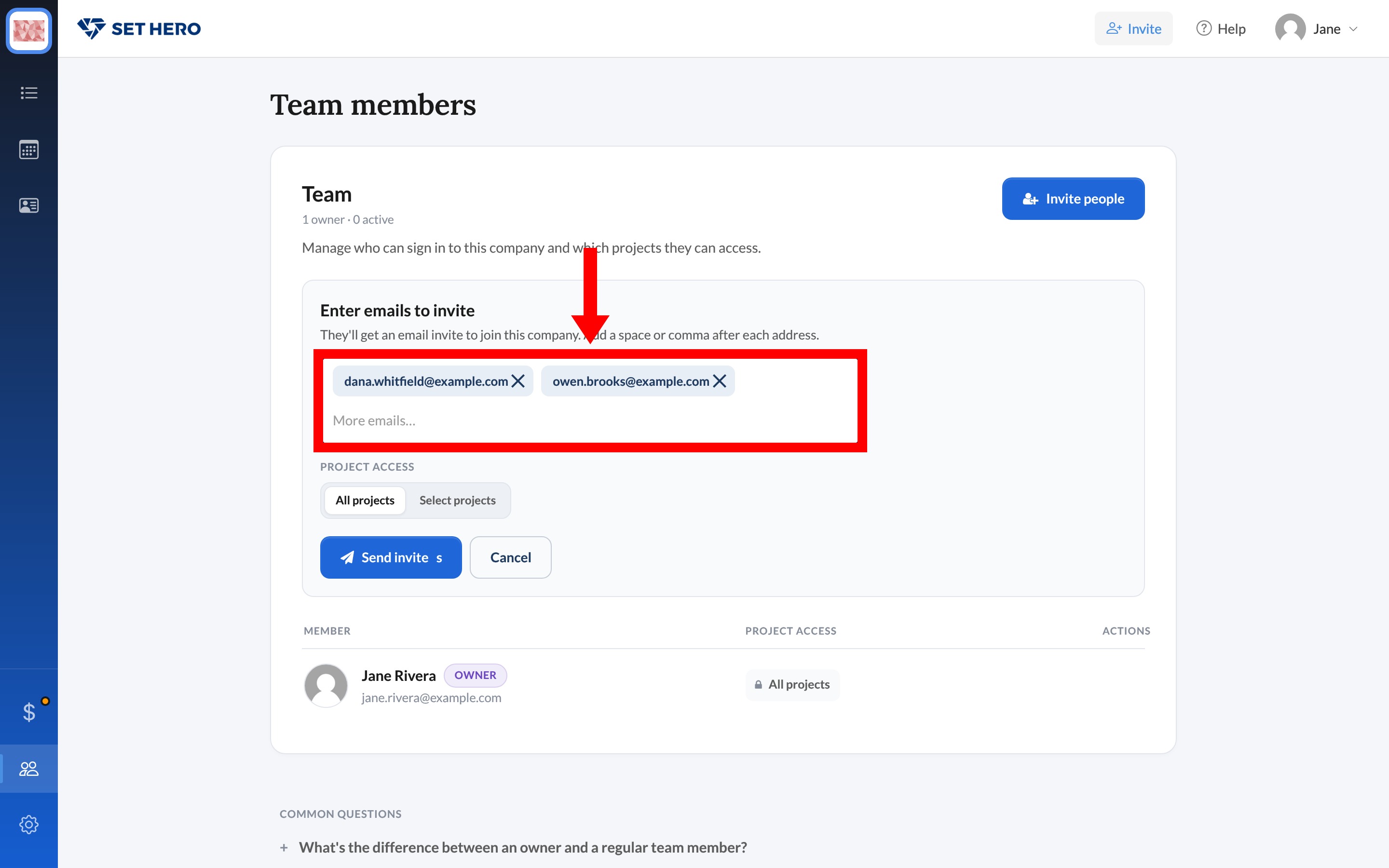
Enter the email address of each person you'd like to invite. A space or comma separates one address from the next.
Control project access
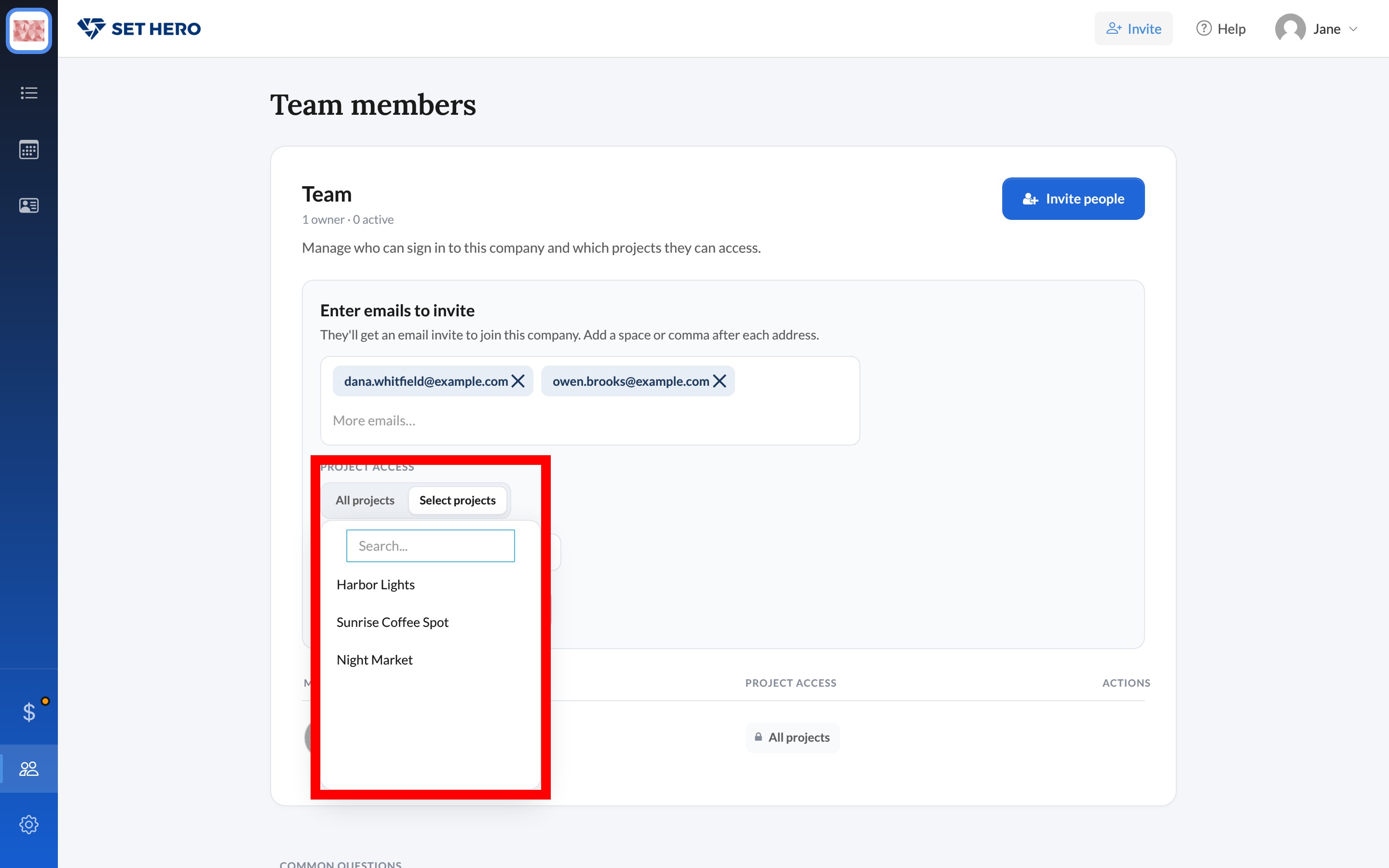
After you add the first email, you decide which projects your new teammate can open:
- All projects: access to everything, including productions you add later.
- Select projects: only the shows you pick. This is the right choice for freelancers hired for one show.
Note: Anyone you invite can manage your company's billing, whichever option you choose. See Roles, admins, and permissions explained for what each role can do.
Once you've set project access, click Send invites.
Note: If you see You've reached your plan's admin limit, you cannot send more invites until you change your plan.
What happens next
The person appears in your team member list with an Invite pending pill until they accept.
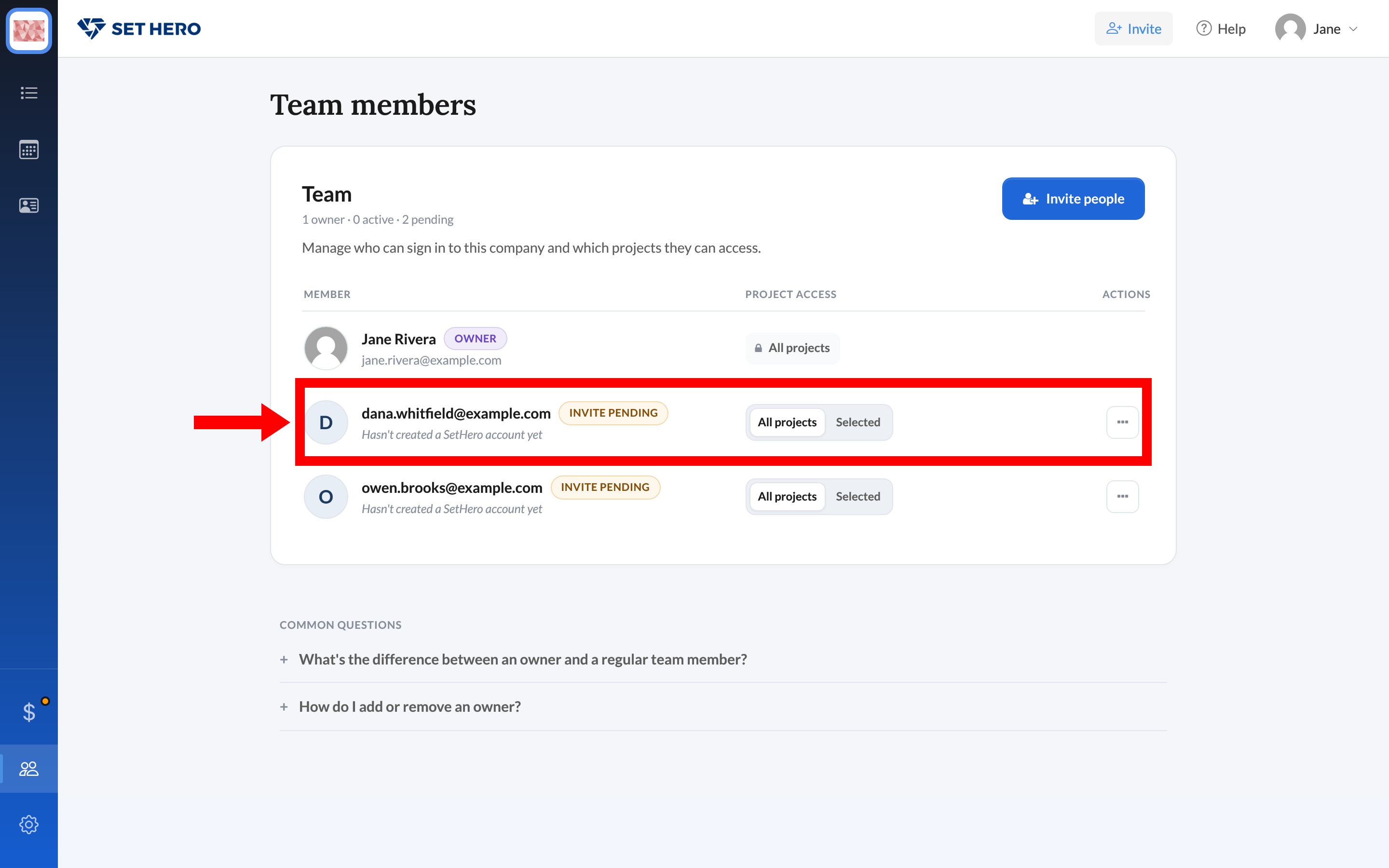
They receive an email from you via SetHero with an Accept Invite button. If they already have a SetHero account, they accept the invite from their Companies list after signing in. If they don't, they're guided through creating an account first.
Manage access later
You can change a teammate's project access at any time from the Team members page, and remove their access if needed.
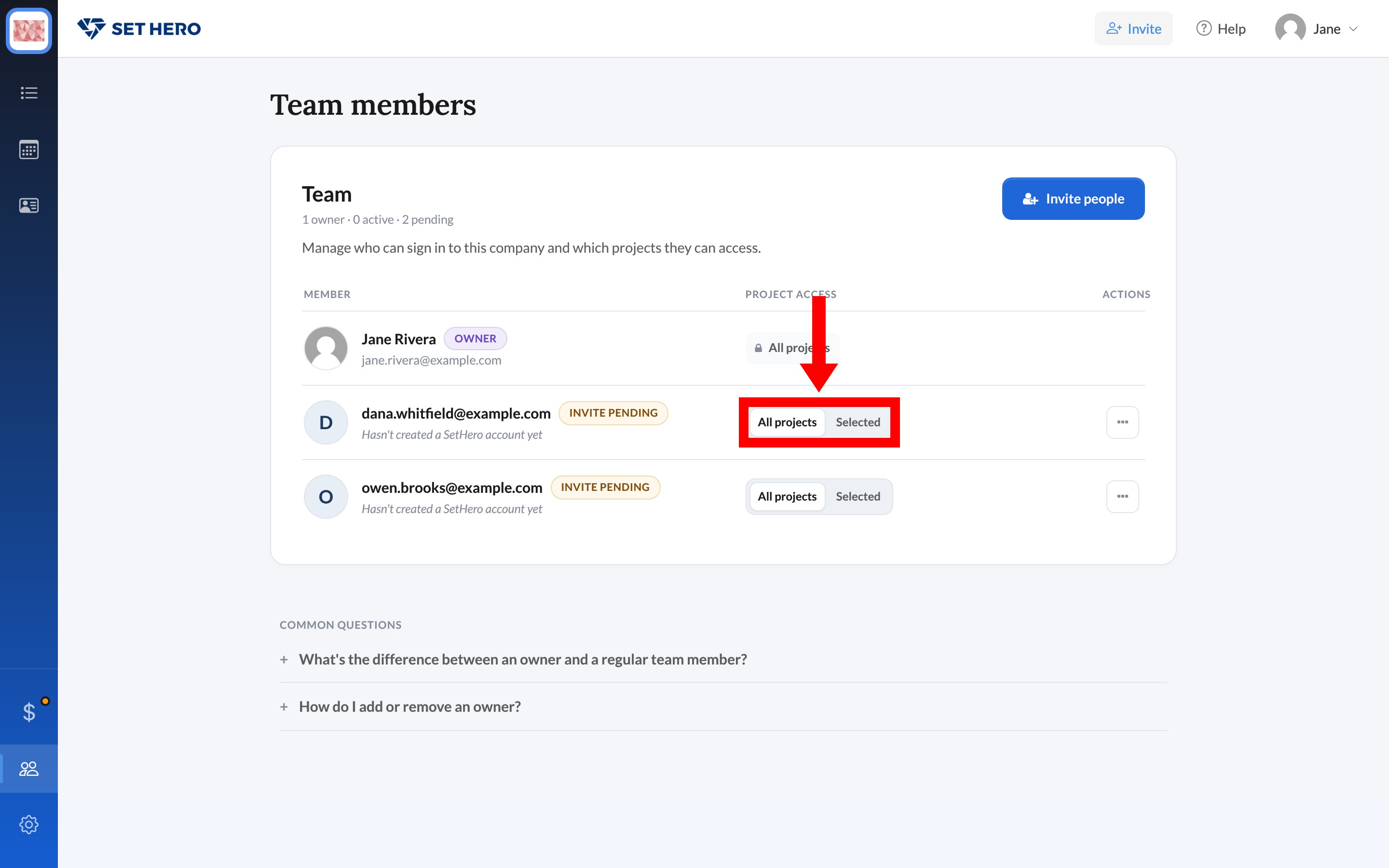
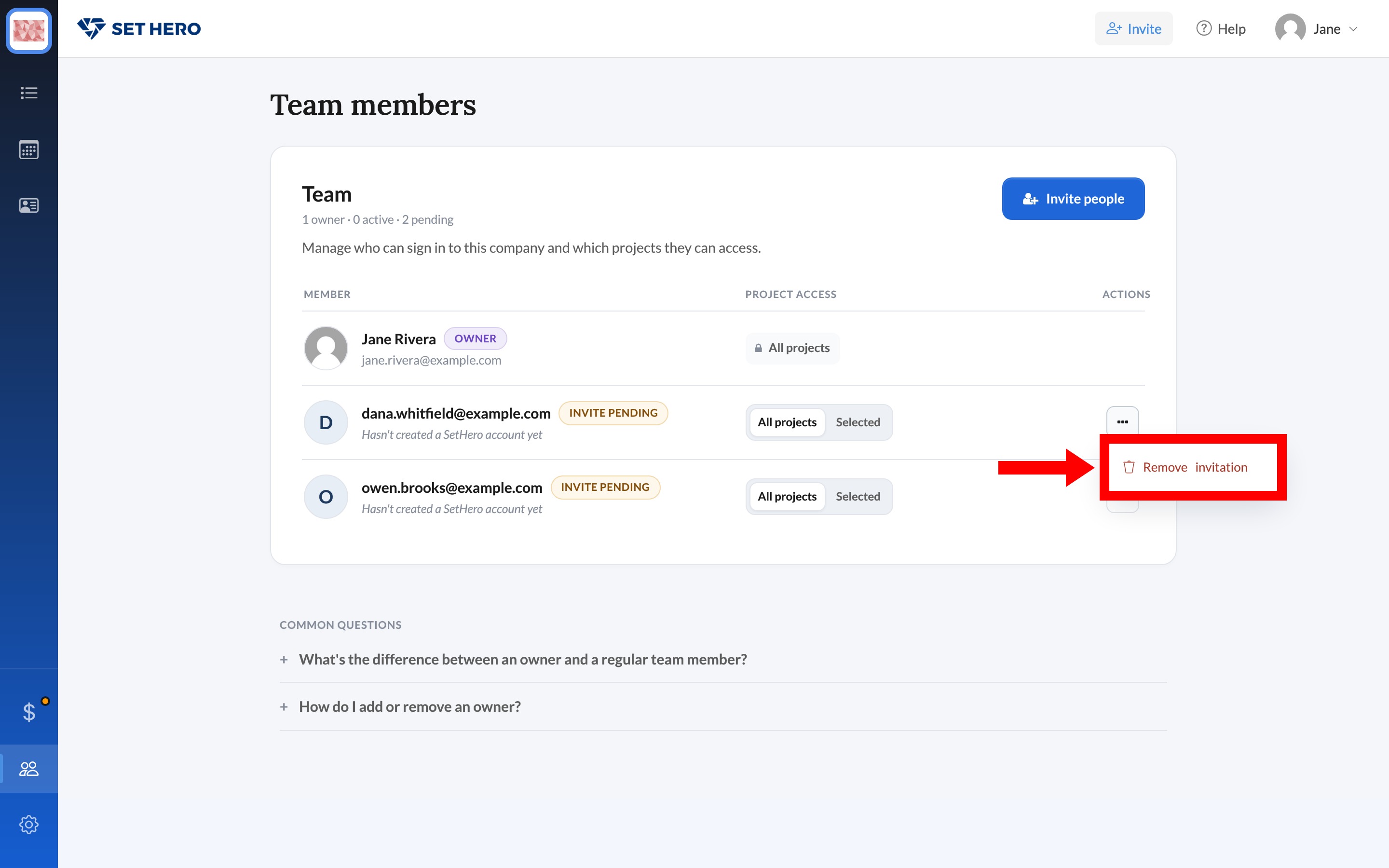
For the full removal steps, see Remove someone's access. To understand what owners and regular team members can each do, see Roles, admins, and permissions explained.