Time zone, time format, and units
How time, temperature, and page-size formats work across your project
Your call sheets are read by people across time zones, weather apps, and measurement conventions. SetHero gives you a few project-wide format controls, and one per-call-sheet control, so times, temperatures, and page sizes show up the way your crew expects.
This article covers:
- Country, Time Format, and Temperature Format on the Project Settings page
- Page-size units in the Call Sheet Editor
- Company-wide defaults that pre-fill these for every new project
Looking for title, code, thumbnail, logo, and colors instead? See Project Settings overview.
Note: SetHero doesn't store a project time zone. Call times appear exactly as you type them and aren't converted for anyone. Primary Shooting Country affects phone-number and date formatting only.
Open the format controls
From Active Projects, click the project's Actions button and choose Settings, or click the Settings tab inside the project. Scroll past the identity and color section to the gray panel at the bottom of the page.
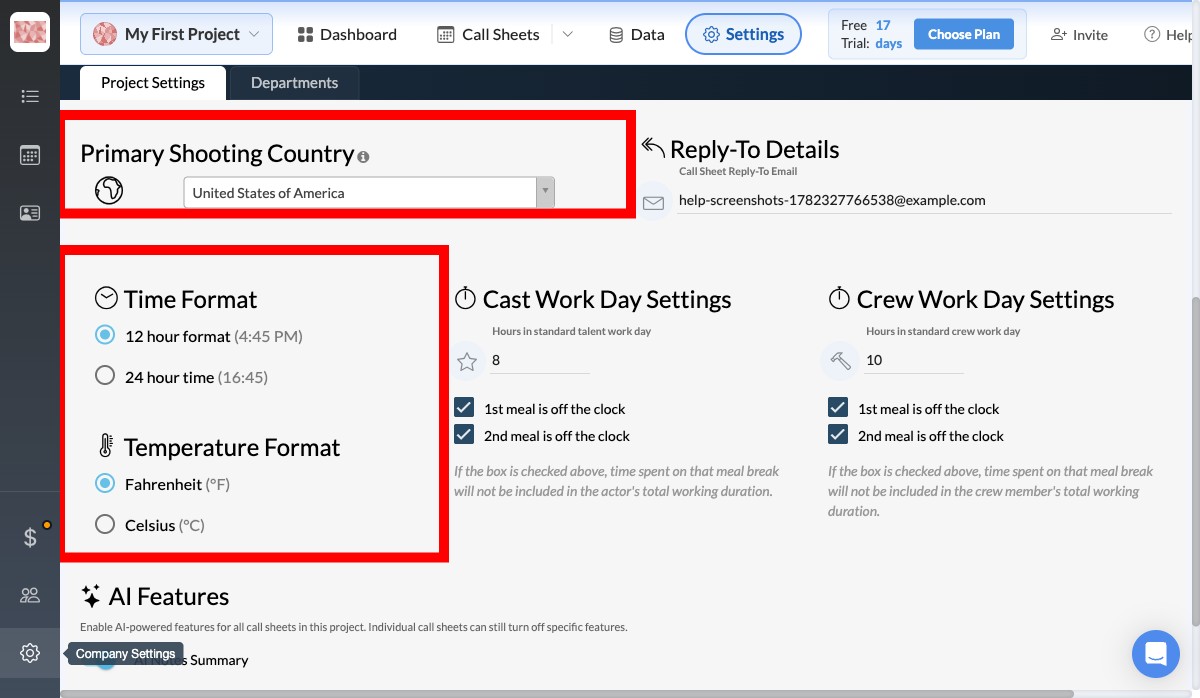
| Control | Affects |
|---|---|
| Primary Shooting Country | Phone-number and date formatting, and the default time and temperature units when the project is created. |
| Time Format | Every time stamp on every call sheet, schedule, and time picker (4:45 PM vs. 16:45). |
| Temperature Format | The weather widget's daily high and low (°F vs. °C). |
All three save automatically.
Primary shooting country
Click the dropdown, type the first few letters, and pick the country. This doesn't change existing data. It only affects how data is displayed and validated going forward. If you shoot across borders, pick the country most of your crew is in and adjust individual phone numbers as needed.
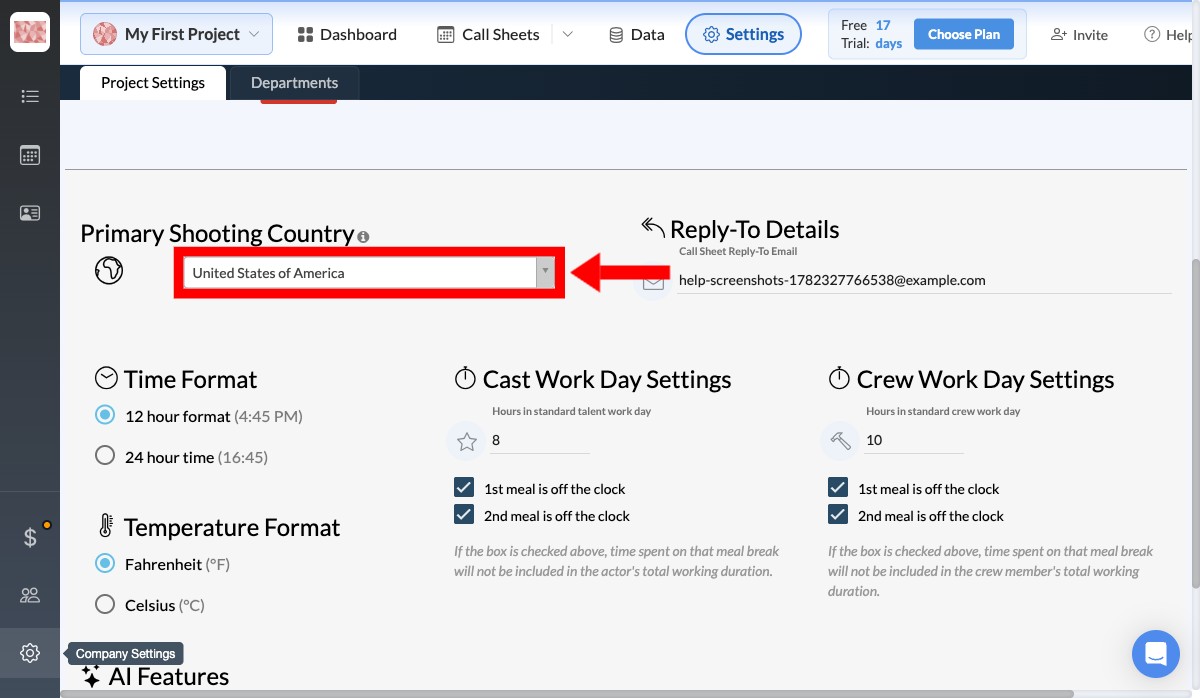
The country you chose during onboarding sets the initial defaults for new projects. Non-US countries default to 24-hour time and Celsius. The US defaults to 12-hour and Fahrenheit.
Time format
| Option | Example | When to use |
|---|---|---|
| 12 hour format | 4:45 PM | US productions, or anywhere the crew is used to AM/PM. |
| 24 hour time | 16:45 | International productions, military and broadcast work, or anyone tired of the "is 12:30 AM tonight or this morning?" debate. |
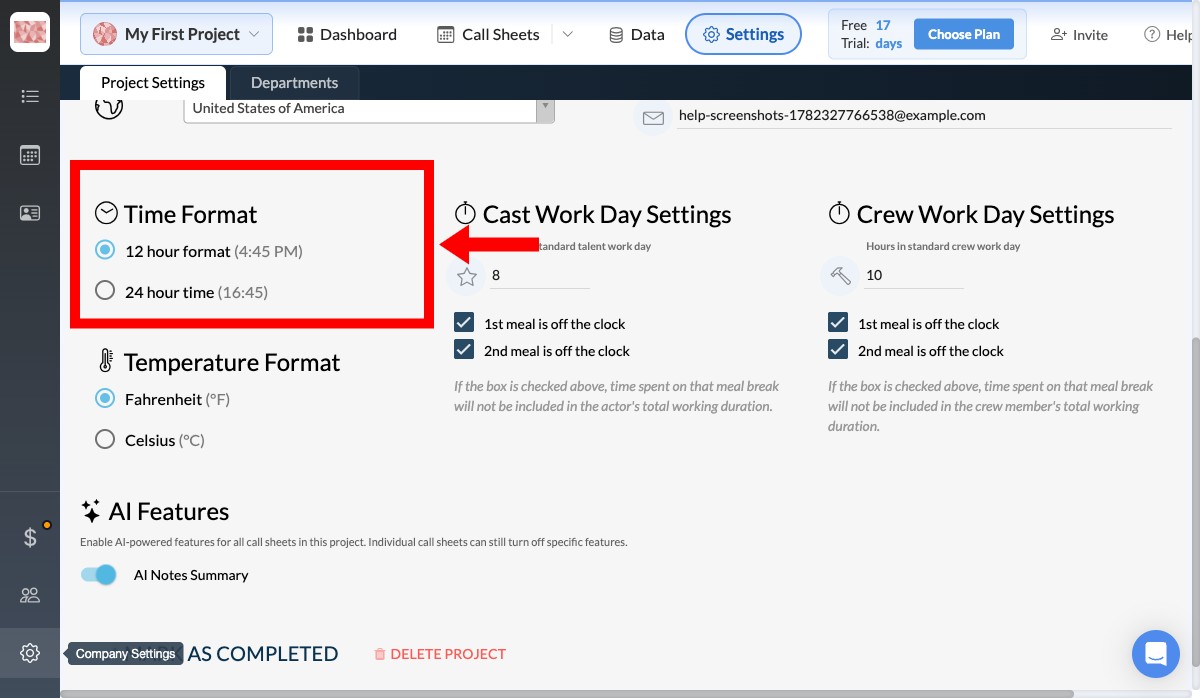
Switching this updates every call sheet in the project, past and future, including the email, the mobile call sheet, and the in-app time picker. PDFs already emailed are static, so they keep the format they were generated with. The mobile call sheet renders live and shows the new format on next open.
Temperature format
This decides whether the weather widget shows Fahrenheit or Celsius. SetHero pulls the daily high and low for each day's primary location and converts on the fly. Existing sheets re-render with the new unit on next open.
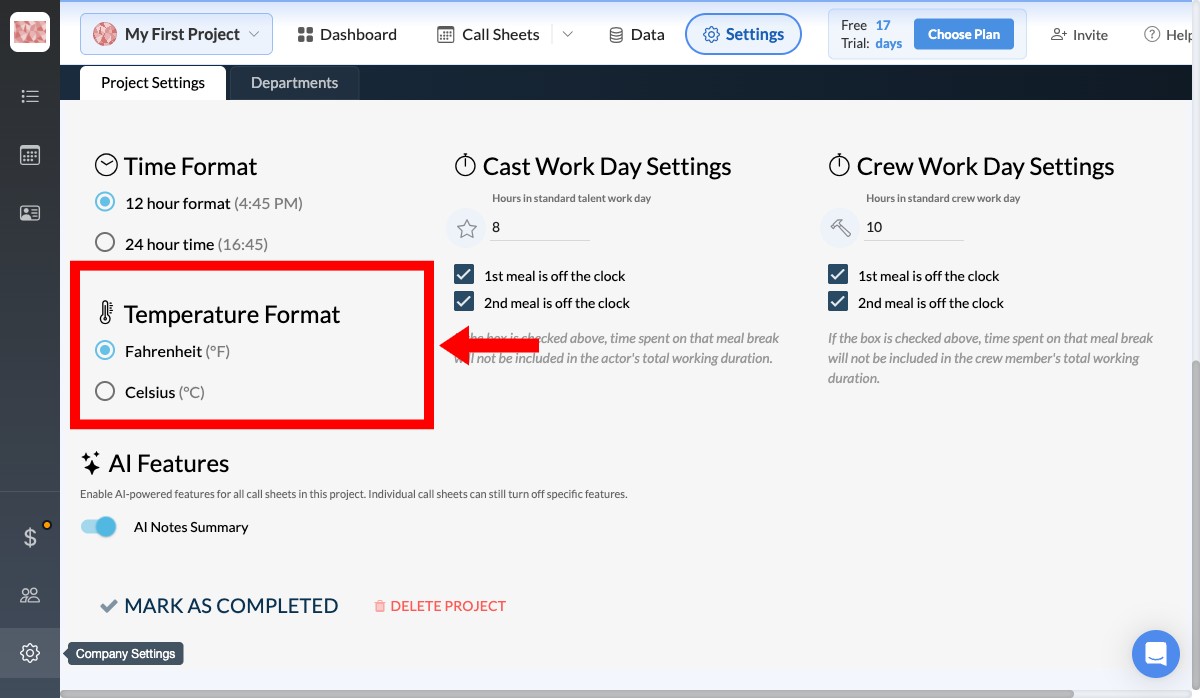
Tip: This is the only imperial-versus-metric toggle in SetHero. Distances and page dimensions are handled separately.
Page-size units, per call sheet
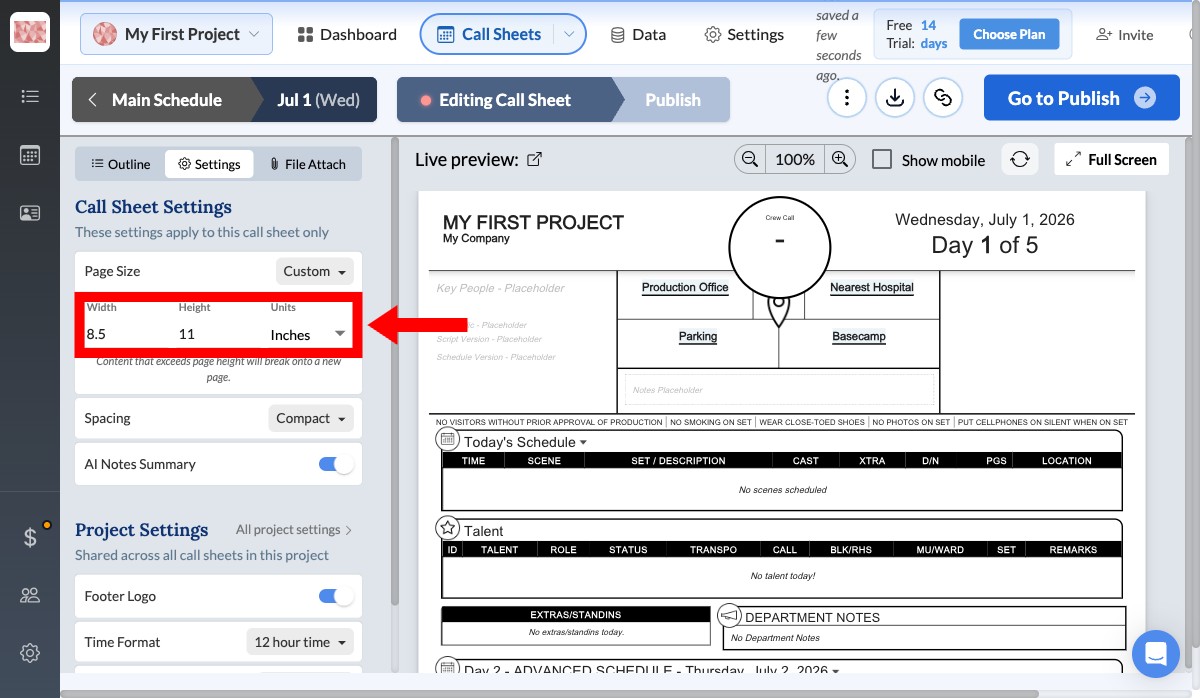
Page-size units are set on each call sheet, not project-wide, because different sheets sometimes need different paper: Letter for one office, A4 for a co-producer overseas.
Open a call sheet, click Edit, then click the Settings tab (gear icon) in the left panel. Switch Page Size from Auto to Custom and the Units dropdown appears beside Width and Height.
| Units | Common values |
|---|---|
| Inches | Letter 8.5 × 11, Legal 8.5 × 14, Tabloid 11 × 17 |
| Centimeters | A4 21 × 29.7, A3 29.7 × 42 |
Heads up: This applies only to the current call sheet. You can mix Letter and A4 sheets in the same project.
Company-wide defaults
To avoid setting country, time, and temperature on every new project, use Company Settings → New project defaults. From Active Projects, click the gear at the bottom of the left rail. Set your company name, photo, and defaults covers that page.
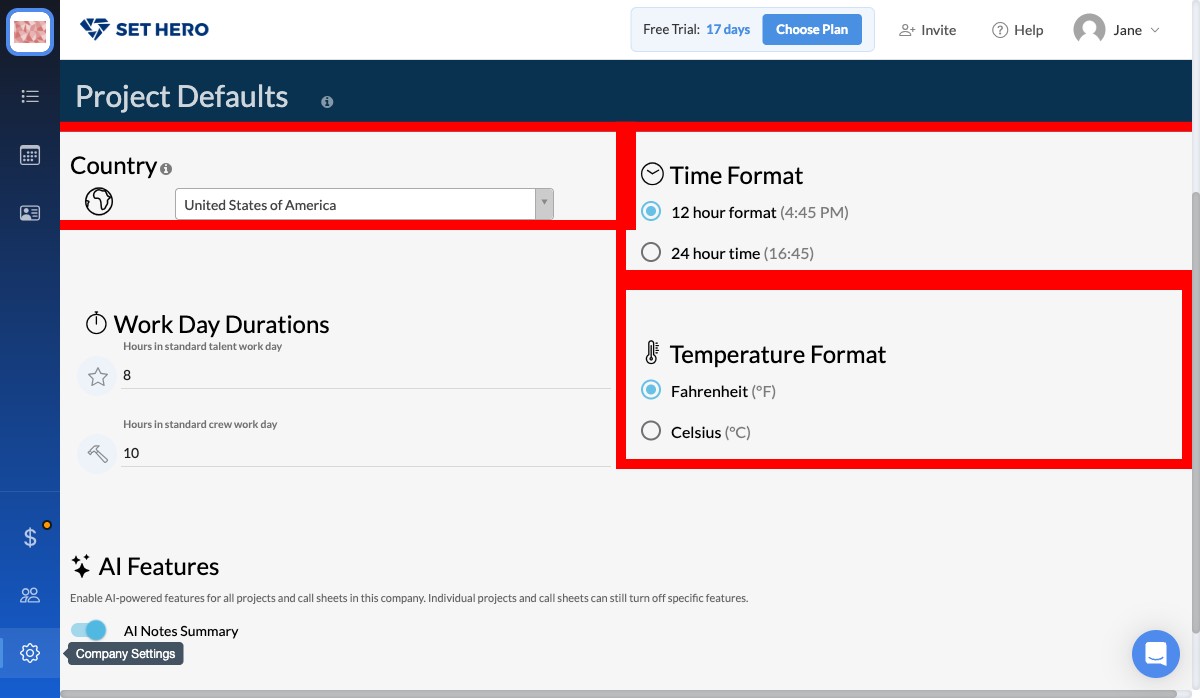
The controls match the project page, but anything set here is copied into new projects when they're created. Existing projects aren't changed. This is the place to flip everything to Celsius and 24-hour the day you start working with an international co-producer.
Who can change these
Anyone with edit access to the project can change the project-level formats. There's no separate format admin role, and your crew can't override the format on the sheets they receive. Keep in mind that flipping the time format affects every call sheet in the project, not just the one you're editing.
Need help?
Reach out to our support team at support@sethero.com.