Set your company name, photo, and defaults
Change your company name and photo, and set new project defaults
Company Settings is this company's identity plus the values copied into each new project you create. It isn't Update your name, email, and account settings, which is your own login name and email.
Note: The photo and brand color only apply to your workspace. They don't change published call sheets. A call sheet's logo and colors come from the project's Header Logo and Project Colors in Project Settings overview.
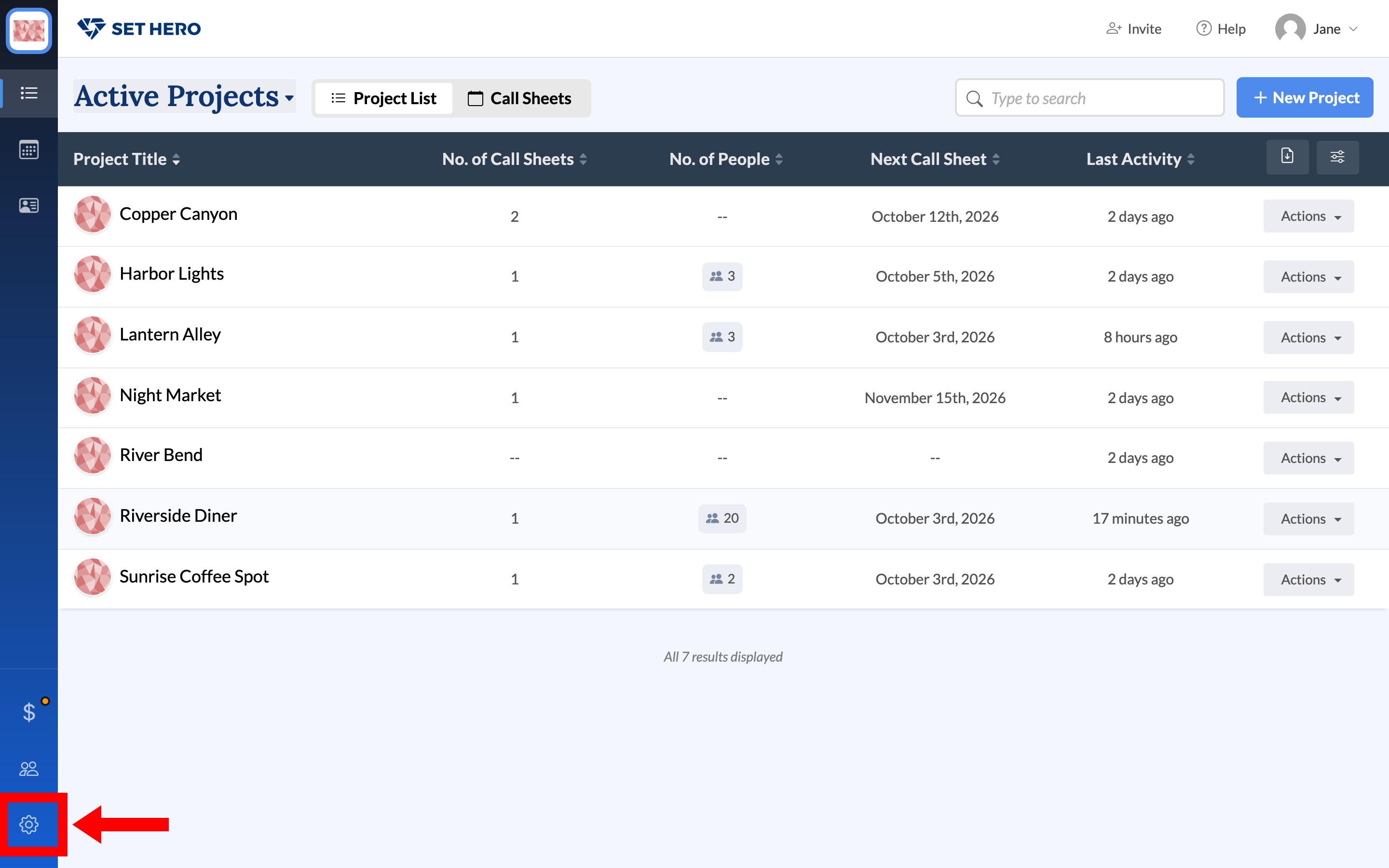
Open company settings
From Active Projects, click the gear at the bottom of the left rail. Hover it to read Company Settings. A Saved chip and the line All changes are saved automatically mean there's no Save button.
Set the name, photo, and brand color
The Company card has Company name, the thumbnail, and Brand color.
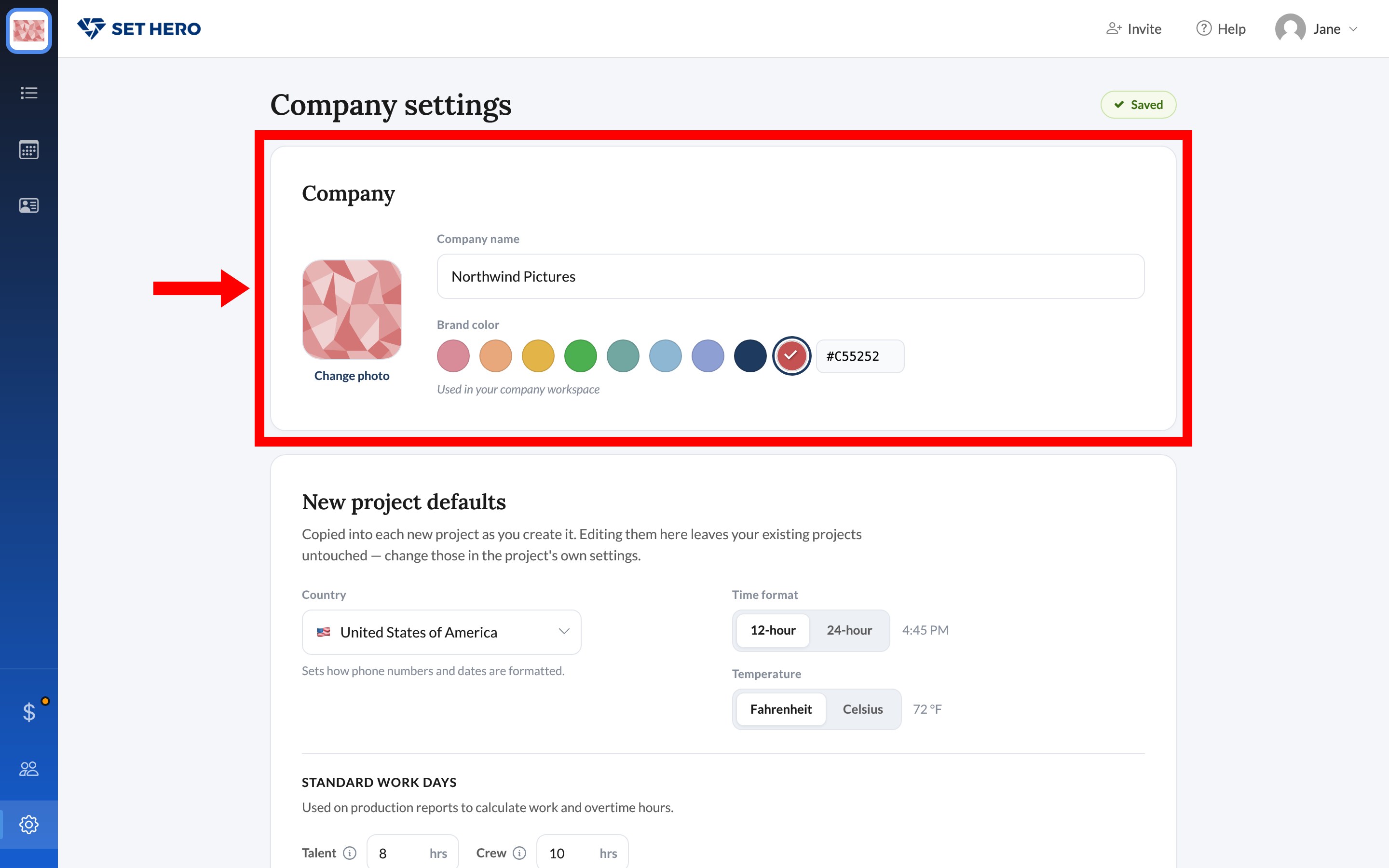
- Company name is required. Clearing it shows Company name is required.
- Thumbnail: hover it and click Change, or use Add a photo when none is set. JPG, PNG, or GIF, with a crop window. This is the company thumbnail in your workspace.
- Brand color is a row of swatches plus a custom picker, used in your company workspace.
Set defaults for new projects
New project defaults are copied into each new project as you create it. Changing them here leaves existing projects untouched. Change those in the project's own settings.
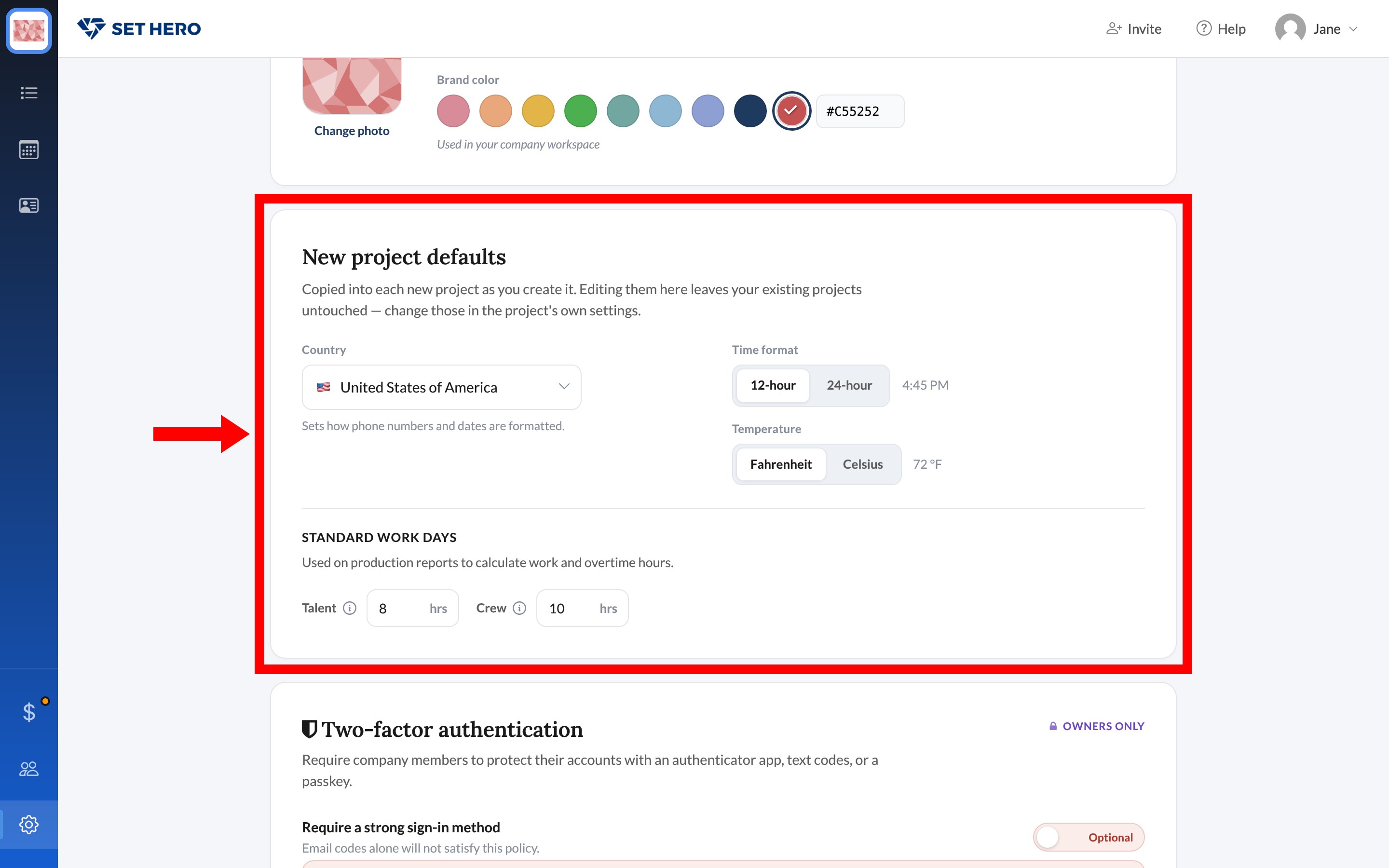
- Country: how phone numbers and dates are formatted.
- Time format: 12-hour (4:45 PM) or 24-hour (16:45).
- Temperature: Fahrenheit (72 °F) or Celsius (22 °C).
- Standard work days: Talent and Crew hours used on production reports for overtime. Meal-off-the-clock checkboxes are per project, not here.
Time zone, time format, and units is the project-level clock and units page, and Standard work days and overtime is the work-day card on a project. Further down, Two-factor authentication is owner-only. Require two-factor authentication for your company covers that switch.
Delete this company
Manage company is Owners only. Only the user who created the company can click Delete this company.
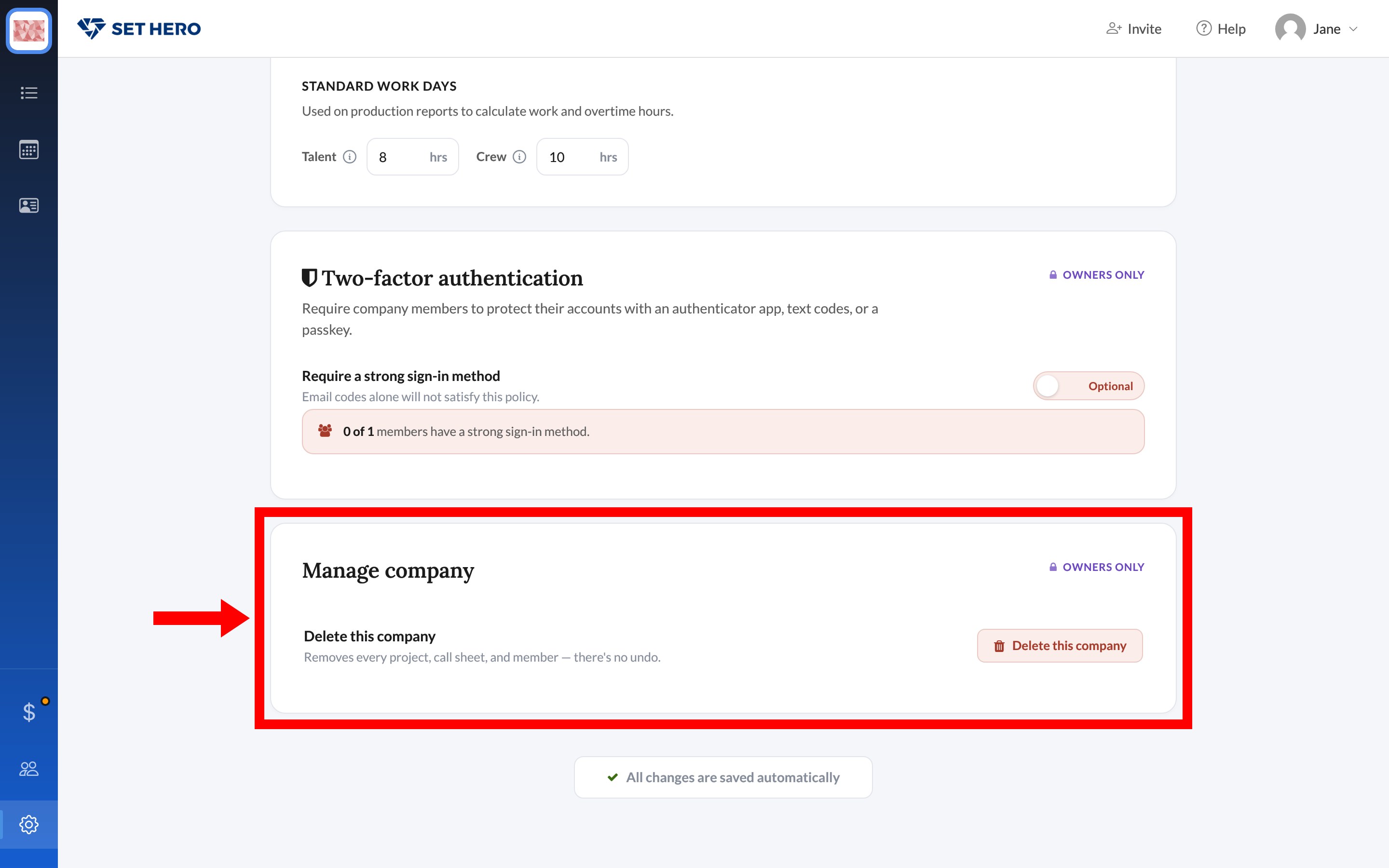
Warning: Deleting the company removes every project, call sheet, and member. You can't undo it.
Deleting the company isn't the same as deleting your own login. That's Delete your account.