Add extras and stand-ins to a production report
How to group, time, and print background performers on production reports
Background talent, such as atmosphere extras, stand-ins, photo doubles, and stunt drivers, are logged on a production report as counted groups rather than individual contacts. Grouping people who share the same call times and rate makes logging a crowd fast.
Open the extras tab
Open the day's report from your schedule and select the Extras and Standins tab, the group icon fifth from the left. If you used call sheet autofill, the background groups planned on the call sheet are already here.
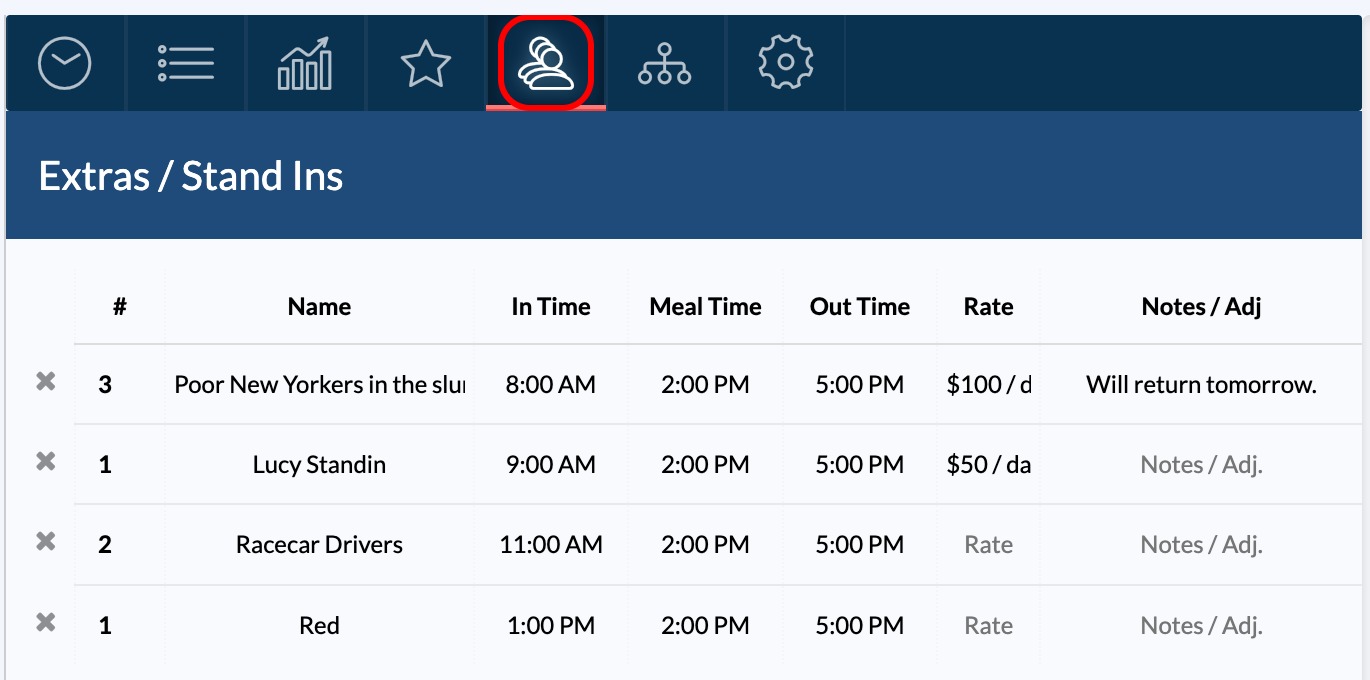
How background rows work
Each row is one group with the same times and pay rate, such as 12 Bar Patrons or 2 Principal Stand-ins. Click ADD ROW at the bottom of the table to start a new group, then fill in the seven fields:
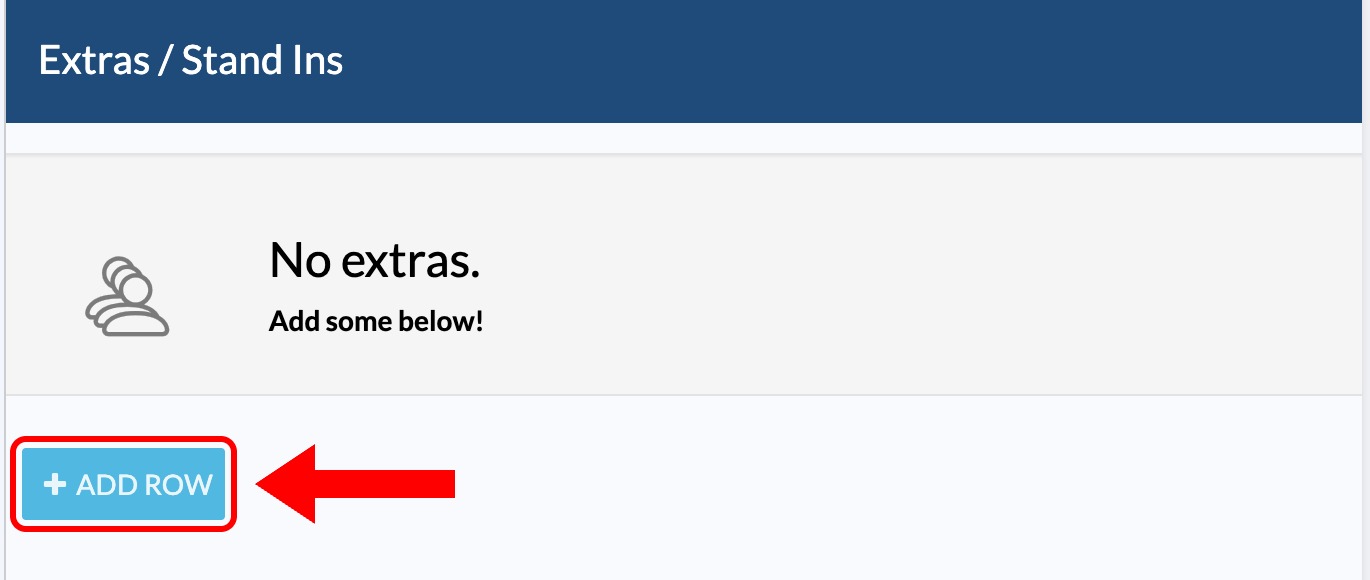
- # (Quantity): the head count for the group.
- Name (Description): a clear label, such as "Restaurant Diners" or "Pedestrians".
- In Time: the group's actual arrival time.
- Meal Time: when the group broke for a meal.
- Out Time: when the group was released.
- Rate: the agreed pay, such as
$180/8,SAG Scale, or$120/day. - Notes / Adj: wardrobe bumps, hair and makeup allowances, mileage, or other adjustments.
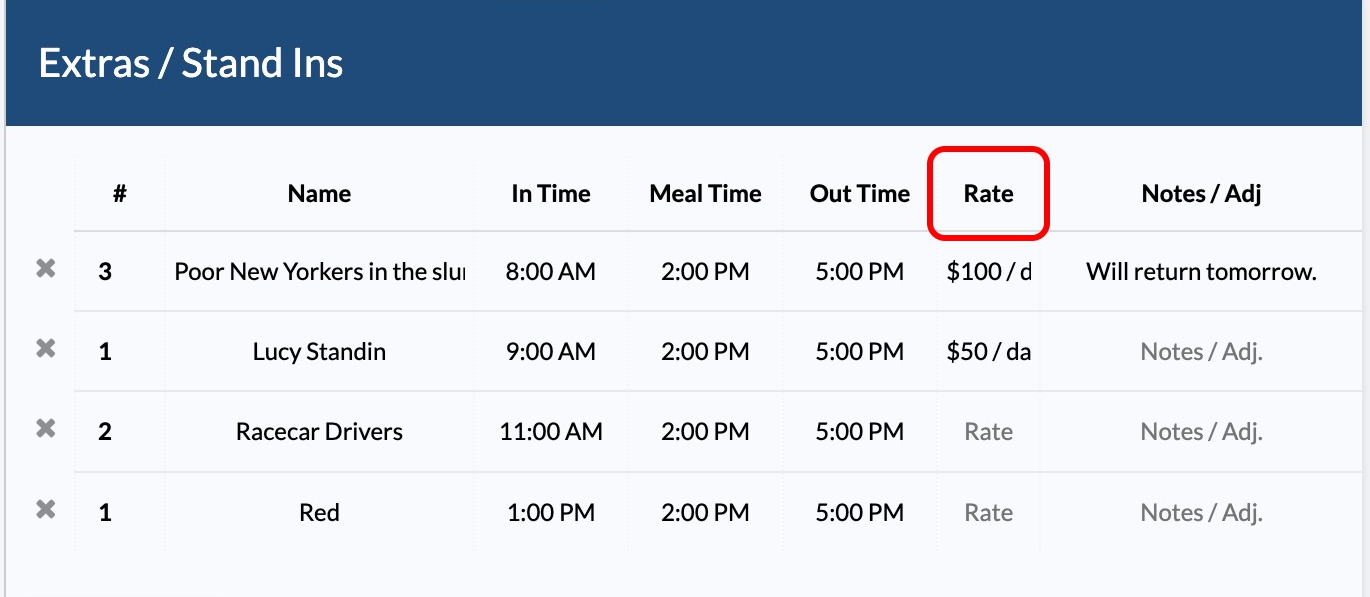
Tip: Rates are plain text, so
$180/8orFlat Rateprints exactly as entered on the report.
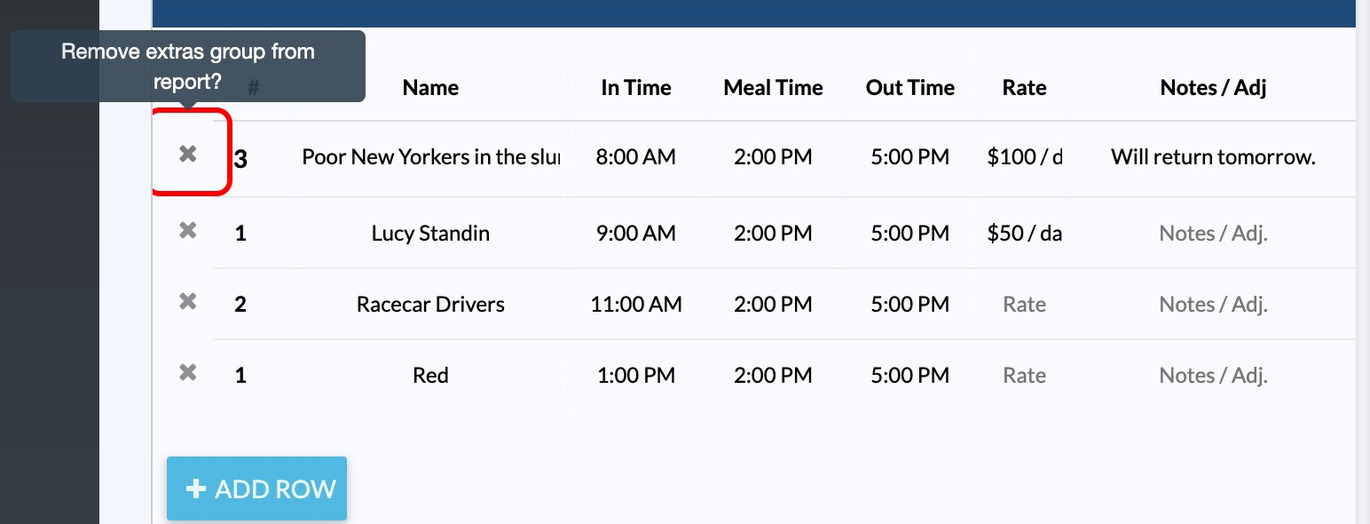
To remove a group, click the ✕ at the far left of its row.
How background groups print
On the finished report, background groups format into two side-by-side tables to save space. Groups are sorted by In Time, so arrivals read in order through the day regardless of the order you typed them. Empty rate or notes cells print as a dash.

Everything saves automatically, and the Live preview shows how the tables will lay out.