Create a production report
How to create a report, use autofill, and carry data forward
Creating a production report takes a couple of clicks from your project schedule. SetHero can pull the planned times, scenes, cast, and crew from the day's call sheet, so you only have to correct what changed on set.
New to production reports? What is a production report? covers what they record and how they differ from call sheets.
Create a new report
-
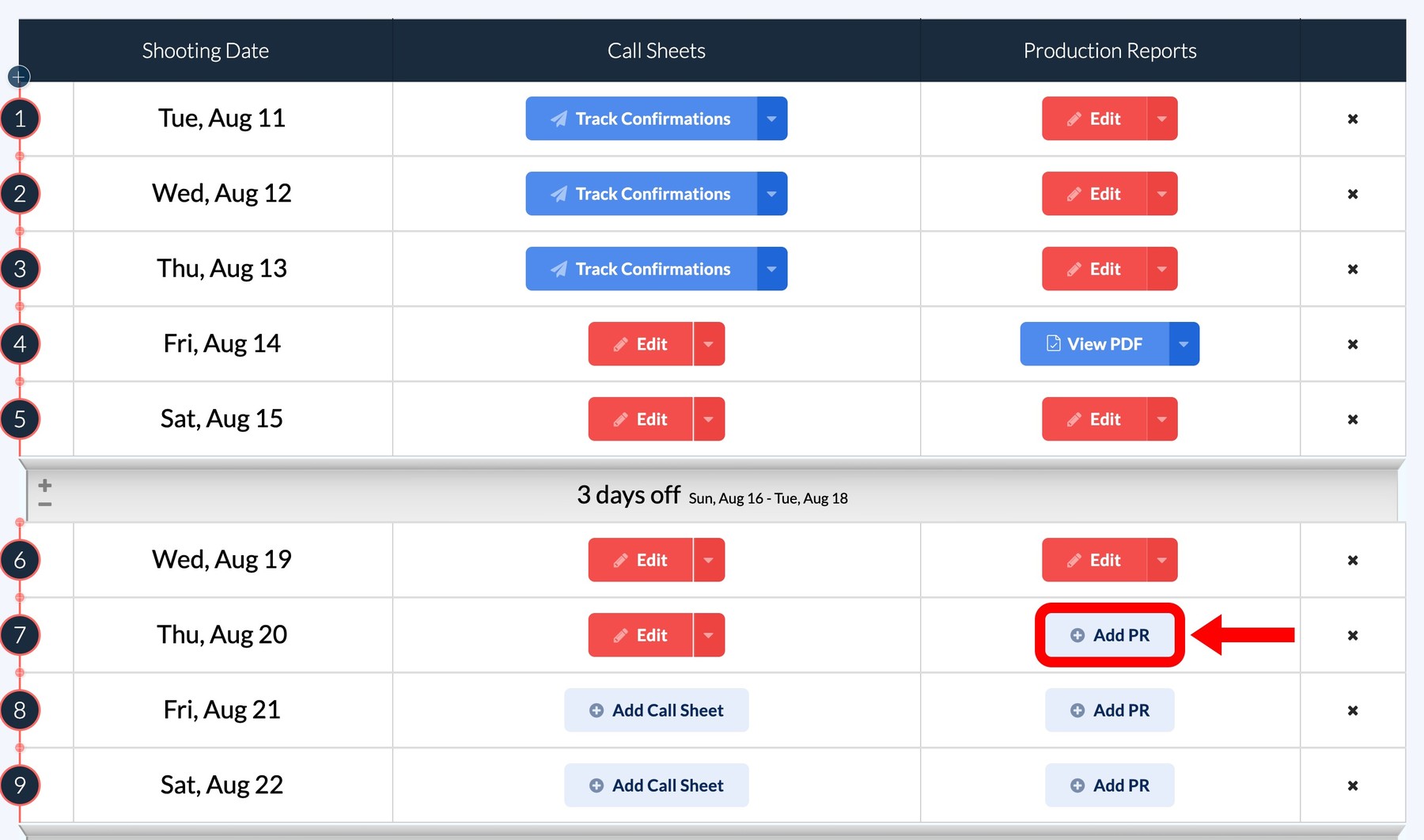
From your project dashboard, click Call Sheets in the top navigation to open your schedule.
-
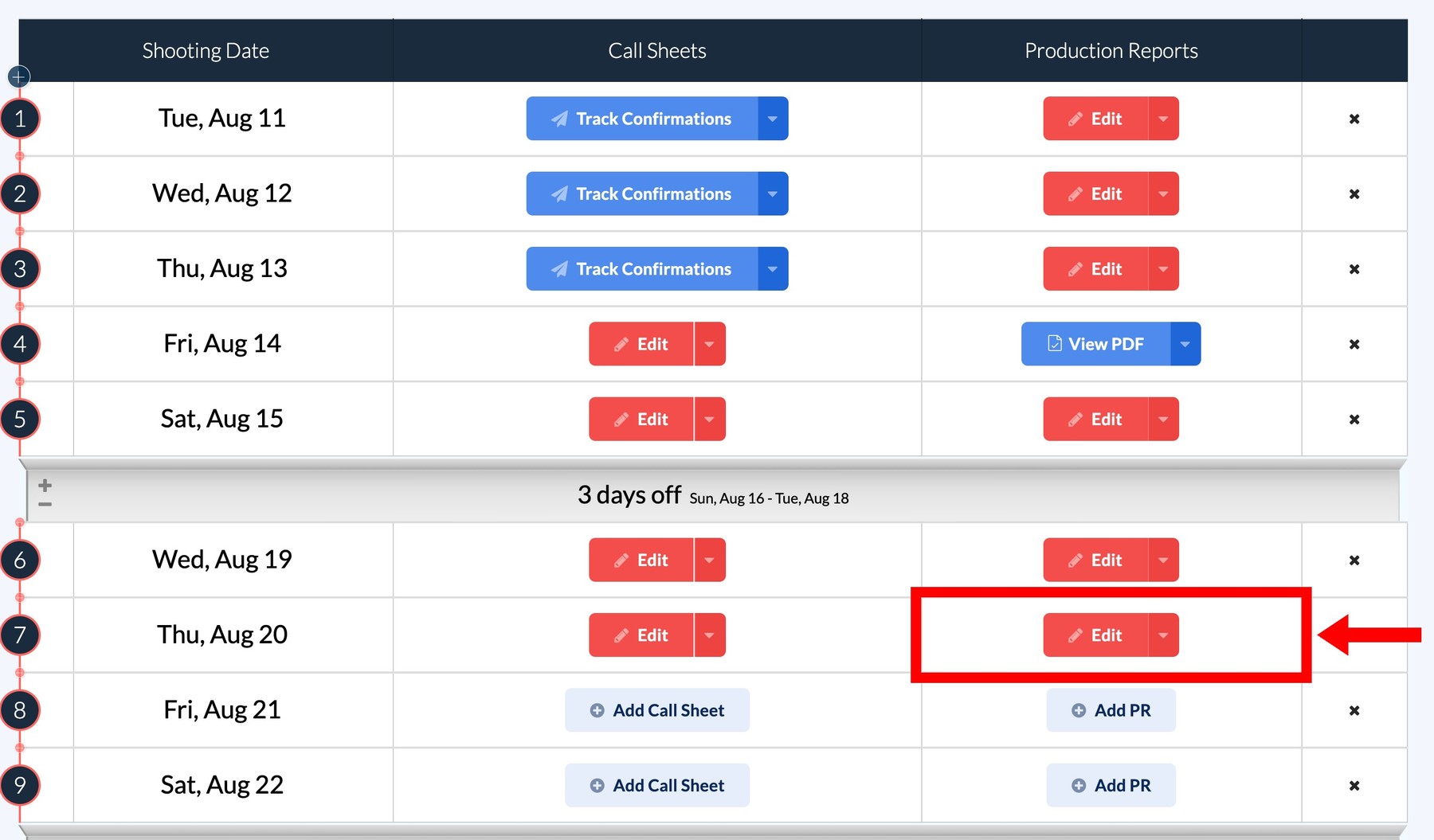
Find the shooting day and click Add PR in the Production Reports column.
-
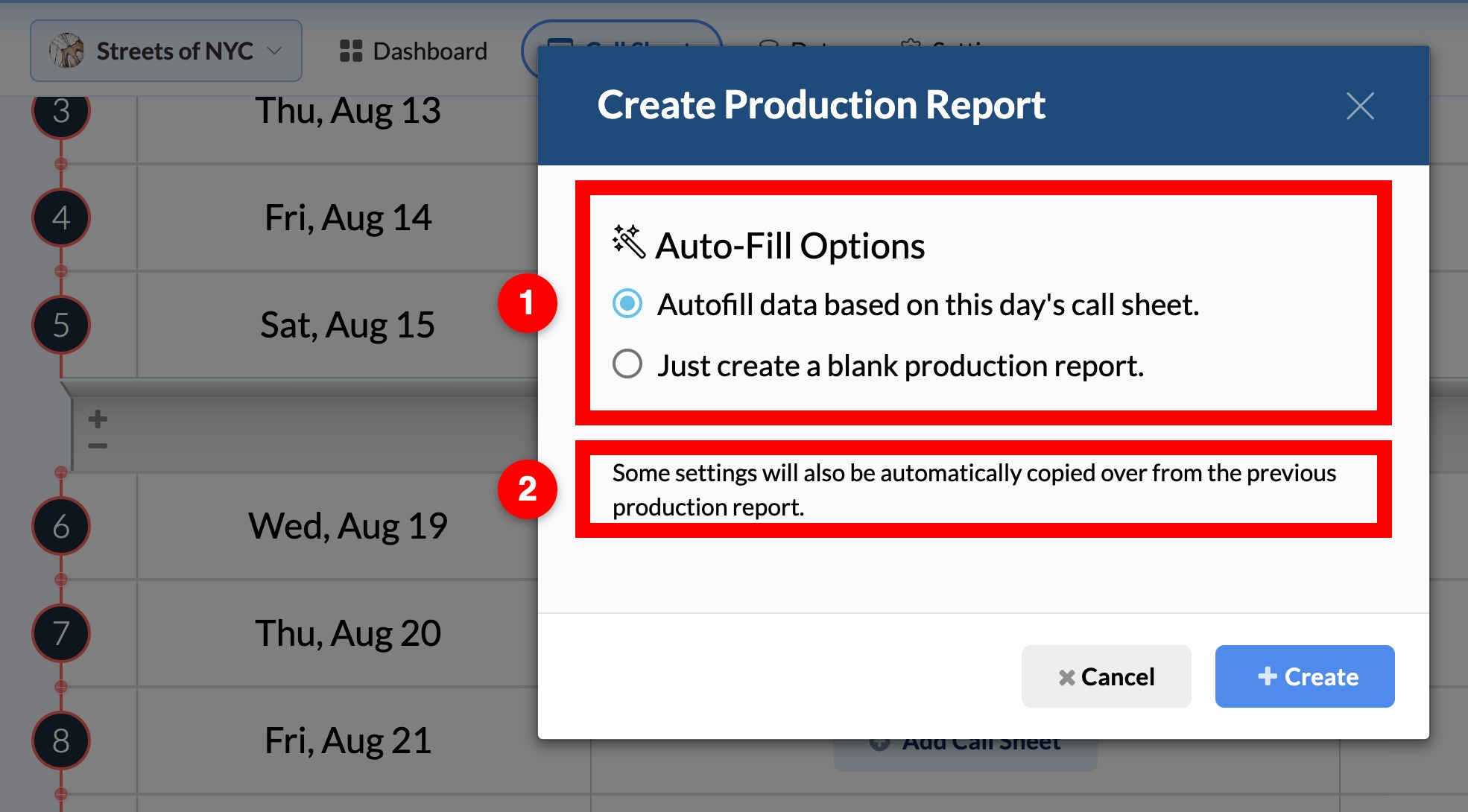
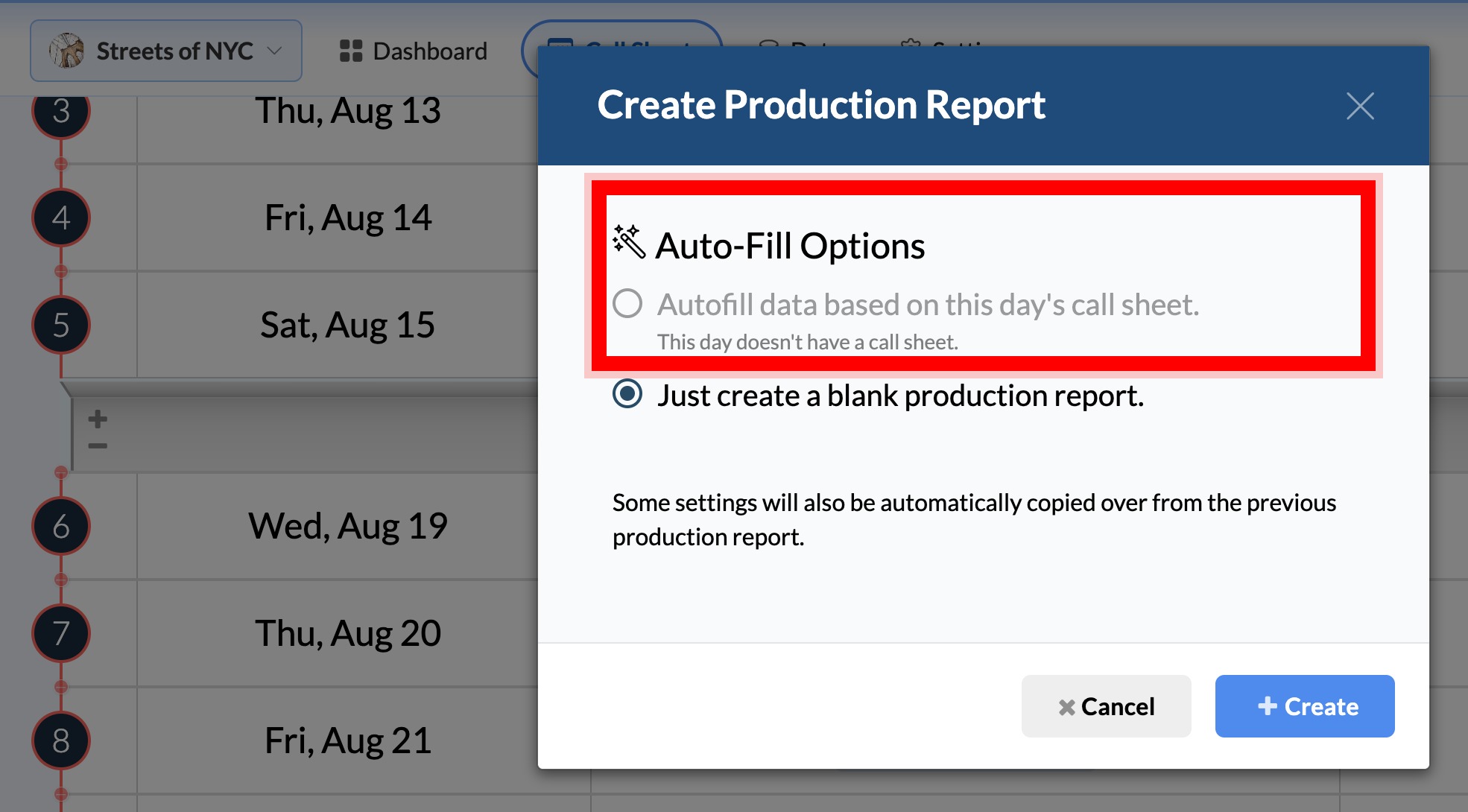
In the Create Production Report modal, choose how to start:
- Autofill data based on this day's call sheet copies the scheduled information in.
- Just create a blank production report starts empty for manual entry.
-
Click + Create. SetHero opens the Production Report Editor.
Note: If the shooting day isn't on your schedule yet, add the shoot day first.
What autofill imports
When you autofill from the call sheet, SetHero brings in:
- Times: crew call, shooting call, estimated wrap, and meal times.
- Scenes: every scene scheduled for the day, with INT/EXT, day/night, pages, cast, and location.
- Cast: the cast block, including status and call times.
- Extras: background counts, descriptions, and call times.
- Crew: all crew members and department call times.
- Versions: script and schedule version labels.
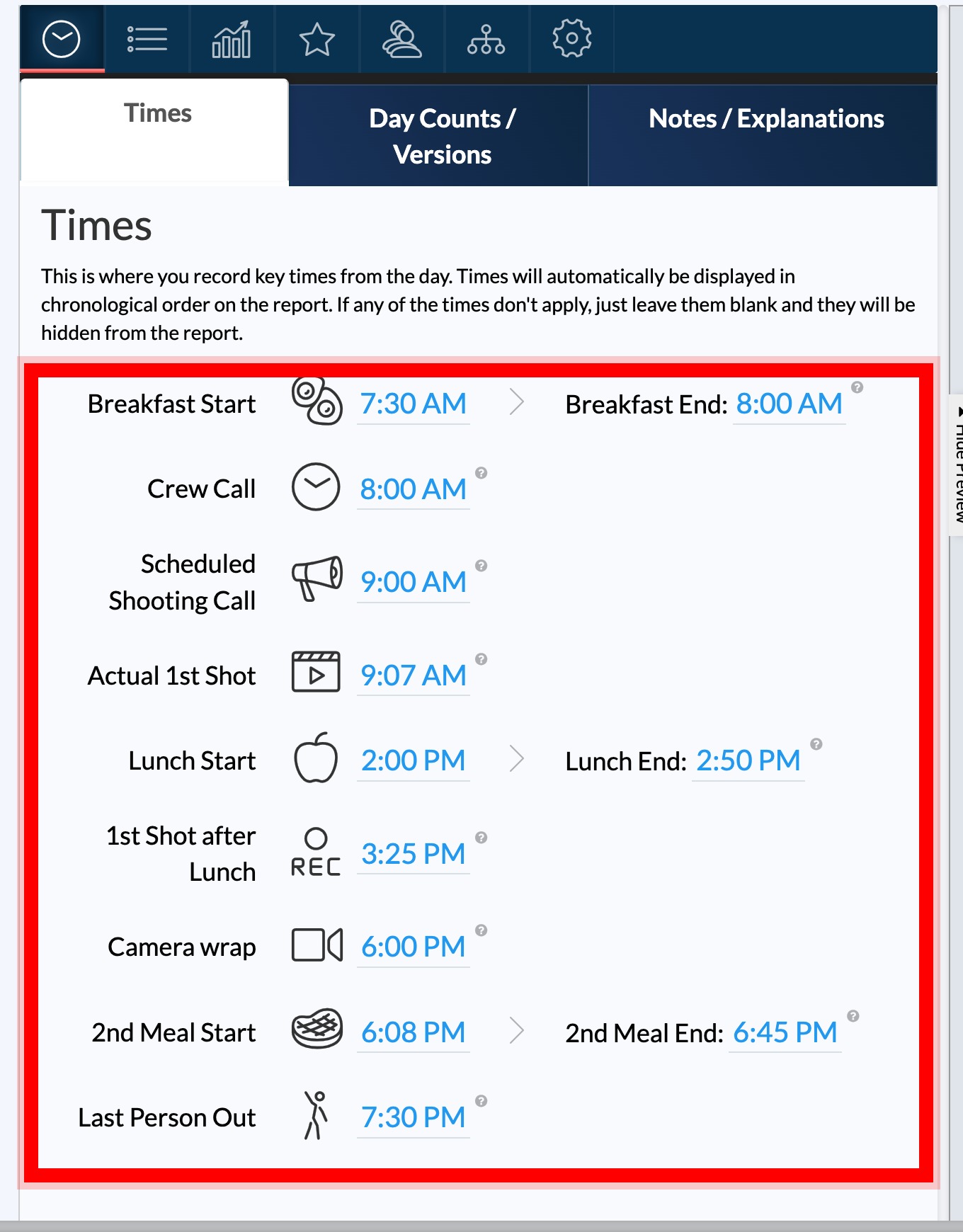
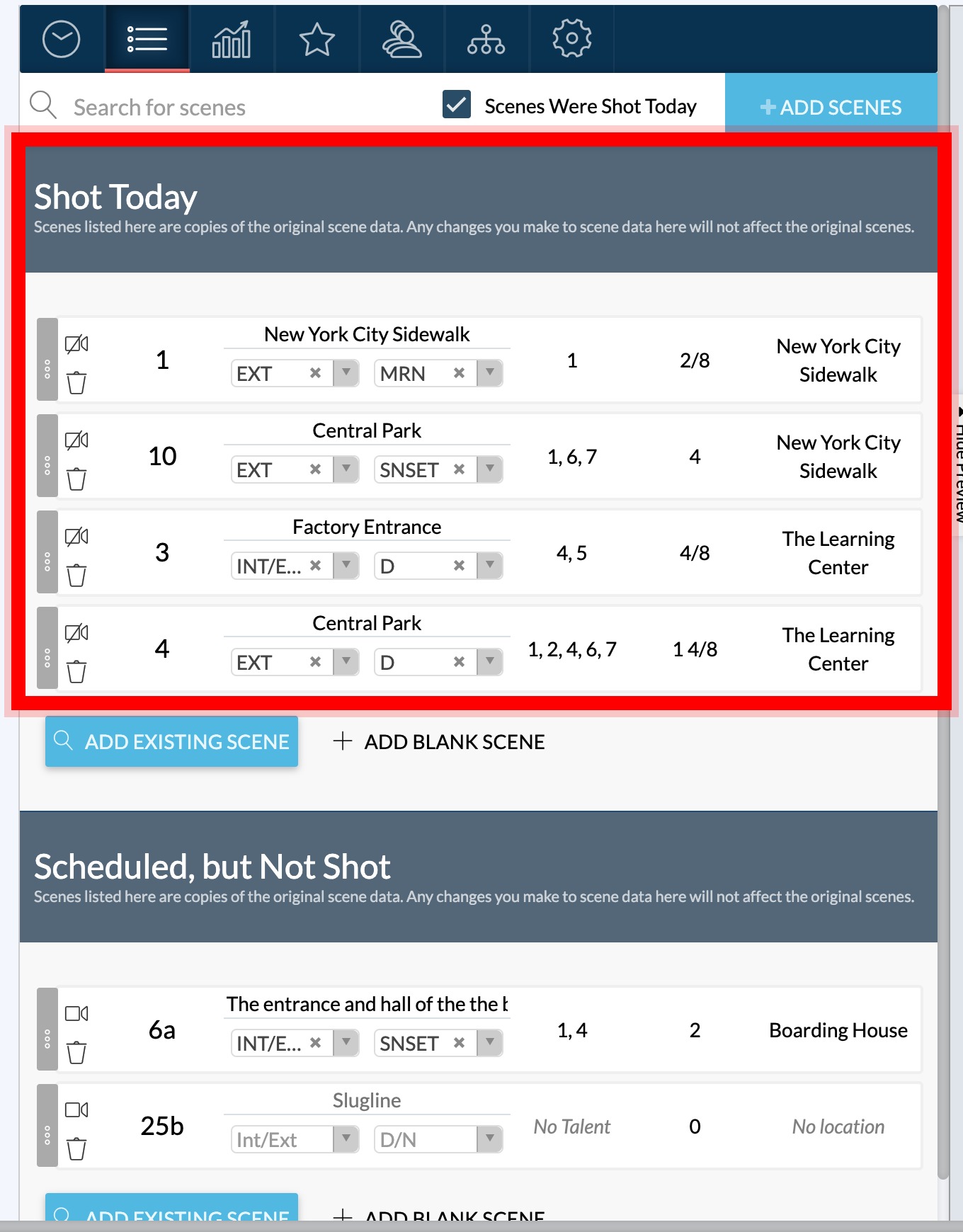
Tip: Autofill gives you a starting point, not a finished record. Before publishing, review every field and replace planned values with the actual times and events from set.
What carries forward from earlier reports
Whichever option you choose, SetHero also carries forward cumulative figures from the most recent report on the same schedule:
- Coverage totals: running counts for scenes, pages, setups, and rolls. See Track coverage, camera rolls, and script totals.
- Day counts and status: scheduled and actual day counts and schedule progress. See Record day counts, schedule status, and script versions.
- Key crew and signatures: script supervisor, data wrangler, and department leads listed at the bottom of the report.
- Display settings: spacing, cast time columns, and watermark preferences. See Customize a production report's layout and branding.
This keeps your to-date script and day counts accurate through the whole shoot.
Create a report without a call sheet
If the shooting day has no call sheet, the autofill option is disabled. Select Just create a blank production report and click + Create. Cumulative settings from earlier reports still carry forward.
After you create it
Back on the schedule, that day's button changes from Add PR to Edit, and to View PDF once published.
Note: Production reports and call sheets are independent once created. Editing the call sheet later does not update an existing report.