Track coverage, camera rolls, and script totals
How coverage totals carry forward, how rolls accumulate, and what prints
The Coverage tab tracks the numbers behind the day: how many scenes, pages, setups, and minutes of footage you shot, plus camera and sound roll counts. Set against the script totals, they show producers how far along the project really is.
Open the coverage tab
Open the day's report from your schedule and select the Coverage tab, the chart icon third from the left.
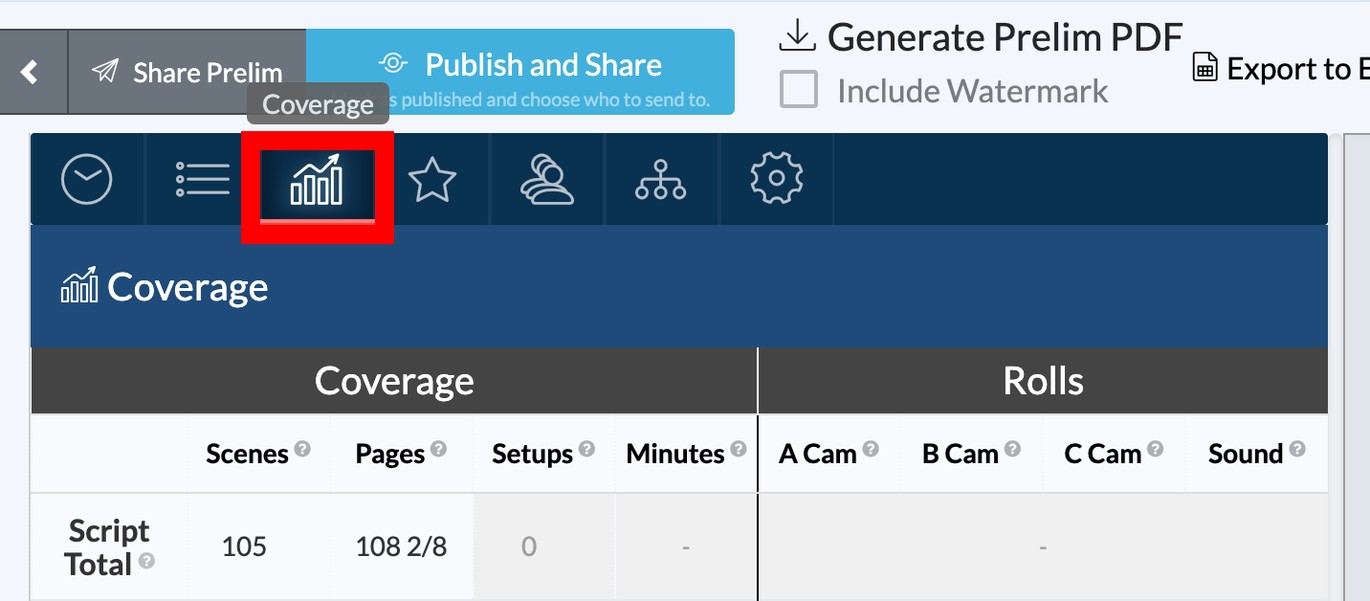
The coverage grid
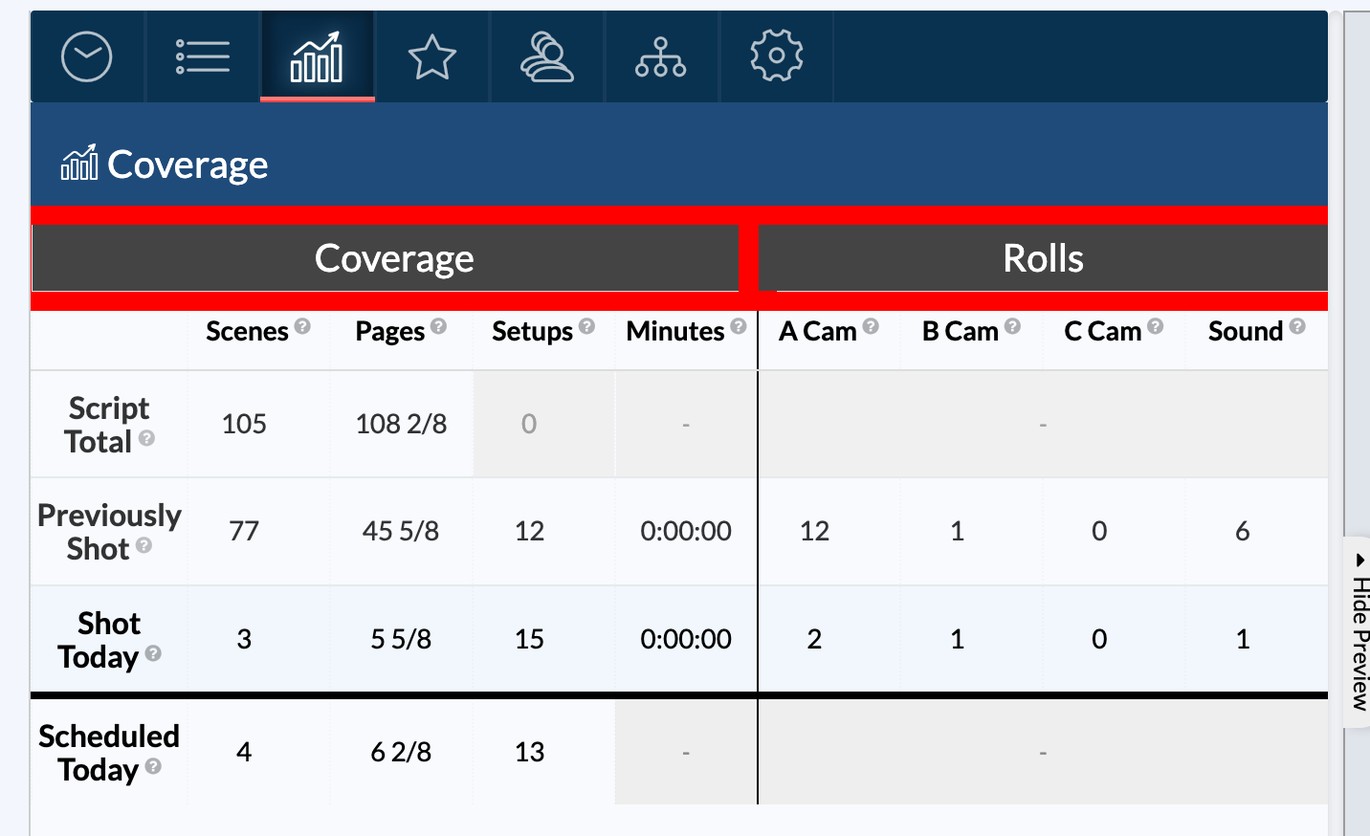
The grid has two halves. Coverage on the left tracks Scenes, Pages, Setups, and Minutes. Rolls on the right tracks A Cam, B Cam, C Cam, and Sound. Both run across four rows:
| Row | What it holds |
|---|---|
| Script Total | What the whole script requires |
| Previously Shot | Everything completed before today |
| Shot Today | What you completed today |
| Scheduled Today | What was planned for today |
How totals carry forward
SetHero does the cumulative math for you, and these totals carry forward to each new report. On a new report, Previously Shot is the prior report's Previously Shot plus Shot Today. Script Total carries forward unchanged. On the printed report, To Date sums Previously Shot and Shot Today.
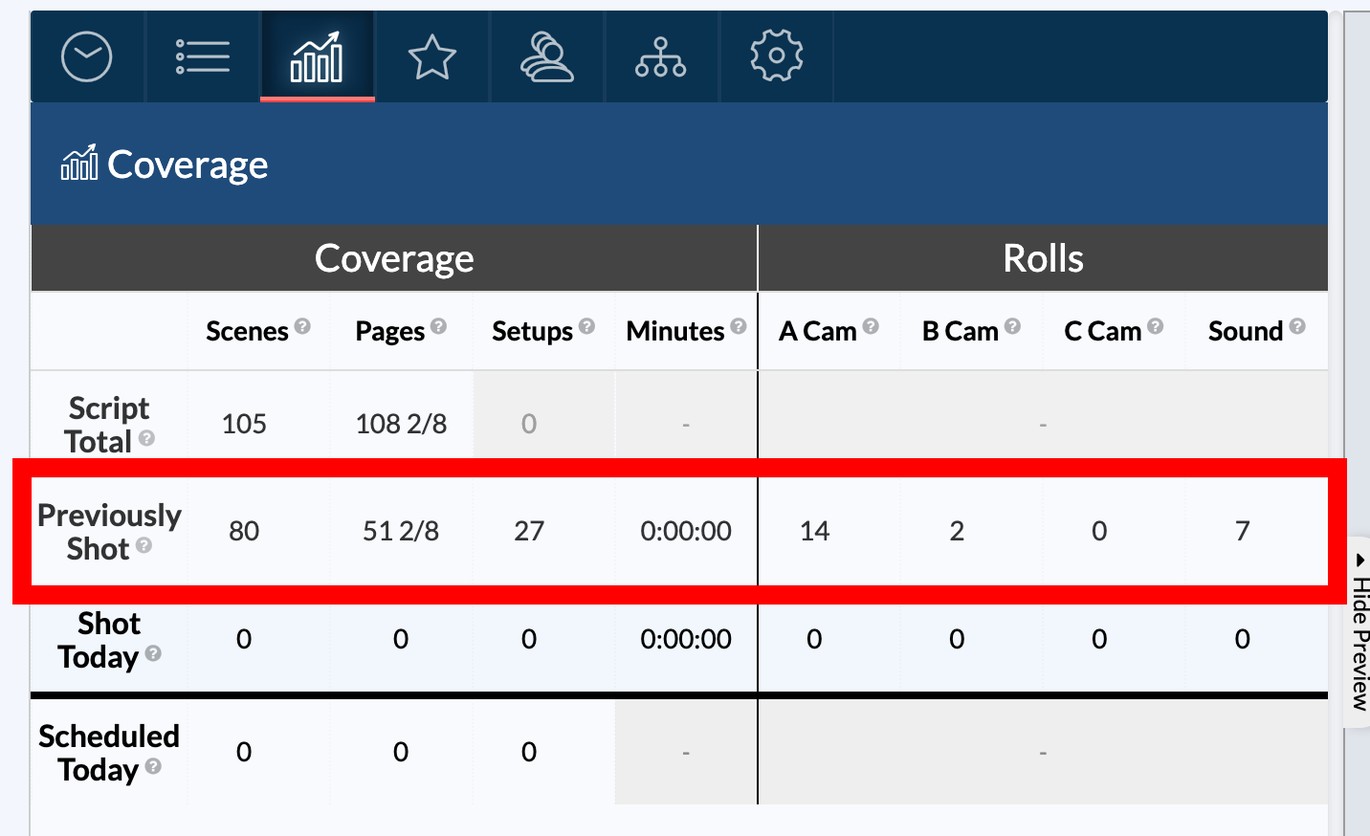
Tip: On your first SetHero report, enter the script totals in Script Total and any progress from before you started using SetHero in Previously Shot. Those numbers carry forward to every later report on the schedule.
Enter today's totals
Fill in the Shot Today row:
- Scenes: scenes completed today.
- Pages: completed pages in eighths, such as
4/8,1 2/8, or2.5. - Setups: camera setups completed.
- Minutes: runtime of usable footage, as
H:MM:SSor total minutes.
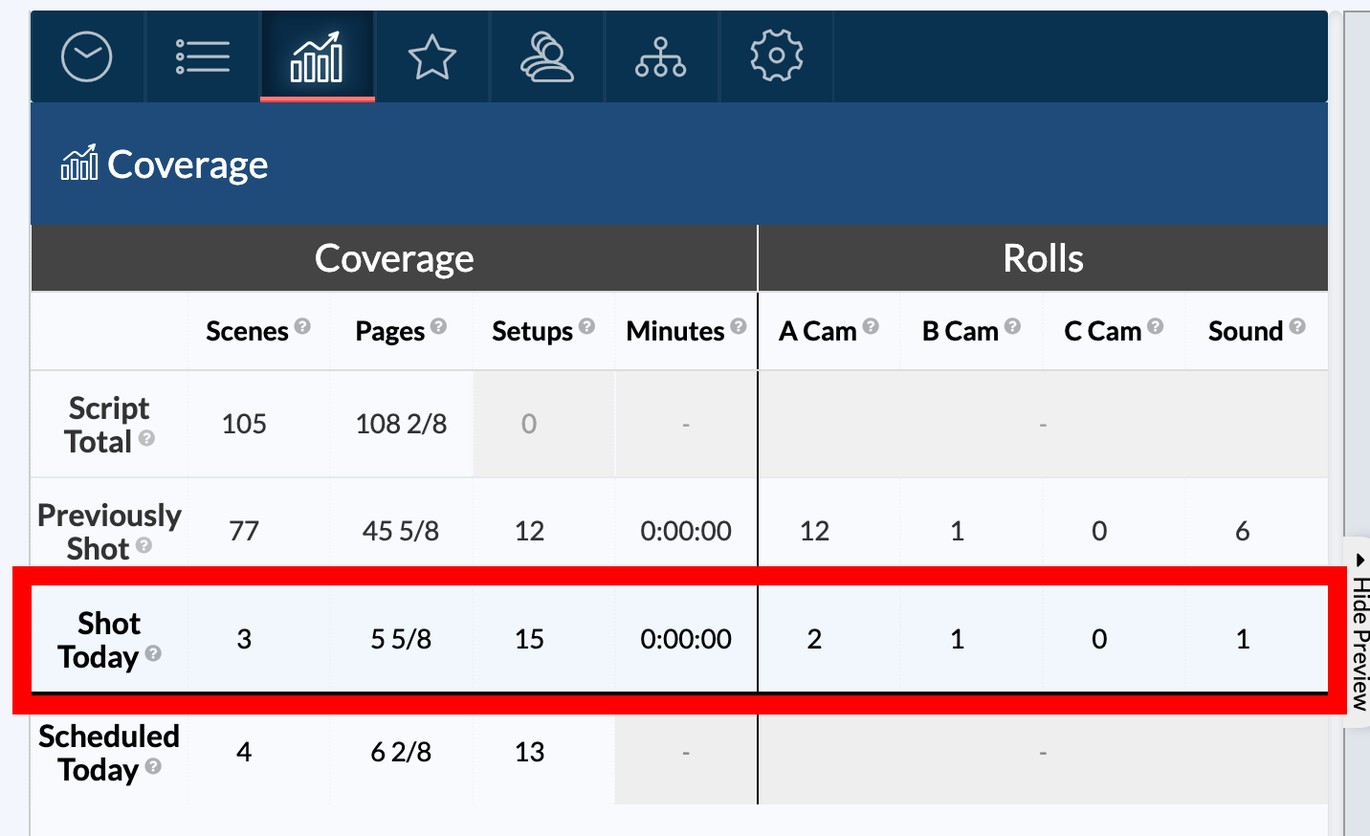
Note: The scene count here is separate from the rows on the Scenes tab. Enter your final completed count so the cumulative totals stay accurate.
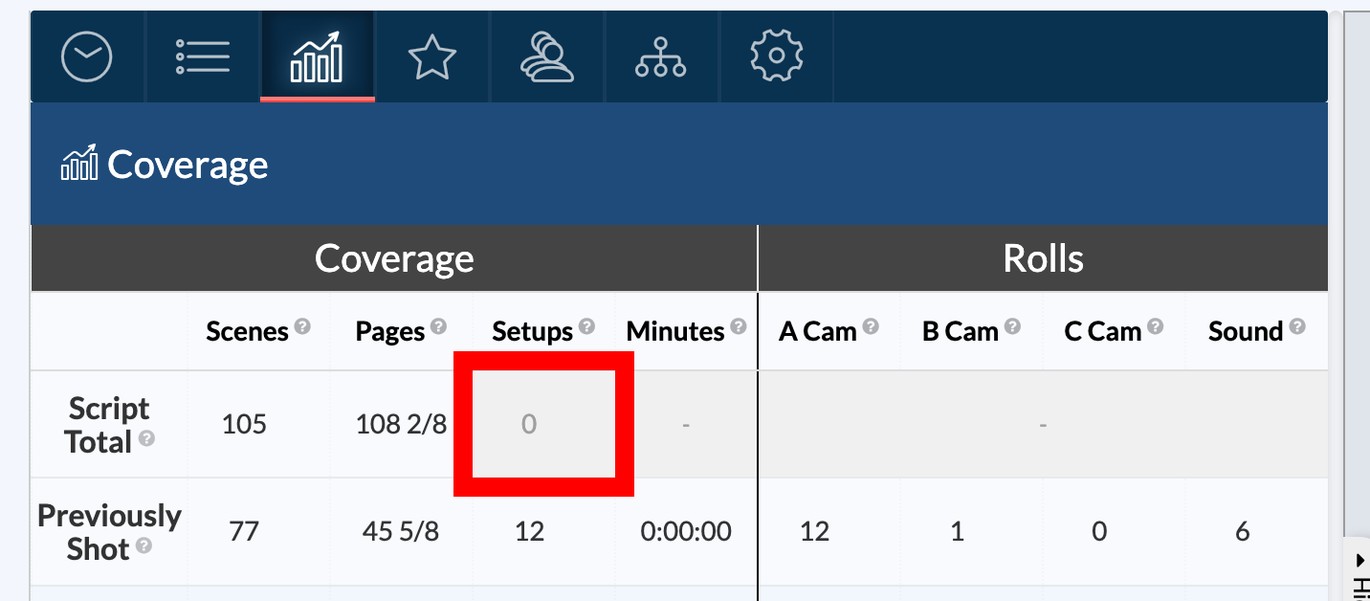
If the Script Total setups cell has a light grey background, the master setup count hasn't been entered yet. Click in and type it to clear the highlight.
Log camera and sound rolls
On the right half, enter the number of rolls or cards used today for each camera and for sound in the Shot Today row. The to-date counts accumulate automatically.
Coverage and sound notes
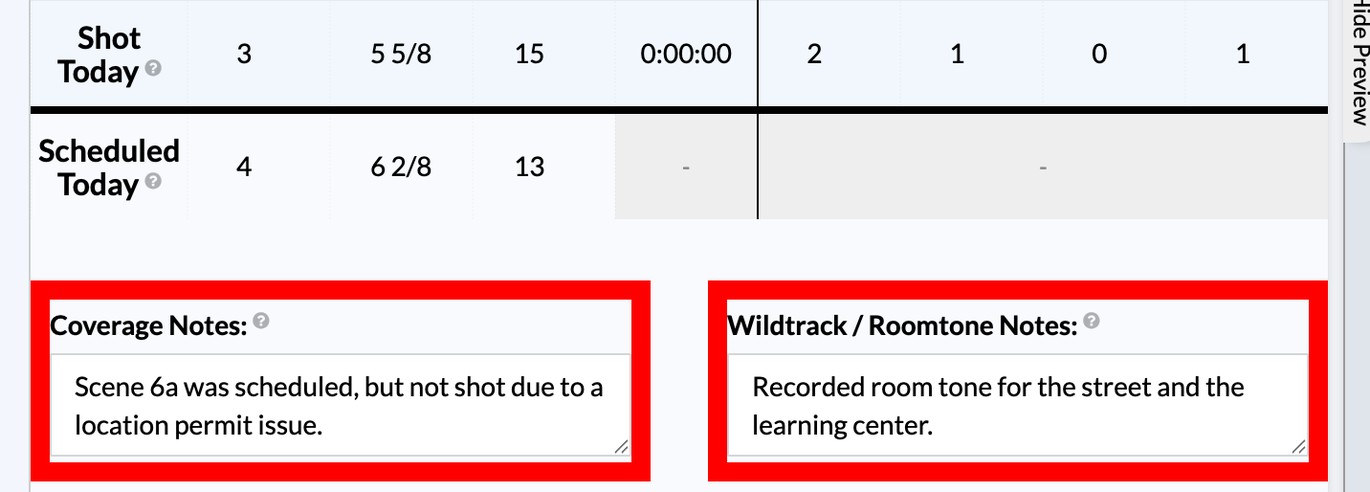
Below the grid, two fields give post-production context. Coverage Notes is for partial scenes, pickups, or shooting conditions. Wildtrack / Roomtone Notes is for room tone and wild track cues. Both print beside the grid on page 1.
Script supervisor, data wrangler, and graphs
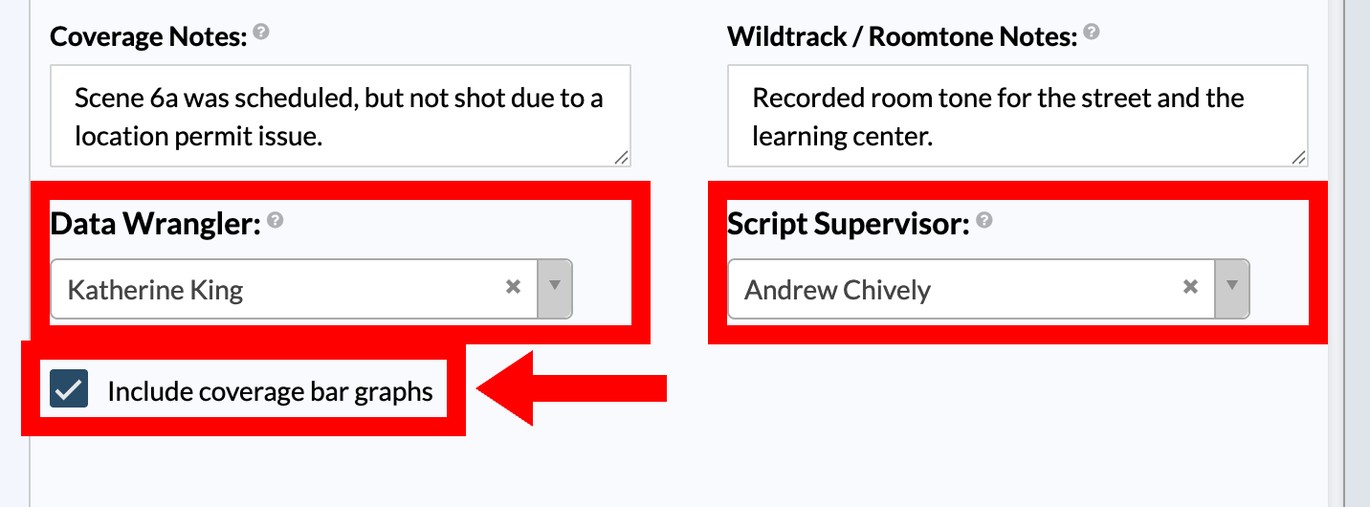
At the bottom of the tab, pick your Script Supervisor and Data Wrangler. Their names and phone numbers print in the coverage block. Check Include coverage bar graphs to print visual progress bars on the report.
How coverage prints
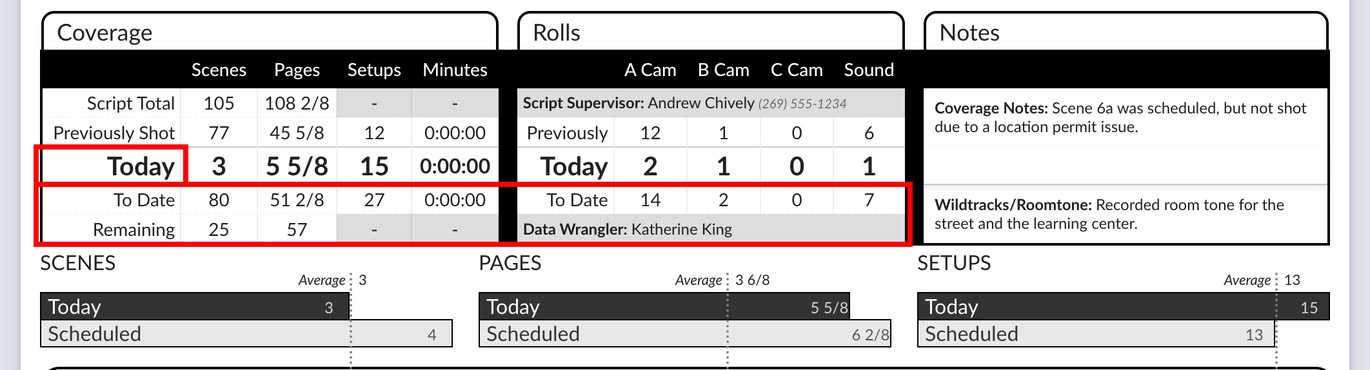
Page 1 shows a summary table with To Date (Previously Shot plus Shot Today), Remaining (Script Total minus To Date), and the optional bar graphs comparing scheduled and shot figures.
Every calculation updates as you type, and the Live preview shows the result.