Log which scenes were shot on a production report
Which scenes were shot or missed, and how to add scenes
Logging which scenes were completed gives producers, script supervisors, and department heads a clear picture of the day's progress. SetHero sorts scenes on the report into two lists: the ones you shot, and the ones you scheduled but didn't get to.
Open the scenes tab
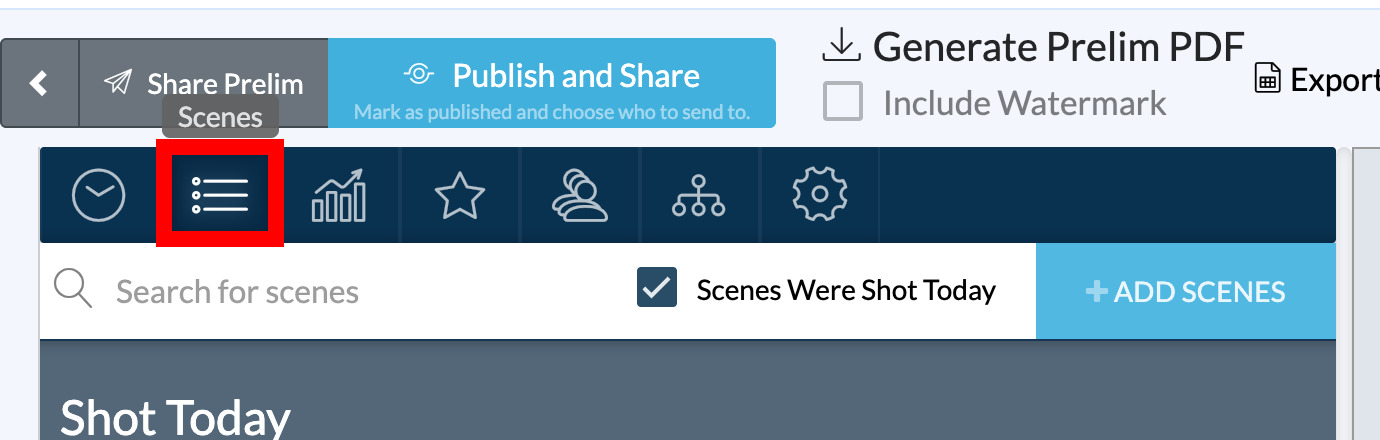
Open the day's report from your schedule and select the Scenes tab, the second icon in the left panel.
The two lists
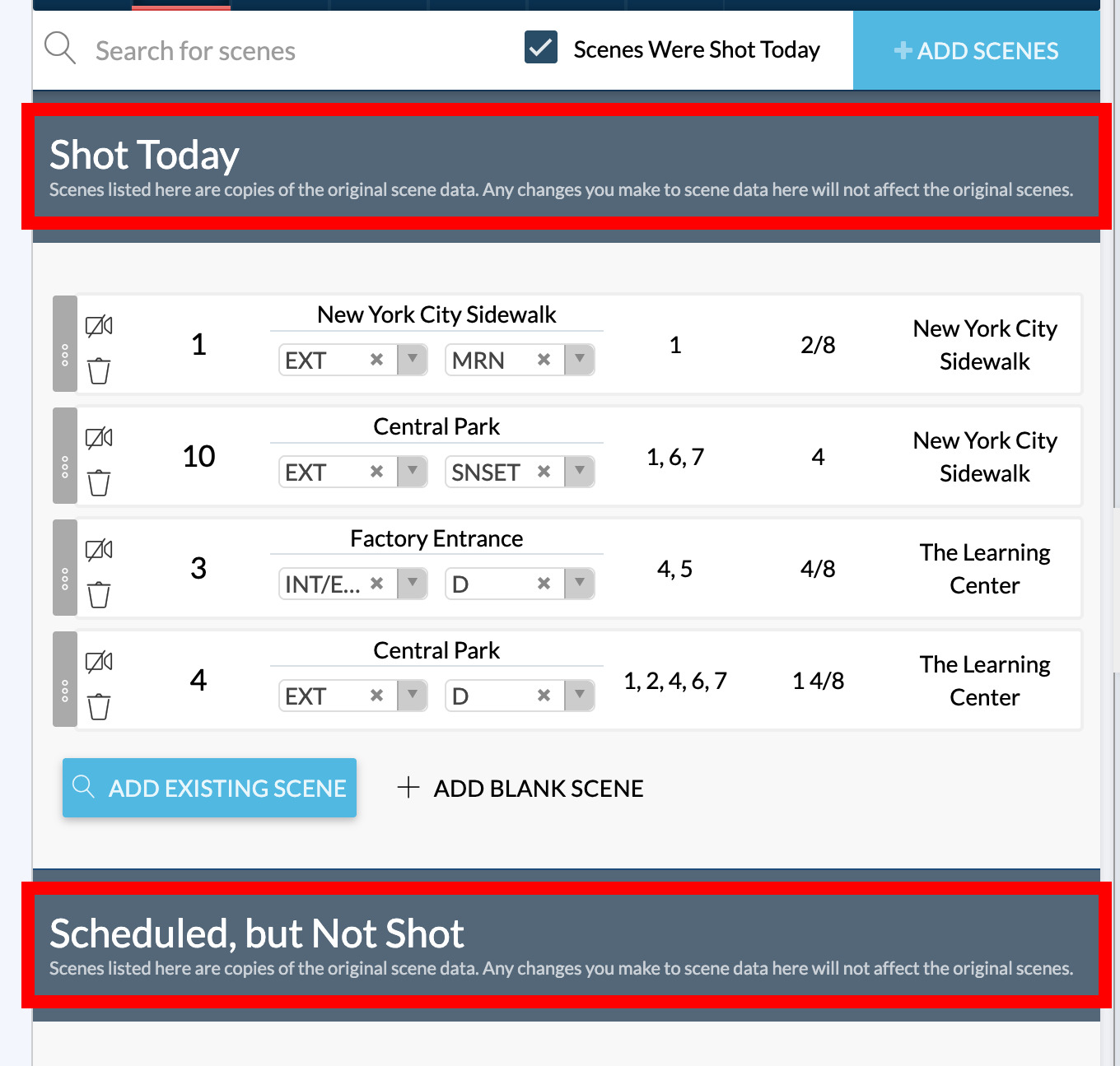
- Shot Today: scenes that were filmed. These print as the main Scenes Shot table.
- Scheduled, but Not Shot: scenes that were planned but lost to weather, time, or location problems. These print as a summary line under the table.
Tip: With call sheet autofill, every scheduled scene lands under Shot Today. Review the list and move anything you missed down to Scheduled, but Not Shot.
Edit scene details
Each row has fields you can edit in place:
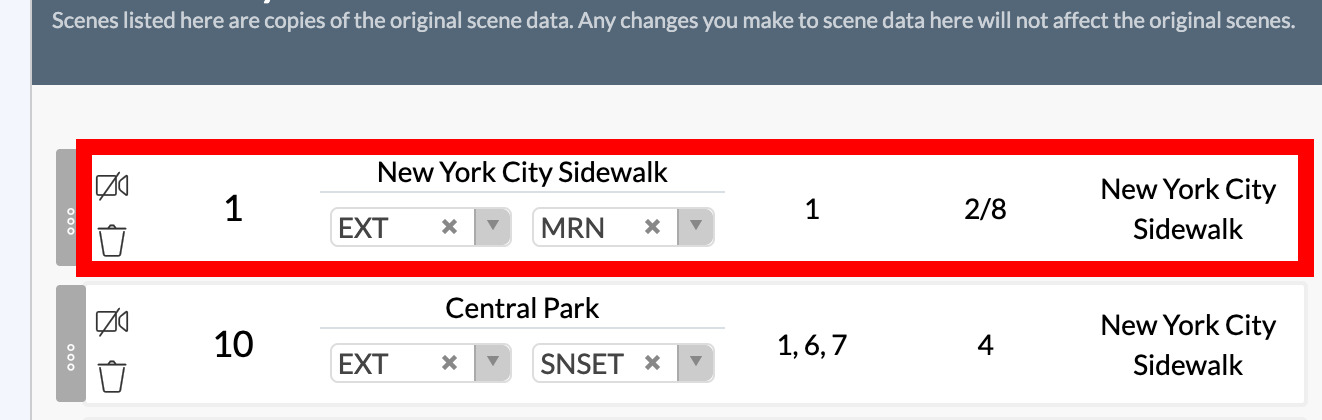
- Name: the scene number, such as
1,6A, or25B. - Slugline: the set name or scene heading.
- Int/Ext and D/N: interior or exterior, day or night.
- Cast: pick the cast members in the scene from the dropdown.
- Pages: length in eighths, such as
4/8,1 2/8, or2. - Location: assign a project location.
Note: Scenes on a report are separate copies. Editing them here doesn't change the master scenes in your project schedule.
Move, reorder, and remove scenes
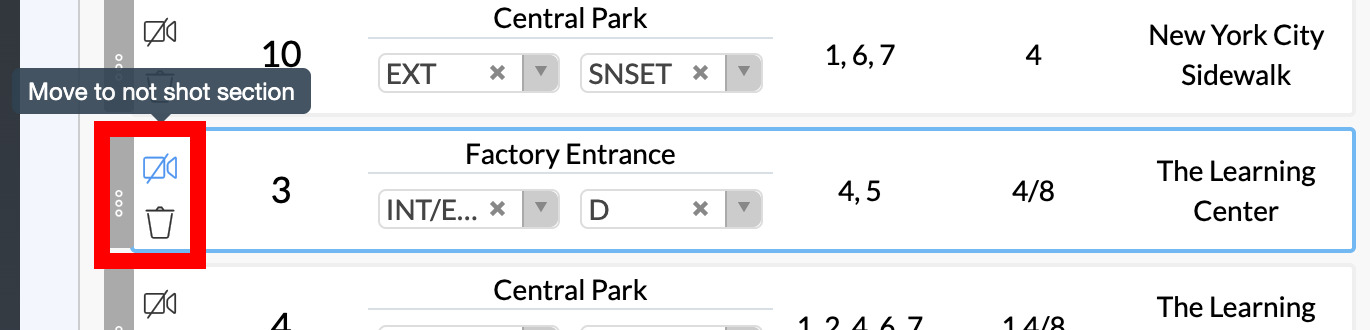
- Click the camera icon on a row to toggle it between Shot Today and Scheduled, but Not Shot.
- Drag the dotted handle on the left of a row to reorder within a list or drag it into the other list.
- Click the trash icon to remove a scene from the report.
Add scenes
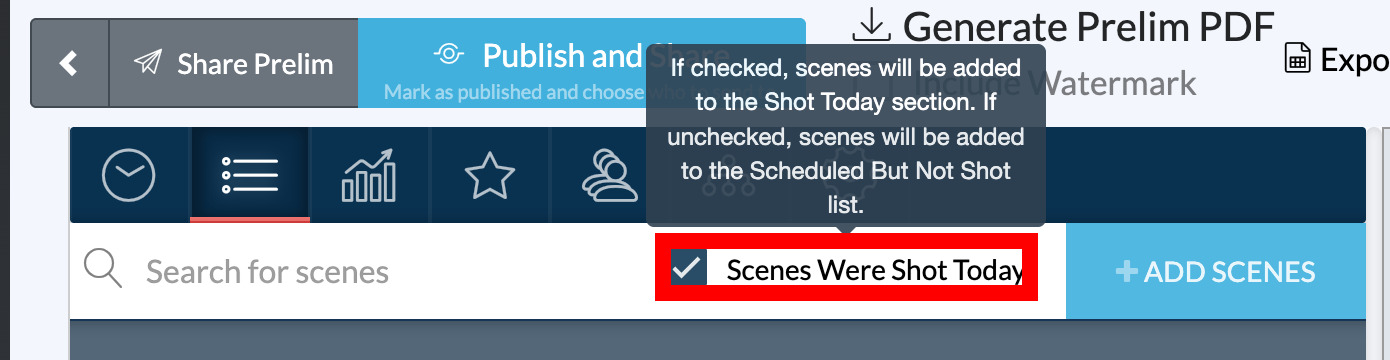
To add a scene that's already in your project, such as a pick-up or an advance scene, type a scene number, slugline, or keyword into Search for scenes at the top of the tab. Click the matches you want, then click ADD SCENES. New scenes land under Shot Today by default. If you're adding scenes that were missed, uncheck Scenes Were Shot Today beside the search box first.
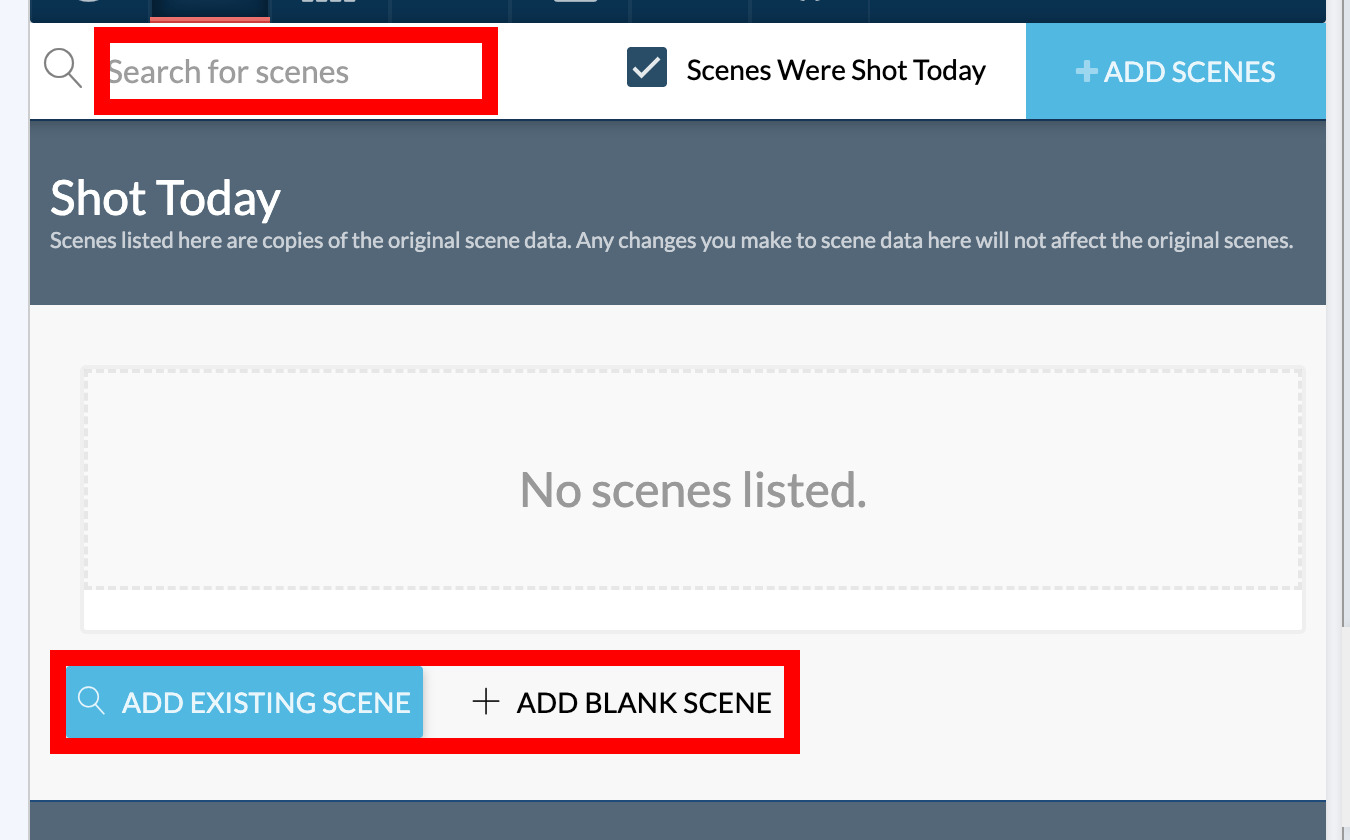
To add something that isn't in your script, such as an insert or wild track, click ADD BLANK SCENE at the bottom of either list and fill in the row by hand.
How scenes print
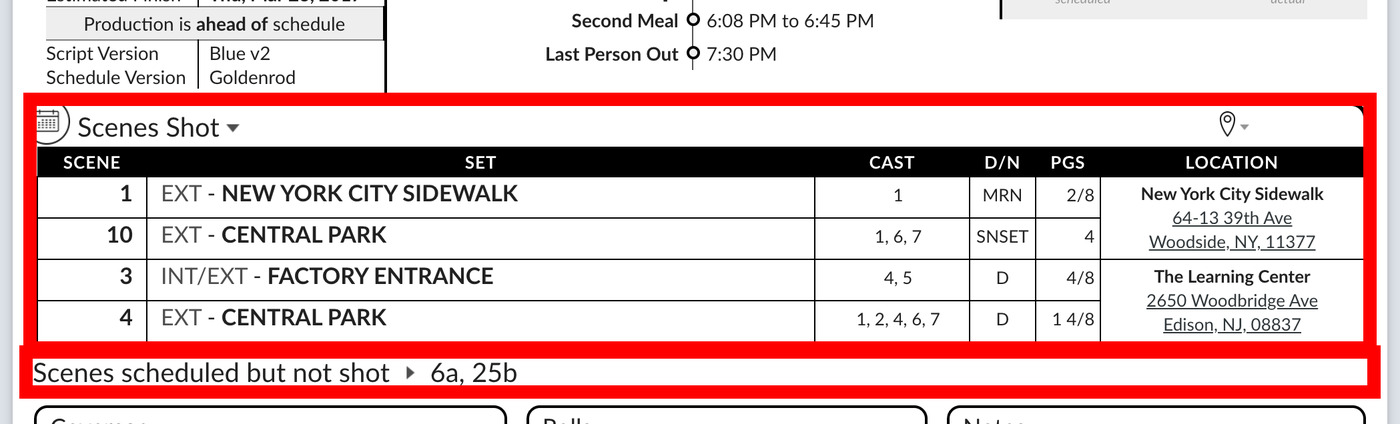
On page 1, Shot Today prints as a table with scene number, slugline, cast, day/night, pages, and location. Scheduled, but Not Shot prints below it as a list of scene numbers, or "None" if everything was completed.
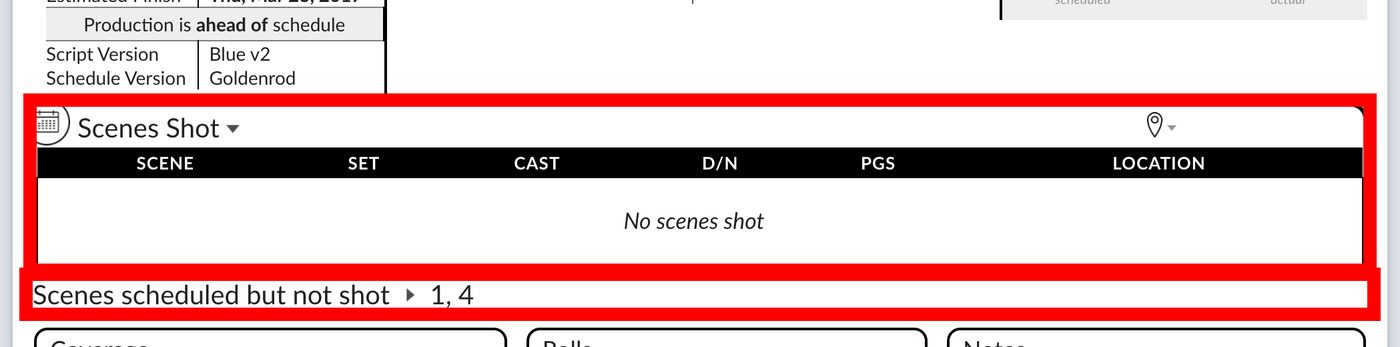
If a whole day was lost to weather or a cancelled location, move every scene to Scheduled, but Not Shot. The report then shows "No scenes shot" with the missed scene numbers below, which gives you a record to share with production or your insurer.
These rows don't update your coverage totals, so also enter the day's count in Track coverage, camera rolls, and script totals.
Every change saves automatically, and the Live preview shows how the scene block will look.