Download, link to, or export a production report
How to download, share, and export production reports
There are several ways to get a production report out of SetHero: download the published PDF, copy a shareable link, email it, export the data to Excel, or generate a watermarked preliminary draft.
Export options at a glance
| Option | When to use it | Output | Available on |
|---|---|---|---|
| Download Published PDF | Filing, archiving, offline access | Published reports | |
| Copy Shareable Link | Sharing by Slack, messaging, or email | Web URL | Published reports |
| Share via Email | Sending directly to stakeholders | Private email | Published reports |
| Export to Excel File | Analyzing the raw data | .xlsx | Drafts and published |
| Generate Prelim PDF | Reviewing a draft before publishing | Watermarked PDF | Drafts and published |
| Share Prelim | Emailing a draft to the team before wrap | Watermarked email | Drafts |
Download the published PDF
Open a published report, click Share Published Report in the toolbar, and select Download Published PDF. The PDF opens in a new browser tab where you can save or print it.
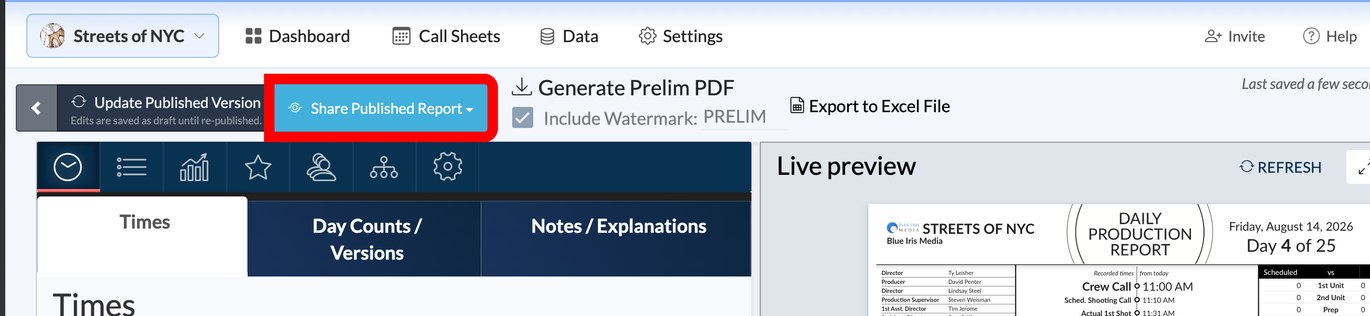
Tip: If you've edited since publishing, click Update Published Version first so the download includes your latest changes.
Copy a shareable link
Click Share Published Report, select Copy Shareable Link, and click the copy icon. Anyone with the link can view the report online and download a PDF, with no SetHero login.
Export to Excel
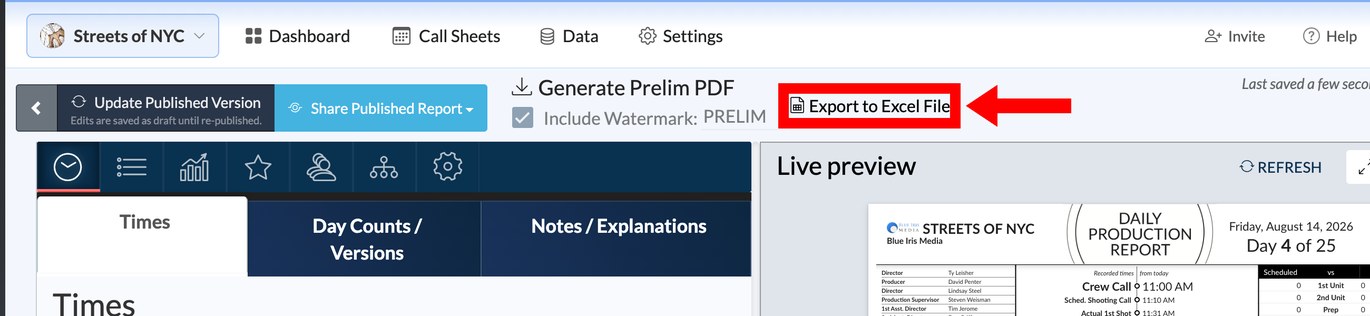
Click Export to Excel File in the toolbar. SetHero downloads an .xlsx workbook with two sheets:
- Page 1: header details, times, day counts, scenes shot and missed, coverage totals, cast time log, and extras.
- Page 2: the crew hours log and daily notes.
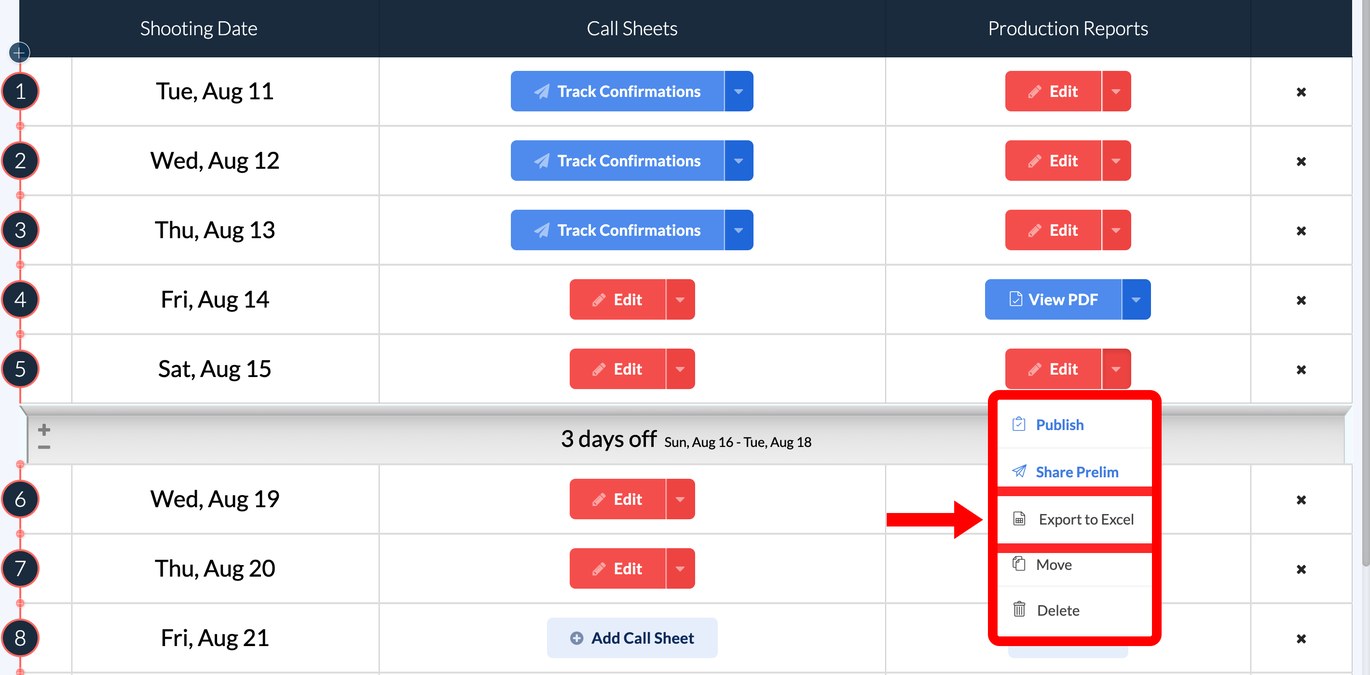
You can also export straight from the schedule: open the dropdown beside Edit or View PDF and choose Export to Excel.
Preliminary reports
A prelim lets you share in-progress numbers with producers or department heads before wrap times, cast hours, and coverage are final. The report stays a draft on the schedule, and every page carries a diagonal watermark.
To generate a prelim PDF for yourself, click Generate Prelim PDF in the toolbar, then Click to download when it's ready.

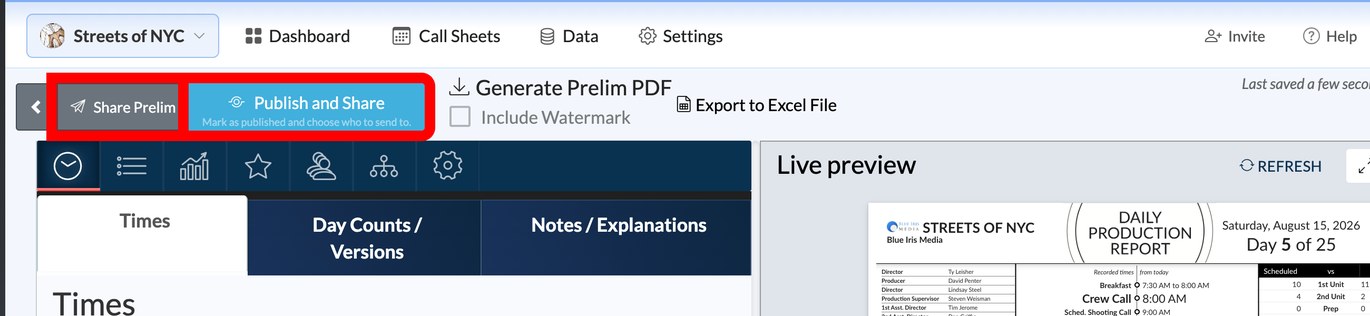
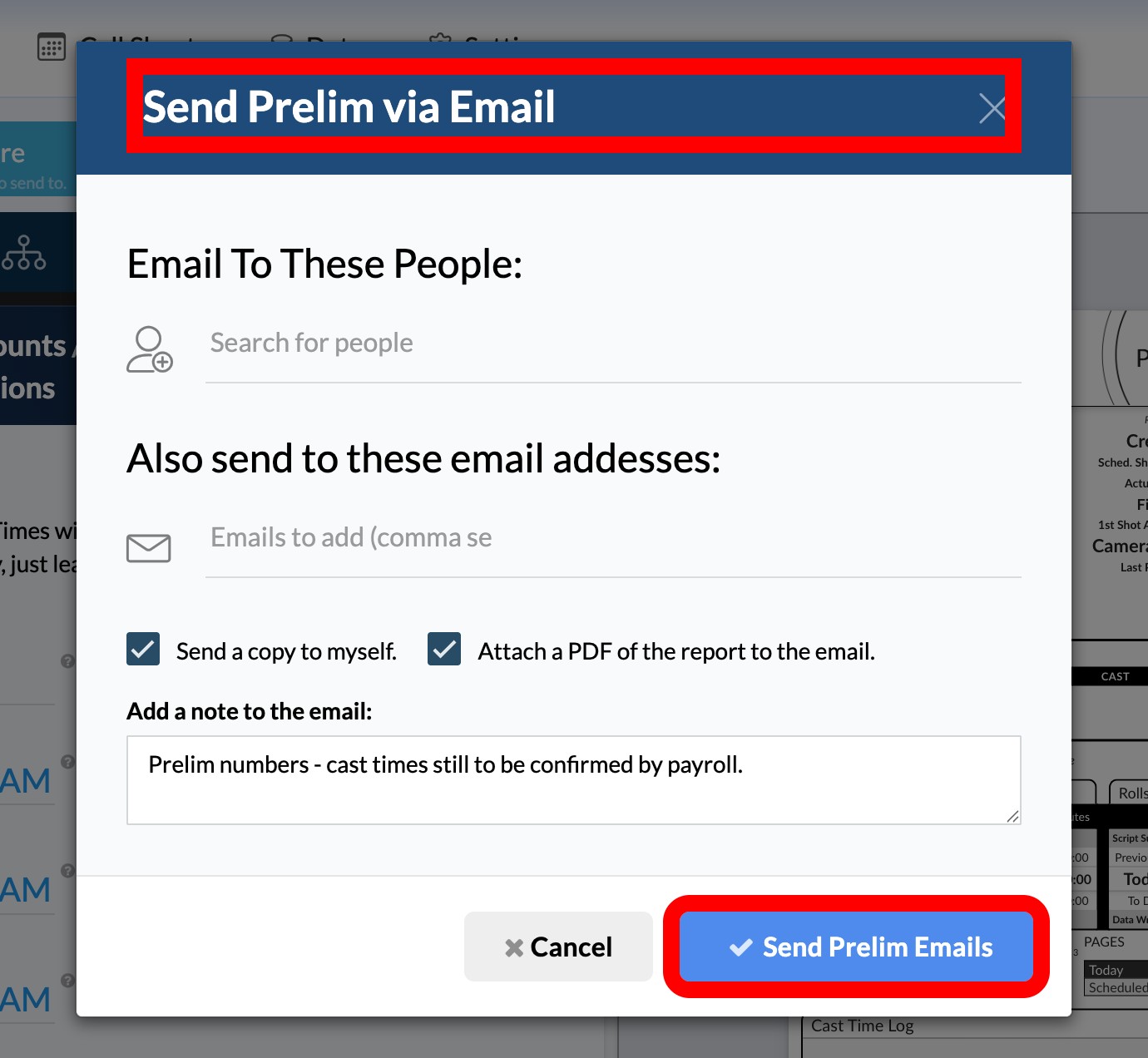
To email a prelim, click Share Prelim in the toolbar or from the schedule row menu. In the Send Prelim via Email dialog, check the recipients, add a note if you like, and click Send Prelim Emails. Recipients get an email with [PRELIM] in the subject and a link to the draft.

To change the watermark, check Include Watermark and type up to 15 characters, such as PRELIM, DRAFT, or UNAPPROVED. Uncheck it for a clean PDF. Your watermark preference carries forward to later reports on the same schedule.

If the publish options are missing
The report is still a Draft. Click Publish and Share to publish it, which unlocks the PDF download, shareable link, and email options.