Publish and send a production report
Who receives reports, how recipient lists work, and how to send them
Production reports carry worked hours, costs, and progress figures, so they go to producers, studio reps, payroll, and insurance rather than the whole cast and crew. SetHero publishes the report, remembers who should get it, and sends each recipient a private email.
How recipient lists work
Recipient lists are saved at the schedule level. Set the list once and SetHero pre-fills it for every later report on that schedule. Changing the list on one report updates the default for the next.
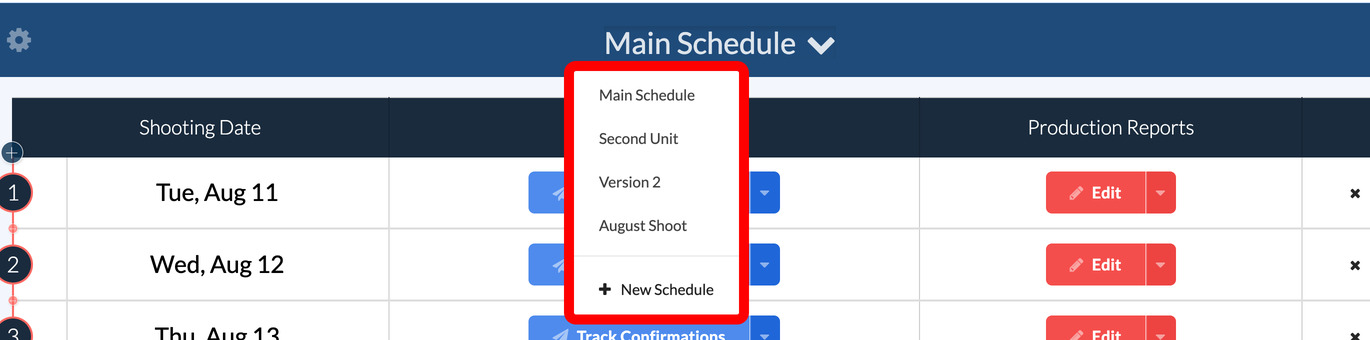
Note: Each schedule has its own recipient list. On projects with more than one schedule, such as Main Unit and 2nd Unit, check which schedule you're in before you send.
Publish and send
-
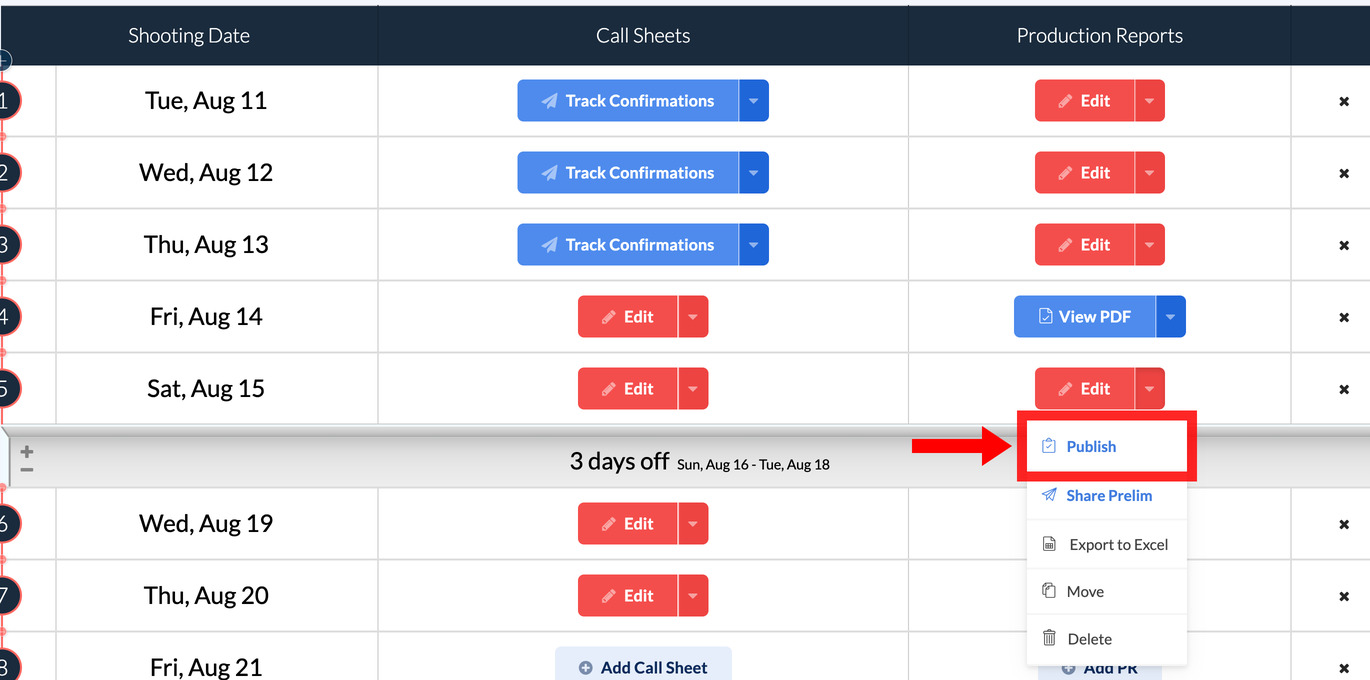
On your schedule, find the shoot day in the Production Reports column and click Edit, or open the dropdown beside it and select Publish.
-
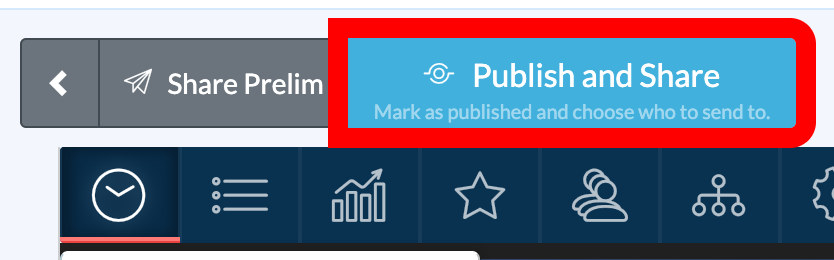
In the editor, review the report and click Publish and Share in the top toolbar.
-
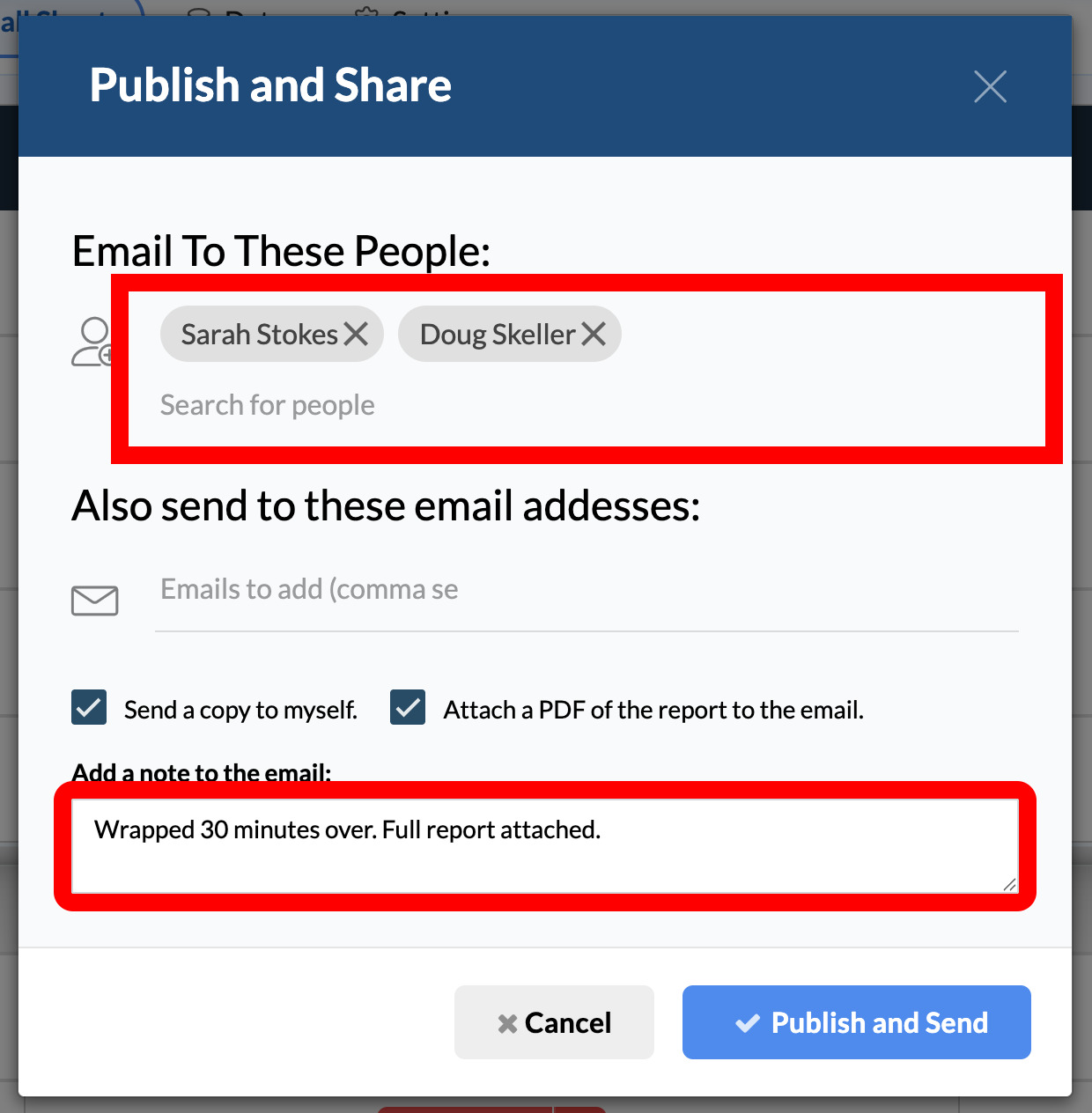
The Share Published Report dialog opens, pre-filled with the recipients from your last report on this schedule.
Manage recipients
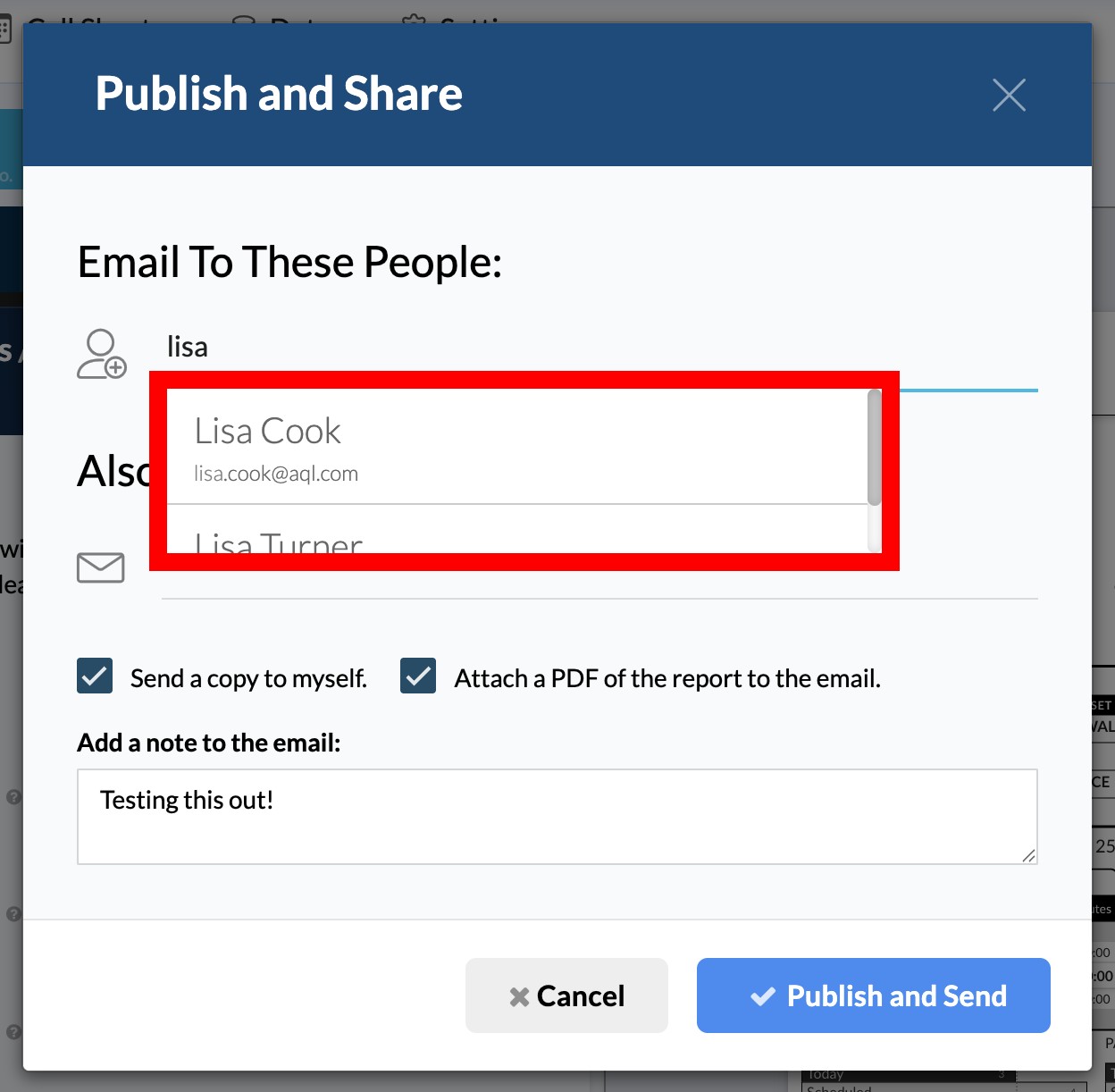
Project team members: type a name or email in Email To These People and pick the person from the dropdown. Click the ✕ on a chip to remove someone. The search shows only contacts already on your project, so if someone's missing, add them to the project with a valid email first.
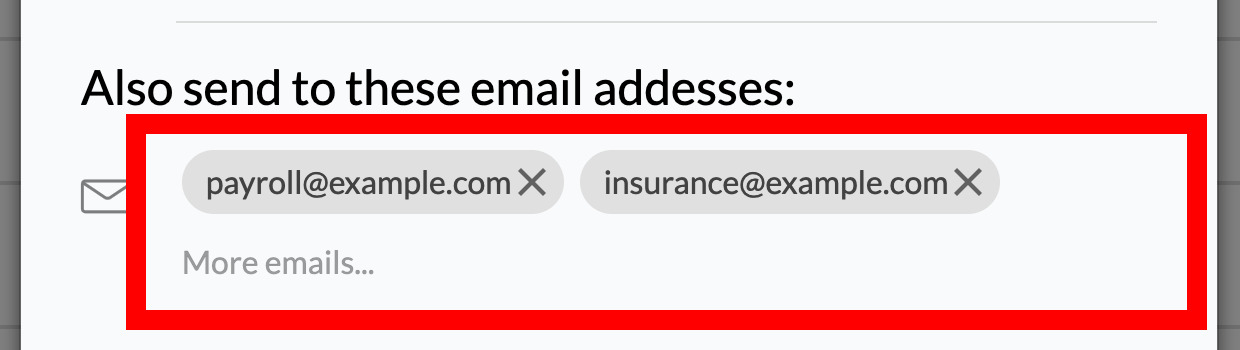
People outside the project: payroll officers, bonding agents, or insurance reps don't need to be project contacts. Type their addresses in Also send to these email addresses, separated by commas or spaces.
Delivery options
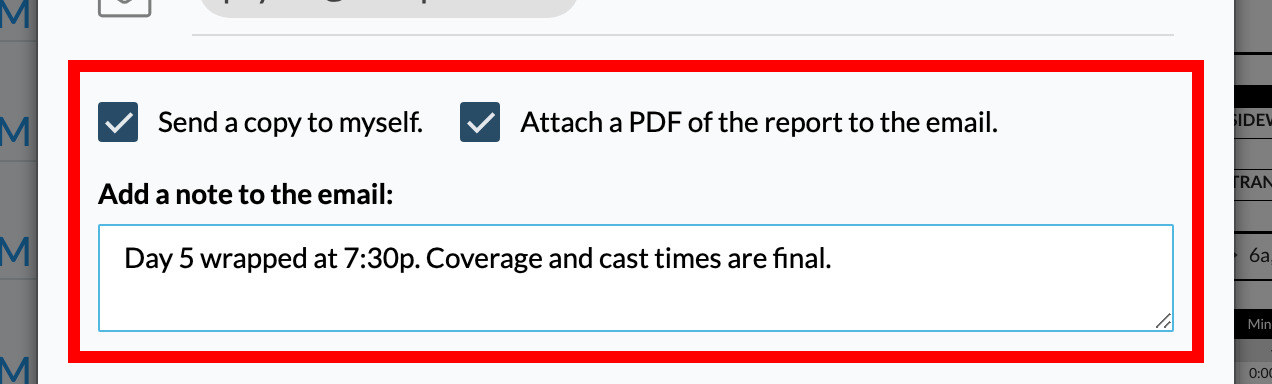
- Send a copy to myself puts the same email in your inbox so you can see what went out.
- Attach a PDF of the report to the email includes the full PDF alongside the web link.
- Add a note to the email puts a custom message in the body.
Send it
Click Publish and Send (or Send Emails if you're re-sending). SetHero generates the final PDF, marks the report Published, and emails each recipient a link, plus the PDF if you attached it. To make changes later, see Update a production report after publishing.
Publish without sending
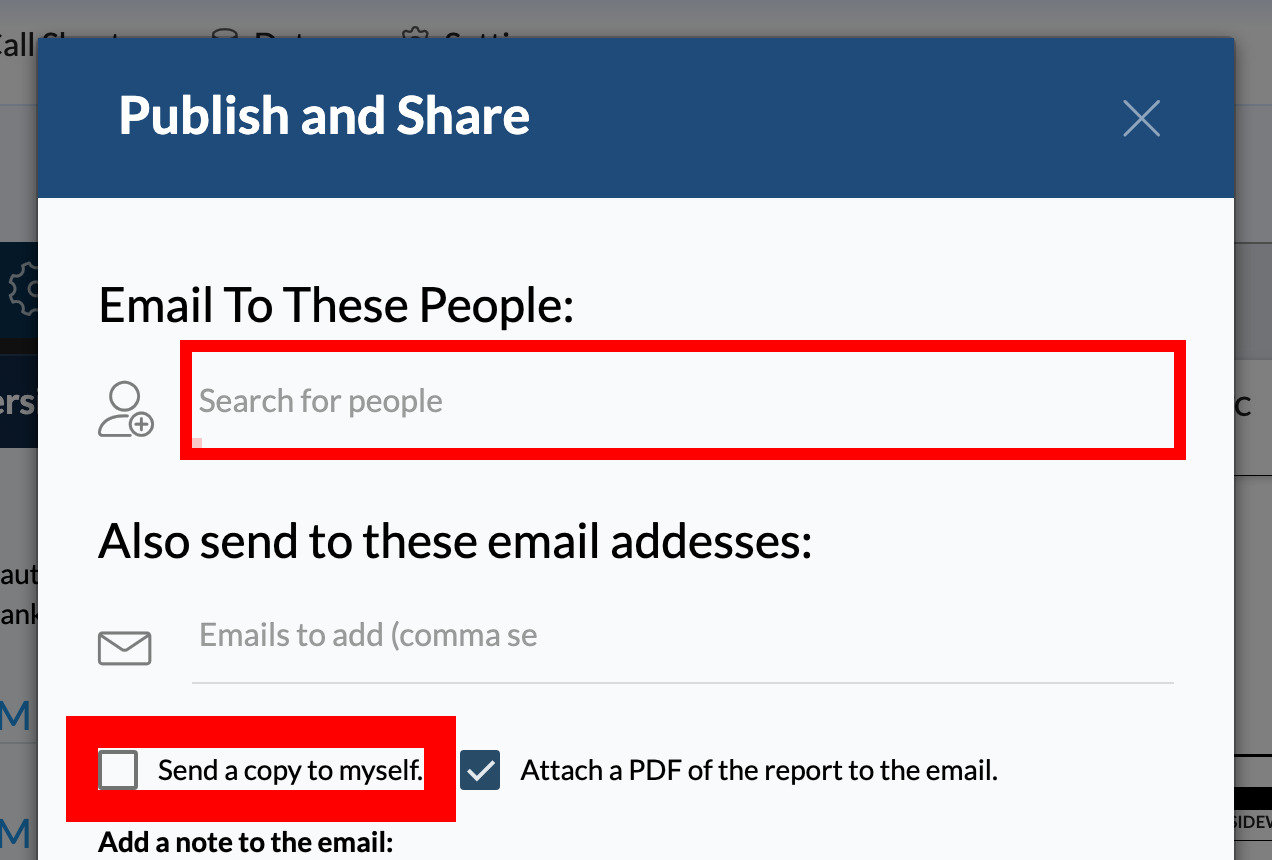
To finalize a report and get the PDF without emailing anyone, clear every chip from Email To These People, clear the external addresses, and uncheck Send a copy to myself. Then click Publish and Send. The report is published and the link and PDF are generated, but no email goes out. Download, link to, or export a production report covers getting them.
Why this differs from call sheets
Call sheets go wide, by email and text, to everyone on the sheet. Production reports go only to the people on your list, each in their own email. Keep in mind that anyone with a report's shareable link can view it without logging in.