Update a production report after publishing
How revisions update published links and PDFs, and whether recipients are notified
Publishing a production report doesn't lock it. You can reopen it any time to fix a typo, correct a wrap time, or update the scene list.
Draft vs. published
Updates happen in two steps:
- Draft saved: your edits save automatically as a private working draft.
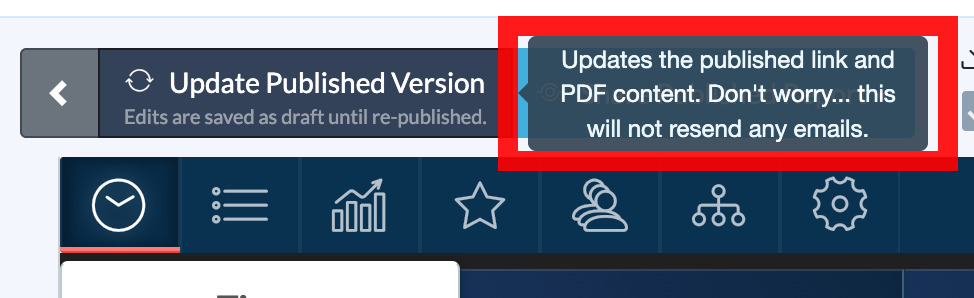
- Published version updated: clicking Update Published Version regenerates the live web link and PDF so recipients see the change.
Tip: Autosave protects your draft, but anyone opening the link still sees the old report until you click Update Published Version.
Revise a published report
-
On your schedule, find the day in the Production Reports column, open the dropdown beside View PDF, and select Revise.
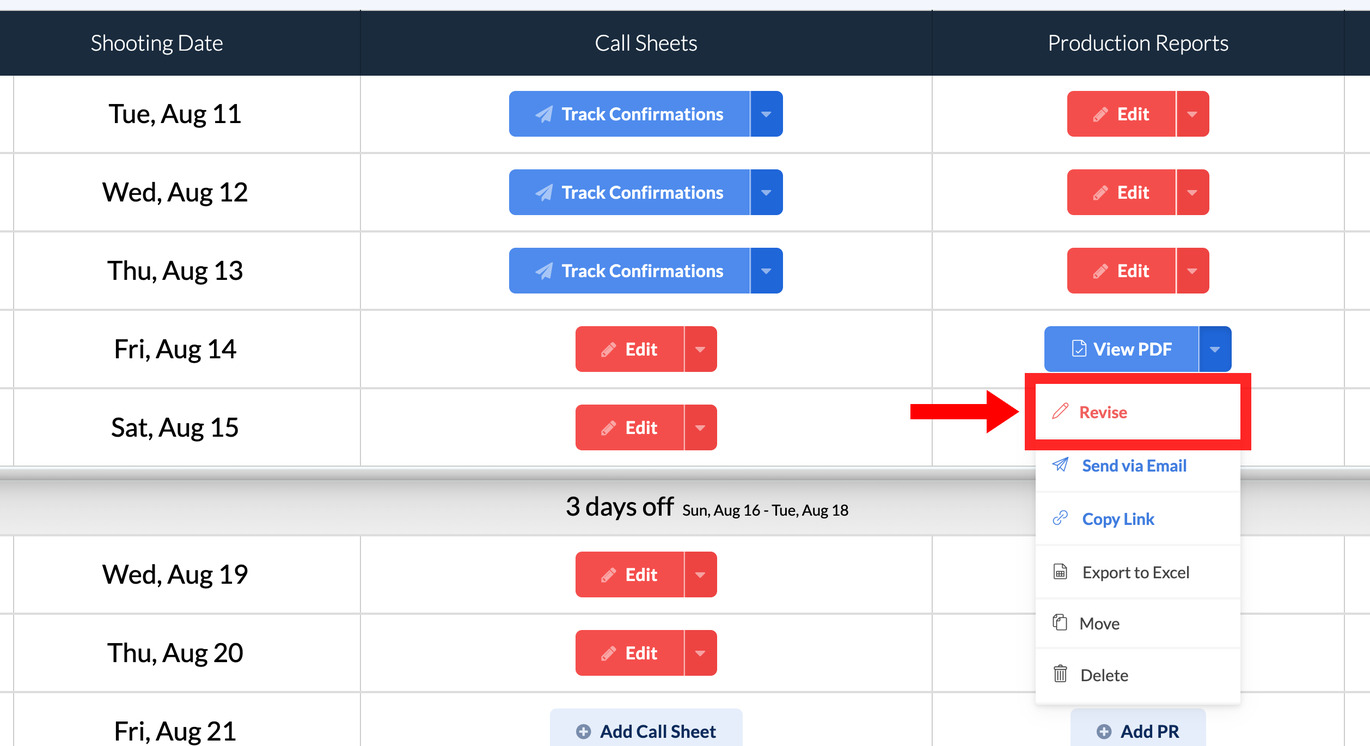
The report opens in the editor and stays published on the schedule.
-
Make your corrections on the tab that owns the field, and check them in the Live preview.
-
Click Update Published Version in the top toolbar.
Check what recipients see
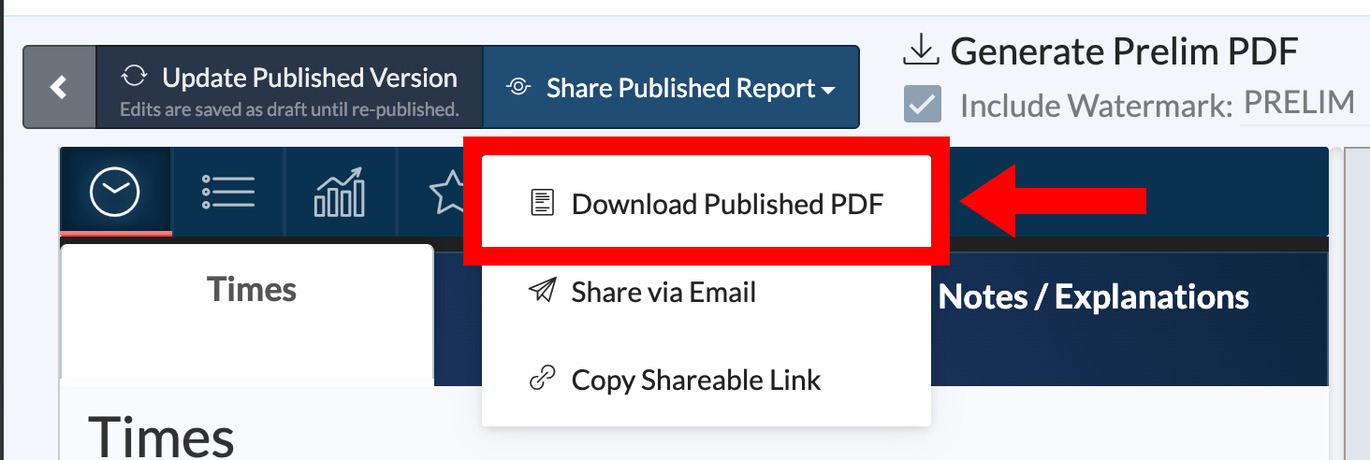
Open the Share Published Report dropdown and choose Download Published PDF or Copy Shareable Link to review the updated document yourself.
Updating doesn't resend
Update Published Version quietly refreshes the link and PDF. It sends no email. If a correction is important enough that people should hear about it, update first, then open Share Published Report and choose Share via Email with a note explaining what changed.
Other toolbar options
Even after publishing, the toolbar still offers Generate Prelim PDF, which builds a watermarked draft without touching the published version, and Export to Excel File, which downloads the report data as a spreadsheet. See Download, link to, or export a production report.

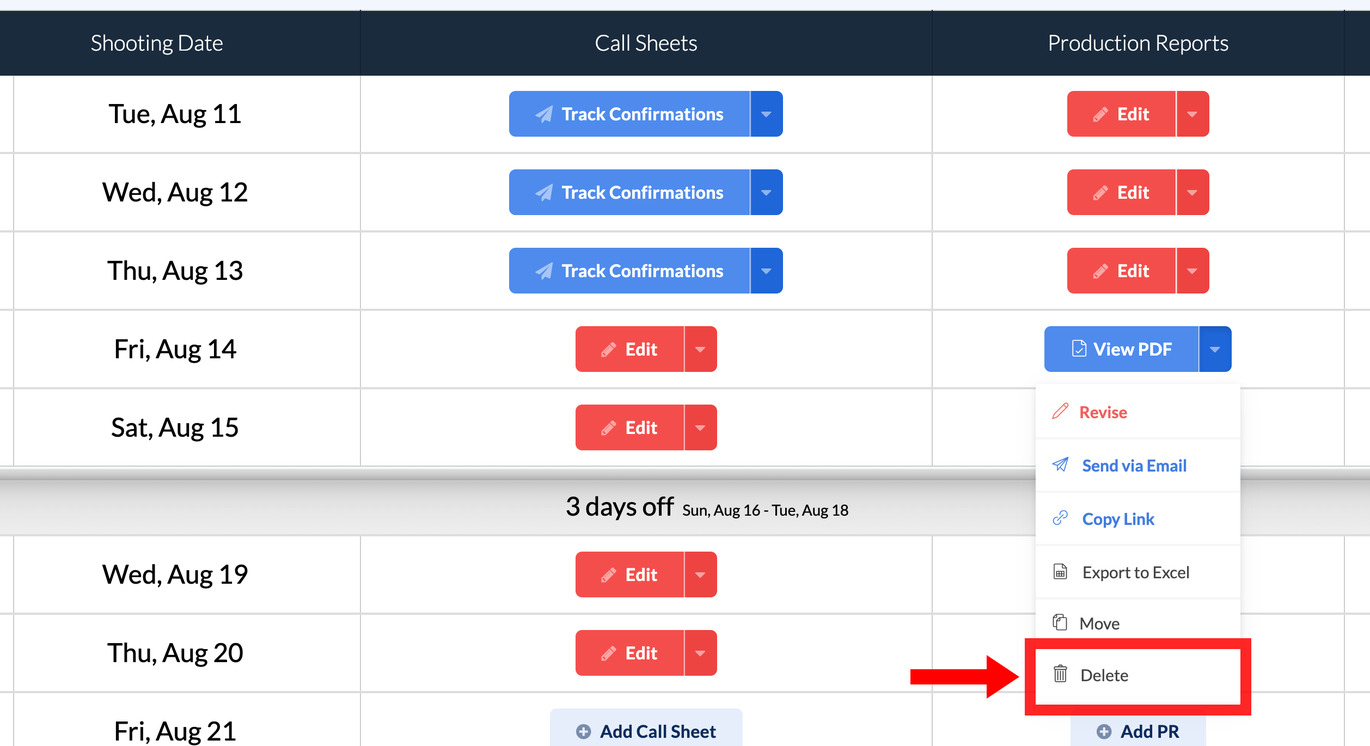
Revise, don't delete
If a published report needs to change, always use Revise. The link stays live and everyone who has it sees the corrected version once you update. Deleting a report permanently removes its data and breaks every existing link.