Log crew working hours and meal penalties
How crew time defaults, individual overrides, and meal penalties work
You don't type a clock-in and clock-out for every crew member. Set one set of times for the whole unit, then adjust only the departments and individuals who worked different hours.
Open the crew tab
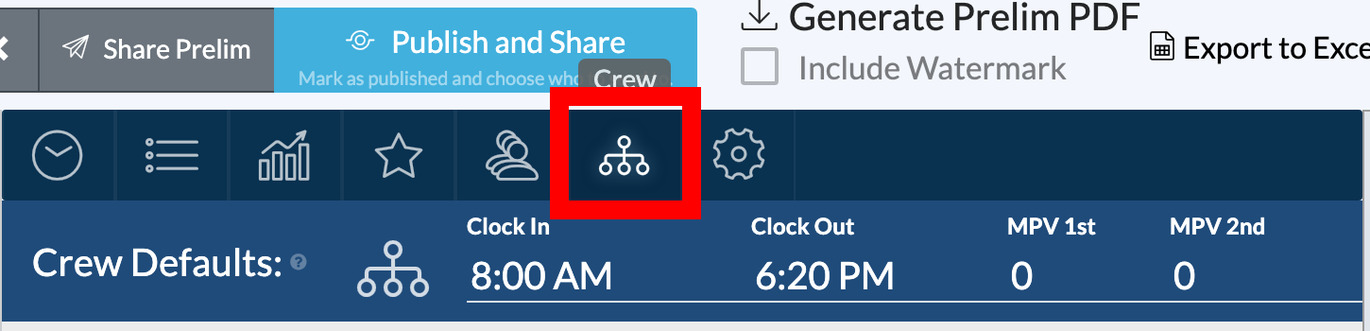
Open the day's report from your schedule and select the Crew tab, the org chart icon. Every position and department configured in your project appears automatically.
Set unit-wide defaults
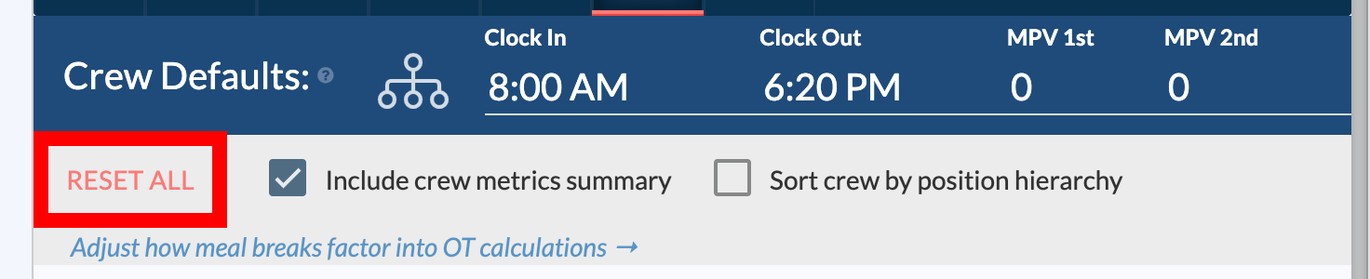
In the dark blue Crew Defaults bar at the top, enter:
- Clock In: the general crew call. This also sets the report's Crew Call time.
- Clock Out: the general wrap.
- MPV 1st and MPV 2nd: any first or second meal penalty violations for the unit.
These values cascade to every crew member until you override them.

Set department defaults
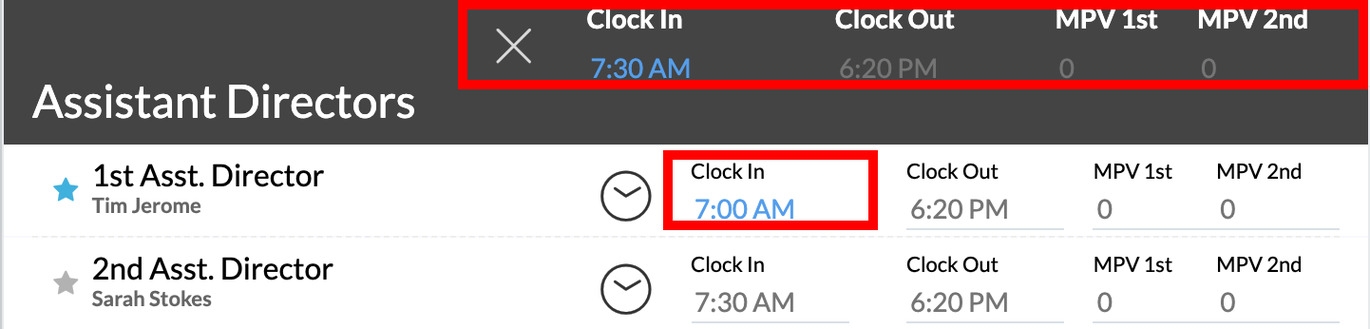
If a whole department arrived early or stayed late, such as Grips pre-rigging or ADs starting first, click + Add Department Defaults in that department's header and enter its own Clock In, Clock Out, or MPV values. Department defaults override the unit defaults. Click the ✕ on the department defaults row to remove them.
Override an individual
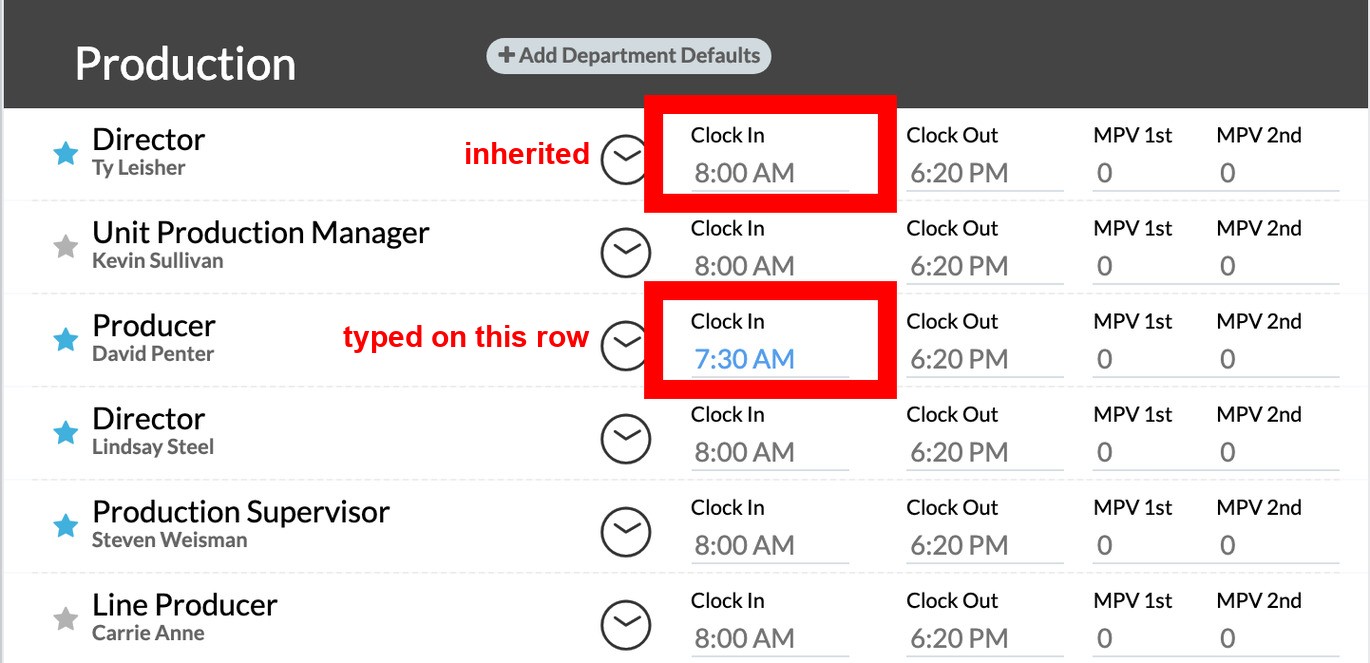
Click directly into a crew member's Clock In, Clock Out, or MPV field and type their time. Color tells you what's inherited and what's custom:
- Grey text is inherited from unit or department defaults.
- Blue text is an override you entered.
Delete the blue text to return that field to the default.
Mark someone off, or hide them
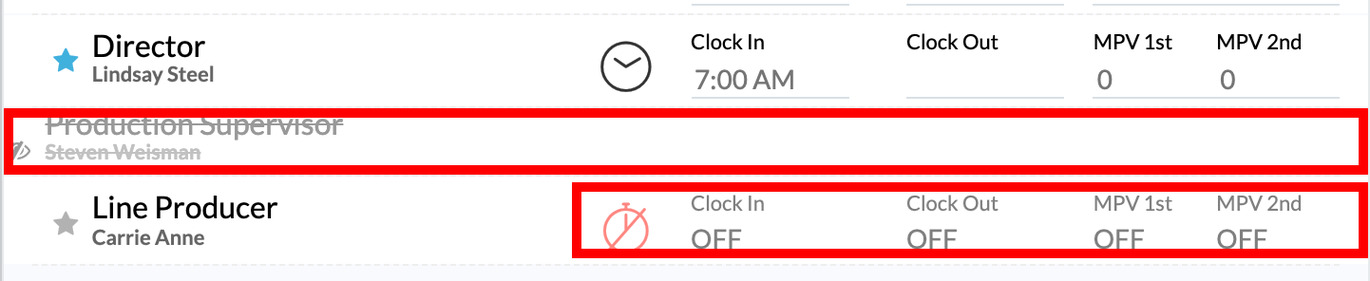
Off is for a crew member who didn't work today. Hover the clock icon at the left of their row and click Mark as "off". The row shows OFF and dims. On the report, their times print as OFF, their duration is 0, and they're excluded from the working crew count. Hover the icon again and click Add times to put them back.

Hidden is for a position or department that shouldn't appear on the report at all. Click the eye icon beside a row or a department header. Hidden rows are greyed and struck through in the editor and are left off the printed report and the metrics summary entirely.
Reset everything
To clear every individual and department override and every "off" mark at once, click RESET ALL in the options row below Crew Defaults and confirm with Yes, reset!. Hidden rows and the unit defaults are preserved.
How durations are calculated
The Dur. column is worked out from each person's clock in to clock out. If your project deducts meal breaks, scheduled meal times come off automatically. Totals round up to the nearest tenth of an hour, so nine hours and 25 minutes shows as 9.5.
Tip: Durations and metric totals update when the document preview renders. Turn on Show Preview before you publish so the numbers are current.
Layout and crew metrics
The options below Crew Defaults control how the crew log prints:
- Include crew metrics summary adds a panel at the bottom of the crew page with crew members working, total hours worked, total MPVs, and total OT units.
- Sort crew by position hierarchy orders people within each department by standard industry rank.
- Column count sets Auto, 1, 2, or 3 columns to fit your crew size.
- Department distribution either preserves the standard department order or auto-arranges departments to balance the columns.

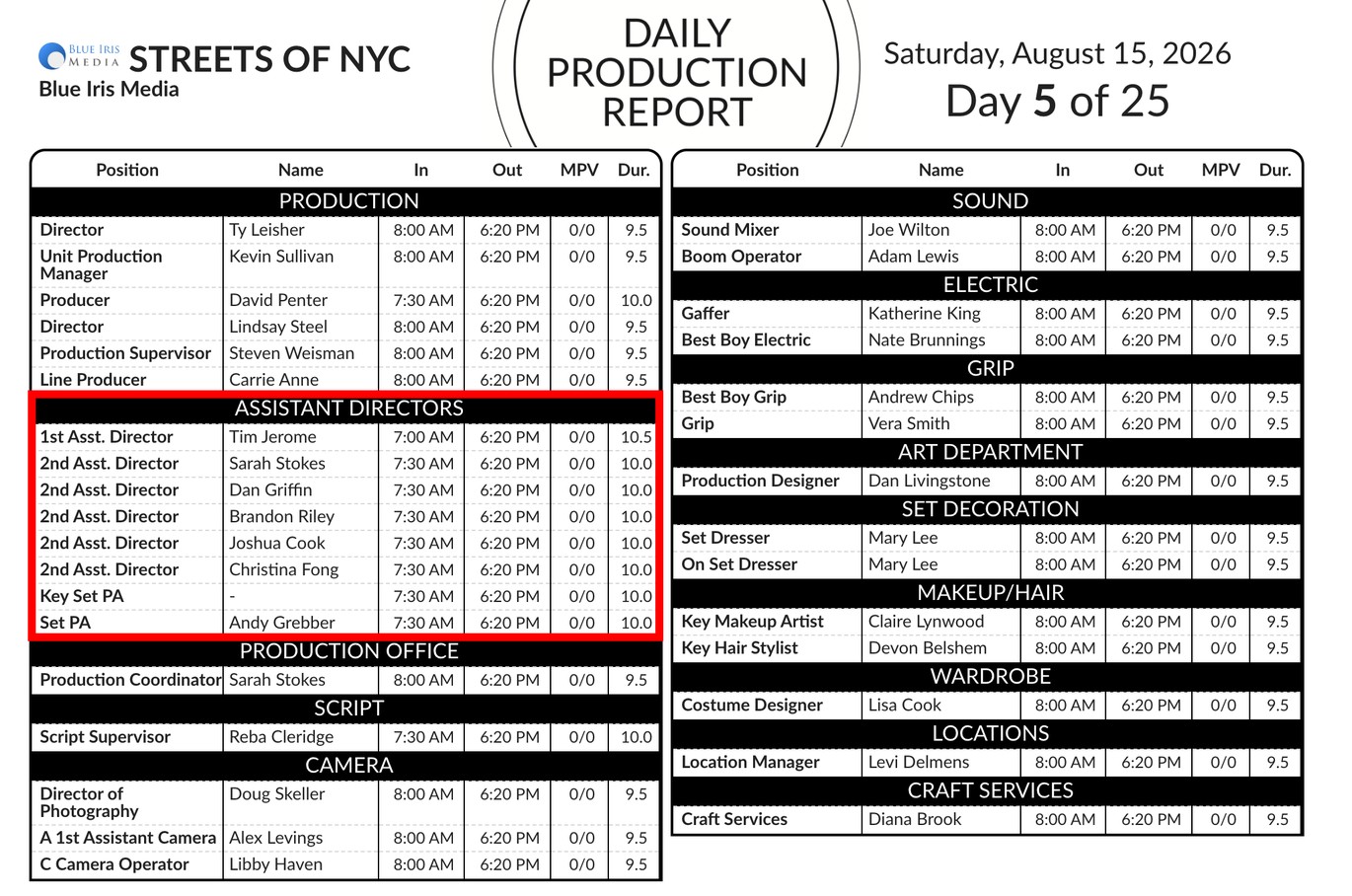

Changes save automatically, and the Live preview shows the updated crew page.