Record the day's times on a production report
Which daily times to record, how they print, and where notes appear
A production report tracks the actual timeline of your shoot day. The call sheet says when things were supposed to happen. The report logs when cameras actually rolled, when meals were served, and when the last crew member left.
Entering these times promptly keeps producers, payroll, and executives accurately informed.
Open the times tab
Open the day's report from the Production Reports column on your schedule, select the Times, Counts, & Notes tab (the clock icon), then click the Times sub-tab. The Day Counts / Versions sub-tab is covered in Record day counts, schedule status, and script versions.
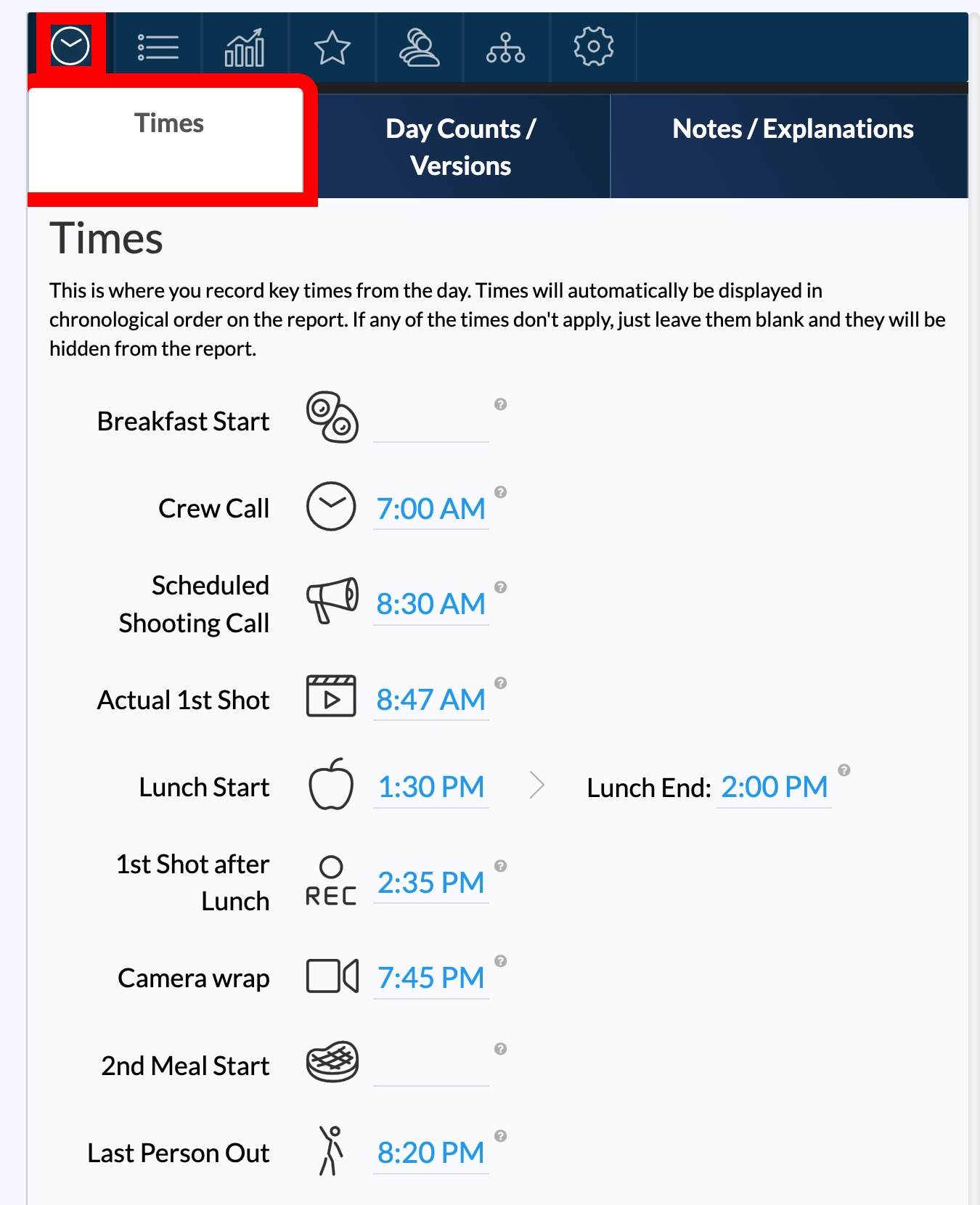
The nine time fields
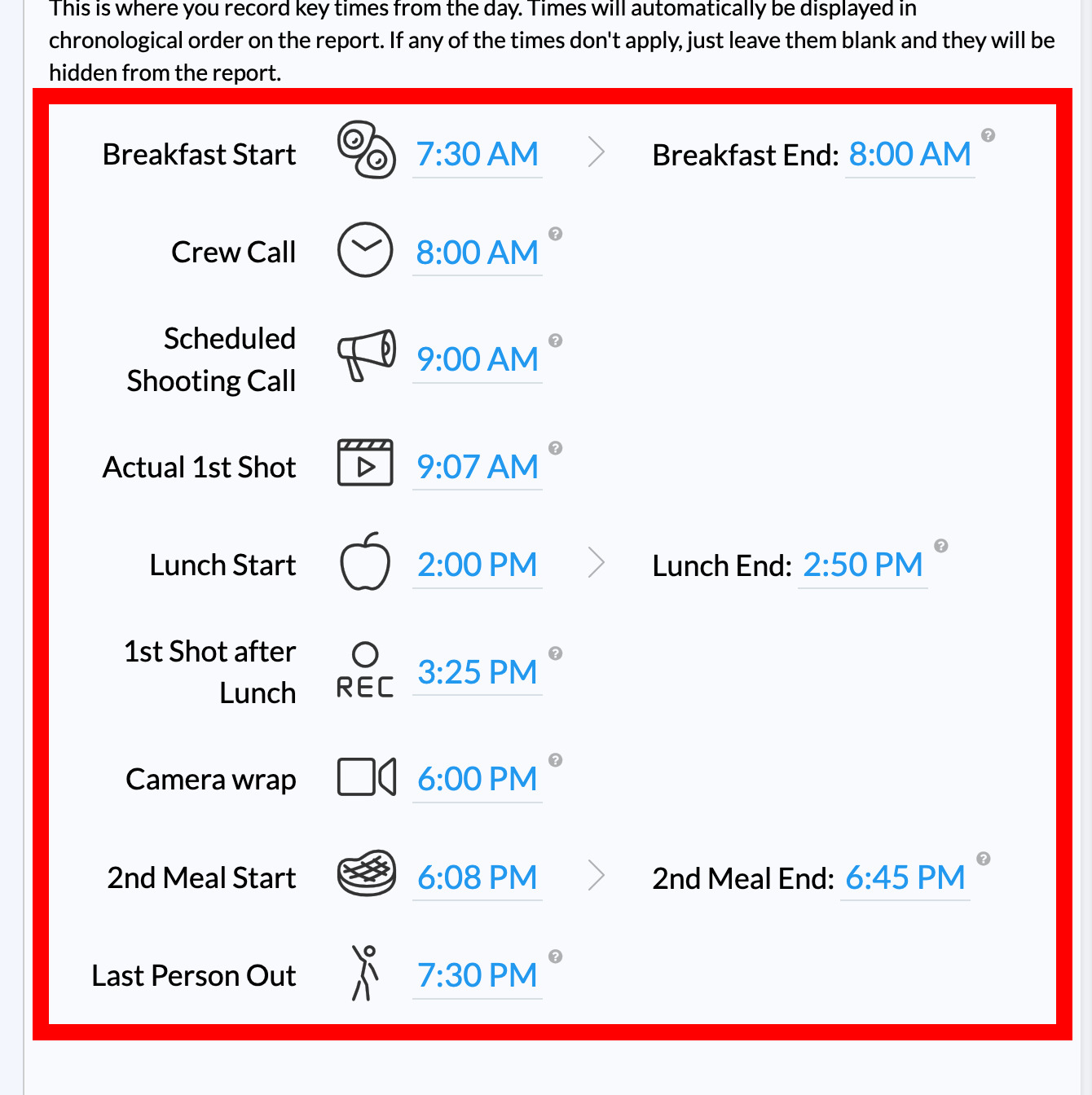
| Field | What it tracks | Printed label |
|---|---|---|
| Breakfast Start / End | Meal times if breakfast was served | Breakfast |
| Crew Call | General crew arrival | Crew Call |
| Scheduled Shooting Call | Planned time for first shot | Sched. Shooting Call |
| Actual 1st Shot | When the first shot actually turned over | Actual 1st Shot |
| Lunch Start / End | First official meal break | First Meal |
| 1st Shot after Lunch | First shot after lunch | 1st Shot After Lunch |
| Camera wrap | When wrap was called on set | Camera Wrap |
| 2nd Meal Start / End | Second meal break, if any | Second Meal |
| Last Person Out | When the last crew member or truck left | Last Person Out |
Not sure what a field means? Hover the question mark beside it for an explanation.
Enter and edit times
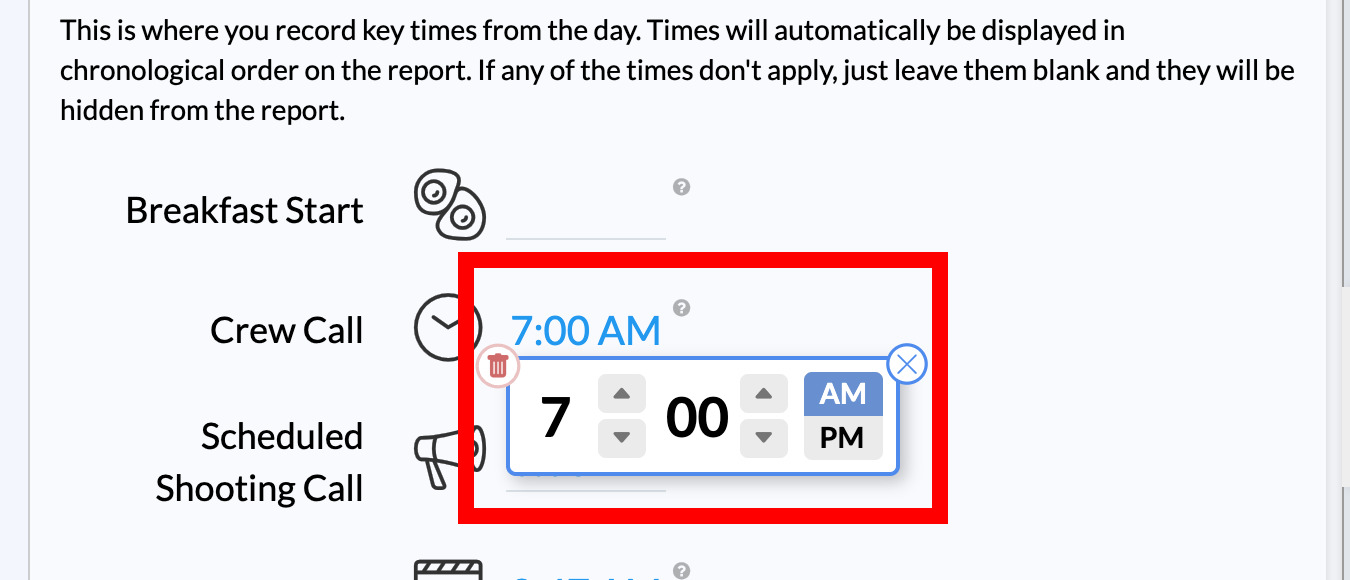
Click any field to open the time picker. Adjust the hour and minute with the arrows or type the time directly. Minutes step in five-minute increments, or hold Shift while clicking to move one minute at a time. Toggle AM and PM as needed, and use the trash icon to clear a time.
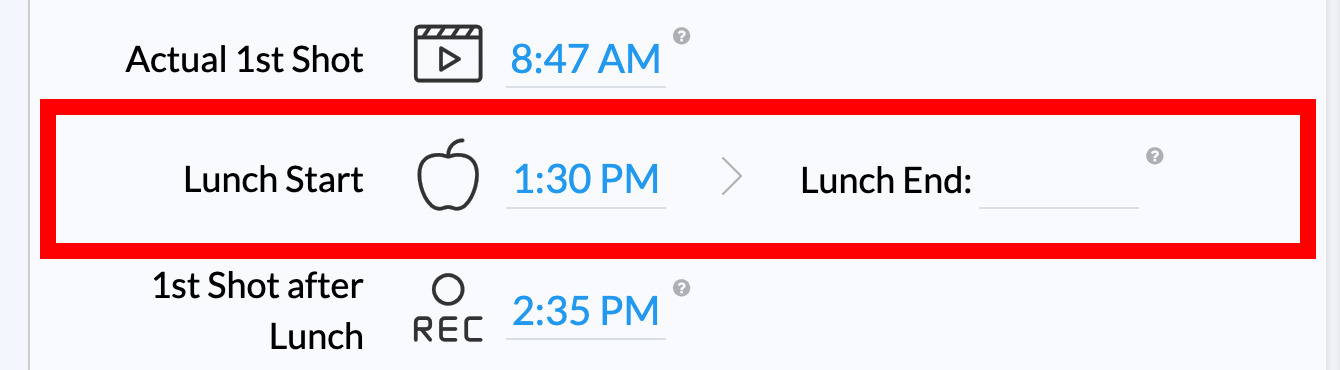
For the paired meal fields, entering a Start time reveals the matching End field.
Tip: Reports created with call sheet autofill already include the planned Crew Call, Scheduled Shooting Call, Estimated Wrap, and meal start times. Replace them with what actually happened.
Blank fields hide automatically
You don't need to fill in every field. If there was no breakfast or second meal, leave those blank. SetHero drops empty time fields from the finished report so it stays clean.
How times print
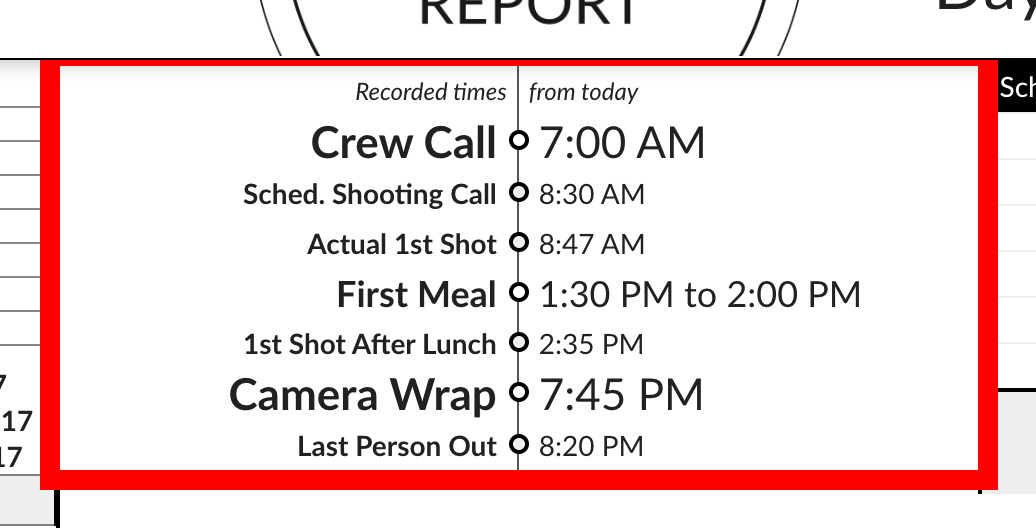
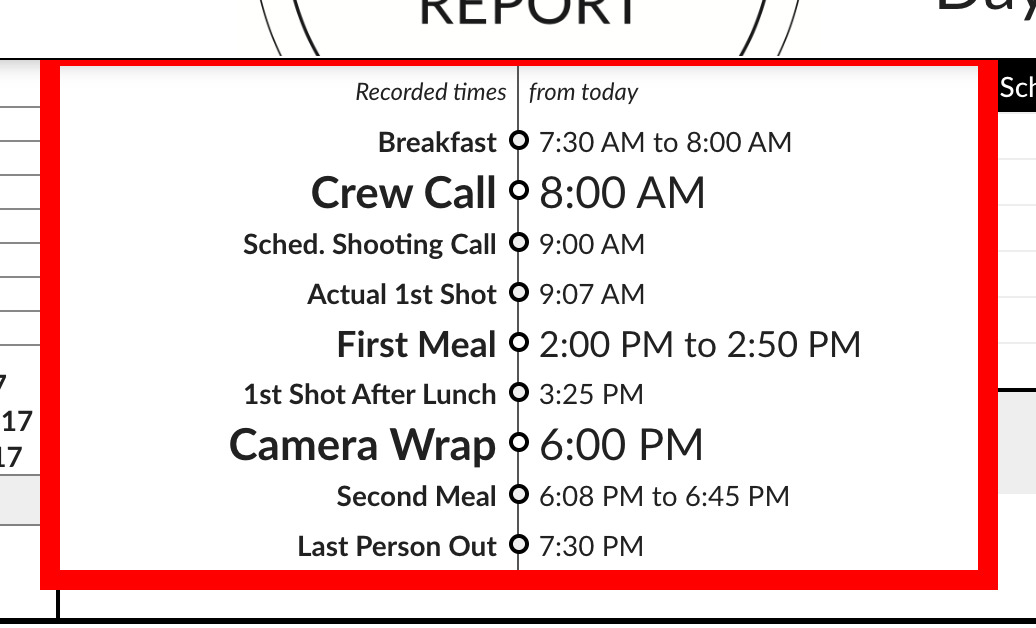
Recorded times appear in the Recorded times block at the top of the report, in chronological production order. Key markers like Crew Call and Camera Wrap are styled prominently so producers can read the day at a glance.
Notes and explanations
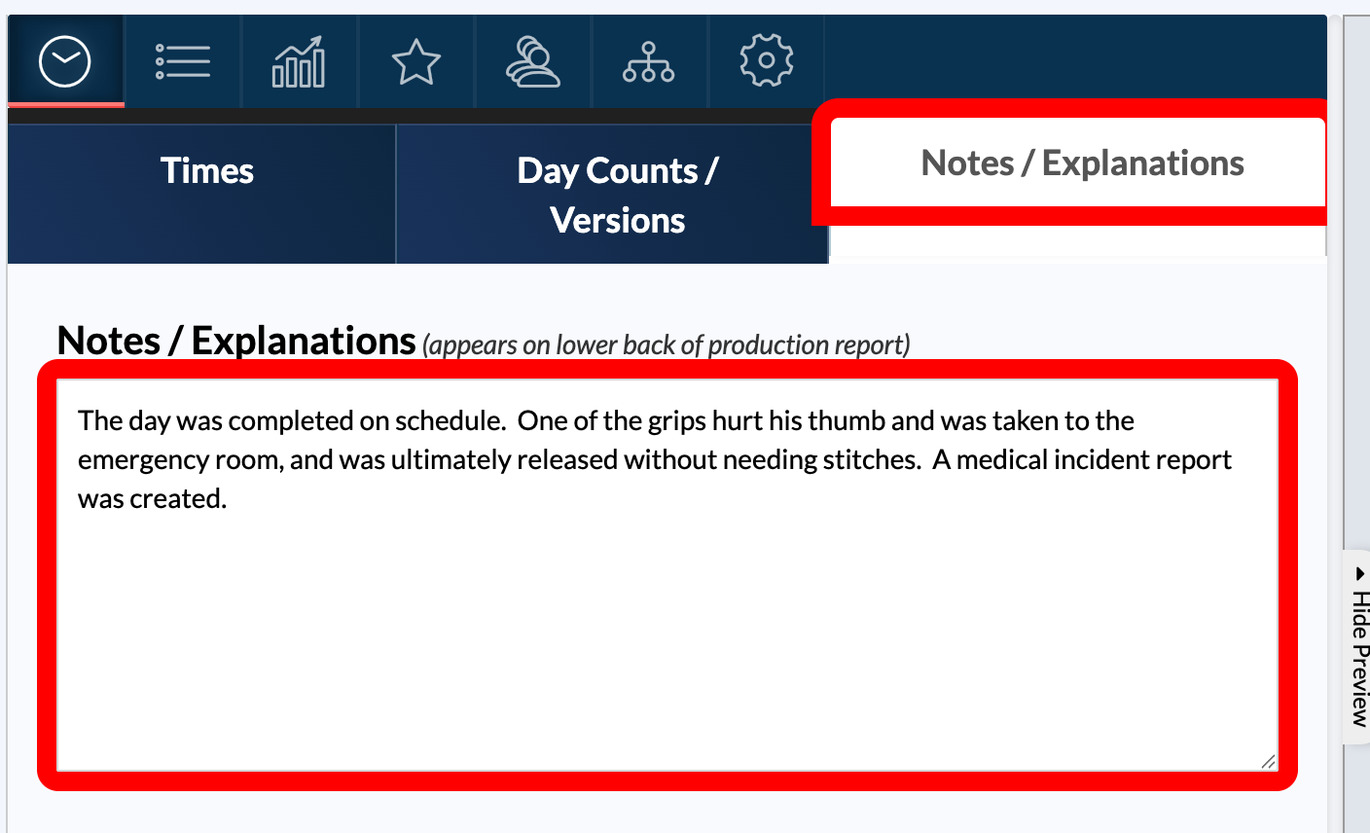
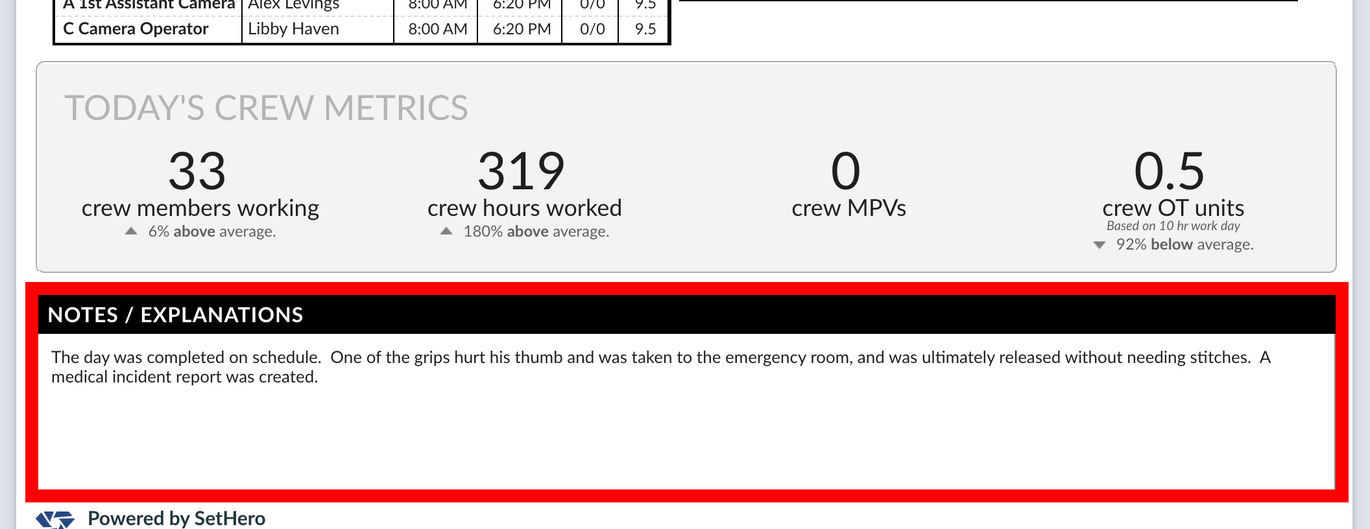
Use the Notes / Explanations sub-tab to log delays, weather impacts, location changes, script adjustments, or reasons for overtime. Type directly into the text box. Your notes print in the NOTES / EXPLANATIONS section on page 2.
Changes save automatically
Every time and note saves as you work. The Last saved indicator in the top toolbar confirms it, and the Live preview on the right shows the result immediately.