Move or delete a production report
How to move a report between days or schedules, or delete it
If a report was started on the wrong day, or the shooting dates shifted, you can move it to a different day on your schedule. You can also delete a report permanently.
Move a report
-
On your schedule, find the day holding the report. Open the dropdown beside Edit (or View PDF if it's published) in the Production Reports column and select Move.
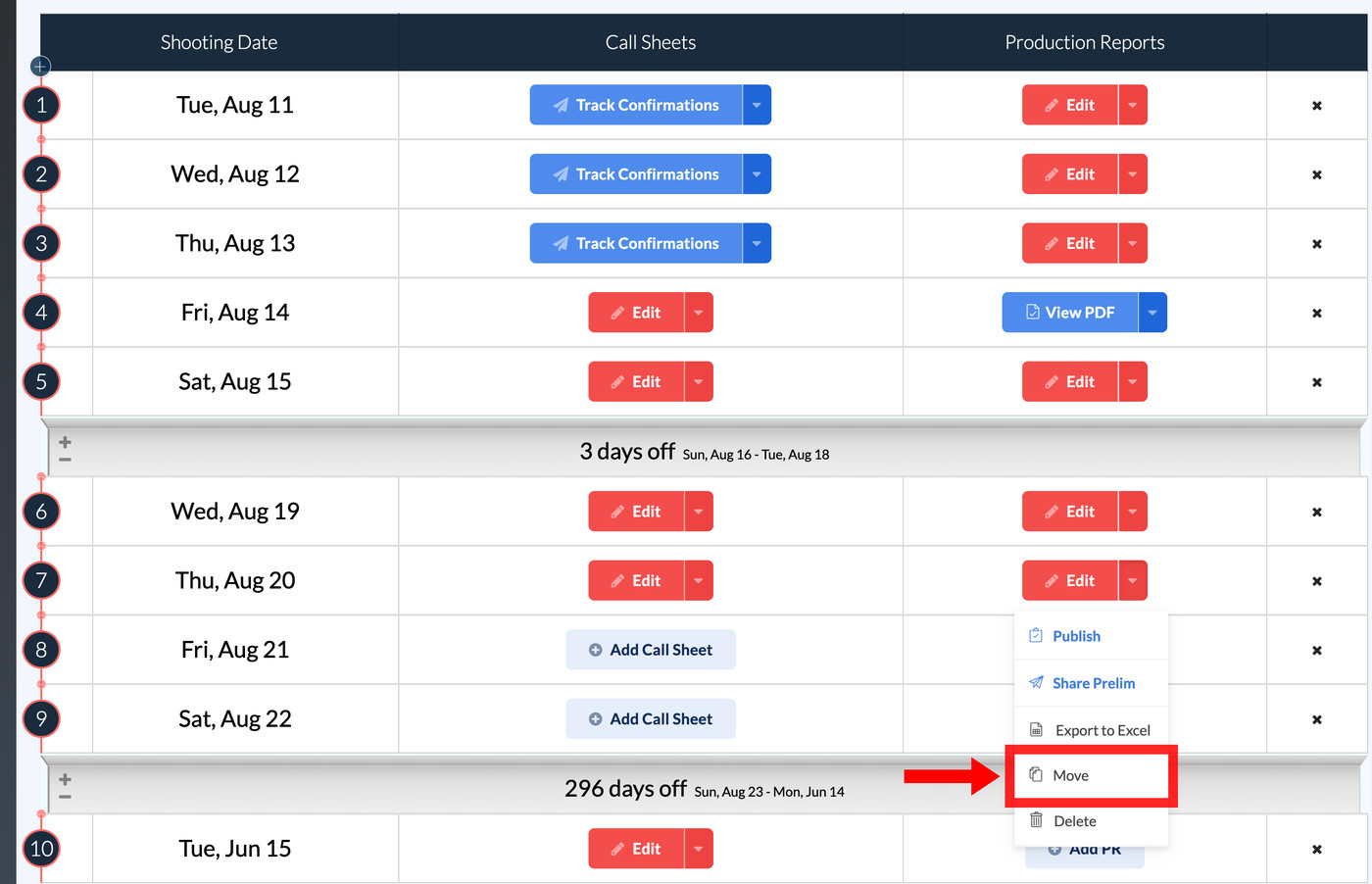
-
In the dialog, make sure Move this Production Report is selected, then pick the destination from the Target Day dropdown.
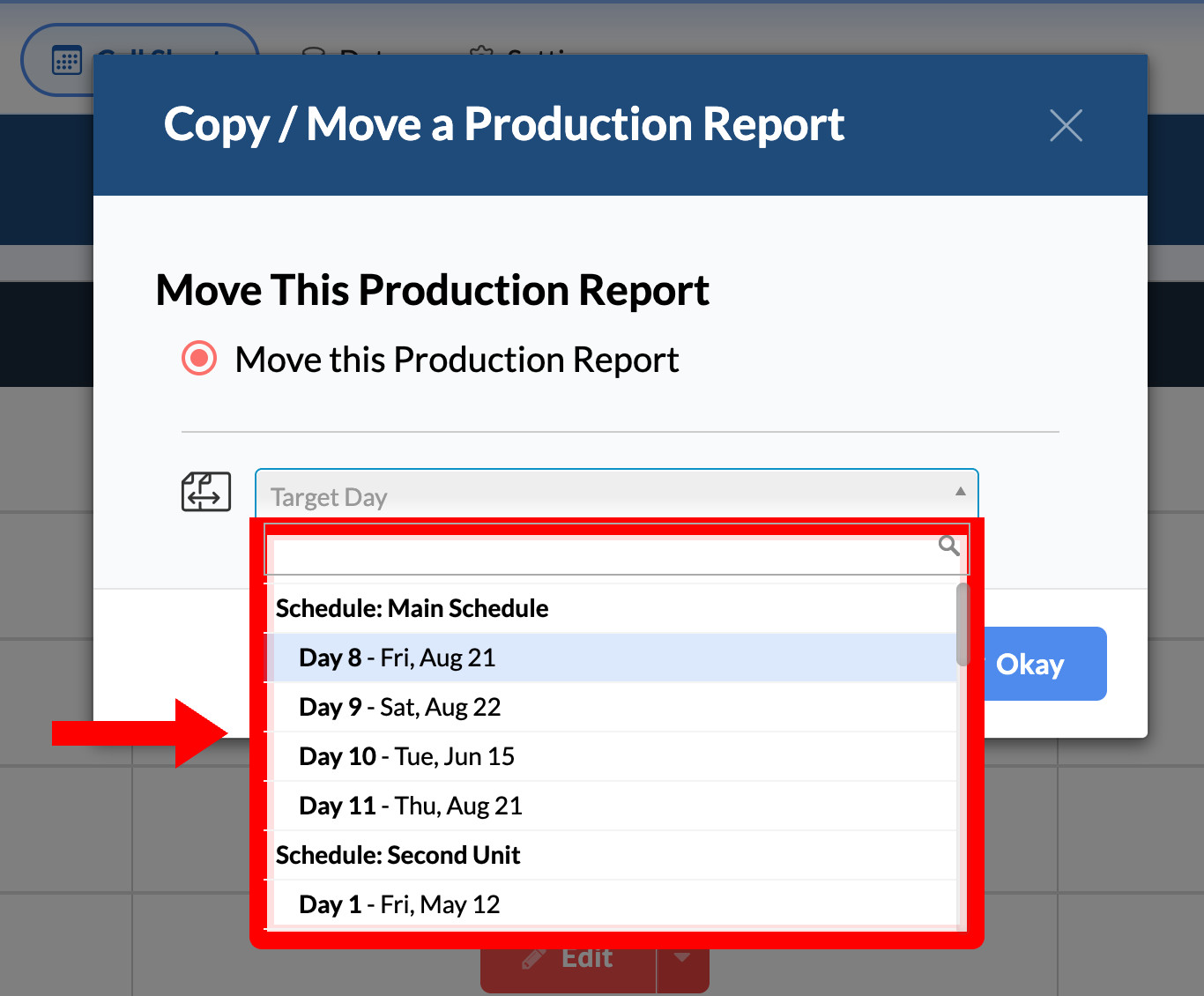
-
Click Okay.
Note: Target Day lists only shoot days that don't already have a production report.
The schedule updates immediately, and everything in the report moves with it: times, scene lists, cast hours, and notes.
Move across schedules
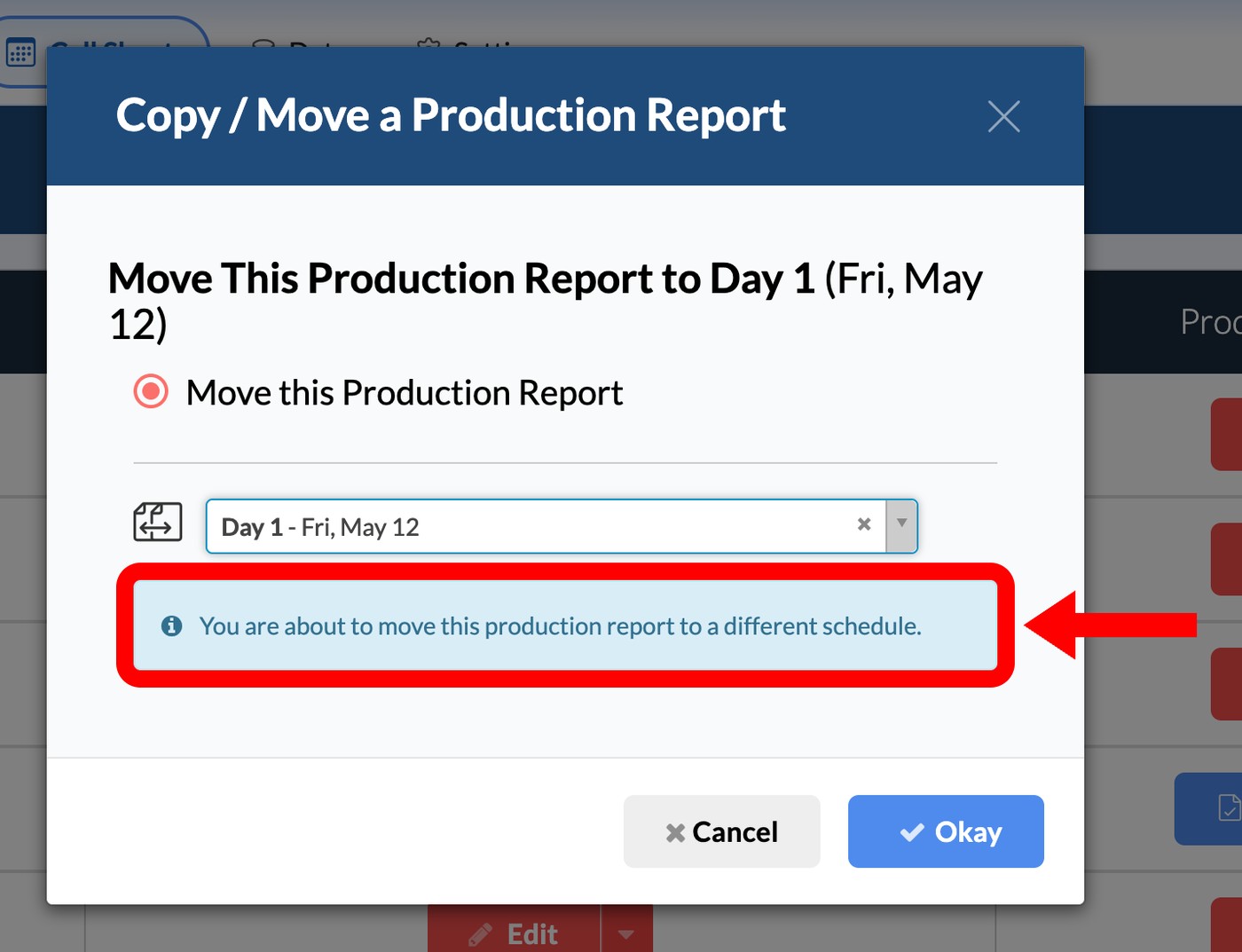
If your project has more than one schedule, such as Main Unit and 2nd Unit, pick a day under the other schedule's heading in Target Day. SetHero warns you that the destination is on a different schedule.
Move a published report
Published reports move the same way. Afterward, open the report and click Update Published Version so the web link and PDF show the new date. See Update a production report after publishing.
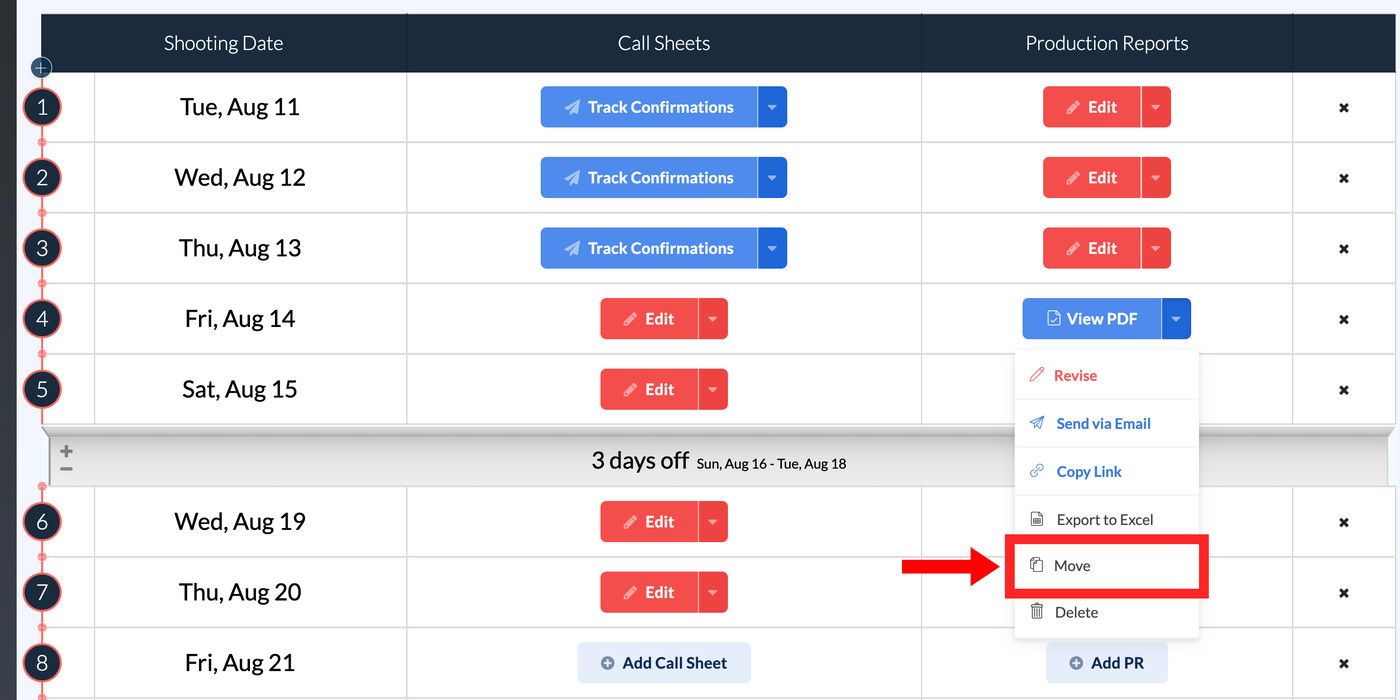
Delete a report
-
Open the dropdown beside Edit or View PDF and select Delete.
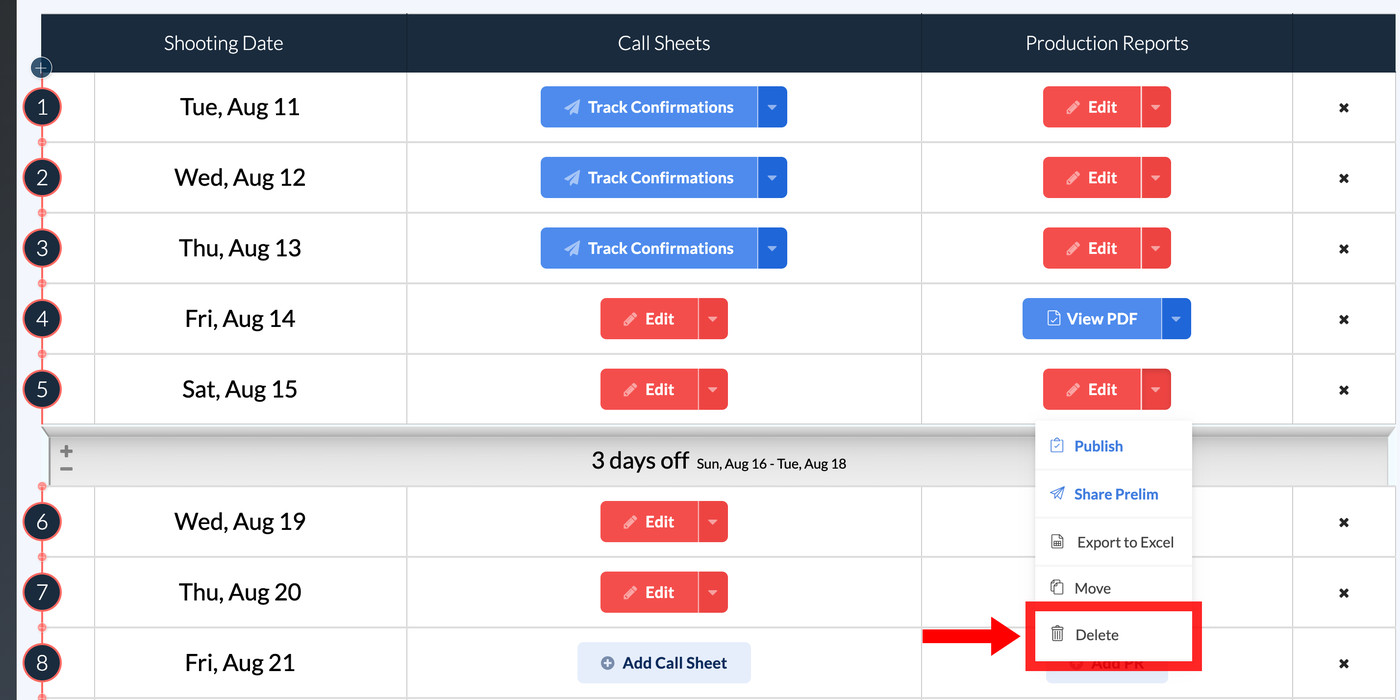
-
Click Delete in the confirmation dialog.
Warning: Deleting a report permanently removes every logged time, scene, cast hour, and note for that day. It can't be undone.
Deleting removes only the report. The shoot day and its call sheet stay on the schedule.
To correct a published report without deleting it, revise it instead.