Reset or change your password
Change or reset your password and see what gets signed out
There are two ways to set a new password: from Update your name, email, and account settings while you're signed in, or from Forgot my password on the login page when you can't get in.
Note: An admin can't reset a teammate's password. If they're locked out, send them this article or How to get help fast. If they shouldn't have access at all, use Remove someone's access.
Change it while you're signed in
-
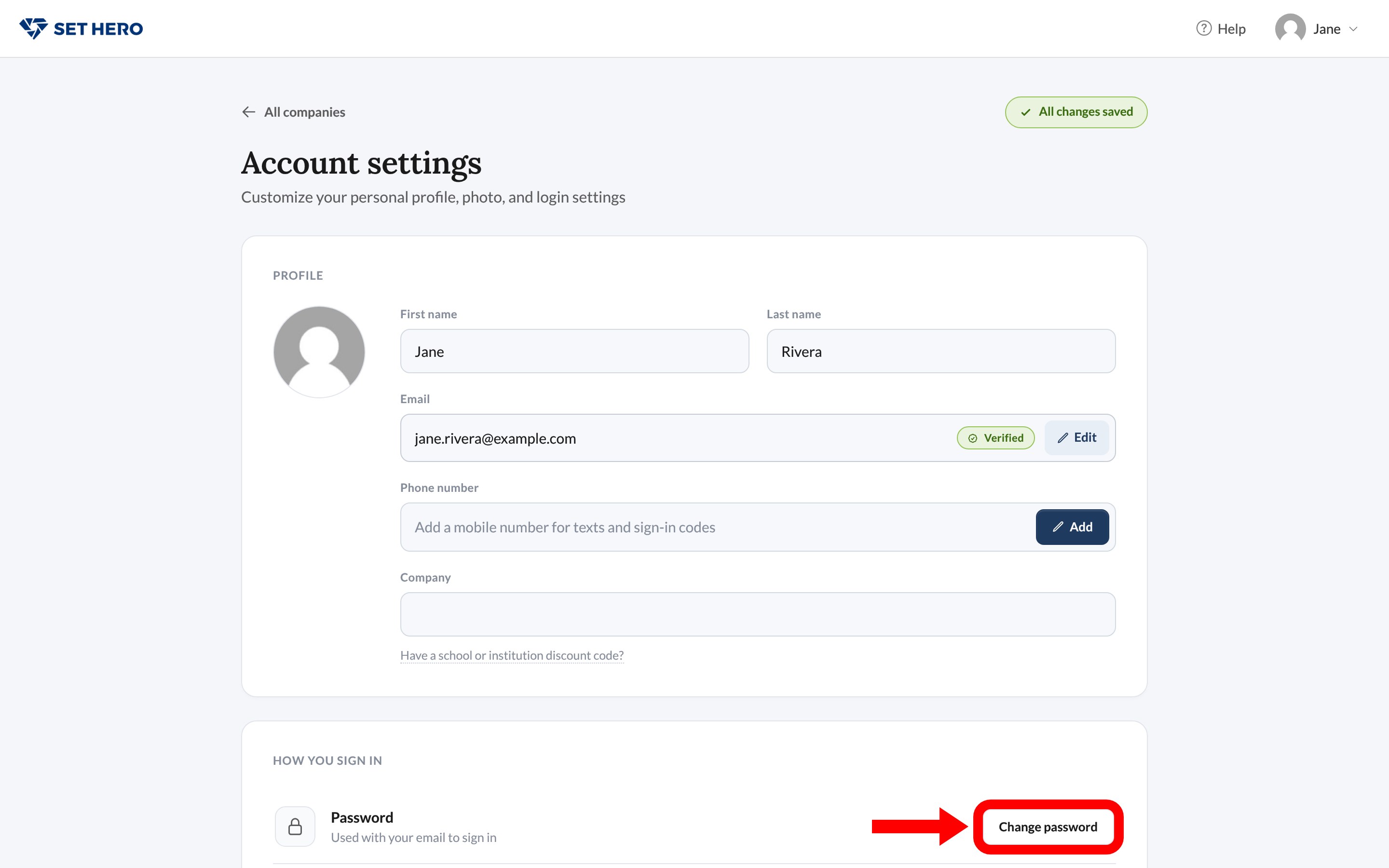
Open User Settings from your name menu.
-
In How you sign in, click Change password.
-
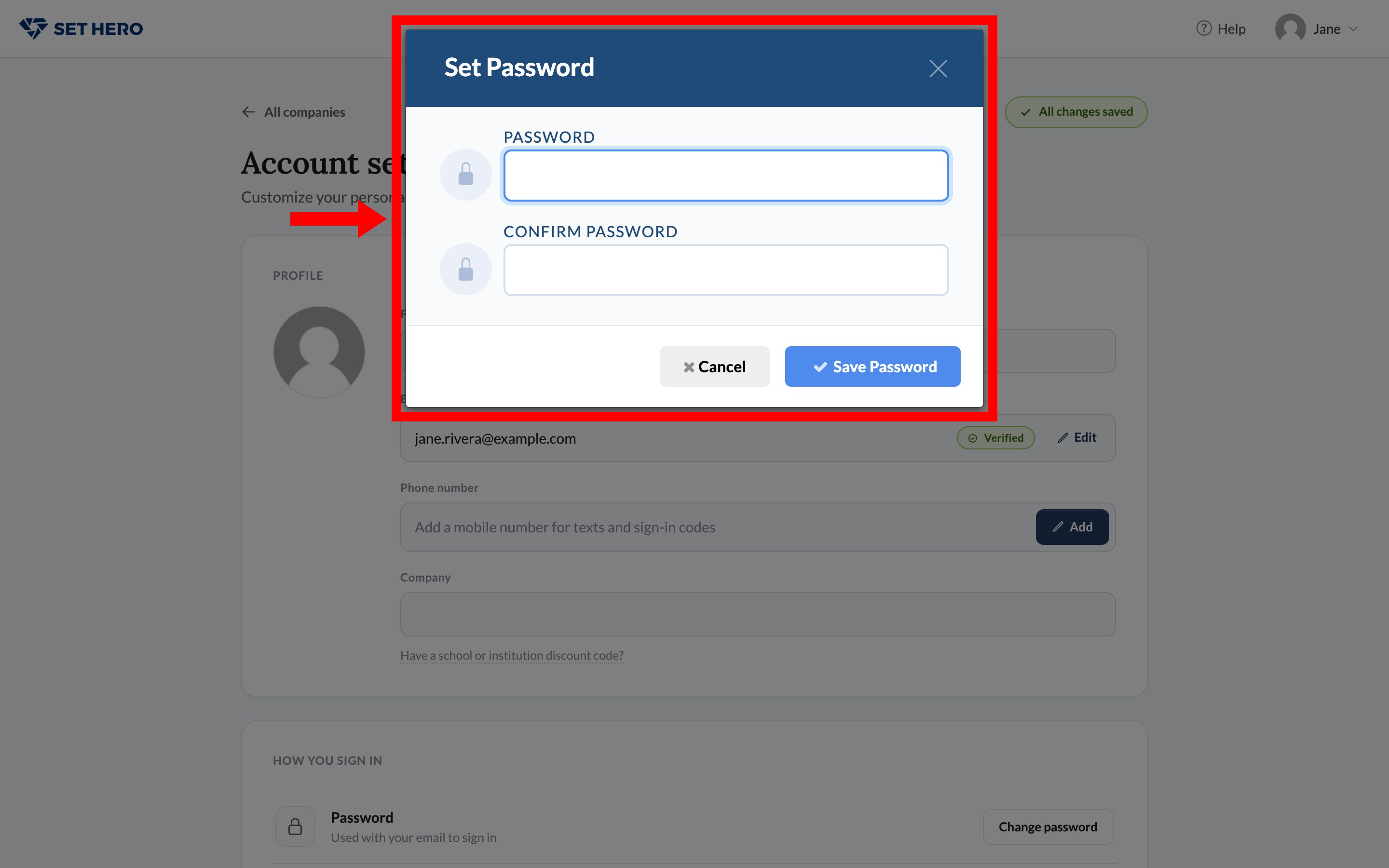
In the Set Password modal, enter and confirm the new password, then click Save Password.
-
SetHero asks you to Confirm your password. Re-enter your current password and click Confirm.
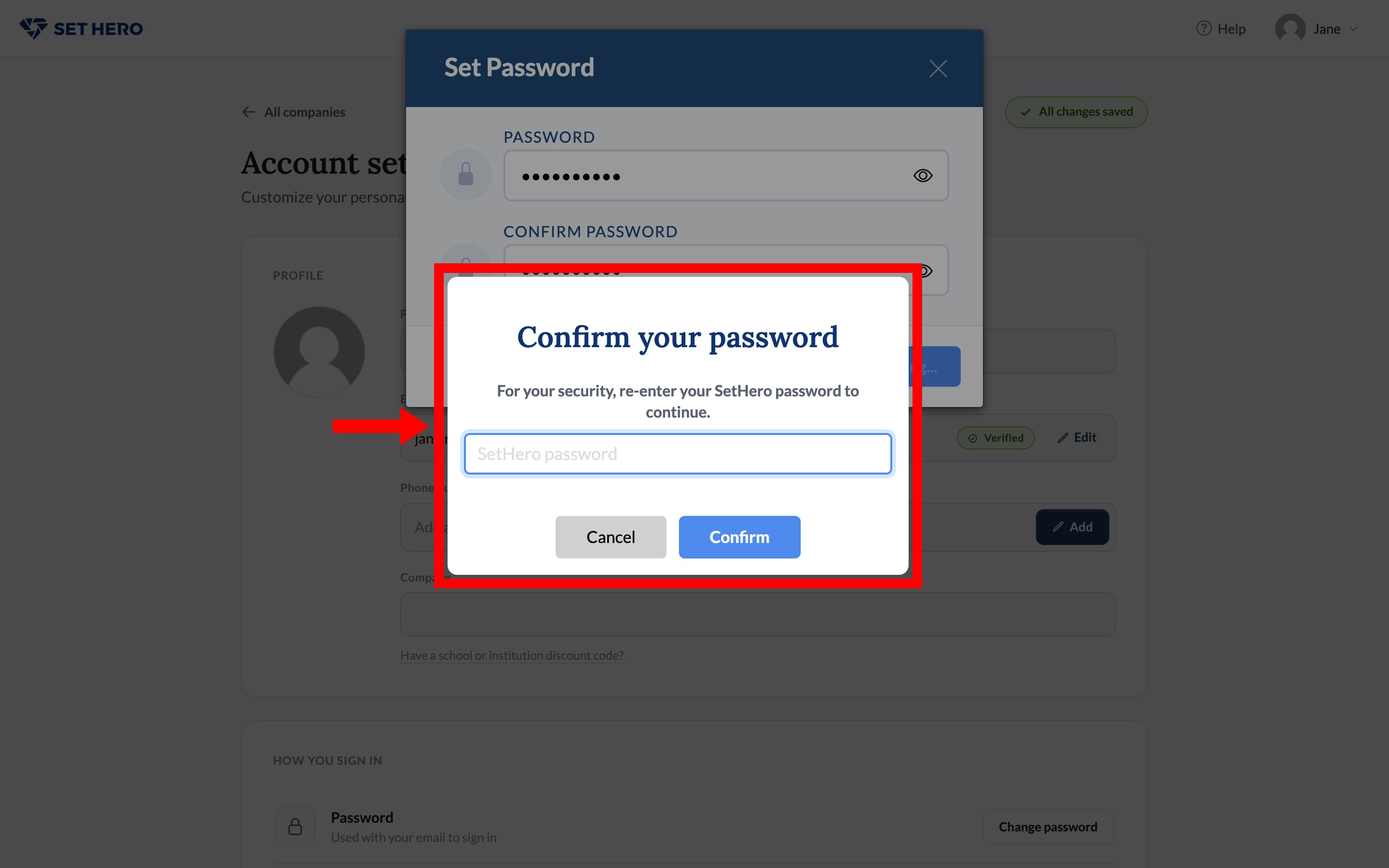
If the current password is wrong, the prompt says so and you can try again. Cancel leaves the old password in place.
Google-only accounts that never set a password can still open Set Password. There's nothing current to confirm on that first save. If you later want to disconnect Google, SetHero asks you to set a password first.
Password rules
- While signed in: at least 8 characters, with all four of a lowercase letter, an uppercase letter, a number, and one of
! @ # $ % ^ & *. - From the reset email: at least 8 characters, with any three of those four kinds.
What else signs out
A successful change or reset signs out every other session. The browser that saved the new password stays signed in. Trusted two-factor devices are cleared too, so the next sign-in on those computers asks for a code again.
If you can't sign in
-
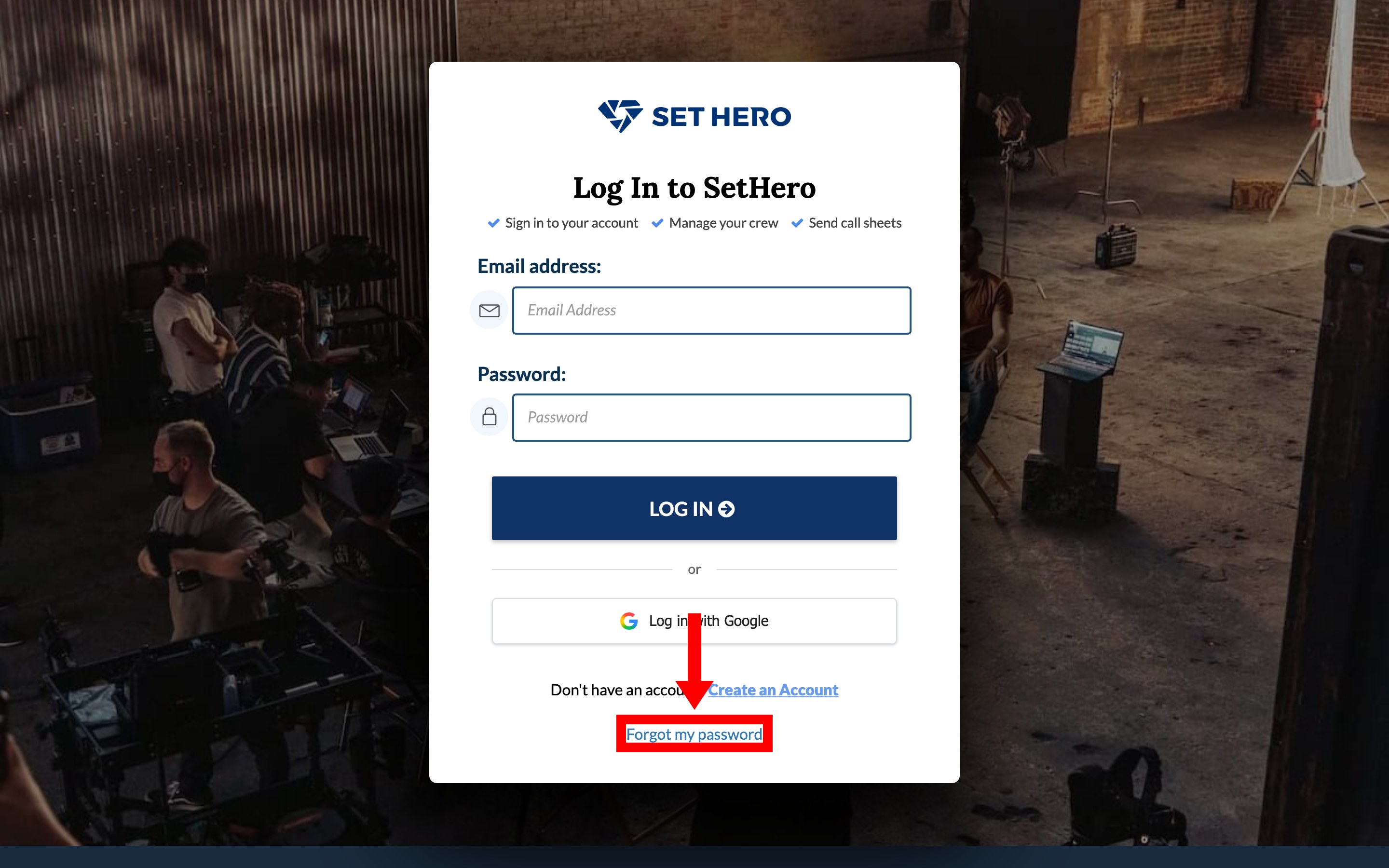
On the login page, click Forgot my password.
-
Enter the email on the account and click Get Password Reset Link.
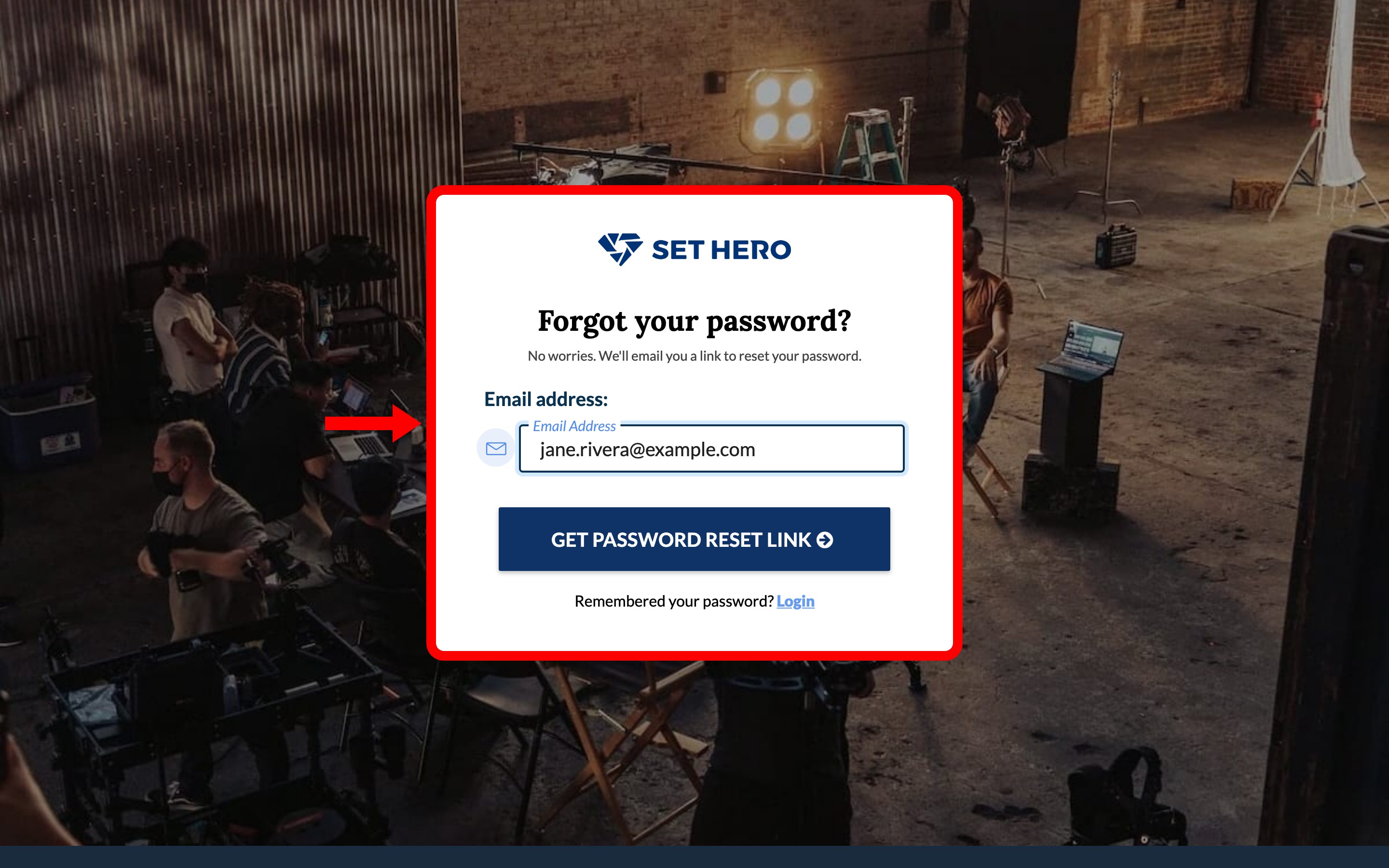
If you see Sorry! We could not find an account with that email, check for a typo or a different work inbox.
-
Open the email and click Set New Password.
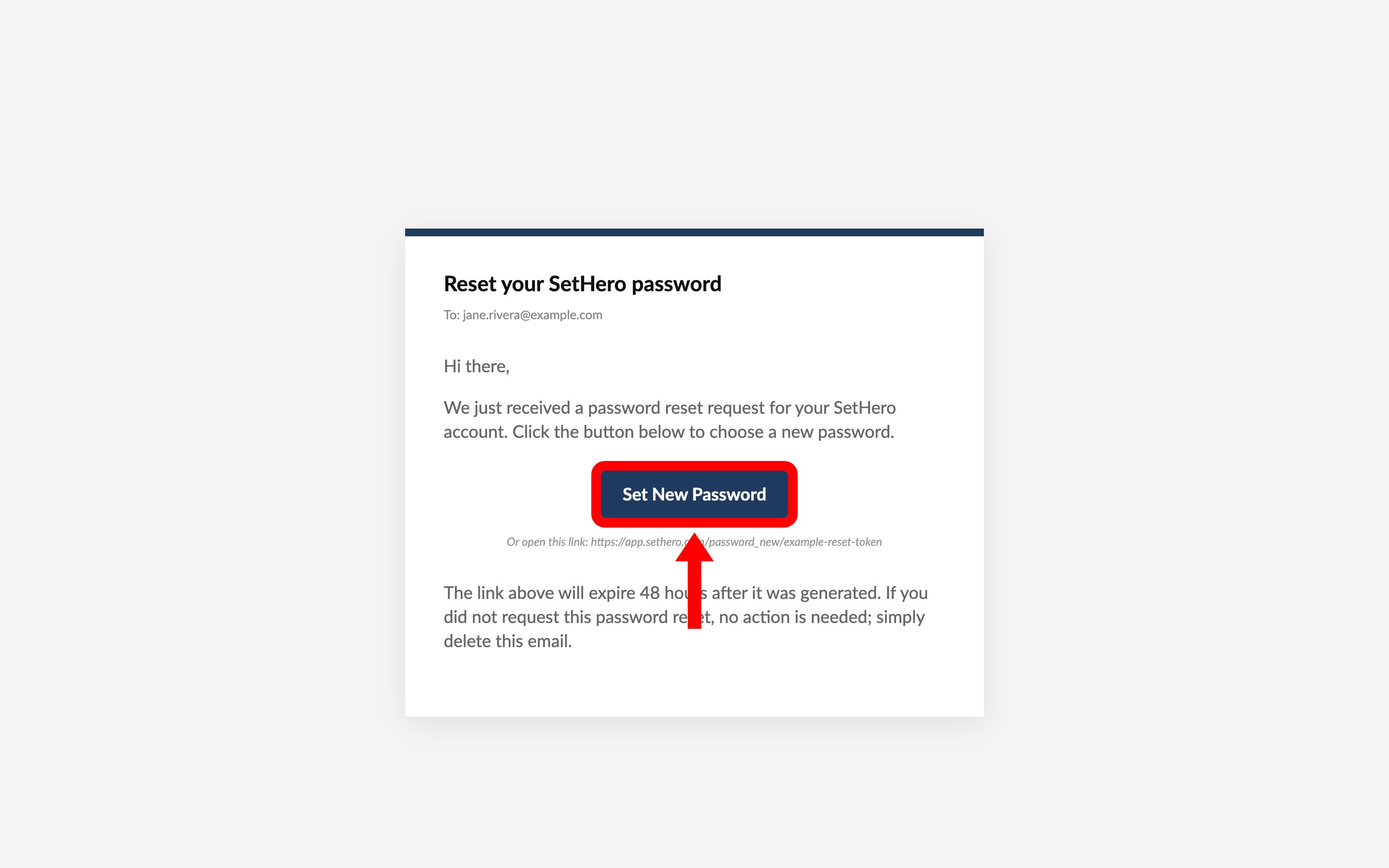
Note: The reset link expires 48 hours after it's generated. Each new request replaces the old link, so always use the newest email.
If the email doesn't arrive, wait a few minutes and check spam, and confirm you requested the reset for an address you can actually open. Didn't request a reset? Delete the email. Your current password still works until someone uses the link.