Update your name, email, and account settings
Change your profile details, email, and sign-in options
Account settings is your personal profile: your name, email, phone, photo, and how you sign in.
Note: This page isn't Company Settings. Company name, logo, and brand color are behind the gear on the left rail. See Set your company name, photo, and defaults. For who can do what inside a company, see Roles, admins, and permissions explained.
Open account settings
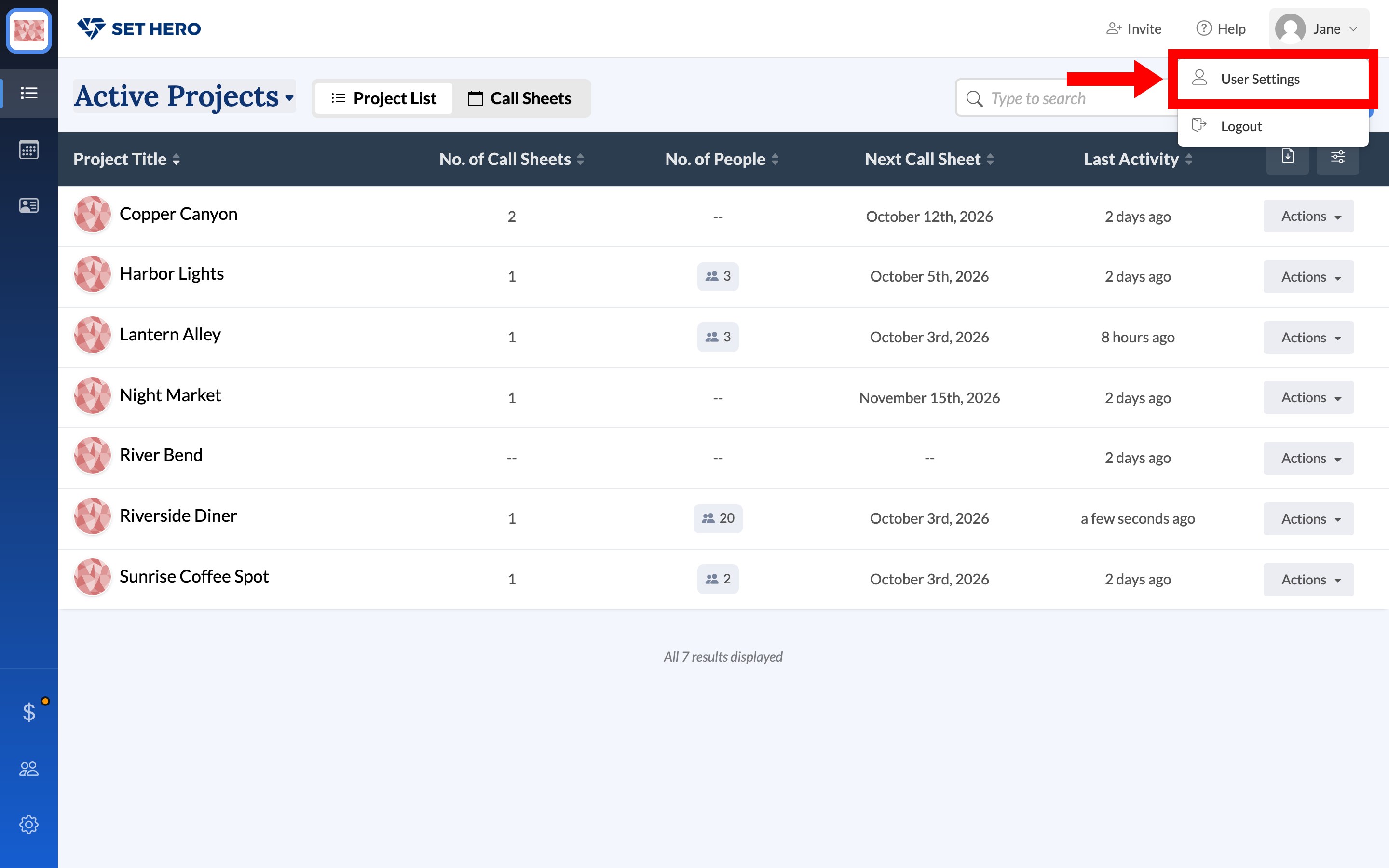
Click your name in the top-right corner, then click User Settings. The page title is Account settings, and a green All changes saved chip appears as fields save themselves.
Update your profile
The Profile card has your name, contact details, and company affiliation.
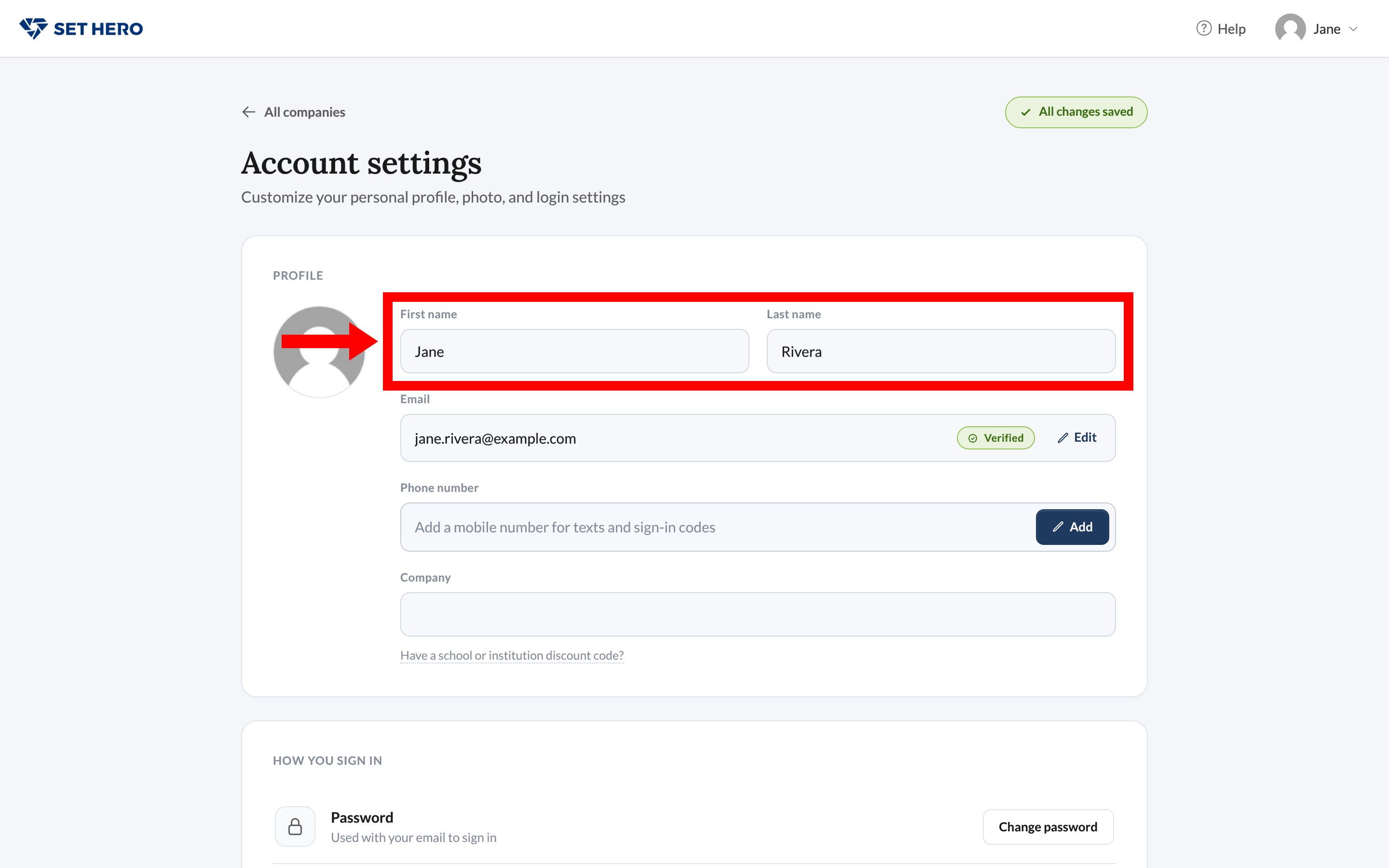
- First name and Last name save as you leave the field.
- Email shows a Verified badge once confirmed. Click Edit to change it.
- Phone number starts empty. Add opens a country code and number field. Changing a number sends a 6-digit text to the new number to verify it.
- Company is a free-text employer name. It isn't the SetHero company you work in.
Hover your avatar and click Change to pick a new photo in JPG, PNG, or GIF.
There's no personal time zone on this page. Clock format and units are project and company settings. See Time zone, time format, and units.
Change your email
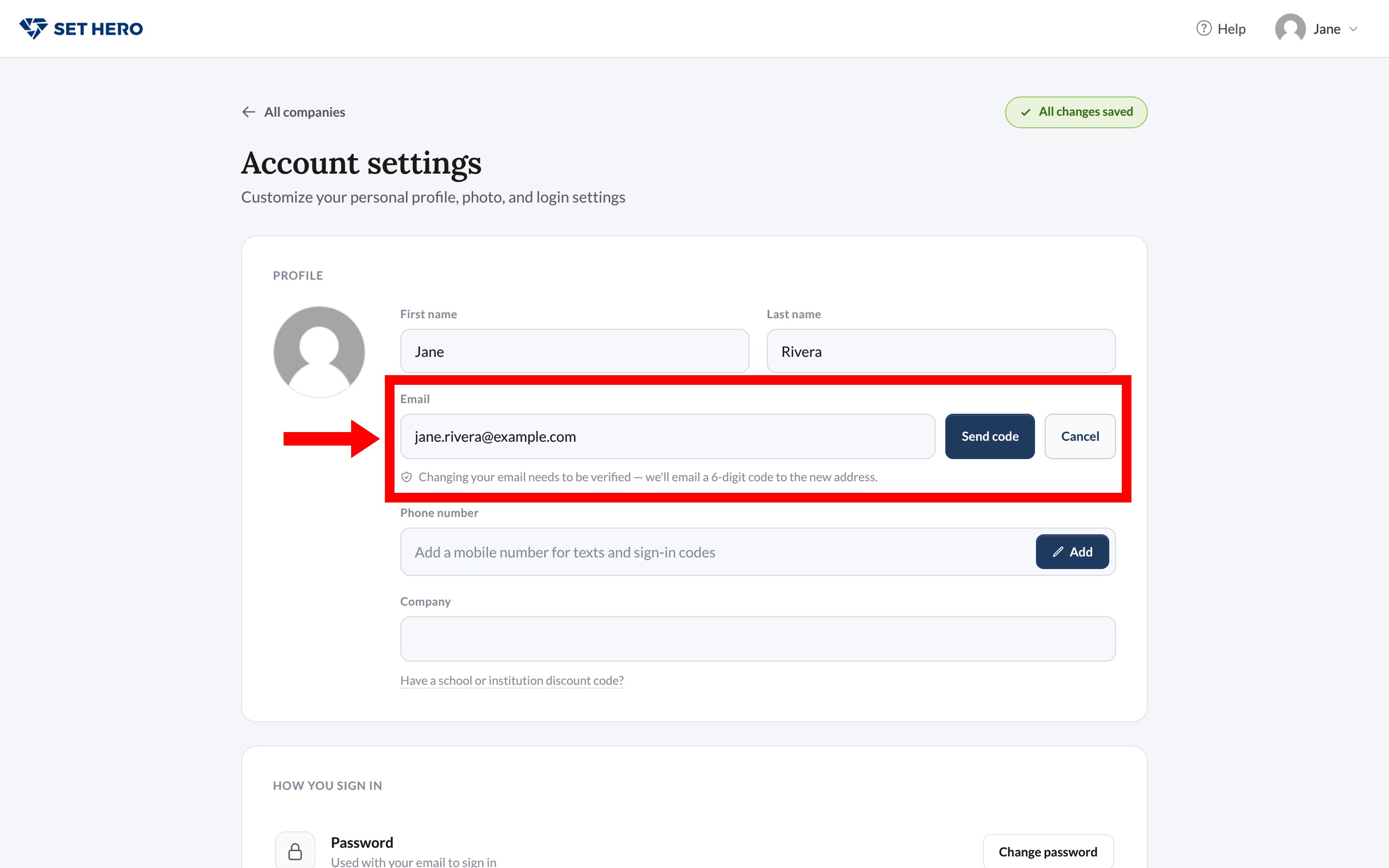
Click Edit beside your email, type the new address, and click Send code. A 6-digit code goes to the new address. Enter it to finish. Cancel closes the editor without sending anything.
Your project access stays on the same account. You're changing how you sign in and where mail goes, not creating a new user.
How you sign in
The How you sign in card has Change password under Password, and Connect under Google until you link a Google account.
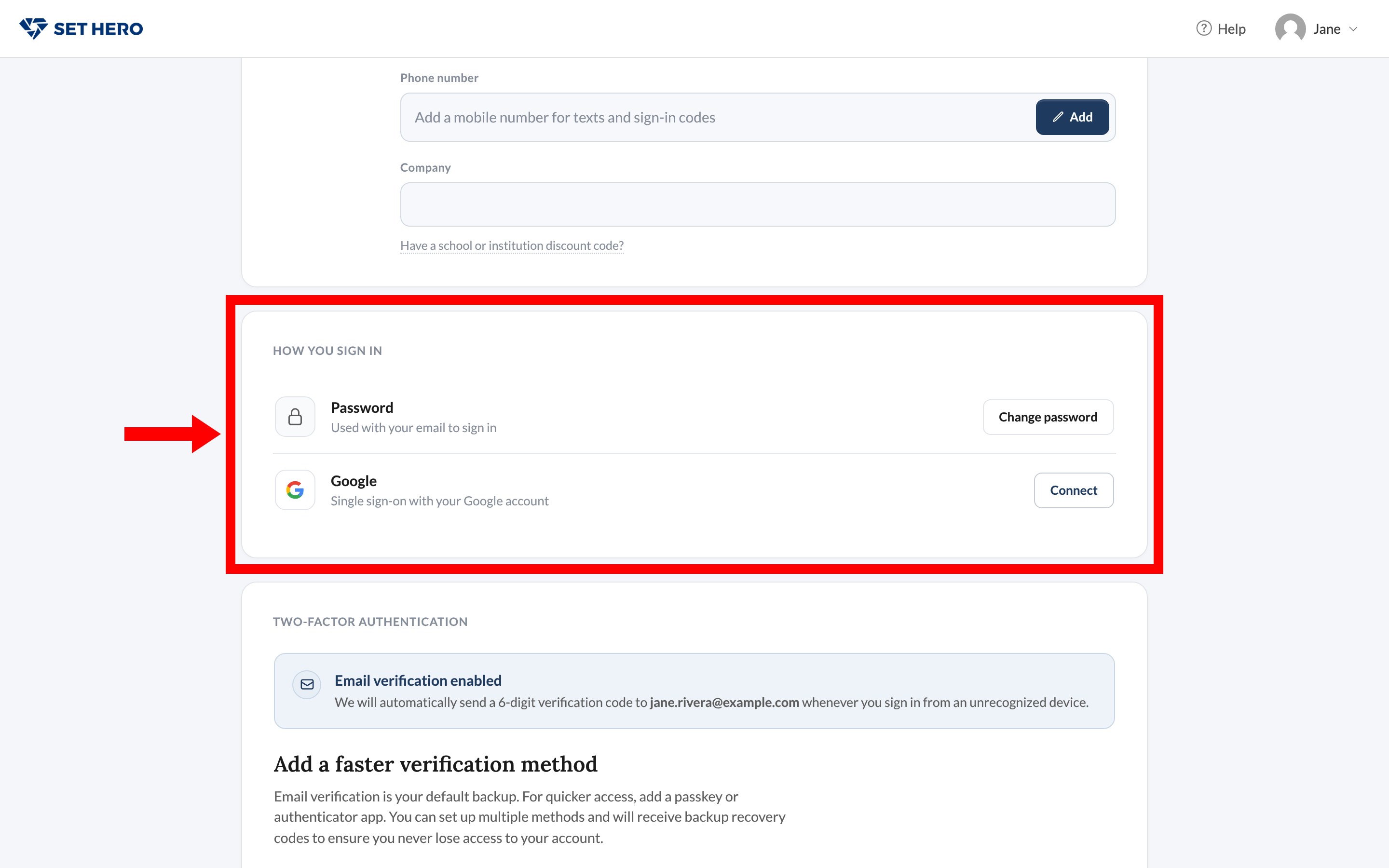
Changing the password is Reset or change your password. Set up two-factor authentication sits in the card below this one. The footer links are Log out everywhere and Delete account.