Customize sections and fields
How to rename sections and columns, hide or resize fields, and change the crew layout
You can make a call sheet's sections match how your production works by renaming them and by renaming, resizing, reordering, or hiding their columns.
Note: You can change the columns a section already has, but you can't add new ones. For example, makeup and wardrobe share one MU/WARD column in the talent block, and it can't be split in two.
To hide a whole section instead, see Turn sections on or off.
Open the field editor
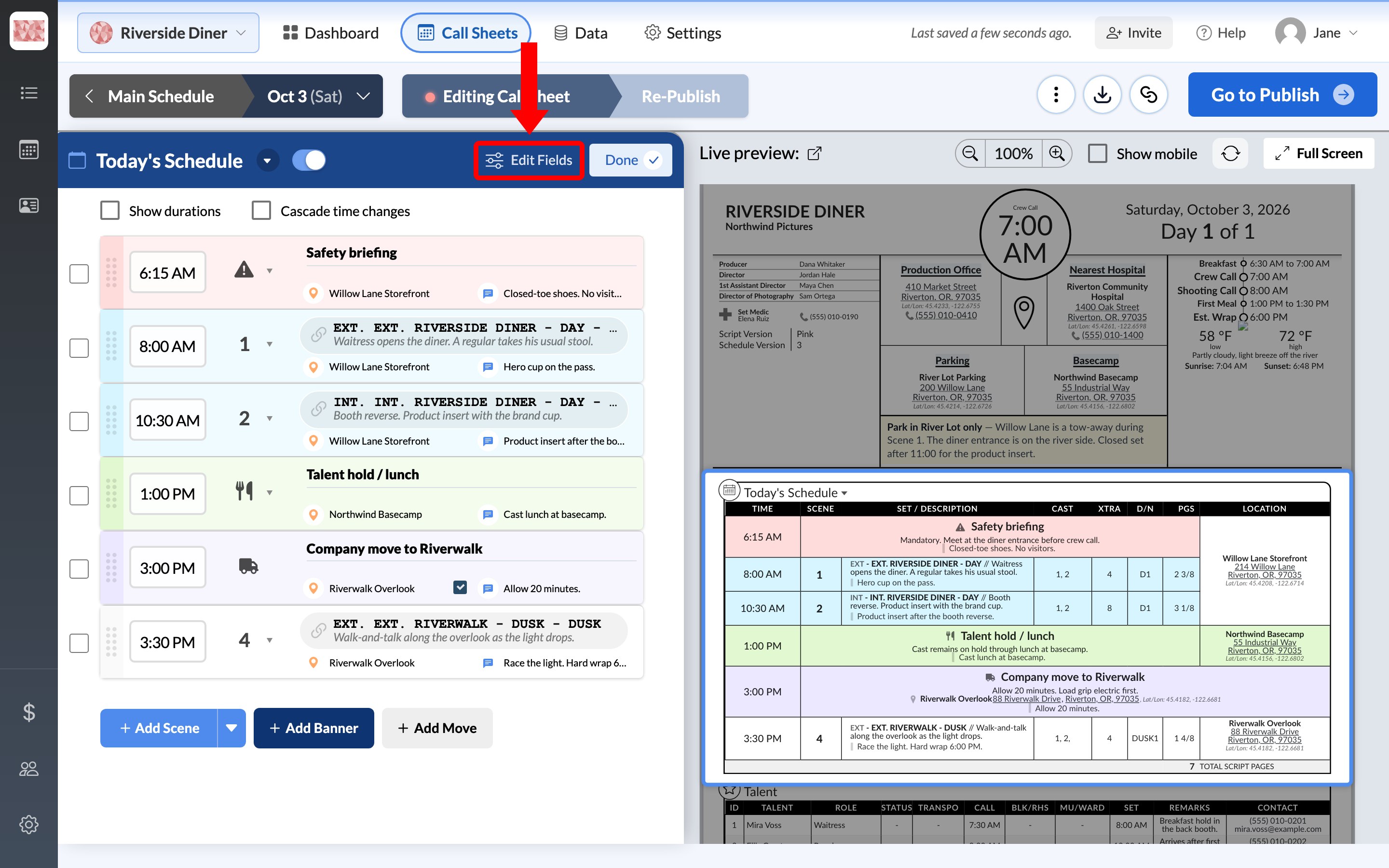
Open a section from the Layout list on the Outline tab, then click Edit Fields at the top of it.
The options depend on the section:
| Section | What you can change |
|---|---|
| Today's Schedule, Talent, Clients | Section title and table columns |
| Extras and Dept. Notes, Notes & Contacts | Section title and the headings inside it |
| Crew, Reminders, Day Details | Section title |
Rename a section
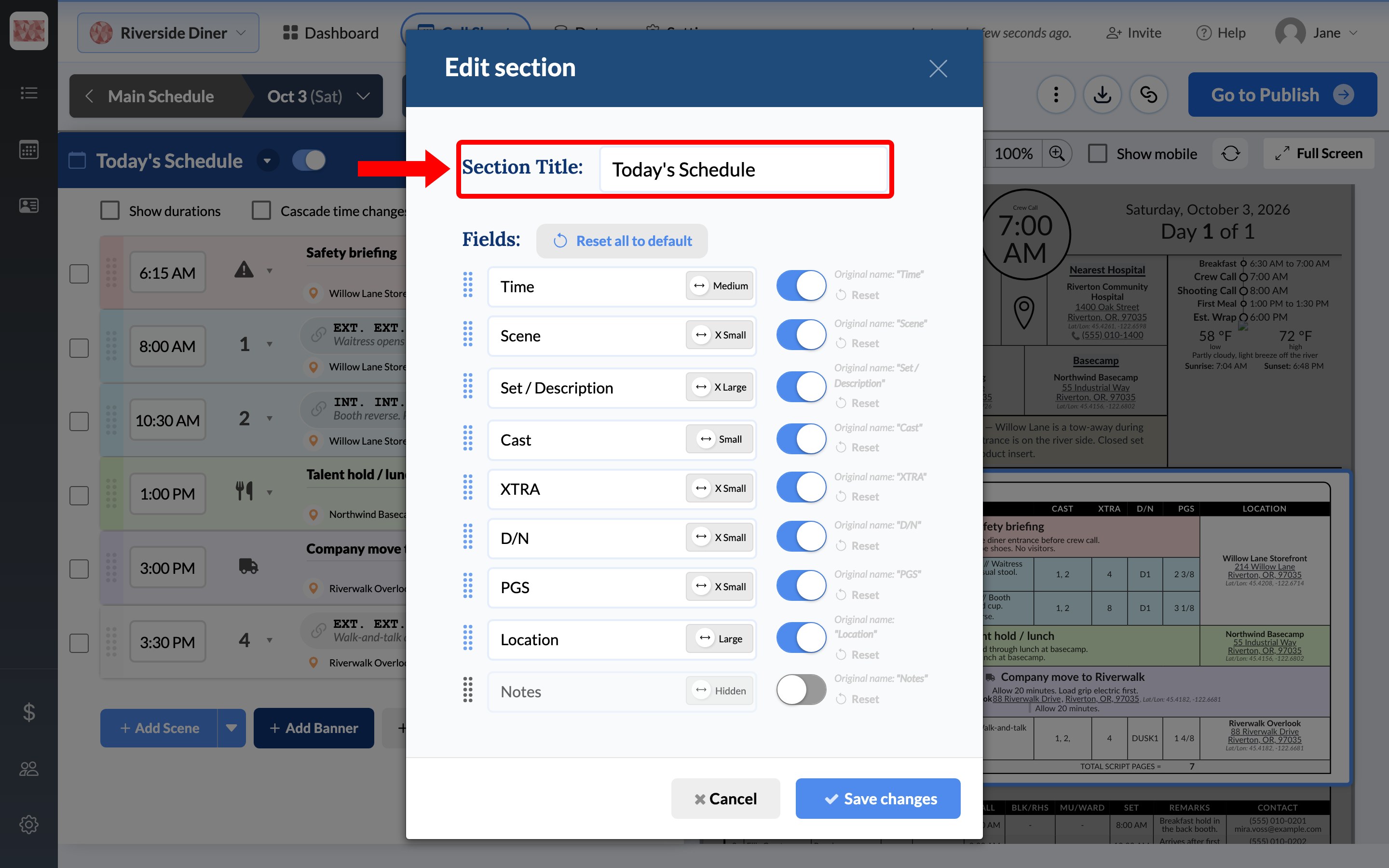
Type the new name in Section Title, then click Save changes.
Change a column
Each column has its own row under Fields.
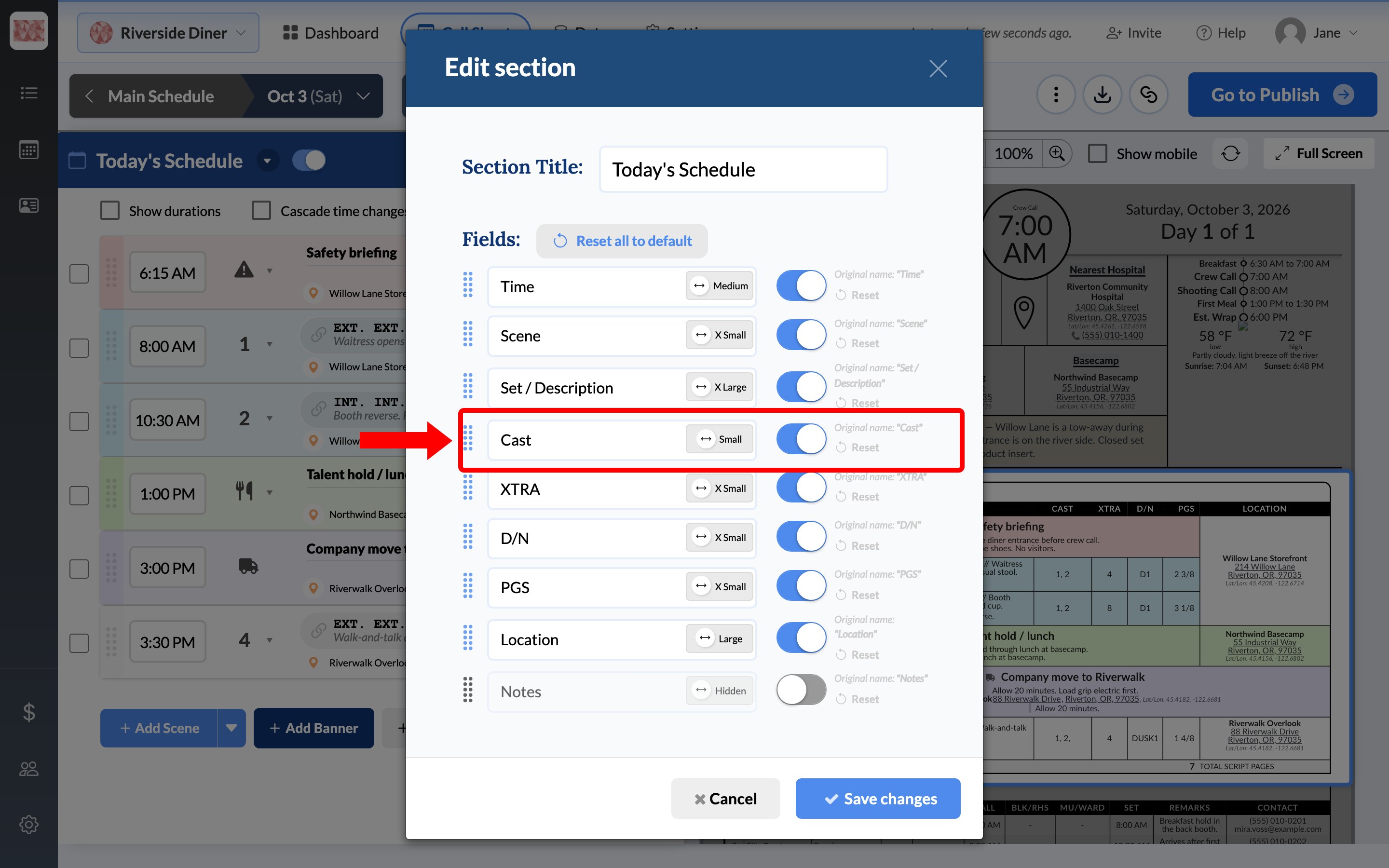
- Rename it: type over the name. The original name stays listed beside it, and Reset puts it back.
- Change its width: click the width button, such as Small or Large.
- Hide it: turn off its switch. The width button then reads Hidden.
- Reorder it: drag the dotted handle on the left.
Click Save changes when you're done. Reset all to default restores every column in the section before you save.
Column changes apply to this call sheet. To use them on other days, save your layout as a template.
Change the crew section
The Crew section has its own controls, at the top of the section.
Filter shows only the crew who match rules you set, based on a tag or location. If you add more than one rule, choose whether a person must match all of them or any of them.
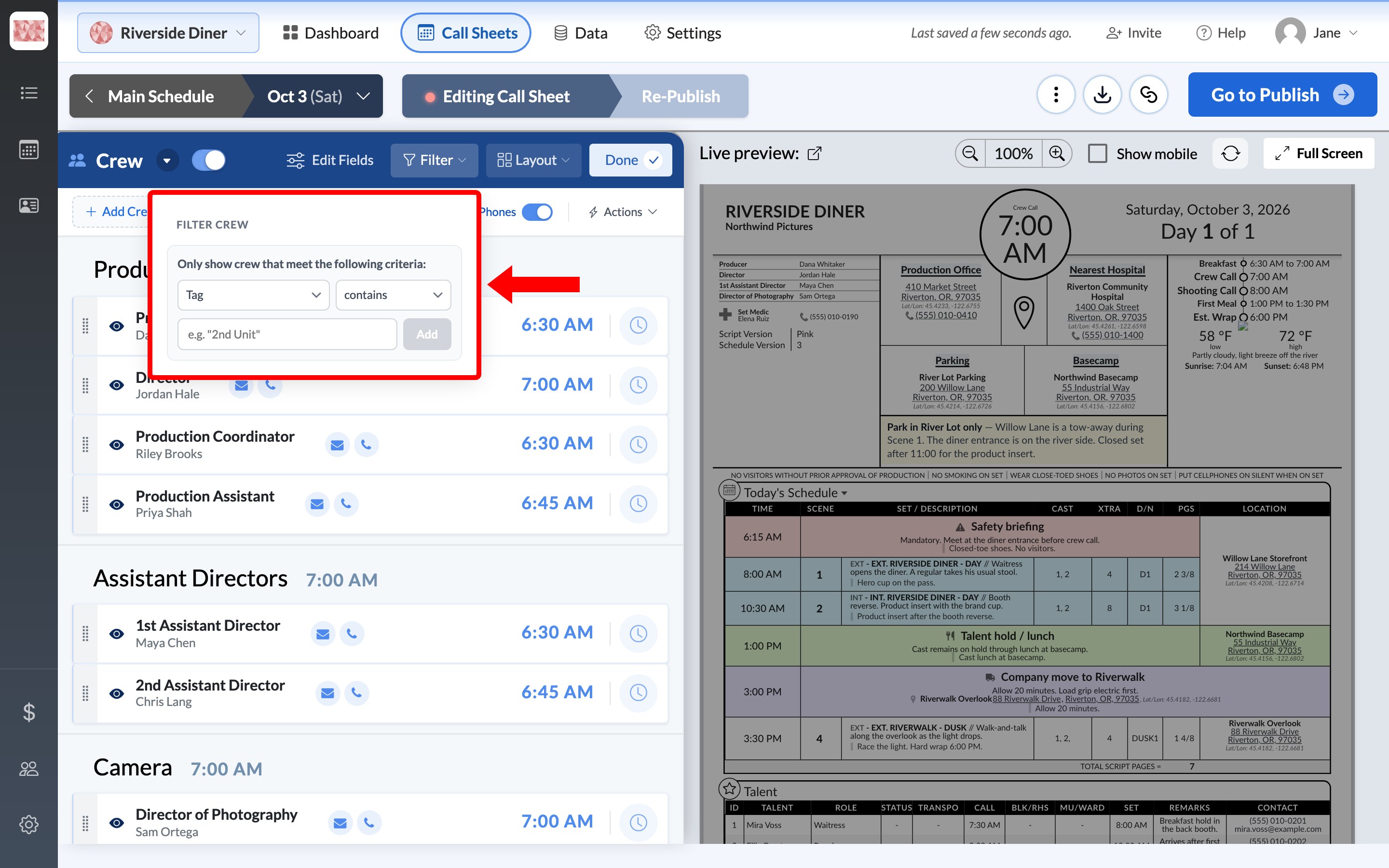
Important: Filtered-out crew also stay unselected when you click Everyone on the sheet while publishing. See Select recipients in the call sheet publisher.
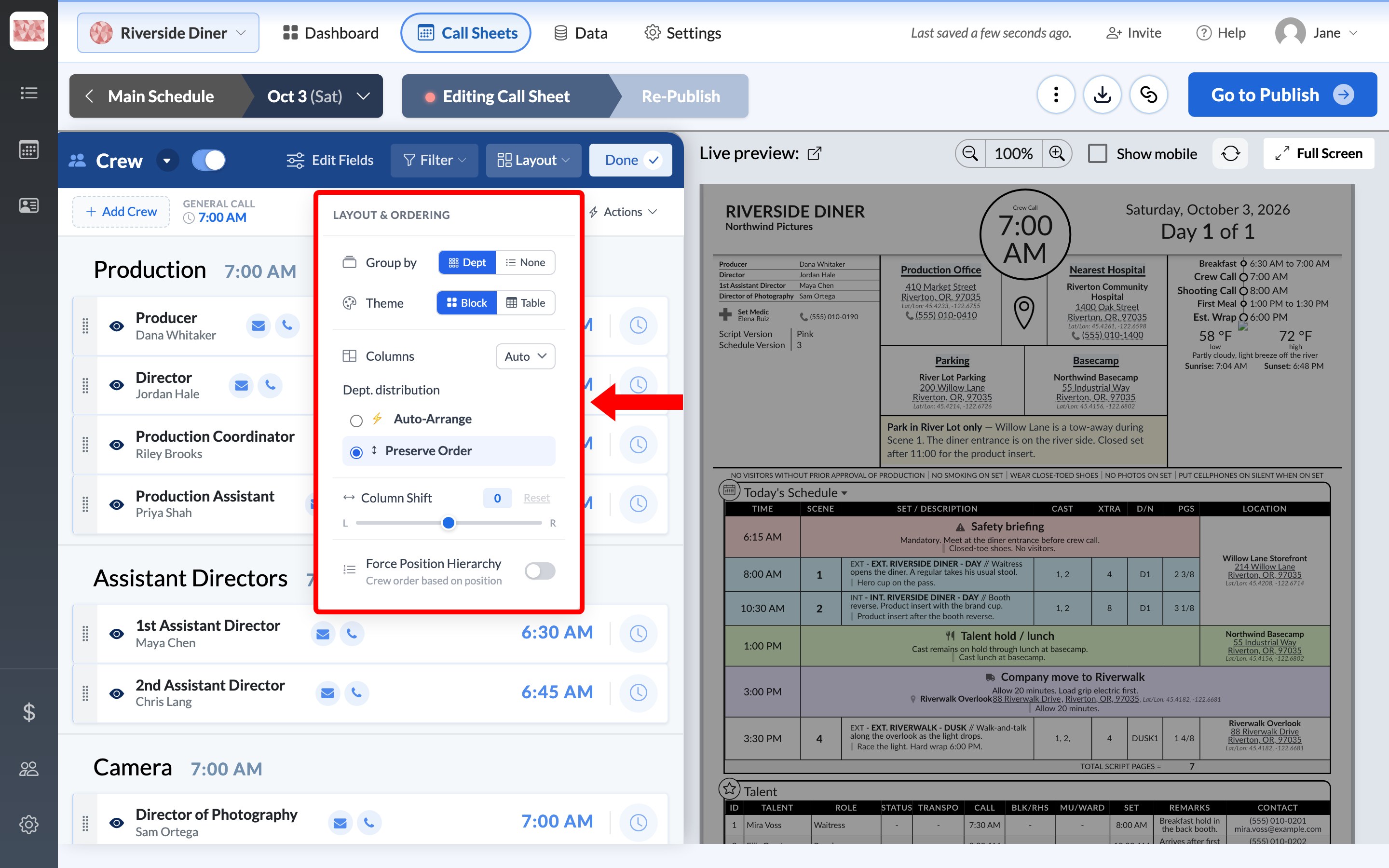
Layout controls how the crew list prints, including how it's grouped, its theme, its number of columns, and whether people are ordered by position.