Select recipients in the call sheet publisher
Choose who receives a call sheet, send only to new people, and fix missing recipients
The Select Recipients panel on the left of the publish page controls who gets this call sheet. Selecting people doesn't send anything. To open the page, see open the publishing workspace.
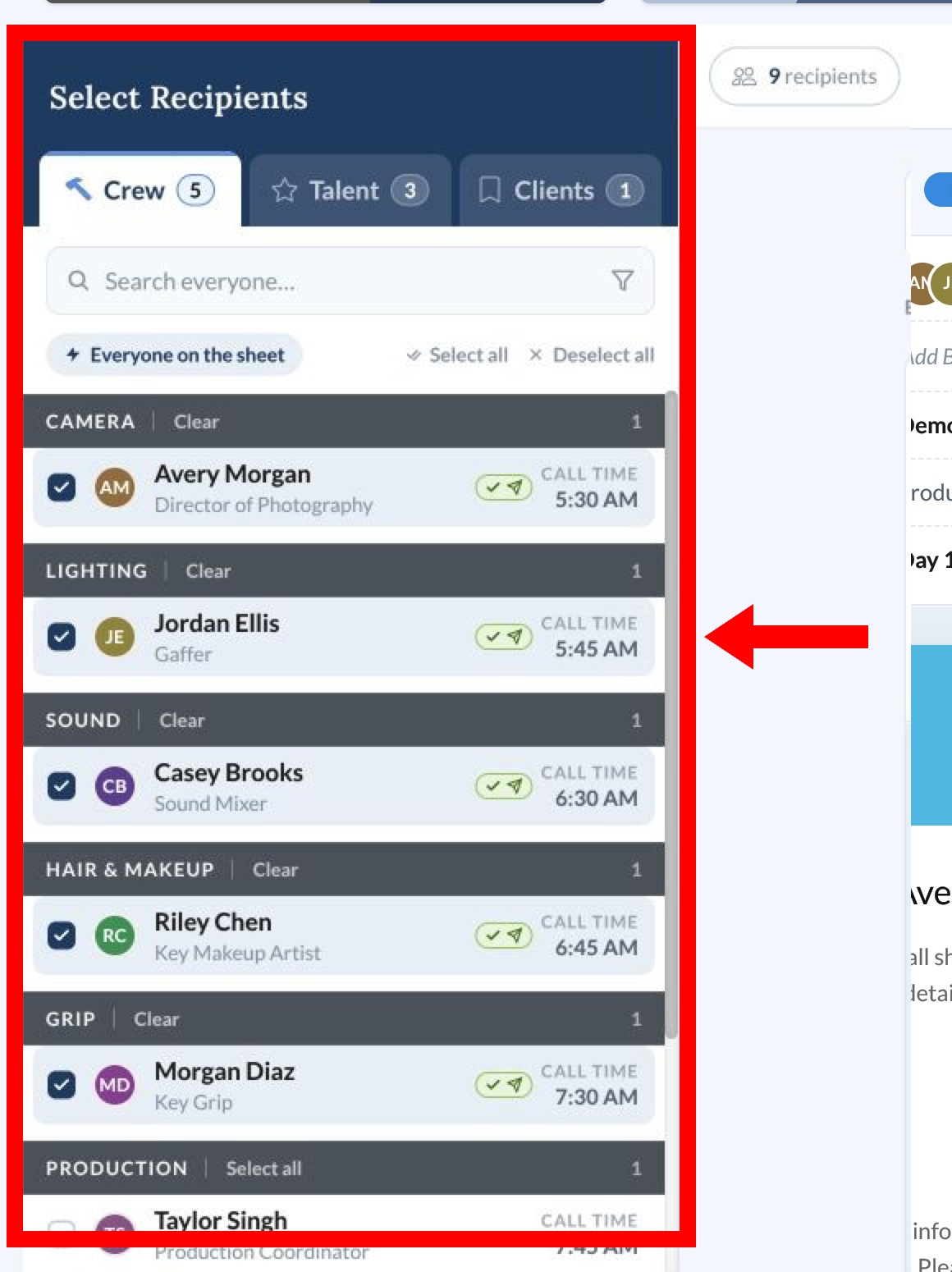
Send to everyone on the call sheet
For most sends, click Everyone on the sheet, then check the Crew, Talent, and Clients tabs. The number on each tab shows how many rows are selected there.
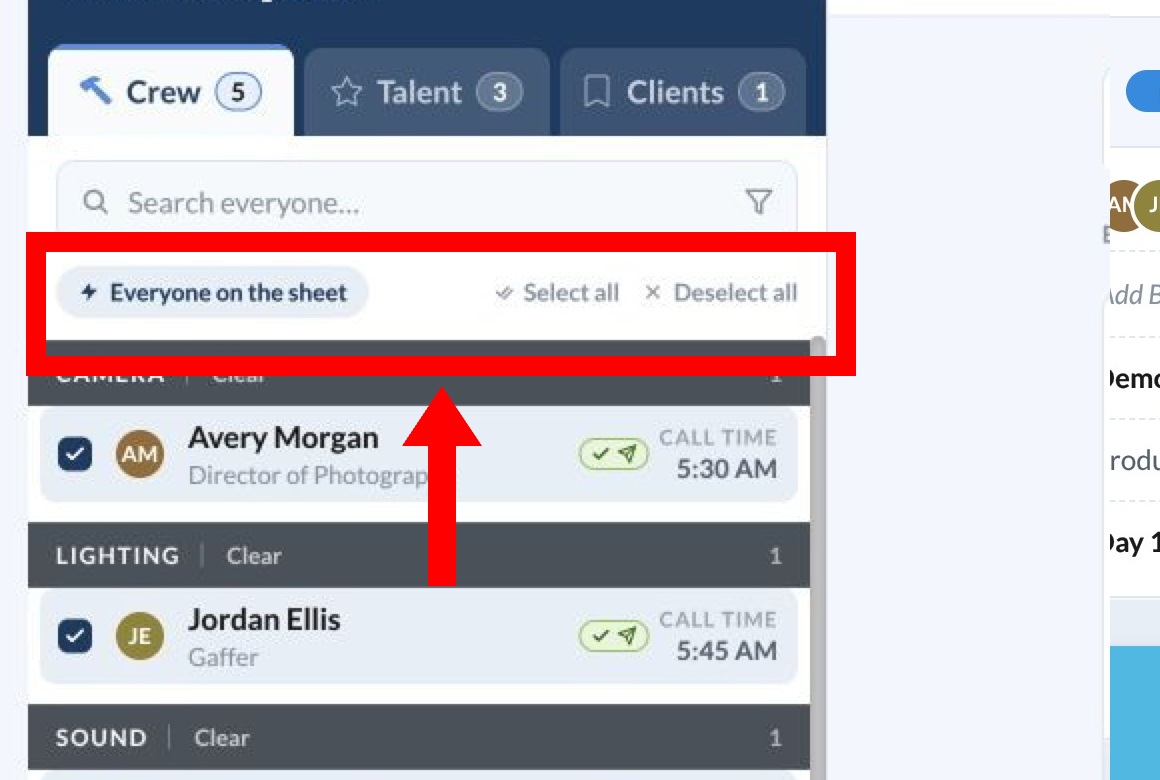
This button replaces anything you've already selected. It leaves out:
- Crew and departments hidden on the call sheet, and anyone excluded by call sheet filters
- Talent and clients who aren't on this call sheet
- People with no usable email address or phone number
Choose specific people
Check a row to include that person, or clear it to remove them.
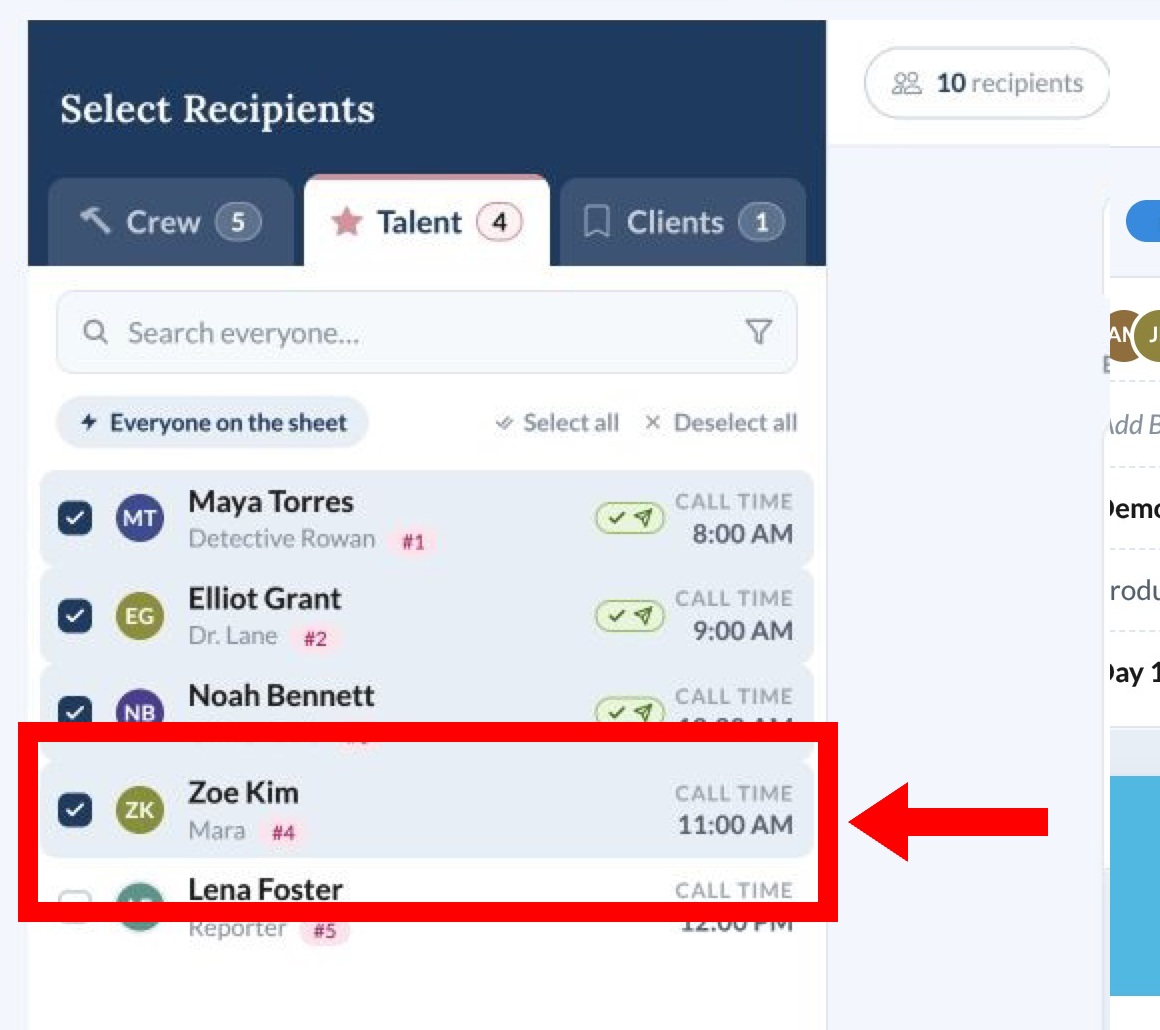
To change several at once:
- Select all selects everyone showing in the current tab.
- Deselect all clears your selection in all three tabs.
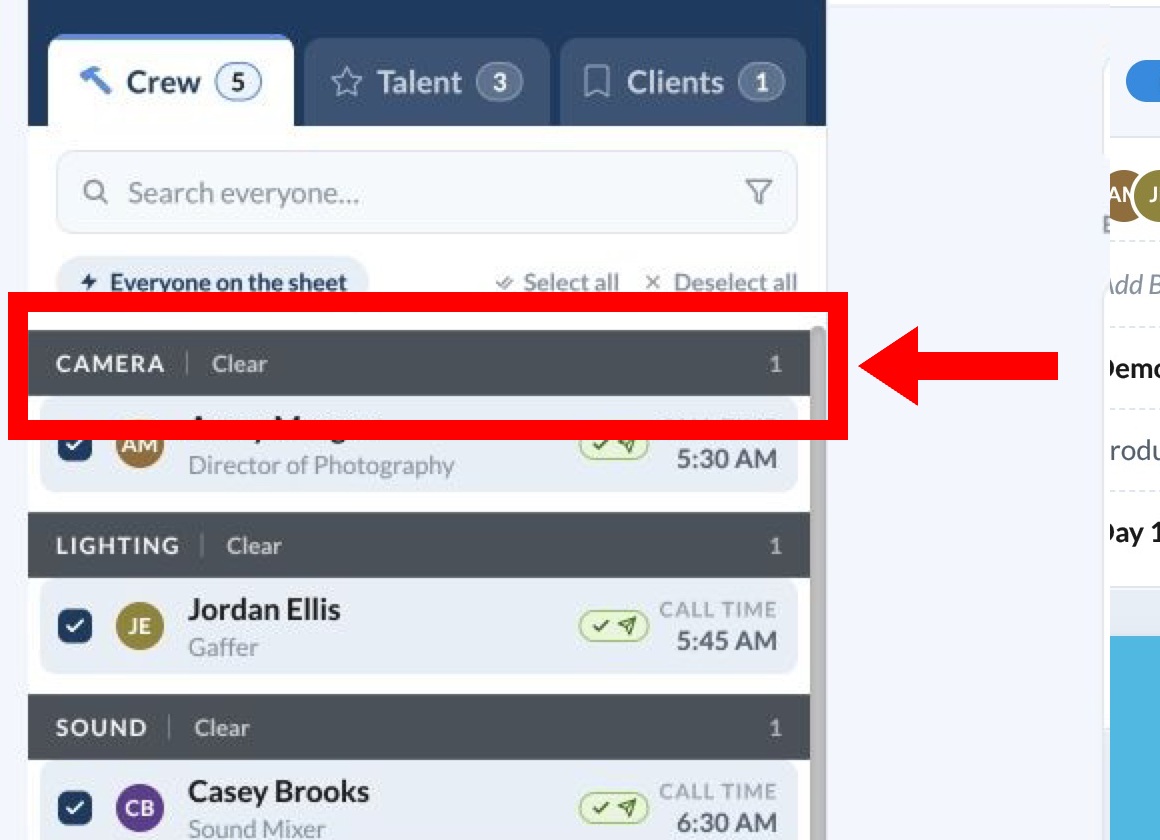
- Select all or Clear beside a department changes only that department in the Crew tab.
Note: Someone with more than one role appears in more than one row. If you select several of their roles, they still count as one person toward your plan's recipient limit, and they get at most one message through each delivery method.
Send only to people who haven't received it
This is useful when you've added people after publishing. Your earlier selections stay in place, so clear them first:
- Click Deselect all.
- Click the filter button and turn on Not yet sent.
- Click Select all, then repeat in the other tabs you need.
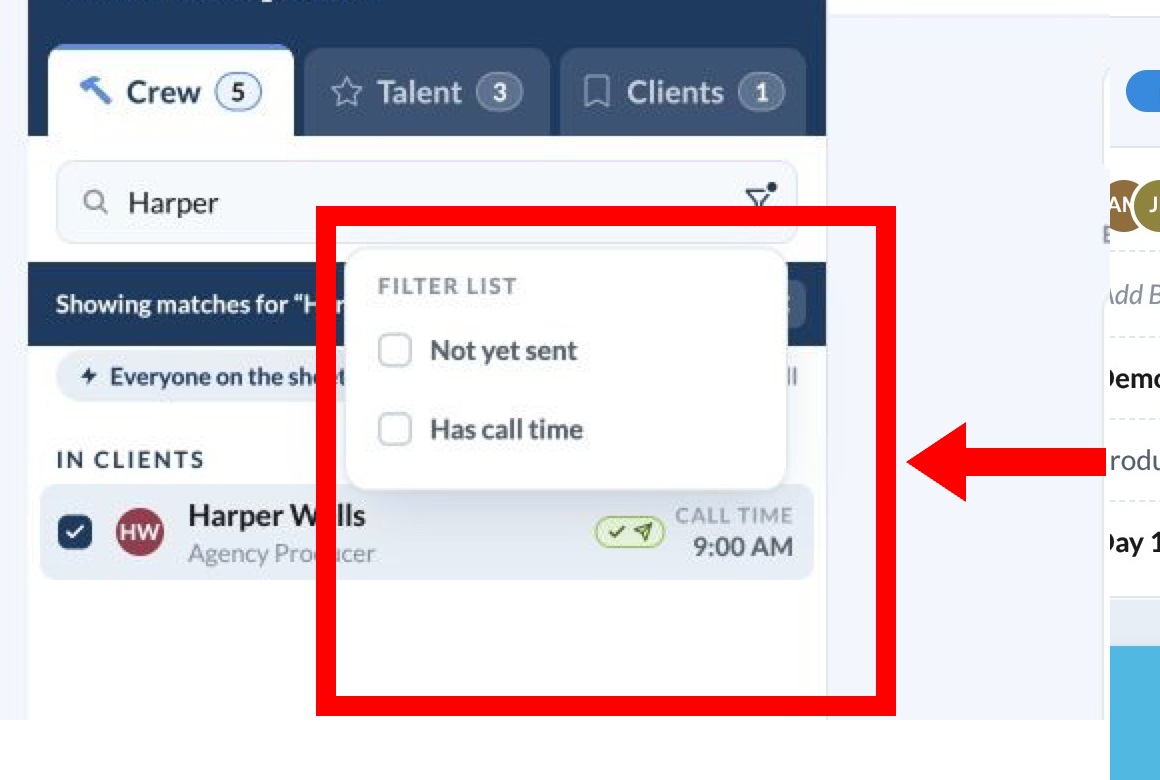
A filter only changes who's showing. It doesn't remove anyone from your selection.
Find someone
Type a name or role in Search everyone…. Results come from all three tabs, whichever tab you're on.
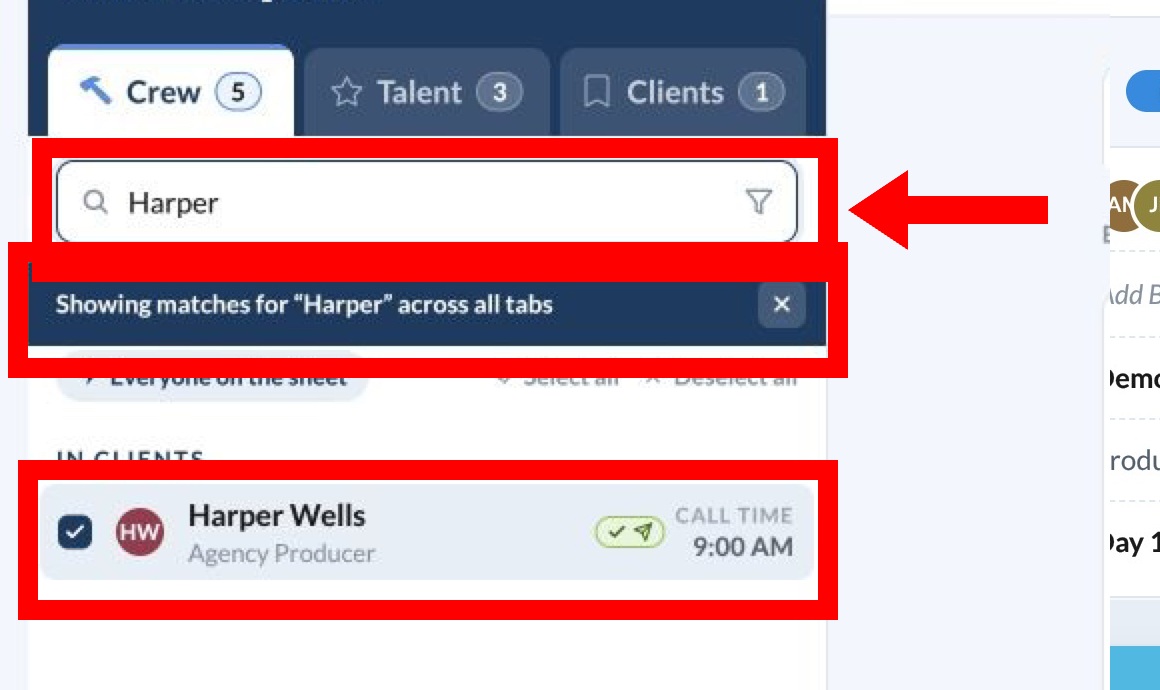
The filter button also has Has call time, which shows only roles with a call time on this call sheet. If you turn on both filters, a row has to match both. To see the full list again, click the × on the banner above the list.
If someone is missing or can't be reached
| What you see | What it means | What to do |
|---|---|---|
| No contact info | They have no usable email address or phone number, so they can't receive this call sheet. | Update their details and permissions. If they're selected, clear the row to free their spot on your recipient limit. |
| Not called | They don't have a call time on this call sheet. You can still send it to them. | To add a time, go back to the call sheet with Back to Editing. |
| No clients on this project yet | The project has no clients. | Add clients to the project. |
| No one matches that search | Your search or filters are hiding everyone in this tab. | Click the × on the banner above the list. |
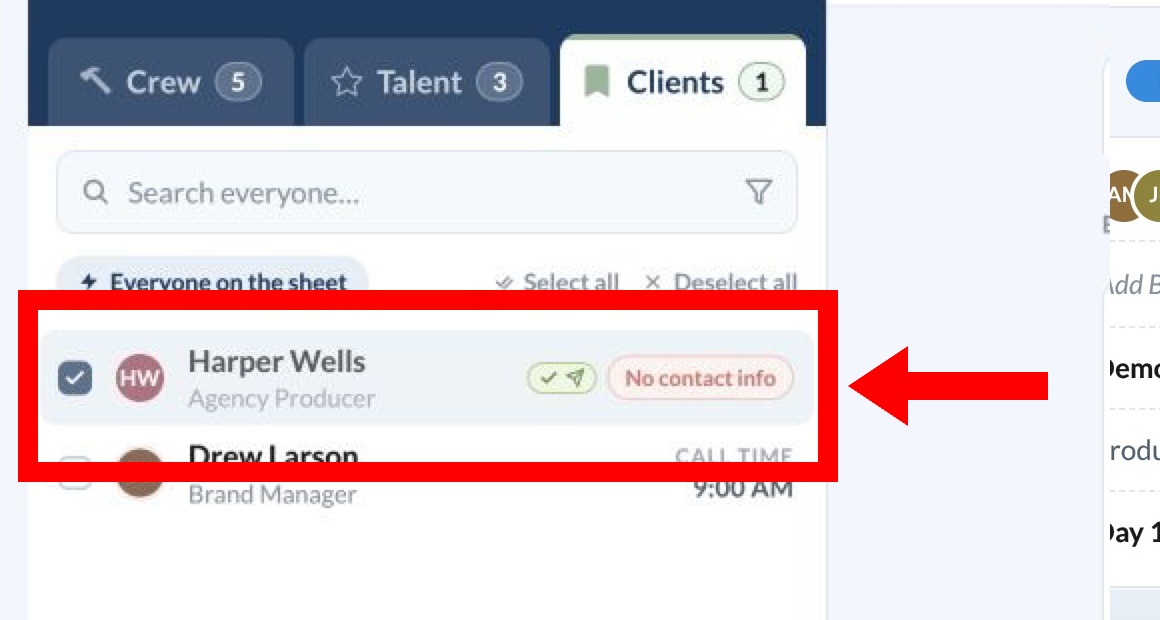
Your selections are saved
Selections save automatically. When you come back to this call sheet, they're still there, including people who received an earlier publish. So check who's selected before you send an update.
When you're ready, select Review & Publish to see who can be reached before anything goes out.