Turn sections on or off
How to show or hide sections and find disabled ones
If you don't need a section on a shoot day, such as Extras or Department Notes, you can hide it. You manage sections from the Layout list on the Outline tab of the call sheet.
Hide or show a section
- To hide a section, click the eye icon beside its name. It's grayed out in the list and removed from the live preview.
- To show it again, click the slashed eye icon.
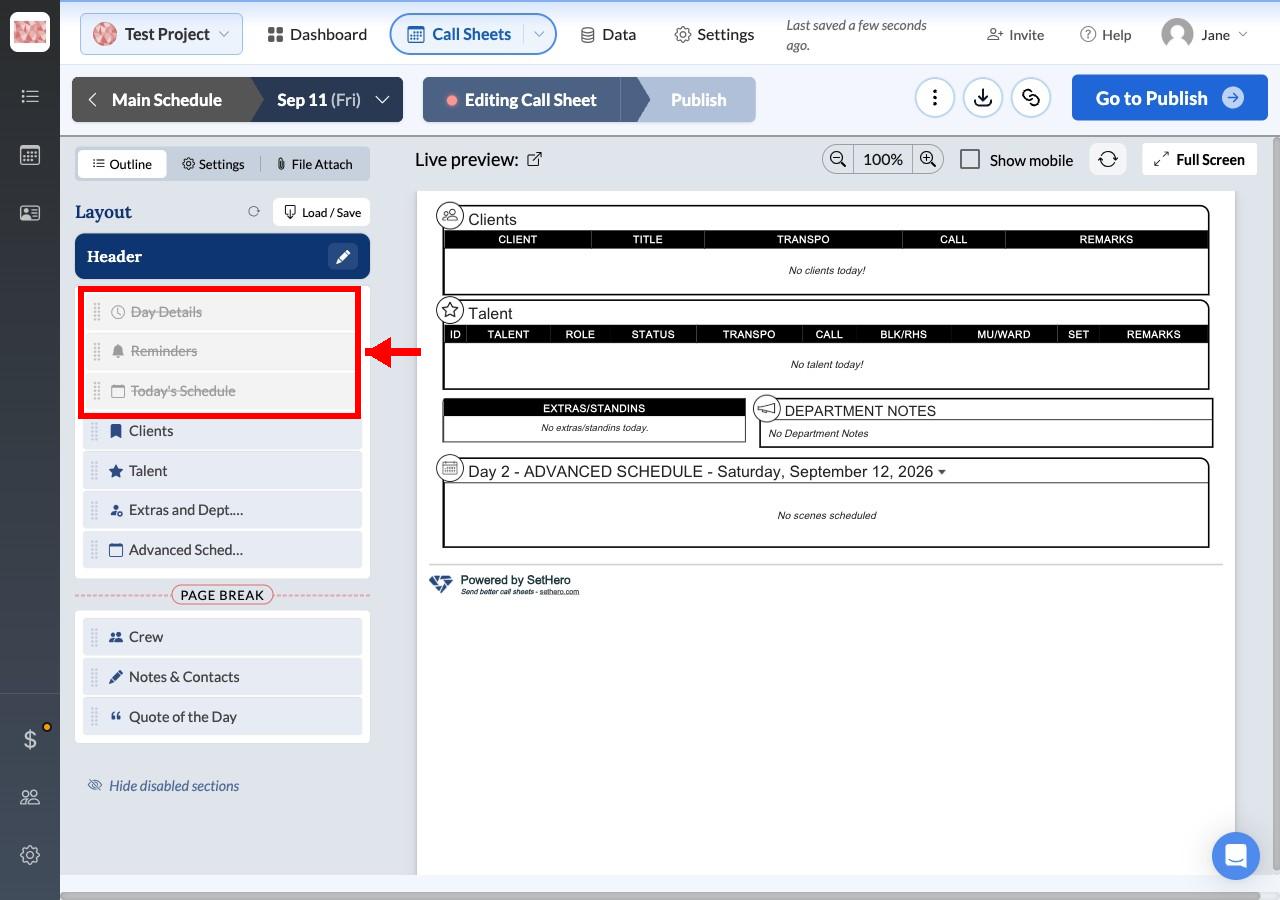
Find a hidden section
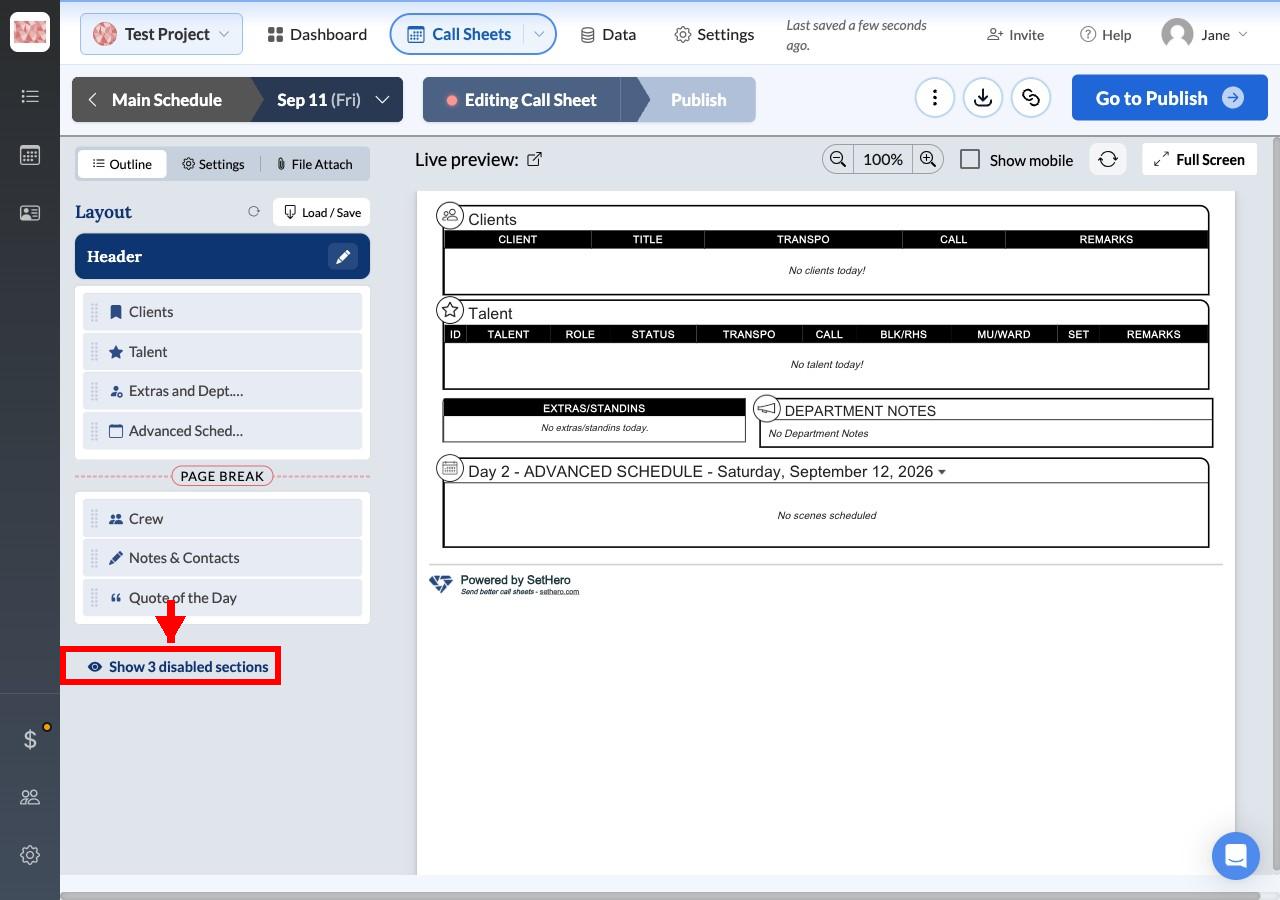
Hidden sections can be collapsed out of the list. If you can't see one, click Show X disabled sections below the list.
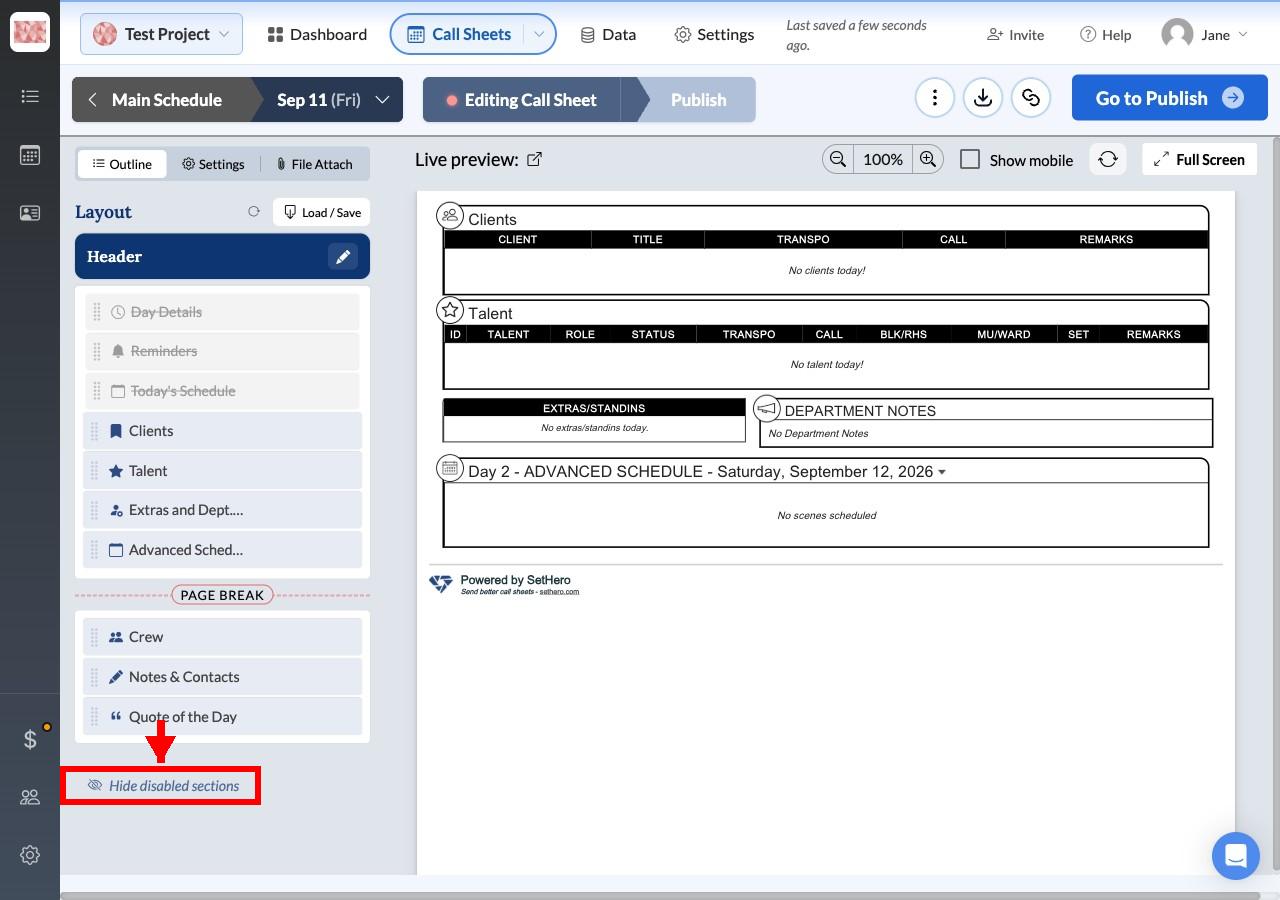
To collapse them again, click Hide disabled sections.
Reorder or add sections
- To reorder sections, drag a section to a new place in the Layout list.
- To add a section, such as a custom banner or a page break, use the Add Section plus icon in the list.
Go back to the standard layout
Click the Reset to default icon beside Layout. SetHero asks you to confirm first, because this removes any reordering, custom page breaks, and banners.
To rename a section or change its columns, see Customize sections and fields. To keep a layout you like, save it as a template.