Assigning different crew positions on different days
How multiple crew positions work, and which ones appear each day
Crew members often wear more than one hat. Someone might operate the camera most of the week and step up as Director of Photography for a single day. You don't need a duplicate contact for each job. Assign every position the person will work once, then decide which of those positions appears on each day's call sheet.
Assign every position the person will work
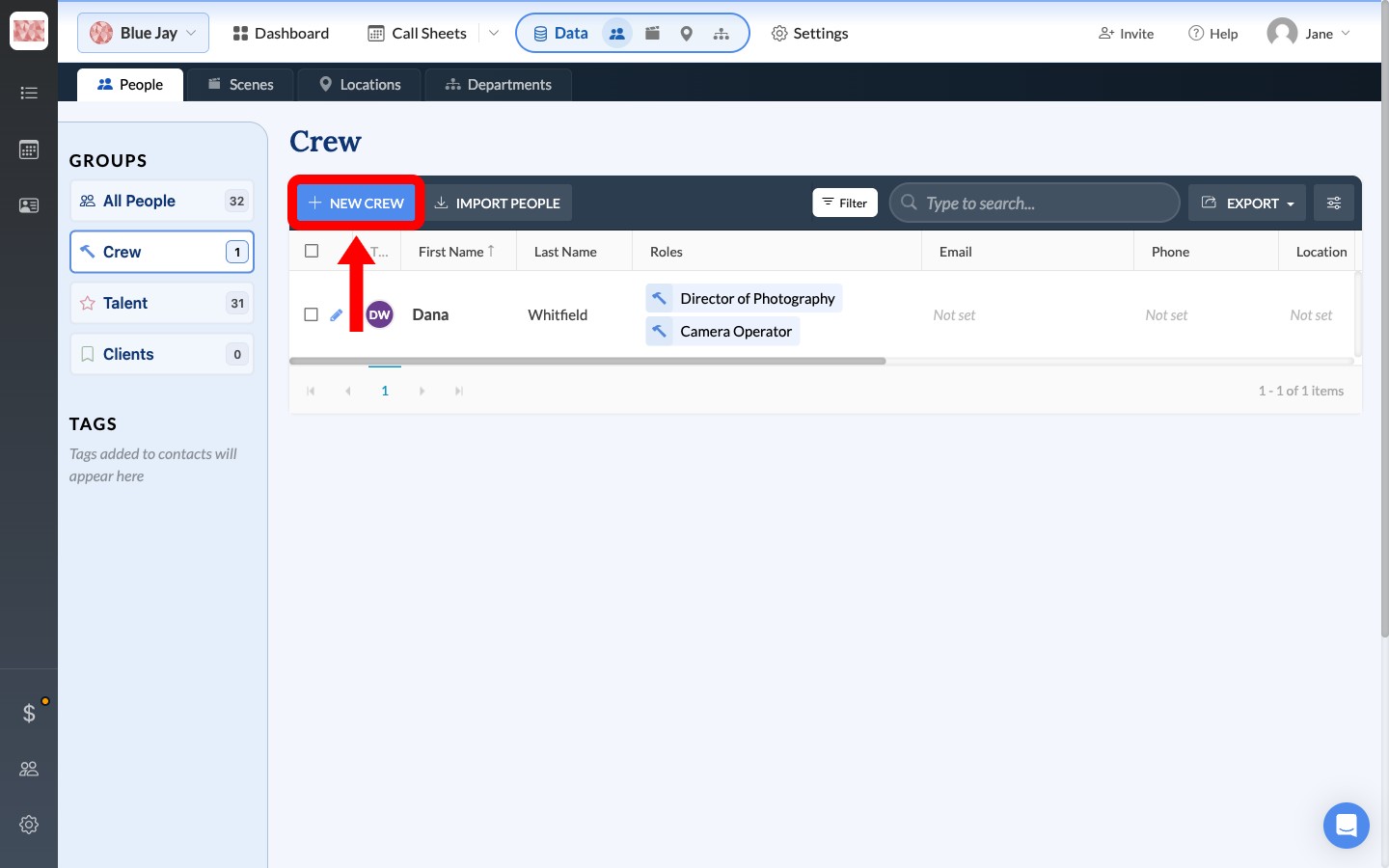
- Open Data → People, then choose Crew in the left sidebar.
- Click New Crew.
- Type the person's name in Full Name. If they are already one of your contacts, pick them from the list that appears so you link the existing record instead of creating a duplicate.
- In the Role(s) row, leave the role set to Crew and search for their first position.
- Click + Add Another Role, set the new row's role to Crew, and search for the second position. Repeat for as many positions as they will work.
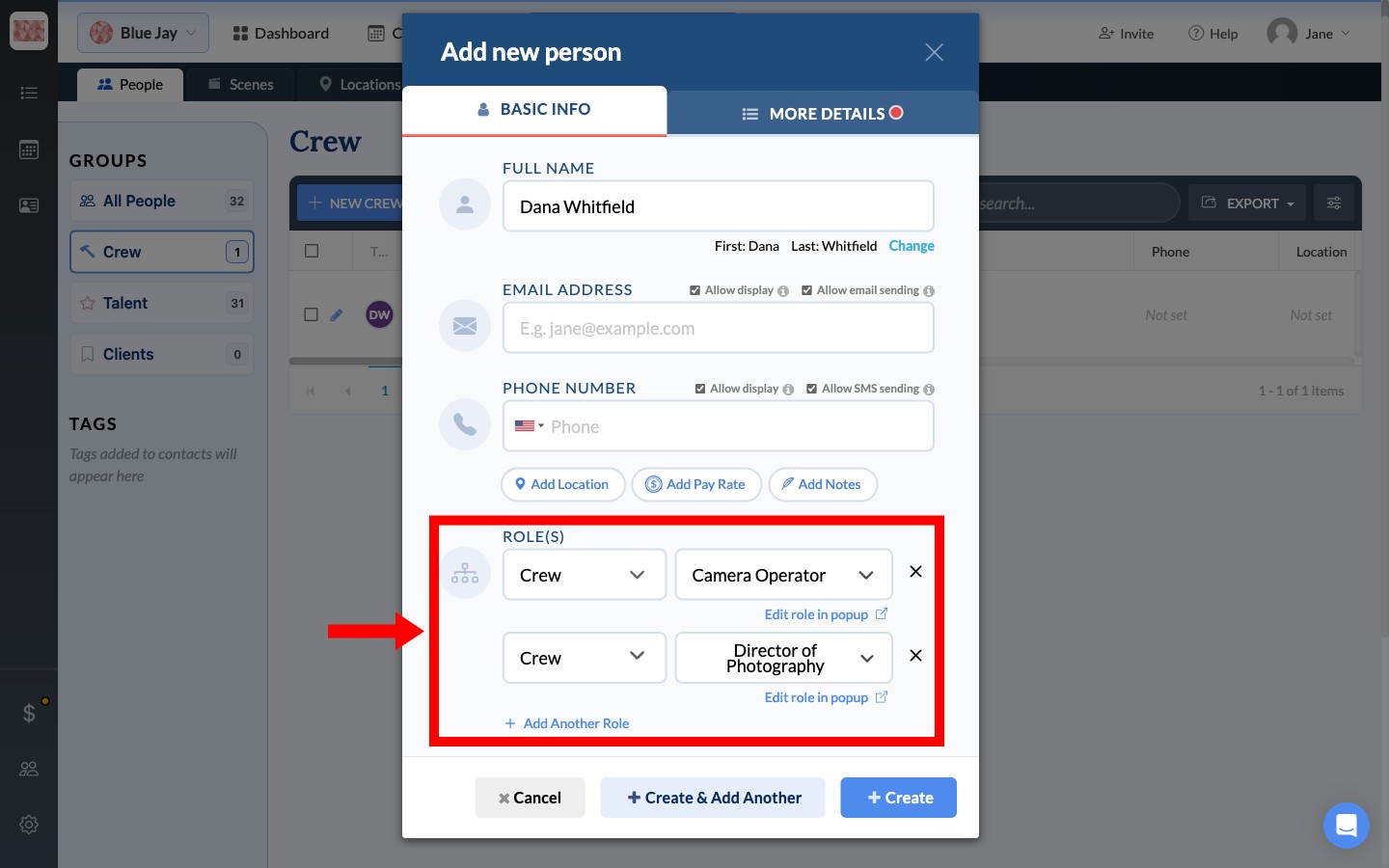
- Click Create.
Tip: If a position you need doesn't turn up in the search, you can add it on the spot, or set your list up ahead of time in Set up departments and positions.
Confirm both positions saved
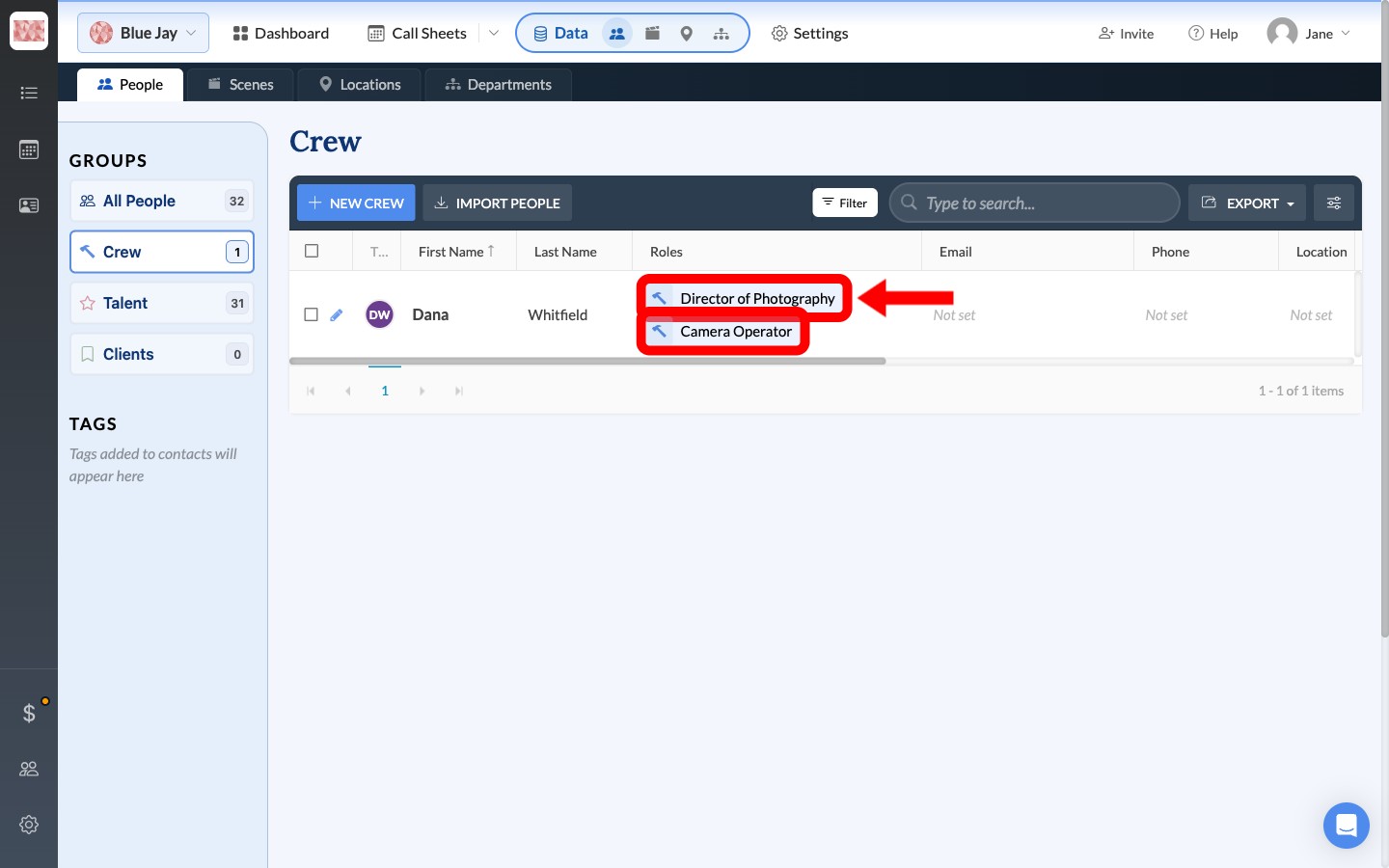
Back on the Crew page, the person appears once with every position listed in the Roles column. That single entry is what feeds each call sheet.
Show or hide the right position on each day
By default a new call sheet lists every position the person holds, so you hide the ones they aren't working that day.
- Open the call sheet you want to change and go to its Crew section.
- Find the person under their department. There is one row per position they hold.
- Click the eye icon on the position they are not working that day. The role is crossed out and dropped from that call sheet.
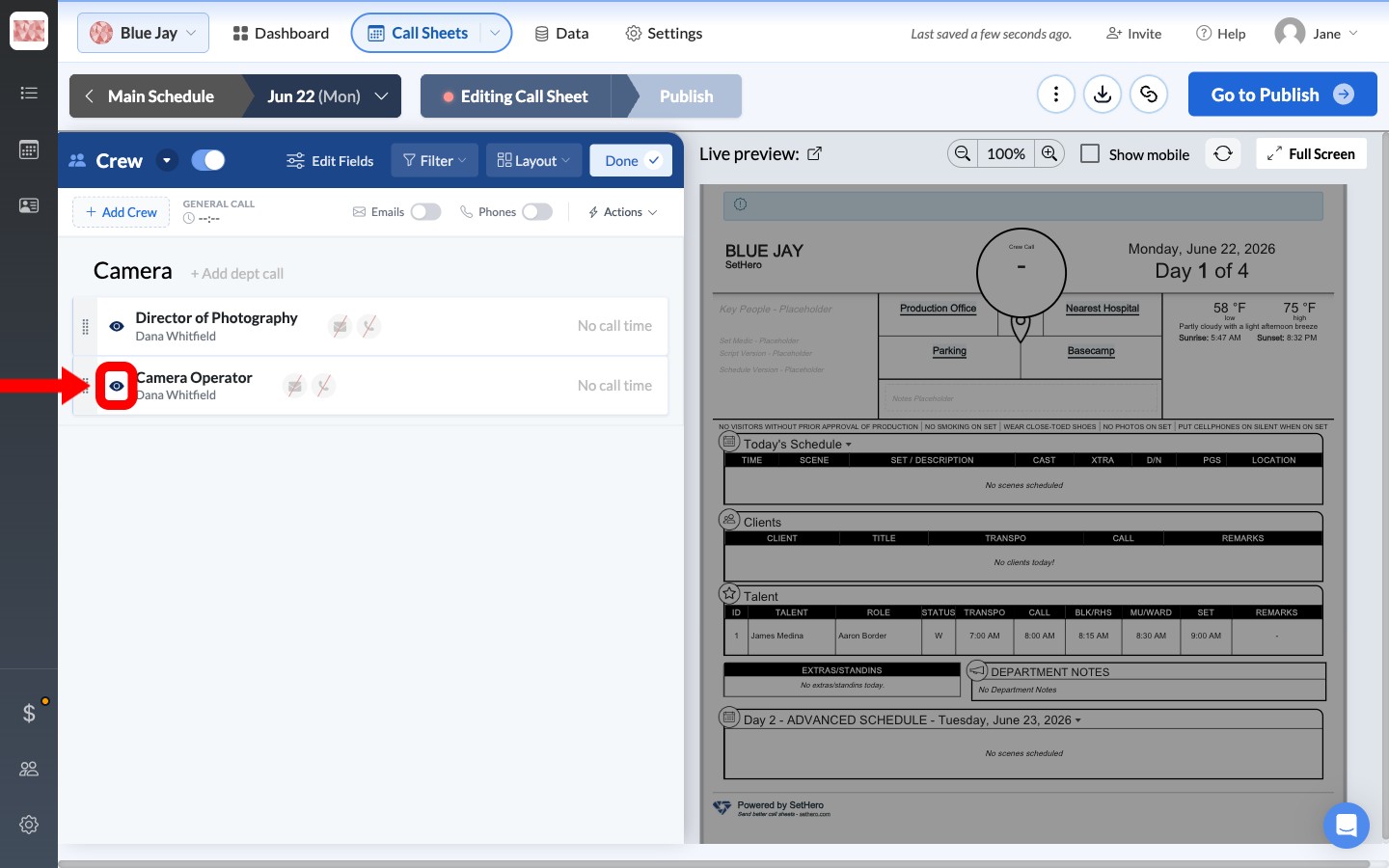
Repeat this on each day, hiding whichever role doesn't apply. On the day they step up, hide the other position instead — the person keeps one contact record and one set of contact details throughout.
Note: Hiding a position only affects the call sheet you're editing. The position stays on the project's crew list and on every other day.
Important: When you add crew to a project, SetHero automatically hides them on call sheets for days that have already passed, so your finished sheets don't change. Those rows arrive crossed out — click the eye icon to show one if you do need it. See Why a person isn't showing up on your sheet if someone is missing from a sheet you expected them on.