Customize call sheet emails before publishing
How to customize email details, branding, and attachments before publishing
The Email Preview in the Publish & Send workspace controls how your call sheet email looks and where replies go. You can set the subject and sender details, add BCC recipients, choose a style, add your logo and colors, write a note from production, and manage attachments. First, open the publishing workspace for the call sheet you want to send.
Open the email editor
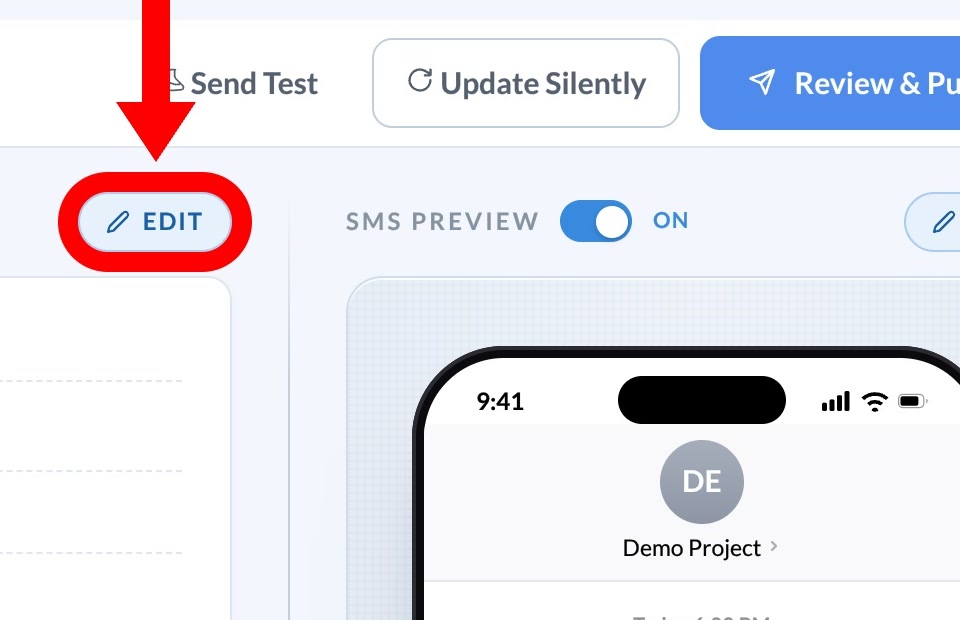
Select the Email Preview tab, then select EDIT. The On or Off switch beside the tab includes or removes email from this send without affecting SMS.
Recipients need an allowed email address to receive the message. See Required info for sending email and text for contact requirements.
Set the subject and reply details
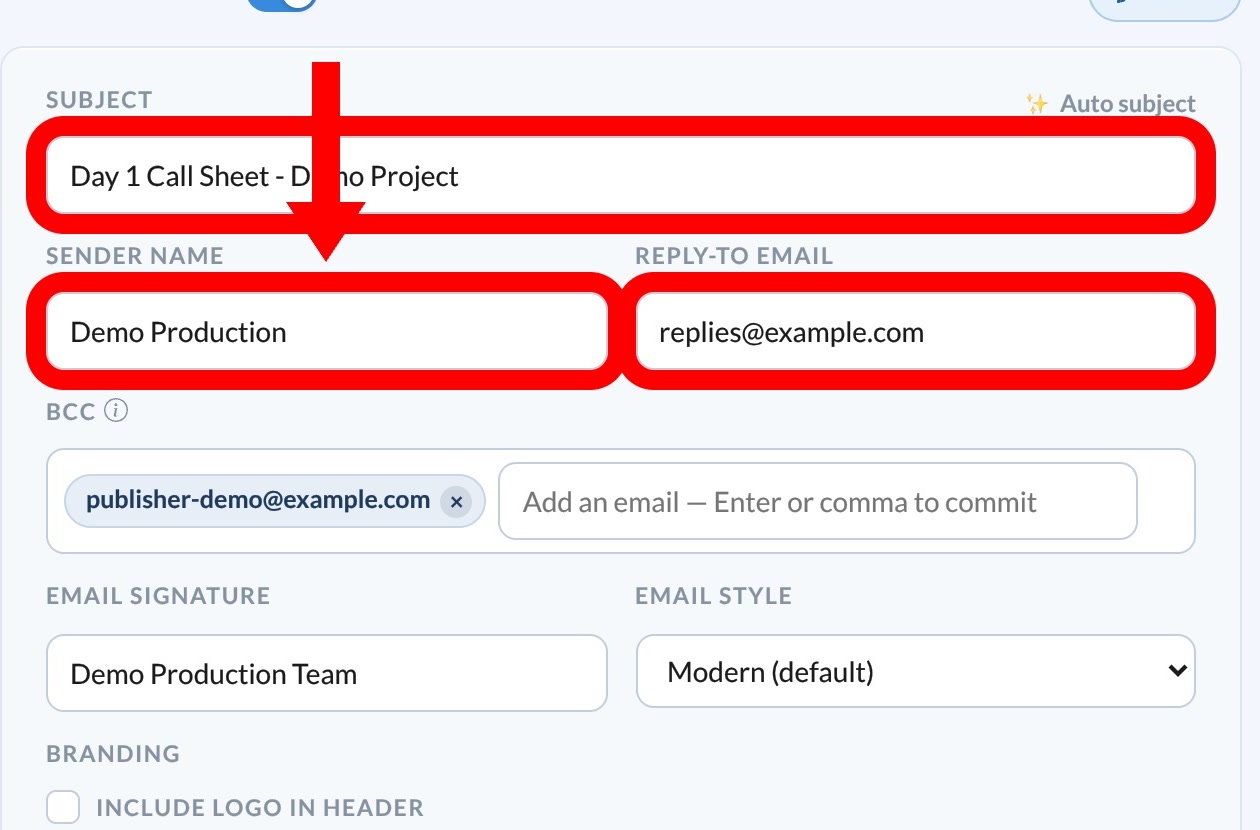
- Leave Auto subject on to use
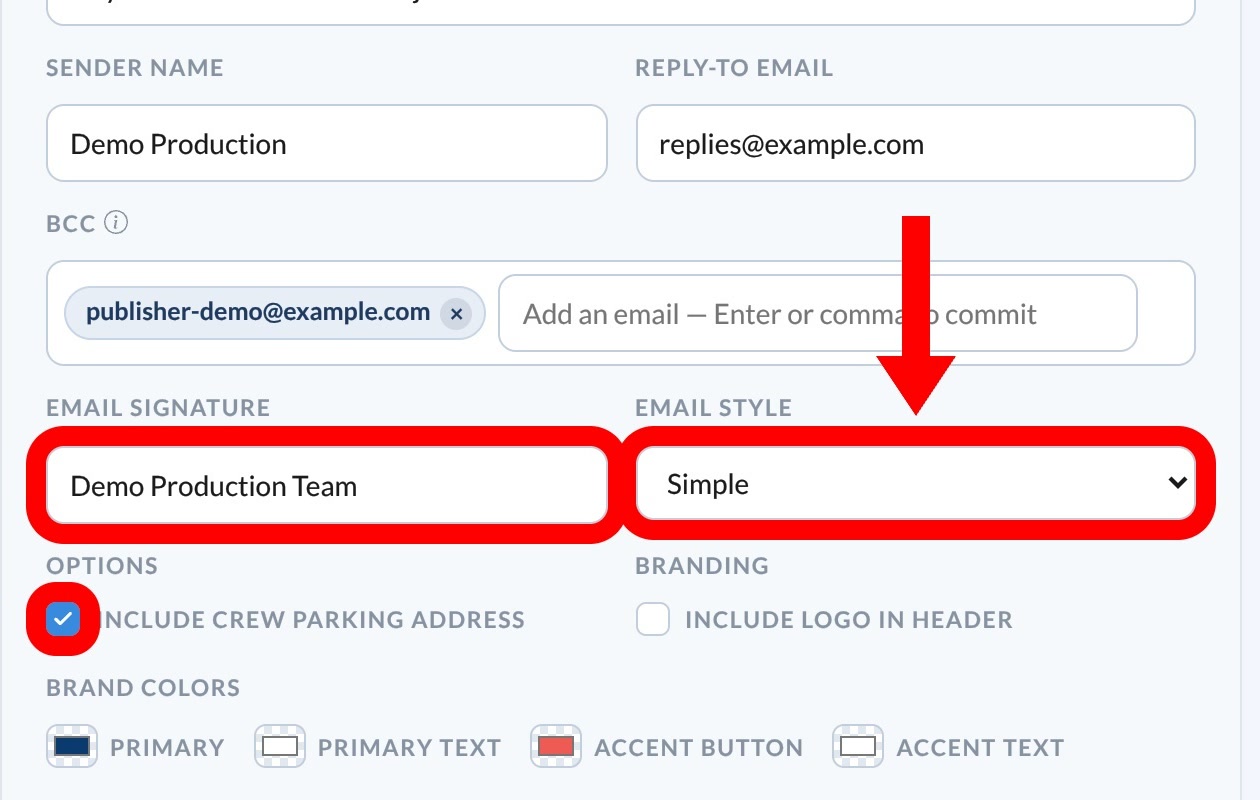
Day [number] Call Sheet - [project name], or turn it off and enter your own Subject. - Enter the Sender name recipients should see. The sending address is always
support@setheroapp.comand can't be changed. - Enter the Reply-To email that should receive replies.
Add BCC recipients
Enter an address in BCC and press Enter or type a comma to add it. Select the × on a chip to remove it.
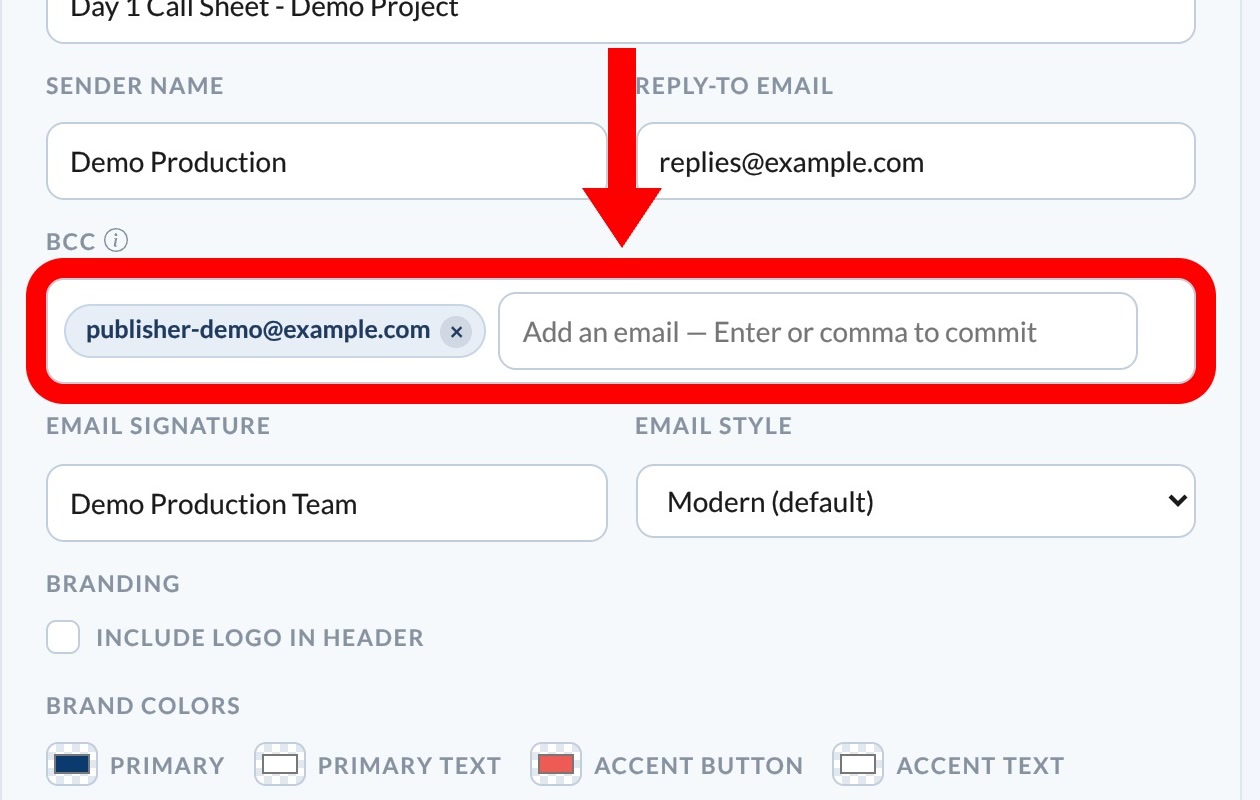
Important: BCC recipients receive an unpersonalized email. SetHero can't track their delivery, opens, or confirmations. Each distinct BCC address counts as one recipient toward your plan limit and stays in the recipient-count history after receiving this call sheet, even if you remove it from a later send.
Style, signature, and branding
- Choose an Email style: Modern (the default, with the branded header and confirmation button) or Simple (a lighter layout).
- Add an Email signature.
- Select Include crew parking address if the call sheet has a crew parking location. The option appears only once parking has been added.
- Select Include logo in header to add your logo and use Logo scale to size it. SetHero recommends a 300 × 80 pixel image.
- Use Brand colors to set the background, text, and button colors. The preview updates as you go.
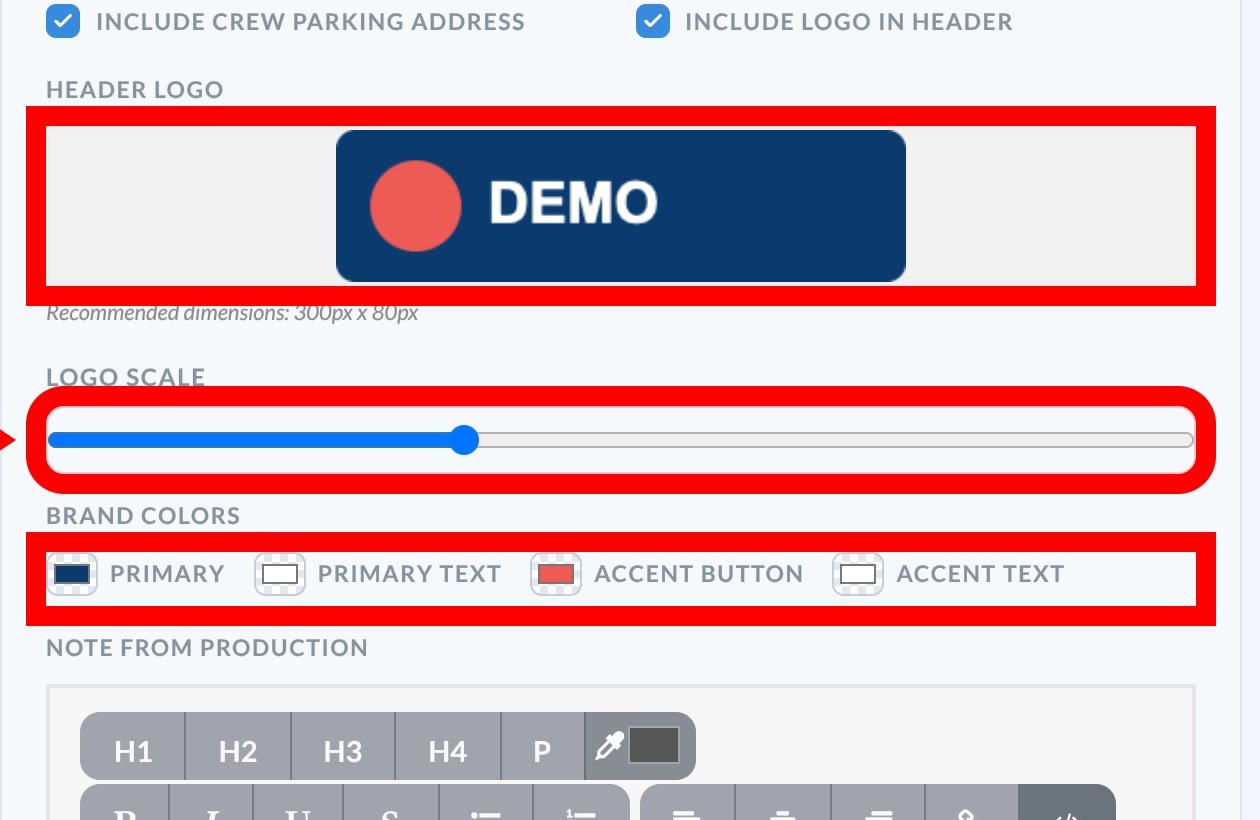
If you see Custom branding requires an upgrade → instead of the logo option, the project doesn't include the custom branding add-on.
Note from production and attachments
Enter production-specific instructions in Note from production. The toolbar supports headings, emphasis, lists, alignment, and links.
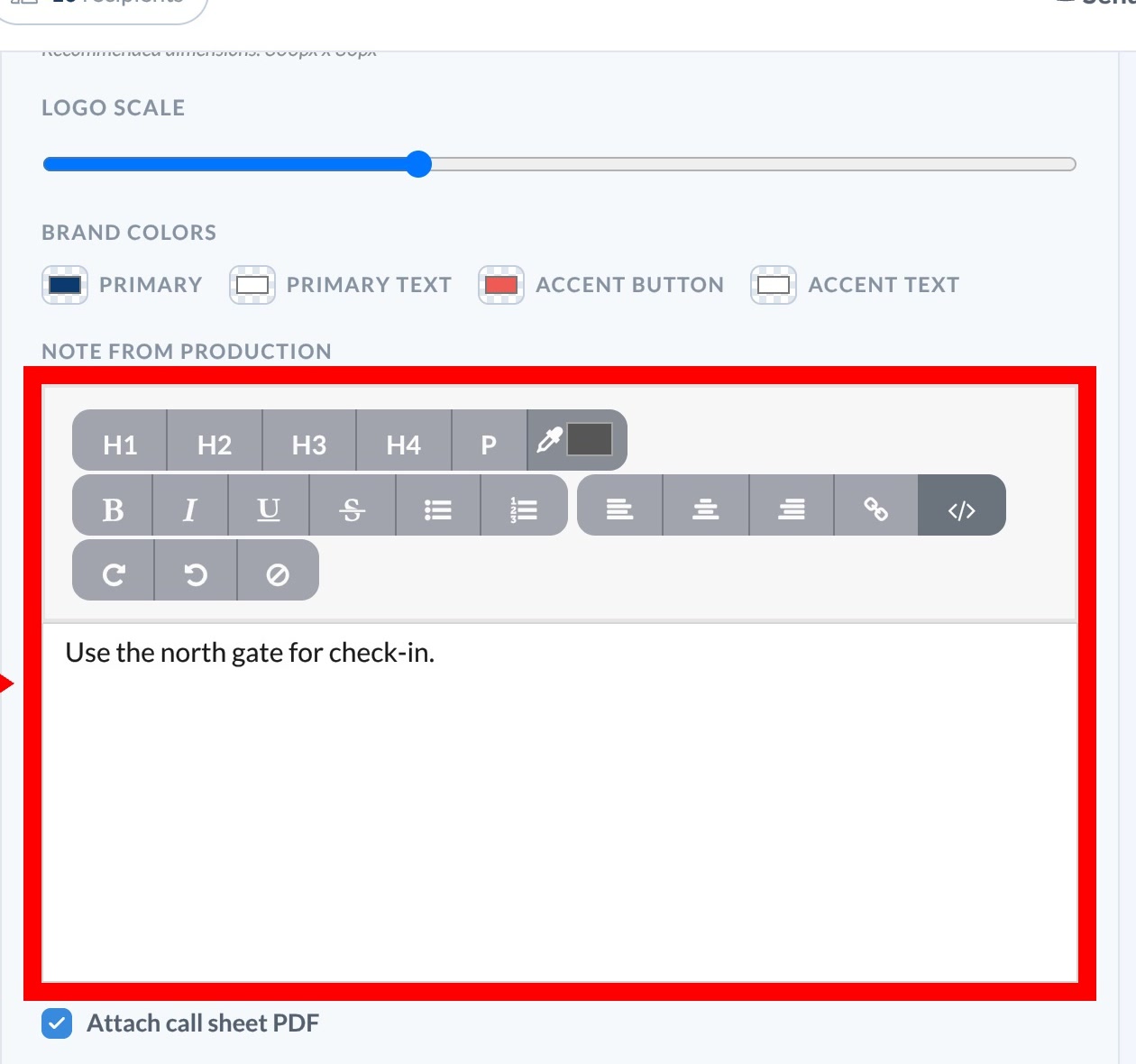
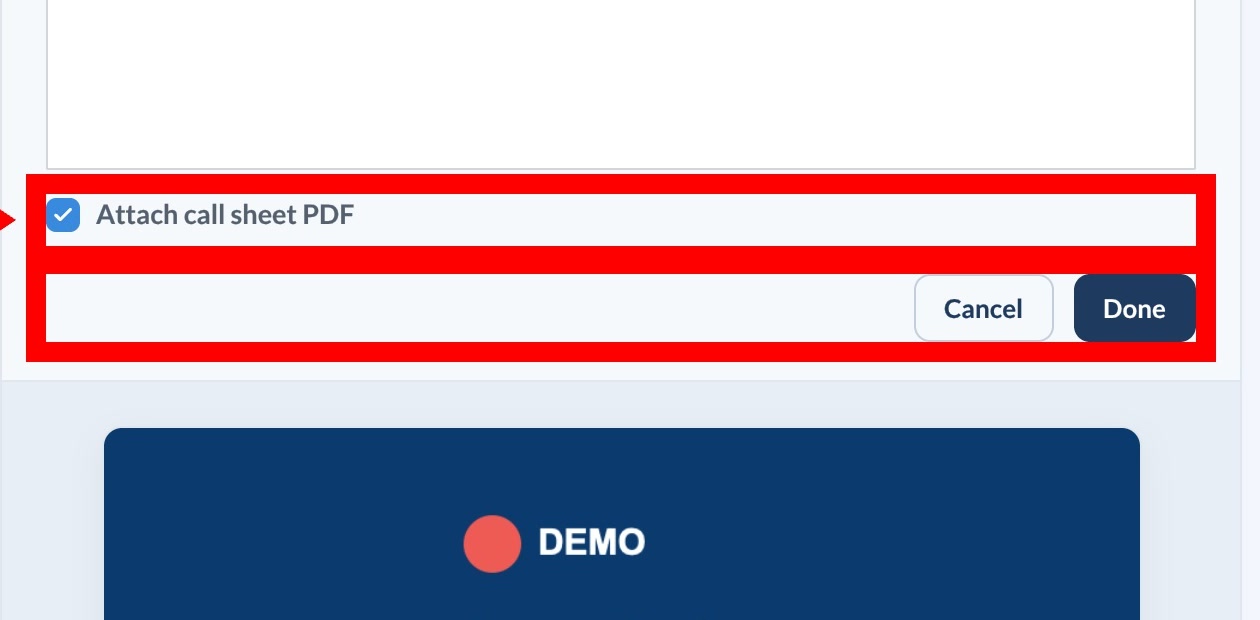
Warning: The current publisher attaches the call sheet PDF to the email even when Attach call sheet PDF is off. To prevent the PDF from being emailed, turn off email delivery for this send or contact SetHero support before sending.
Other attachments appear in the Attach row of the preview. To change them, select Back to Editing, open the File Attach tab, and manage files on the File Attachments page. If a file can't be validated, follow the attachment troubleshooting steps.
Keep or discard your changes
Select Done to keep your email settings, or Cancel to restore everything to how it was when you opened EDIT. Saved settings stay in the workspace so you can check the preview before opening Review & Publish.