Publish and send a call sheet
Who receives your call sheet, how they're notified, and when it's published
Publishing makes your call sheet available to its recipients and sends a notification by email, SMS, or both. Before you start, check that your recipients have the required contact information and sending permissions.
Open the publishing workspace
-
Open your project and select Call Sheets from the top navigation.
-
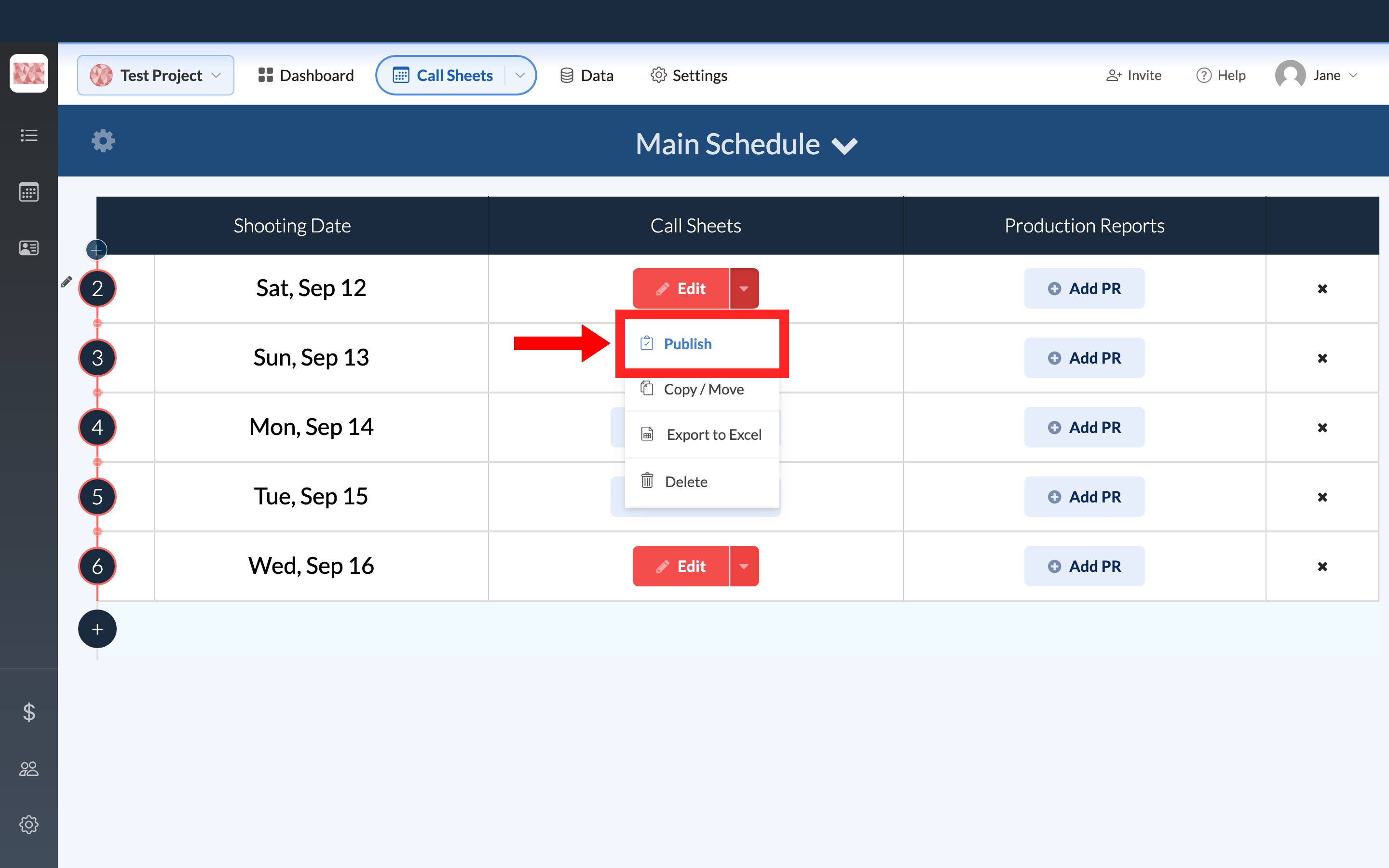
Find the call sheet you want to send, open the dropdown beside Edit, and select Publish.
Check recipients and delivery methods
Selecting Publish opens this workspace. Review the Crew, Talent, and Clients tabs to see who's selected. The number beside each tab counts selected role rows, not distinct people. Then use the Email Preview and SMS Preview tabs, and each channel's On or Off switch, to choose how this send goes out.
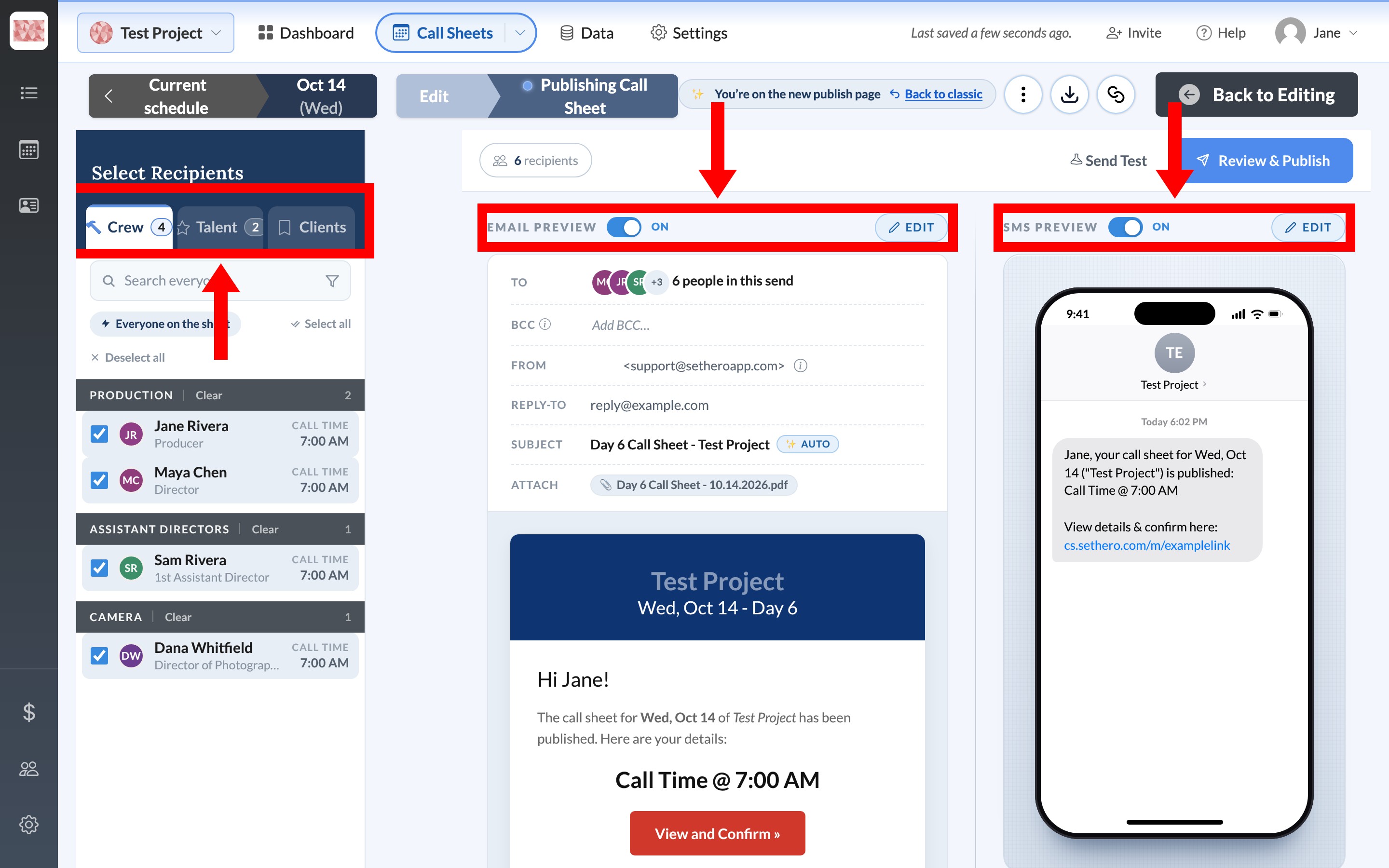
Texting is an add-on, and it is not included on every project. If this project doesn't include it, the SMS switch is locked and texts will not go out. You'll see Publishing via text message is an add-on that requires an upgrade and Purchase texting add-on →, which opens billing so you can add texting. The switch can still say On from an earlier save, but a locked switch does not send texts. Email still works on its own. Send call sheets by text message shows the notice and who can receive a text.
Send now stays disabled until at least one recipient and one delivery method are selected.
Tip: Use the message previews to check exactly what recipients will receive. If you need to change the call sheet itself, select Back to Editing.
Review and publish
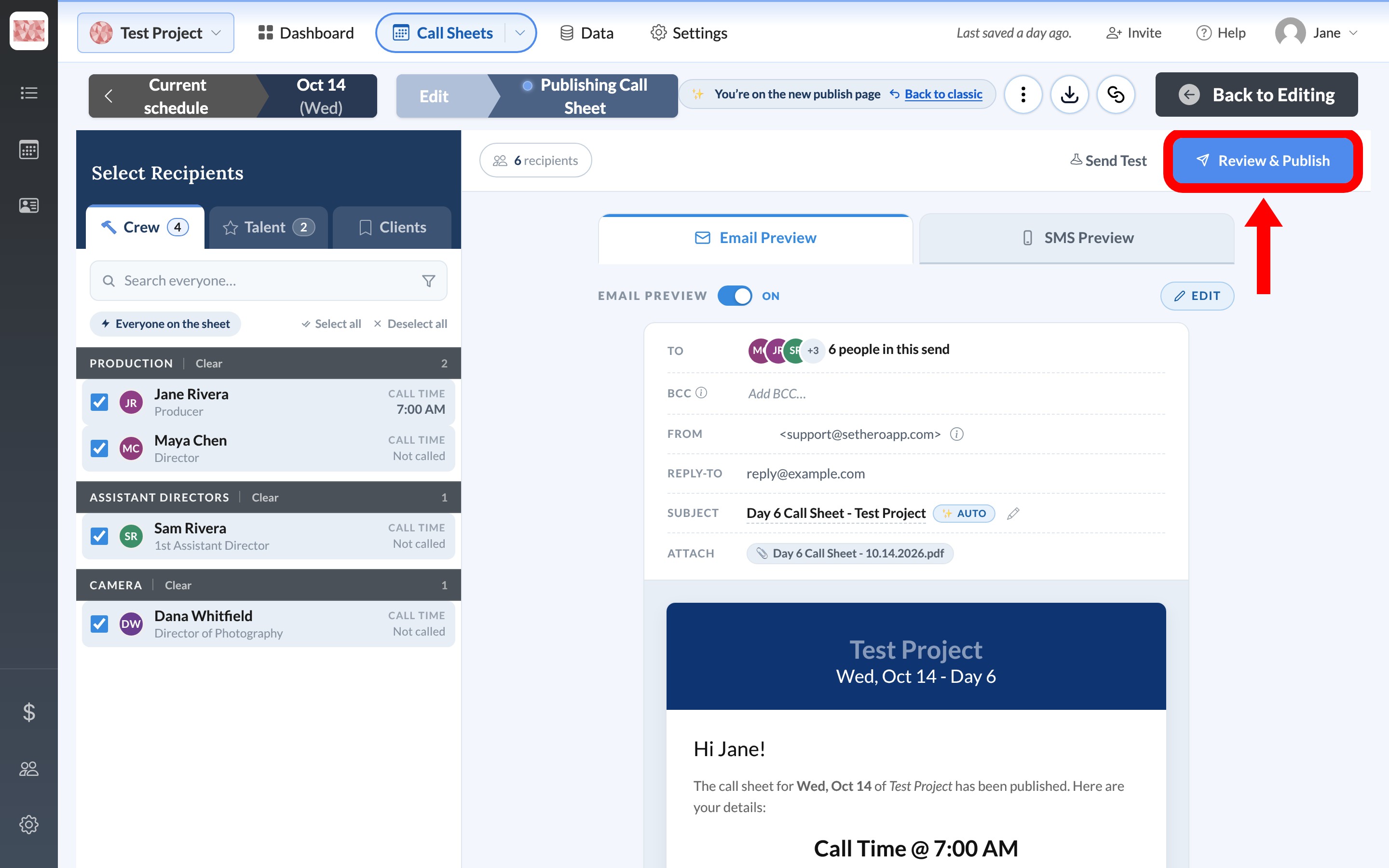
Select Review & Publish.
In the Ready to send? panel, confirm the project, the call sheet date, and how many email and text messages will be sent. A will be skipped line under a channel means those selected people won't get that channel. Two other warnings can appear under Who's in this send:
- Can't be reached: selected, but missing valid contact information for the delivery methods you've turned on.
- On the call sheet but not selected: on the sheet, but left out of this send.
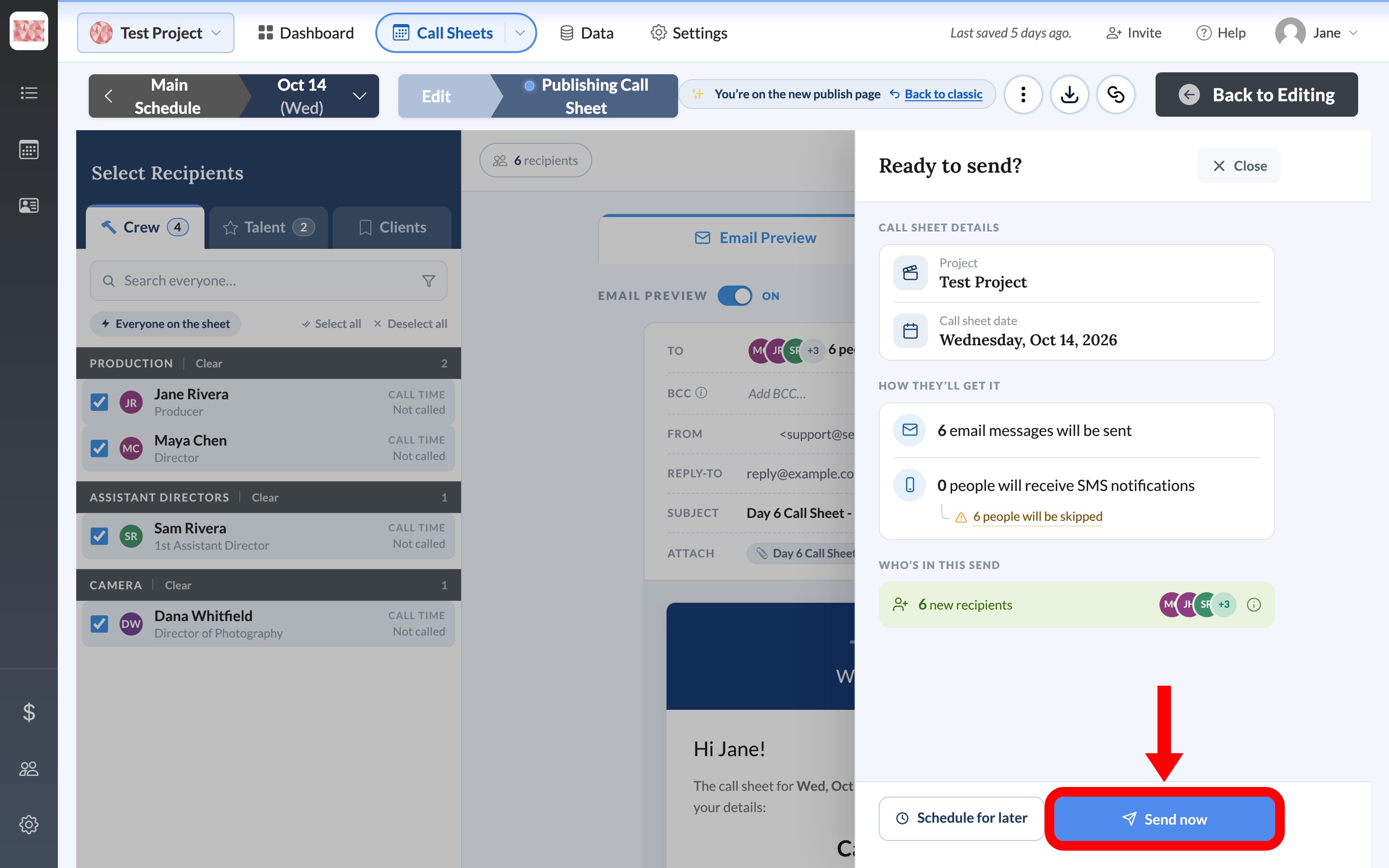
Warning: Check the summary carefully before selecting Send now. It publishes the call sheet immediately and starts notifying every reachable selected recipient.
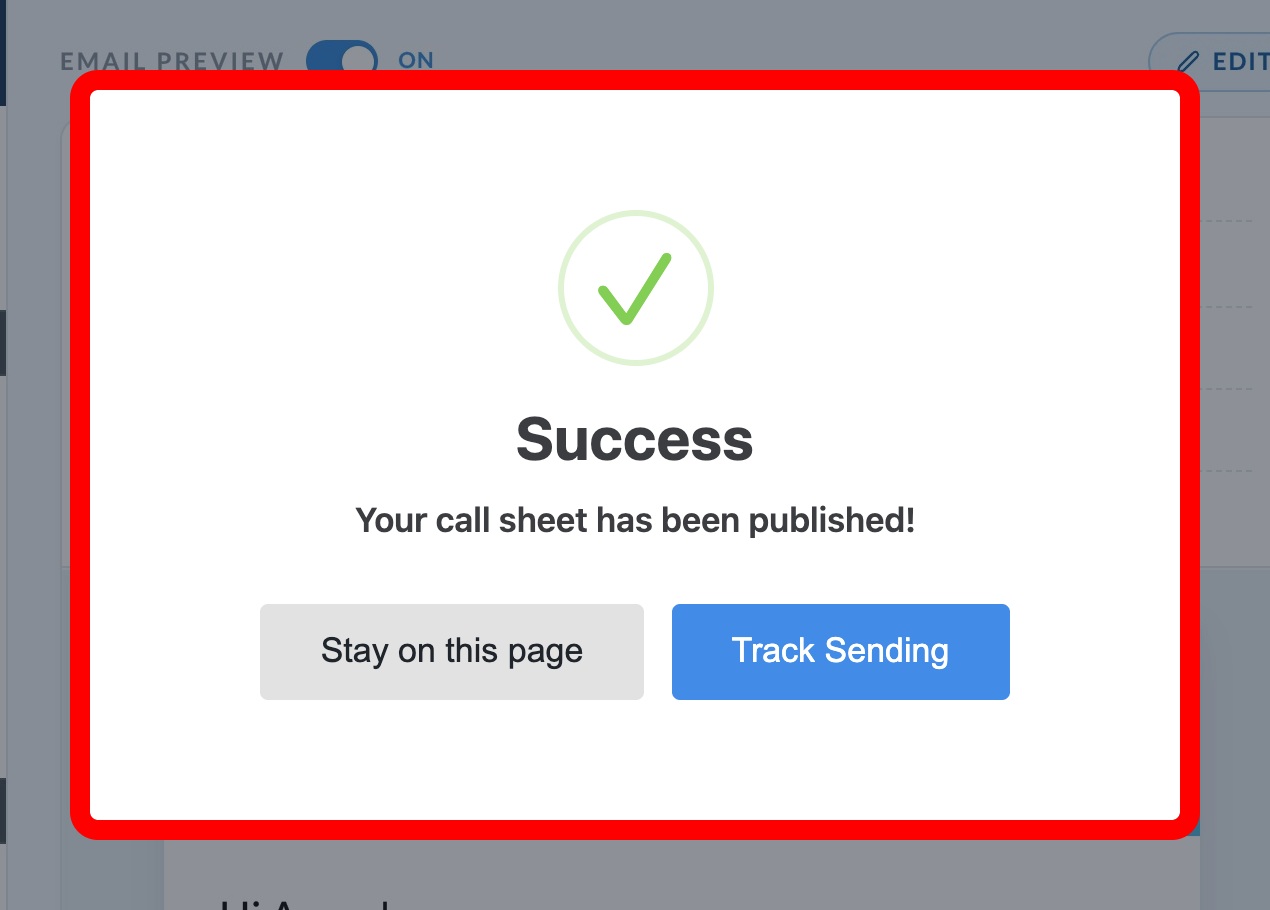
After publishing, choose Stay on this page to remain in the workspace, or Track Sending to review delivery activity.