Schedule a call sheet to send later
How scheduling works, what gets locked, and how to cancel
Want SetHero to deliver a call sheet at a specific future time instead of right now? Schedule it. SetHero saves your recipient and delivery choices with the schedule and uses them when the send runs, so double-check those settings first.
Open the publishing workspace
-
Open your project and go to Call Sheets.
-
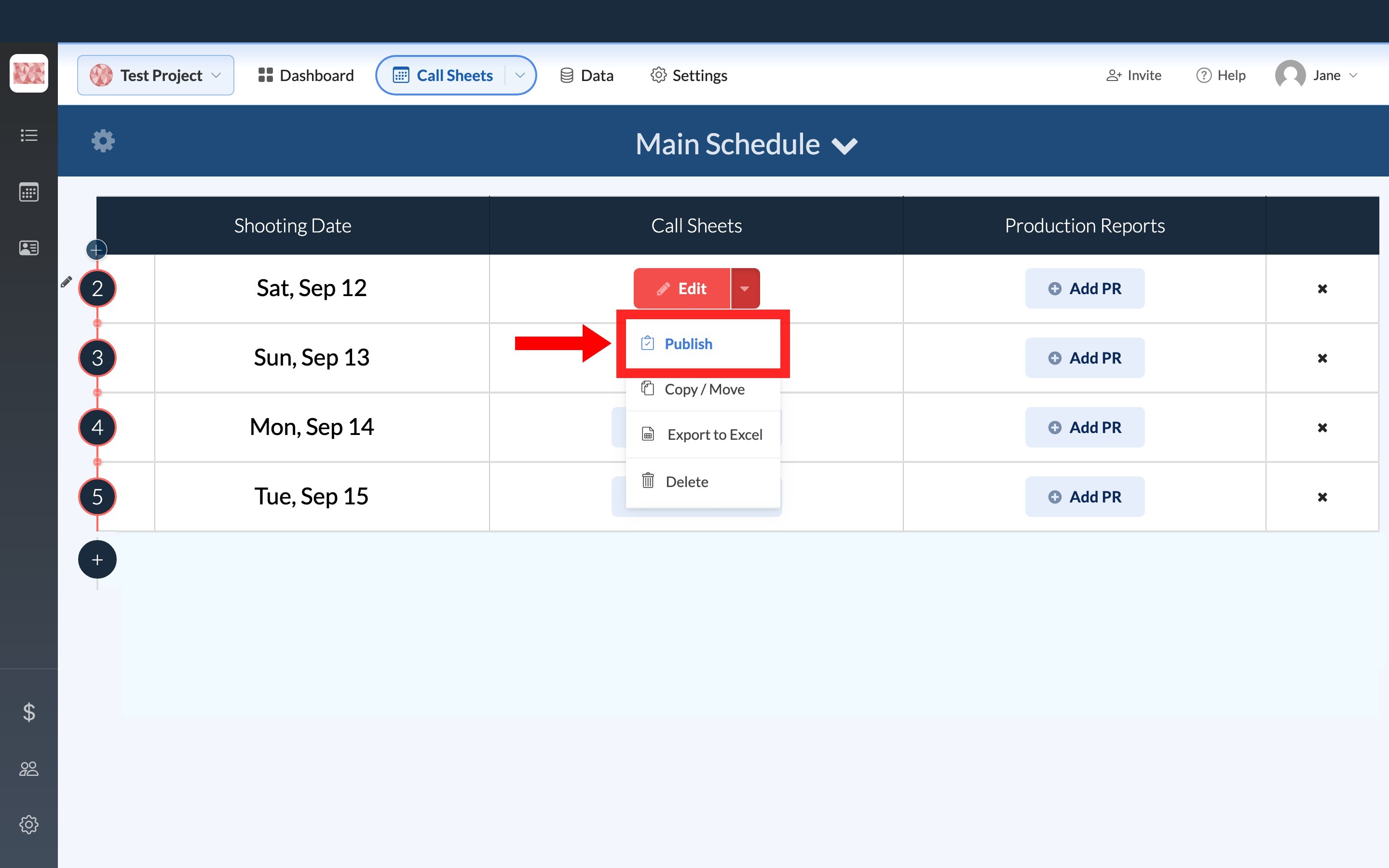
Open the call sheet's action menu. If it hasn't been published yet, select Publish.
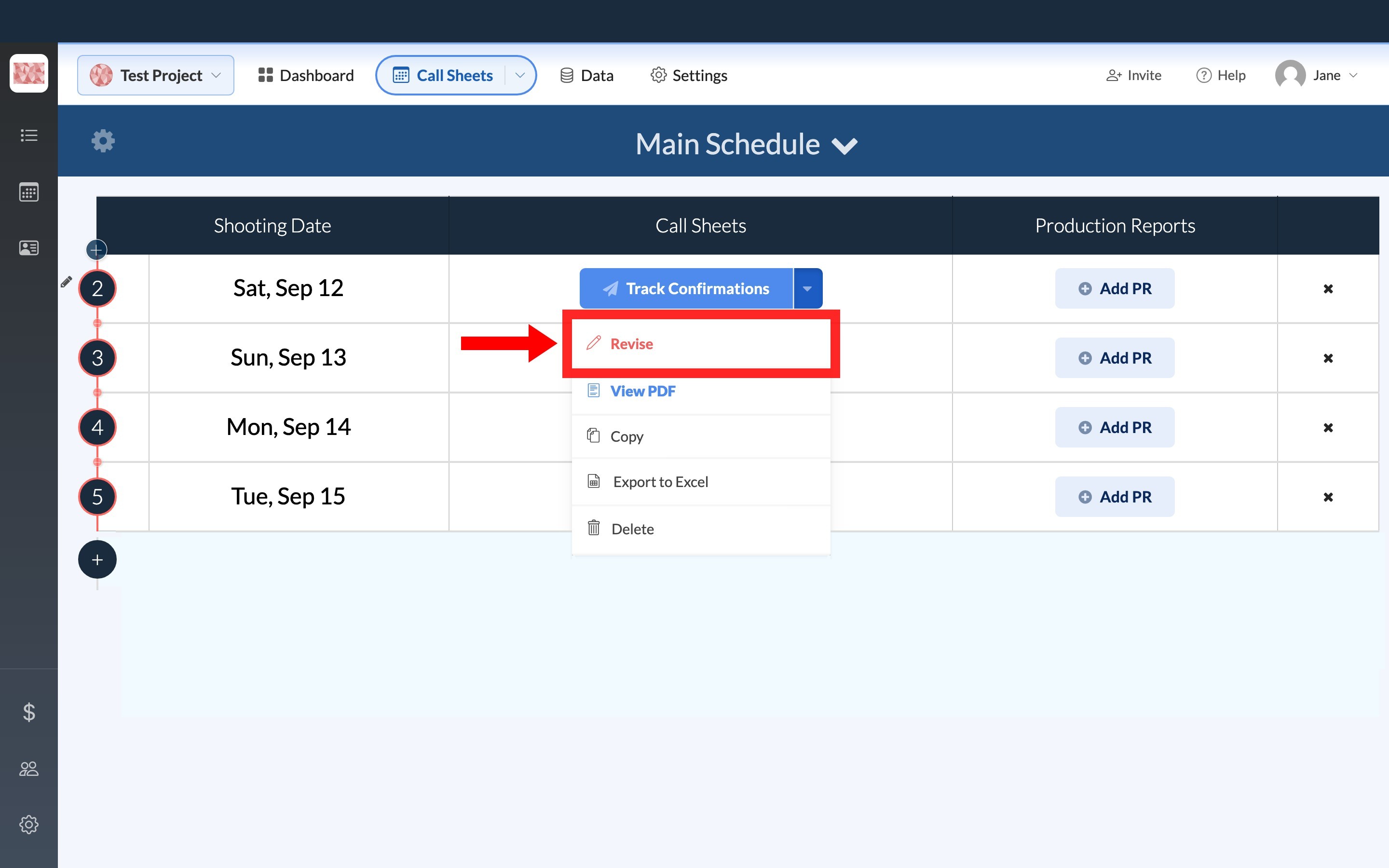
If it's already published, select Revise, then select Re-Publish in the editor. See Publish and send a call sheet for the rest of publishing.
Choose what SetHero will send
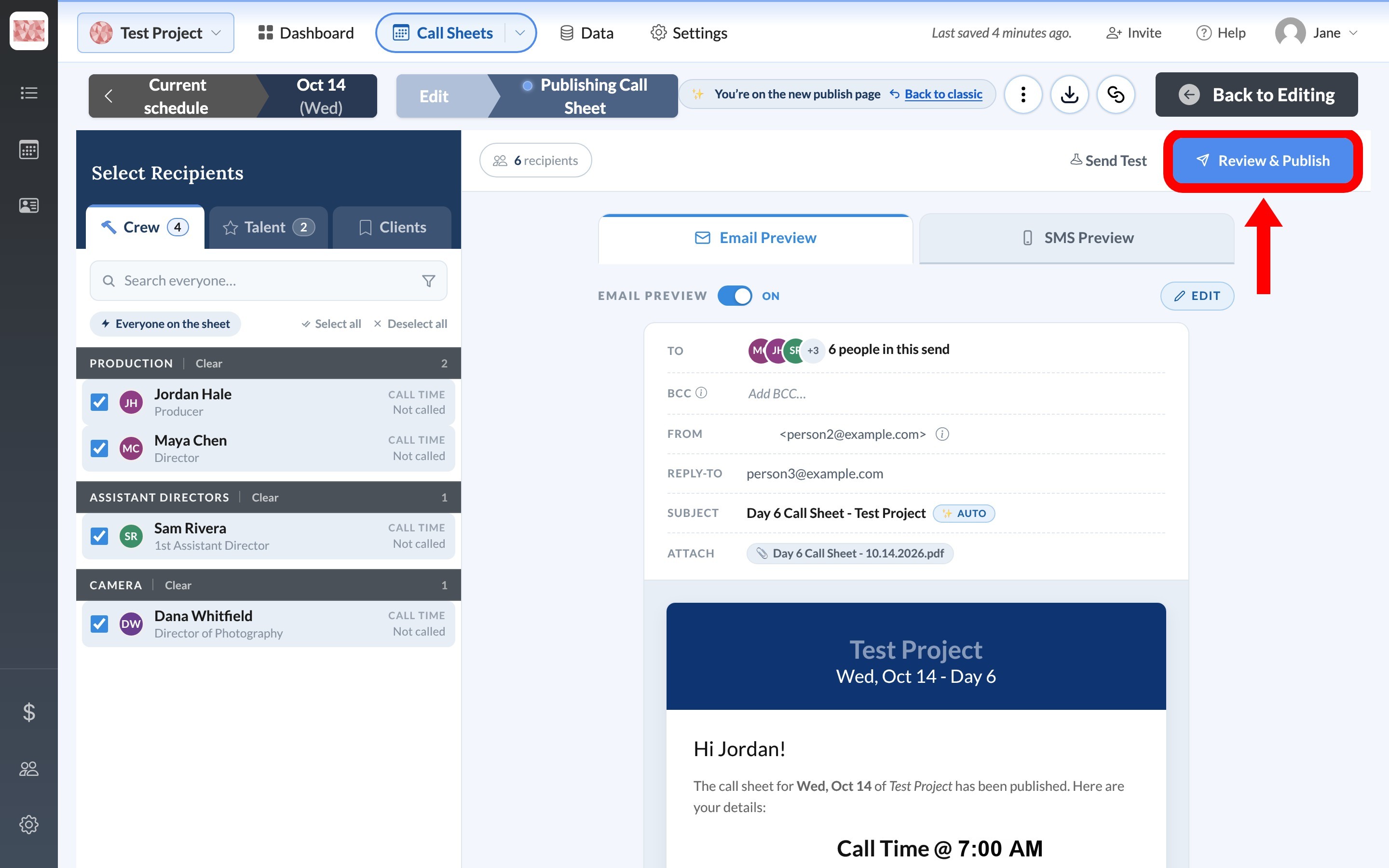
Review the selected crew, talent, and clients, and confirm whether Email Preview, SMS Preview, or both are on. To change recipients, see Select recipients in the call sheet publisher. To check for skipped or unreachable people, see Review recipients and fix delivery problems before sending.
Important: Once a schedule is active, recipients, delivery methods, and message settings are locked until you cancel it. Make any changes before you schedule.
Schedule the send
-
Select Review & Publish.
-
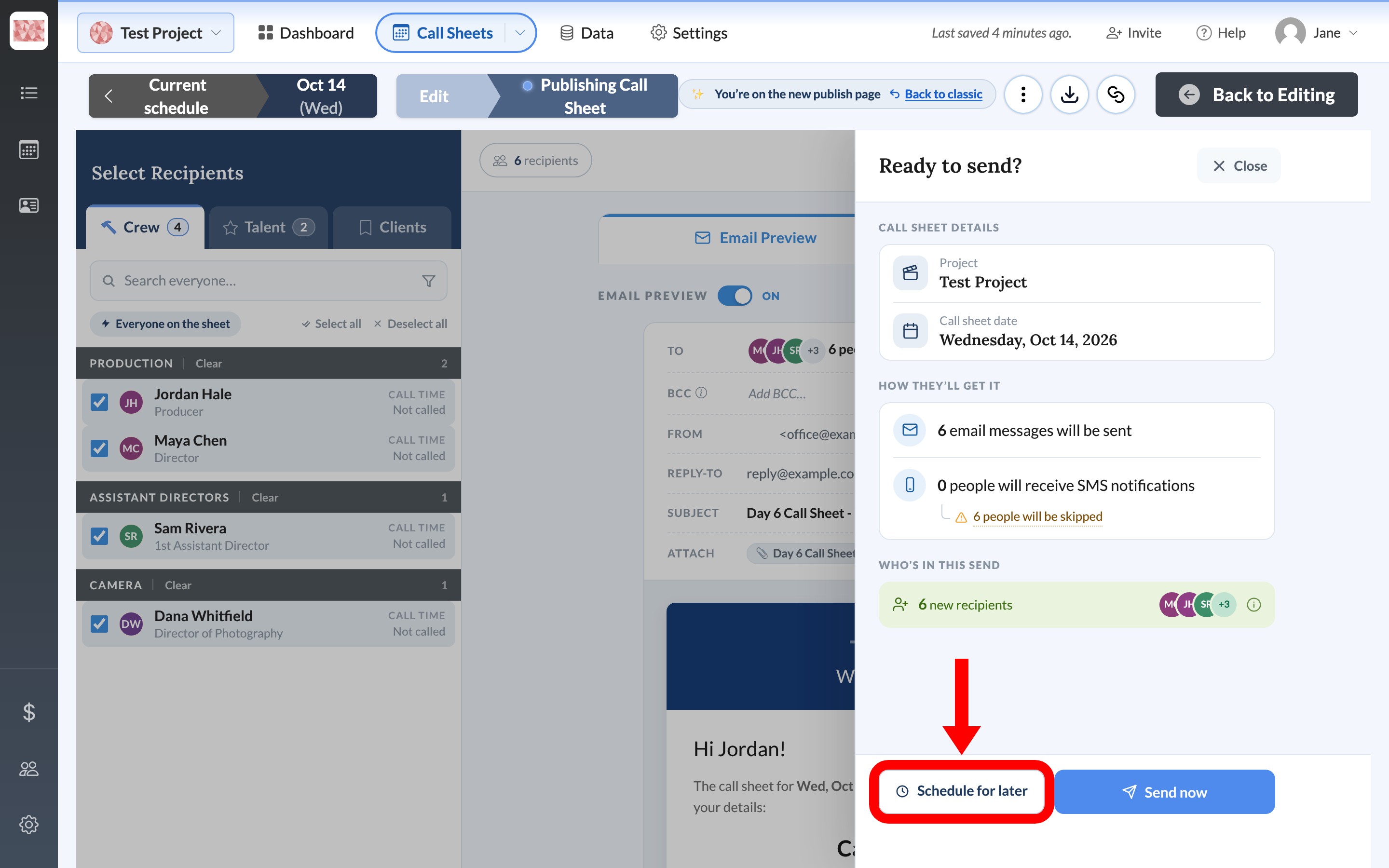
In Ready to send?, verify the recipient and message totals, then select Schedule for later.
-
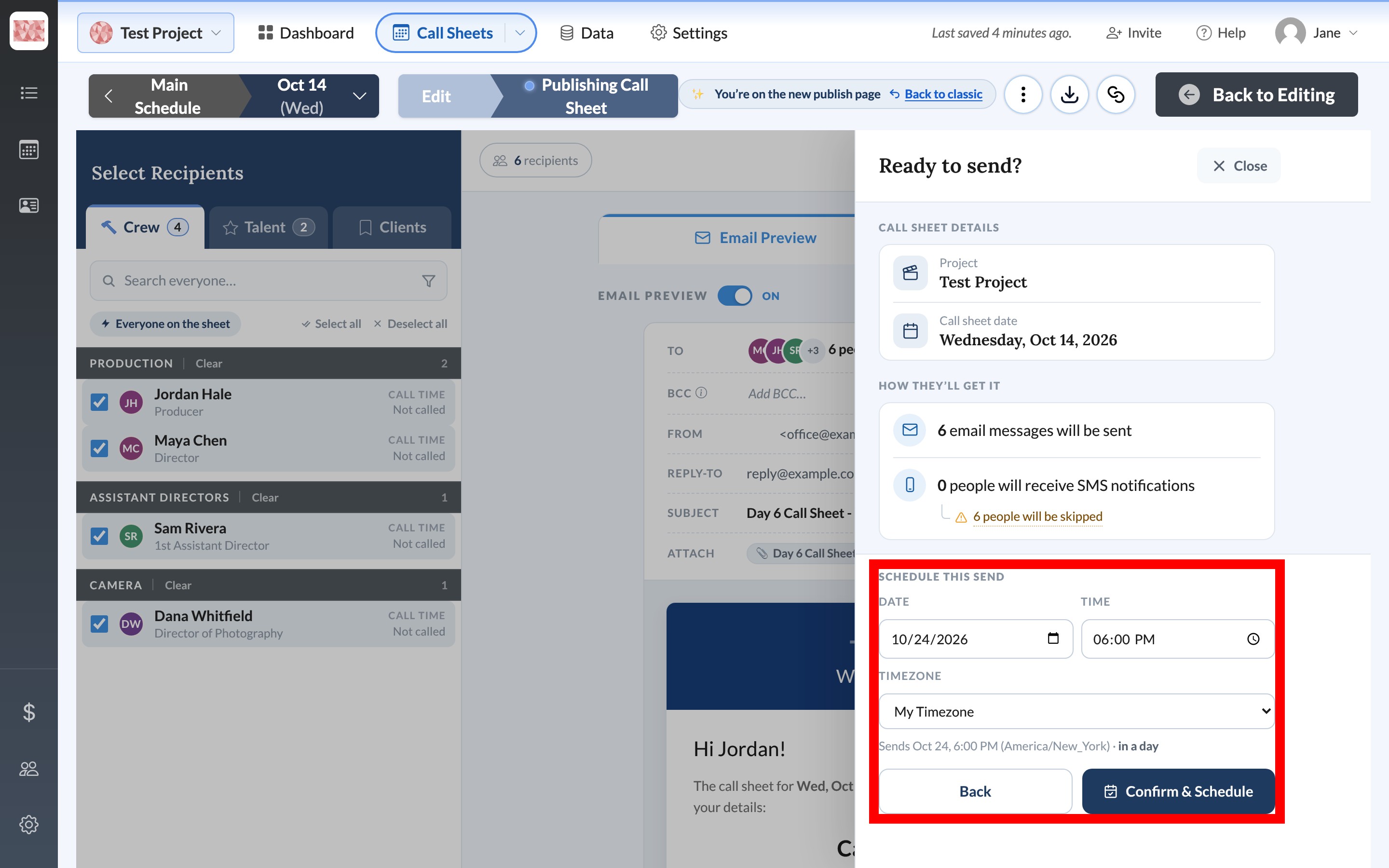
Enter a future Date and Time. The send has to be at least five minutes away.
-
Choose a Timezone, and double-check that it is the correct one before you confirm. My Timezone uses your device's timezone. A named timezone, such as US Pacific (PT), treats the date and time as local to that zone. The line under the fields shows the exact time the call sheet will send.
-
Select Confirm & Schedule.
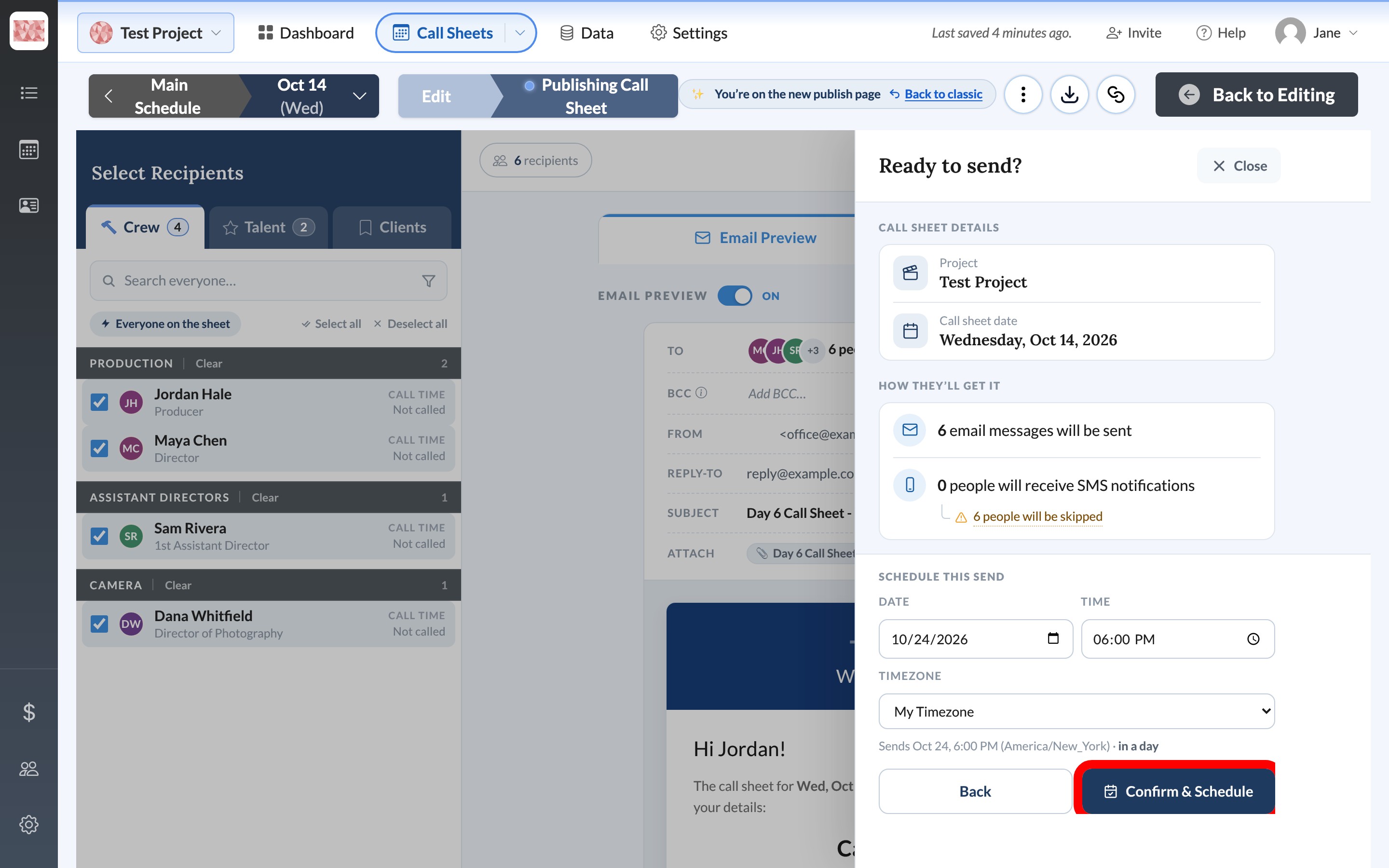
Scheduling doesn't send the call sheet immediately.
Review or cancel an active schedule
After you confirm, a Scheduled to send chip appears at the top of the publisher showing how far away the send is. Use its information control to check the exact date, time, and timezone.
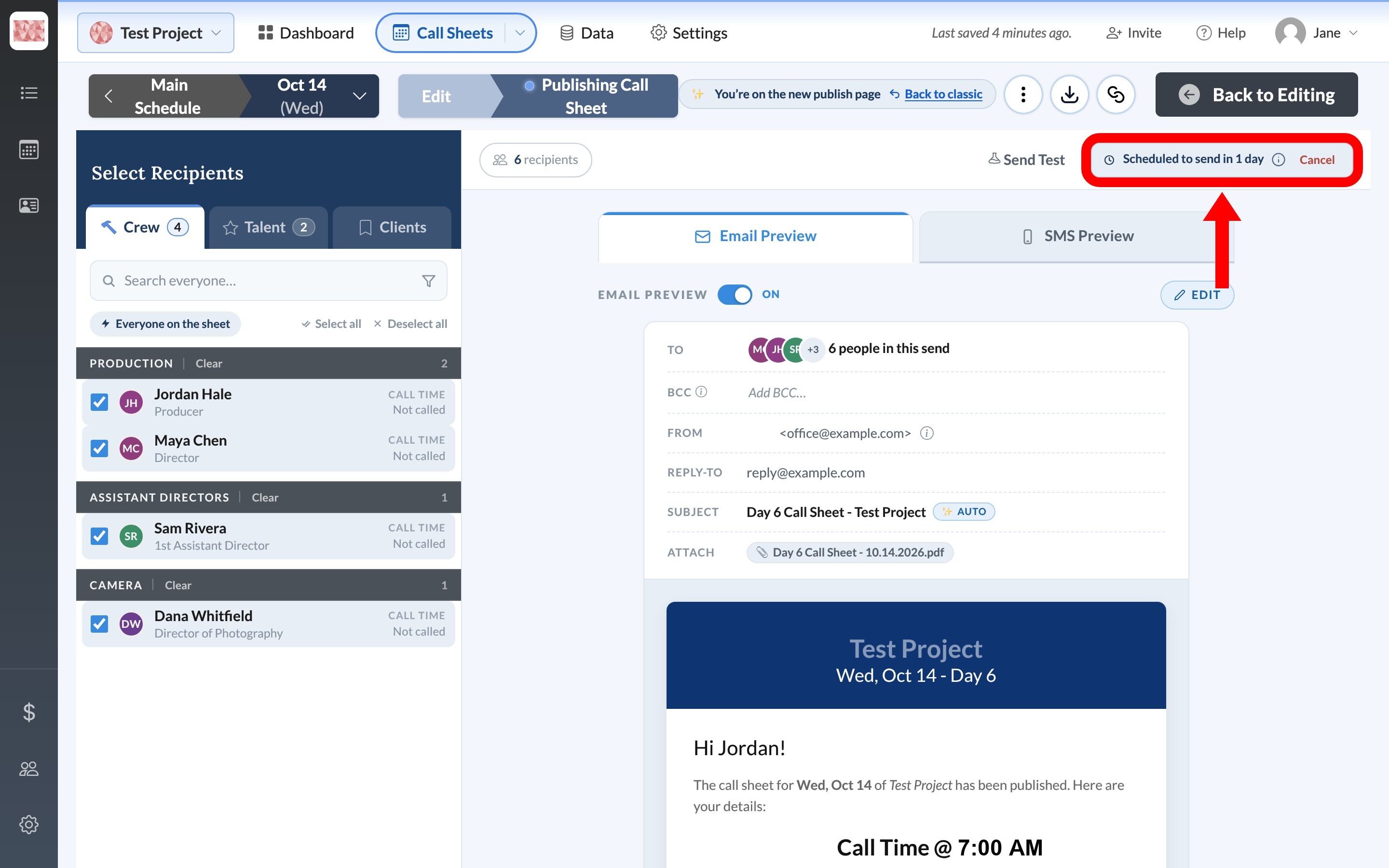
Only one schedule can be active per call sheet. If you try to change a locked setting, you'll be asked to choose:
- Keep schedule closes the message without changing anything.
- Cancel scheduled send removes the schedule so you can edit recipients, delivery methods, or messages.
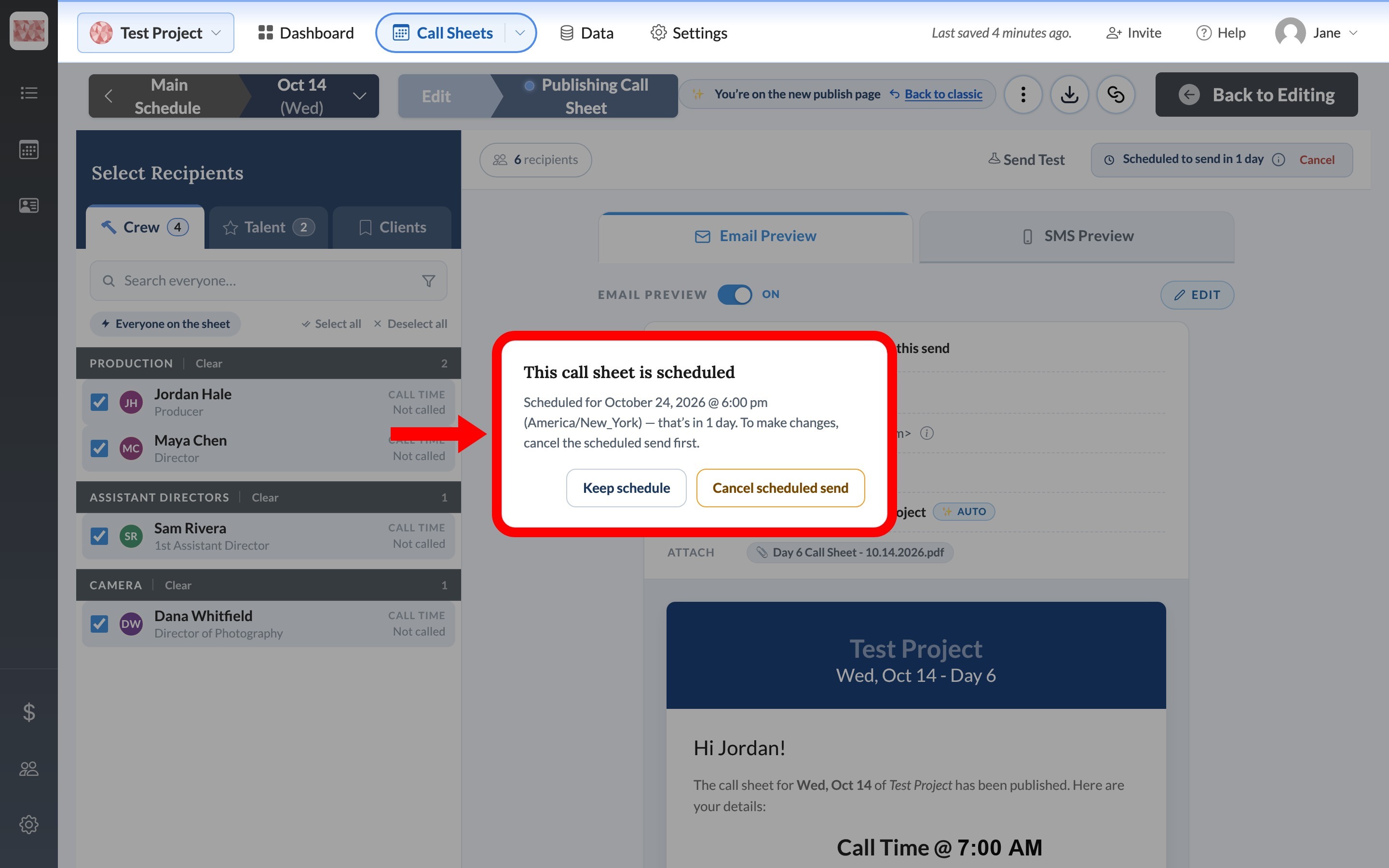
You can also select Cancel beside the chip and confirm with Yes, cancel it. Canceling removes the future send. It doesn't send the call sheet.
Troubleshoot a scheduled send
-
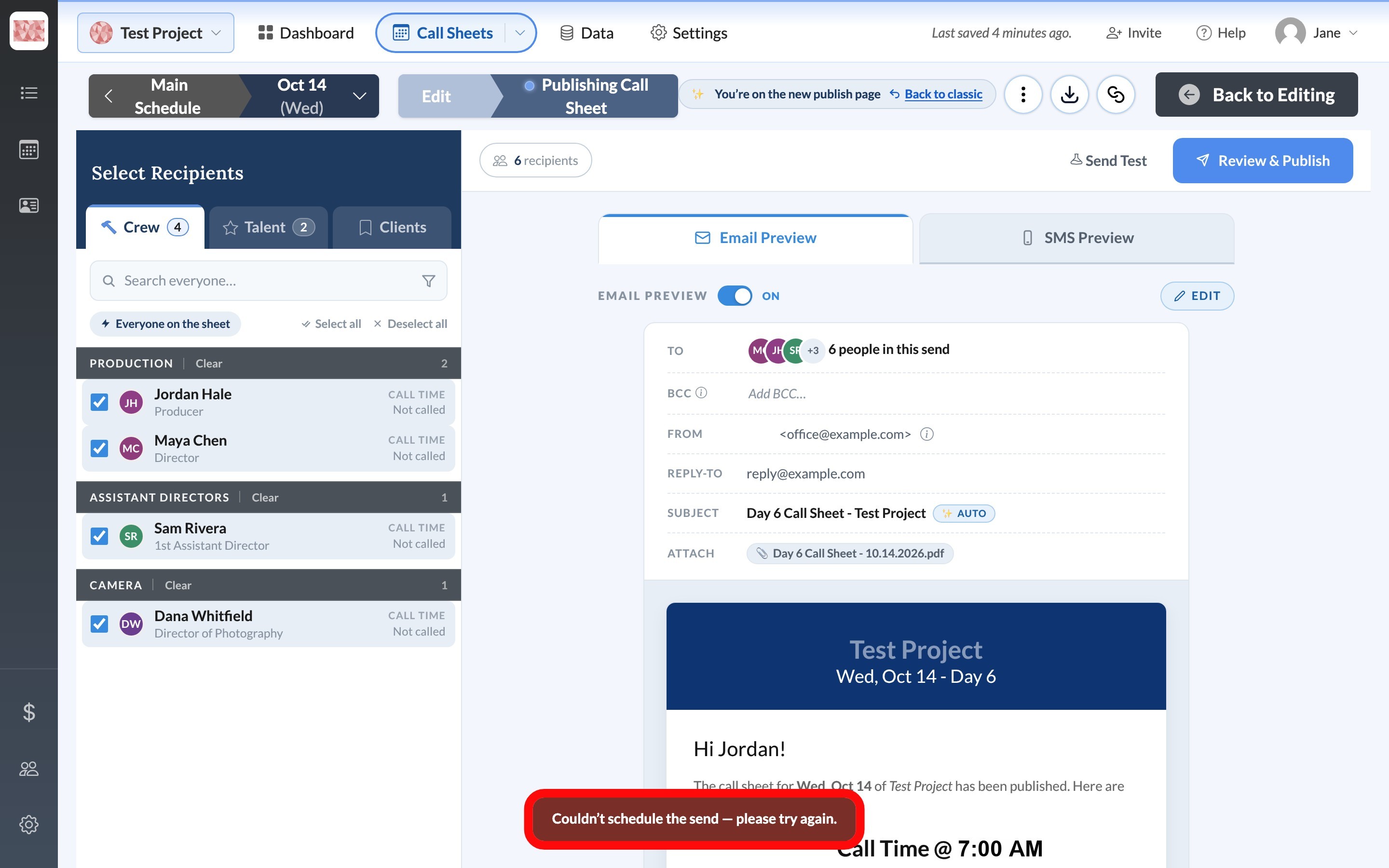
"Couldn't schedule the send — please try again." The schedule isn't active. SetHero shows that message in a banner over the call sheet preview. Check your connection, review the date, time, timezone, recipients, and delivery methods, then try Confirm & Schedule again.
-
A scheduled send fails later. SetHero retries temporary problems. If it still can't complete, it clears the schedule and emails whoever scheduled it. Return to the workspace, review the settings, and schedule again or send manually. Contact SetHero Support if it keeps happening.
-
You need to change the send. Cancel the existing schedule, make your changes, then create one new schedule. This avoids duplicate sends for the same call sheet.