Send a test to see a call sheet as a specific person
Send yourself a test that looks like the call sheet one person on it would get
Send a test when you want to see what this call sheet looks like for one person on it. SetHero writes the message with that person's name and call time, then sends it only to you. Nobody else is notified, and the call sheet is not published.
Open the test panel
-
Open your project and select Call Sheets from the top navigation.
-
Find the day, open the dropdown beside Edit, and select Publish.
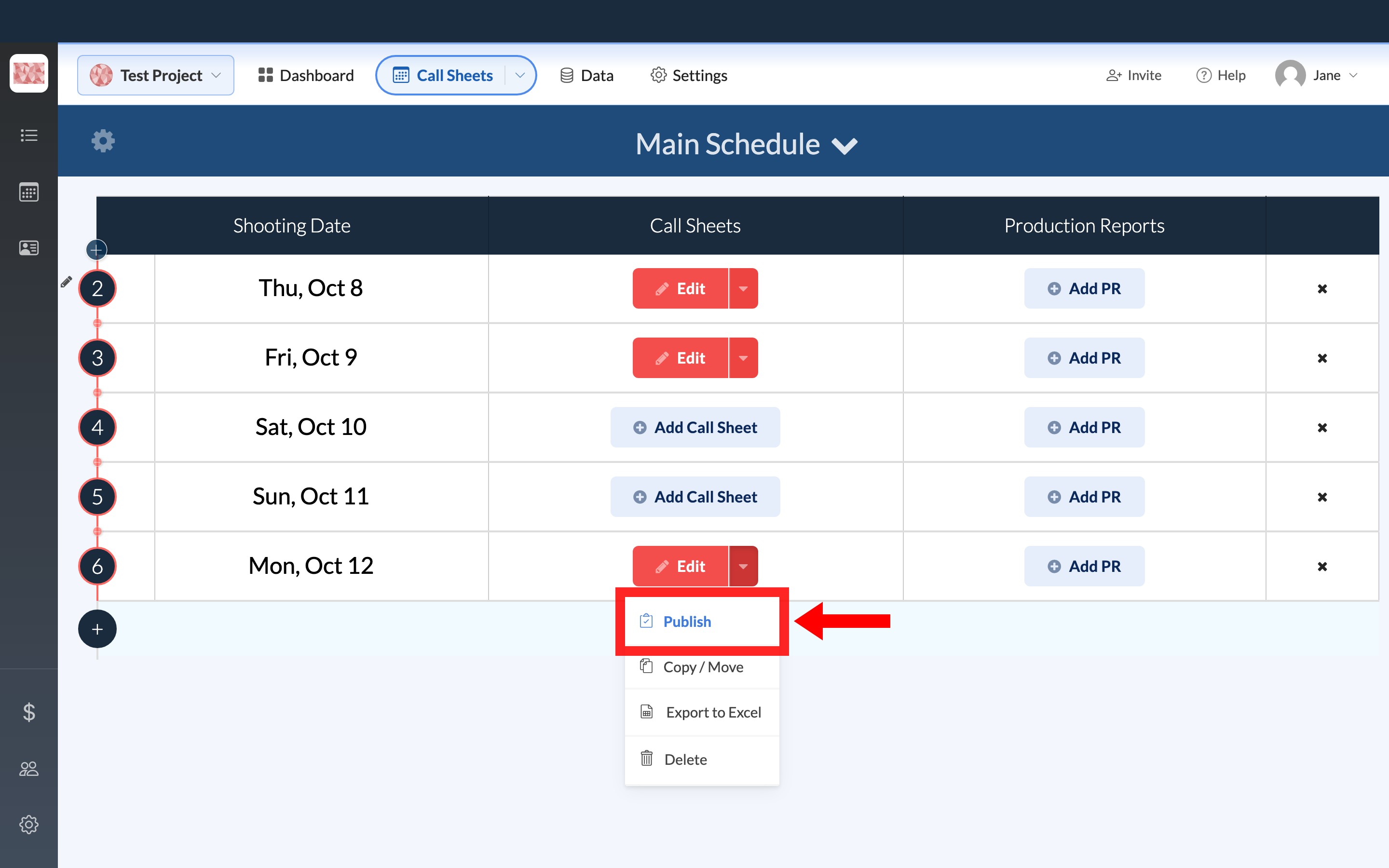
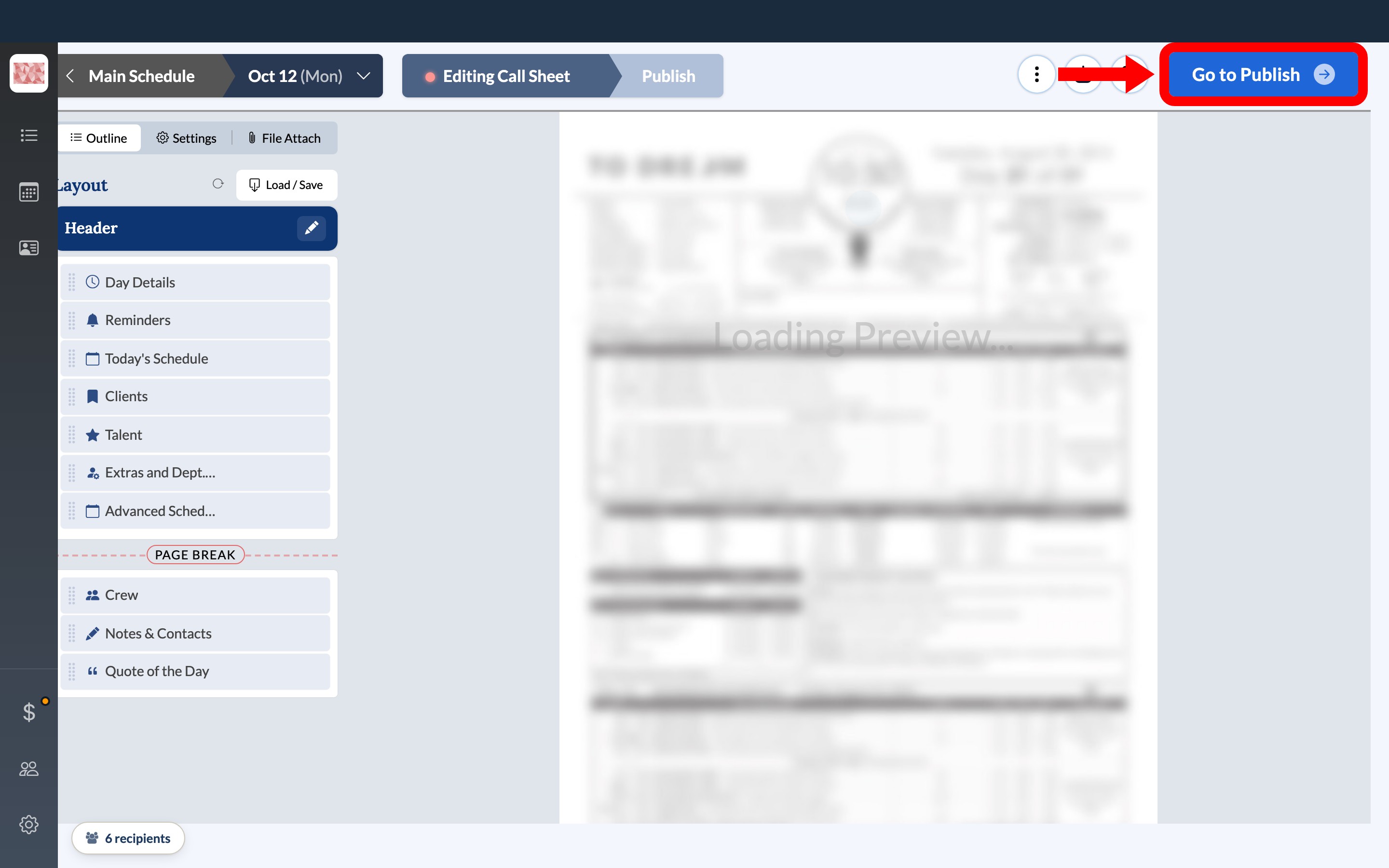
If you are already editing the call sheet, select Go to Publish in the top right instead.
-
On the publishing page, select Send Test.
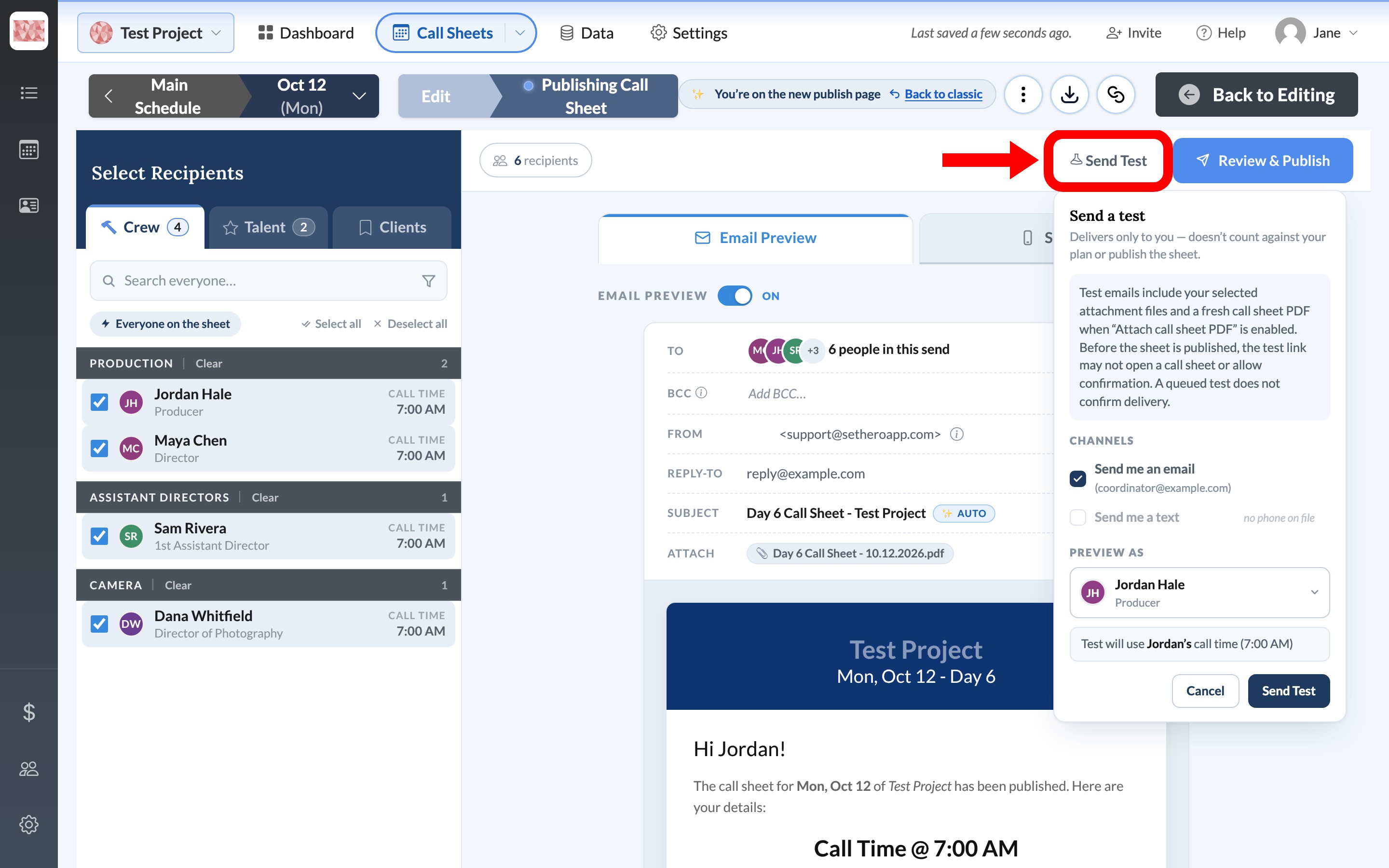
Choose who the test looks like
-
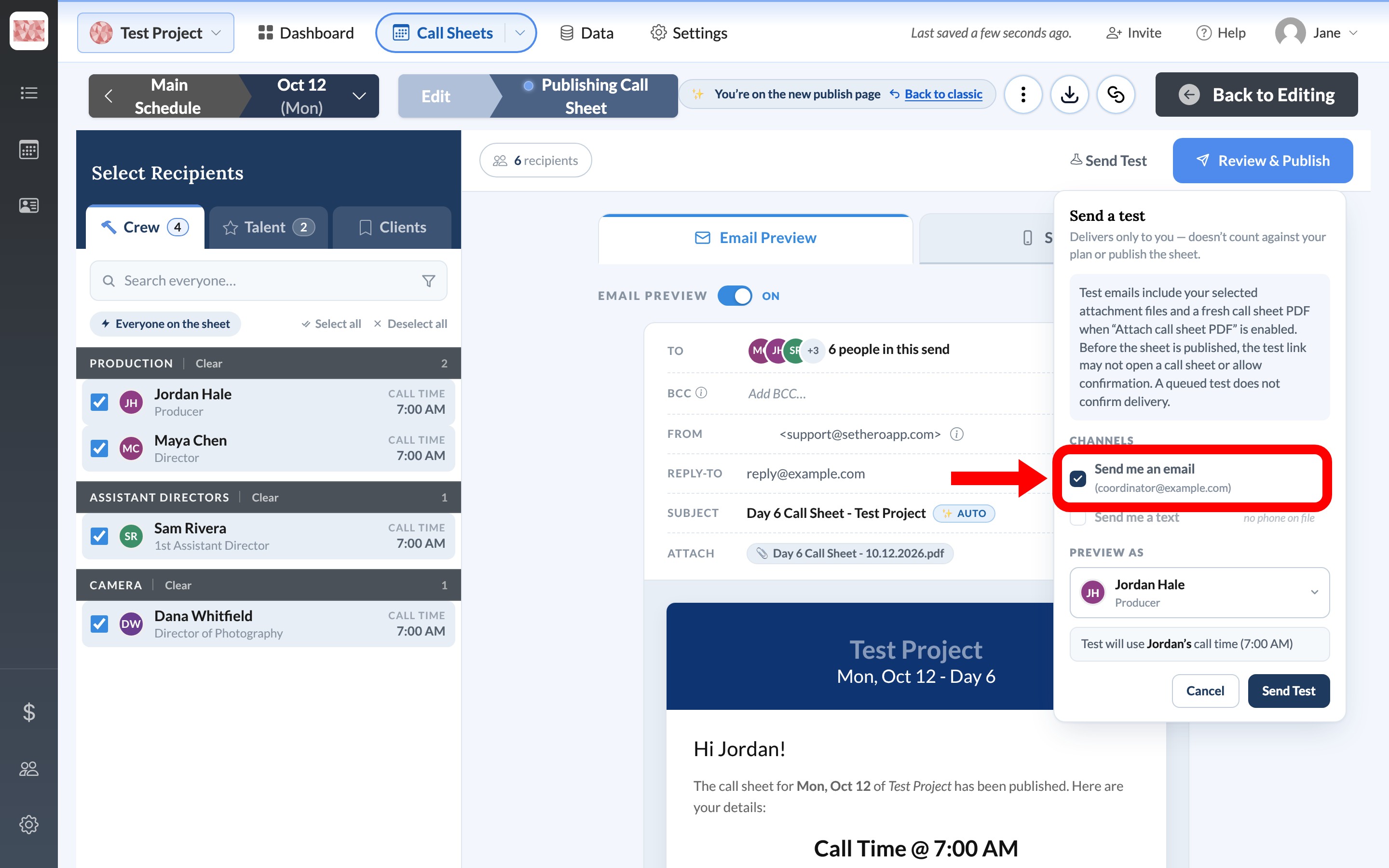
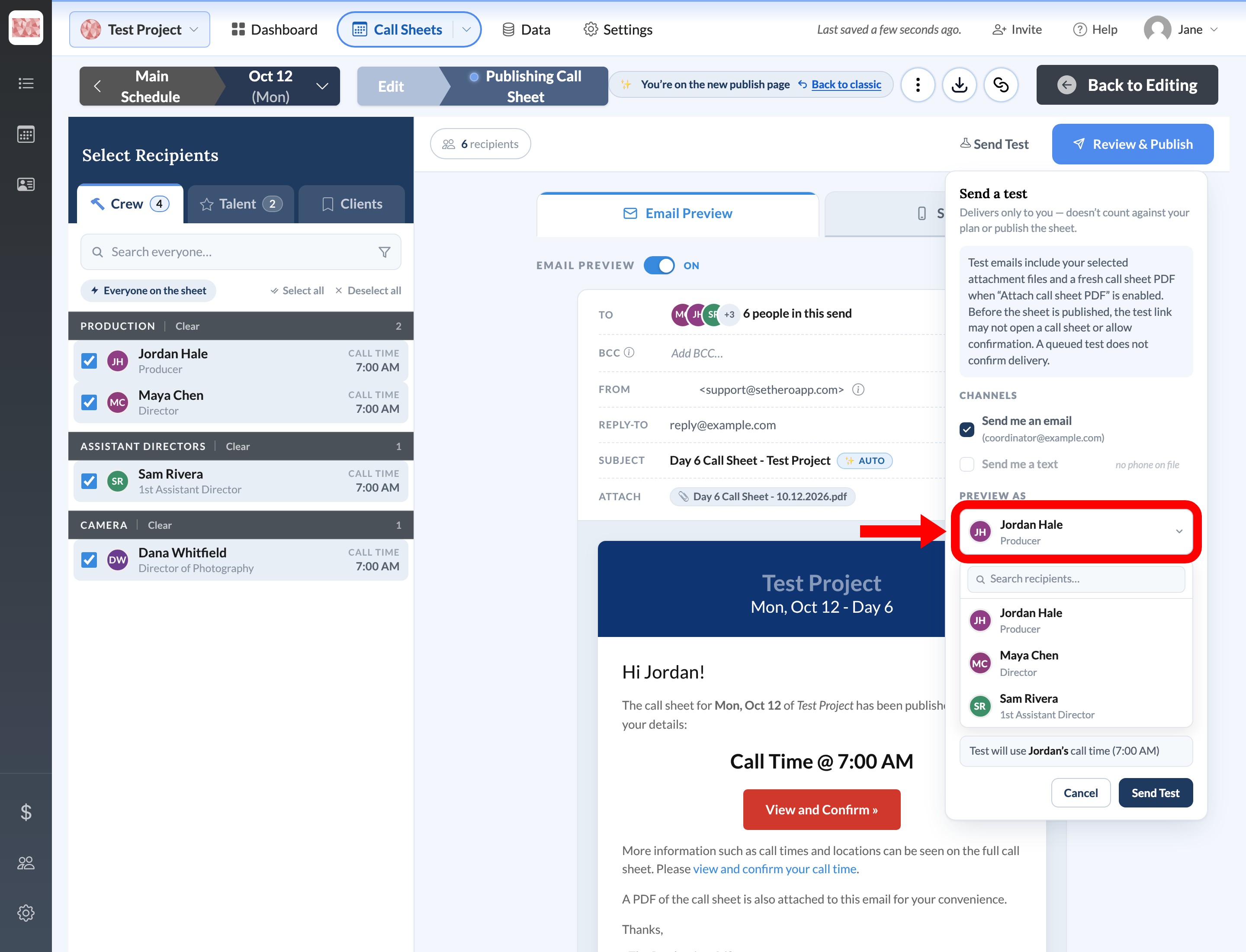
Under Channels, check Send me an email, Send me a text, or both. The address or number next to the box is yours. The test still comes only to you, not to the person on the call sheet.
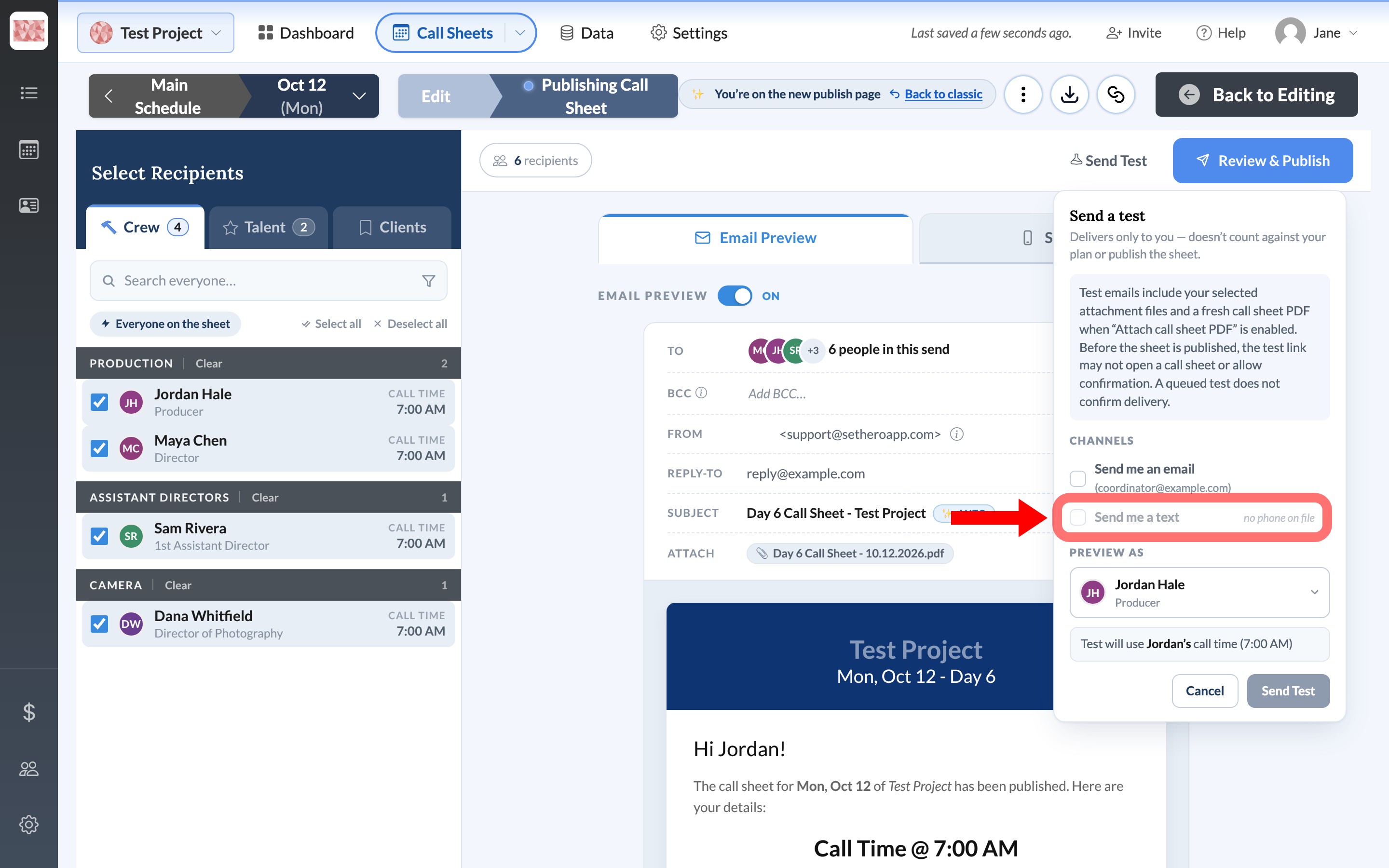
If Send me a text is gray, read the note beside it. You can still send the email test.
-
Under Preview as, choose the person you want to see the call sheet as. You pick them so the test is written the way they would get it: their first name and their call time. You are not sending it to them. In this example, Jordan Hale is selected, so the email preview says Hi Jordan! and Call Time @ 7:00 AM. The line under the name says the test will use Jordan's call time (7:00 AM).
-
Select Send Test at the bottom of the panel.
You can send an email test even when Email Preview is off for the real send. You do not have to change who is selected for that send. Preview as is only for the test.
What the test includes
Test email subjects start with [TEST] and test texts start with TEST:. A test sends only the call sheet message, not the first-time welcome or opt-out texts.
A test does not publish the call sheet, notify anyone else, or count against your plan. When you are ready to notify everyone, use Publish and send a call sheet.
Note: A test email includes the files you selected to attach, and a fresh call sheet PDF when Attach call sheet PDF is on. Before you publish, the link in the test may not open the call sheet. You can review attachments in Email Preview.
If you can't send a test text
Send me a text stays off for a simple reason. Either your profile has no phone number, or this project cannot send texts. The note next to the box tells you which.
- no phone on file means your SetHero profile does not have a phone number yet. Add your number, then try the test again.
- texting is a plan add-on means texting is not included. Send the test by email, or contact SetHero Support if you want to add texting.
If the test fails or doesn't arrive
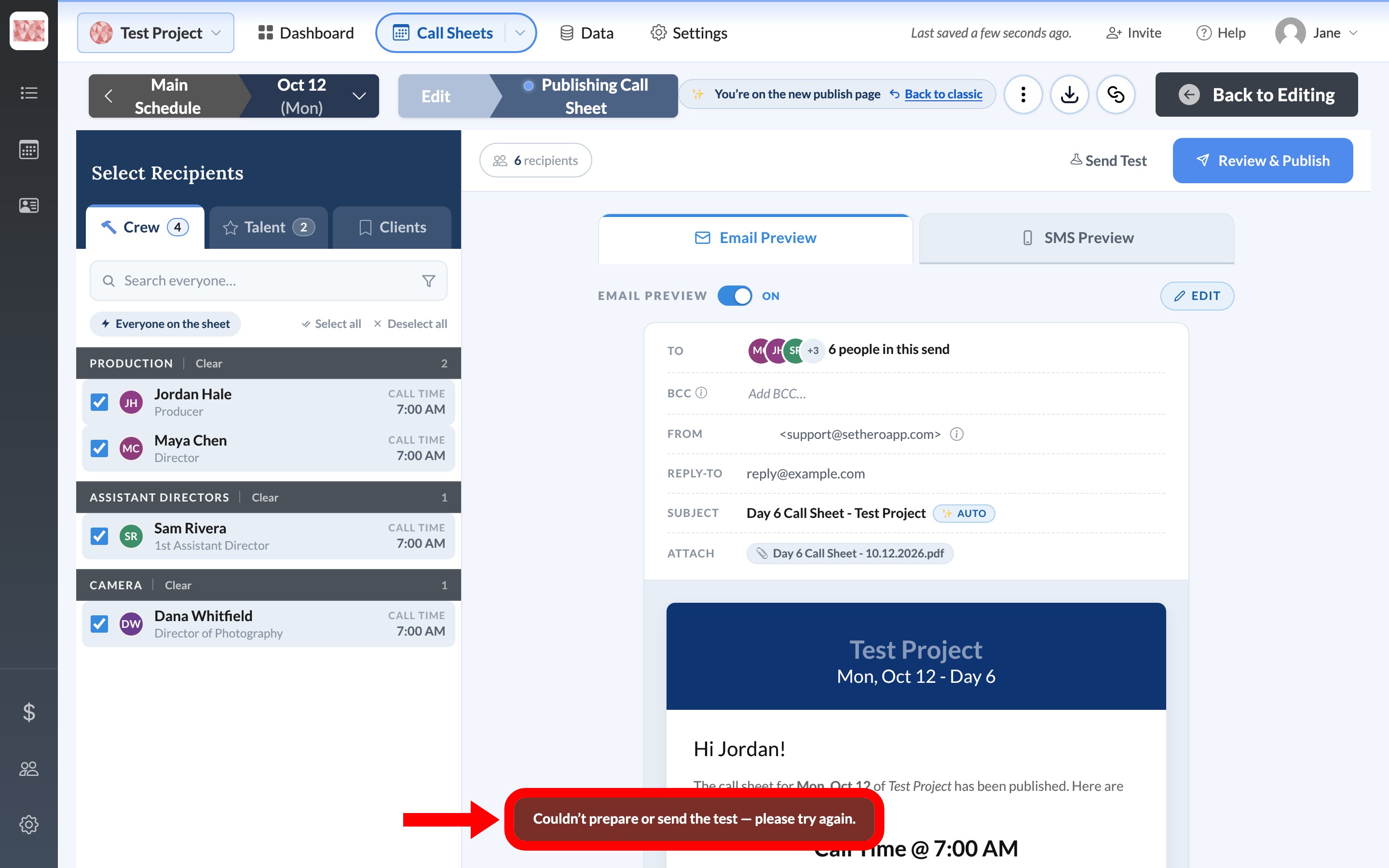
If you see Couldn’t prepare or send the test — please try again, check your connection and the address on the screen. Then select Send Test again.
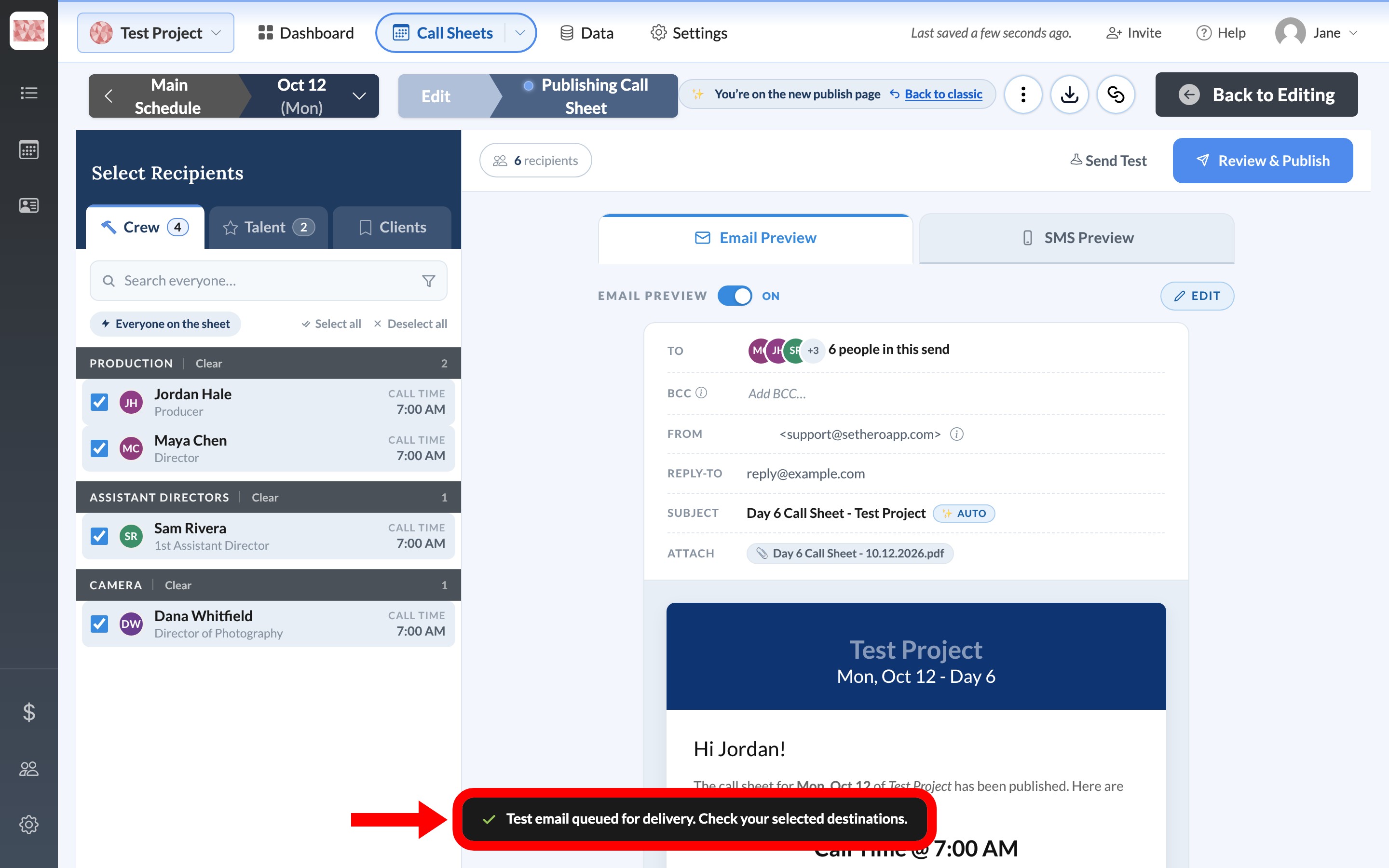
When SetHero accepts the test, a dark message with a green check appears. It says the test was queued for delivery. Queued means SetHero took the request. It does not mean the email or text has arrived yet.
If nothing arrives, wait a minute. For email, check your spam or junk folder. Then try once more. If it still does not come, contact SetHero Support. Tell them the project name, the call sheet date, and whether you were testing email or text.